Part 3. How to Download Netflix Movies and TV shows to Computer
iMovieTool Netflix Video Downloader offers two main ways to add and download Netflix video content. You can browse and download directly from the built-in Netflix library. Or,use the smart search function for precise downloading.
3.1 Browse and Download Netflix Videos Directly
Step 1. Select Netflix Service
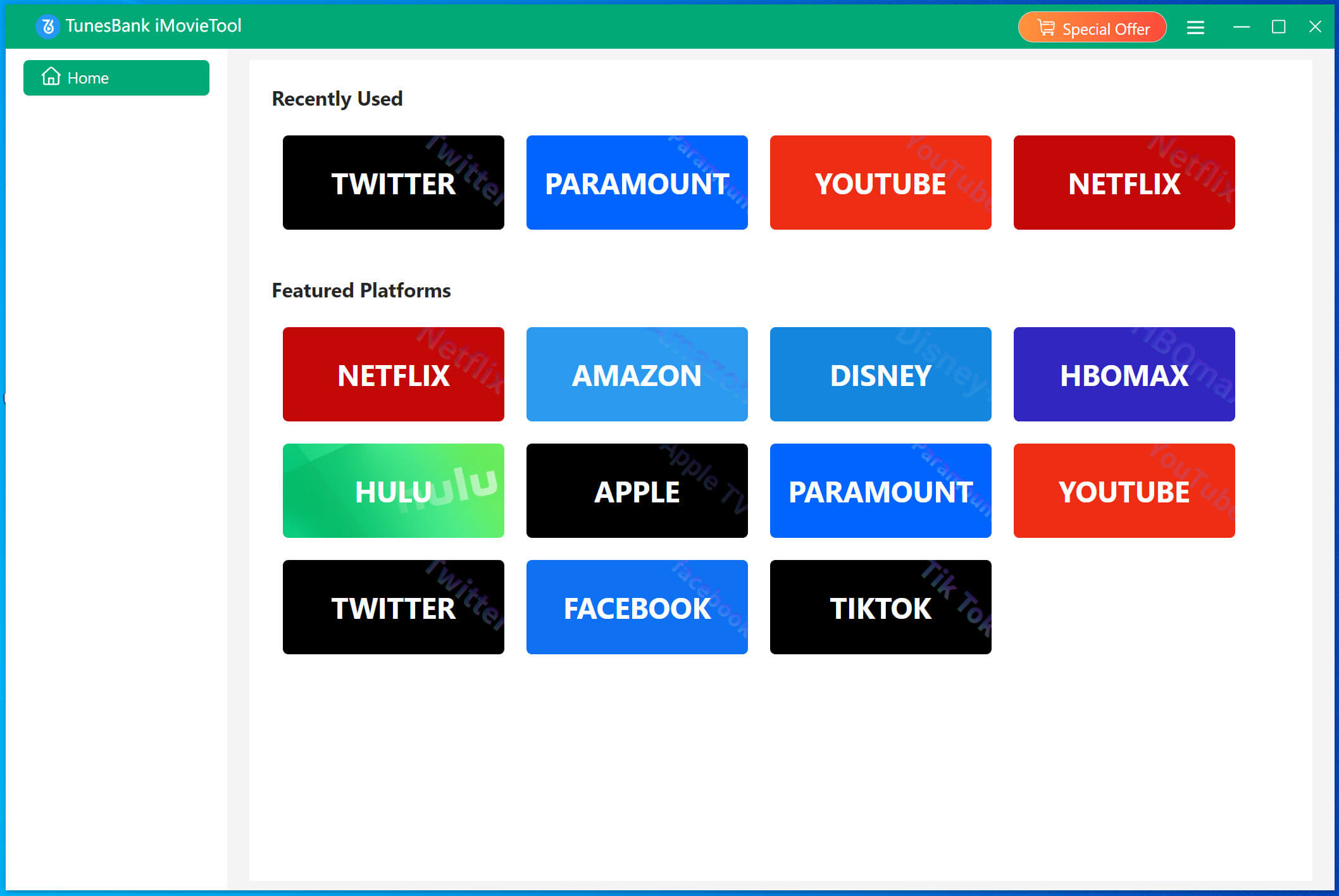
Run iMovieTool software on your desktop or laptop. The software supports 12+ streaming video services, here you need to select Netflix service to enter the iMovieTool Netflix Video Downloader.
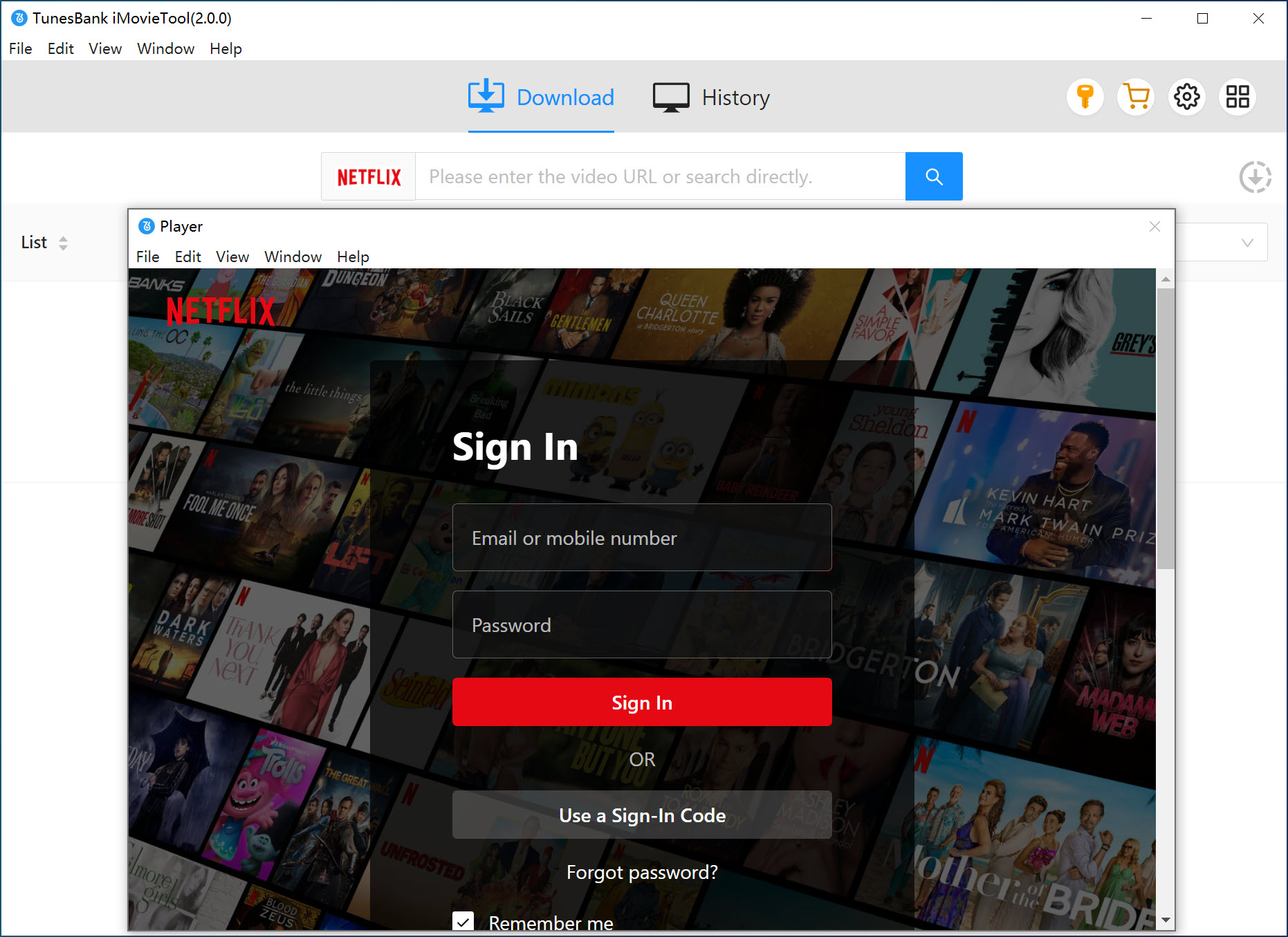
Then log in to your active Netflix account to enter the built-in Netflix player.
Step 2. Adjust Output Settings Before Browsing
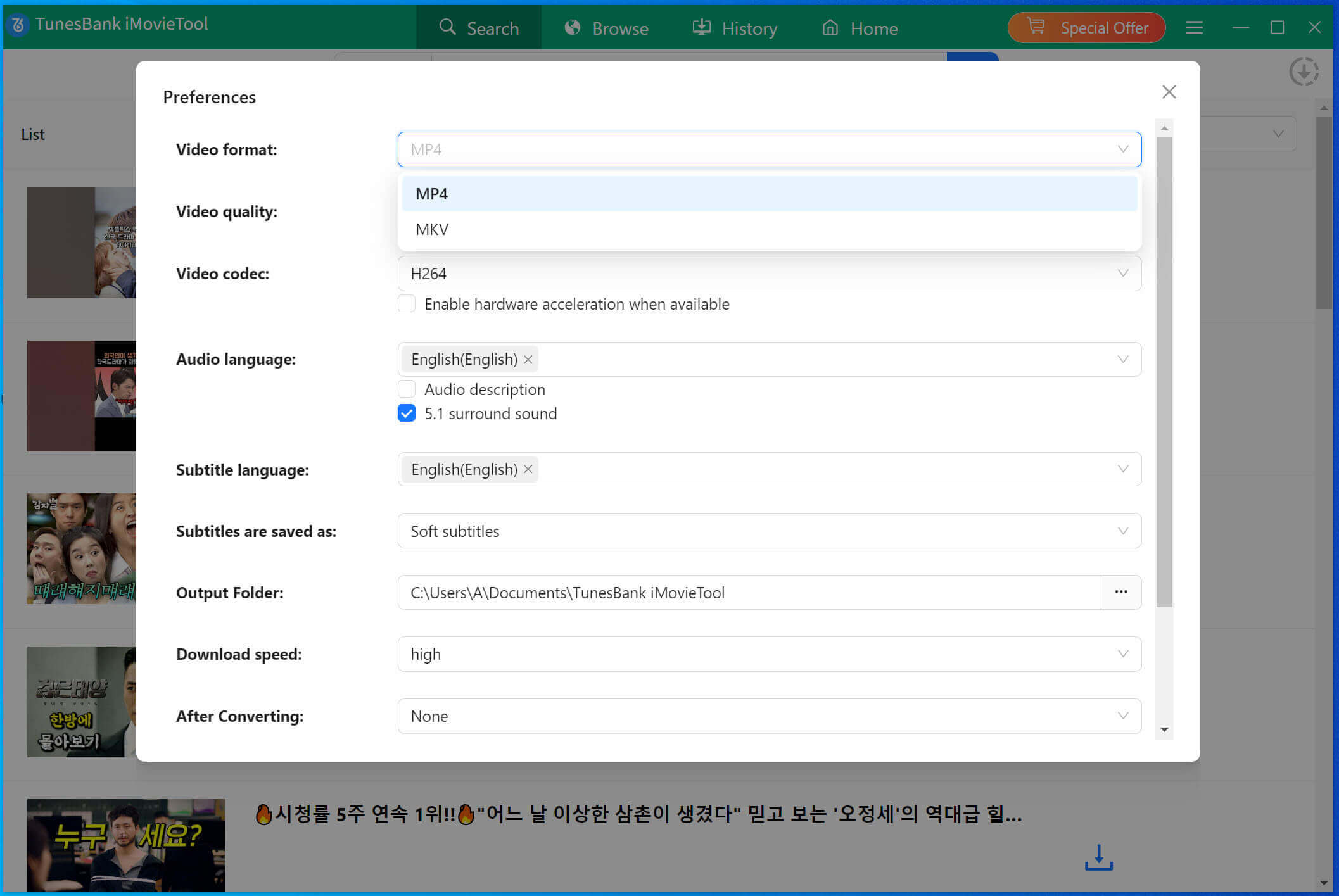
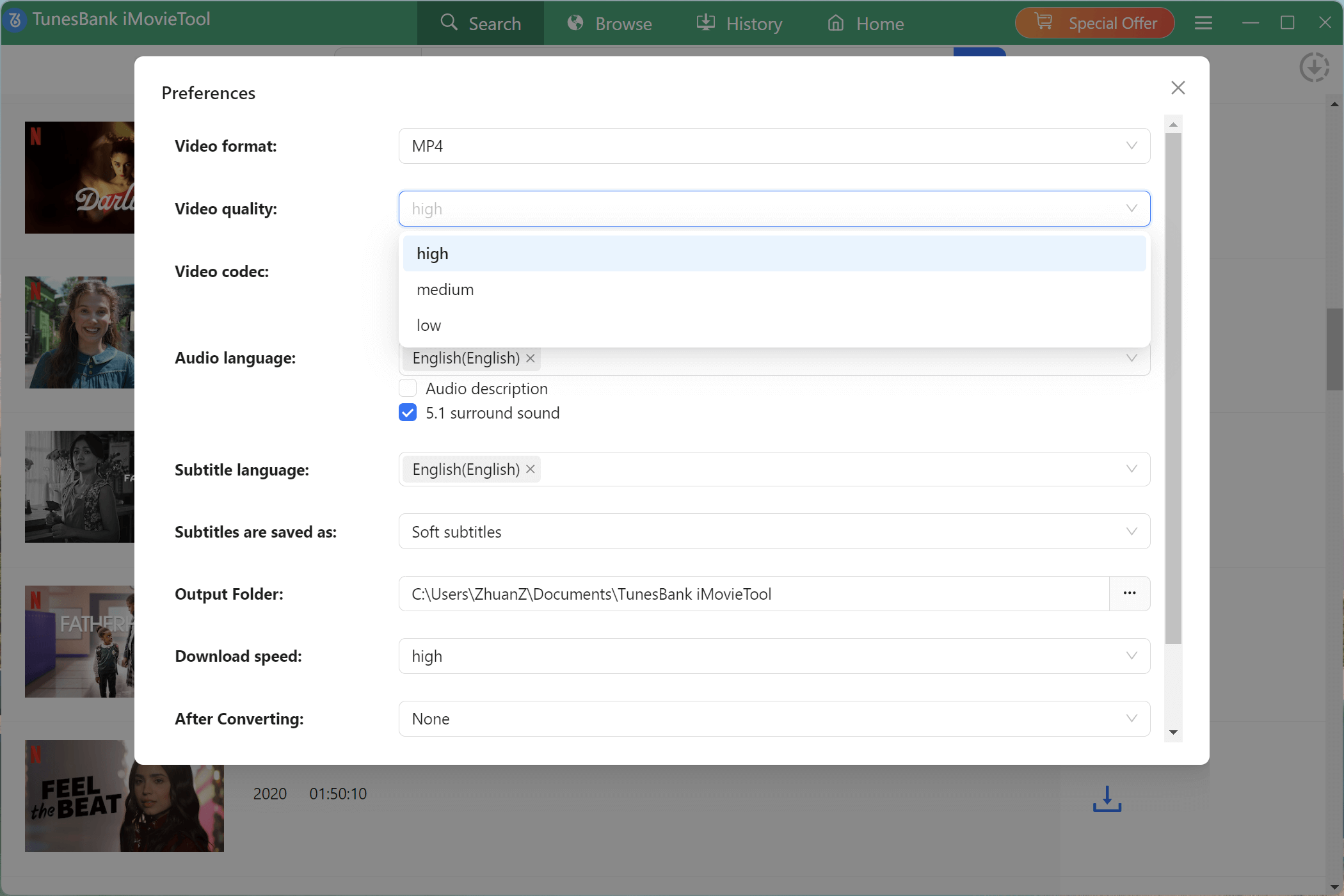
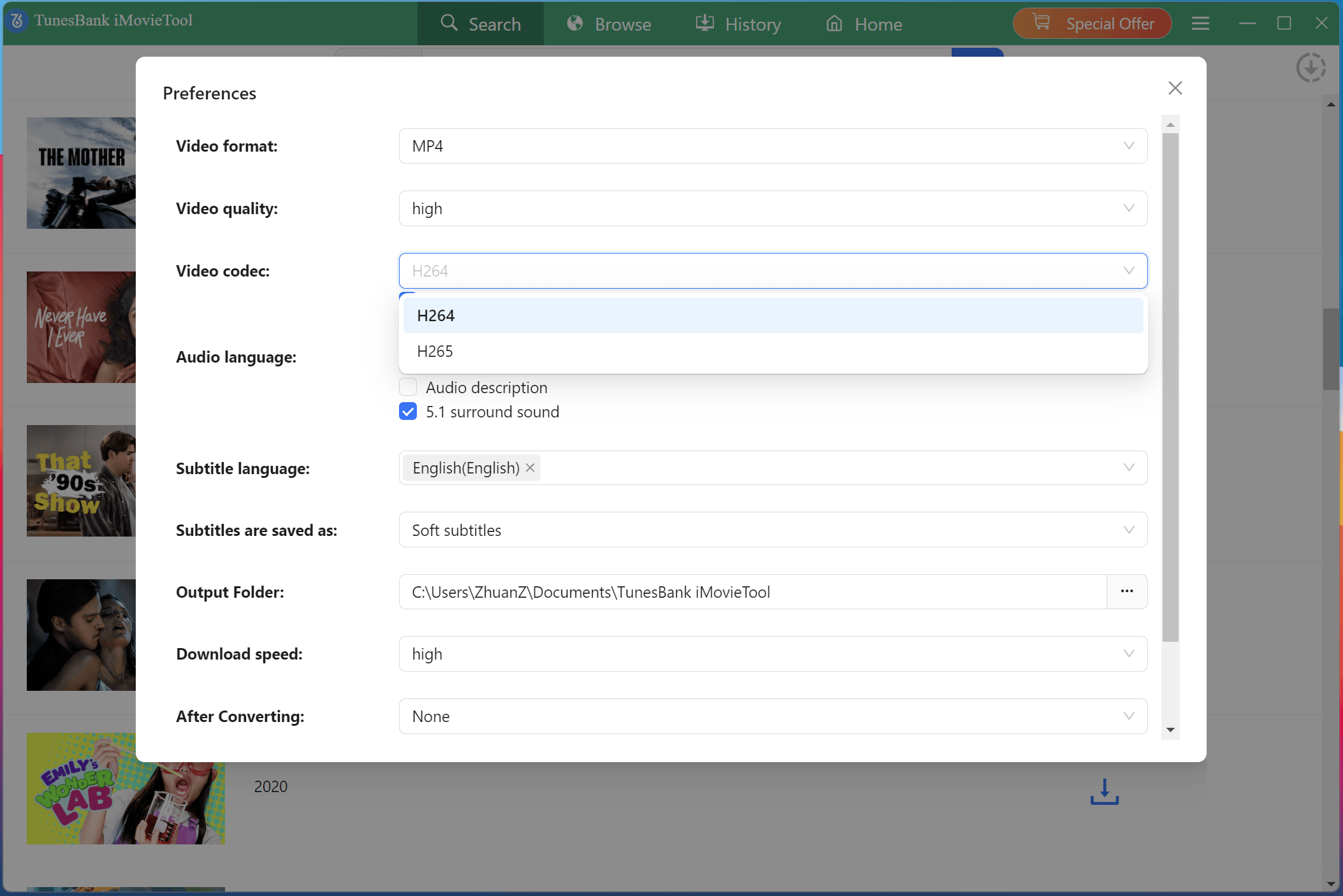
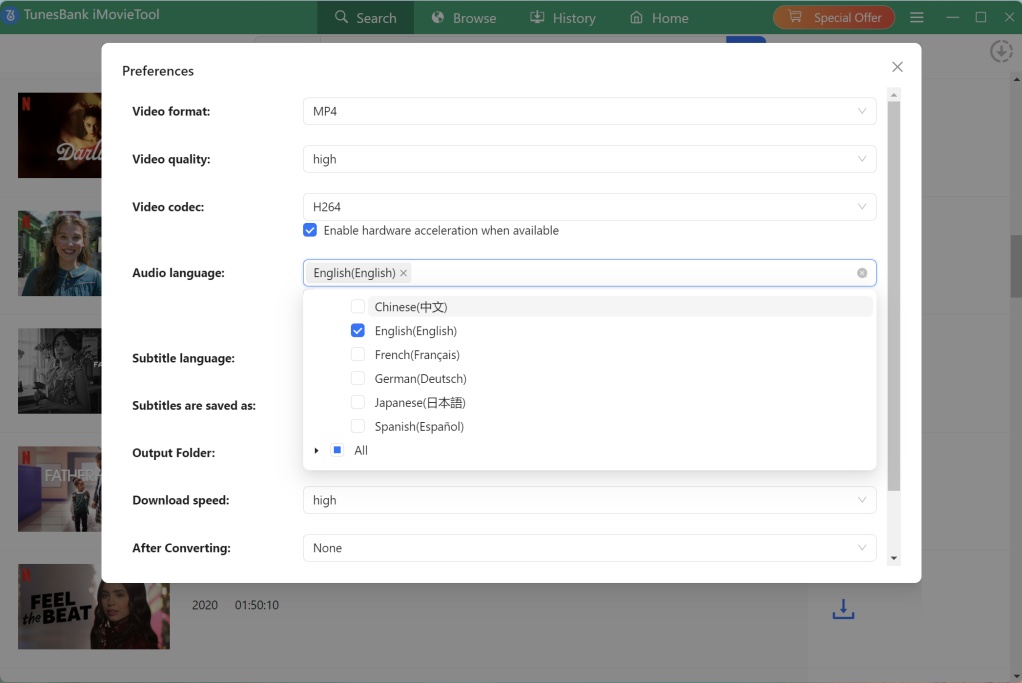
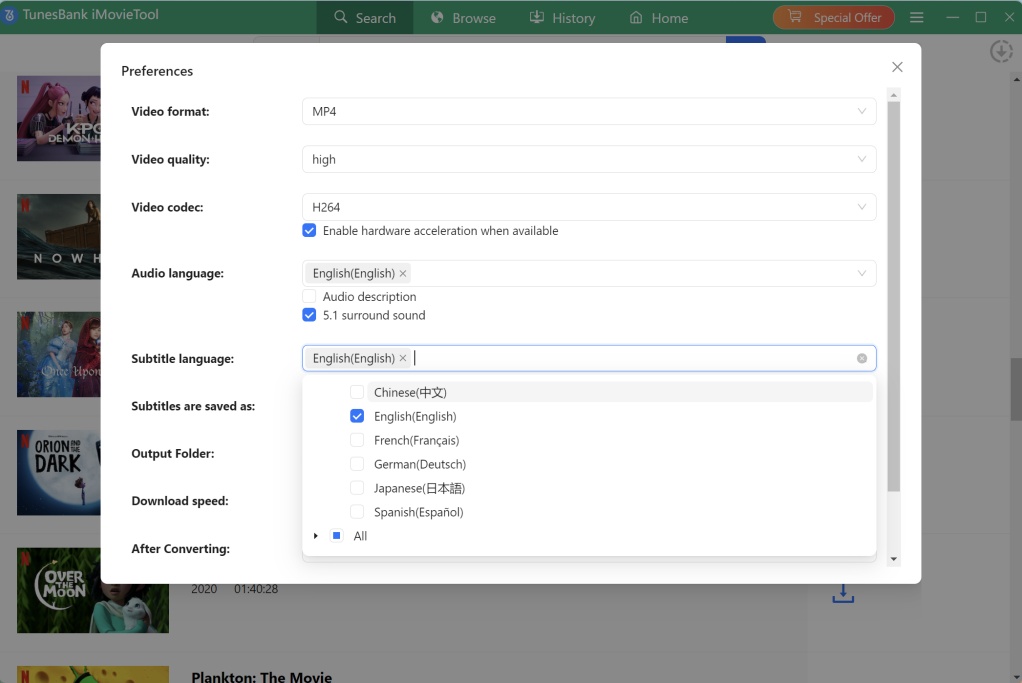
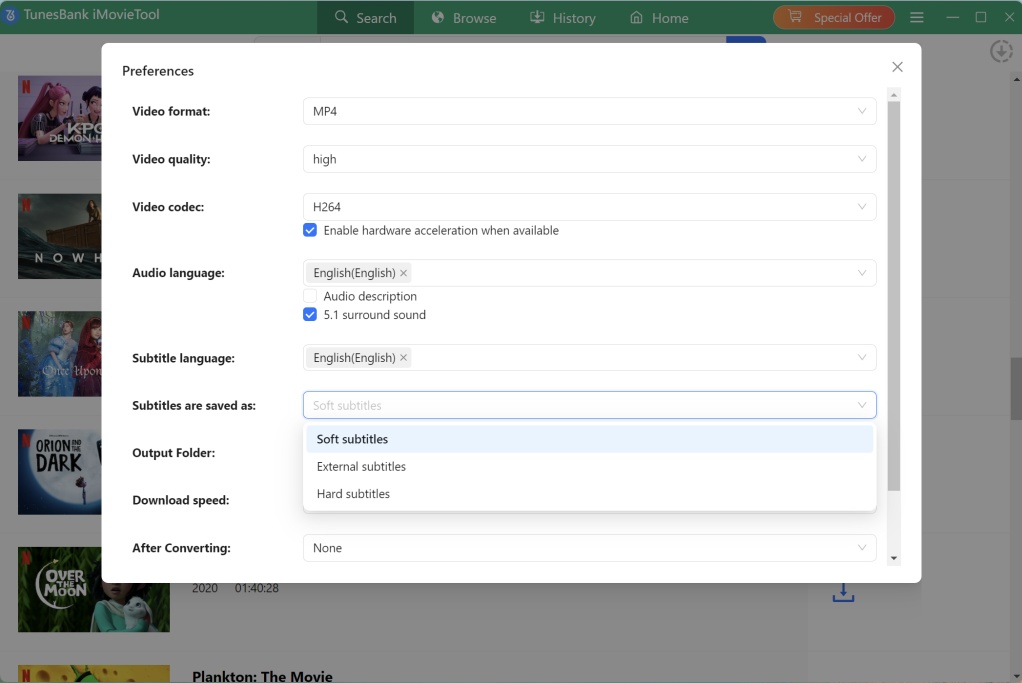
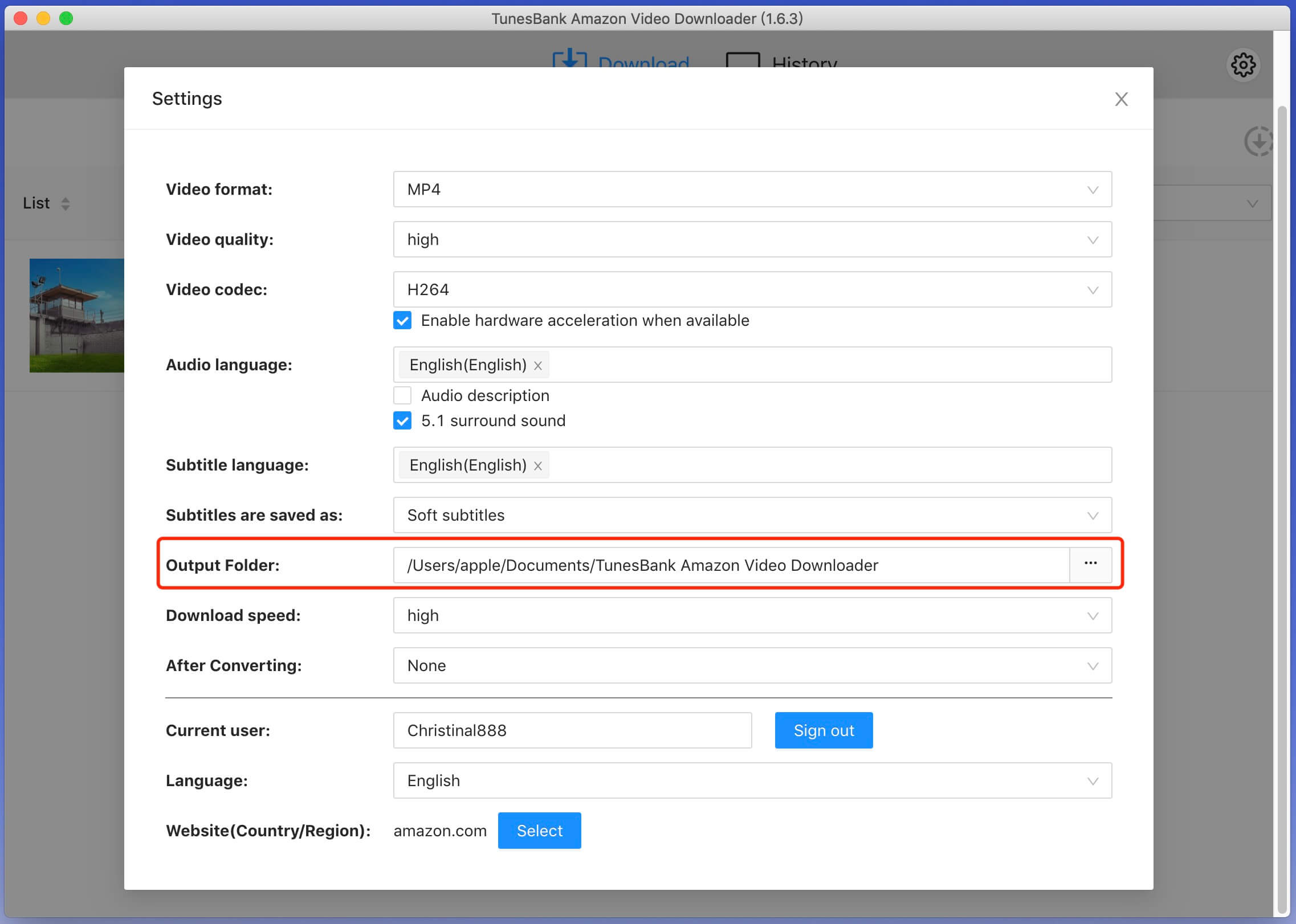
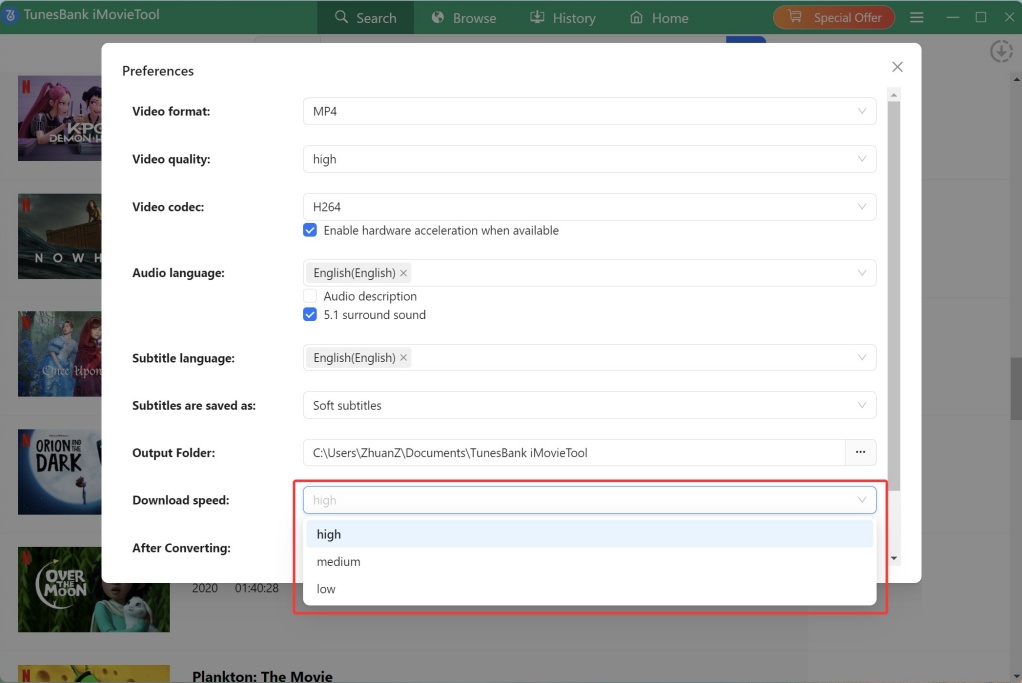
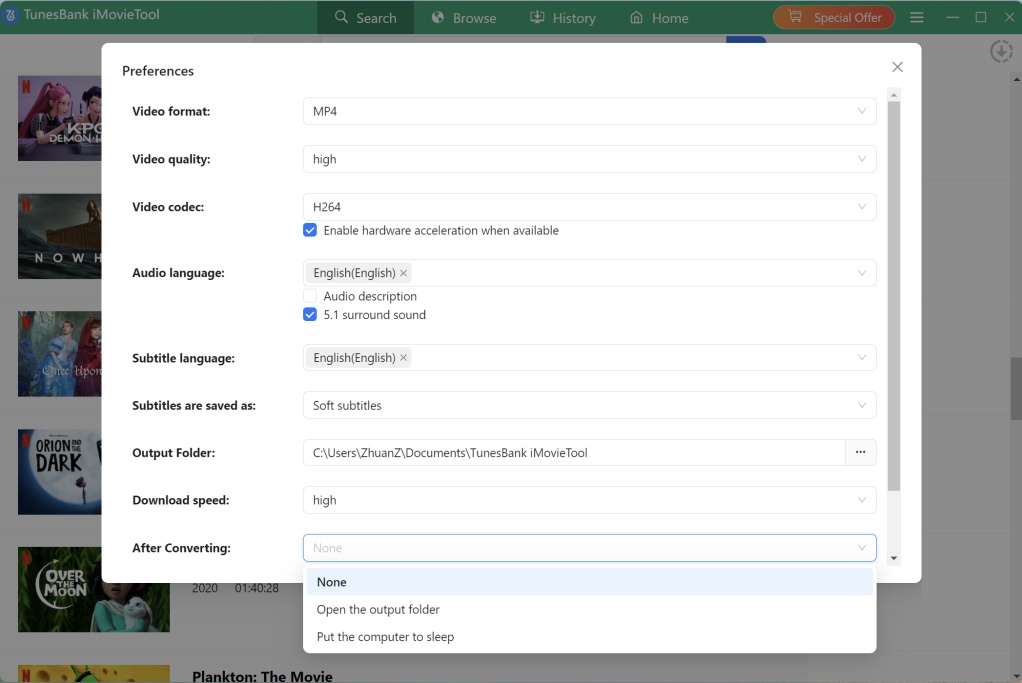
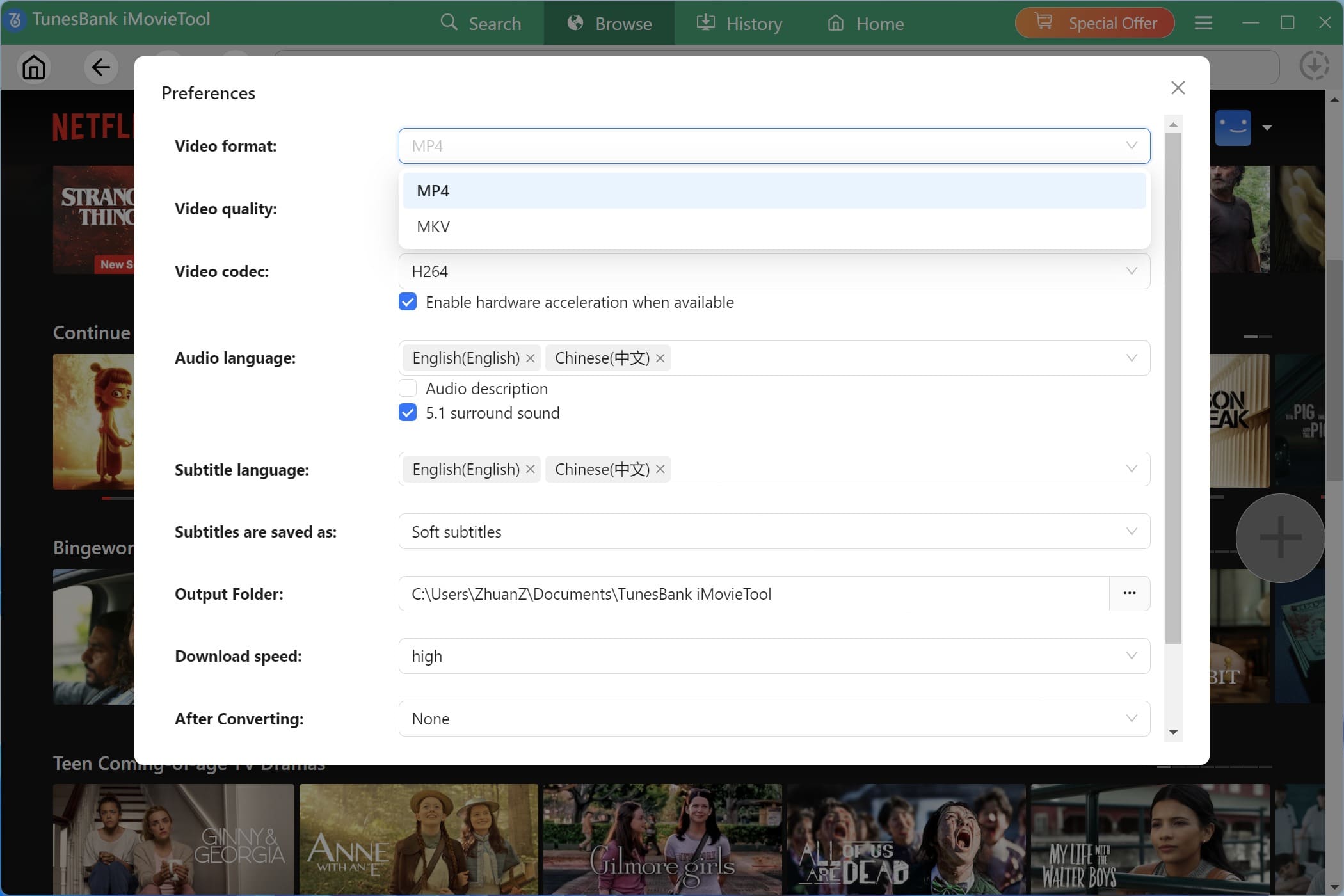
Before selecting a movie or TV show, it's recommended to customize your output parameters. Go to Menu bar at the upper right corner, choose "Preference". Here, you can set the vutput format (MP4, MKV), video quality (high, middly, low), video codec (H264, H265), audio language, subtitle language, output folder and mode.
Step 3. Browse the Netflix Library Online
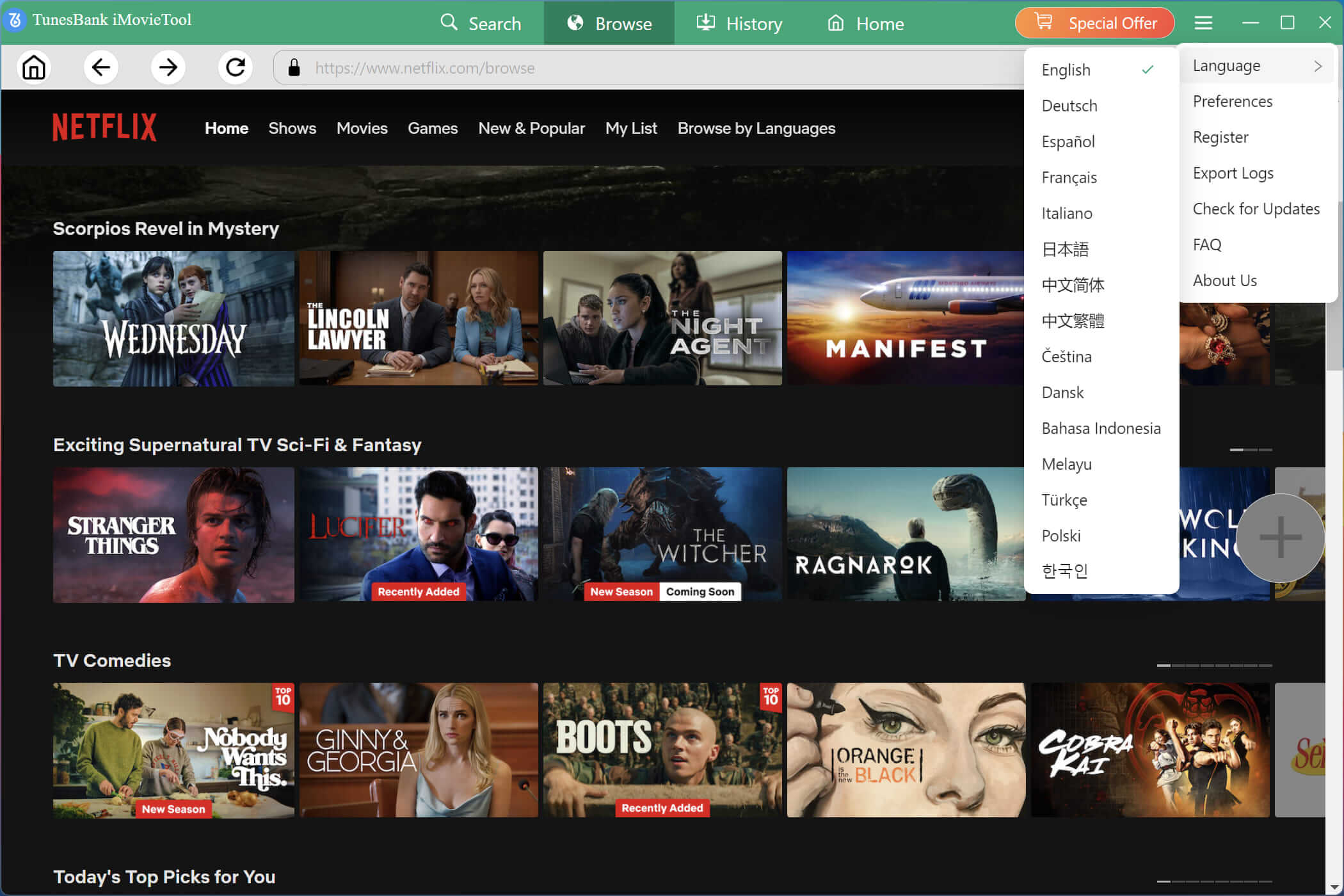
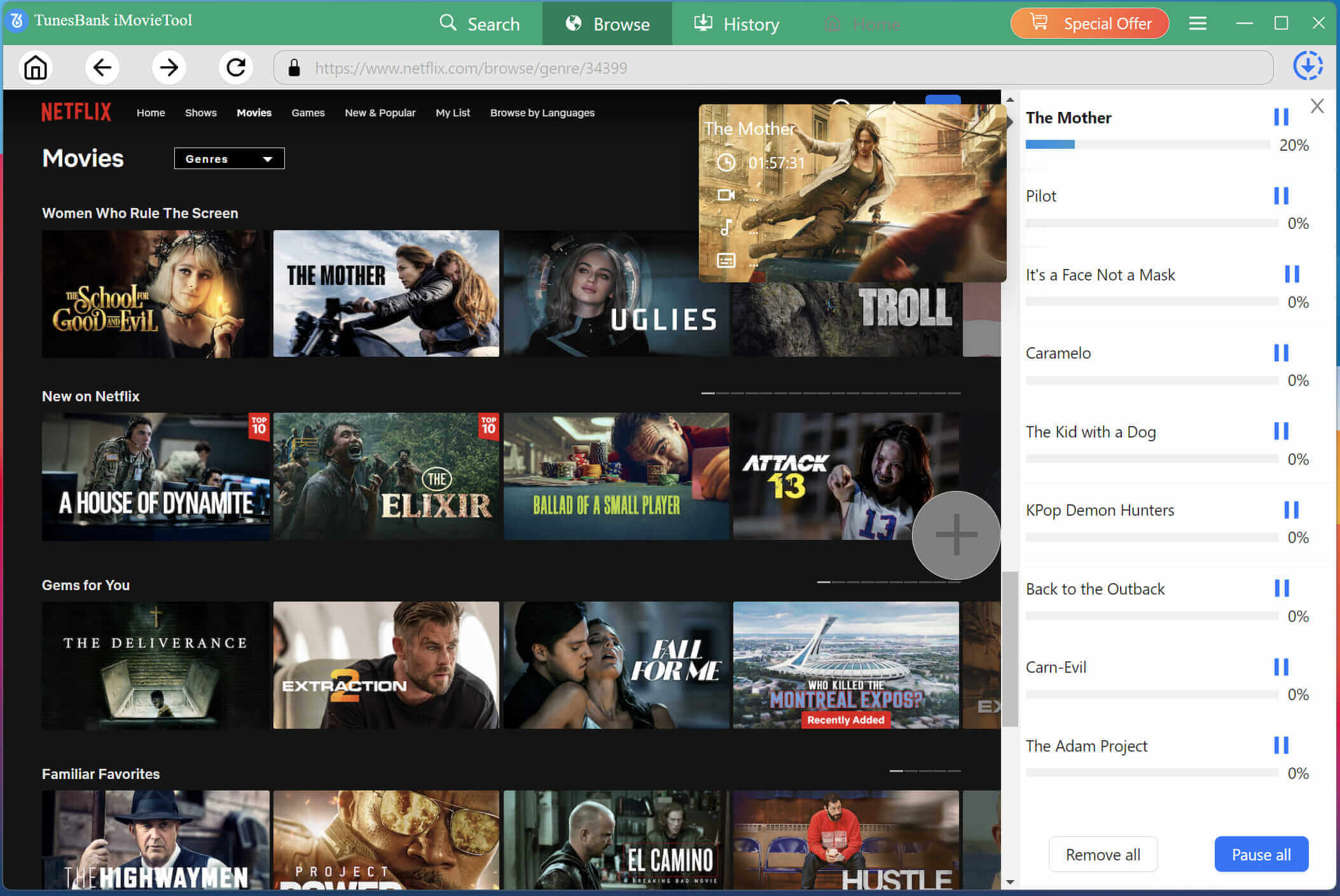
Click on the "Browse" tab. The built-in browser will load the Netflix homepage. You will need to log into your Netflix account directly within this browser. Once logged in, you can navigate Netflix just as you would in a regular browser.
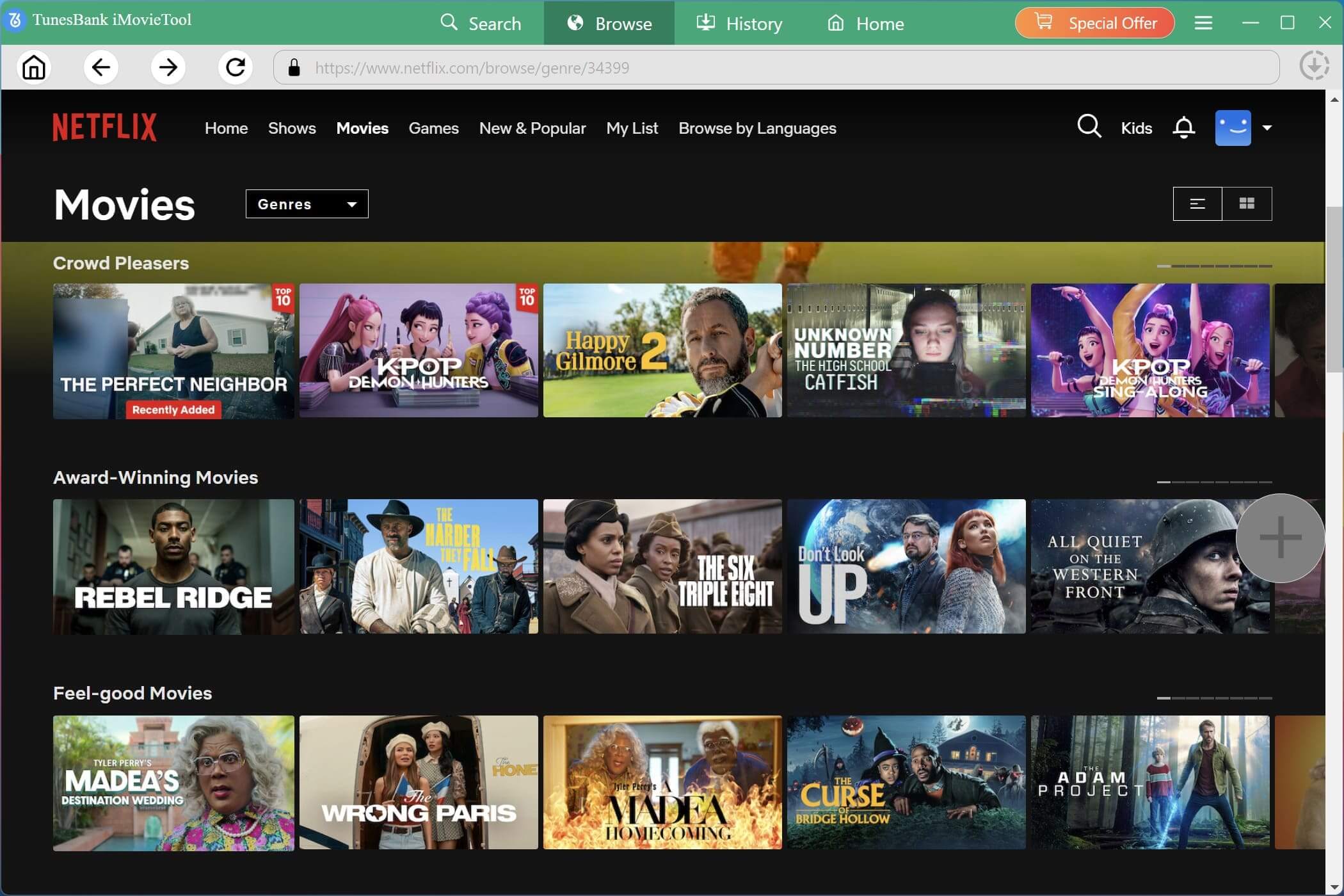
For example, you can go into specific genres (including Shows, Movies, Games, New&Popular, My List, or Browse by Language) at the top of the interface. Select one genre, and scroll down to access the videos.
Step 4. Add Your Target Netflix Video
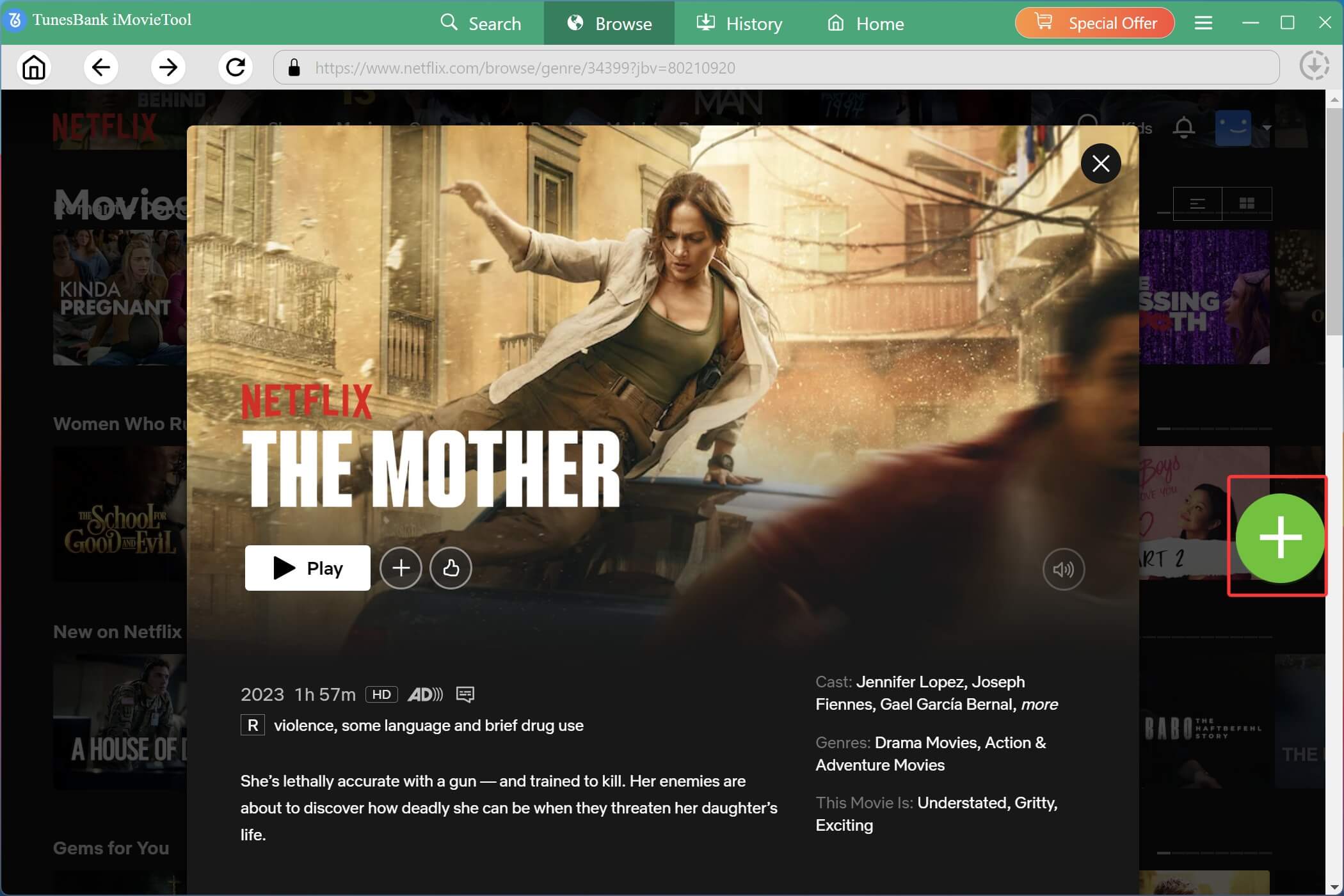
When you find a movie or TV show you want to download, select it and click on the title to go to its dedicated page. You will notice a green "+" icon on the page, click on it to add the video. Before downloading, you can play the video online to have a confirmation!
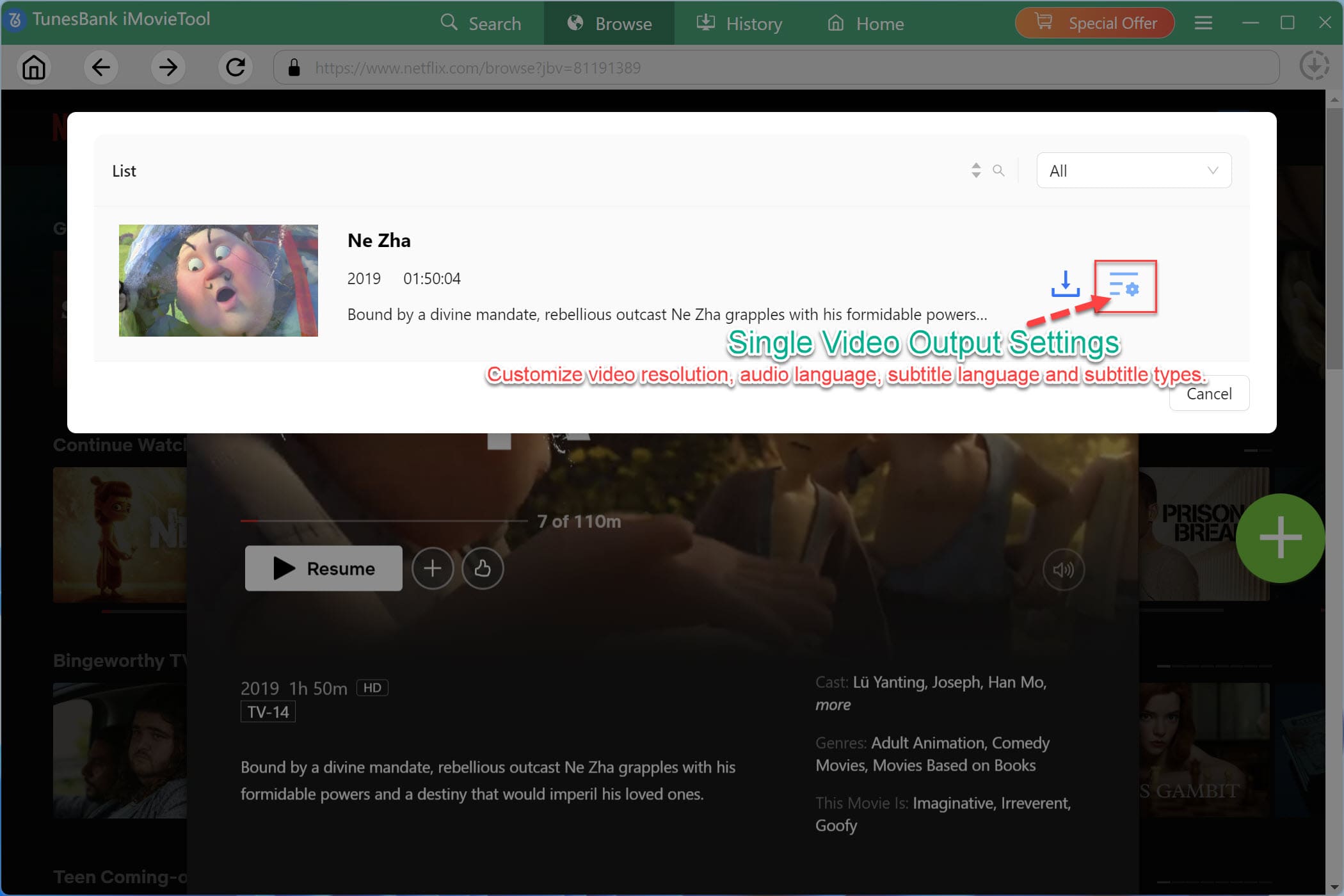
After adding the title via the "+" icon, it will pop up a small window. You will see a "Download" icon and "Gear" icon (settings) next to the title.
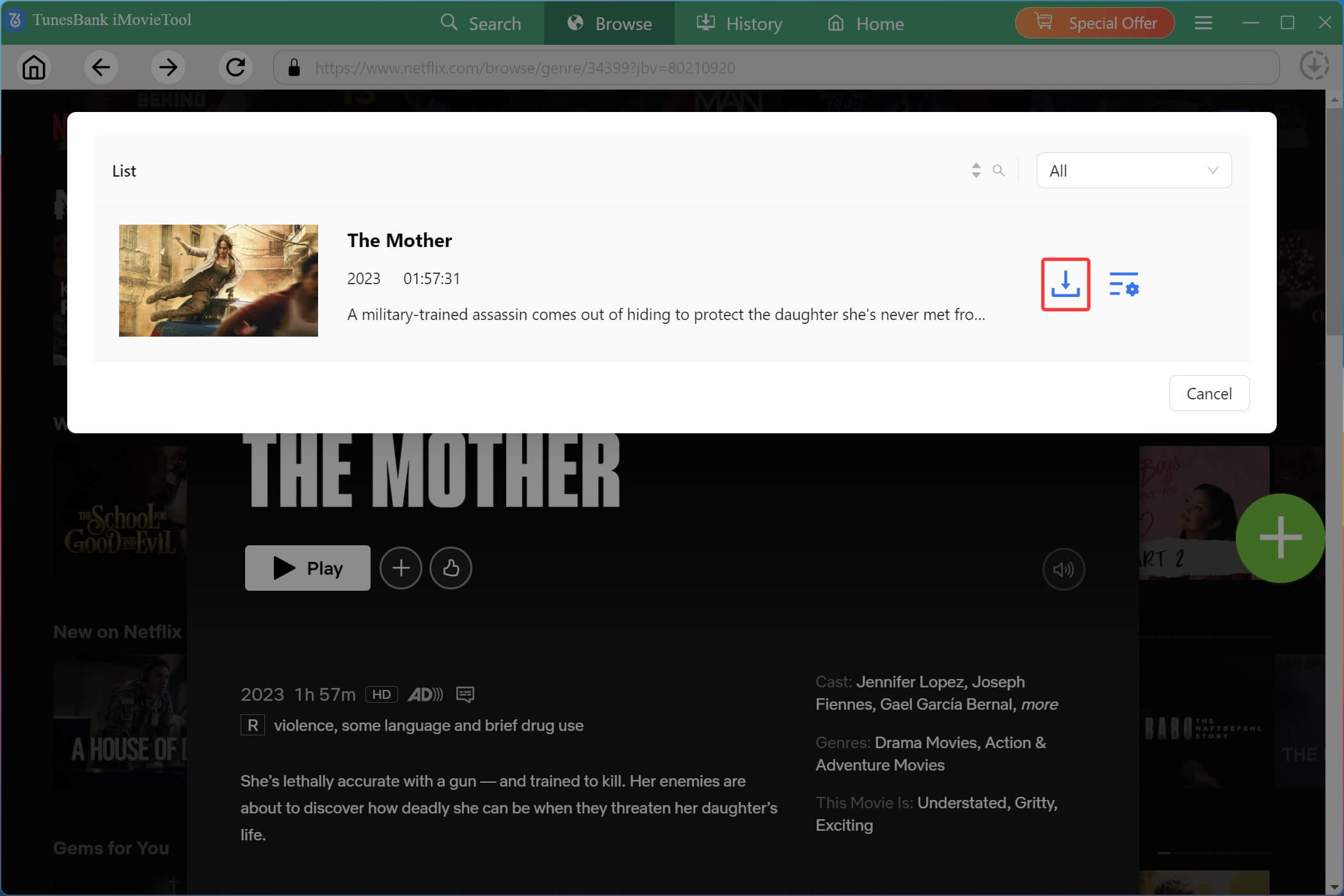
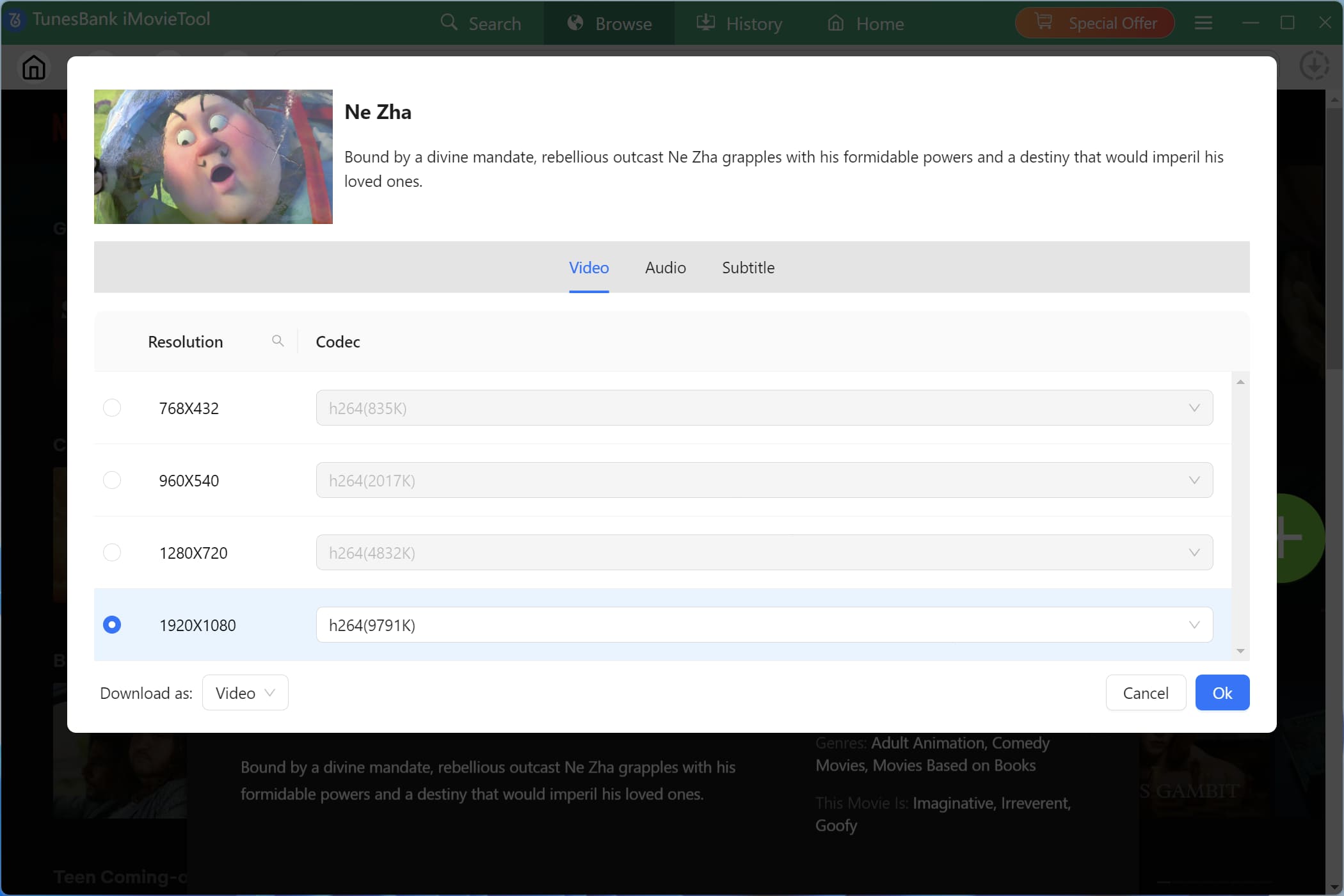
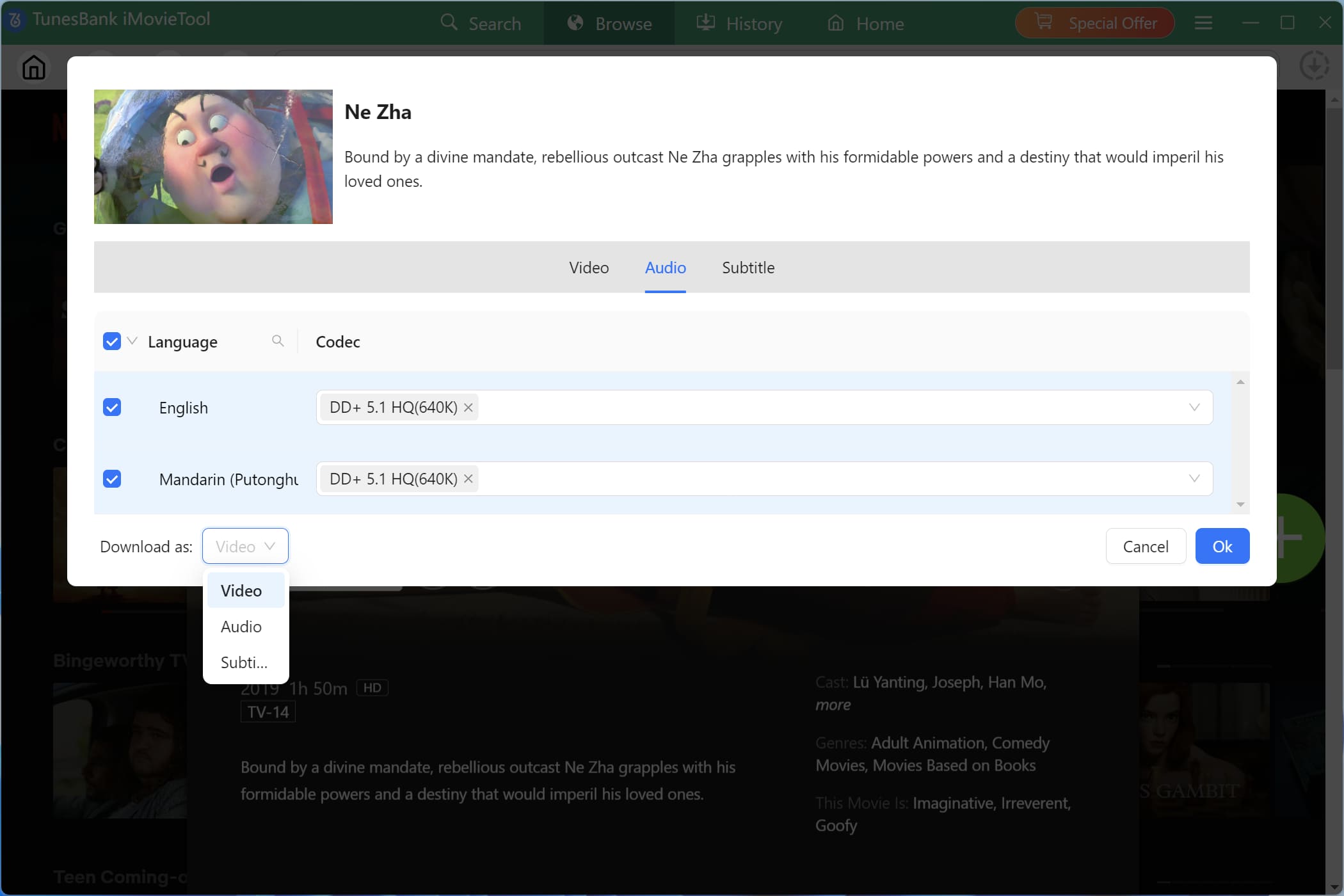
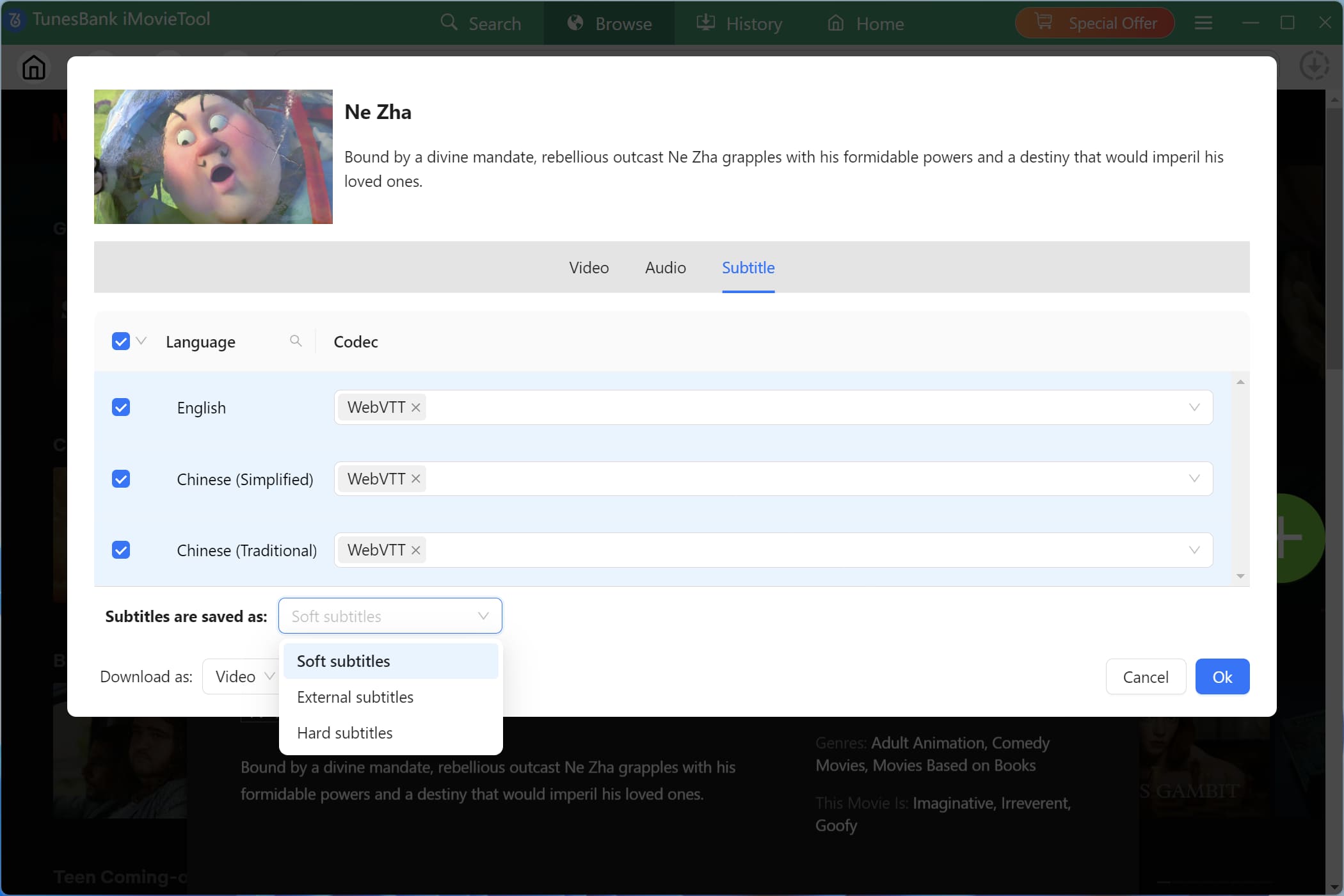
Tips: You can click on the "Gear" icon, which allows you to set specific parameters for this particular video before downloading.
Step 5. Initiate the Download Process
After configuring the advanced settings (or if you are happy with the defaults), simply click the "Download" icon next to the title. iMovieTool will begin the downloading process. As you can see, a progress bar will show the downloading status, including the estimated time remaining.
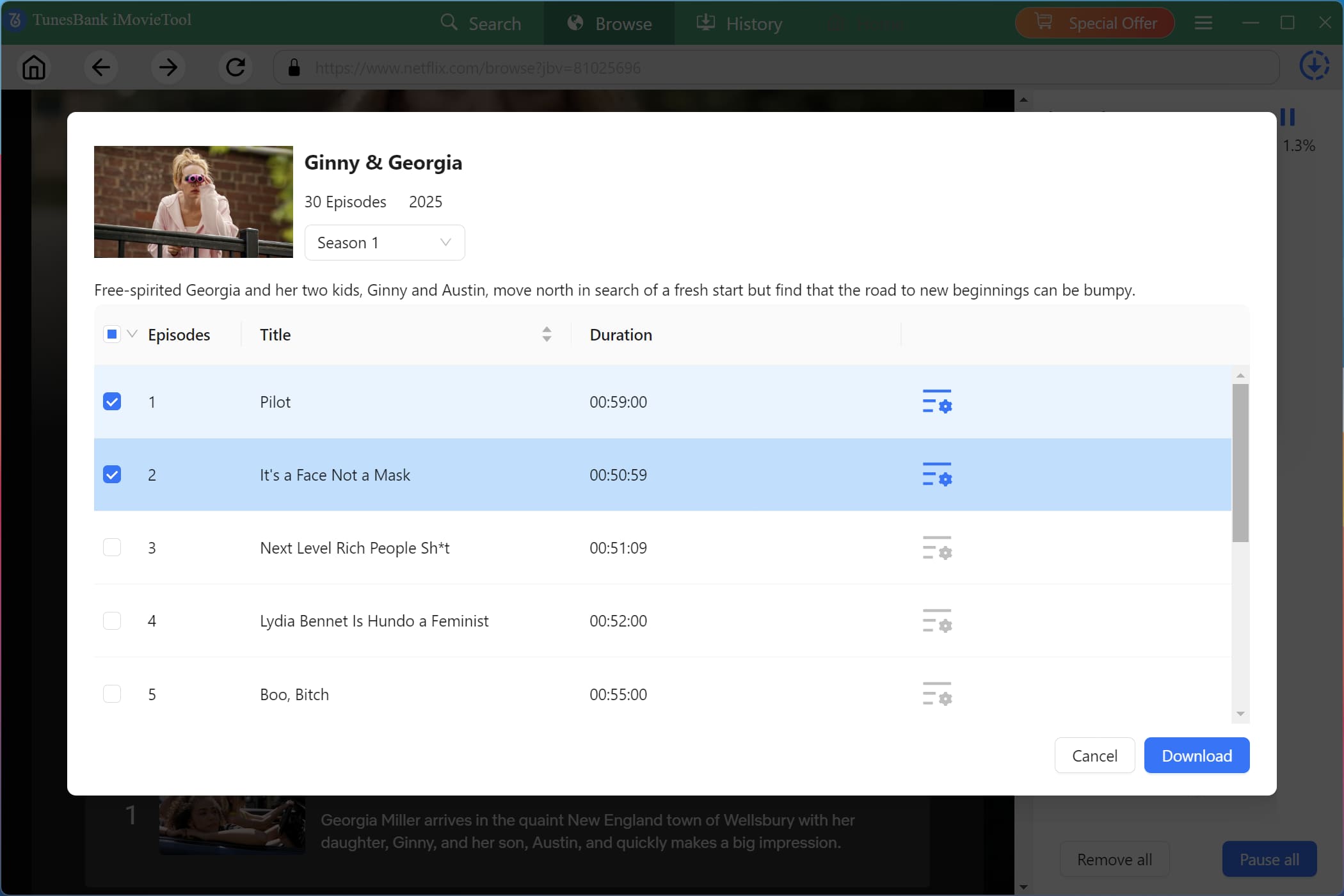
For downloading TV shows, once you clicked on the "Download" icon, a new small window will appear. You need to choose your desired seasons and episodes, then hit on "Download" button. Of course, you can click the "Gear" icon for advanced settings before processing the video.
Step 6. (Optional) Add More Netflix Videos During Process
During the process, you can turn back to the home screen, and add more movies or TV shows for batch downloads.
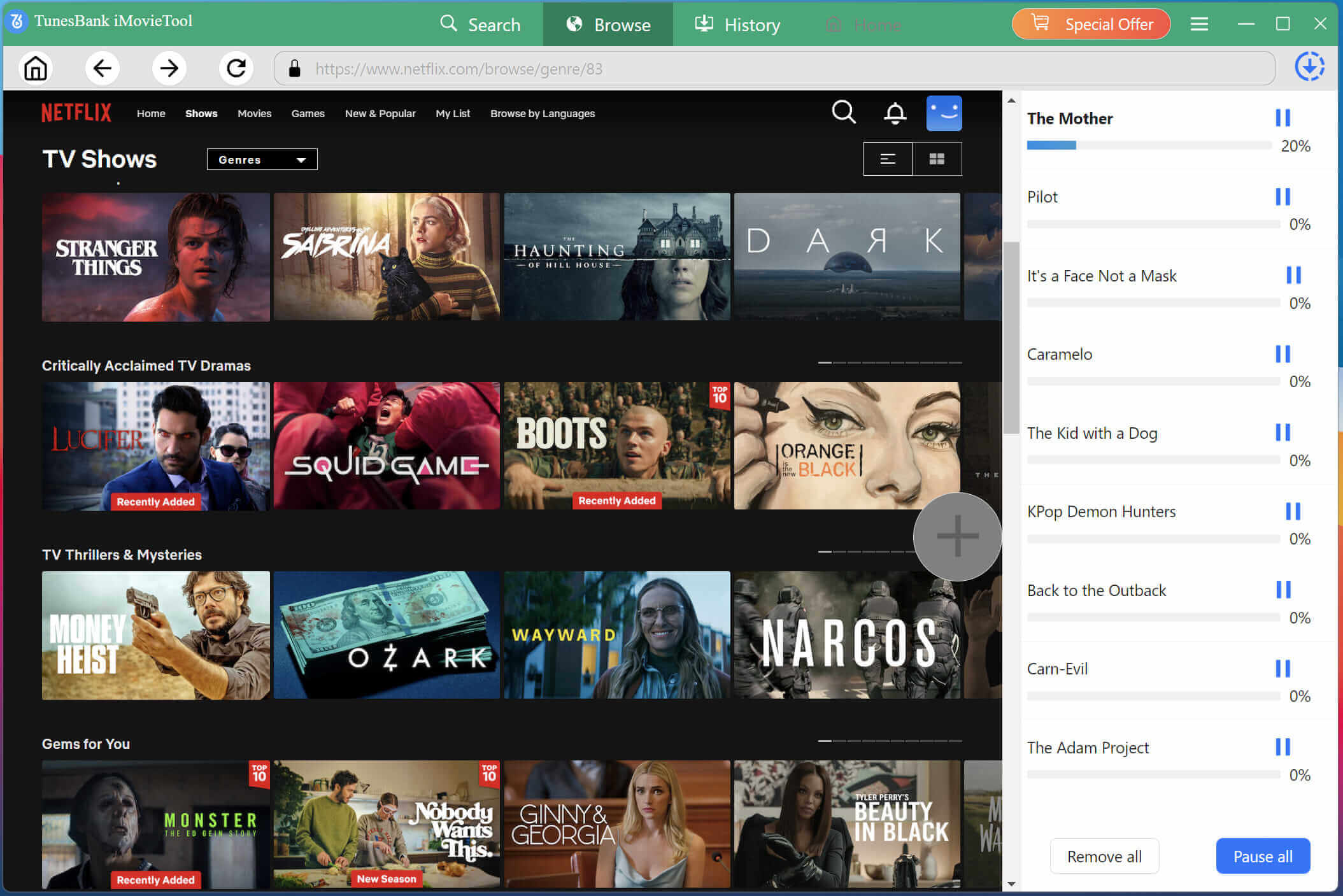
Just select a movie or TV drama, click "+" icon, then click "Download" icon to add it to the download queue.
Step 7. Access Your Downloaded Netflix Videos
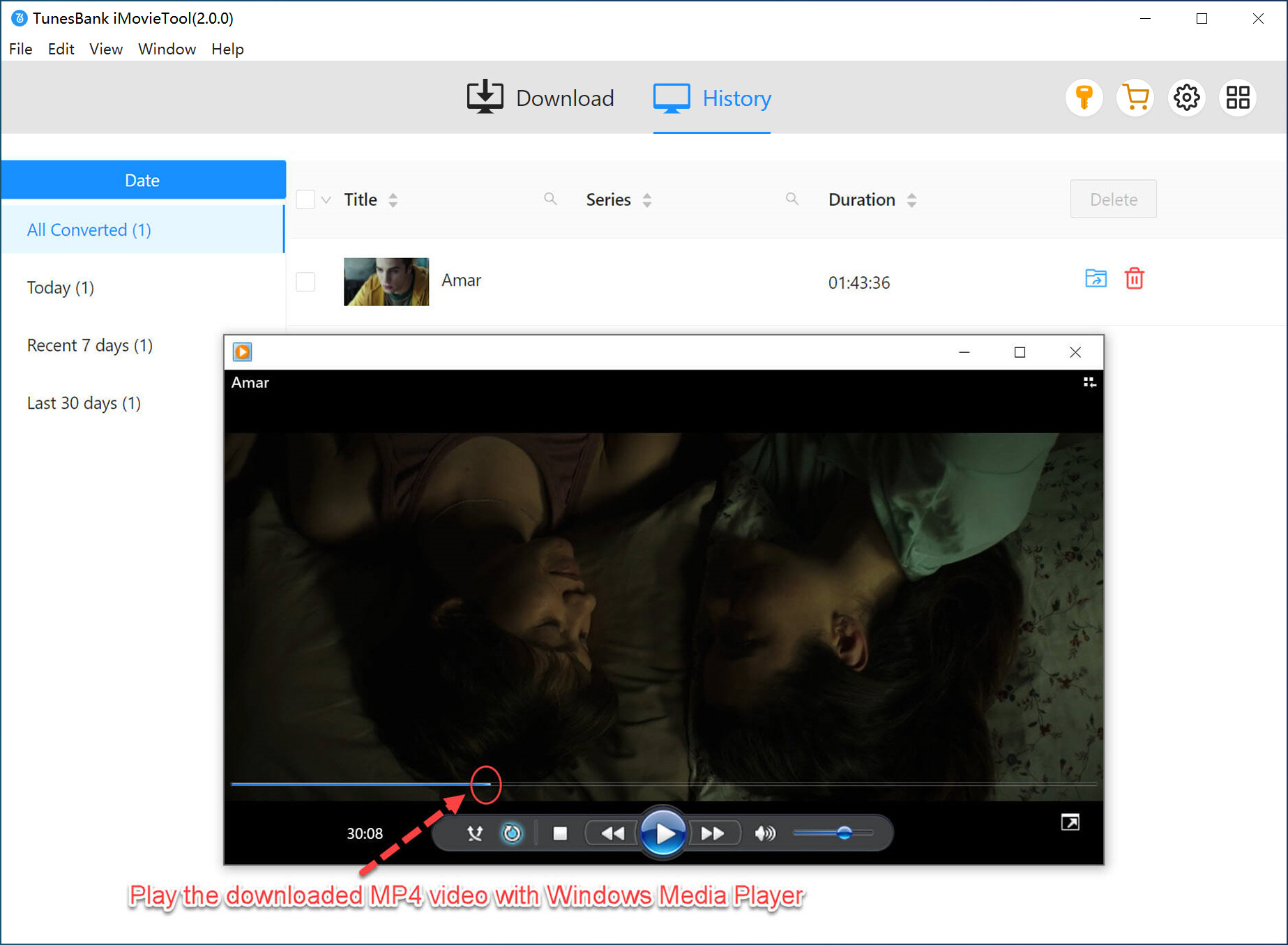
Once the download is complete, click the "History" tab to check your Netflix video download history. By tapping the "Blue Folder" icon, you can go to the output folder and access the downloaded Netflix videos for watching offline!
3.2 Search and Download Netflix Videos to Computer
Step 1. Access Netflix Video Downloader
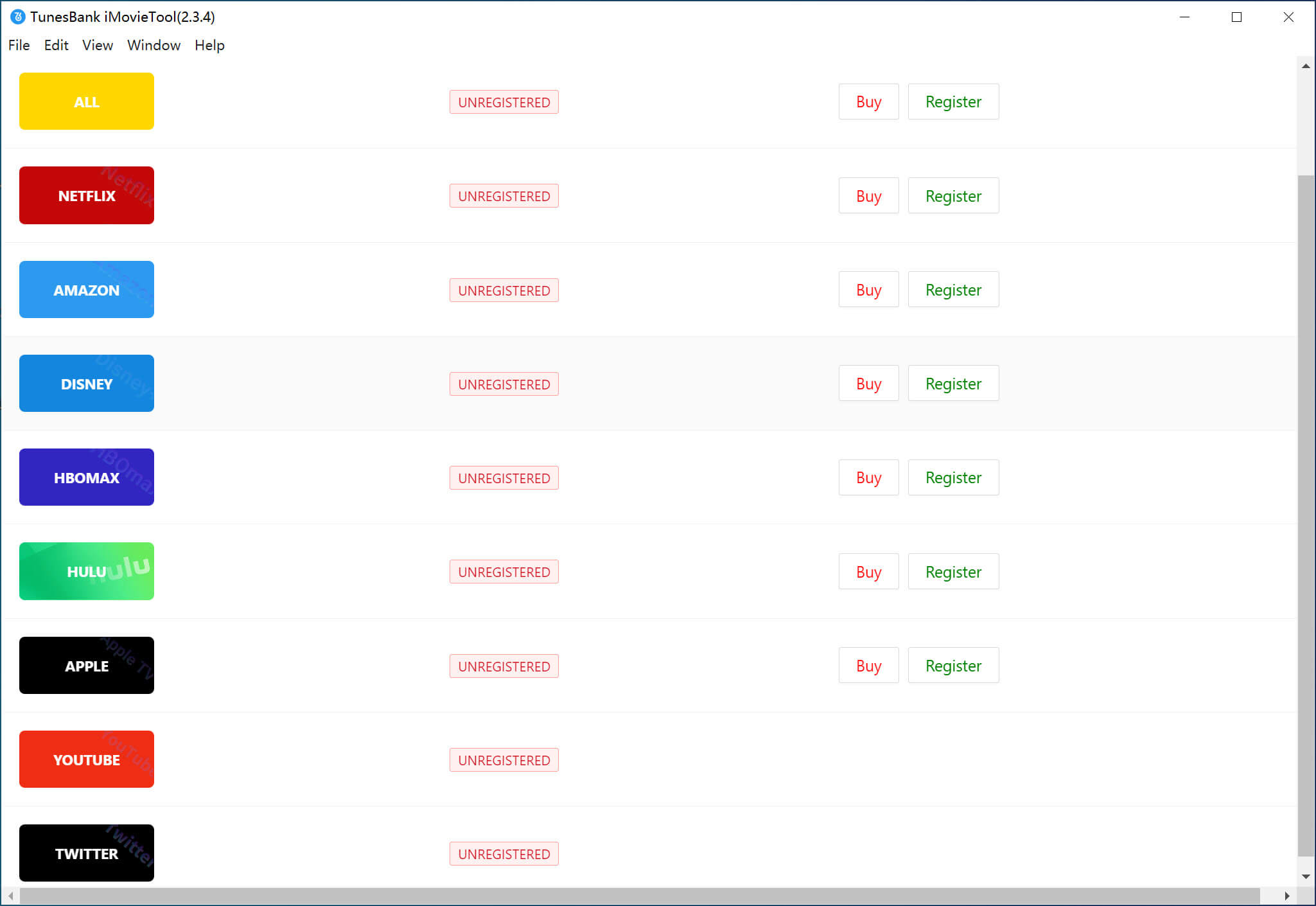
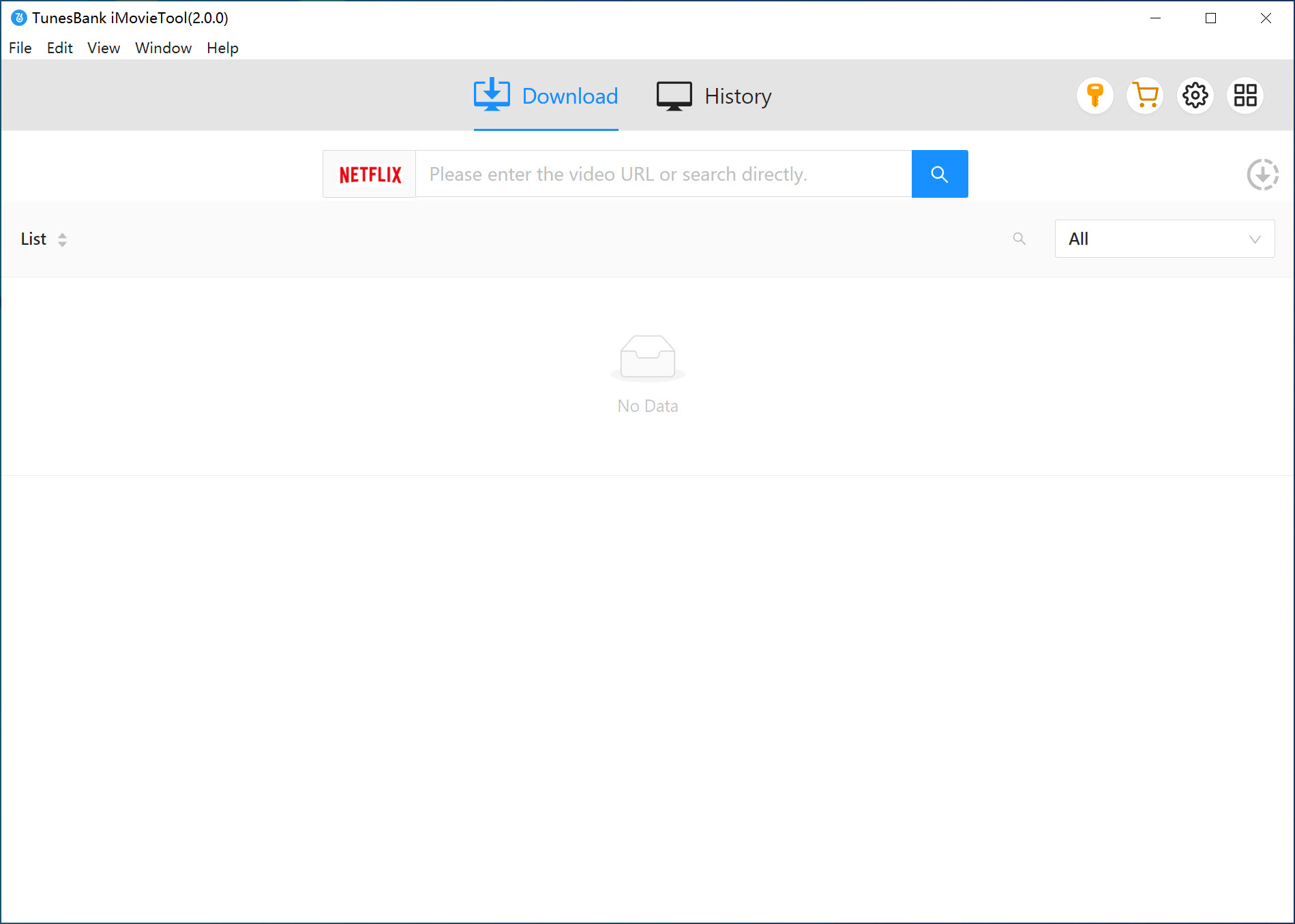
Once login, you will see its simple interface as below picture shown.
Step 2. Customize Output Parameters
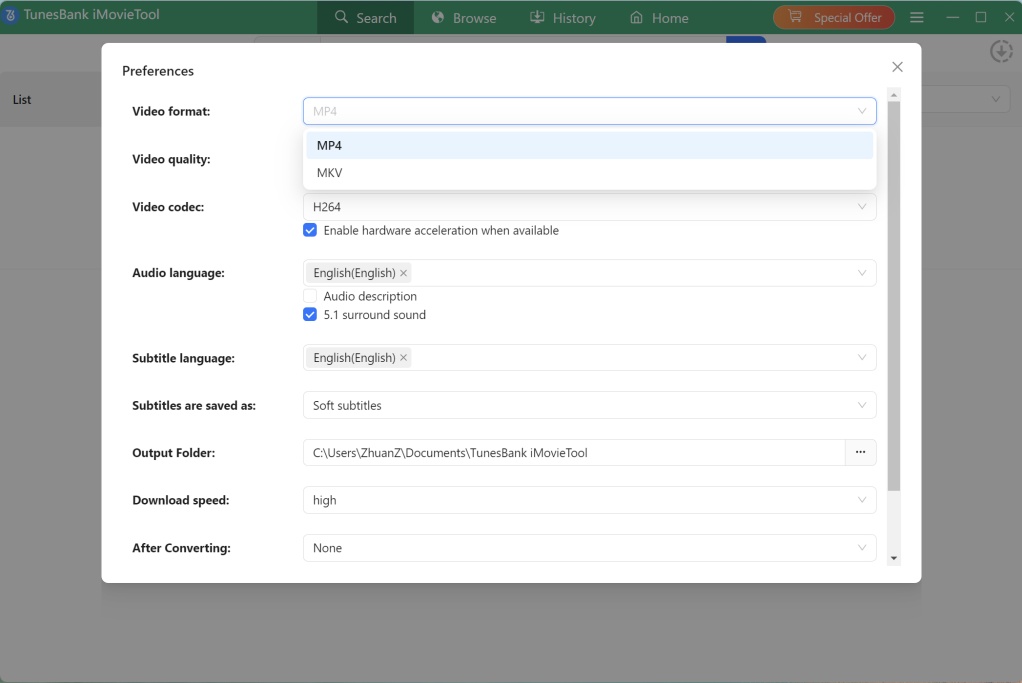
Go to the Menu bar and choose "Preference" to set your general preferences. Here, you can define the default video format (MP4, MKV), video quality, audio language, and subtitle, etc.
Step 3. Search for Netflix Videos via Name or URL
There are two ways for you to search videos from Netflix. You can directly search for a video by name or paste the video URL into the search box.
Way 1. Search By Name or Keyword
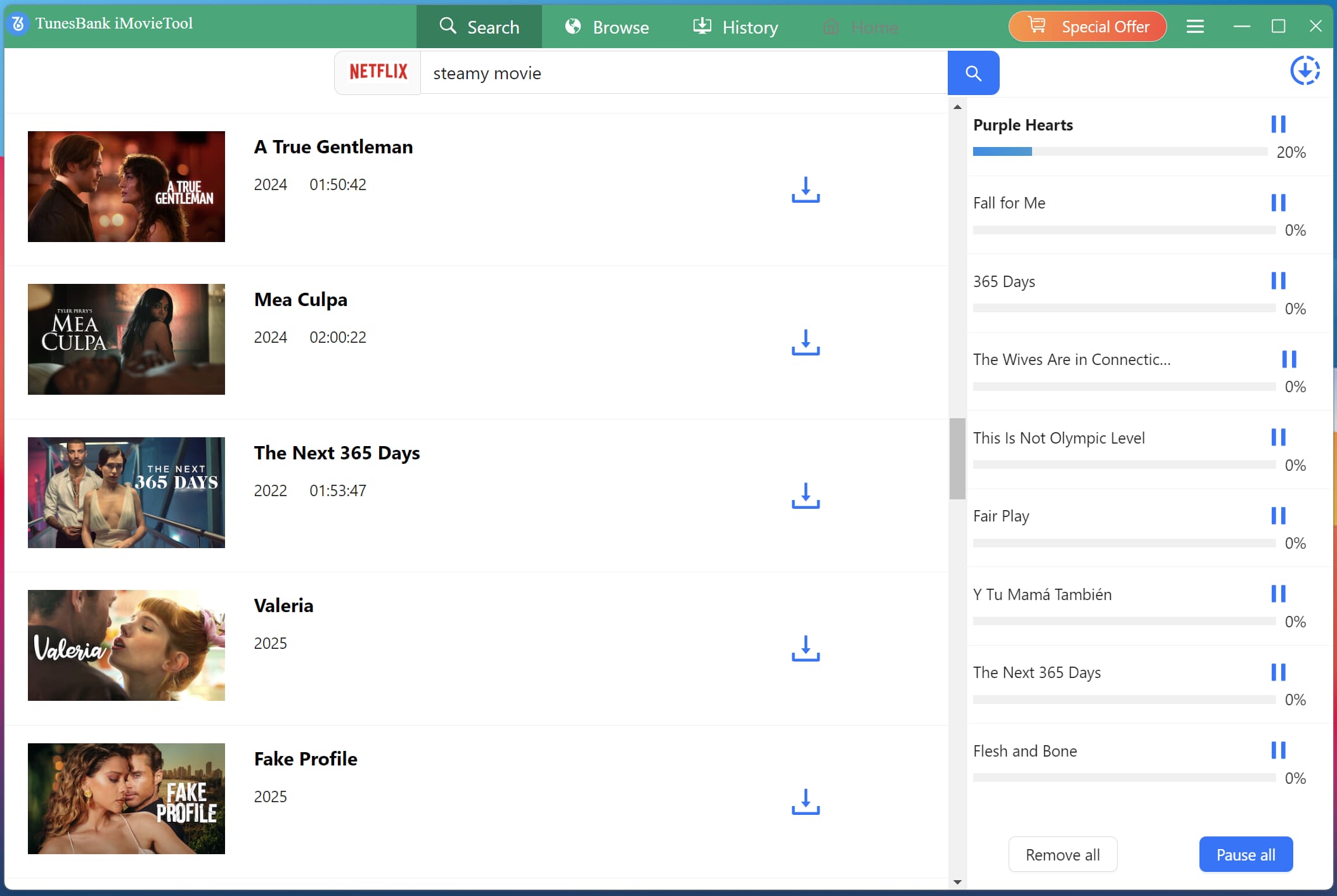
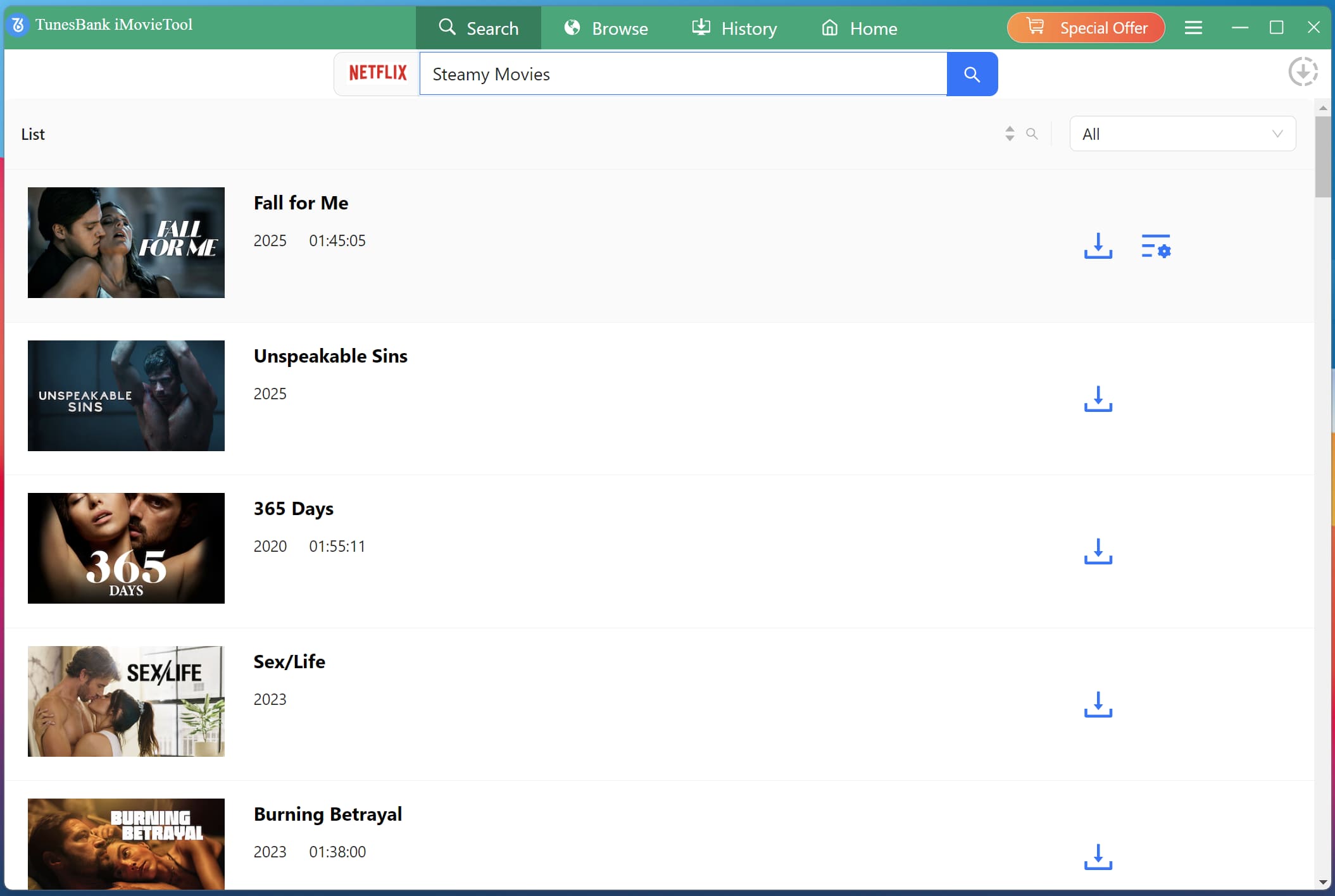
Go to "Search" section, simply type the exact title or keyword of the movie or TV show you want into the search bar and press Enter.
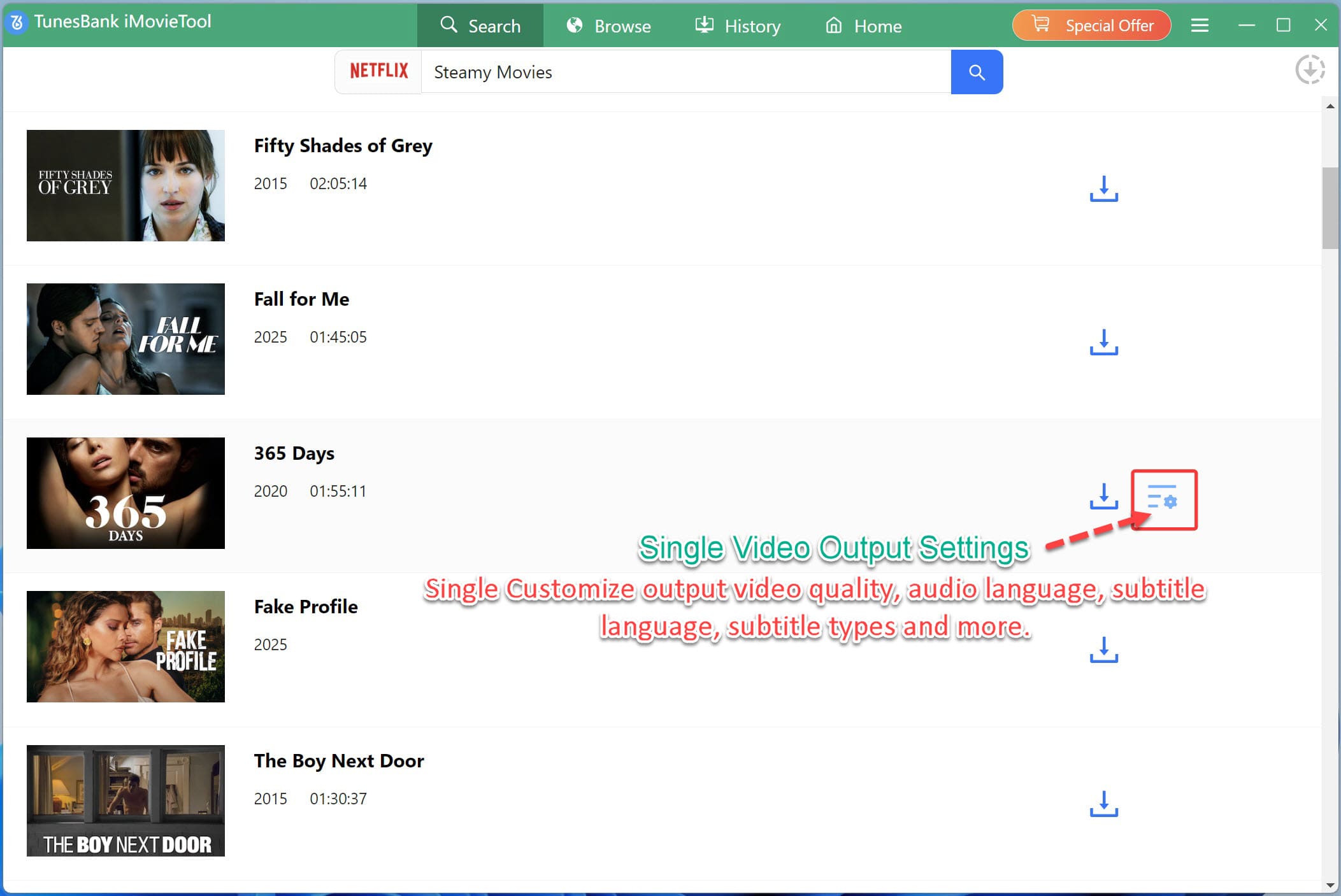
For example, here I type "steamy movie" in the search box for fuzzy search.
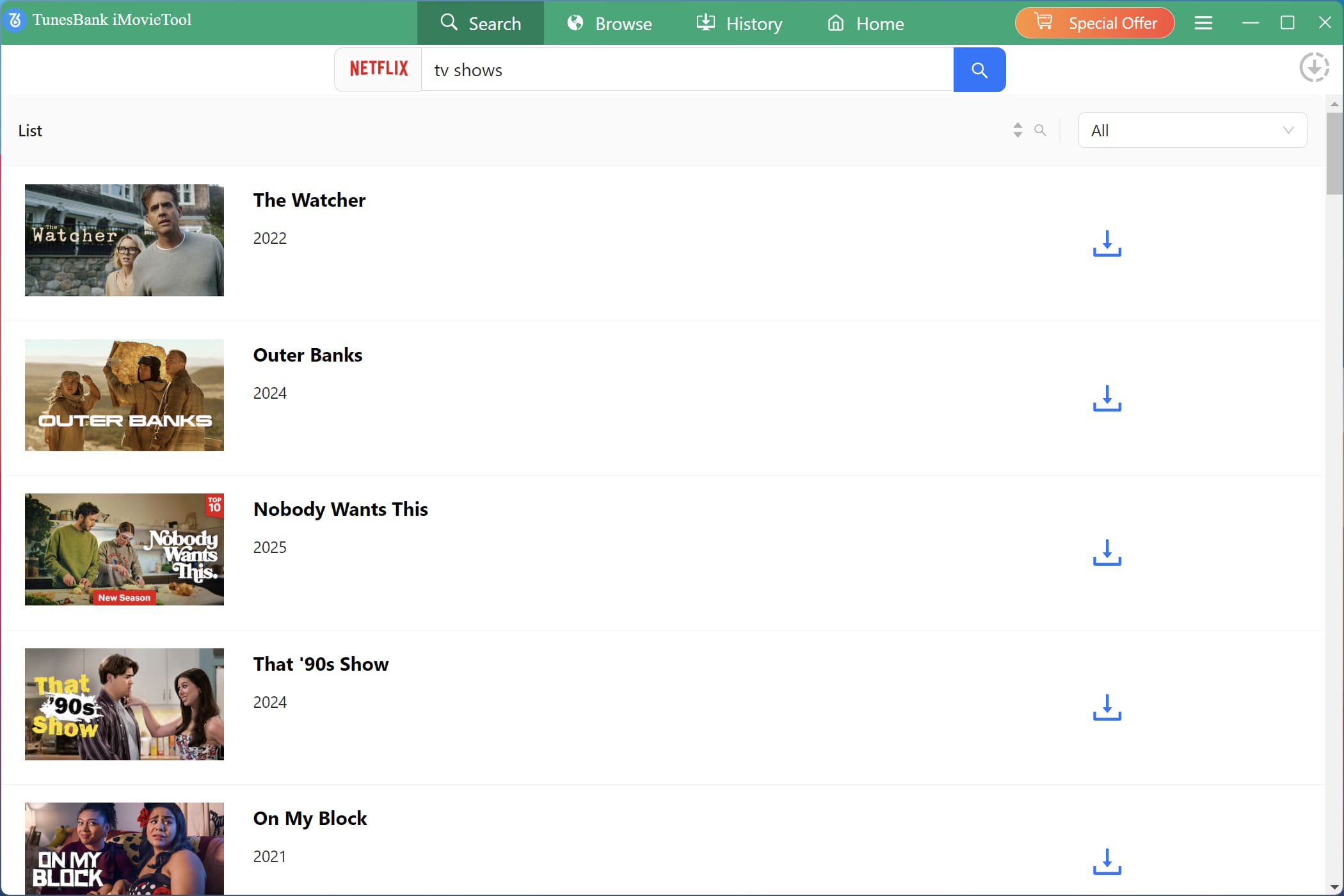
Enter "TV", it will display all popular TV shows, dramas or series for you.
Way 2. Search Netflix Video By URL
For absolute precision, especially for a specific season or serier or movie, we recommend that you use the URL method. Go to Netflix website or app, find the video you like, and copy its URL. Return to iMovieTool, paste the URL into the search bar, and press Enter.
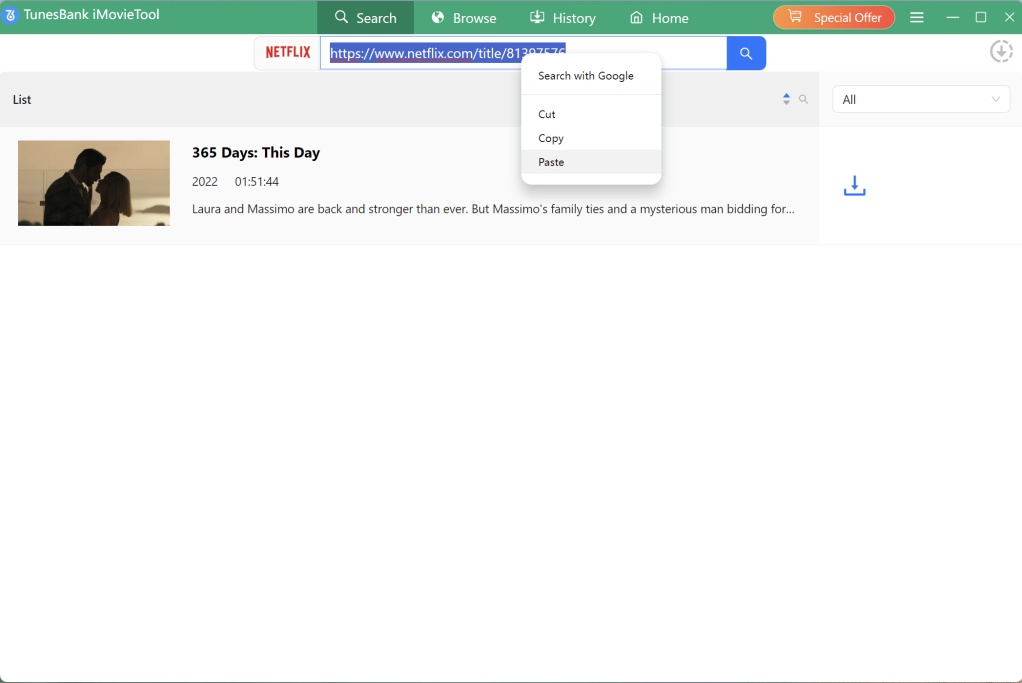
The software will parse the URL and display the video instantly inside the downloader.
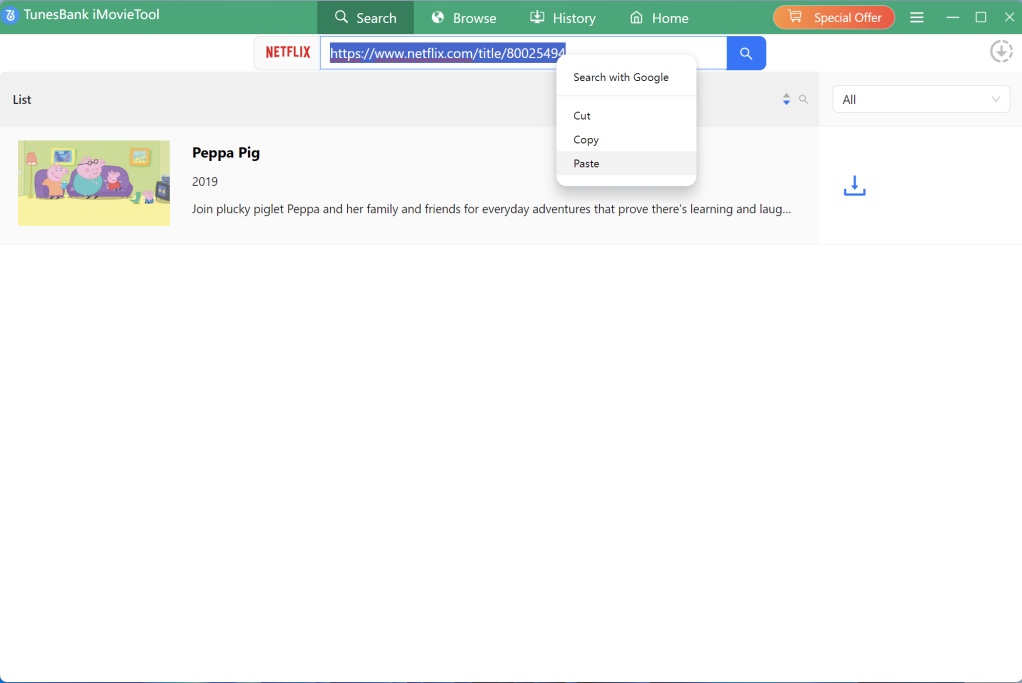
Step 4. Start Downloading Video from Netflix
With your target Netflix movie now displayed in the screen, you can simply click the "Download" icon next to the title to start the process with your default settings.
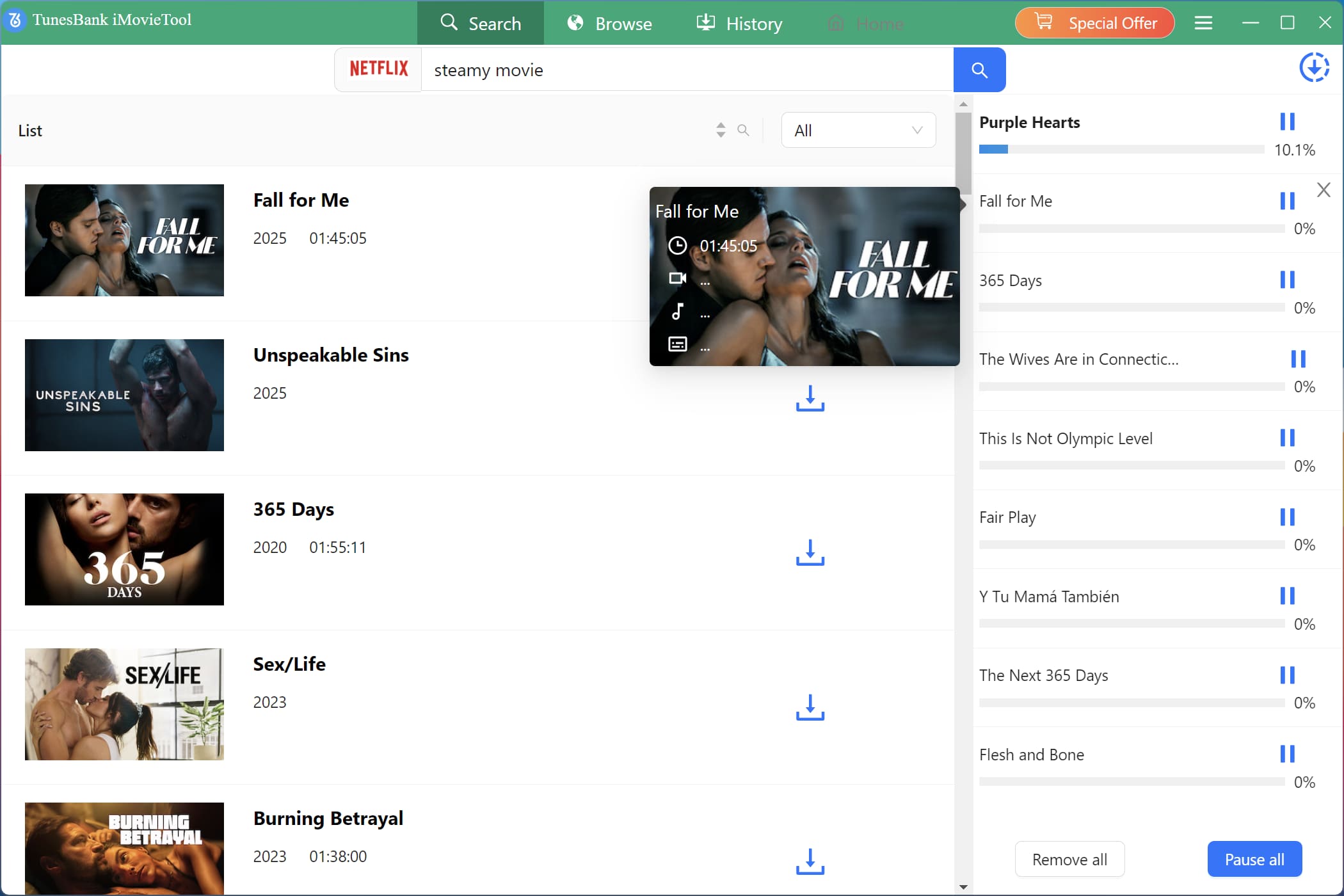
For downloading Netflix TV show, first click on the "Download" icon next to the title, then choose your wanted TV seasons and episodes in the pop-up window. The hit on "Download" icon.
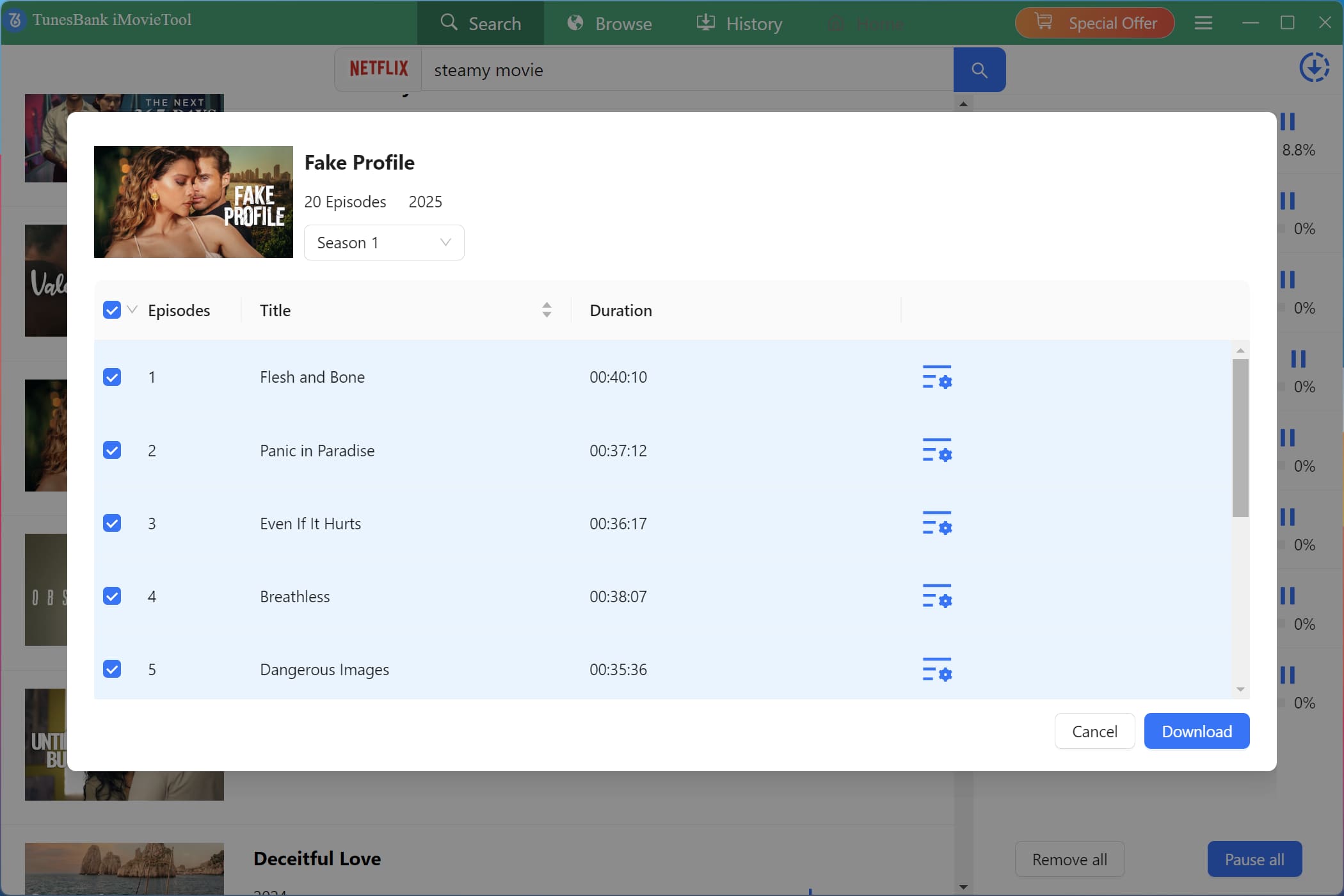
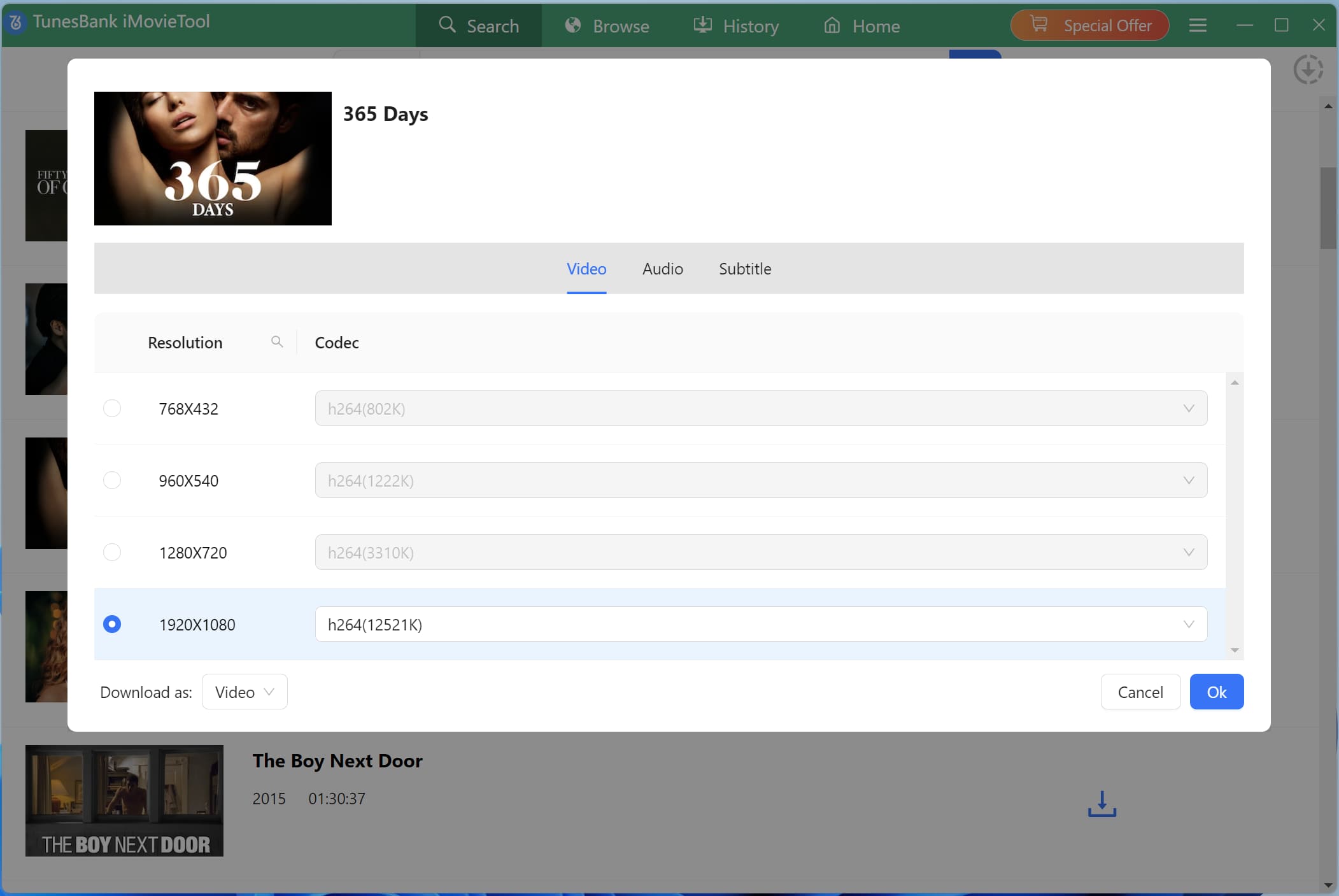
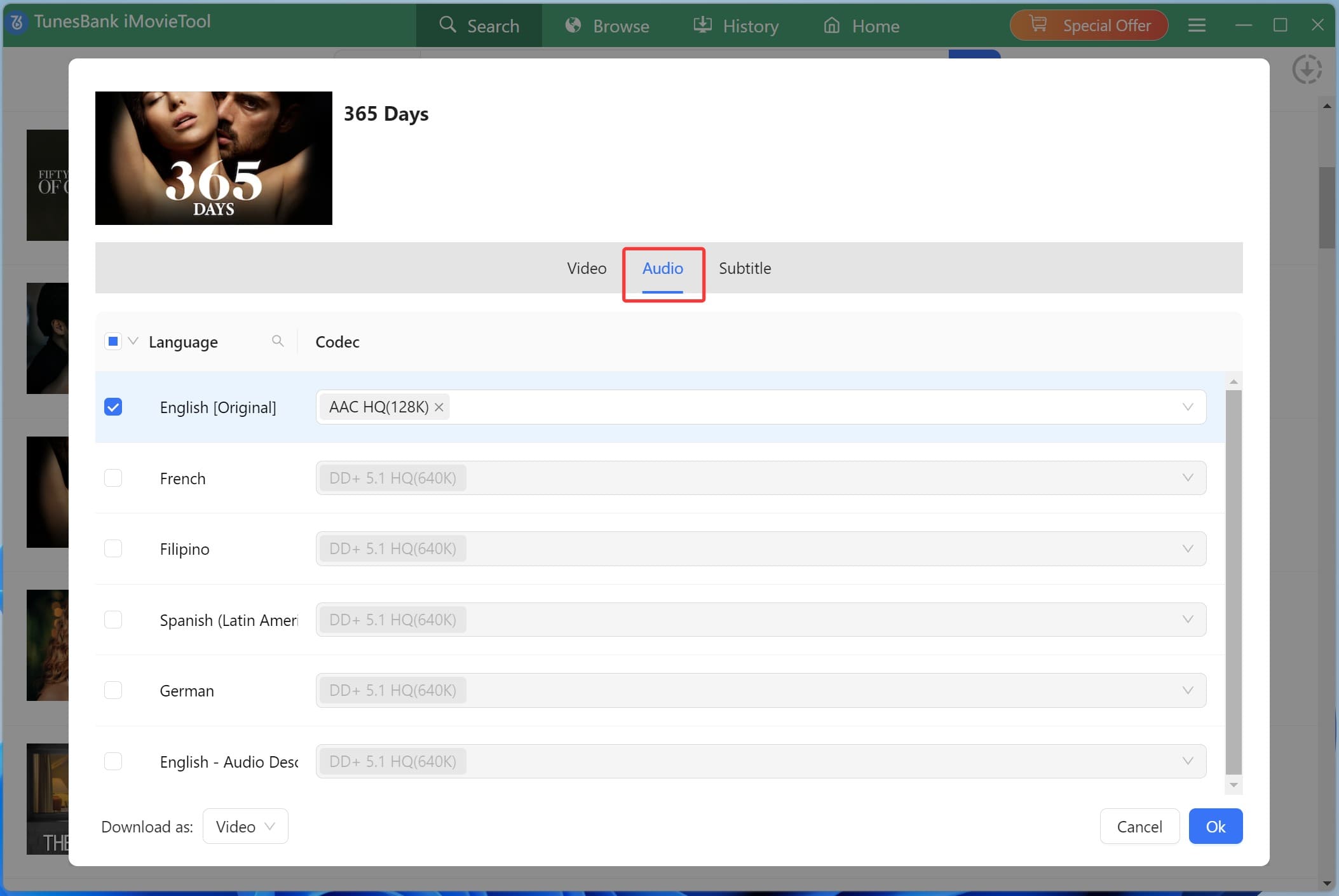
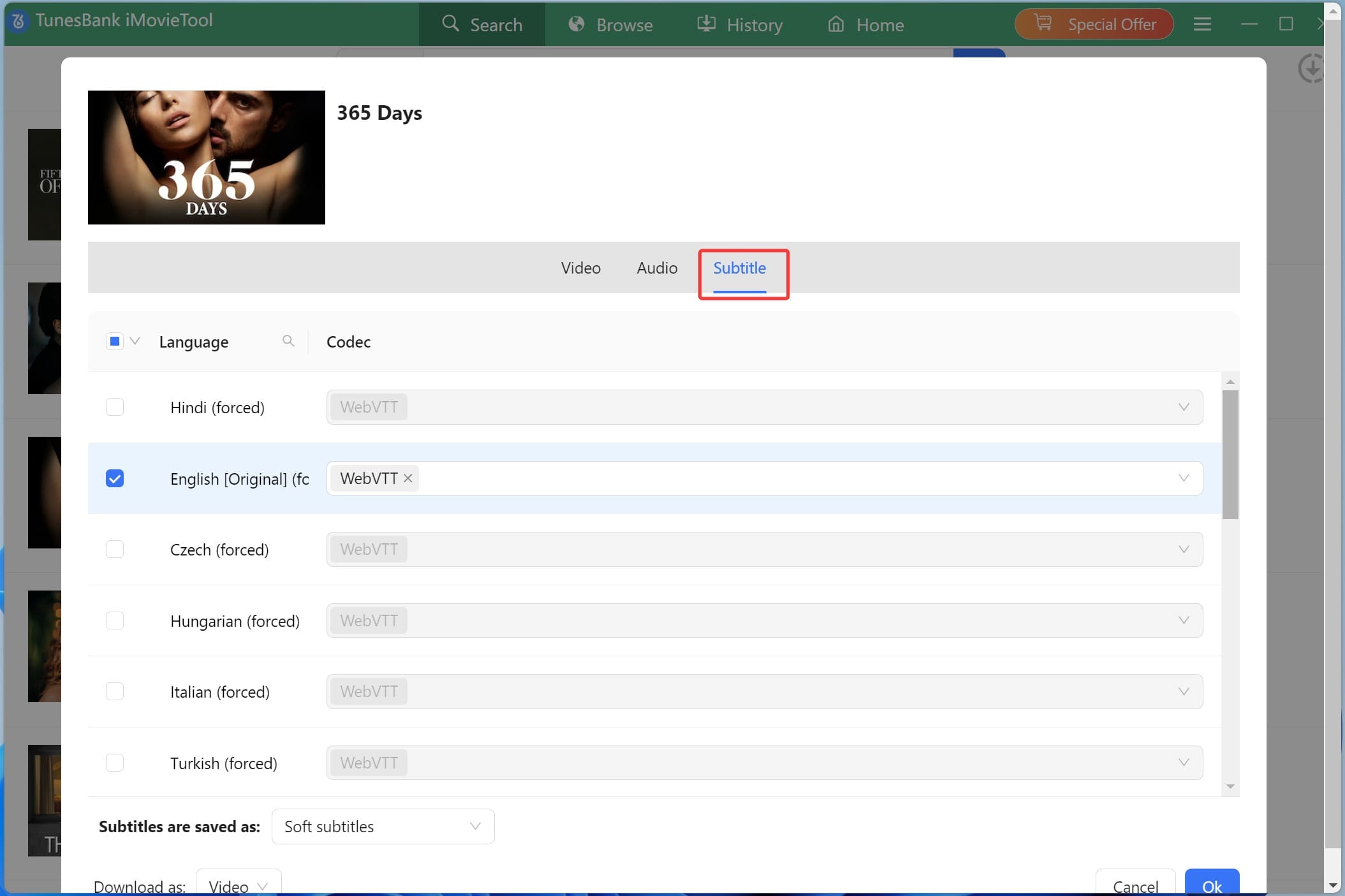
Tips: For more advanced settings, click the "Gear" icon next to the title, you can set custom resolution, audio, and subtitles for this specific video before downloading.
Step 5. Locate Your Downloaded Netflix Video Files
After the download completes, all your successfully saved Netflix videos can be easily found in the "History" section. Click on the "Blue Folder" icon next to the title, this allows you to quickly locate and access offline Netflix video files.










 United States (English)
 Japan (日本語)
 Russia (русский)
 Germany (Deutsch)
 France (Français)
 Spain (Español)
 Italy (Italia)
 Portugal (Portugues)
 China (繁体中文)
 Turkish (Türk dili)
 Dutch (Nederlands)
 Korean(한국인)
 Saudi Arabia(عربي)