








 United States (English)
 Japan (日本語)
 Russia (русский)
 Germany (Deutsch)
 France (Français)
 Spain (Español)
 Italy (Italia)
 Portugal (Portugues)
 China (繁体中文)
 Turkish (Türk dili)
 Dutch (Nederlands)
 Korean(한국인)
 Saudi Arabia(عربي)
 Download Netflix Movies and TV shows to watch offline.
Do you want to download Netlfix movies/shows to computer for viewing offline? You’re in the right place! In this guide, we’ll teach you 3 easy ways to download Netflix videos to MP4 in 1080P, and even reach 4k quality, so that you can play 1080P Netflix movies/shows on any device, anytime and anywhere.
Netlfix is a good OTT site to stream movies and TV shows, you even are able to download movies or TV shows to watch offline via its app. But, the latest updates of Netflix Windows App doesn’t support download feature now, and there is no Netflix app for Mac, it means that no offical method to download Netflix videos to Windows or Mac computer. If you want to download Netflix videos to computer for watching offline, you need to use a third part tool like iMovieTool Netflix Video Downloader, which helps you download Netflix videos to MP4 with 1080P HD quality.
Netflix (iOS/Android) app can’t save Netflix videos to local MP4 files. This is because the downloaded NFV videos is encrypted, which only be watched within the Netflix app. In this guide, we’ll teach you 3 ways to download Netflix to MP4, so that you’re able to watch Netflix movies/shows downloads offline on Windows and Mac computer, and even transfer them to other devices for viewing offline.
Way 1. Download Netflix to MP4 in 1080P on Windows/Mac 🔥
The simplest way to download Netflix videos to MP4 is by using a professional Netflix video downloader, like iMovieTool Netflix to MP4 Downloader.
iMoiveTool Netflix Video Downloader is a high performance, best output quality, security, and efficiency Netflix downloading tool for you to download Netflix videos, this tool helps you keep Netflix downloads permanently. iMovieTool not only can help you download Netflix videos to MP4 in 1080p/720p, but also gives you full control over your subtitles. You can download Netflix videos with subtitles in soft, hard subtitles, or external files. You can even choose to save just the subtitles as individual SRT files. This is perfect if you need subtitles in multiple languages for learning or sharing.
There is a built-in Netflix browser in the software, you can directly search and download Netflix videos in three ways.
Way 1.Browse in Built-in Browser: Navigate to the “Browse” section, then you can view all Netflix contents, just open a movie/show page and click the green “Add” icon, the software will analyze this video in second and pop up an new windows, just hitting “Download” icon start downloading process. Of course, you can also search any title you wish to download in its built-in Netflix web browser.
Way 2. Directly Search Title/Keyword/Name in Searching Bar: On the main screen, clicking “Search” menu, then type name/keyword/title in the search bar, the software will help you find out all releated videos for you, including movies, TV shows, documentaries, and anime, just cllick “Download” icon start downloading videos to computer.
Way 3. Copy & Paste Netflix Video URL into the Search Bar for Searching: Copy the Netflix video link from Netflix app or browser.
Paste it into the searching bar to search it. It is the most accurate way to find the video you wish.
Let’s watch the simple video guide: The Easiest Way to Download Netflix Movies/Shows to MP4
iMovieTool offers excellent HD video quality and fast download speeds, reach 1080P/4k, and upto 50X fast speed. This program also allows you to save multi-language audio tracks and subtitles in your MP4 files. Unlike Netflix’s built-in download feature, which limits you to the ‘Available for Download’ section, iMovieTool lets you download any Netflix video that you can stream on browser. So, whenever you find a movie or show you like, this tool is perfect for downloading Netflix video to high-quality MP4 file.
Note: Don’t play any videos in Netflix app or other browser while start video downloading process with iMoiveTool. Otherwise, the download process will be interrupted.

Key Features of iMovieTool Video Downloader
* Security verified. 5,481,347 people have downloaded it.
- Download video from various services, including Netflix, Amazon Prime, etc.
- Download Netflix Video to MP4/MKV
- Downloads Netflix videos to MP4 in 1080P
- Preserves all the original multilingual audio tracks and subtitles
- Download Netflix video at 50x speed in batch
- Keeps the downloaded Netflix to MP4 forever without expiration
- Compatible with Windows & Mac
Download Netflix Movies to MP4 in 1080P
Video Guide – How to Download Netlfix Movies/Shows to MP4 with iMovieTool.
Step 1. Select Netflix Downloading Option and Sign Into Your Account
To begin, open the iMovieTool Video Downloader on your computer. The tool supports downloads from 9 different streaming platforms. To access Netflix downloads, select Netflix and log into your Netflix account.
Step 2. Search for Netflix Videos
You have three ways to find Netflix videos in the iMovieTool Netflix Video Downloader.
1# Go to the “Browse” tab, browse the Netflix video library online, open any video, and click the “+” icon to add it.
2# Go to the “Search” tab, type the video name or keyword directly, and select the right Netflix title in the screen. After selecting a video, you can choose the desired video quality by clicking “Gear” icon next to the title, and start downloading directly.
3# Copy a Netflix video URL from your Netflix website or app, and paste it into iMovieTool’s search box for instant detection.
Step 3. Select MP4 as the Video Format
Click the “Gear” icon located at the top right of the screen to access output settings. Set the output format to MP4, and customize options like output quality, file location, and subtitles.
Step 4. Download the Netflix Video
After setting your preferences, click “Download” to start the downloading process. iMovieTool Video Downloader will convert your selected movies or TV shows into MP4 format.
Step 5. Review Download History
Once the download is complete, you can check the progress and view your downloaded videos under the “History” section.
Click on the “View Output File” button, and iMovieTool Video Downloader will take you to the folder containing your downloaded Netflix videos, ready for offline viewing.
Pros:
- It can catch and download Netflix movies, TV shows, documentaries to MP4 in batch at 50X speed.
- Offers multiple output formats like MP4, MKV.
- Keep video metadata for the downloaded Netflix videos.
- Save Netflix in 1080p high quality and you can adjust the output parameters.
- Download videos from built-in Netflix web player without the Netflix app.
- Supports various languages for audio tracks and subtitles.
Cons:
- It requires an installation on your desktop.
- The free trial version is just allowed to download the first six minutes of each video for free.
Way 2. Record Netflix to MP4 with Screen Recorder
To get MP4 files from Netflix onto Windows and Mac computers, UkeySoft Screen Recorder for Windows and Mac users. This easy-to-use tool lets you record anything on your screen, including streaming videos, music, gameplay, and online meetings. You can quickly capture Netflix movies, YouTube videos in high quality and save them in formats like MP4, FLV, AVI, or WMV. It also provides simple editing tools, so you can trim clips, add subtitles, watermarks, or background music to make your recordings look professional.
Different from iMovieTool Netflix Video Downloader, this screen recorder can’t save multiple Netflix movies or episodes at once. So it make takes more time to finish a complete Netflix video recording. Due to Netflix applied DRM protection to its streaming content, to download Netflix movies to MP4 without black screen, first you need to turn off Hard Acceleration feature in the browser.
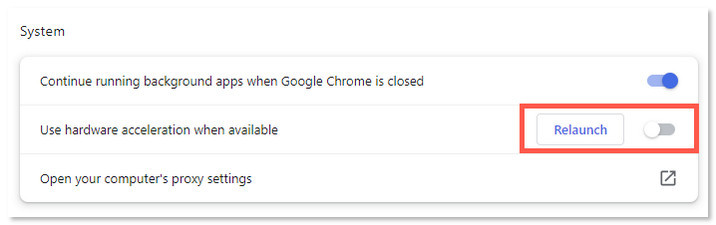
How to Record Netflix to MP4 on PC
Here’s how to record Netflix videos using the Windows version of UkeySoft Screen Recorder.
Step 1. Launch the Program
Download, install, and open UkeySoft Screen Recorder, then select the “Screen Recorder” option.
Step 2. Choose the Recording Area
You can record your entire screen, a specific window, or a custom region. To record Netflix videos, select “Record Screen.”
Step 3. Select Computer Sounds
To capture Netflix audio, click the Sound icon and choose “Computer sounds.” Make sure the camera option is turned off.
Step 4. Adjust Output Format and Quality
Go to Settings > Video, choose MP4 as the output format.
Set the quality to “Highest” for the best results.
Step 5. Start Recording Netflix to MP4
Play the Netflix video you want to record, then hit the “Record” button or press F5 to start or stop recording.
Once done, you can preview the saved Netflix video using the built-in media player.
Pros:
- It can record any part of the Netflix movie or TV show.
- Save Netflix videos to MP4 at up to 1080P.
- Edit the output videos with its built-in video editor.
- It offers various video and audio formats.
- Supports to convert Netflix download to MP3.
Cons:
- Lack of video metadata.
- Screen recording can be time-consuming.
- The recording process requires a smooth and stable network.
- You need to manually set and record Netflix video one by one.
Way 3. Download Netflix Video to MP4 with Online Tool
If you prefer not to install desktop software, you can try using a reliable online Netflix video downloader to download Netflix to MP4. NetflixDownload is one such free Netflix downloading website that allows you to download Netflix videos to MP4 files without installing any software. As an online website, NetflixDownload is compatible with desktop and mobile devices. This means you can either save Netflix video in MP4 using your phone or computer.
However, the drawback is that the website doesn’t allow for batch downloading the Netflix video titles. But the good news is that it you can use another efficient and workable desktop software like iMovieTool Netflix Video Downloader to perform Netflix download tasks. It is 100% successful, and runs at up to 50X faster!
Here are the specific steps to download Netflix video to MP4 via this online website:
Step 1. Copy the Netflix video link from Netflix app or website.
Step 2. Visit NetflixDownload website using your computer or mobile browser, and paste the link into the search bar.
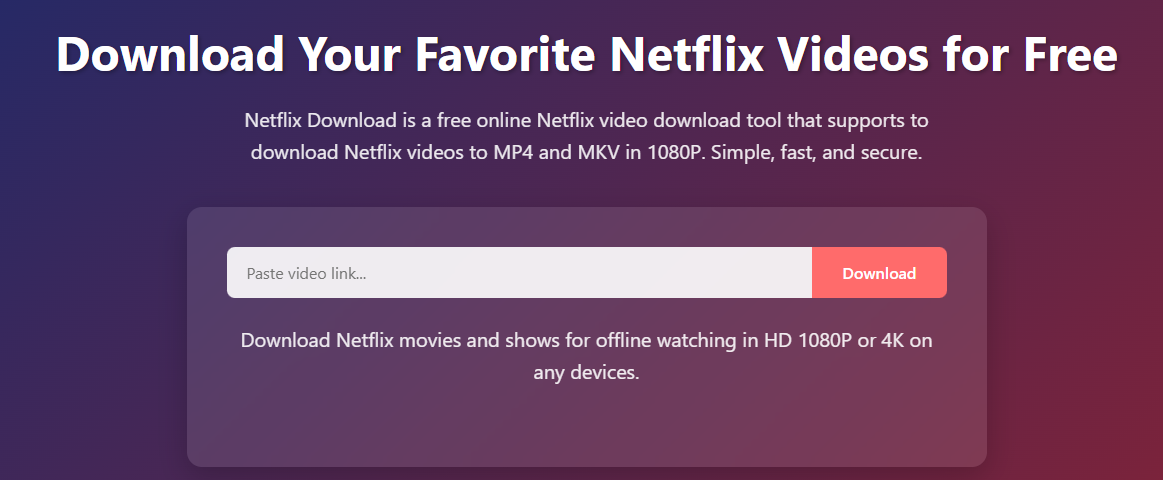
Step 3. Click “Download” button, wait a few moments for the parsing process to complete.
Step 4. Netflix, choose MP4 format and HD quality, then click the “Download” button to save the MP4 file.
Pros:
- No need to install software.
- It is free and easy to handle.
- It’s an online tool without ads.
- It helps you download Netflix to MP4 for free.
Cons:
- Batch download is not supported.
- It is not as stable as desktop software.
- Sometimes stuck in the parsing process.
- It can’t download entire TV episodes from Netflix.
FAQs About Downloading Netflix to MP4
Q1. What is an NFV file? Can it be converted to MP4?
Netflix uses the NFV format for its downloaded videos, which can only be played in the Netflix app. This means you can’t directly convert Netflix downloads to MP4. However, iMovieTool Netflix Video Downloader can remove the protection, allowing you to save Netflix videos as MP4 files without restrictions.
Q2. Can you convert Netflix videos to MP4 on Android?
First, Netflix allows Premium subscribers to download videos in the Netflix app on Android and iOS devices. But there’s no official way to download Netflix movies as MP4 on Android. Netflix uses the NFV format to save downloaded videos. With third-party tool – iMovieTool Netflix Video Downloader, you can download and convert Netflix videos to MP4 files, and then transfer them to your Android device to keep them permanently.
Q3. How do you get Netflix shows onto your PC as MP4 files or something?
Netflix has removed the official Download function from its Windows App. To download Netflix shows on Windows PC or laptop as MP4 files, you can turn to a third-party software such as iMovieTool Netflix Video Downloader. It makes it possible to download Netflix TV shows to PC in MP4 format with 1080p quality.
Q4. How to change the video quality of a download in Netflix?
Netflix only lets you download videos in the mobile app. To change video quality in Netflix app, tap “My Netflix”, and tap “Men” > “App Settings”. Tap “Download Video Quality”, and choose the Standard or High/Higher option based on your preference.
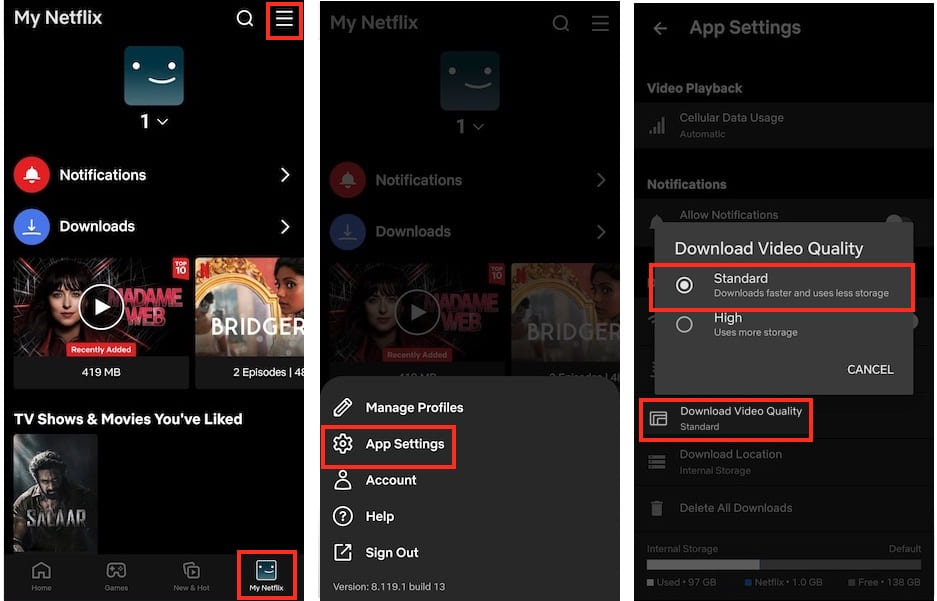
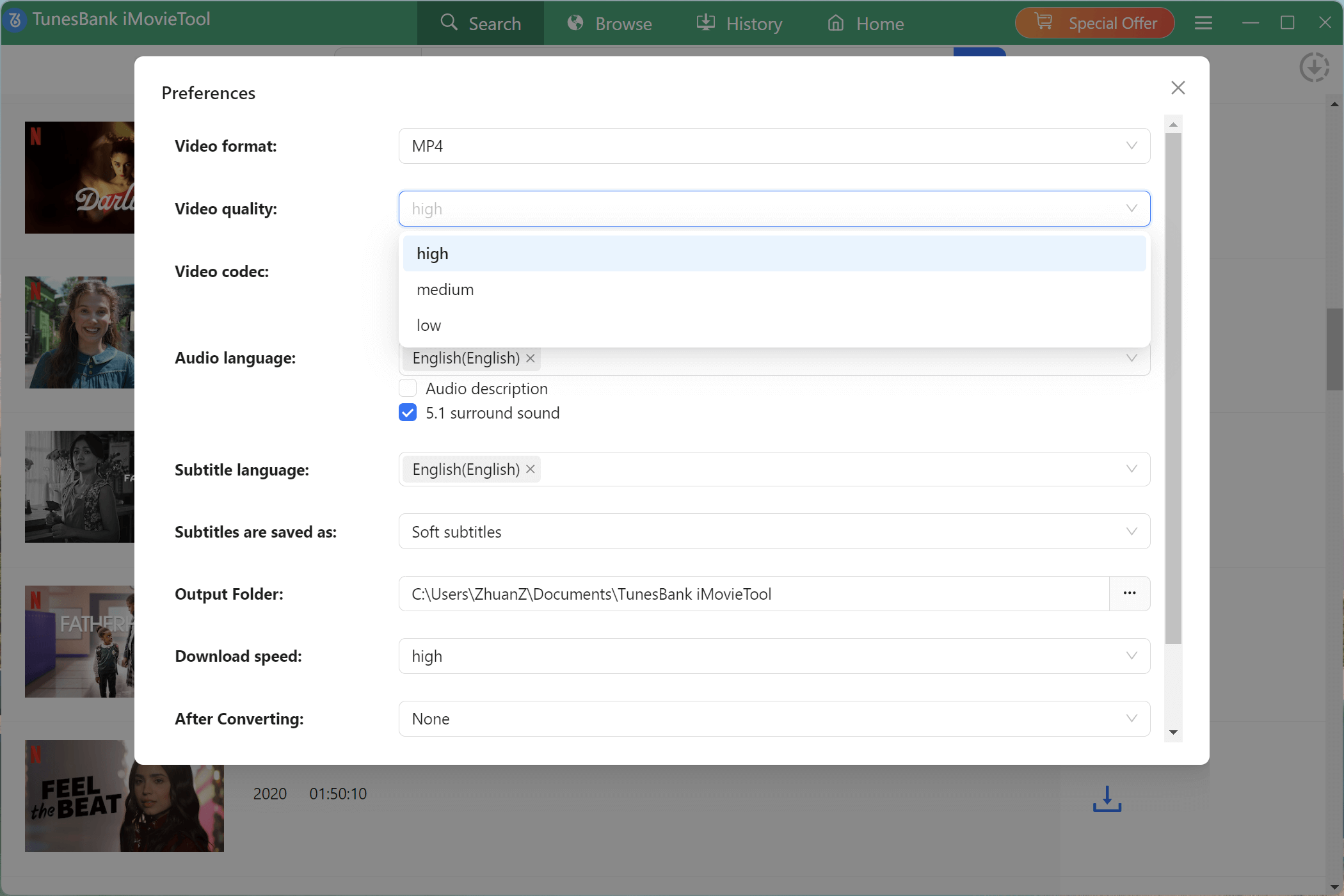
But if you use a third-party Netflix downloader to download Netflix to MP4, you may also change the video quality before downloading. For example, when opening the iMovieTool Netflix Video Downloader, go to “Menu” > “Preference” > “Video quality”, choose “high” option.
Conclusion
Since Netflix doesn’t let users directly download videos in MP4 format, some third-party Netflix to MP4 downloader or converter tools are able to help. Above, we’ve introduced three effective ways to help you download and save Netflix videos as MP4 files and keep them permanently. When choosing a Netflix to MP4 downloader, it is import to consider your needs and preferences. To sum up:
– If you are looking for the stablest and most powerful software to download Netflix videos to HD MP4 with the highest efficiency, then iMovieTool Netflix Video Downloader may be your first pick.
– For those who want to record clips from Netflix movie or show with an editing function, turn to the UkeySoft Screen Recorder.
– If you prefer downloading Netflix links to MP4, then you can choose NetflixDownload, a free online Netflix downloading website. But it only provides very basic download functions.
Now, select one and start downloading your favorite videos from Netflix to MP4!
The Latest Articles
– Top 8 Solutions to Download Streaming Video
– Top 10 Free Movie Download Sites Recommended
– 3 Ways to Download Movies to Watch Offline
– 2 Verified Methods to Download X/Twitter Videos to MP4
– Download Twitter(X) Videos on PC, Mac and Mobile Phone
– Download Facebook Videos on PC, Mac and Mobile Phone
– 3 Ways to Download Facebook Video to MP4

Netflix Video Downloader
Download Netflix video to MP4 with multi-language audio track and subtitle kept. Up to 50X downloading speed. Download your favorite Netflix movies or TV shows to Mac/Windows computer for watching offline.







