







 United States (English)
 Japan (日本語)
 Russia (русский)
 Germany (Deutsch)
 France (Français)
 Spain (Español)
 Italy (Italia)
 Portugal (Portugues)
 China (繁体中文)
 Turkish (Türk dili)
 Dutch (Nederlands)
 Korean(한국인)
 Saudi Arabia(عربي)
 Download HD movies & TV shows from Disney Plus.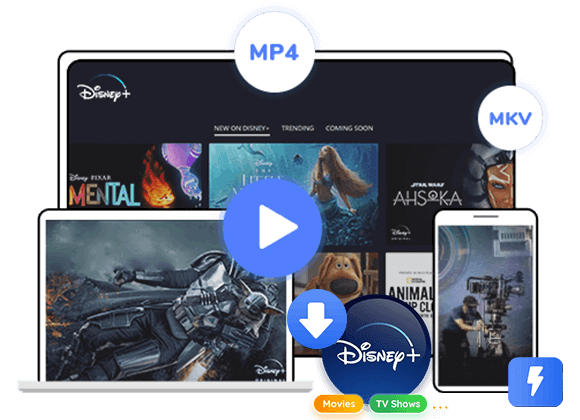
Do you want to watch Disney Plus offline? This post will guide you on how to download and watch Disney Plus movies and TV shows offline without Wi-Fi on iPhone, Android, Fire tablet, Windows, Mac, game consoles mart TV, etc.
Disney+ offers a huge collection of movies, TV shows, documentaries, and original series. However, streaming requires an internet connection, which can be inconvenient when you’re traveling, flying, commuting, or staying somewhere with unreliable Wi-Fi. Fortunately, there are ways to watch Disney Plus offline and enjoy your favorite Disney+ videos without an internet connection.
The challenge is that Disney+ only supports offline viewing on mobile devices. The web player only supports streaming, and there is no desktop app with offline functionality. Don’t worry, you can ask help from dedicated desktop tool. This article will guide you how to watch Disney Plus offline on all devices, such as smartphone, tablet, computer, laptop, smart TV, game console, etc., even without relying on the Disney Plus app!
Can You Watch Disney Plus Offline in 2026?
Yes! In 2026, Disney Plus allows downloads exclusively on its ad-free Premium ($21.49 per month) or a qualifying Premium bundle plan. The download feature is available on supported mobile devices like phones and tablets. Once downloaded, you can watch your Disney+ downloads on your mobile devices through the official app. The ad-supported Basic plan does not include downloads at all.
If your goal is to watch Disney Plus offline on any device – including computers, TVs, or media players, the official mobile download feature will not get you there. Fortunately, there are some useful third-party Disney Plus video downloader that can help you download Disney Plus videos as MP4 files. Thus, you can move them to any device or player for offline viewing anywhere. Keep reading and grasp how it work.
How to Watch Disney Plus Offline on Mobile Devices?
As mentioned above, if you have subscribed to a Disney Plus Premium (ad-free) plan, you can download on Disney Plus for offline viewing. This method works on supported iPhones, iPads, Android phones and tablets, and Amazon Fire tablets through the official Disney+ app.
|
Platform |
Supported Devices or Requirements |
|
iOS |
iPhone or iPad running iOS/iPadOS 16.5 or later |
|
Android |
Android phones and Android tablets running Android OS 6.0 (Marshmallow) or later |
|
Fire OS |
Fire tablet running Fire OS 6 or higher |
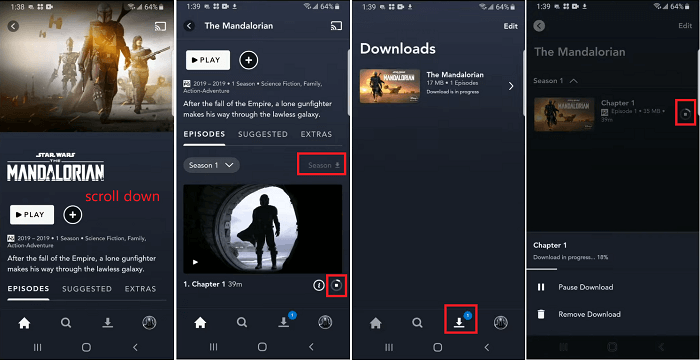
The process is straightforward: open the app, find a title, and tap the download icon. Below are the detailed steps to watch Disney+ offline on your phone:
Step 1. Open the Disney+ app on your phone or tablet. Then sign in to your Disney+ Premium account.
Step 2. Browse the Disney+ library and open the movie or show want to watch offline. For a TV series, select the season and episode you want.
Step 3. Tap the “Download” button, and choose your preferred video quality if prompt.
Step 4. When finishes, tap “Downloads” icon at the bottom, and watch the Disney+ videos offline on your phone.
• Some Disney+ titles cannot be downloaded due to its licensing restrictions.
• Disney+ only allows up to 25 active downloads per account across a maximum of 10 supported mobile devices.
• If you sign out of your Disney+ account, downloaded content is removed from that device.
• Your device must connect to the internet at least once every 30 days or downloads expire.
• Once you press play, you have 48 hours to finish watching before the download expires.
• The downloaded Disney+ videos are just cache files, so you can only access them within the app.
• When your Disney+ subscription ends, you may lose access to downloaded content.
How to Watch Disney Plus Offline on Computer?
Since there is no an official way to download Disney Plus videos on Mac or Windows, and the official Disney+ mobile app has various download restrictions, you may need a professional third-party tool to help you save Disney Plus videos as MP4 files.
TunesBank DisneyPlus Video Downloader is a desktop application for Windows and Mac that downloads Disney Plus movies and TV shows directly to your computer without the App. Unlike the official app, TunesBank exports Disney+ videos as playable MP4 or MKV files that never expire. And all Disney+ downloads come in HD resolution with multilingual audio tracks and subtitles. After downloading, you can transfer the Disney+ videos to any device or player for offline watching.
Main Features of TunesBank DisneyPlus Video Downloader
- Download Disney+ videos into widely compatible MP4 or MKV file.
- Save Disney+ movies, TV shows and videos in HD quality.
- Choose available subtitles and audio languages for playback.
- Preserves original audio tracks, and 5.1 surround sound.
- Download multiple movies and entire TV episodes in one batch.
- Works on Windows and Mac without installing the Disney Plus app.
Step-by-Step: How to Download Disney Plus Videos on PC/Mac
Step 1. Sign In Your Disney+ Account
Download and launch TunesBank DisneyPlus Video Downloader on your PC or Mac. Choose Disney+ from the platform list, then log in with your Disney Plus account credentials in the built-in browser.
Step 2. Modify Output Settings
Click the Menu bar in the top right corner, and select Preferences option. Here you can choose your output format (MP4 or MKV), video quality (High, Medium, or Low), audio language, subtitle language, and the destination folder for your downloads.
Step 2. Search for a Movie or TV Show
TunesBank provide several ways to locate supported content: searching by title, entering a video URL, or browsing through an integrated online interface.
Using the name: Type the title of a movie or show into the search bar. TunesBank will display matching results from the Disney Plus catalog
Using the URL: Copy a Disney Plus video link from your browser and paste it into TunesBank. The software will recognize the link and load the video automatically.
Browse online: Tap “Browse” tab to access the built-in web browser. Navigate the supported Disney+ catalog.
When you find a title you want, open its video page and click the “+” icon to add it to your download queue.
Step 4. Start to Download Disney+ Video to MP4
Once your videos are queued, click the “Download” button. For TV shows, you can select specific seasons and episodes before starting.
Step 5. Watch Downloaded Disney+ Videos Offline
When processing finishes, open the “History” section in TunesBank. Click the folder icon next to any title to open its location on your computer. You can now watch Disney+ offline on your computer or laptop using other media players!
Tips on Watching Disney Plus Offline on Any Device
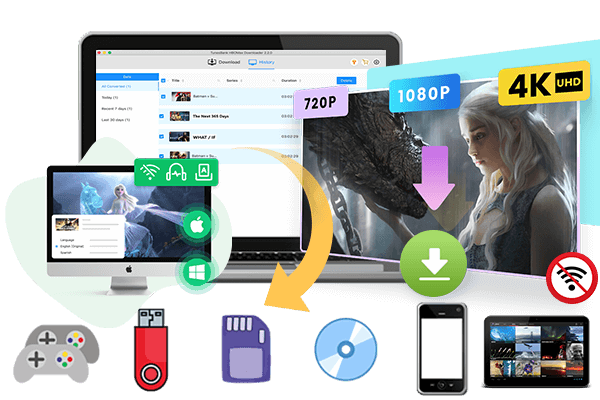
Once you get Disney Plus downloaded in MP4 format through TunesBank, you can transfer them to a USB drive and plug it directly into a smart TV, USB projector, laptop, PSP, PS3, PS4, PS5, Xbox One, or Xbox 360. Thus, you can watch your downloaded Disney Plus videos offline on any device wherever you go, even if your subscription ends! No Disney Plus app needed, no internet connection, no expiration date!

FAQs About Watching Disney Plus Offline
Can You Watch Downloaded Disney Plus on a Plane?
Yes. For Disney Plus Premium subscribers, you can download Disney+ movies and shows on your phone or tablet before you leave. Your device must have connected to the internet within the past 30 days, and you must start watching within the download’s validity window. Once you press play, you have 48 hours to finish.
Can You Watch Disney+ Offline on a MacBook?
The official Disney+ service does not support offline downloads on MacBooks. You can only stream Disney+ content on MacBook through a supported browser while connected to the internet. To watch Disney Plus offline on Mac or other devices, you need a desktop downloader like TunesBank DisneyPlus Video Downloader that saves Disney+ videos as local MP4 or MKV files.
How to Watch Disney Plus Video Offline Without the App?
Typically, official Disney+ downloads are designed to play within the Disney+ app. If you want to watch Disney Plus videos outside the app, you can utilize a third-party tool such as TunesBank to download Disney Plus videos into MP4 or MKV files. Thus, you can add and enjoy these videos using other media players like WMP, VLC, iTunes, etc.
Conclusion
Disney+’s offline mode is handy feature for users. You can easily download Disney+ videos on iPhone, iPad, Android, and Amazon Fire tablet with Premium account. But there are several restrictions you need to know: 30-day validation, 48-hour playback windows, and app-locked files, etc. If you want to bypass these restrictions and watch Disney+ offline on any device, TunesBank DisneyPlus Video Downloader offers a useful way to download Disney+ movies and shows as MP4/MKV format for personal offline viewing anytime, anywhere.

Disney+ Video Downloader
An excellent tool to download Disney Plus movies or TV series for offline watching anywhere anytime. Supports downloading Disney+ videos to MP4 or MKV files with up to 720P/1080P quality and Atmos/EAC3 5.1 audio.