







 United States (English)
 Japan (日本語)
 Russia (русский)
 Germany (Deutsch)
 France (Français)
 Spain (Español)
 Italy (Italia)
 Portugal (Portugues)
 China (繁体中文)
 Turkish (Türk dili)
 Dutch (Nederlands)
 Korean(한국인)
 Saudi Arabia(عربي)
 Download HD movies & TV shows from Prime Video fastly and losslessly.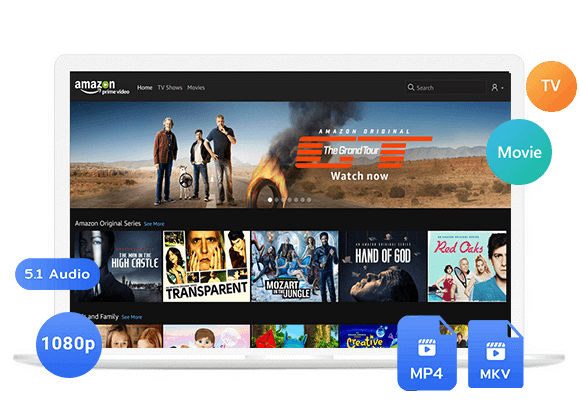
This guide covers three practical solutions to watch Prime Video while traveling abroad. Whether you are taking a short trip or moving overseas long-term, you will learn how to access to Prime Video in abroad smoothly.
Yes. Any Prime Video movies or shows you have already bought or rented can usually be streamed abroad. For streaming content included with your Prime subscription, the situation is a bit different. You will only have access to a limited selection of movies and TV shows while outside your home country. The good news is that you can download Amazon Prime videos before departure and watch them offline anywhere in the world. In this article, we will guide you how to watch Prime Video while traveling abroad, even without the Prime Video app and Internet connection.
Solution 1. Use the “Watch While Abroad” Label on Amazon Prime Video
Amazon Prime Video offers a selection of movies and TV shows during your trip. When you are outside your home country, the Prime Video interface shows a special “Watch While Abroad” section or label. This method requires no setup at all, all you need is a stable Internet connection and active subscription. Follow below steps to watch Prime Video abroad online:
Step 1. Open the Prime Video app or website on your device while you are abroad.
Step 2. Sign in to your Amazon account. Navigate to the Movies or TV Shows menu.
Step 3. Browse the catalog and look for the “Watch While Abroad” label. These are the titles included with your Prime membership that you can stream in your current location.
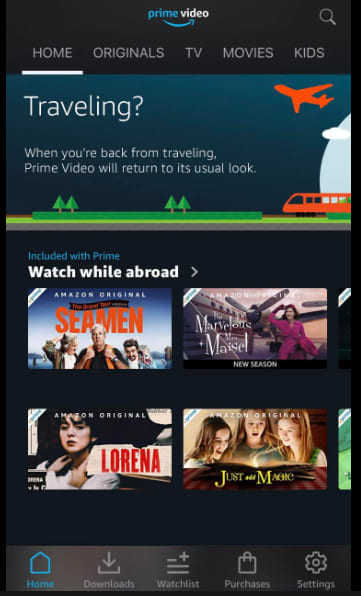
Step 4. Select any title and press play and keep your device connected to a stable network.
Solution 2. Download Amazon Prime Videos Before You Go
If you want to watch Prime Video while traveling abroad without depending on a stable internet connection, you can download Amazon Prime movies and TV shows to your mobile devices or laptops before you leave home. You can download and save your favorite Amazon videos to your devices through official Prime Video App, or third-party Amazon Video Downloader. Scroll down to get the details.
2.1 Download Amazon Prime Videos to Mobile or Laptop (Official App)
The official Prime Video app is available on iOS, Android, Fire tablets, Windows 10/11, and macOS app. This method is free with your Prime membership or Amazon Prime Video subscription. Once downloaded, you can watch them later without Wi-Fi or mobile data
Step 1. Open the Prime Video app on your phone, tablet, or laptop. Log in using your Amazon account.
Step 2. Find the movie or TV show you want. Open the title’s details page.
Step 3. Look for the “Download” icon and click it. Choose an available quality setting if prompted.
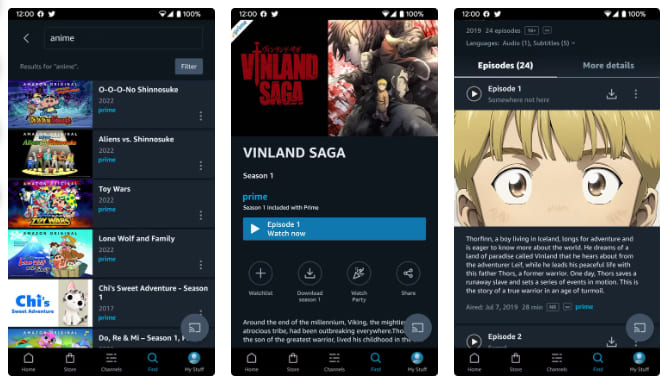
For TV series, you can download an entire season or select individual episodes .
Step 4. Once you are abroad, open the Prime Video app, go to the “Downloads” section, and play your saved content in airplane mode or without internet.
However, Amazon Prime downloads come with several limitations: they are locked to the Prime Video app, and cannot be transferred to other devices. The downloads will expire after 30 days (or 48 hours once you start watching). Moreover, regional restrictions may affect playback. For example, a video downloaded in Japan may not be available to watch in the United States.
2.2 Download Amazon Prime Videos to MP4 (Watch Anywhere)
While the official download function is convenient, it has issues such as in-app playback, expiration dates, regional restrictions, and device locking. If you want to watch Prime Video outside the app, keep permanently, transfer to any device, and take anywhere, you need a dedicated desktop tool.
TunesBank Amazon Video Downloader is a Windows and Mac program that saves Prime Video content as standard MP4 or MKV files. It embeds a web browser for easy login, browsing, and downloading. What’s more, it preserves HD 1080p quality, original audio tracks and subtitles. Using it, you can download Amazon Prime movies, TV shows, purchased and rented videos to computer folder to keep permanently.
This way, you can transfer your Amazon videos to a USB drive, play them on a smart TV or laptop, or watch them with any media player. When you are traveling abroad, you can access and watch Amazon videos offline on your own devices, no internet and no Prime Video app required.
Features of TunesBank Amazon Video Downloader:
- Download Amazon movies and TV episodes in HD 1080p on computer.
- Save Amazon Prime videos in MP4 or MKV output formats.
- Choose suitable video quality and audio settings before downloading.
- Download multiple episodes or titles in batches with one click.
- Preserve original audio tracks and subtitles where supported.
- Transfer Amazon videos to other devices or players for playback.
- Keep downloaded Amazon videos permanently, no expiration date.
- Watch Amazon videos offline without relying on the Prime Video app.
Simple Steps to Download Amazon Prime Videos on PC/Mac in MP4
Step 1. Log In Your Amazon Account
Install and launch TunesBank Amazon Video Downloader on your Windows PC or Mac. Choose the Amazon Prime Video platform in the program, then sign in through the provided login interface using your Amazon account.
Step 2. Customize Output Settings
Hit on Menu bar in the upper right corner and tap Preferences. Choose MP4 as your output format (best for universal compatibility), select your preferred video quality, audio language, and subtitle.
Step 3. Search for a Movie or TV Show
TunesBank provides several ways to find the Amazon video you want. You can search by title, enter a video URL, or browse content through the built-in browser.
Way 1. Tap “Search” tab, enter the movie or TV show’s name in the search box and run the search. Review the matching results, then select the correct title and season or episode before adding it to your download list.
Way 2. Copy the URL of the supported Amazon video from your browser and paste it into the program’s search field.
Way 3. Tap “Browse” tab to enter the built-in browser, from where you can navigate Amazon’s video catalog.
Find the title you need and open its detailed page. Then click the “+” icon to add it to the download list.
Step 4. Download Amazon Video to Computer
Before downloading, you can click the “Gear” icon for advanced settings for your selected title. If ready, click the “Download” button next to your chosen movie or episode.
For TV series, select the specific episodes you want. Confirm and click “Download” to start the process.
Step 5. Find Downloaded Amazon Videos
When the download finishes, go to the “History” tab. Click the folder icon to open the location of your Amazon MP4 video files.
You can transfer these video files to your phone, tablet, laptop, USB drive, or other devices, and watch them offline using other players when you are in abroad!
Solution 3. Update Your Prime Video Account Settings
If you are moving abroad permanently rather than just traveling, you can change your Amazon account country settings to match your new residence. This gives you access to the full local Prime Video library of that country, rather than the limited “Watch While Abroad” selection.
Here’s how to transfer your Amazon account to another country:
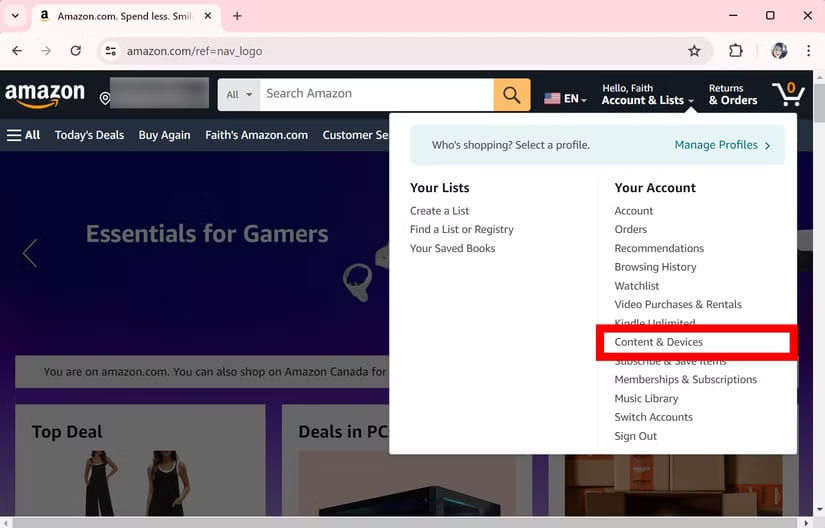
Step 1. Visit Amazon website, click on the drop-down menu next to your profile. Select “Content & Devices”.
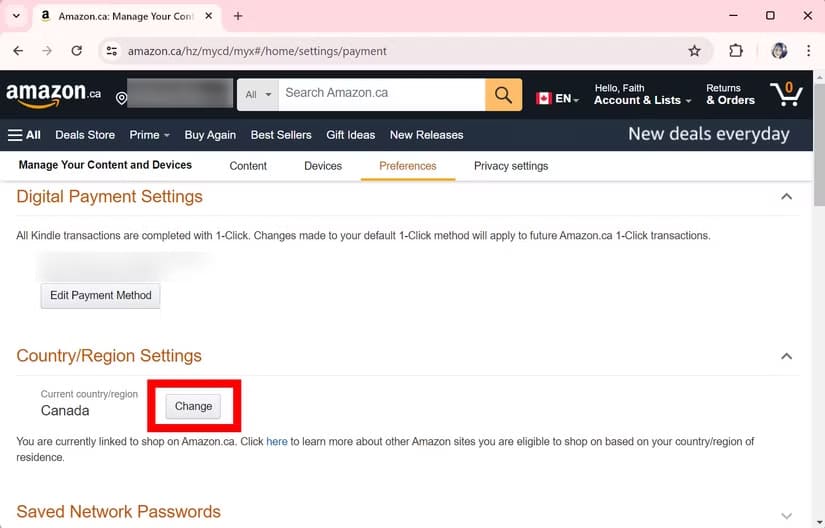
Step 2. Tap “Preferences” tab under Manage Your Content and Devices. Find “Country/Region Settings” section, and click “Change” button.
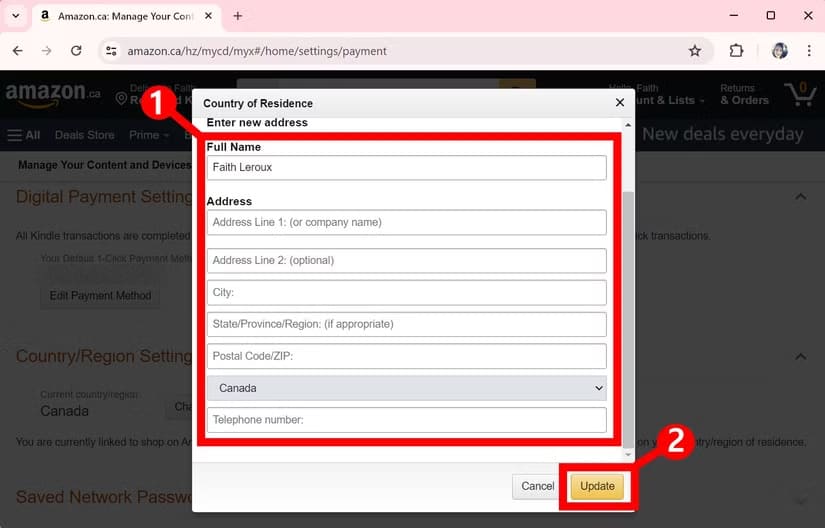
Step 3. In the pop-up window, enter your full name, new address, contact number and other messages. Click “Update” to save your change.
This option is best for long-term relocations, not short trips.
FAQs About Watching Prime Video Abroad
Will My Prime Downloads Work Abroad?
Yes. Downloads made through the official Prime Video app work offline anywhere in the world. However, downloads are only playable within the Prime Video app on the device you used. The 30-day/48-hour time limits and title-specific restrictions still apply even when you are traveling.
Can I Watch Prime Downloads on a Plane?
Yes. Once downloaded, your Prime Video content can be played without any internet connection. Put your device in airplane mode, open the Prime Video app, go to Downloads, and press play. Just make sure you downloaded Amazon videos before boarding and that the download has not expired.
Can I Use My Prime Video Account in Another Country?
Yes, your account works abroad, but the content library changes based on your location. You can stream the “Watch While Abroad” selection, any titles you have purchased or rented, and any downloads you made before traveling. For full access to the local library, you would need to change your account country settings.
Conclusion
You can absolutely watch Prime Video while traveling abroad. For a short vacation, the “Watch While Abroad” label gives you instant access to a curated selection of titles. In addition, you may download movies and TV shows in the Prime Video app before you go. If you want to watch Amazon Prime offline on any device without the app, TunesBank Amazon Video Downloader is the ultimate solution. Convert Amazon Prime Video titles to MP4 before your trip, load them onto your phone, laptop, or USB drive, and play Prime Video while traveling abroad on your own terms. No region limits, no expiration dates, no network!
The Latest Articles
– Top 8 Solutions to Download Streaming Video
– Top 10 Free Movie Download Sites Recommended
– 3 Ways to Download Movies to Watch Offline
– 2 Verified Methods to Download X/Twitter Videos to MP4
– Download Twitter(X) Videos on PC, Mac and Mobile Phone
– Download Facebook Videos on PC, Mac and Mobile Phone
– 3 Ways to Download Facebook Video to MP4

Amazon Video Downloader
Download movies and TV shows from Amazon Prime Video in MP4 or MKV format with audio track and subtitles kept. Up to 50X downloading speed. Save your favorite Amazon Prime videos to your computer for viewing offline.