








 United States (English)
 Japan (日本語)
 Russia (русский)
 Germany (Deutsch)
 France (Français)
 Spain (Español)
 Italy (Italia)
 Portugal (Portugues)
 China (繁体中文)
 Turkish (Türk dili)
 Dutch (Nederlands)
 Korean(한국인)
 Saudi Arabia(عربي)
 Download HD movies & TV shows from Prime Video fastly and losslessly.
Wondering how to get Amazon Prime on your TV? In this POST, you’ll learn how to add and watch Amazon Prime Video on a smart TV or non-smart TV, including Samsung, LG, Sony, TCL, Xiaomi, Hisense, Android TVs, Apple TVs, Google TVs, Fire TV Sticks and Roku TVs, etc.
Amazon Prime Video has become one of the most popular streaming platforms worldwide, offering thousands of movies, TV shows, Amazon Originals, sports content, and exclusive entertainment. It is available on multiple devices, such as mobile devices, laptops, streaming devices and more. Compared to mobile devices or computers, many users prefer to watch Amazon Prime Video on a TV because it provides a bigger screen experience, better audio quality and even support for 4K UHD and HDR streaming.
Here comes the question: Can you watch Amazon Prime on smart TV? The answer is YES! Whether you own a brand-new smart TV, an older model, or just a standard display with HDMI ports, there are multiple ways to enjoy your favorite Amazon videos on your TV. In this article, we’ll guide you how to watch Amazon Prime on your TV, from smart TVs to streaming from a phone. You can even watch Amazon Prime Video offline on your TV without buffering with the help of the powerful TunesBank Amazon Video Downloader. Let’s dive in!
Part 1. Is Amazon Prime Video Available on Smart TVs?
Yes. Amazon Prime Video is available on most modern smart TVs, including Samsung, LG, Sony, TCL, Hisense, Panasonic, Philips, and Vizio TVs. Most Smart TVs released in recent years come with Prime Video pre-installed. If the app is missing, you can easily add Amazon Prime Video to smart TV with simple steps. Simply download and install the Prime Video app from your TV’s app store, sign in to your Amazon account, and start streaming instantly.
If your smart TV does not support the Prime Video app, you can still watch Amazon Prime Video on TV using casting features, streaming devices like Fire TV Stick or Roku, HDMI connections, or even offline playback through a USB drive (Part 4).
Part 2. Watch Amazon Prime Videos on TV via Official App
As mentioned above, the Prime Video app is pre-installed on some modern smart TVs (manufactured after 2016), including major brands like Samsung, LG, TCL, and Sony. You can directly access Prime Vide content on your TV after logging in. If your TV does not have it pre-installed, you can download it for free from the TV’s app store.
How to Get Prime Video on Your TV?
Step 1. Connect Your Smart TV to the Internet
Before you install Prime Video on your TV, make sure your smart TV is connected to Wi-Fi or Ethernet.
Step 2. Open the TV App Store
Different TV brands use different app stores:
- Samsung TV: Samsung Smart Hub
- LG TV: LG Content Store
- Sony TV: Google Play Store
- TCL Android TV: Google Play Store
- Roku TV: Roku Channel Store
- Hisense TV: VIDAA Store or Google Play Store
Search for “Prime Video” into the search bar.
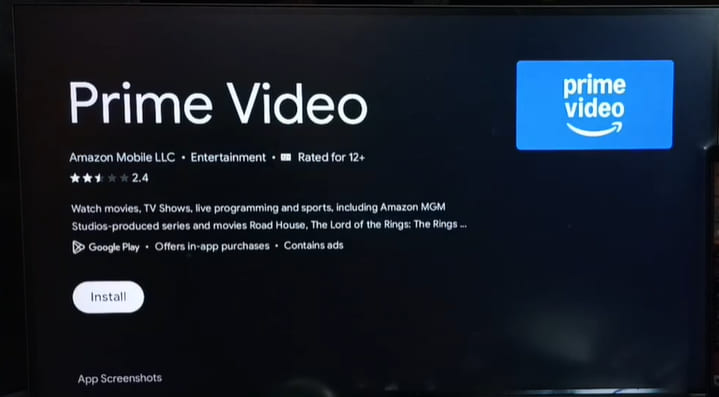
Step 3. Download and Install Prime Video App
Select the Prime Video app and click “Download” or “Install”. Wait for the installation process to finish.
Step 4. Sign Into Your Amazon Account
Open the Prime Video app after installation, and sign in using your Amazon email and password.
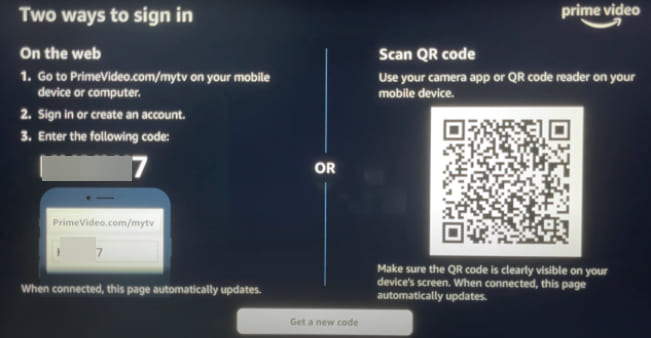
Step 5. Use a QR code and Active It
Some TVs will display a registration code. You can visit Amazon’s activation page on your phone or computer. Then enter the code to activate it.
Step 6. Start Watching Amazon Prime Video on Your TV
Once logged in, you can immediately browse Amazon Prime movies and TV shows, select any title and start streaming instantly.
Part 3. Cast Amazon Prime Video to TV from Phone/Laptop/Streaming Devices
If your TV is not a smart TV, or if the official app is not available, you can still utilize the casting feature to stream Prime Video from another device onto the TV screen wirelessly. In this part, we’ll show you how to cast Amazon Prime Video to your TV using smartphones, tablets, browsers, or streaming devices.
3.1 Cast Amazon Prime Video to TV from Android/iOS App
The Prime Video mobile app supports casting to compatible Smart TVs, Chromecast devices, and streaming sticks. This method allows you to use your phone as a remote control while the Amazon Prime video plays on the big screen.
-
Your Android or iPhone has the latest Prime Video app installed.
The TV must support Google Cast, AirPlay (for iOS), or Miracast.
Your smartphone or tablet and TV or casting device must be connected to the same Wi-Fi network.
Step 1. Open Prime Video app on your Android phone or tablet, iPhone/iPad. Then sign in to your Amazon account.
Step 2. Browse available movies, TV shows, or Amazon Originals, select a title and play it.
Step 3. Look for the “Cast” icon in the app interface and tap on it.
Step 4. Choose your TV or Chromecast device from the list of available devices. If your TV does not appear, ensure that “Google Cast” or “Screen Mirroring” is enabled in your TV settings.
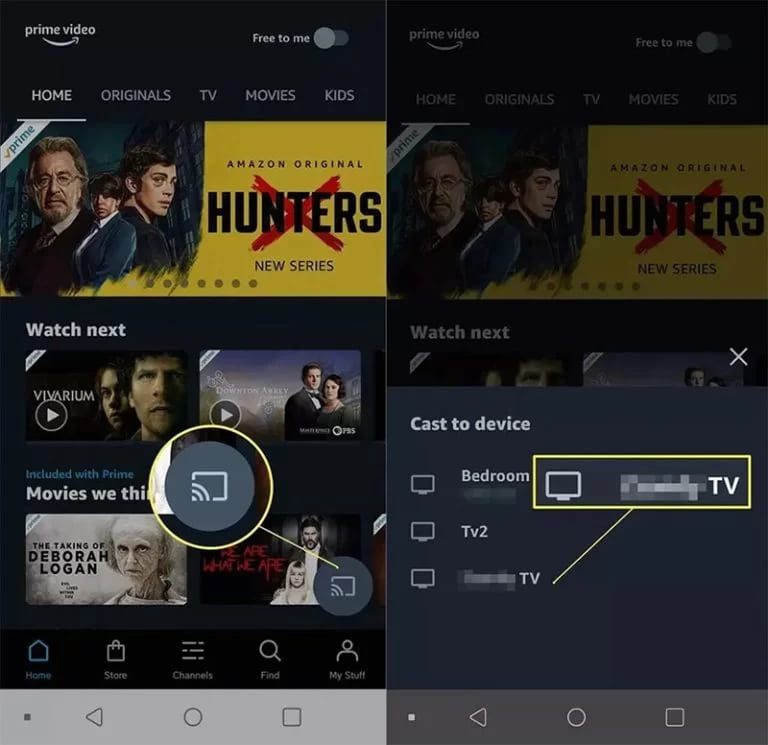
Step 5. The Amazon Prime video will begin playing on your TV or Chromecast device, and your phone will show playback controls (pause, volume, subtitles).
3.2 Cast Amazon Prime Video to TV Using the Chrome Browser
If you prefer using a laptop or desktop computer, you can cast Amazon Prime Video to TV through the Chrome browser. This method is ideal for users with Chromecast-enabled TVs or Google TV devices. However, your computer or laptop must stay awake during playback, and the TV must support Google Cast. Let’s see how to set it up:
Step 1. Open Google Chrome on your Windows, Mac, Chromebook computer or laptop.
Step 2. Go to the Prime Video website (primevideo.com) and sign into your account.
Step 3. Click the three-dot menu in the upper-right corner. Select “Cast”, then “Cast, save and share” option.
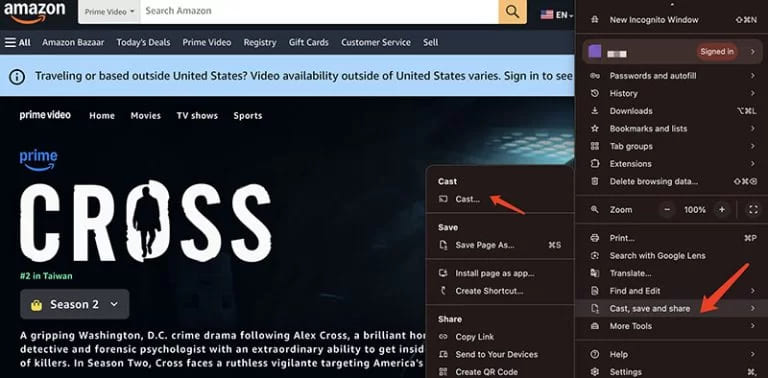
Step 4. Choose your TV from the list of available cast devices. If you don’t see it, click “Sources” and select “Cast tab” or “Cast desktop”.
Step 5. Play your desired Prime Video content. The Amazon Prime video will appear on your TV screen.
3.3 Use a Streaming Device
Streaming devices are another excellent solution to watch Amazon Prime movies on TV. They provide better app compatibility, smoother playback, and support for 4K HDR streaming.
Popular streaming devices include:
- Amazon Fire TV Stick
- Roku Streaming Stick
- Apple TV
- Chromecast with Google TV
- Game Consoles (PS3, PS4, PS5, Xbox One, Xbox 360)
These devices work even if your TV itself does not support Prime Video natively.
Step 1. Plug the streaming device (such as Fire TV Stick) into an available HDMI port on your TV.
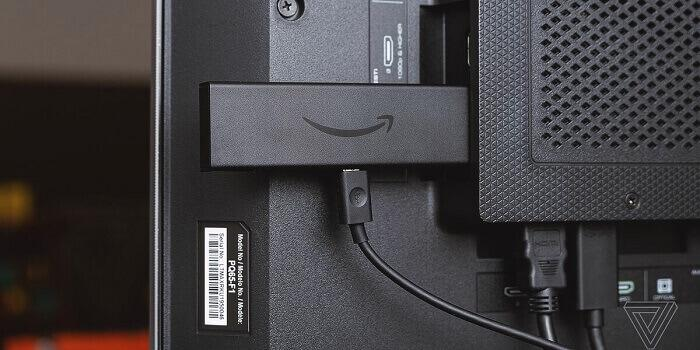
Step 2. Connect the device to power (using the included USB cable or wall adapter).
Step 3. Switch your TV input to the corresponding HDMI port.
Step 4. Follow the on-screen setup to connect to Wi-Fi and sign into your Amazon account (or Google, or Apple depending on the device).
Step 5. Go to the app store on the streaming device (e.g., “App Store” on Apple TV, “Channel Store” on Roku, “Google Play” on Chromecast). Search for “Prime Video” and install the app.
If you are using a Fire TV Stick, you can skip this step.
Step 6. Open the Prime Video app and sign in to your Amazon account.
Step 7. Select any content and start watching it.
Part 4. Watch Amazon Prime Videos on Any TV via USB Drive (Offline) 👍
All the methods above require a stable Wi-Fi connection. If your internet is slow, unreliable, your streaming can be frustrating. Does Prime Video work offline? Can you watch Amazon Prime on your TV without Internet? Yes, there is a powerful workaround. You can download and save Amazon videos on USB drive for offline playback on any TV! Here TunesBank Amazon Video Downloader comes into play!
TunesBank Amazon Video Downloader is a professional video downloading tool designed to help users download Amazon Prime Video movies and TV shows in MP4 or MKV format for permanent offline playback. After downloading, users can transfer Amazon videos to USB drives, and watch them offline any TV – smart or non-smart TV. No internet, no Prime Video app, no buffering, no expirations, no subscription worries!
Unlike traditional video recorders or online tools, TunesBank offers 50X fast download speeds, supports batch downloading, and works with a wide range of Amazon Prime Video content, including streaming movies and shows, purchased and rented videos. What’s more, the software preserves up to 1080p Full HD quality, multiple audio tracks (including EAC3 5.1 surround sound), and optional subtitles (hardcoded or external SRT), delivering the premium experience!
More Features of TunesBank Amazon Video Downloader:
- Download Prime Video movies and TV shows to PC/Mac.
- Convert Amazon videos to MP4 or MKV formats.
- Preserves 1080p Full HD video quality and 5.1 surround sound.
- Keep multi-language audio tracks and subtitles.
- Batch download entire series or multiple movies with one click.
- Built-in Prime Video web player, no Prime Video app needed.
- Up to 50x high-speed download to save time and effort.
- Keep downloaded Amazon videos permanently, no expiration.
- Transfer Amazon videos to USB drive, phone, tablet and any device.
Step-by-Step: How to Watch Amazon Videos on TV from USB Drive?
Step 1. Log In Amazon Account
Download and run TunesBank iMovieTool Video Downloader, select Amazon Prime Video as your streaming platform.
Log into your Amazon account directly inside the built-in browser to access your complete streaming library.
Step 2. Configure Output Settings
Click on the Menu icon at the upper right corner, and select Preference option. Here you can customize output format, video quality, subtitle language, audio language, and output folder. Choosing MP4 format ensures compatibility with most Smart TVs and USB playback devices.
Step 3. Browse and Add Amazon Videos
Turn to “Browse” tab, browse and search for Amazon Prime movies, TV shows, or documentaries you want to download for offline viewing.
Open the desired video page and click the “+” icon to add the movie or show into the download queue.
Step 4. Begin to Download Amazon Video
In the pop-up window, click the “Download” icon to next to the video title. The software will download movie from Amazon Prime quickly while preserving high video quality and subtitle information for offline playback.
You can monitor progress in real time.
For downloading Amazon Prime TV shows, you need to choose your desired season and episodes, then hit on the “Download” button.
Step 5. Get Downloaded Amazon Videos
After downloading completes, turn to the “History” section and open the output folder to get the well downloaded Amazon videos.
Step 6. Transfer Downloaded Amazon Videos to USB Drive
Insert a USB flash drive (formatted as FAT32 or exFAT) to your computer’s USB port. Create a new folder, named “Amazon Video”. Copy these downloaded MP4 Amazon video files, and paste them into the USB flash drive. When finished, eject the USB drive safely.
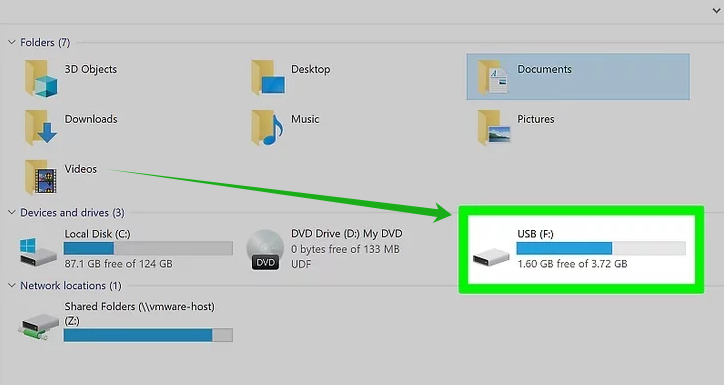
Step 7. Watch Amazon Prime Videos on TV via USB Drive
Then plug the USB drive into your TV’s USB port. Open Media Player on TV, navigate to the Amazon video files and select the movie or show to play it.
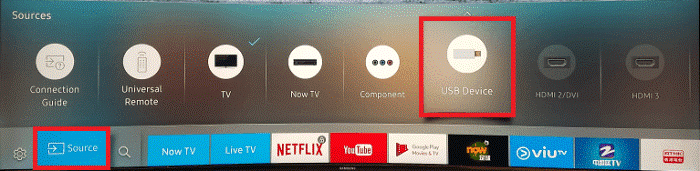
Part 5. Watch Amazon Prime Videos on TV Using HDMI
HDMI delivers smooth 1080p or 4K video and high-quality audio to your TV with no buffering or lag. Once you get Amazon videos in MP4 format on your laptop or computer, you may also connect your computer to the TV with a standard HDMI cable, then play the downloaded Amazon videos using any media player, such as VLC, Windows Media Player, or QuickTime. Let’s see how to perform it:
Step 1. Turn off both your TV and computer/laptop. Plug one end of the HDMI cable into your computer’s HDMI port. And plug the other end into any available HDMI port on your TV (usually labeled HDMI 1, HDMI 2, etc.).
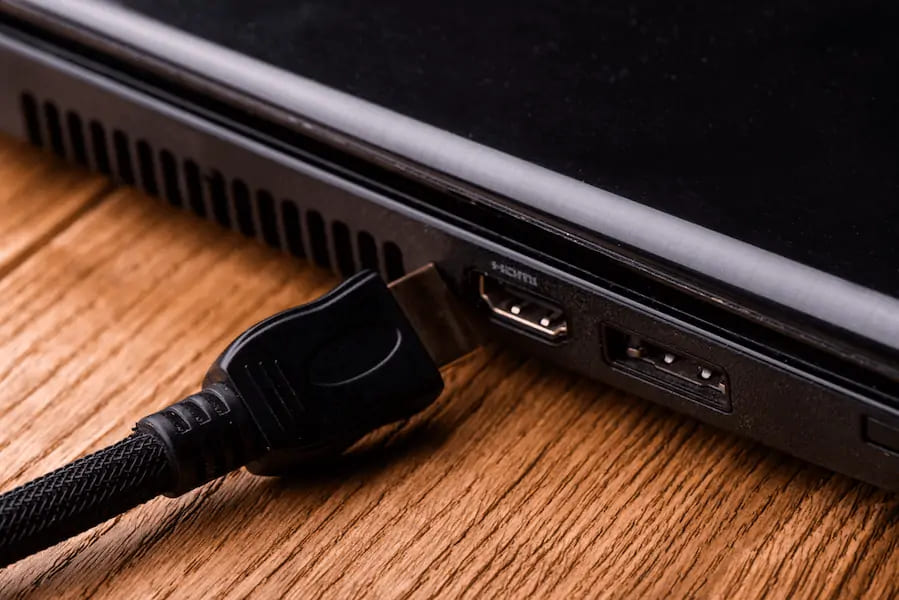
Step 2. Turn on your TV and use the remote to select the correct HDMI input source (such as “HDMI 1”). Then turn on your computer/laptop.
Step 3. Configure display settings:
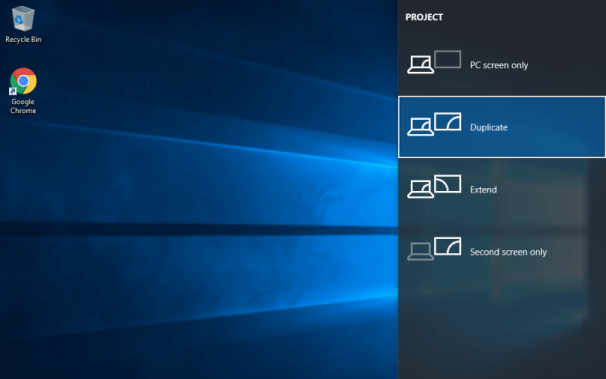
On Windows, press Windows + P and select “Duplicate” to mirror your screen to the TV.
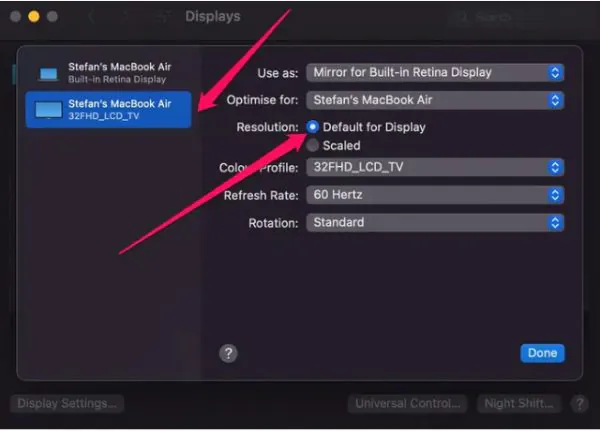
On Mac, go to “System Settings”, select “Displays”, click “Arrangement” and check “Mirror Built-in Display”.
Step 4. Open you media player such as VLC, WMP, iTunes, or QuickTime. Drag and drop the downloaded Amazon video MP4 files into the media player.
Alternative, select any downloaded Amazon video, and right-click on it, select “Open with”, choose “VLC media player” or “Windows Media Player”.
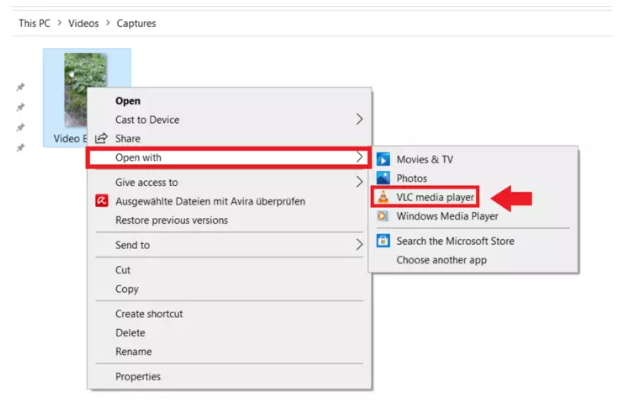
Step 6. The Amazon video will appear on your TV screen. You can use your computer’s keyboard or mouse to control playback (pause, skip, volume).
Part 6. FAQs About Watching Amazon Prime on TV
Does Prime Video Support 4K on TV?
Yes. Amazon Prime Video fully supports 4K Ultra HD and HDR streaming on a wide range of compatible smart TVs and streaming devices. Most modern smart TVs from brands such as Samsung, LG, Sony, TCL, Hisense, and Vizio come with the Prime Video app pre-installed and support 4K playback. To stream Amazon Prime in 4K, you need a Prime Video subscription, a TV that supports 4K resolution and HDR, and a stable internet connection of at least 25 Mbps.
How to Join Watch Party on Amazon Prime on TV?
Amazon Prime Video Watch Party allows multiple viewers to watch synchronized content together remotely. However, Watch Party support may vary depending on: device type, region, and browser compatibility.
Step 1. Open Prime Video website, sign in with your account.
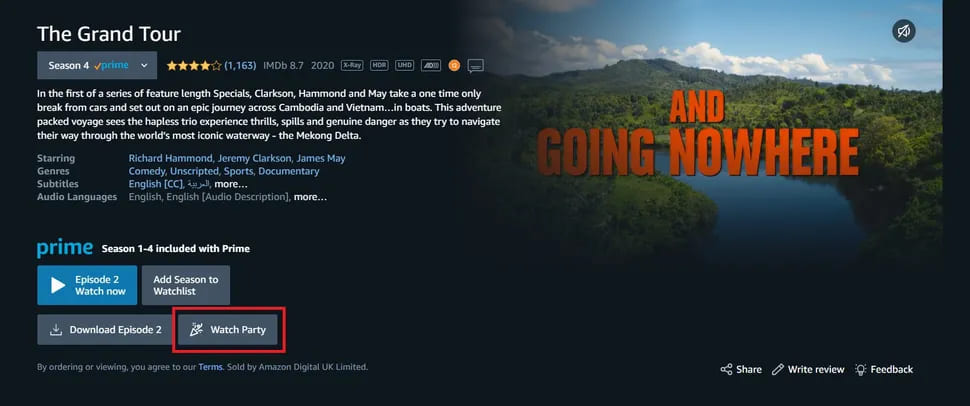
Step 2. Navigate to the show you want to watch, click “Watch Party” icon.
Step 3. Enter your desired screen name, click “Create Watch Party”.
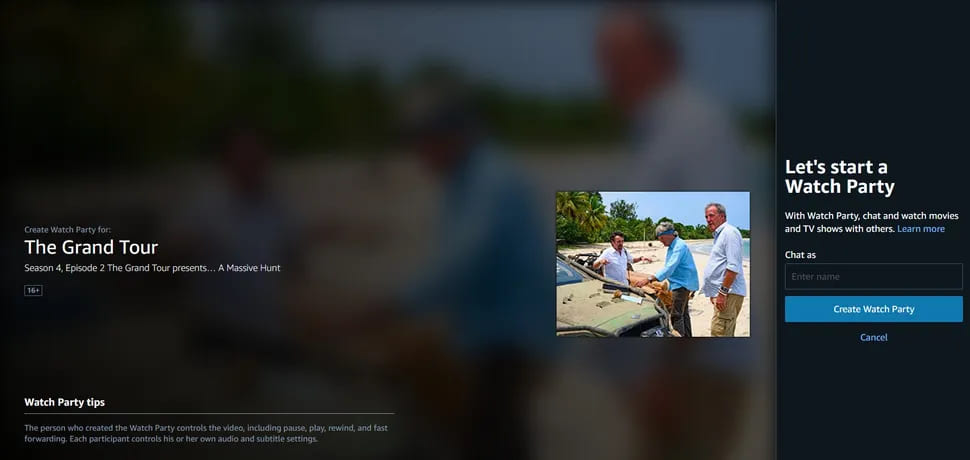
Step 4. Share invite link with friends, you can watch together!
Can Amazon Prime Video be Watched on TV without an Internet Connection?
Generally, you need to rely on the Prime Video app or browser website to stream Amazon Prime videos on your TV with an Internet connection. To watch Amazon Prime videos offline on a TV, you need the help of third-party tool – TunesBank Amazon Video Downloader. It can help you download Amazon videos as HD MP4 files, so that you can transfer Amazon videos to a USB drive and enjoy offline playback on your TV.
Why is Amazon Prime Suddenly Not Working on My TV?
When you cannot watch Amazon Prime Video on TV properly, it may be due to internet connection issues, outdated app versions, unsupported TV models, system glitches, account problems, or temporary streaming service errors. You can try below troubleshooting tips:
- Restart your TV
- Check internet connection
- Update Prime Video App
- Update TV Firmware
- Reinstall Prime Video App
- Use another supported device
Part 7. Conclusion
Overall, we’ve explored multiple ways on how to watch Amazon Prime on TV, including smart TV and non-smart TV. If you have a smart TV, you can install the Prime Video app on your TV. For users with non-smart TVs, using mobile casting, Chrome browser casting, or streaming devices can also provide seamless access.
However, online streaming relies on internet stability—buffering, app crashes, and network interruptions can easily impact your viewing quality. If you want a smoother offline experience, downloading Amazon Prime videos to USB drive as MP4 files using TunesBank Amazon Video Downloader is the best solution. This smart tool offers a free trial version, get it right now!
The Latest Articles
– Top 8 Solutions to Download Streaming Video
– Top 10 Free Movie Download Sites Recommended
– 3 Ways to Download Movies to Watch Offline
– 2 Verified Methods to Download X/Twitter Videos to MP4
– Download Twitter(X) Videos on PC, Mac and Mobile Phone
– Download Facebook Videos on PC, Mac and Mobile Phone
– 3 Ways to Download Facebook Video to MP4

Amazon Video Downloader
Download movies and TV shows from Amazon Prime Video in MP4 or MKV format with audio track and subtitles kept. Up to 50X downloading speed. Save your favorite Amazon Prime videos to your computer for viewing offline.







