








 United States (English)
 Japan (日本語)
 Russia (русский)
 Germany (Deutsch)
 France (Français)
 Spain (Español)
 Italy (Italia)
 Portugal (Portugues)
 China (繁体中文)
 Turkish (Türk dili)
 Dutch (Nederlands)
 Korean(한국인)
 Saudi Arabia(عربي)
 Download from Netflix, Disney+, Prime Video, YouTube, and more.

Want to download embedded video from a website? This article have walked you through how to download embedded videos from any website on Mac, PC, Android, iPhone, and online.
Embedded videos are everywhere online. You can find them in blog posts, personal web articles, online courses, social media pages, and video-sharing websites. However, unlike videos with an obvious download button, embedded videos often cannot be saved directly to your computer or phone. This can be frustrating when you want to keep a copy of your own content, watch a courses offline, or access a video without an internet connection.
Don’t worry, there are many tricks to save embedded video locally. In this article, we break down four practical approaches to download embedded videos from any website, covering Mac, Windows PC, iPhone, and Android. Keep reading to find the method that best suits your needs!
Way 1. Download Embedded Videos from Any Website on Mac & Windows
To download embedded videos safely and legally, you need a professional third-party tool. iMovieTool All-In-One Video Downloader stands out as a comprehensive solution for Windows and Mac users.
iMovieTool All-In-One Video Downloader is a professional-grade video downloader that supports over various streaming and video hosting sites, including YouTube, TikTok, Twitter, Facebook, Instagram, and major OTT platforms. The software operates through a built-in browser, meaning you can log into your accounts and browse content directly within the application without switching between windows. Moreover, it can download embedded videos in bulk with 50X faster speed. Even better, iMovieTool supports to save embedded videos in resolutions up to 8K, depending on the source.
• Broad site compatibility: Works with YouTube, Facebook, X, TikTok, Instagram and other popular OTT platforms.
• Built-in browser: No need to copy and paste URLs; navigate and download within the app.
• High-quality output: Supports MP4 and MKV, with resolution options up to HD/4K/8K where available.
• Batch downloading: Queue multiple videos for simultaneous processing to save time.
• Fast processing: Its browser downloader advertises speeds of up to 50X through hardware acceleration.
• Subtitle support: Download subtitles as separate SRT files or muxed into the video.
How to Download Embedded Videos on PC or Mac in 4K
Step 1. Download iMovieTool and Select YouTube
First, download the iMovieTool All-in-One Video Downloader on your Mac or Windows PC. Launch the program after installation. Select a platform containing the embedded video you want to save.
For example, here we choose YouTube. Next, log in to a YouTube account to enter the built-in web browser, either YouTube free or YouTube premium account is supported.
Step 2. Modify Download Settings
Before adding the embedded videos, you need to customize the output settings for your videos. Hit on the Menu icon at the upper right corner, and choose “Preferences” option. Then, select your desired video format, video quality, video codec, audio tracks, and subtitle type.
Step 3. Add an Embedded Video
Browse the official YouTube library, and find the video you want to save. You can enter the video title or keywords in the search field.
Once located, play the video briefly so iMovieTool can detect and analyze the stream. Then click the “+” icon to add it to the download queue.
A small window will appear with Download and Gear button. You can click the “Gear” icon to set the video resolution, audio and subtitle language for the single video.
Step 4. Start Downloading the Embedded Video
When everything is ready, simply press on the “Download” button to let the tool grab the embedded video to your computer folder. You can monitor the video download progress. You can also continue to add more embedded videos.
Step 5. Locate the Downloaded Embedded Videos
Once complete, go to the “History” section to check your well downloaded videos. You can click “Output Folder” icon to locate the output video files.
Now, watch these high-quality videos with other media players on your computer! Also, you may transfer these video files to your phone, tablet, USB drive, and more devices for offline playback!
👍 Pros:
- Easy to use, no ads, no pop-ups.
- Supports a wide range of websites.
- Built-in browser simplifies the workflow.
- Stable performance for batch downloads.
- High-quality output with format and resolution flexibility.
👎 Cons:
- Requires software installation.
- Limited features in free trial.
- Unlimited full downloads requires a paid license.
Way 2. Download an Embedded Video with an Online Downloader
If you want a more lightweight approach than desktop software, you can use an online video downloader. There are many free online video downloaders such as Toolifix, Y2mate, SaveTheVideo, etc. These web-based tools accept a video URL and return a downloadable file, without requiring additional software installation. So you can use these online downloaders to download embedded video from many websites, such as YouTube, FaceBook, TikTok, X, and more.
Here, we take Toolifix as an example to show you the simple steps to download an embedded video.
Step 1. Visit the website containing the embedded video you want to save. For example, here I open a long YouTube video.
Step 2. Copy the video URL from your browser’s address bar.
Step 3. Open Toolifix in a new browser tab and paste the copied URL into the input field, click “Fetch Video” button.
Step 4. Wait for the tool to process the link. If successful, it will display available formats and resolutions.
Step 5. Select your preferred quality and click “Download” icon. The video file will save to your browser’s default download location.

👍 Pros:
- No desktop software installation required.
- Convenient for occasional downloads.
- Simple URL-based workflow.
- Works on computer and mobile device with a browser.
👎 Cons:
- Ad-heavy interfaces and many pop-ups.
- Processing can be slow for large videos.
- May not support every website or embedded player.
- Download quality and format options may be limited.
Way 3. Download Embedded Videos in Browser
If you prefer to avoid third-party software and online services, try below two options to save the embedded video in your browser.
3.1 Download an Embedded Video Directly in Your Browser
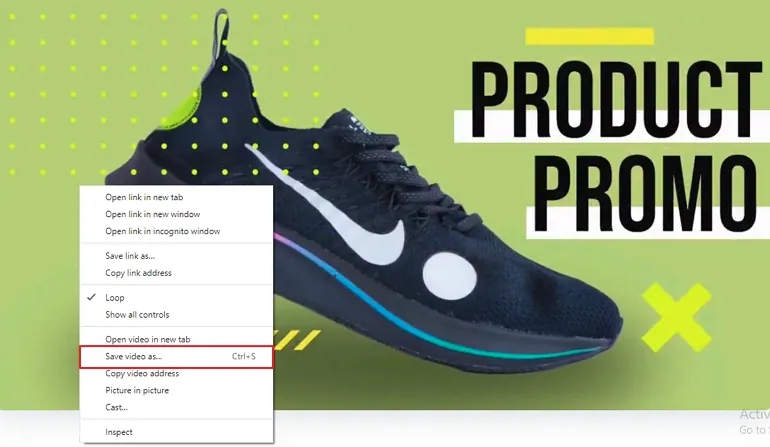
Although most webpages don’t display a download icon for embedded videos, some players may offer a hidden download option. If the creator hosts the video on their own server and allows downloads, you may be able to save the embedded video to your computer directly. Follow below steps:
Step 1. Open the webpage containing the embedded video in Chrome, Firefox, or another compatible browser.
Step 2. Play the video and right-click directly on the video player, or press F12.
Step 3. If the browser displays a “Save Video As…” or “Save video as,” option, select it.
Step 4. Choose a destination folder and enter a file name. Then click “Save” to download the embedded video to your computer.
3.2 Use a Browser Extension
When you failed to save the embedded video directly in your browser, you can consider using a browser extension. Video DownloadHelper is one of the most established options, available for both Chrome and Firefox. It enables you to download embedded videos from many websites, including YouTube, Vimeo, Facebook, and Dailymotion, etc.
Step 1. Open the Chrome Web Store or Firefox Add-ons website, search for Video DownloadHelper, and install the official extension.

Step 2. Navigate to a webpage with an embedded video, such as a YouTube video embedded on a blog. Play the video to trigger detection.
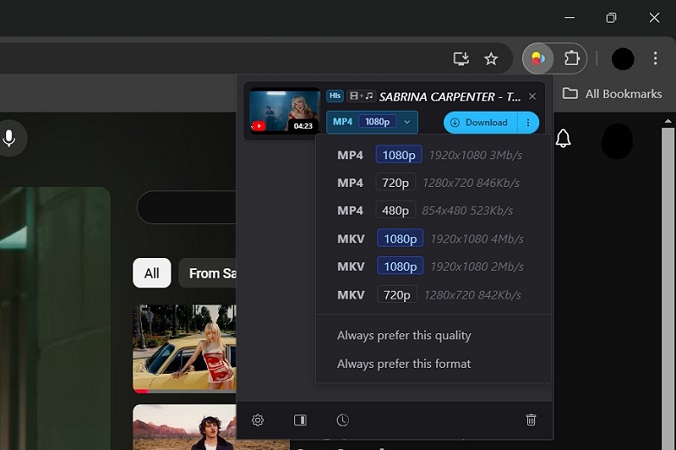
Step 3. Select the Video DownloadHelper icon in your browser toolbar. If it detects downloadable media, a list of available format and quality options may appear.
Step 4. Select your preferred quality and click “Download”. The file will save to your default download folder.
👍 Pros:
- Works directly from the browser.
- Supports many websites and video formats.
- Free to use (with optional paid conversion features).
👎 Cons:
- Some features may require a paid license.
- Some sites and DRM-protected content are not supported.
- Reliability can vary as sites change their delivery methods.
Way 4. Download Embedded Videos on iPhone/Android
For mobile users, you have three options to download an embedded video from a website. Depending on the website and your device, you can use the built-in screen recorder, an online downloader, or a dedicated video downloader app.
4.1 Screen Recording
Both iPhone and Android phones have built-in screen recording feature. So, you can screen record most videos that play on your screen. Simply play the video on your phone, start the screen recording, and capture the playback.

👍 Pros:
- Free, no additional apps.
Works on most video downloads.
👎 Cons:
- Limited quality output.
Slow, records in real-time.
Captures everything on screen including notifications.
4.2 Browser-Based Tools
You can try an online video downloader through Safari, Chrome, or another mobile browser. The process is similar to downloading an embedded video on a computer. Copy the video URL from the embedded player and paste it into an online downloader site. For more details, return to Way 2.

👍 Pros:
- Free to use.
- No app installation required
👎 Cons:
- Unsafe.
- Many ads and pop-ups.
- Mobile interfaces are often cramped.
4.3 Dedicated Mobile Apps
For frequent embedded video downloads, a dedicated mobile downloader may offer a more convenient experience. Below are some popular video downloader apps for iPhone and Android:
- Float: Video Saver (iPhone)
- All Video Saver (iPhone)
- Video Downloader by InShot Inc. (Android)
- All Social Video Downloader (Android)
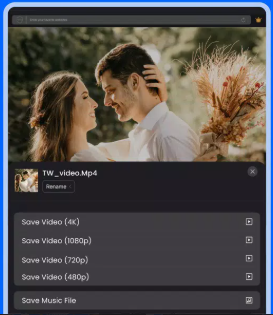
Once the video downloader app is installed, browse the video on your phone, the app detects available media streams on the page and lets you download them with a single tap.
👍 Pros:
- Optimized for mobile.
- Built-in browsers simplify the workflow.
👎 Cons:
- App quality varies widely.
- Platform restrictions apply.
- Many free apps include ads or push subscriptions.
Conclusion
To sum up, there are several ways to download embedded videos, whether you’re using a Mac, Windows PC, iPhone, or Android phone. For a reliable, efficient, and high-quality experience, iMovieTool All-In-One Video Downloader remains the most reliable option. It enables you to download embedded videos from any website at up to 50X faster speeds, supporting HD/4K/8K offline playback. Whether you want to download a tutorial from YouTube, save Instagram stories and reels, or long-hour movies from Netflix and other OTT platforms, iMovieTool All-In-One Video Downloader is your best ideal. Try iMovieTool for free today!
The Latest Articles
– Top 8 Solutions to Download Streaming Video
– Top 10 Free Movie Download Sites Recommended
– 3 Ways to Download Movies to Watch Offline
– 2 Verified Methods to Download X/Twitter Videos to MP4
– Download Twitter(X) Videos on PC, Mac and Mobile Phone
– Download Facebook Videos on PC, Mac and Mobile Phone
– 3 Ways to Download Facebook Video to MP4

iMovieTool Movie Downloader
Download movies to MP4/MKV in 1080P, download movies from Netflix, Amazon Prime Video, Disney+, HBO Max, Hulu, Apple TV+, YouTube, and Paramount+. Download videos from Twitter, Instagram, Facebook, and TikTok for free.