








 United States (English)
 Japan (日本語)
 Russia (русский)
 Germany (Deutsch)
 France (Français)
 Spain (Español)
 Italy (Italia)
 Portugal (Portugues)
 China (繁体中文)
 Turkish (Türk dili)
 Dutch (Nederlands)
 Korean(한국인)
 Saudi Arabia(عربي)
 Download from Netflix, Disney+, Prime Video, YouTube, and more.
How do you put subtitles on a YouTube video? Read on this comprehensive guide to add subtitles to YouTube videos in multiple language on your computer. Plus, you will explore a powerful Subtitle Editor for Windows and Mac, and a versatile YouTube Video Downloader, YouTube Subtitle Downloader.
Subtitles do much more than translate spoken words. They make videos easier to understand, improve accessibility, and help viewers enjoy content in different languages. If you are a new YouTuber, you may wonder how to add subtitles to a video on YouTube. In this guide, we’ll show you exactly how to add subtitles in YouTube videos in any language on your computer using YouTube’s built-in tools or professional desktop software for greater flexibility.
The official method to add subtitles to YouTube videos, go to YouTube Studio.
The quickest way & easiest way to add subtitles in your videos, try UkeySoft Video Converter.
To download subtitles from YouTube videos in multiple languages and formats, use iMovieTool YouTube Video Downloader.
Part 1. How to Put English Subtitles on YouTube?
If you want to add subtitles on YouTube, the easiest way is to use YouTube Studio. YouTube allows creators to manually add captions, upload subtitle files, or edit automatically generated captions. You can upload subtitles in multiple formats, such as SRT, VTT, and SBV. Among them, SRT (.srt) is the most widely used and recommended. You can follow below step-by-step guide to add English subtitles on YouTube:
Step 1. Visit YouTube in your browser, sign in to your YouTube account and navigate to YouTube Studio.
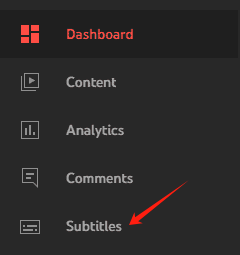
Step 2. From the left-hand menu, select “Subtitles”.
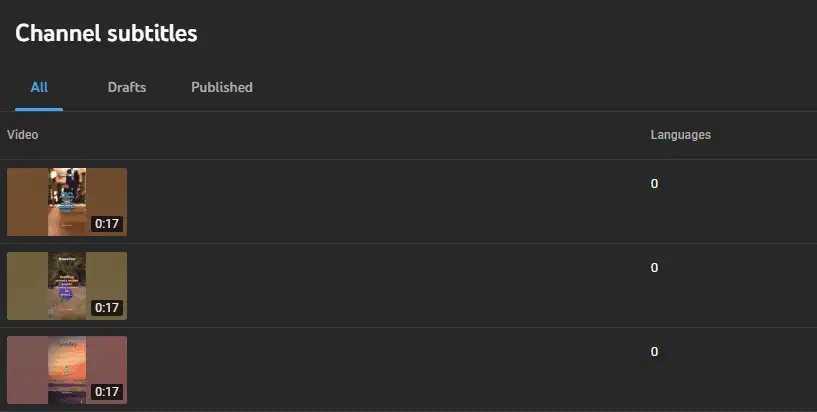
Step 3. Choose the video you’d like to edit from your list of uploaded videos.
Step 4. After selecting your video, click “Subtitles” from the left menu. Click “ADD LANGUAGE” and select English (or other languages) from the pick list.
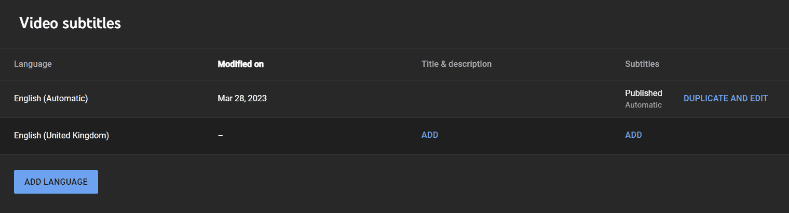
Step 5. Under the “Subtitles” column for the new language, click “ADD”.
Step 6. You can choose from several options to add subtitles to YouTube videos for free:
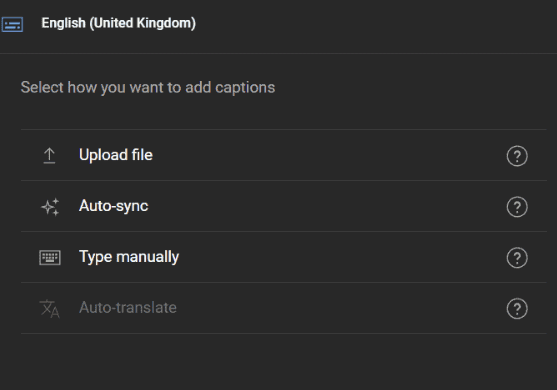
Upload File: If you already have an SRT, VTT, or other supported subtitle file, choose the “Upload file” option. Next, move to “Subtitle File” and click it, select “.srt”, then click “Upload”.
Type Manually: Type the subtitles directly into YouTube’s editor.
Auto-Sync: YouTube’s automatic speech recognition will generate captions that you can edit
Auto Translate: YouTube can automatically translate captions into other languages.
Step 7. Review the timing and spelling carefully, then click”PUBLISH” to make the subtitles available on your video.
Part 2. How to Add Subtitles in YouTube Videos (Quickest & Easiest)
If you want a simpler way to add subtitles to videos or more advanced subtitle editing options, then using a professional video converter is a better solution. UkeySoft Video Converter is a versatile video editing and converting toolkit.
It features a powerful Subtitle Editor that enables you to create, import, and customize subtitles for any video. You can convert any video or audio to any format, upscale videos from SD to HD 1080p or even 4K, and cut, crop, merge, and edit videos. What’s even better? You can add subtitle, text, watermark, logo, or special effects to your videos.
Key Features of UkeySoft Video Converter:
- Convert video and audio to 1,000+ popular formats effortlessly.
- Export videos in MP4, MOV, AVI, MKV, and more.
- Add subtitles to videos with just a few clicks.
- Import SRT, ASS, SSA, and other subtitle formats.
- Customize subtitle font, size, color, and position easily.
- Convert videos with YouTube-optimized output quality.
- Upscale SD videos to HD 1080p or stunning 4K.
- Trim, crop, merge, and edit videos before exporting.
- Add text, watermarks, logos, and visual effects.
- Preserve high output quality with fast conversion speeds.
How to Add Subtitles to a Video on Your Computer
Step 1. Run UkeySoft Video Converter
Download and launch UkeySoft Video Converter on your Windows PC, or Mac.
Step 2. Add Your YouTube Video
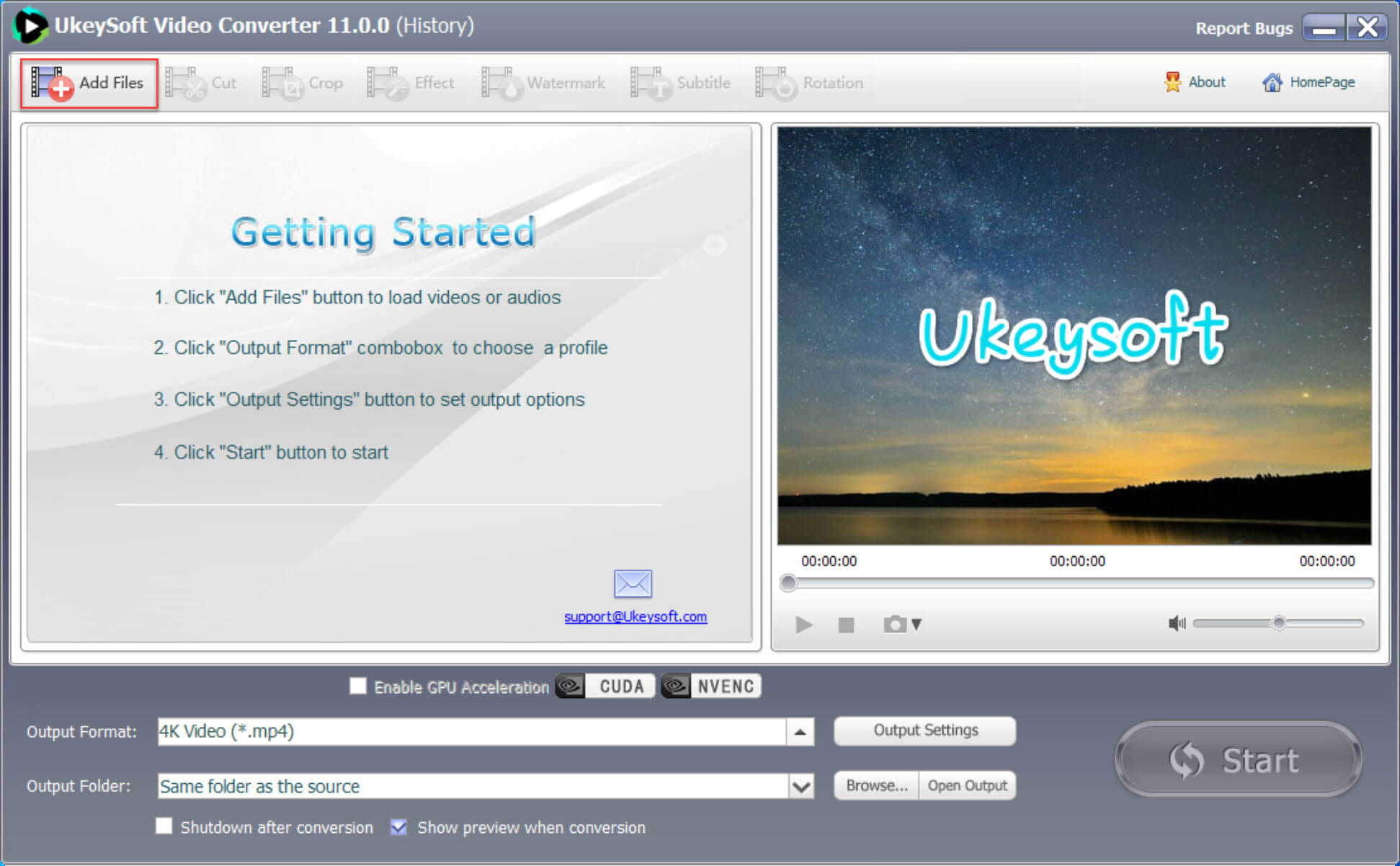
Click “Add Files” to import the YouTube video or any local video file you want to add subtitles to. The software will load your video information and prepare it for subtitle editing.
Step 3. Import and Customize Subtitle Files
From the Toolbox section, click “Subtitle” to open the subtitle editing window. Import your subtitle file in formats such as .srt or .ass.
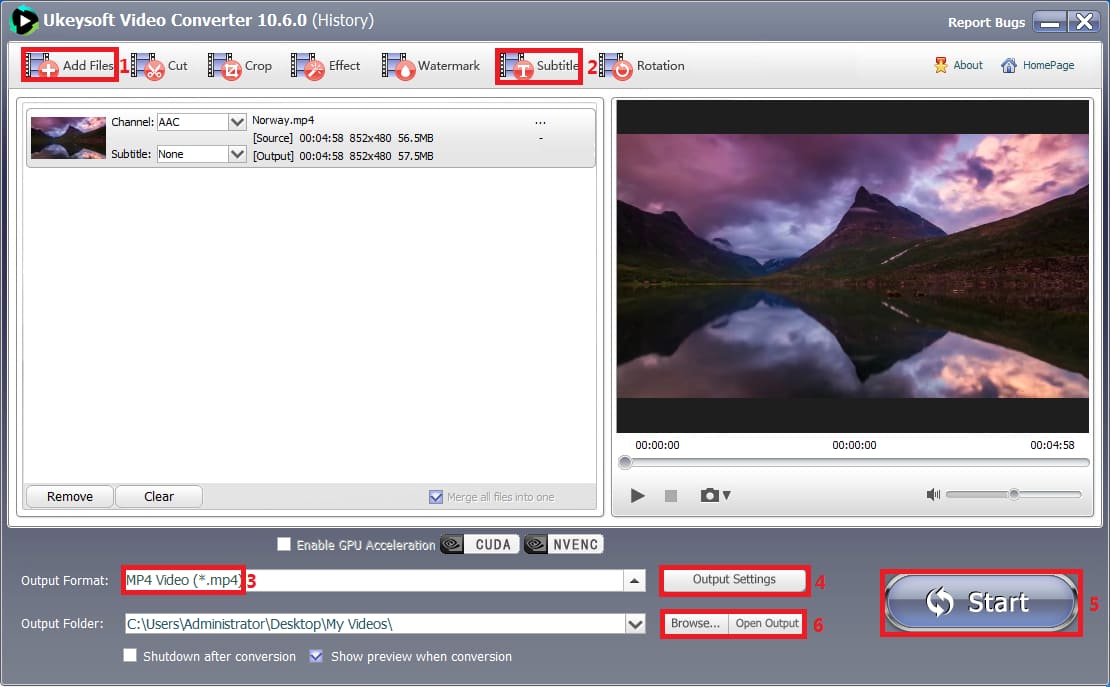
You can drag the subtitle position to adjust where captions appear on the screen. You can also customize subtitle settings, including: Encoding, Font style, and Subtitle position.
Step 5. Select Output Format
Click “Output Format” to choose your preferred video format.
Step 6. Configure Output Settings
You can open “Output Settings” to customize video resolution, bitrate, audio quality, file size, etc.
Step 7. Export Video with Subtitles
Finally, click “Start” to start processing and add subtitles to the video. After conversion, click “Open Output” to locate and preview your finished video.
Part 3. How to Download YouTube Videos with Subtitles
Sometimes you may want to download YouTube videos with subtitles so you can watch them offline on any device. Don’t have a Premium subscription? No worry! Turn to iMovieTool YouTube Video Downloader! It supports both YouTube Free or Premium account!
This tool can save YouTube videos up to 8K resolution in MP4 or MKV format. It enables you to download YouTube videos with subtitles and save them in multiple languages! No matter you are an YouTube ad-supported user, iMovieTool can help you download long YouTube videos, full-length movies or TV shows, live streams, MVs, and any video from YouTube to your computer folder!
YouTube Premium only allows offline viewing on supported devices, downloaded videos remain encrypted inside the YouTube app and cannot be freely transferred or played with other media players. iMovieTool lets you keep downloaded YouTube videos permanently, and move your YouTube downloads to any device or player for flexible offline viewing.
Key Features of iMovieTool YouTube Video Downloader:
- Download YouTube videos in MP4 or MKV formats.
- Save YouTube videos in up to Full HD or higher quality.
- Download YouTube videos with internal, external, or hardcoded subtitles.
- Support subtitles in multiple languages.
- Built-in official YouTube web player for direct browsing.
- Batch download multiple YouTube videos with subtitles simultaneously.
- Save audio tracks and subtitles in multiple languages.
- 50X high-speed downloading with hardware acceleration.
- Search videos by title, keyword, or paste video URLs.
- Compatible with Windows and Mac computers.
How to Download YouTube Videos with Subtitles on PC?
Step 1. Download iMovieTool and Select YouTube
Download, install, and launch iMovieTool All-in-One Video Downloader on your Windows or Mac computer. From the main interface, select YouTube as your platform.
Log in to your YouTube ad-supported or ad-free account using the built-in browser.
Step 2. Modify Output Settings
Click the “Menu” icon on the interface and select “Preferences” to enter the settings page. Choose the output format (MP4 or MKV), output folder, video codec, resolution, audio language, subtitle language, and other preferences to ensure the downloaded YouTube videos meet your playback requirements.
Step 3. Browse YouTube Videos Online
Go to the “Browse” section. Use the built-in YouTube browser to search for videos, playlists, movies, or channels just as you would on the official YouTube website.
For example, you may go to the Movies channel. From where you can find many free movies on YouTube. You may tap “Purchased” to check your purchased movies and TV shows.
Step 4. Add YouTube Videos to the Download Queue
Open the YouTube video you want to save and click the green “+” icon. iMovieTool will automatically analyze the video and add it to the download queue.
Tips: You can click the “Gear” icon to select video quality, audio tracks, and subtitle languages for single video.
Step 5. Start Downloading YouTube Videos with Subtitles
After confirming your download settings, click the “Download” button. iMovieTool will begin downloading the YouTube video together with the selected subtitles.
Step 6. Find Your Downloaded YouTube Videos
Once the download is complete, switch to the “History” section to view all completed downloads. Click the “Output Folder” icon to open the output directory, where your YouTube videos are saved with their accompanying subtitle files, ready to play offline on your preferred devices.
Part 4. How to Download YouTube Subtitles as SRT File
Want to download subtitles from YouTube? iMovieTool YouTube Video Downloader has the ability to download videos and subtitles. As a powerful YouTube subtitle downloader, it detects subtitle tracks automatically and supports downloading subtitles in multiple languages. You can save subtitles as soft subtitles, hard subtitles, or external SRT files for offline viewing, language learning, and video editing. It also allows batch downloads of YouTube videos with subtitles.
Here’s how to download YouTube subtitles as SRT file:
Step 1. Add YouTube Video
Launch iMovieTool and log in to your YouTube account. Search for the YouTube video by entering keyword, name, or pasting the URL.
Step 2. Configure Subtitle Output Settings
You have two options to customize subtitle format and settings before downloadin.
Way 1. Go to the Menu bar, select “Preference” option. In the pop-up window, configure the output folder, choose the video format, and customize other download preferences. In “Subtitle are saved as:”, select from Soft subtitles, External subtitles, or Hard subtitles.
Way 2. Once you’ve located your desired YouTube video, tap on the “Gear” icon next to the title. A small window appears. Tap “Video” to select the video resolution, tap “Audio” to choose your preferred audio language.
Tap “Subtitle”, select your wanted subtitle language. Scroll down to “Subtitle are saved as:”, you can pick Soft subtitles, External subtitles, or Hard subtitles.
In “Download as:”, you can select “Subtitle” option to extract subtitle files (.srt) from the YouTube video.
Step 3. Begin Downloading YouTube Subtitles
Click the “Download” button to start downloading YouTube subtitles and videos. With 50X faster speed, you can easily download subtitles from YouTube in just seconds!
Part 5. FAQs About Adding English Subtitles to YouTube Videos
How to get English subtitles on YouTube if there is no CC button?
If a YouTube video does not have a CC button, it means the uploader has not provided subtitles or YouTube has not generated automatic captions. You can use YouTube’s automatic captioning feature by clicking the three-dot menu below the video and selecting Open transcript.
How to change caption language on YouTube?
To change caption language on YouTube:
- Open the YouTube video you’re watching.
- Click the “CC” button at the bottom of the video player.
- Click the “Settings” icon, select “Subtitles/CC”.
- Choose your preferred language.
If your desired language is unavailable, select Auto-translate and choose from available languages.
How do you add English subtitles to a YouTube video that is not yours?
You cannot directly add subtitles to another person’s YouTube video unless you have permission from the creator. Instead, you can enable existing captions, or use YouTube’s automatic translation feature. Or, use iMovieTool YouTube Video Downloader to download the YouTube video to MP4 and add subtitles locally for personal use.
Is it possible to add subtitle for an existing non-English video on YouTube?
Yes, absolutely. You can add subtitles for an existing non-English YouTube video if you own the video. For videos you do not own, you cannot modify the original subtitles, but you can use available captions or create subtitles locally for personal viewing.
Part 6. Final Words
Adding captions to YouTube videos is one of the best ways to reach wider audiences. Above, we’ve already provided a detailed guide on how to add subtitles to YouTube videos for free. We recommend the beginner YouTubers to get the UkeySoft Video Converter. It makes it easy to add subtitles to videos, customize subtitle appearance, and convert video/audio files. To batch download YouTube subtitles and videos, try the iMovieTool YouTube Video Downloader. Give it a free try!
The Latest Articles
– Top 8 Solutions to Download Streaming Video
– Top 10 Free Movie Download Sites Recommended
– 3 Ways to Download Movies to Watch Offline
– 2 Verified Methods to Download X/Twitter Videos to MP4
– Download Twitter(X) Videos on PC, Mac and Mobile Phone
– Download Facebook Videos on PC, Mac and Mobile Phone
– 3 Ways to Download Facebook Video to MP4

iMovieTool Movie Downloader
Download movies to MP4/MKV in 1080P, download movies from Netflix, Amazon Prime Video, Disney+, HBO Max, Hulu, Apple TV+, YouTube, and Paramount+. Download videos from Twitter, Instagram, Facebook, and TikTok for free.