








 United States (English)
 Japan (日本語)
 Russia (русский)
 Germany (Deutsch)
 France (Français)
 Spain (Español)
 Italy (Italia)
 Portugal (Portugues)
 China (繁体中文)
 Turkish (Türk dili)
 Dutch (Nederlands)
 Korean(한국인)
 Saudi Arabia(عربي)
 Download from Netflix, Disney+, Prime Video, YouTube, and more.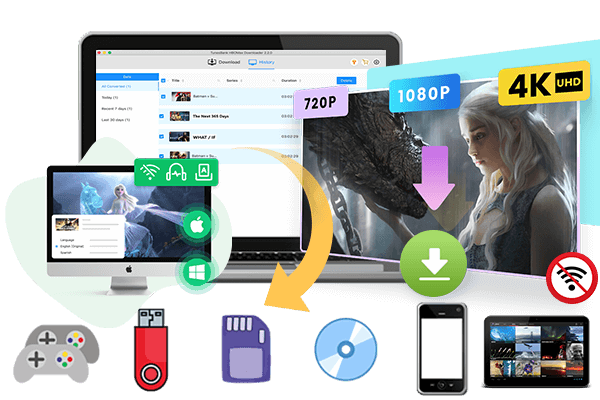
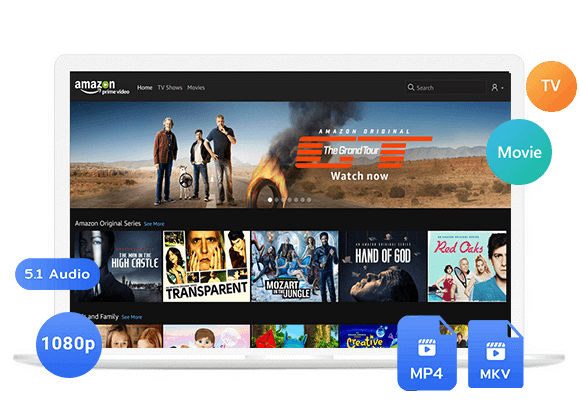
Is there any way to download YouTube videos for free? Of course! In this article, we’ll introduce 4 best methods to help you easily download videos from YouTube to your mobile or computer without Premium, so that you can watch your favorite YouTube videos offline anytime.
YouTube is a popular streaming video sharing websites that offering a large number of video clips, tutorial, full-length movies, TV shows, K-Drama, documentaries, etc. To watch YouTube videos offline, whether traveling or without the Internet, you need to download YouTube videos in advance. On YouTube Movies & TV channel ( youtube.com/feed/storefront ), you are able to purchased movies, rented movies, and watch free movies. Today, we will teach you how to download YouTube videos/movies/TV shows to watch offline.
While only Premium subscribers can officially download YouTube videos for offline viewing, free users can also save YouTube videos offline with a few extra tools or tricks. In this article, we will show you 4 proven ways to download YouTube videos without Premium account to enjoy offline anywhere.
Can You Download YouTube Videos for Free Without Premium?
To download videos from YouTube for free, you’ll need to understand YouTube’s official policy and find the right method.
If you’re new to YouTube, you can get a 1-month free trial. During this period, you can access YouTube Premium features for free, including ad-free streaming, playback in the background, offline downloads, and all YouTube Originals.
Without the free trial, downloading YouTube videos requires a Premium subscription. Individual plan costs $13.99/month, Family plan costs $22.99/month (up to 5 members), and Student plan costs $7.99/month. However, once the free trial or subscription ends, downloaded YouTube videos become inaccessible.
No worry! Whether you’re a YouTube Free or Premium user, this guide will help you easily download YouTube videos without a premium account. Keep reading.
Way 1. Download YouTube Videos Without Premium via iMovieTool
To download YouTube videos without Premium, you can rely on a third-party YouTube video downloader like iMovieTool YouTube Movies Downloader, which can help you download all movies from YouTube, including fee movies, purchased movies and rented movies.
One of the best YouTube video downloader refers to iMovieTool YouTube Movie Downloader. It is an easy-to-use yet reliable tool, which is designed to download YouTube videos to MP4, MKV without copyright, no matter which account you’re log into. With the built-in web browser, you can browse content, search for videos, and download YouTube video in HD 1080p or 4K quality instantly. It supports batch downloading, allowing users to download multiple full-length movies or entire TV shows in one go.
By downloading YouTube videos to Mac or PC, you can then keep them playable permanently, or transfer YouTube videos to USB drive, SD card, external drive, smartphone, tablet, or any device, even if your subscription ends.
Main Features of iMovieTool YouTube Movie Downloader:
- Supports 12+ streaming video platforms including YouTube
- Download YouTube movies, TV shows, videos, purchased/rented content, etc.
- Download YouTube videos to PC/Mac in MP4 or MKV format
- Download YouTube videos without Premium in 1080p & 4K
- Batch download multiple movies, entire episodes at 50X speed
- Built-in browser for direct access, search and download videos
- Provide multilingual audio tracks, and subtitle options
Detailed Steps to Download YouTube Videos Without Premium
Step 1. Launch iMovieTool YouTube Movie Downloader
Download and launch TunesBank iMovieTool on your Windows or Mac computer. Choose YouTube service to enter the iMovieTool YouTube Movie Downloader.
Next, log in to a YouTube free or premium account on the program, this lets you access to purchased videos, rentals, and personalized content for downloading without Premium restrictions.
Step 2. Customize Download Settings
Go to the Menu bar > Preferences. In the pop-up window, you can freely customize output format (MP4/MKV), resolution (720p, 1080p or higher), audio tracks, subtitle options, and output folder location.
Step 3. Three Ways to Add and Download YouTube Videos For Free
Way 1. Browse and Download YouTube Videos Directly:
Tap “Browse” tab, use the embedded browser to navigate YouTube just like a normal web browser and select any video you want to download without Premium. If you have bought movies on YouTube Movies, you can use this software to download YouTube purchased movies to computer for offline watching.
For example, here I enter “korean drama” to locate the video.
Once located, open the movie page, and click “Add” icon in the right side to add it to the download queue directly.
Then, it will pop up a new small window. Click the “Download” icon to download the YouTube video to local drive immediately.
iMovieTool downloads the YouTube video at 50 times faster, and you can watch the download progress in real time.
Way 2. Search and Download YouTube Video Using Name/URL:
Alternatively, tap the “Search” tab. Enter the video title, movie name, artist names or TV show keywords in the built-in search bar.
Way 3. Copy and Paste YT URL:
Another way is to use URL. Copy the YouTube video URL from your browser and paste it into iMovieTool’s search bar to quickly access and prepare the video for download.
Step 3. Start Download YouTube Videos/Movies to Computer
Finally, click the “Download” button, and iMovieTool will start downloading YouTube videos without Premium quickly and efficiently.
Step 4. Get Downloaded YouTube Videos
Once the download is complete, go to the “History” section to view your saved YouTube videos.
The video files are stored locally on your PC or Mac.
Now, I can play those downloaded movies offline on computer, and transfer them to USB flash drive.
Way 2. Download YouTube Videos for Free via 4kFinder
Another powerful YouTube video downlaoder called 4kFinder Video Downloader. With it, you can quickly download videos from YouTube, Vevo, Facebook, Dailymotion, TikTok, Twitter and more than 1,000 sites. When it comes to downloading YouTube content, it is able to download video clips, movies, TV shows, documentaries, playlists, albums, music videos, 3D 360 & VR180 videos, etc.
It supports downloads in various formats and resolutions, including:
Video Format: MP4, MOV, WEBM
Audio Format: MP3
Resolution: SD 480P, HD 720P, FHD 1080P, 2K, 4K, 8K
Bitrate: 320kbps, 256kbps, 128kbps
Simply copy & paste URL, users can easily download YouTube videos without Premium, and save the YouTube videos to PC or Mac computer as MP4 file with HD or even 8K resolution. Get the software free trial right now!
How to Download Videos Without YouTube Premium on PC?
Step 1. Install and launch 4kFinder Video Downloader on PC or Mac.
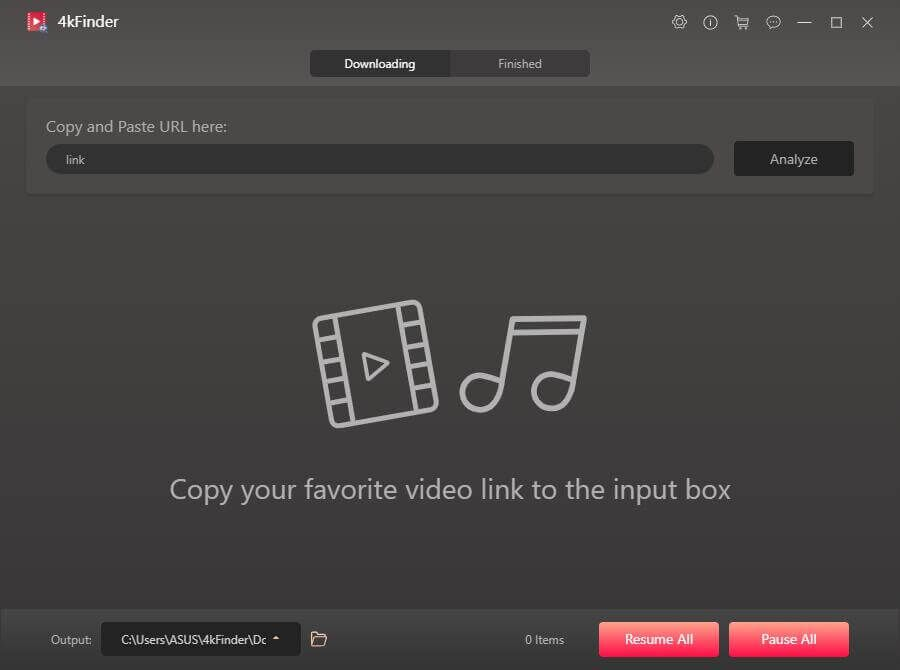
Step 2. Copy the YouTube video URL, and paste the link into the 4kFinder software.
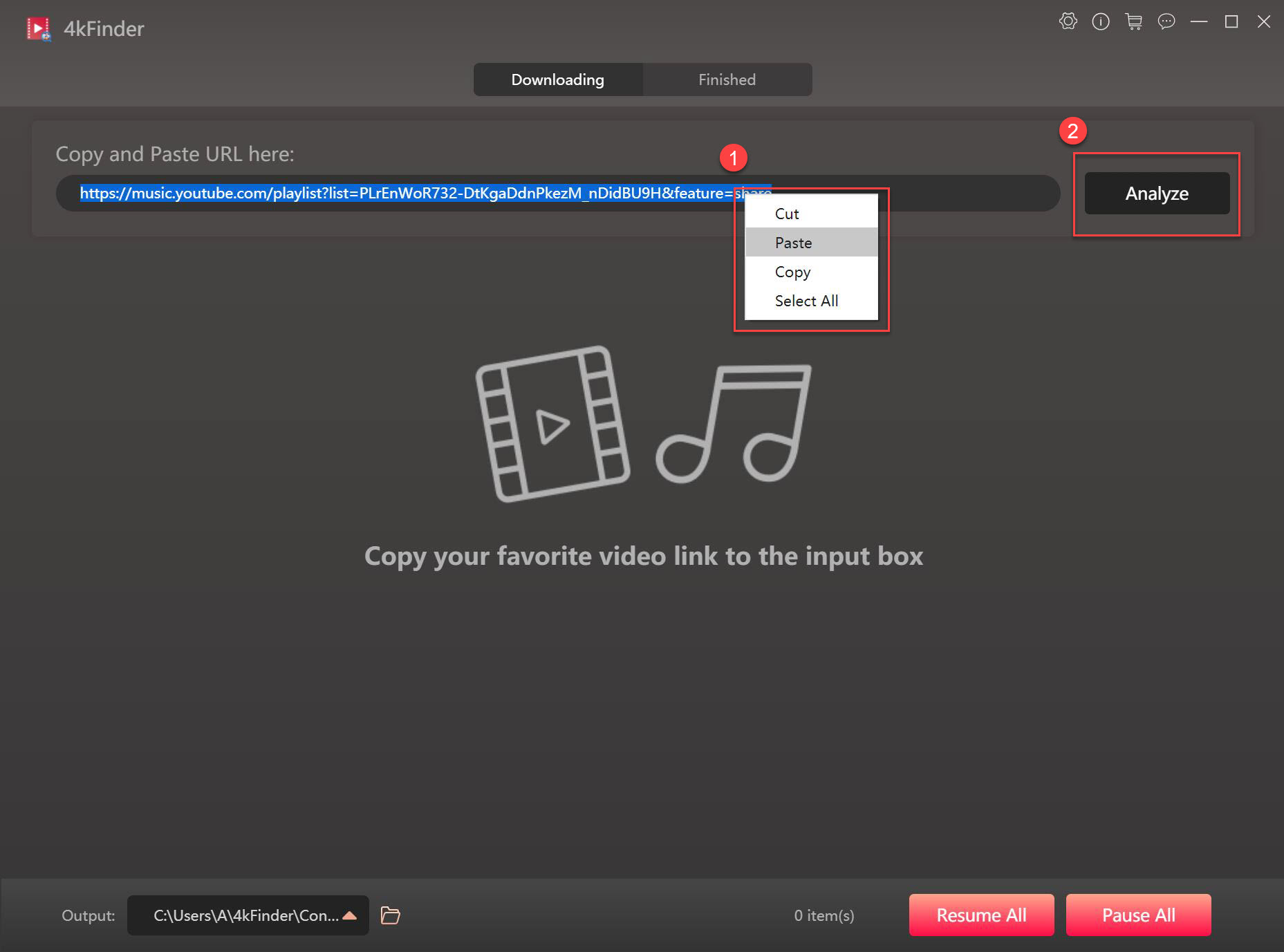
Step 3. Tap “Video” and choose MP4 format and HD 1080p resolution.
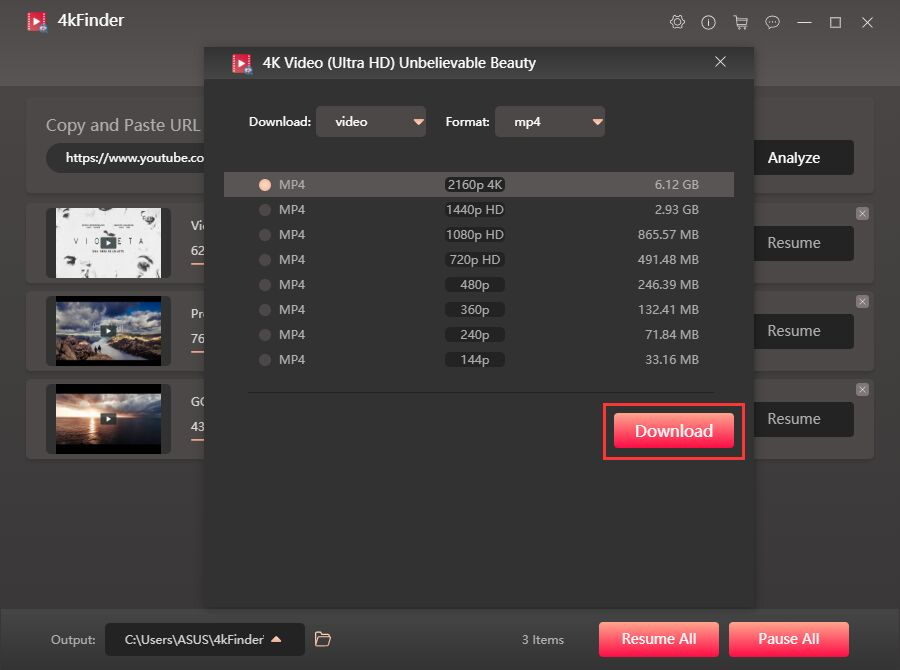
Step 4. Click “Download” to start saving the YouTube video for free.
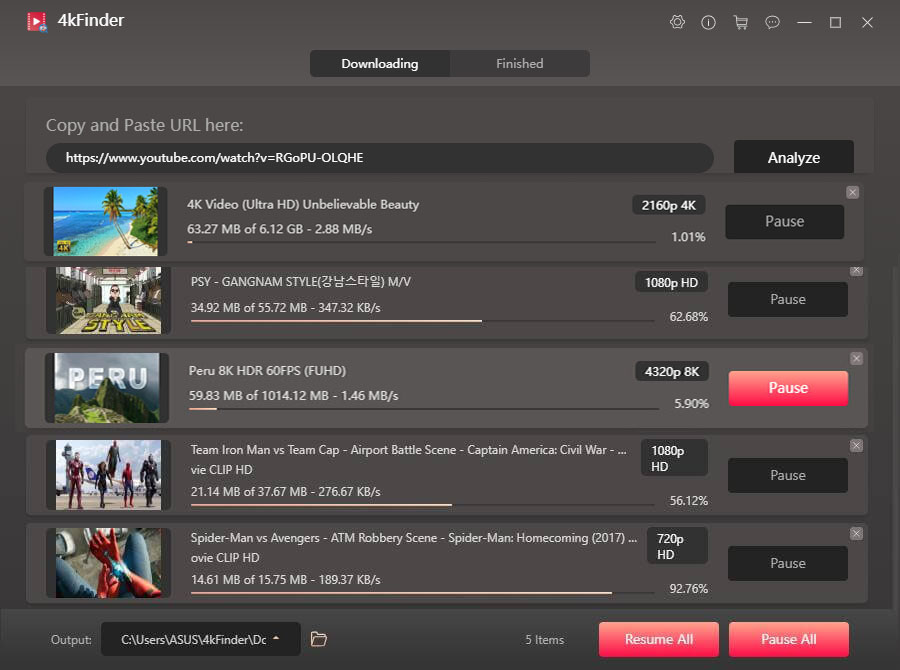
Way 3. Download YouTube Videos Without Premium via Online Tool
If you don’t want to download any software or program on your computer, the online YouTube downloader Y2mate is a good choice. It is one of the most popular YouTube to MP3 converters and MP4 downloaders. It works directly in a web browser, allowing users to download YouTube videos for free online without installing software.
You can use Y2mate on computers, phones, and tablets. Simply paste a YouTube video URL into the website’s search box, select output format, and download the file. This makes it a quick and easy option for occasional downloads.
However, whether Y2mate or other online tools, they often contain intrusive ads, unstable servers, limited resolution options, lossy quality, and low success rates, especially when downloading full-length YouTube movies or TV shows. If you want a reliable YouTube video download solution, you can try to use iMovieTool or 4kFinder desktop software.
Here’s a closer look at how to download a YouTube video without Premium:
Step 1. Open the YouTube app or website in your browser. Select a video and copy its URL.
Step 2. Then visit Y2mate website in your browser.
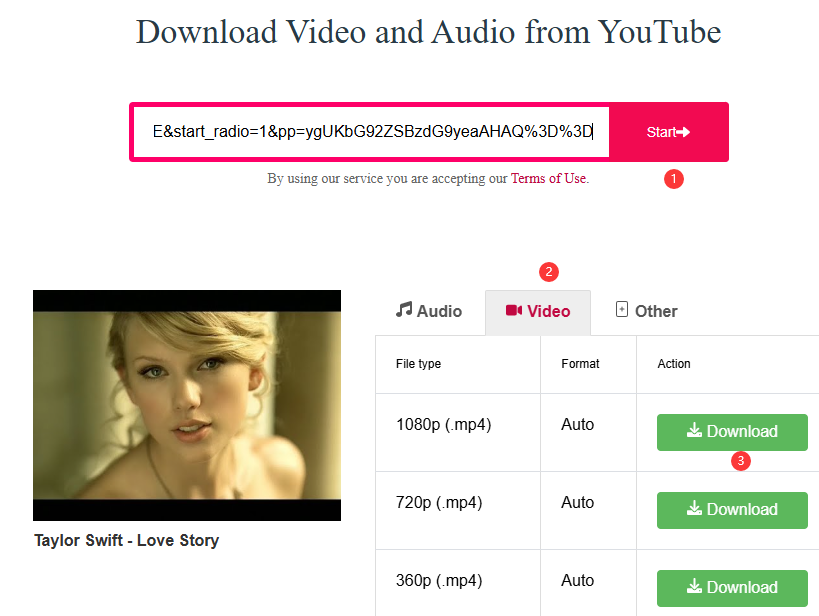
Step 3. Paste the copied URL into the search bar, click “Start” button.
Step 4. Tap “Video” and choose MP4 format, select 1080p option.
Step 5. Click “Download” and save the YouTube video file.
Way 4. Download YouTube Videos With Premium Free Trial (New Users Only)
As mentioned earlier, if you are a new user of YouTube, you can get YouTube Premium for free and enjoy 1 month of Premium features without any cost. Before you start, you should know that the download feature is only available on the iOS/Android YouTube app, or YouTube web player on desktop. Here’s how to download YouTube video with a free trial without premium.
Step 1. Launch the YouTube app on mobile, or visit its website in your desktop browser. Sign up for YouTube 1-month free trial.
Step 2. Browse the YouTube app or web player, find the video, movie, or show you want to download and open it.
Step 3. Tap the “Download” button under the video. Choose quality and save offline.
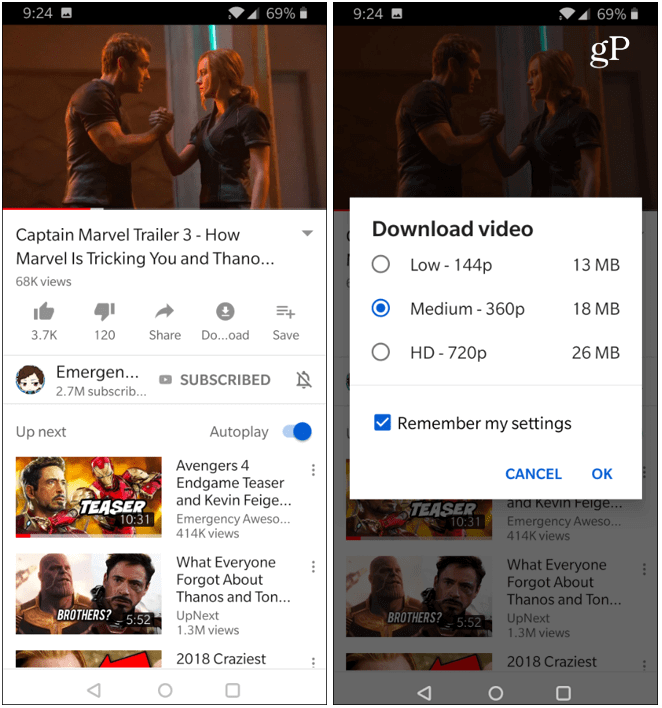
However, the free trial lasts only one month, and your YouTube downloads can only be played within the YouTube app or web player, and all downloaded videos will be removed once the trial ends. If you want to keep YouTube videos permanently or watch YouTube videos on other devices without relying on the platform, you can use iMovieTool or 4kFinder to save YouTube videos as MP4 files.
Conclusion
To sum up, this article provides you with 4 proven ways to help you download YouTube videos without Premium. Both iMovieTool YouTuber Movie Downloader and 4kFinder YouTube Video Downloader offer a reliable and efficient way to download YouTube videos to your computer directly in MP4 or other formats with HD or even 4K quality, with no Premium account. Thus, you can surely enjoy the best YouTube video viewing experience!
The Latest Articles
– Top 8 Solutions to Download Streaming Video
– Top 10 Free Movie Download Sites Recommended
– 3 Ways to Download Movies to Watch Offline
– 2 Verified Methods to Download X/Twitter Videos to MP4
– Download Twitter(X) Videos on PC, Mac and Mobile Phone
– Download Facebook Videos on PC, Mac and Mobile Phone
– 3 Ways to Download Facebook Video to MP4

iMovieTool Movie Downloader
Download movies to MP4/MKV in 1080P, download movies from Netflix, Amazon Prime Video, Disney+, HBO Max, Hulu, Apple TV+, YouTube, and Paramount+. Download videos from Twitter, Instagram, Facebook, and TikTok for free.







