








 United States (English)
 Japan (日本語)
 Russia (русский)
 Germany (Deutsch)
 France (Français)
 Spain (Español)
 Italy (Italia)
 Portugal (Portugues)
 China (繁体中文)
 Turkish (Türk dili)
 Dutch (Nederlands)
 Korean(한국인)
 Saudi Arabia(عربي)
 Download from Netflix, Disney+, Prime Video, YouTube, and more.
● For high-quality YouTube live replays and batch downloads, consider iMovieTool.
● For occasional short replay downloads, try an online YouTube downloader.
● For capturing an ongoing broadcast, UkeySoft Screen Recorder is a straightforward option.
● For advanced users who already use VLC, network-stream recording is another possibility.
● For creators saving their own broadcasts, YouTube Studio is the most direct official option.
As one of the biggest live-streaming sites, YouTube Live is a great way to watch concerts, gaming sessions, tutorials, product launches, and other real-time events. Sometimes, you may want to save YouTube live streams for offline viewing, backup, future reference, or personal archiving. However, some live streams are only available for a limited time, they can disappear without warning.
The challenge is that YouTube does not offer a straightforward download button for live content during an active broadcast. Don’t worry. In this complete guide, we’ll introduce five practical methods to download YouTube live streams on your computer as local MP4 files.
Way 1. Download YouTube Live Streams in 4K via Professional Software
If you want to download YouTube live streams in a fast and safe way, then a professional YouTube live stream downloader is recommended. iMovieTool YouTube Video Downloader is the first choice, which can help you download any content from YouTube to your computer without restriction. It is able to download YouTube live streams in high resolution, including 1080p and 4K, with MP4 and MKV output.
iMovieTool has embedded with an official web browser for searching and accessing videos. So you can directly download live streams, video clips, long videos, full-length movies and entire TV shows from YouTube to build your own offline video collection without repeatedly copying and pasting links. After downloading, you can transfer and watch the YouTube live-stream videos offline across your devices without Internet connection.
More Features of iMovieTool YouTube Video Downloader:
- Downloads live streams, movies, shows, standard videos from YouTube.
- Download YouTube videos to computer in MP4 or MOV format.
- Supports HD 1080p and 4K output for high-fidelity archiving.
- Built-in official web browser for seamless in-app browsing and login.
- Batch download capability for processing multiple videos at once.
- Preserve audio tracks and subtitles in multiple languages.
- 50X download speeds for faster processing of long streams.
Detailed Steps to Download YouTube Live-Stream Videos in 4K
Step 1. Select YouTube and Log In
Download, install, and lunch iMovieTool All-in-One Video Downloader on your computer. On the main interface, select YouTube as your platform.
And sign in with your YouTube account through the embedded browser. This allows you to access and browse the official YouTube library.
Step 2. Customize Output Settings
Click the Menu icon in the upper-right corner and open Preferences window. Here, you can adjust the preferred video format, video quality, video codec, audio tracks, subtitle, and other available parameters before downloading your YouTube live replays.
Step 3. Search for the Live Stream Video
Tap “Browse” tab. Use the built-in browser to visit YouTube and search for the live stream replay by entering its title, channel name, or relevant keywords. You can also browse the channel’s Videos or Live sections.
Once you find the live-stream video, click on it to open its details page. Click the “+” icon to add it to your download queue.
Before downloading, you can click the “Gear” icon to select your preferred resolution and other available download options for the individual video. Choose 4K if the original live replay offers it.
Step 4. Start Downloading the YouTube Live-Stream Video
After confirming your video settings, click the “Download” button to start the process. iMovieTool will process the selected live replay and save it locally. You can also add more videos to the queue for batch downloading.
Step 5. Get Downloaded YouTube Live-Stream Videos
Once the download is complete, open the “History” section or navigate to the output folder you set earlier. You can now watch your downloaded YouTube live streams offline.
Pros:
- Easy to use, no ads, no pop-ups, clean UI.
- Built-in web browser to simplify the process.
- Supports 4K and 1080p output for high-quality archiving.
- Batch downloads and 50X speeds to save much time.
- Works for both live streams and standard VODs.
Cons:
- Requires installation on Windows or Mac.
- Paid software with no free full-feature version.
- 4K downloads depend on the source stream’s available resolution.
Way 2. Download YouTube Live Replays via Online Tool
When a broadcast concludes, YouTube automatically converts the raw stream into a standard VOD format and archives it on the creator’s channel, provided the stream was under 12 hours long. This means the replay behaves like any other YouTube video, and you can download the YouTube livestream video by using a YouTube downloader. There are many free online YouTube downloaders such as Y2Mate. It can download YouTube videos for free by pasting the URLs.
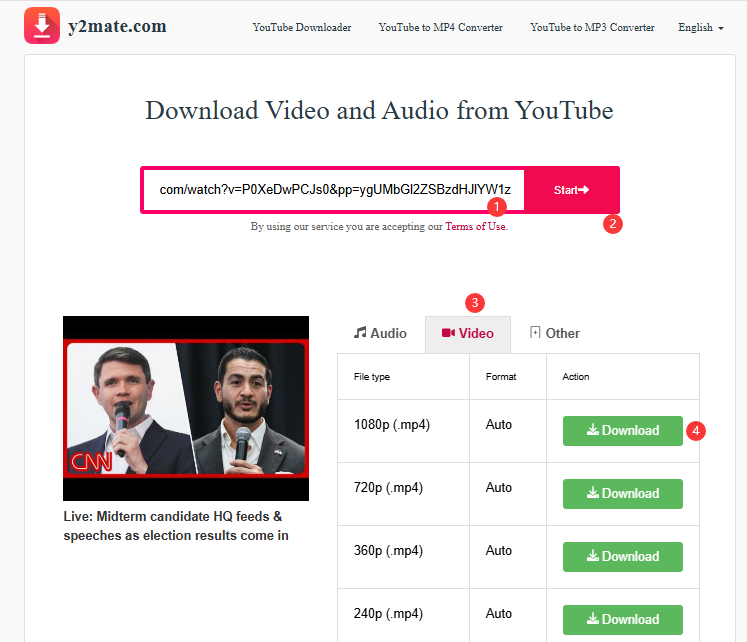
How to Download YouTube Live Streams with Y2Mate
Step 1. After the live stream has ended, navigate to the video on YouTube. Click the “Share” button and copy the video’s URL.
Step 2. Open Y2Mate in your browser and paste the copied URL into the input field.
Step 3. Click on “Start” button to let the website analyze the video and generate available download options.
Step 4. Tap “Video”, select MP4 as your output format and choose your preferred quality from the available options, hit on “Download” button.
Pros:
- Completely free to use.
- Simple, straightforward interface.
- No software installation required.
- Works on any device with a web browser.
Cons:
- Only works after the stream has ended.
- Unstable domain, aggressive pop-ups and redirects.
- Long streams may time out or fail during processing.
Way 3. Download a YouTube Live Stream Using VLC Media Player
VLC Media Player is a free and open-source multimedia player. Moreover, it has a hidden capability: it can capture and save a YouTube live stream directly to your computer as a local file while it is actively broadcasting, so you can keep a permanent copy of a stream.
The catch? This method essentially turns VLC into a DVR for your computer. VLC generally records the YouTube live stream in real time. For efficient process, you can turn to the professional YouTube live stream downloader – iMovieTool.
How to Save a YouTube Live Stream with VLC?
Step 1. Download VLC from its official website and install it on your computer. Launch the VLC program on your Mac, click “File” and select “Open Network…” option.
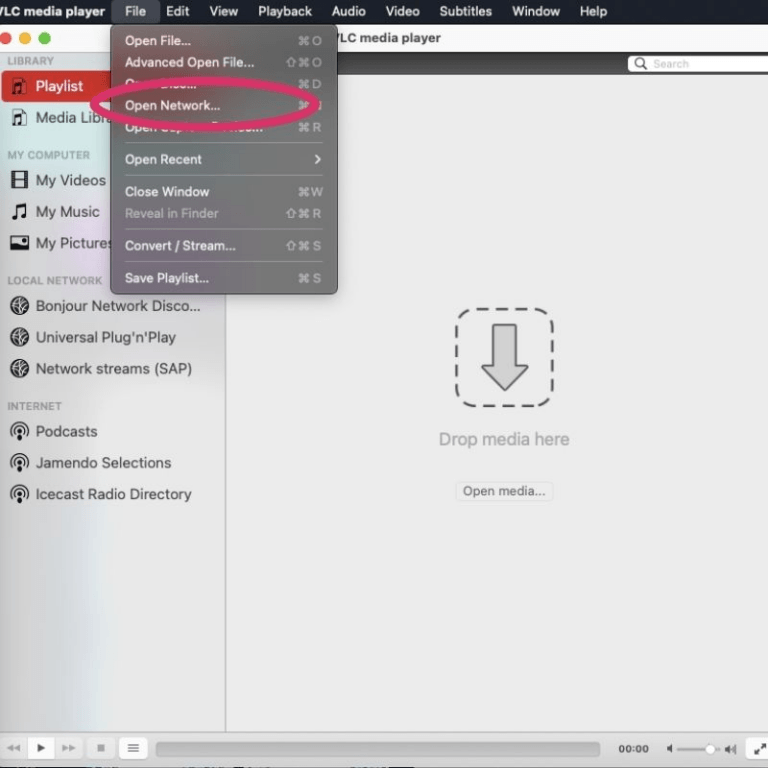
On Windows, click “Media” and select “Open Network Stream” option.
Step 2. Copy the URL of the live YouTube stream from your browser and paste it into the URL field in VLC.
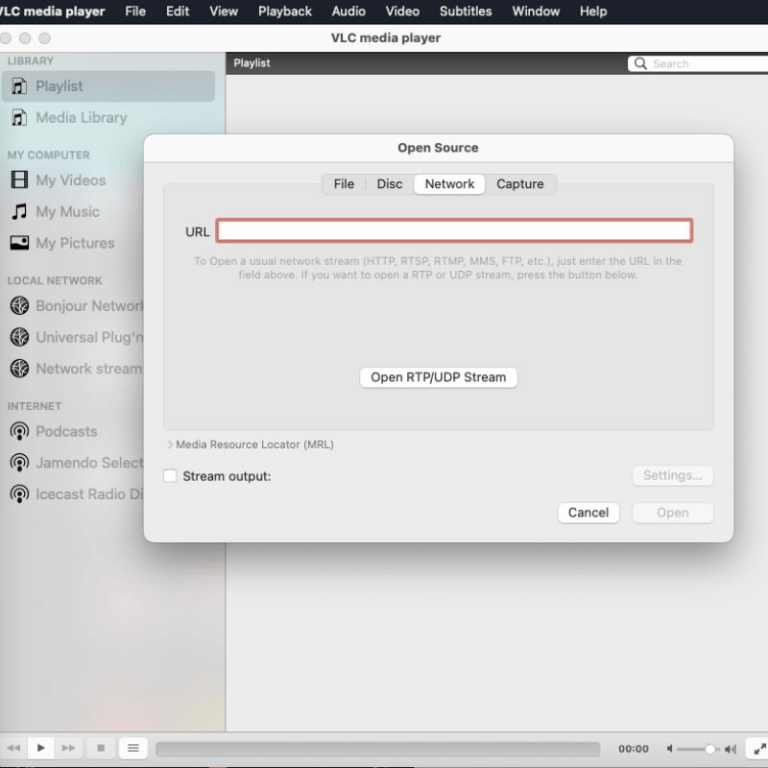
Step 3. Click the “Open RTP/UDP Stream” button to begin playing the live stream in VLC window.
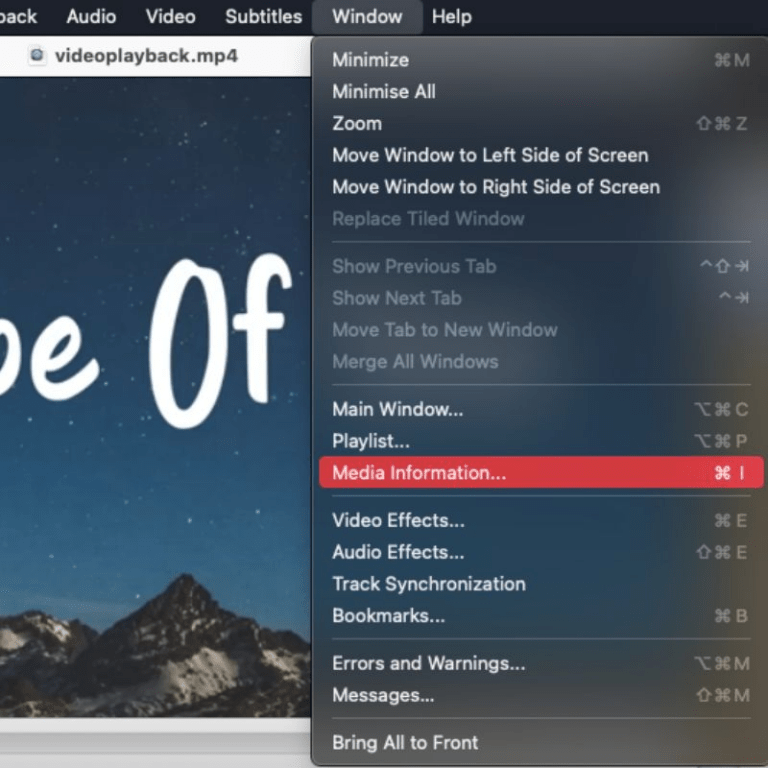
Step 4. Next, tap “Window” at the top of the screen, and choose “Media Information…” option.
Step 5. It will pop up a small window, from the “Location” section, copy the URL.
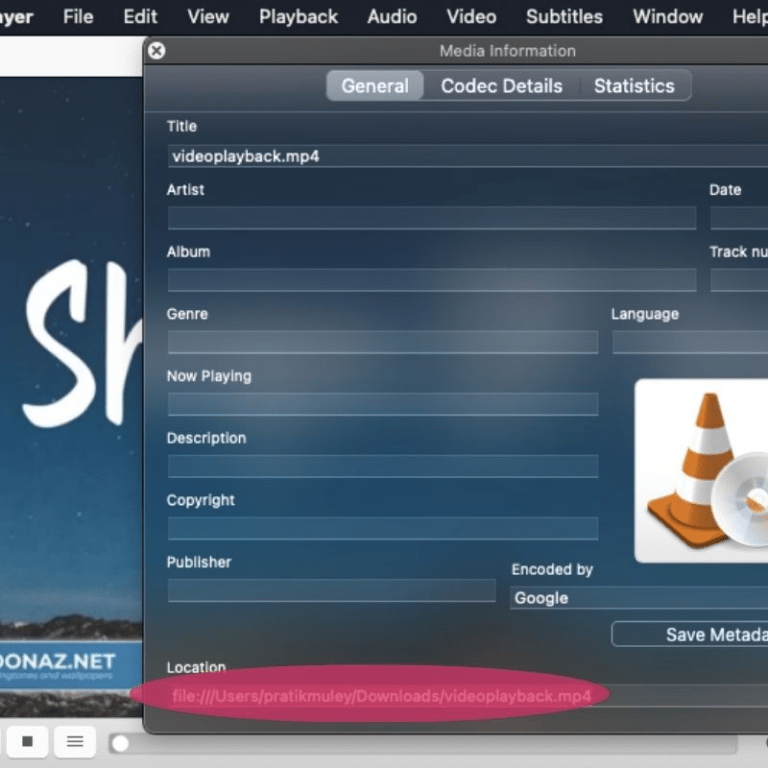
Step 6. Open a new tab in your web browser and paste the full URL. Once the live stream video loads, right-click on it and select “Save Video As” to download it directly to your hard drive.
Pros:
- Completely free and open-source.
- Captures the live stream as it happens.
- Works on both Windows and Mac.
- No third-party downloader websites required.
Cons:
- Slow, it records in real time.
- Requires a compatible stream URL.
- Errors frequently occur during the download process.
- Quality is limited to 720p or lower for YouTube live streams.
Way 4. Save YouTube Live Streams with a Desktop Recorder
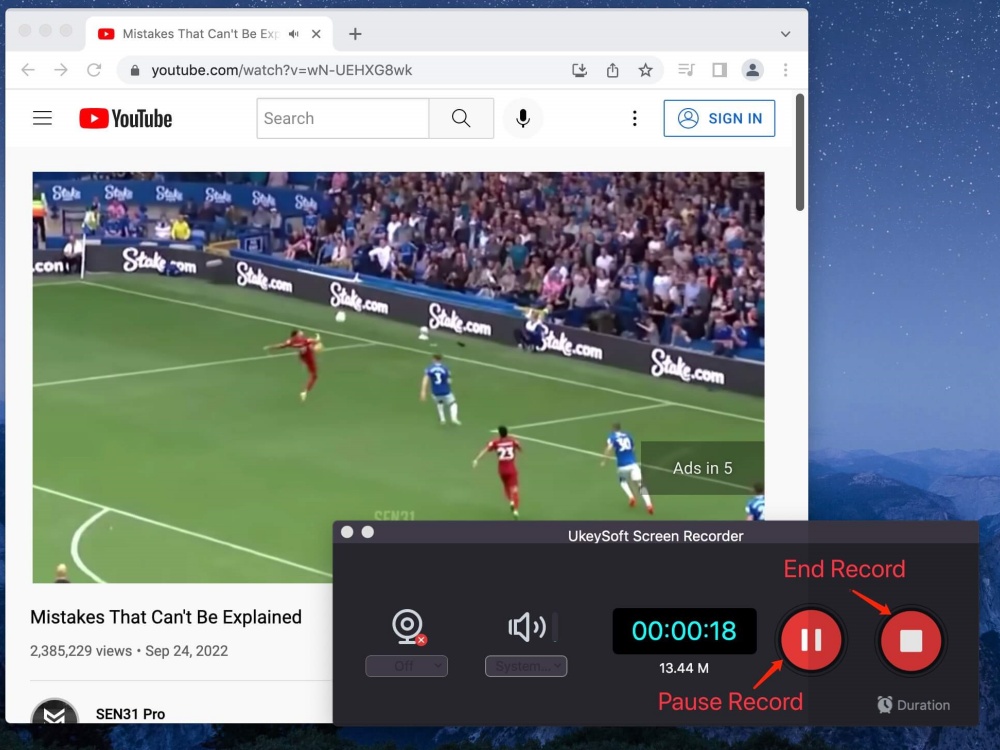
When you need to download an ongoing or completed YouTube live stream, a dedicated screen recorder like UkeySoft Screen Recorder is a practical solution. Avaible on Windows and Mac, it can capture on-screen activities along with system audio, and save the output in multiple formats including MP4, AVI, FLV, WMV, MOV, and more.
One of the attractive features is that it supports scheduled recording, so you can set a start time for a broadcast you do not want to miss and let the software handle the rest, no need to sit at your computer waiting!
How to Record YouTube Live Streams with UkeySoft Screen Recorder
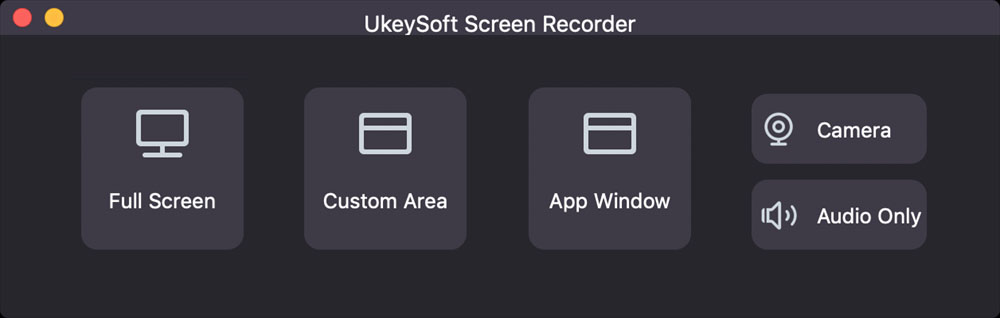
Step 1. Download and install UkeySoft Screen Recorder on your computer. Open the program and select “Screen Recorder”, then choose “Record Screen” function.
On Mac, you need to click “App Window” from the main interface.
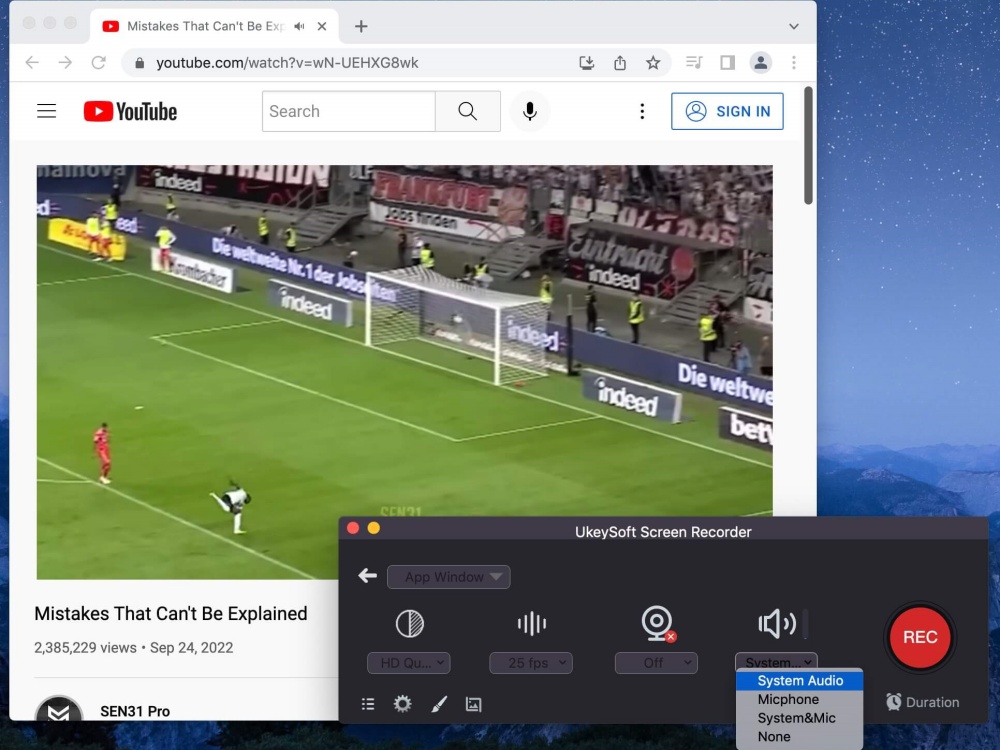
Step 2. Open a live stream on YouTube. And select “System Audio” in the recorder.
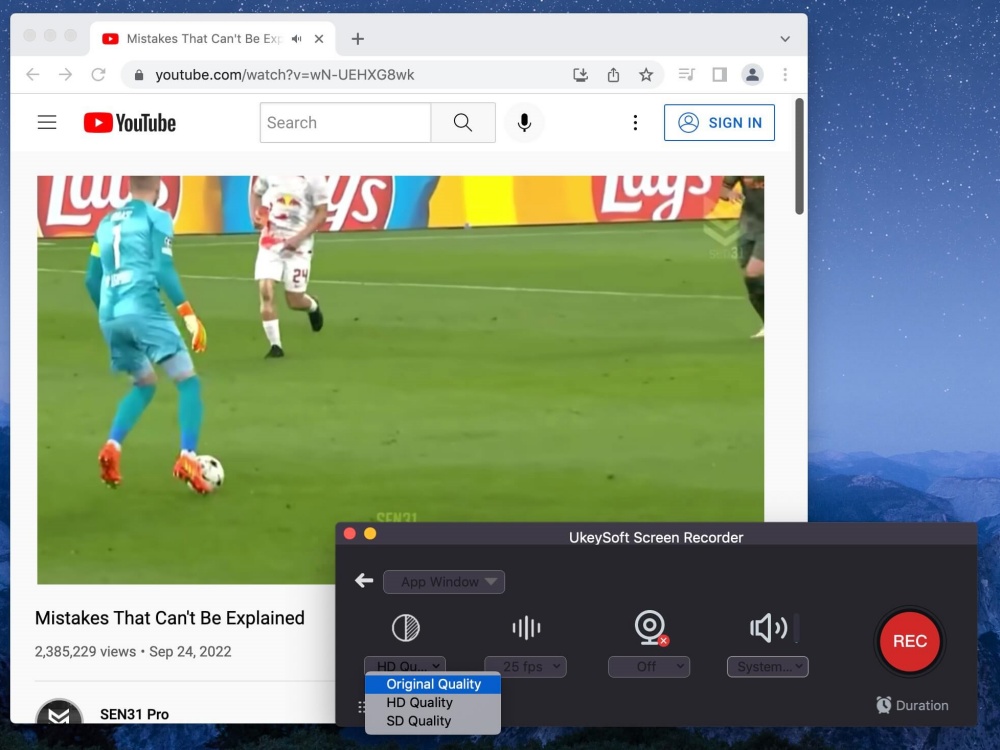
Step 3. Tap the “Resolution” icon, you can select “Original Quality” or ” HD Quality” option.
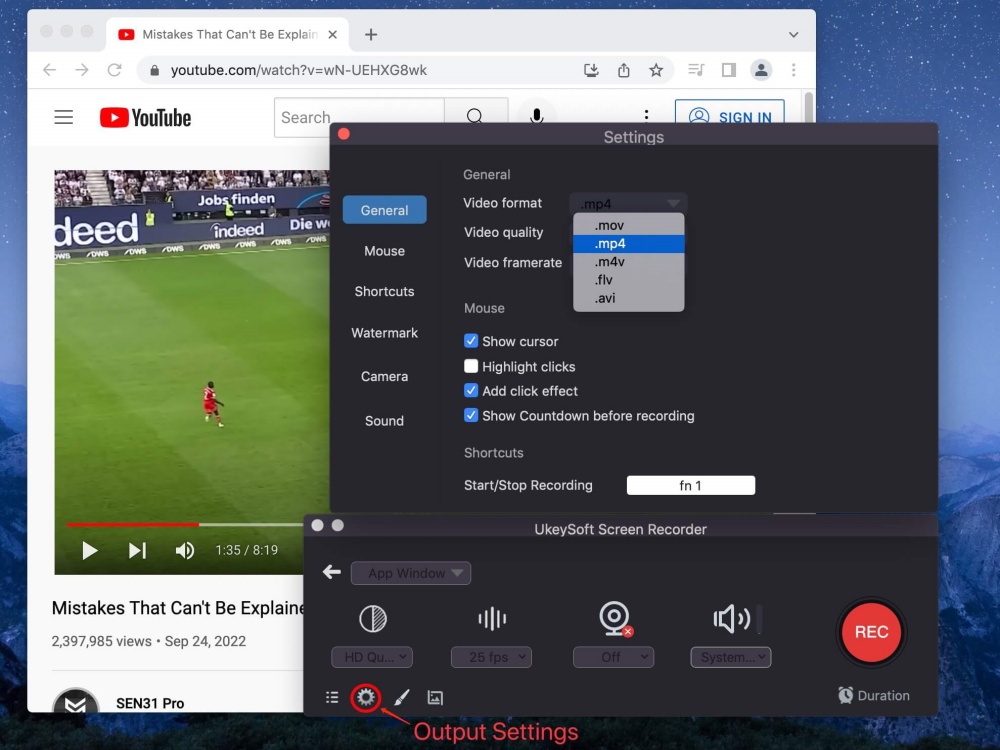
Step 4. Then, click the “Gear” icon to configure output settings. Tap “General” tab, customize the video format (MP4 recommended), video quality, frame rate, and destination folder.
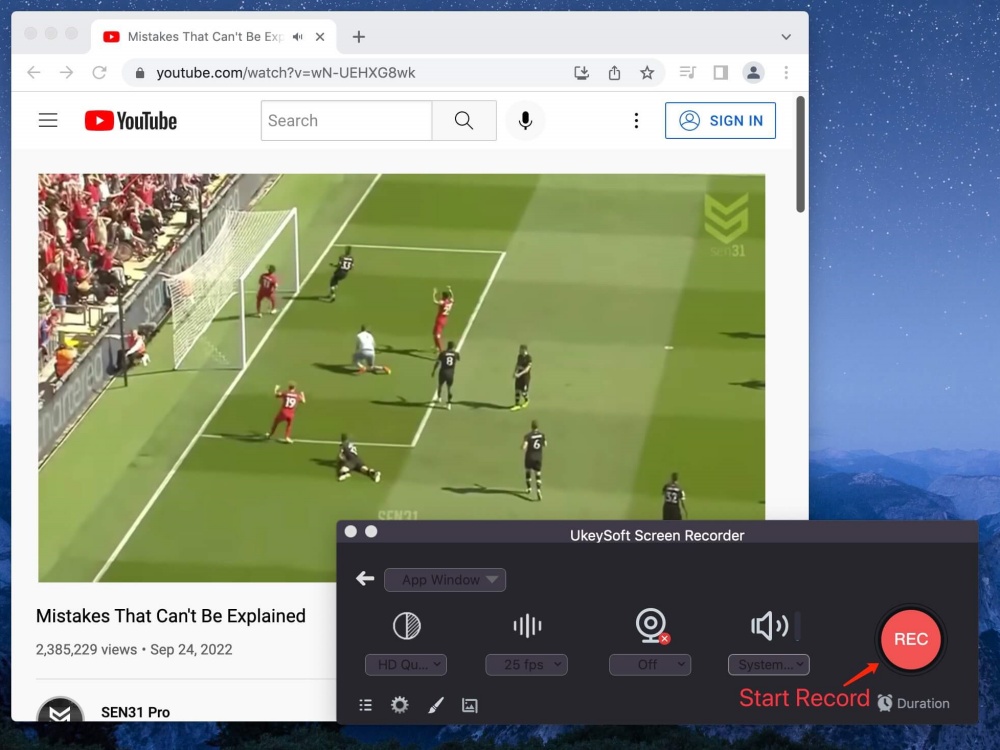
Step 5. If ready, click “REC” button to begin recording immediately.
When the live stream ends, click the “Stop” button. Finally, save the captured video to your computer for offline playback.
Pros:
- Captures live streams in real time with system audio.
- Record any activity on your computer with no lag.
- Supports multiple output formats and qualities.
- Scheduled recording lets you capture broadcasts without being present.
Cons:
- Not a true “downloader”, it captures what plays on your screen.
- Records in real time, so the recording duration takes a lot of time.
- Quality depends on your screen resolution and recording settings.
- Free version limits recording length and comes with watermark.
Way 5. Download Your Own YouTube Live Stream
If you’re a YouTube creator, you can directly download your own live stream. As YouTube provides a native download option inside YouTube Studio for archived live broadcasts. This is the safest and most straightforward method, though the available download resolution may be limited compared with the original broadcast.
Step 1. Visit YouTube Studio in your browser and sign in to the channel that hosted the live stream
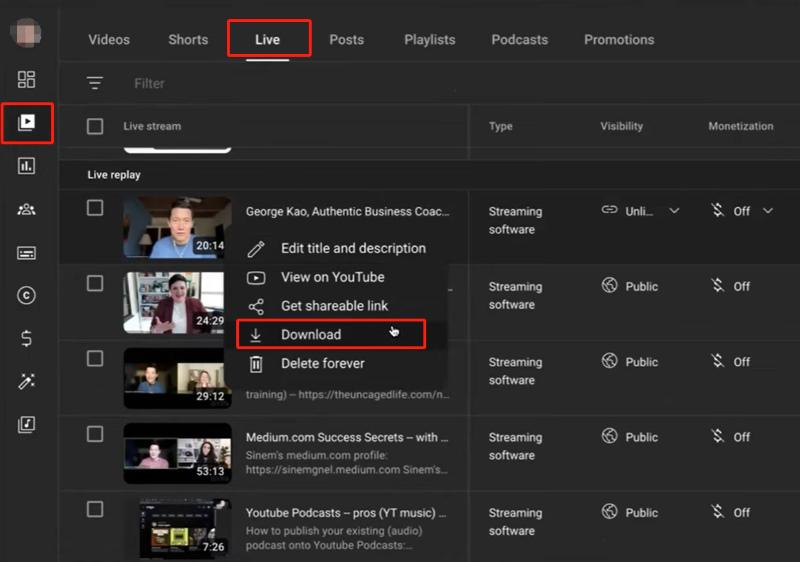
Step 2. Click “Content” in the left-hand navigation panel. Then select the Live tab to filter your past broadcasts.
Step 3. Find the live stream you want to download. Hover over it and click the three-dot menu icon.
Step 4. Select Download from the dropdown menu.YouTube will prepare the video file for download. Follow the browser prompts to save it to your computer in MP4 format.
Pros:
- Official and safe YouTube method.
- No third-party software or websites needed.
- Works for any archived live stream on your channel.
Cons:
- YouTube limits downloads to 720p resolution.
- Only works for your own channel’s live streams.
- Live streams over 12 hours may not be archived at all.
- Require to wait until the live stream has been archived and processed.
Conclusion
In this article, we’ve introduced five ways on how to download YouTube live streams and live replays for personal archiving. For the highest quality and most reliable experience, a professional YouTube live stream downloader like iMovieTool YouTube Video Downloader offers the best combination of 4K support, batch processing, and high speed. Download iMovieTool and start building your YouTube video library today!
The Latest Articles
– Top 8 Solutions to Download Streaming Video
– Top 10 Free Movie Download Sites Recommended
– 3 Ways to Download Movies to Watch Offline
– 2 Verified Methods to Download X/Twitter Videos to MP4
– Download Twitter(X) Videos on PC, Mac and Mobile Phone
– Download Facebook Videos on PC, Mac and Mobile Phone
– 3 Ways to Download Facebook Video to MP4

iMovieTool Movie Downloader
Download movies to MP4/MKV in 1080P, download movies from Netflix, Amazon Prime Video, Disney+, HBO Max, Hulu, Apple TV+, YouTube, and Paramount+. Download videos from Twitter, Instagram, Facebook, and TikTok for free.