







 United States (English)
 Japan (日本語)
 Russia (русский)
 Germany (Deutsch)
 France (Français)
 Spain (Español)
 Italy (Italia)
 Portugal (Portugues)
 China (繁体中文)
 Turkish (Türk dili)
 Dutch (Nederlands)
 Korean(한국인)
 Saudi Arabia(عربي)
 Download from Netflix, Disney+, Prime Video, YouTube, and more.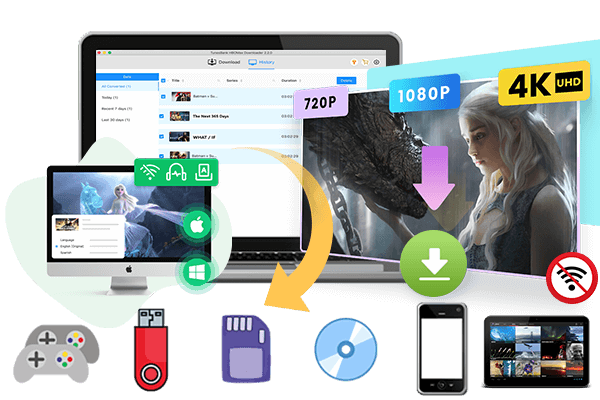
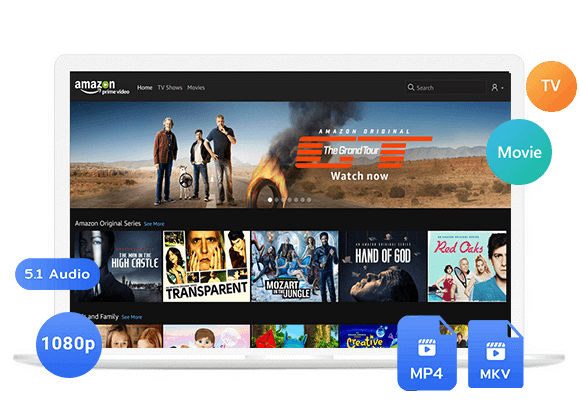
News: TunesBank iMovieTool eleased iMovieTool Netflix Video Downloader, which replaces 4kFinder Netflix Video Downloader.
The industry-leading multimedia solutions provider, TunesBank, newly releases the brand-new iMovieTool Netflix Video Downloader V3.2.8 with enhanced user experience. Meanwhile, iMovieTool Netflix Video Downloader has replaces 4kFinder Netflix Video Downloader to deliver a more friendly and smoother Netflix video download service to all its dear users. Today, this comprehensive review will lead you to go through all the details of this this tool.
What is iMovieTool Netflix Video Downloader?
iMovieTool Netflix Video Downloader works smoothly on Windows and Mac computers. It has embedded a Netflix web browser that allows you to download movies and TV shows from Netflix to your computer in MP4 or MKV formats. And all Netflix downloads come in full HD 1080p with customizable audio tracks and subtitles. Once completed, you can keep Netflix downloads permanently, and transfer the downloaded Netflix videos to your phone, tablet, USB drive, and more devices for offline watching, without relying on the Netflix app.
• Supporting all Netflix accounts, including Standard With Ads, Standard, and Premium.
• New “Browse” tab / open and add videos to download.
• Supporting 50X lightning speed to export Netflix videos.
• Batch-download entire TV seasons to computer in one-click.
• Download Netflix videos in universal MP4 or MKV format.
• Save Netflix videos in FHD 1080p quality with original audio tracks.
• Save audio tracks and subtitles in multiple languages.
• Remain video metadata: cast, cover, title, video codec (H264, H265), duration, season number, shooting time, etc.
What’s New in iMovieTool Netflix Video Downloader?
New Update 1: Enhanced Video Searching Ability
Compared the older 4kFinder Netflix Video Downloader, the updated iMovieTool Netflix Video Downloader V3.2.8 has changed the way you find and add Netflix video resources to the download queue. Originally, you were only able to search for your desired title by entering name, keyword, or pasting the URL in the search field.
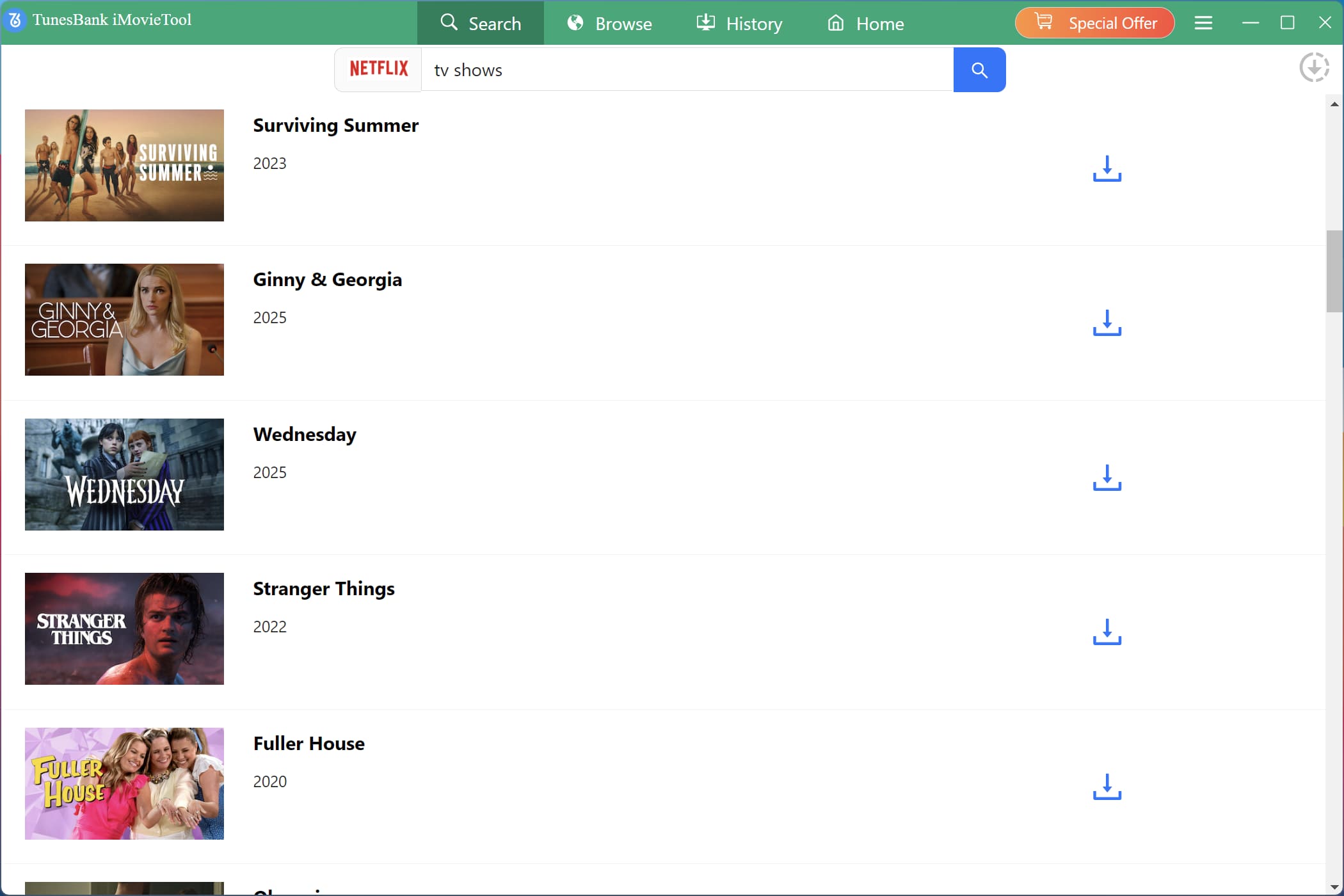
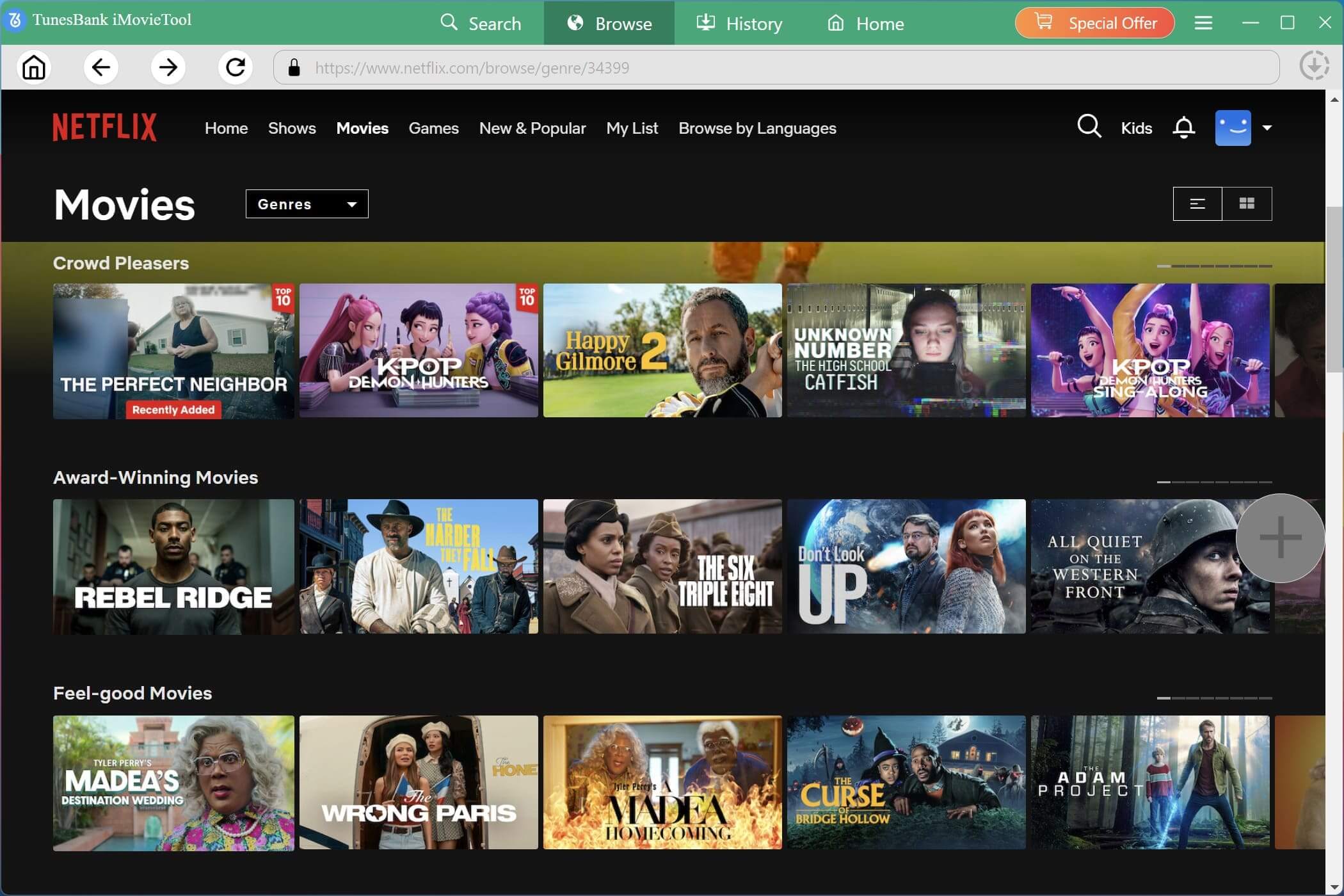
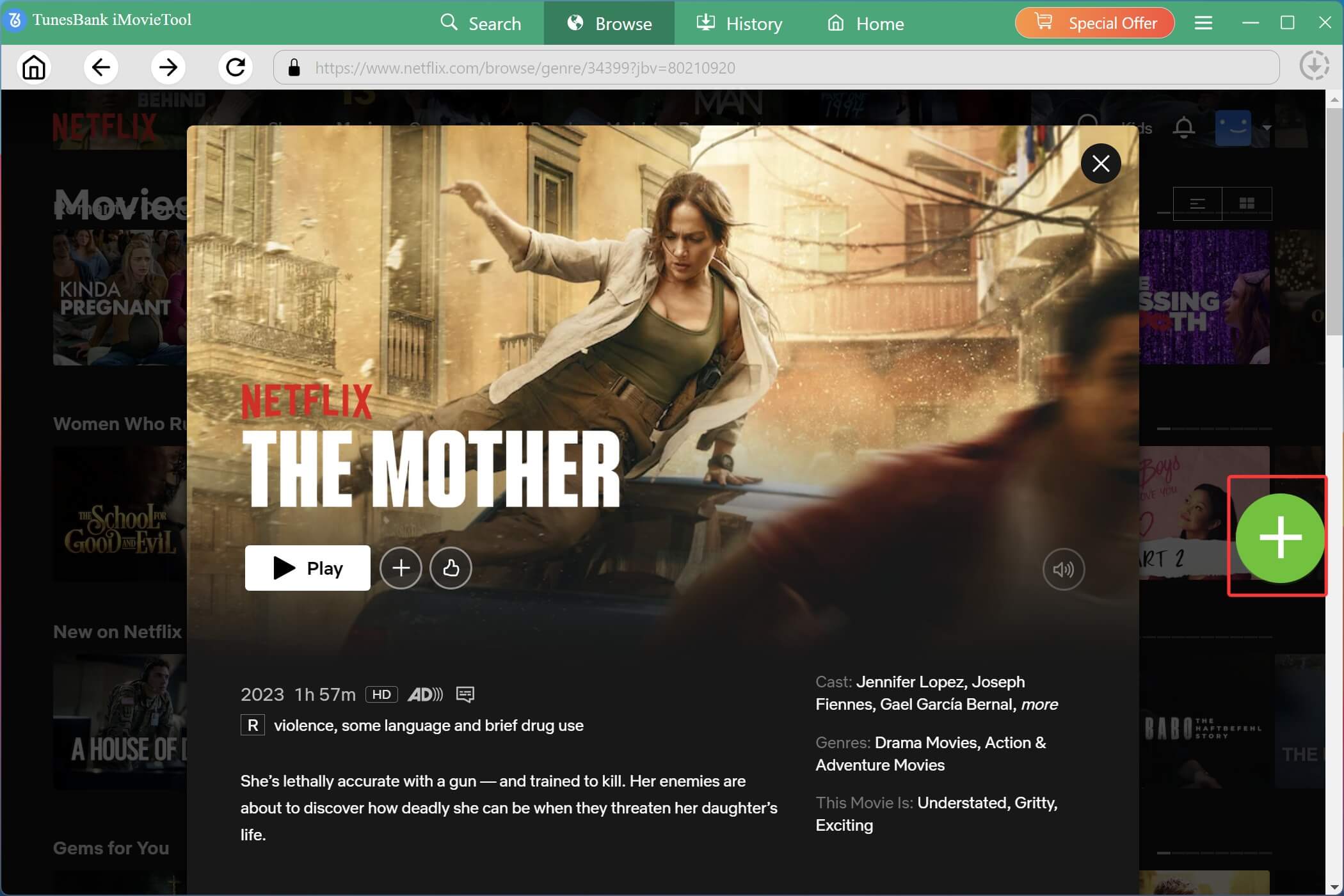
But in the new version of iMovieTool Netflix Video Downloader, the official Netflix web browser is embedded in the software. Users can access the official library and browse the catalog online within the software. Once you find the target movie or show, simply open it and click the “+” icon to instantly add it to the download queue!
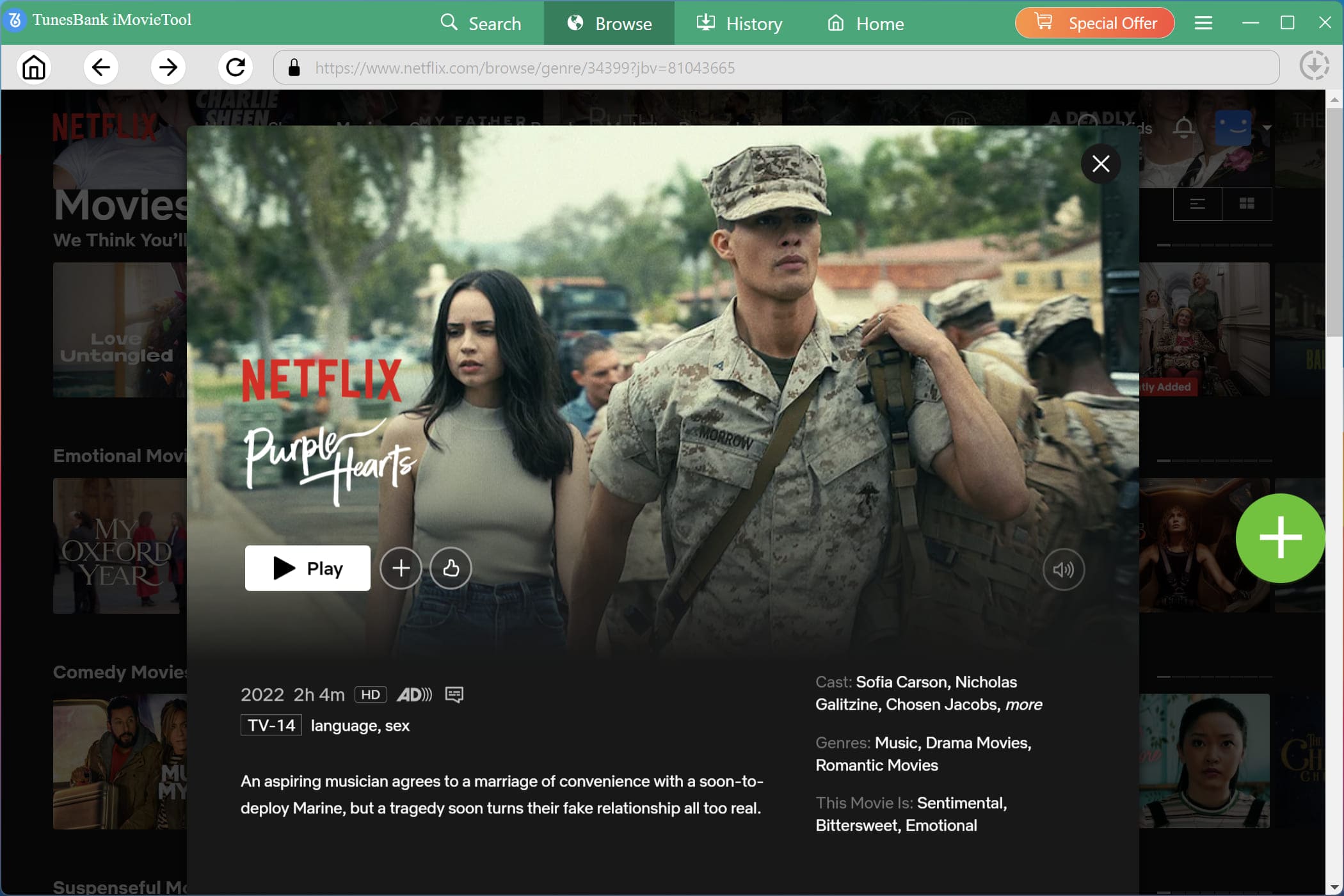
New Update 2: Advanced Settings for Single Video
Another big update on iMovieTool Netflix Video Downloader V3.2.8 refers to the two flexible output settings options. It lets you define and apply your preferred video settings to all added Netflix video titles in the download queue conveniently. Furthermore, it allows you to customize advanced settings for single video.
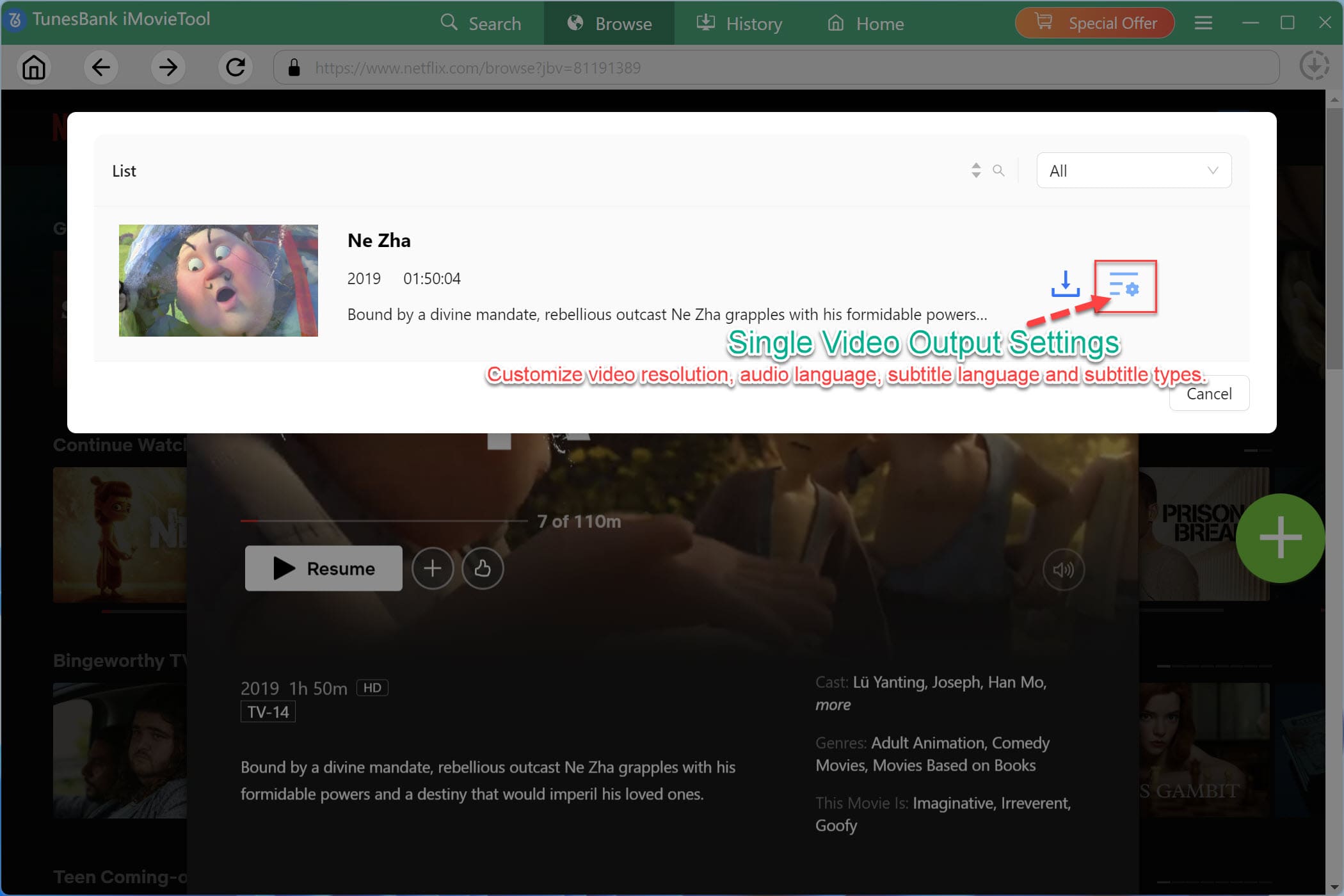
You can define the video resolution, audio language, subtitle language, subtitle format, and more for your added title.
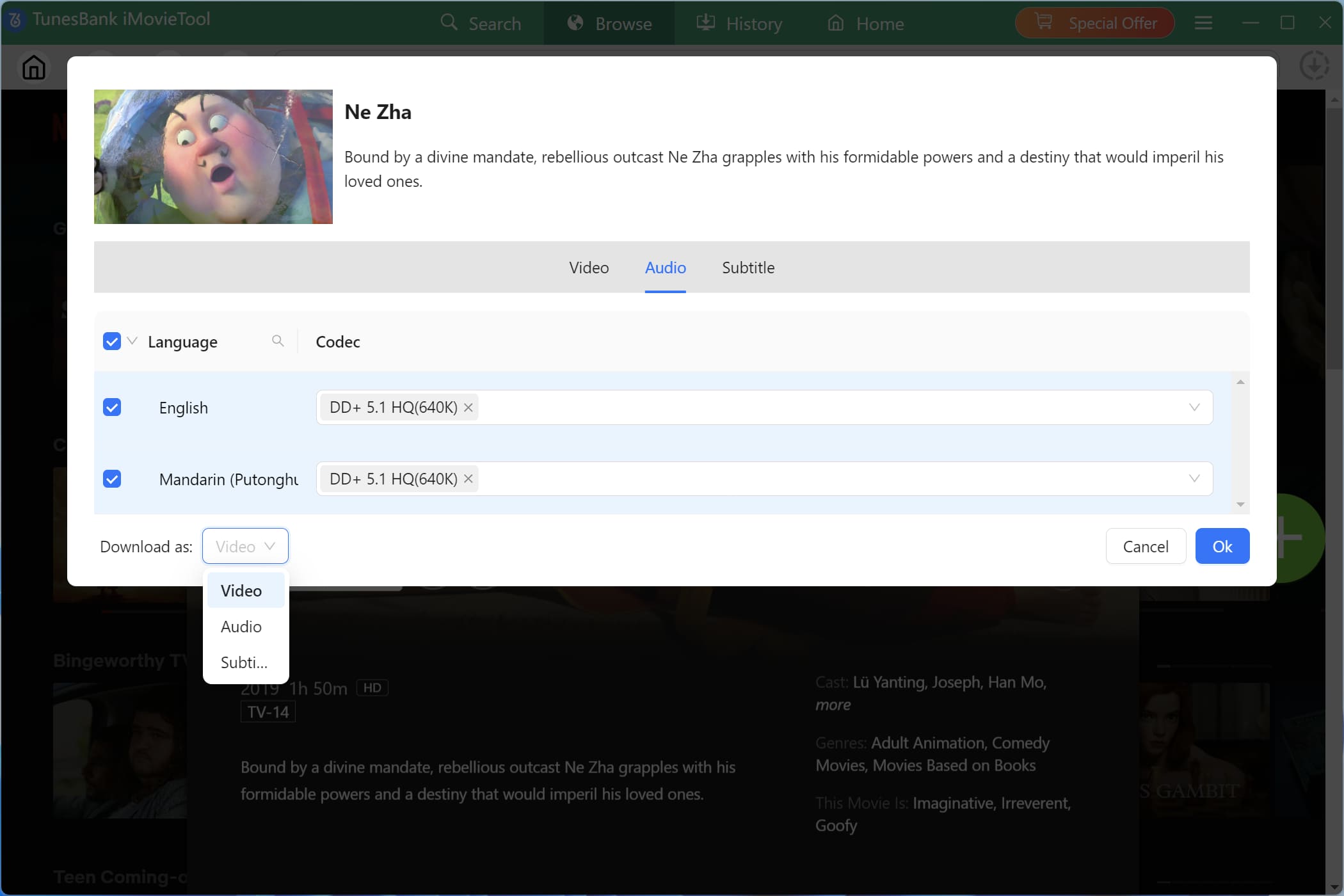
How to Download Netflix Videos to HD MP4 with iMovieTool?
Step 1. Choose Netflix and Log In Account
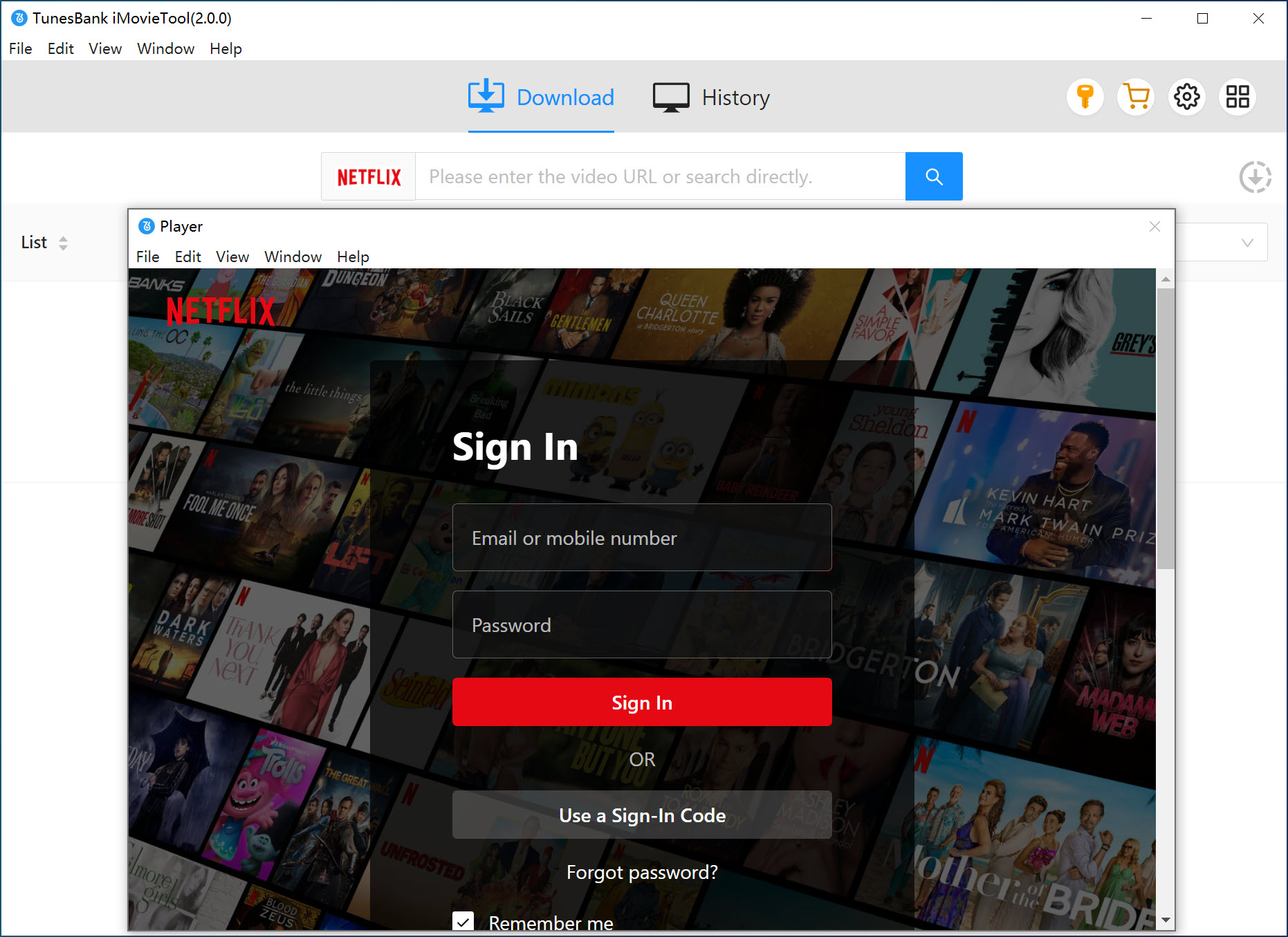
After installation, start TunesBank iMovieTool Video Downloader on your computer and choose Netflix service to enter the iMovieTool Netflix Video Downloader.
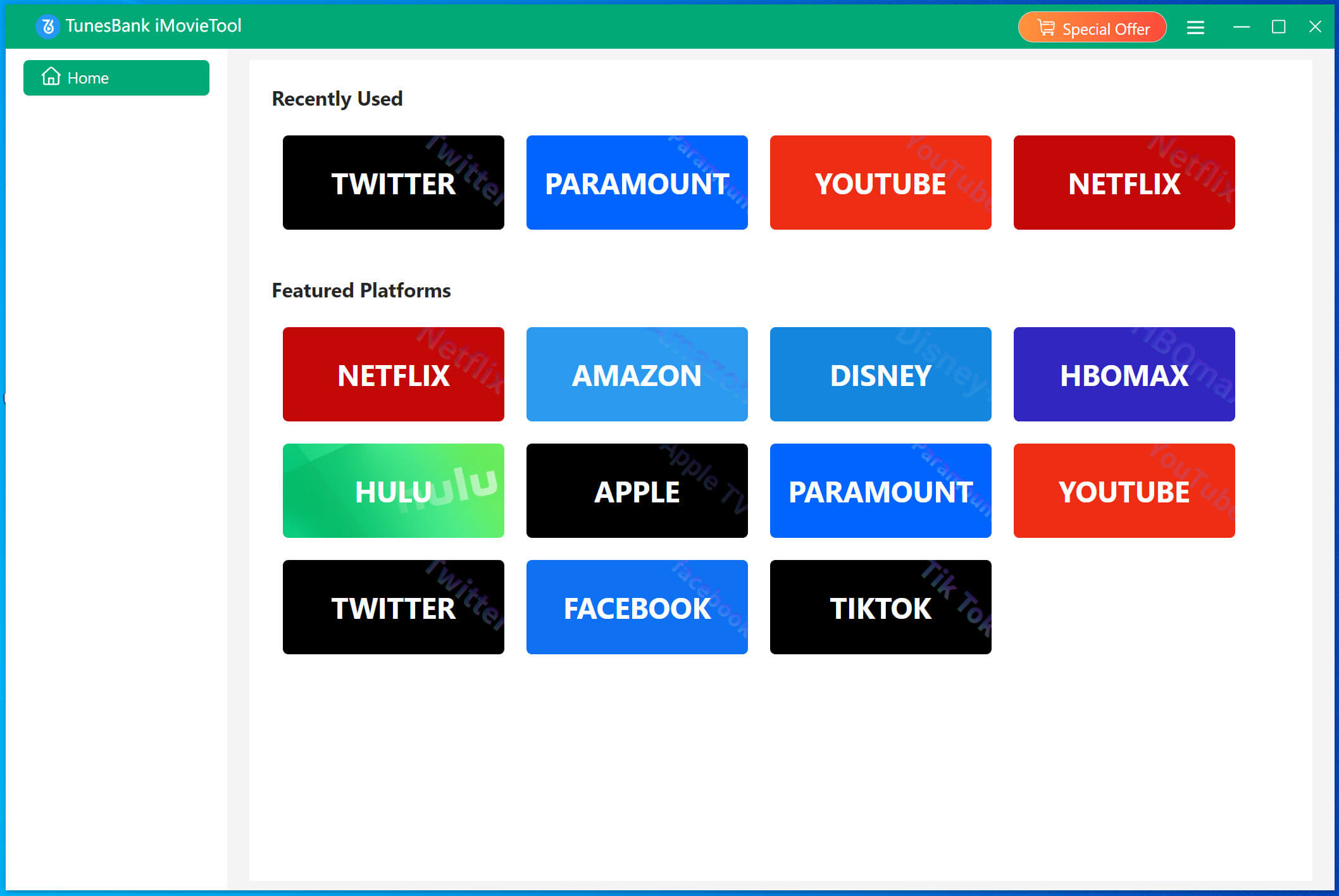
The built-in Netflix web player will load automatically. Sign in with your Netflix account credentials to access the catalog.
Step 2. Modify the Output Settings
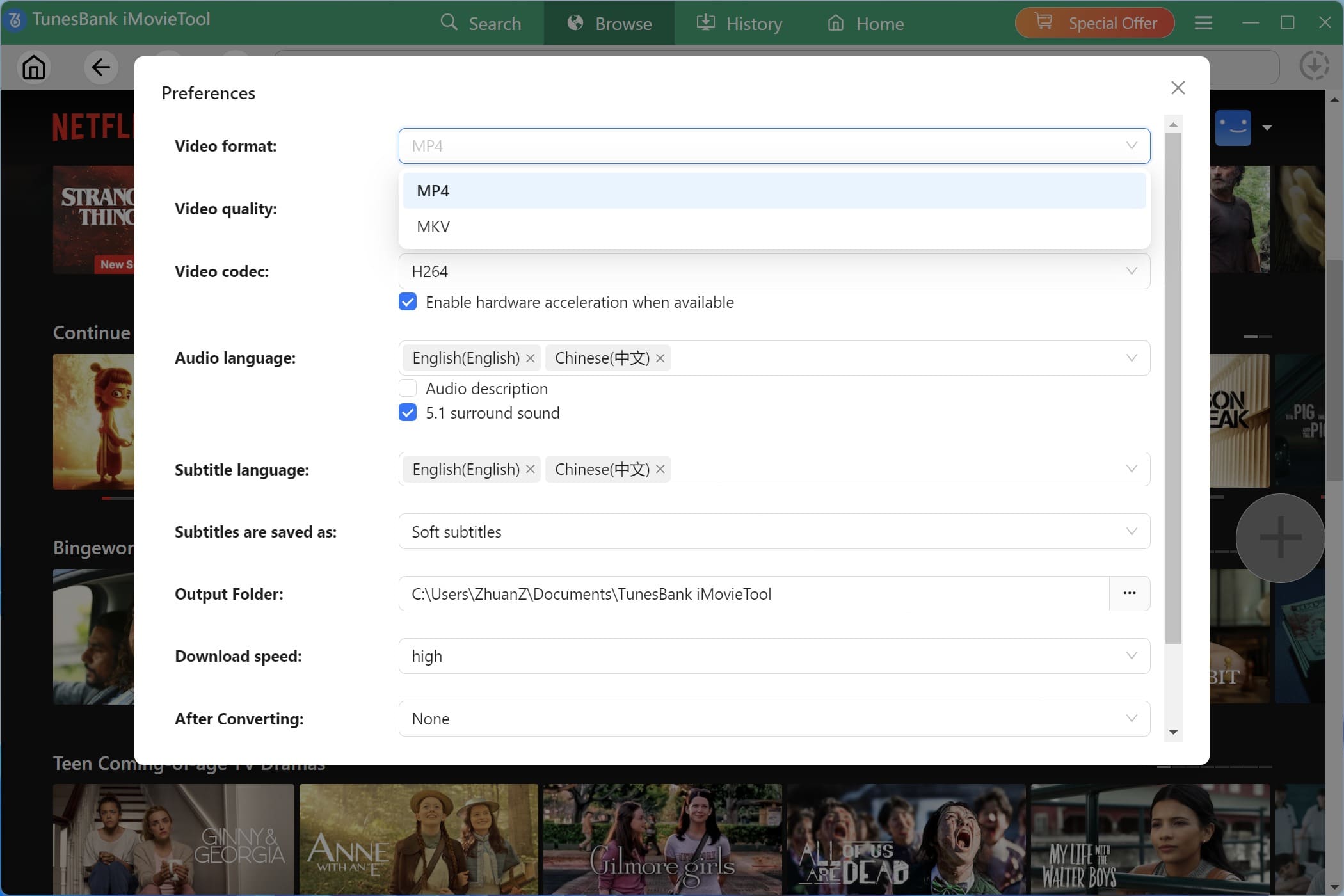
Click the “Menu” bar in the top-right corner and choose “Preferences” option. Here you can choose your output format (MP4 or MKV), video quality (Low, Medium, or High), video codec (H264, H265), audio language, subtitle language, and the destination folder for downloads.
Step 3. Browse and Add Netflix Videos Online
You have multiple options to find content. Tap “Browser” tab, you can use the built-in Netflix web player to navigate the catalog just like a regular browser. Search for any video you want to save.
Open the video page and click the “+” icon in the right side to add it to your queue.
Step 4 (Optional). Customize Single Video Settings
It will pop up a small window with a Download and Gear icon. Click the Gear icon, you can set the video resolution, audio language, subtitle language, and other parameters for single video.
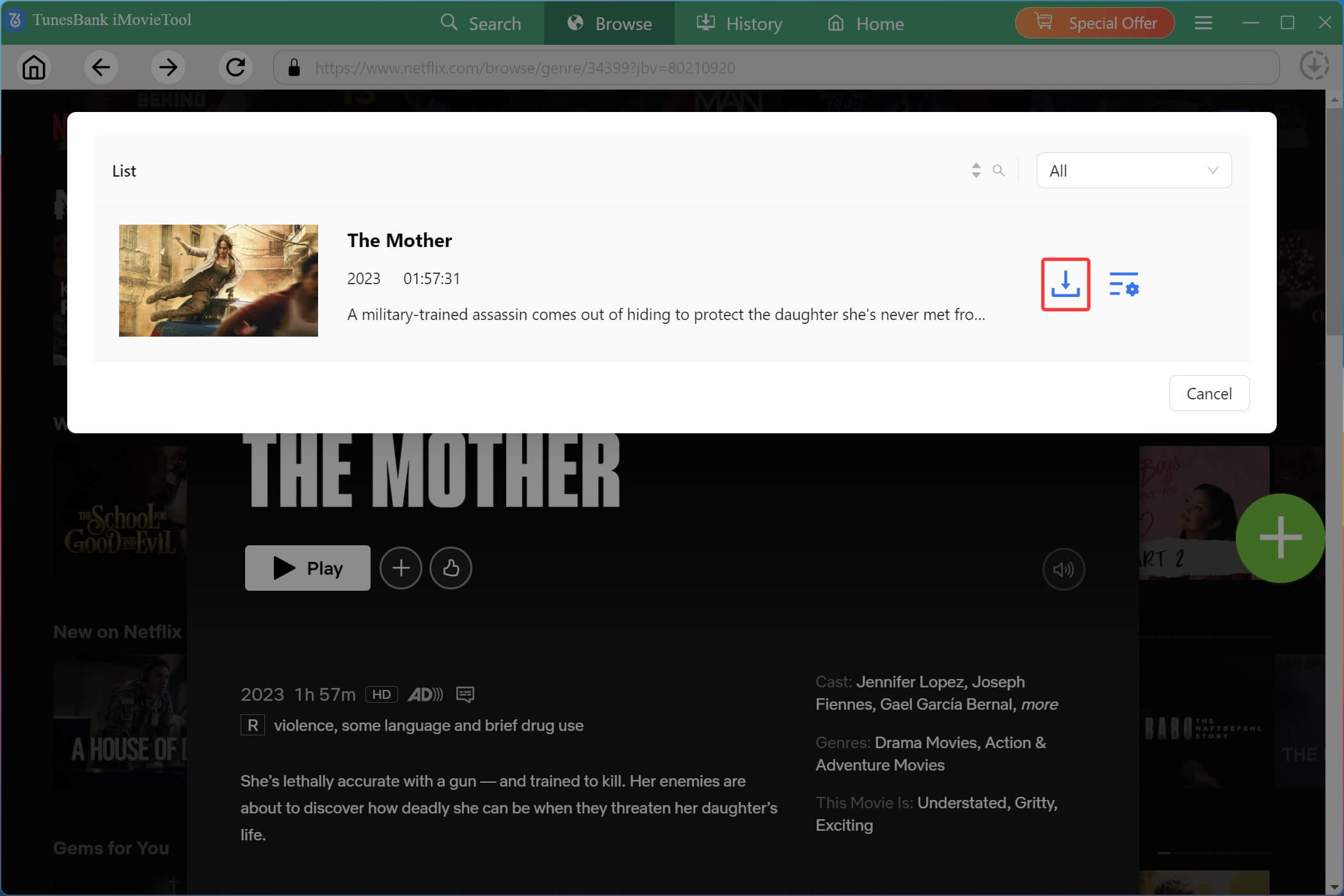
Step 5. Begin Downloading Netflix Videos to MP4
After confirming your settings, hit on the “Download” button to start the process. iMovieTool will download and save the Netflix movie to your chosen output folder at high speed.
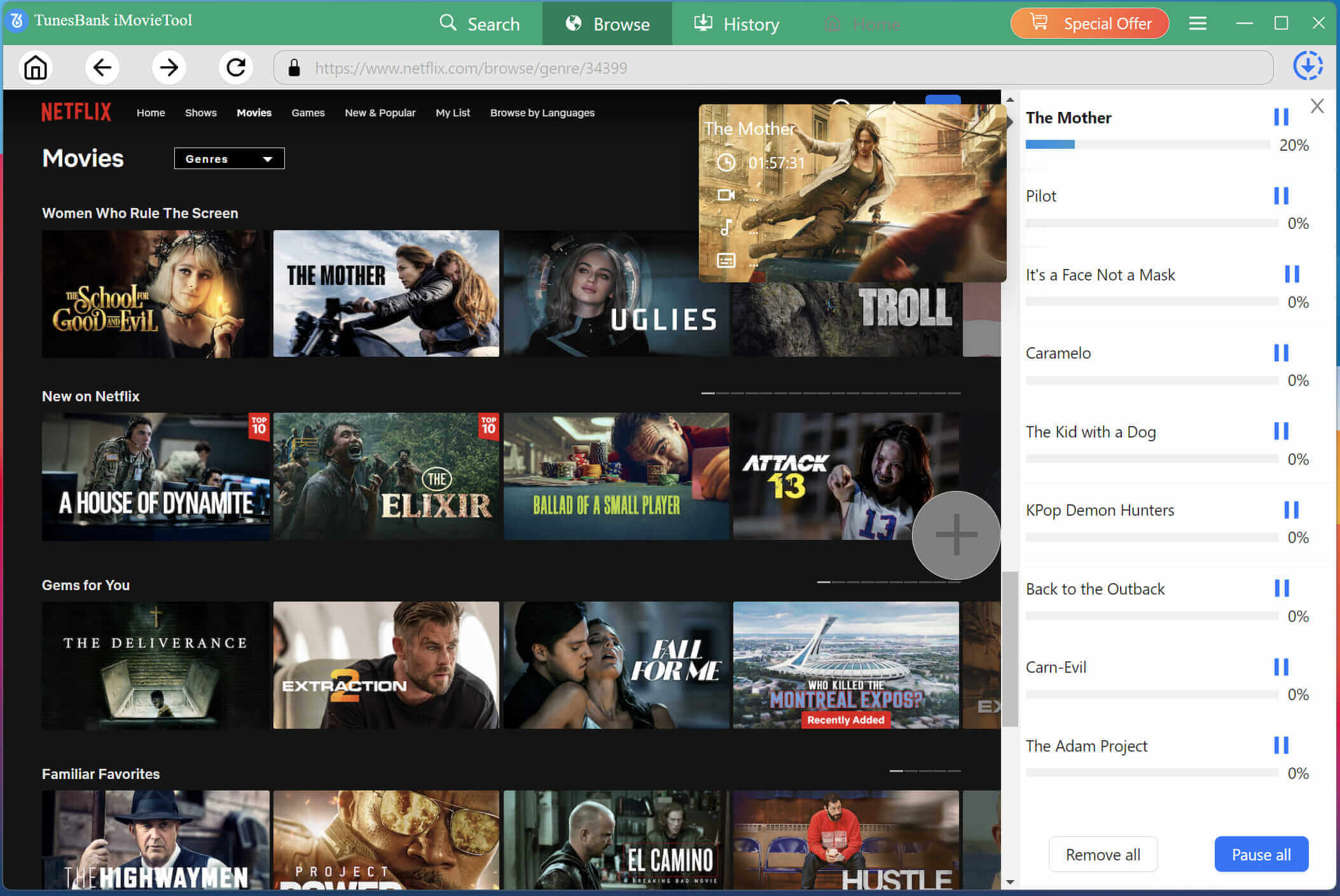
For TV shows, choose your desired seasons, episodes, and then press on the “Download” button.
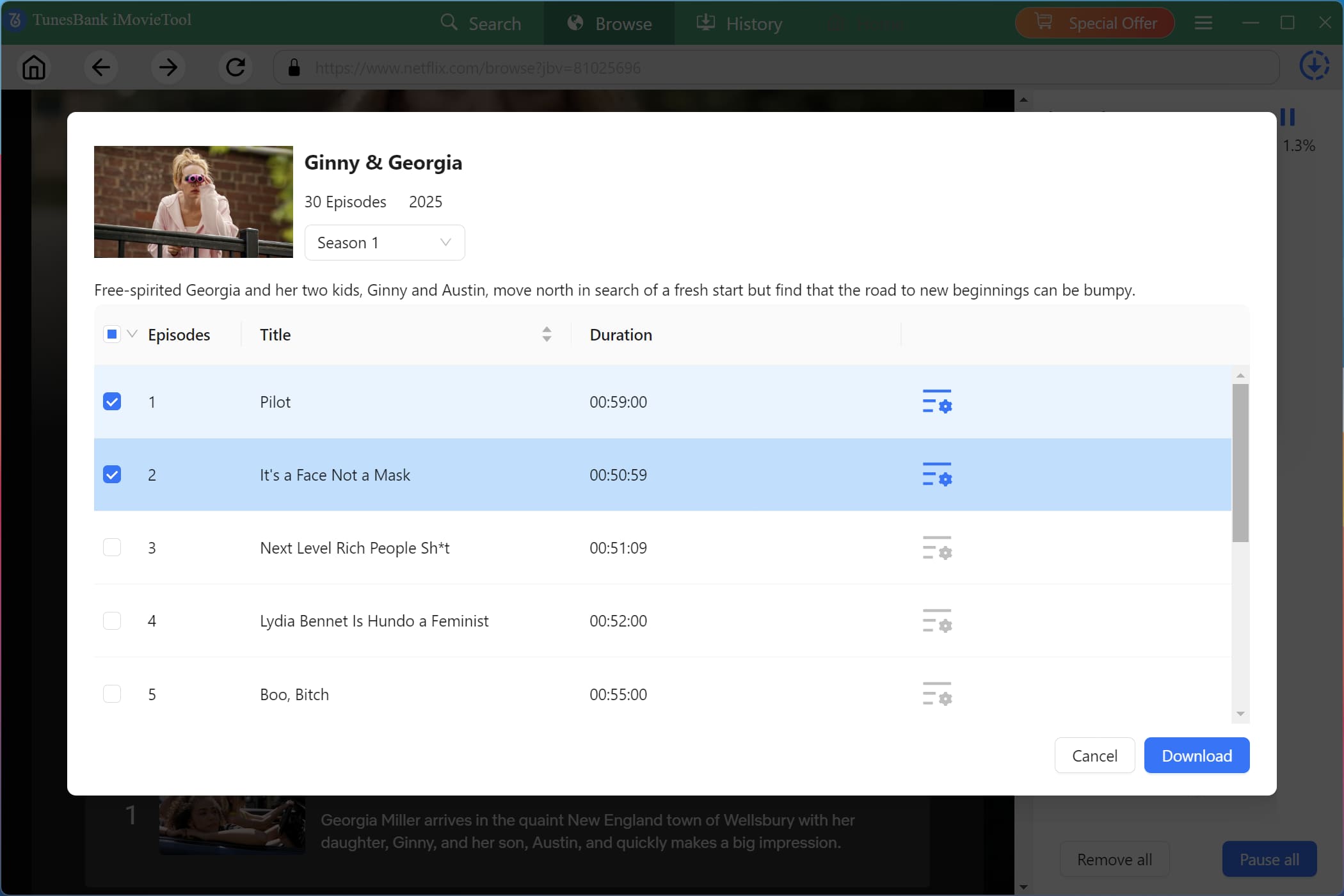
During the process, you can continue to browse and add more Netflix titles to the download queue.
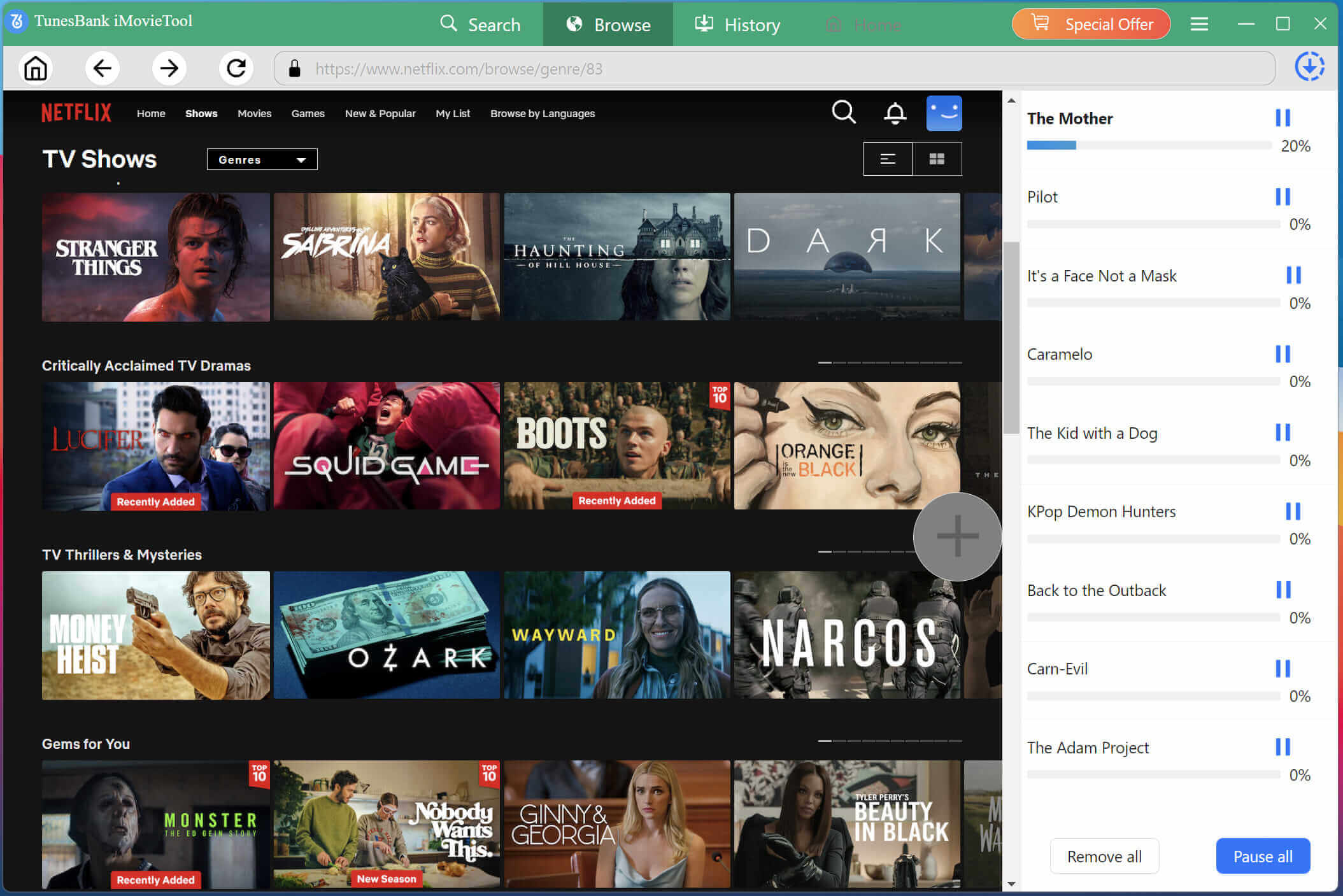
Step 6. Get Downloaded Netflix Videos
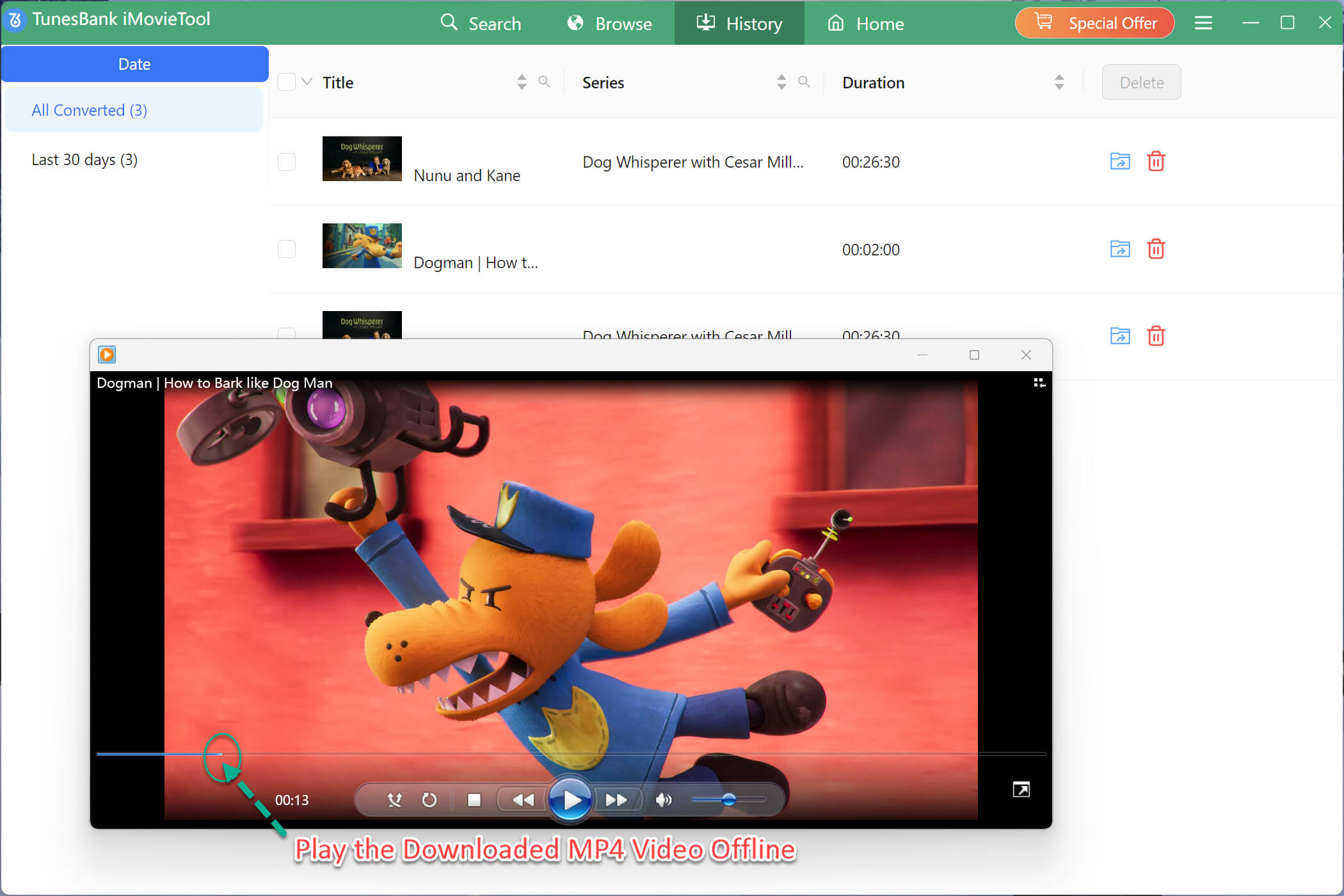
Once the download finishes, click the “History” tab to view all saved Netflix videos. Click the folder icon next to any title to open its location on your computer, and watch the Netflix videos offline on your computer with other media players!
Summary
Although 4kFinder Netflix Video Downloader has been discontinued. This new update of iMovieTool Netflix Video Downloader V3.2.8 is the best alternative. It can replace 4kFinder Netflix Video Downloader to bring you an easier and faster way to download Netflix movies, TV shows, and videos to MP4, MKV in 1080p quality. Give it a try and use it to build your offline video library!
The Latest Articles
– Top 8 Solutions to Download Streaming Video
– Top 10 Free Movie Download Sites Recommended
– 3 Ways to Download Movies to Watch Offline
– 2 Verified Methods to Download X/Twitter Videos to MP4
– Download Twitter(X) Videos on PC, Mac and Mobile Phone
– Download Facebook Videos on PC, Mac and Mobile Phone
– 3 Ways to Download Facebook Video to MP4

Netflix Video Downloader
Download Netflix video to MP4 or MKV with multi-language audio track and subtitle kept. Up to 50X downloading speed. Easily to download your favorite movies/TV shows from Netflix to your computer for offline viewing.