






 United States (English)
 Japan (日本語)
 Russia (русский)
 Germany (Deutsch)
 France (Français)
 Spain (Español)
 Italy (Italia)
 Portugal (Portugues)
 China (繁体中文)
 Turkish (Türk dili)
 Dutch (Nederlands)
 Korean(한국인)
 Saudi Arabia(عربي)
 Download Netflix Movies and TV shows to watch offline.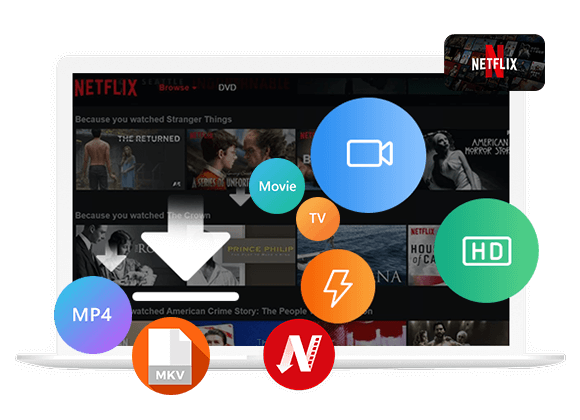
Wondering how to get Netflix on your Xbox console? You can either install and play Netflix on your Xbox One online with the official app, or watch Netflix offline on all Xbox consoles from a USB drive without an internet connection.
The Xbox One is much more than a gaming console. Besides playing popular games, it’s also a fantastic device for streaming your favorite movies, TV shows, live events, and music. Among the many streaming services available, Netflix is officially supported on some Xbox models, such as the Xbox One S and Xbox One X. Once connected, you can easily browse Netflix’s catalog on your Xbox One online, and enjoy your favorite content on the big screen!
However, many users still have questions about how to get Netflix on Xbox console or whether they can watch Netflix on Xbox One offline without an internet connection. In this guide, we’ll explain how to install Netflix on your Xbox and show you an alternative way to watch Netflix on Xbox One offline from a USB drive for a smoother viewing experience. Let’s explore!
Part 1. Watch Netflix Videos on Xbox One Online via Netflix App
The simplest way to watch Netflix on Xbox One is by streaming directly through the official Netflix app. The Netflix app is available to download on your Xbox Series X|S or Xbox One console. You can follow the guide below to get Netflix on your Xbox console.
-
Compatible Xbox Device: Netflix works on Xbox 360, Xbox One, Xbox One X/S, and Xbox Series X/S. Make sure you have the latest version of the Netflix app compatible with your Xbox console.
Stable Internet Connection: You need to be signed into Xbox Live and have a stable internet connection, either via wired Ethernet or Wi-Fi.
Active Netflix Subscription: While you can download the Netflix app for free without an Xbox Live Gold membership, you still need an active Netflix subscription to access and watch content.
How to Install and Setup Netflix on Xbox One, Xbox One X/S, and Xbox Series X/S
Step 1. Power on your Xbox One, Xbox One X/S, or Xbox Series X|S, and connect it to a stable Wi-Fi or wired Ethernet network.
Step 2. Scroll right on the Home Screen to open the “Store”. You can find it in the main menu or under the “Apps” section.
Step 3. Navigate to the “Apps” module, search for Netflix. Tap “Install” button.
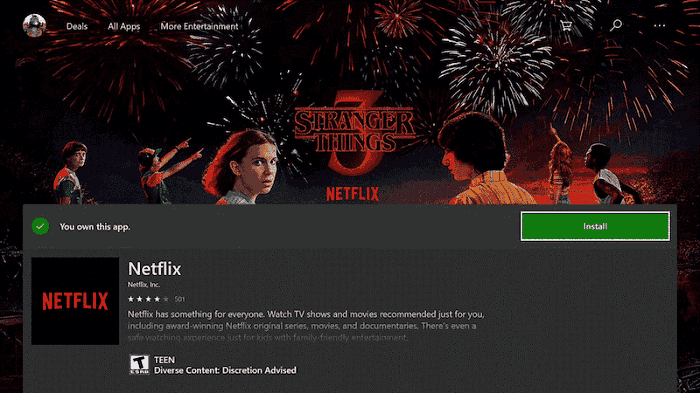
Step 4. Once the Netflix app is installed, launch it from your Home Screen.
Step 5. Select “Member Sign-In” and enter your Netflix account email and password.
Step 6. As soon as you log in, you can browse Netflix’s library, search for your favorite movies or TV shows, and select Play to watch Netflix on your Xbox console online with a stable internet connection.
How to Install and Setup Netflix on Xbox 360
Step 1. Turn on your Xbox 360 and sign in to your Xbox Live account to access the available apps.
Step 2. On the Home Screen, navigate to the “Apps” section using your controller.
Step 3. Select “Search Apps” (or “Browse Apps”, depending on your dashboard version), search for Netflix, and install the official Netflix app.
Step 4. Once the Netflix app result appears, tap it and click on the “Download” button to install it on your Xbox 360.
Step 5. After installation, launch the Netflix app from your Games & Apps menu, and sign in using your Netflix account.
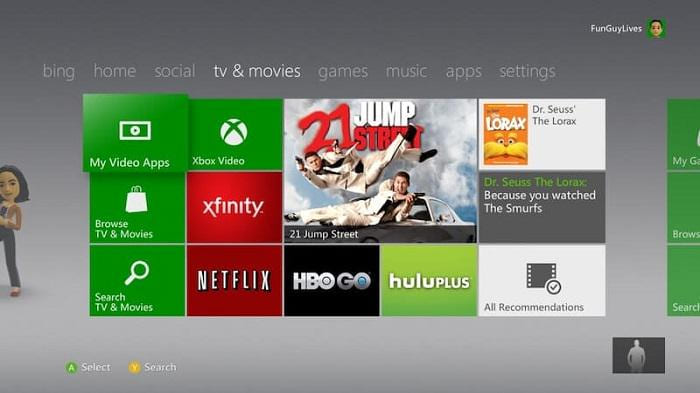
Step 6. You can now browse Netflix’s catalog and start streaming your favorite movies, TV shows, documentaries, or anime directly on your Xbox 360.
Part 2. Watch Netflix Videos on Xbox One Offline from USB Drive 🔥
While streaming Netflix directly on your Xbox One online is convenient, it has one major drawback: you need a fast and stable internet connection. If your network is slow, unstable, or unavailable, you may experience buffering, lower video quality, or playback interruptions. To ensure a smooth viewing experience, the best solution is to save Netflix videos to USB drive. This way, you can watch Netflix offline on your Xbox from USB drive.
This approach works for all Xbox models that support plugging in a USB drive, giving you permanent access to your favorite Netflix movies and shows on your Xbox offline without network.
Best Tool to Download Netflix Videos for Xbox
iMovieTool Netflix Video Downloader is a exceptional Netflix downloader designed for Windows and Mac users. It enables you to download Netflix movies, TV shows, documentaries, anime, and Netflix Originals directly to your computer without using the Netflix app. The software saves Netflix videos in MP4 or MKV format with up to 1080P resolution. Additionally, you can choose your preferred audio tracks and subtitles to export Netflix videos!
It delivers a 50 times faster speed than the official Netflix app, and also supports batch downloading complete seasons or multiple episodes at once. After downloading, simply transfer the Netflix videos to USB drive for offline playback on your Xbox One, Xbox 360, PSP, PS3, PS4, PS5, smart or non-smart TV, USB projector, etc., even without an internet connection.
More Features of iMovieTool Netflix Video Downloader:
- Download Netflix movies, TV shows, documentaries, and anime without the Netflix app.
- Save Netflix videos in MP4 or MKV formats for universal playback.
- Download Netflix videos on Mac/PC in up to 1080P Full HD quality.
- Batch download entire Netflix seasons and multiple episodes simultaneously.
- Preserve multilingual audio tracks for flexible offline viewing experiences.
- Keep internal, external, or hardcoded subtitles in multiple languages.
- Built-in Netflix web player for direct browsing and downloading.
- Download Netflix videos at 50X high speed with stable performance.
- Save Netflix videos permanently without expiration or playback limitations.
- Play downloaded Netflix videos on TVs, game consoles, and media players.
Simple Steps to Download and Transfer Netflix videos to Xbox One
Step 1. Run iMovieTool and Pick Netflix
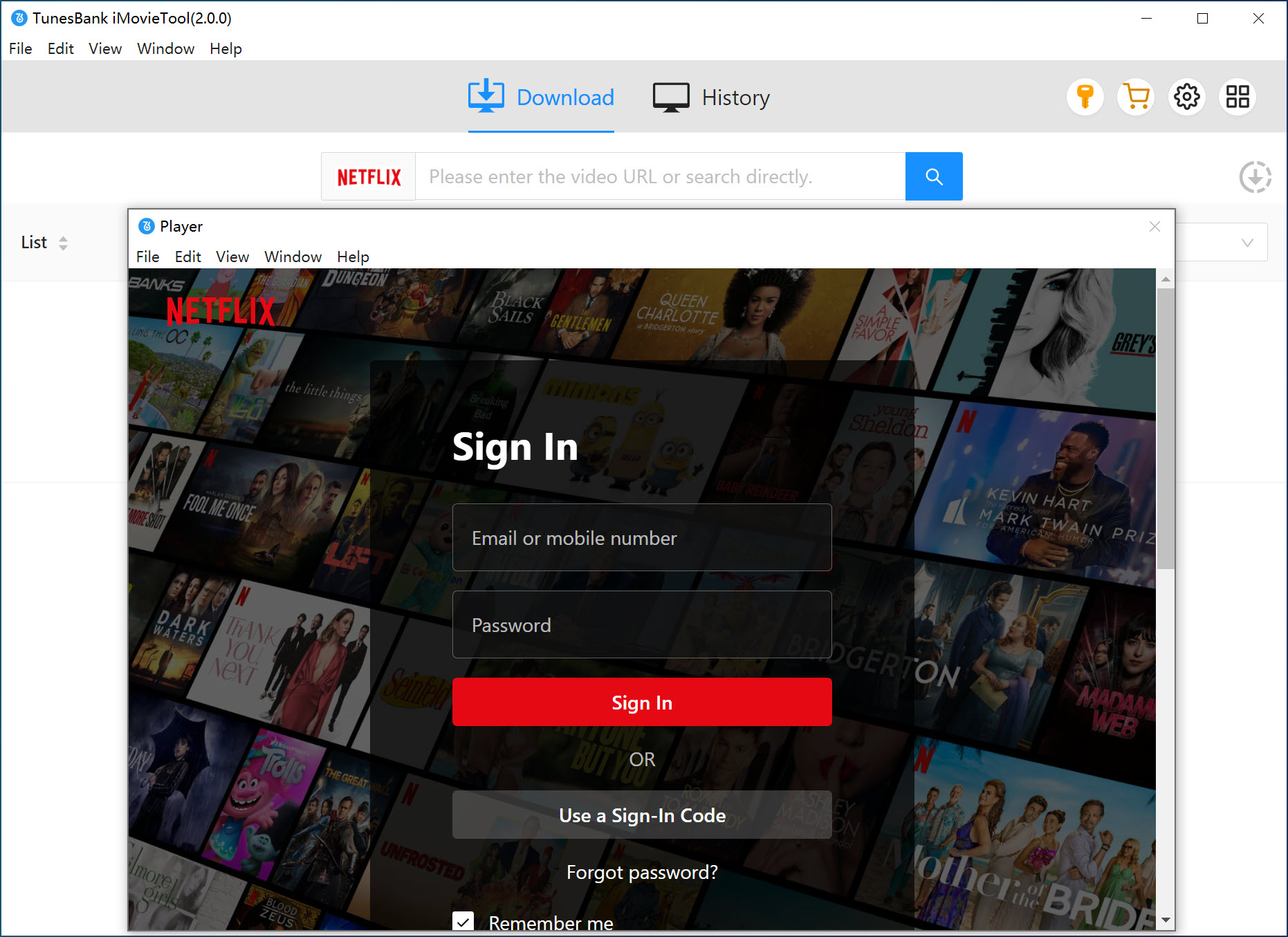
Download, install, and launch iMovieTool Video Downloader on your Windows (Windows 11/10/8/7) or Mac (macOS X 10.11 and above) computer. Click the Netflix logo on the main interface.
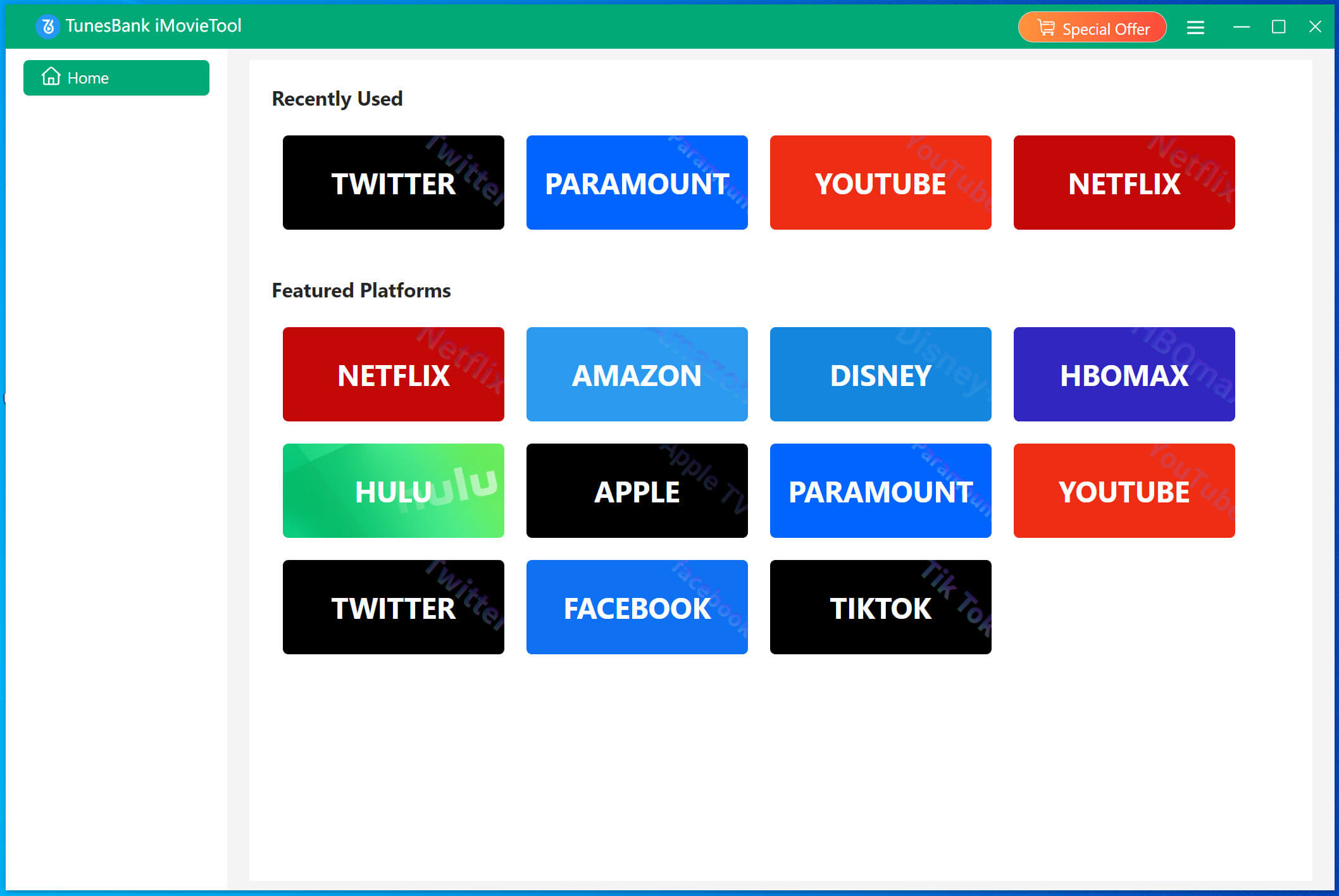
Then, click “Sign In” to log in with your Netflix account, either ad-free or ad-supported account. You will enter the iMovieTool Netflix Video Downloader and be able to access your watchlist, recommendations, movies, and TV shows.
Step 2. Customize Output Settings
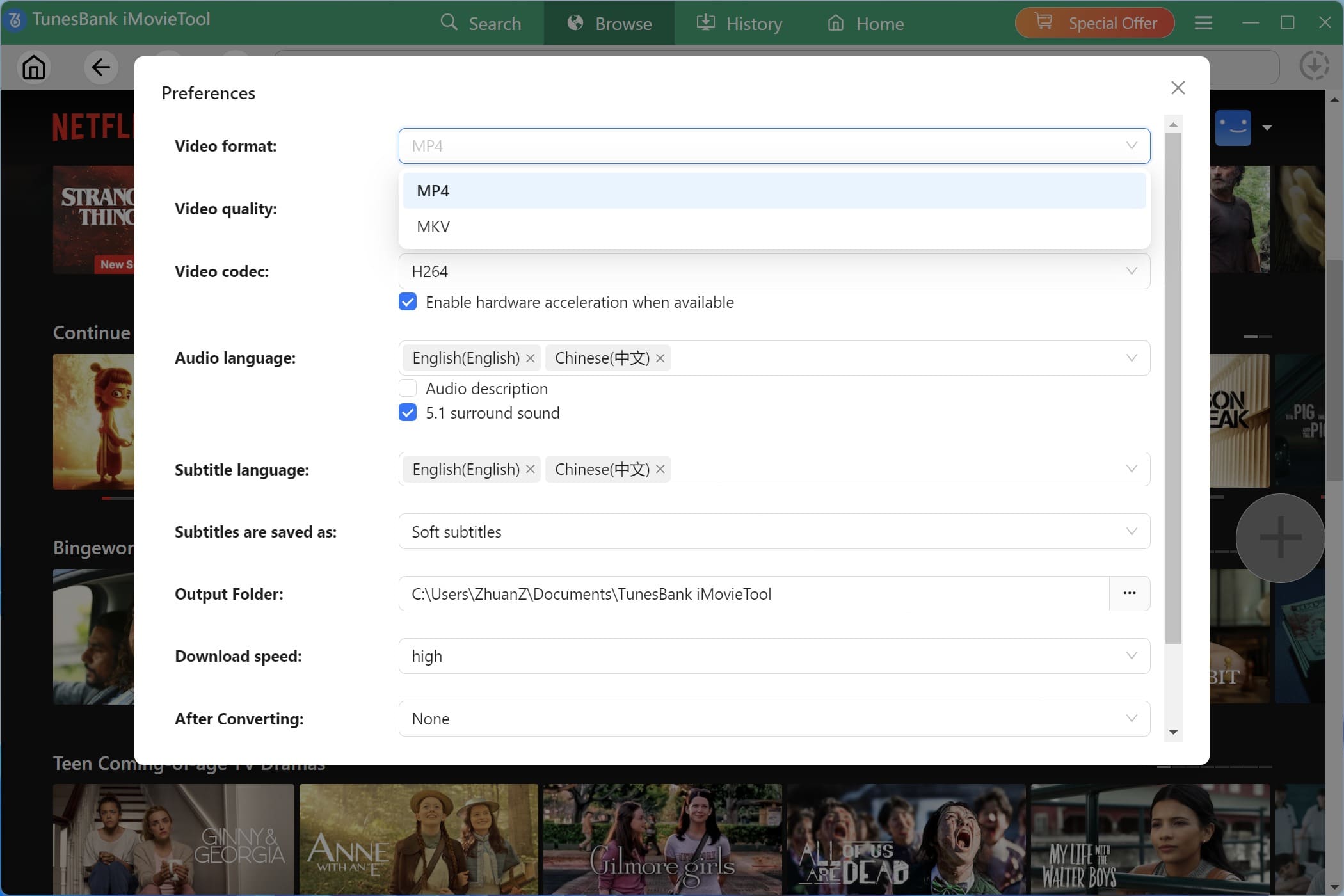
Click the Menu icon in the upper-right corner and select Preferences. Choose your preferred video format, video quality, output folder, subtitle type, audio language, and other download settings before starting the download process. To save Netflix videos to USB drive for Xbox, you can pick MP4 format and high quality option.
Step 3. Search for Netflix Videos
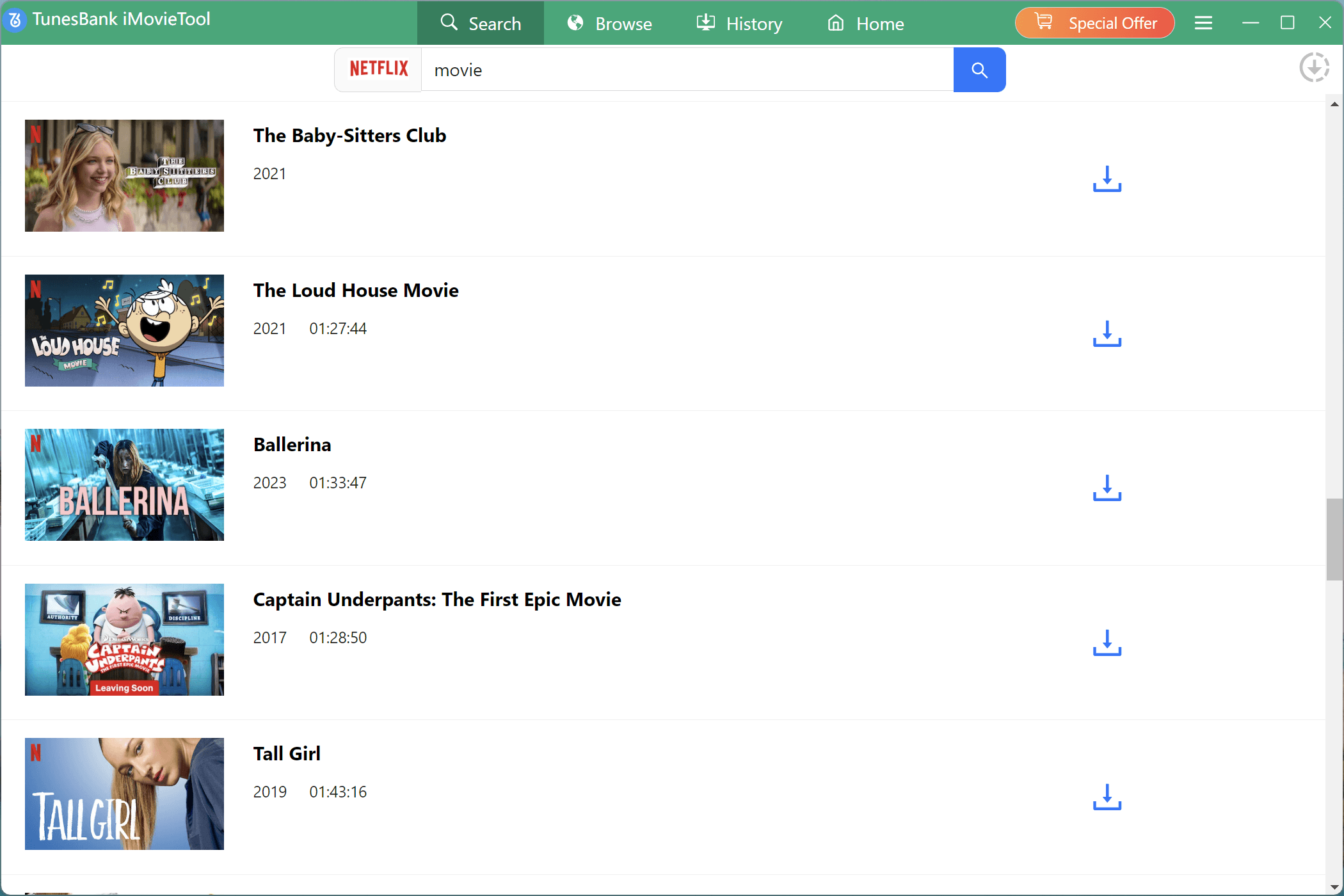
Tap “Search” tab. You may copy the Netflix video URL from your web browser, and paste it into iMovieTool’s search bar. The software will instantly identify the corresponding title for downloading.

Also, you can enter the title or keyword of your favorite Netflix movie, TV show, documentary, or anime into the search box. iMovieTool will automatically display matching results.
Step 4. Start Downloading Netflix Video to MP4
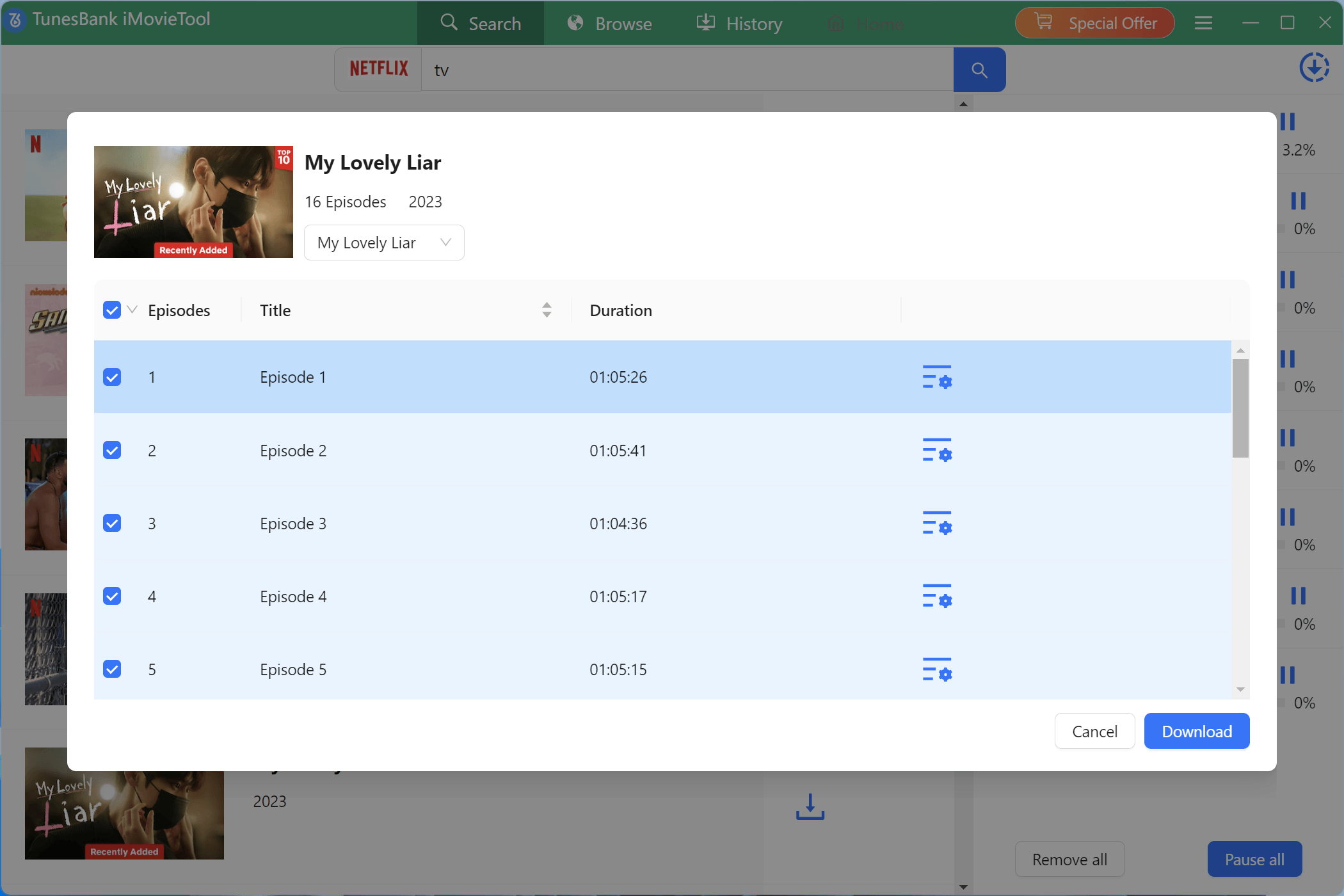
Select the movie or TV show you want to save and click the “Download” icon next to the title.
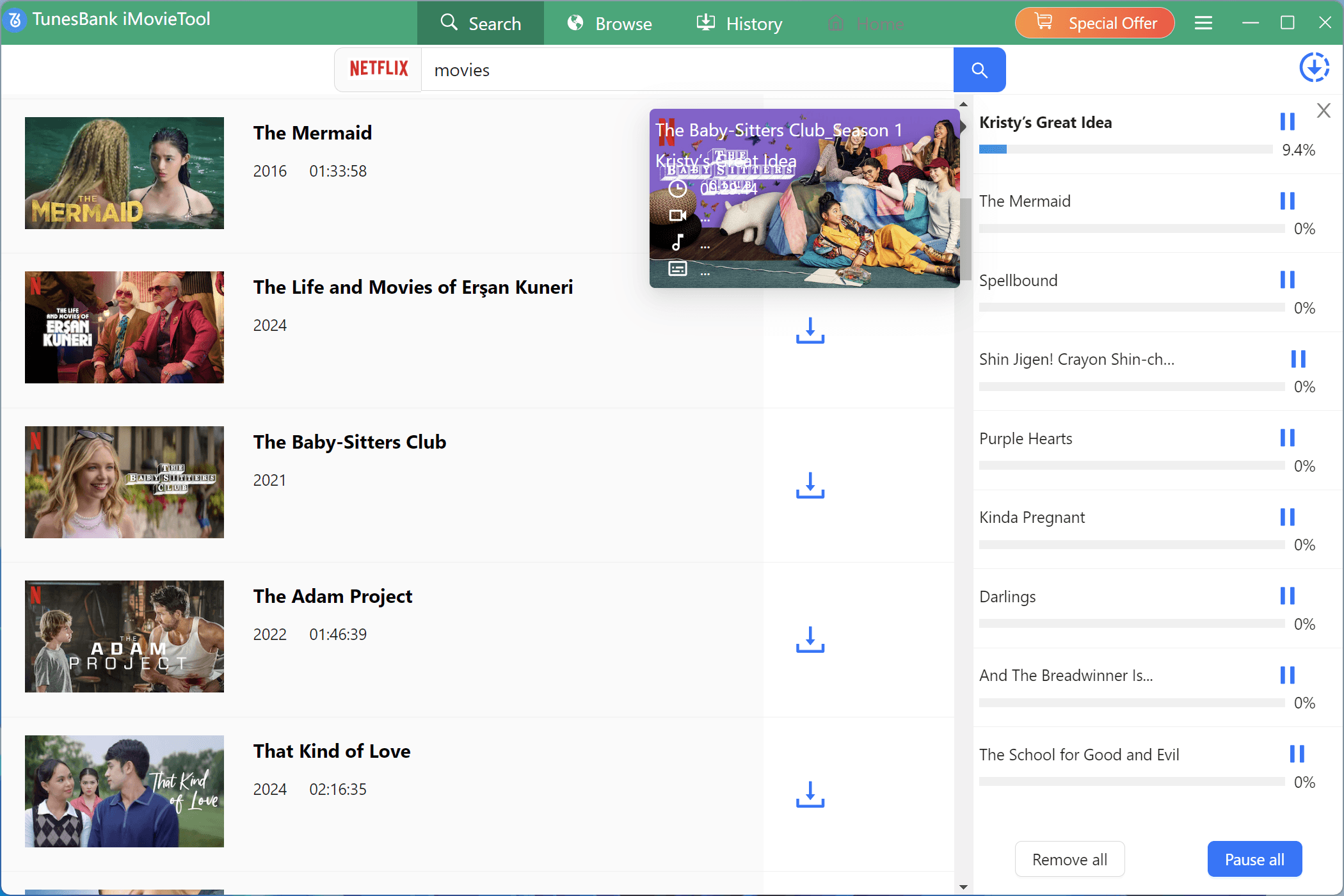
If you’re downloading a TV series, you can select specific seasons or episodes. Before downloading, you may also hit on the “Gear” icon to customize the video quality, audio tracks, and subtitles. Then, click “Download” button to start the process, and iMovieTool will save the videos in high-quality MP4 format.
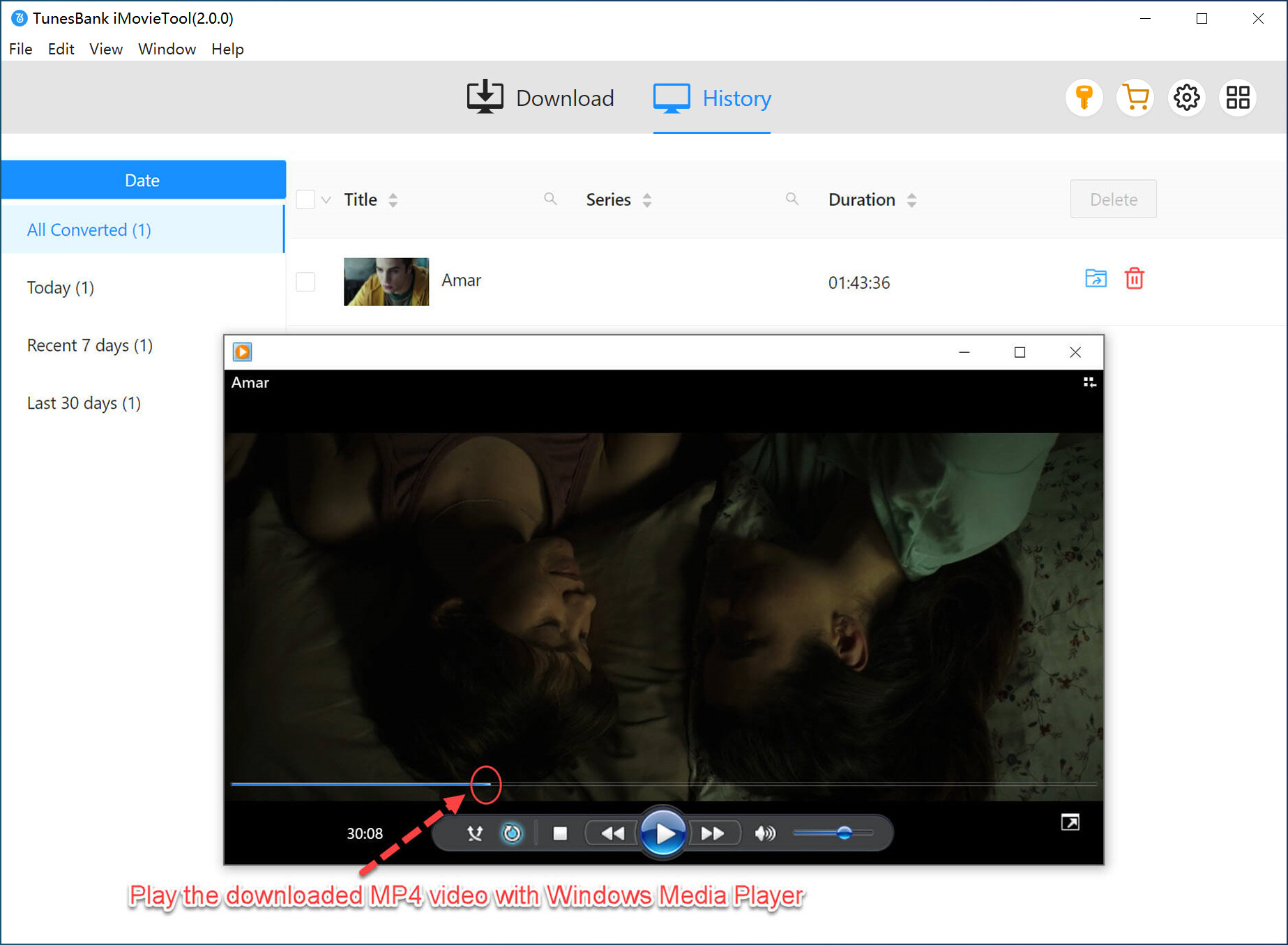
Step 5. Find Downloaded Netflix Videos
Once the download is complete, navigate to the “History” section or open your designated output folder. Your Netflix videos are now saved as DRM-free MP4 files, ready to be transferred to a USB drive or any device.
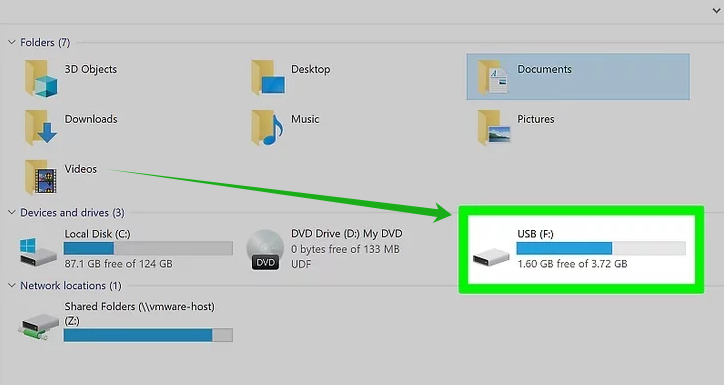
Step 6. Transfer Downloaded Netflix Videos to USB Drive
Insert a USB flash drive into your computer’s USB drive, and ensure it’s formatted with a file system supported by your Xbox console, such as exFAT or NTFS. Copy the downloaded MP4 Netflix video files from your output folder and paste them directly onto the USB drive, then safely eject it after the transfer is complete.
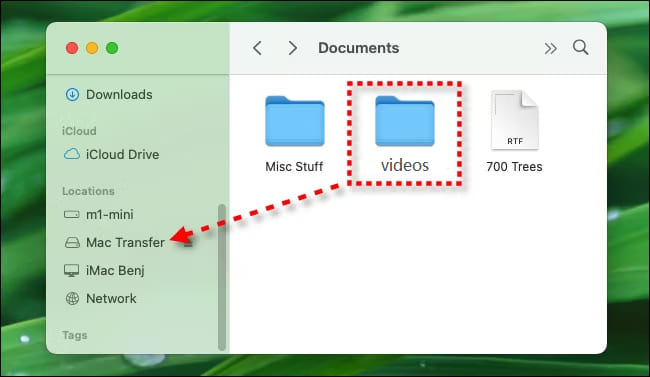
For Mac users, use Finder to locate and drag the MP4 Netflix video files to your USB flash drive.
Step 7. Watch Netflix Videos Offline on Xbox via USB Drive
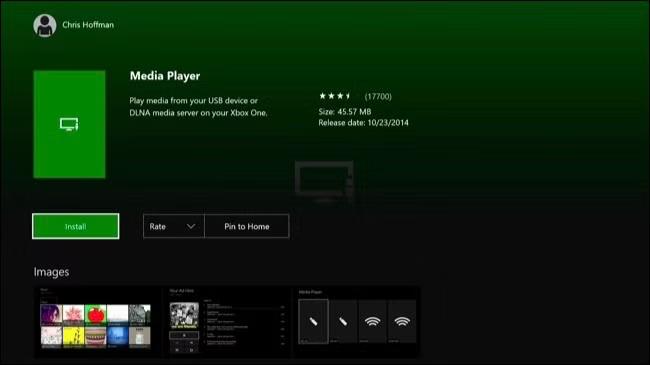
Connect the USB drive to your Xbox’s USB port. Open the Media Player app on your console (download it from the Store if you don’t have it).
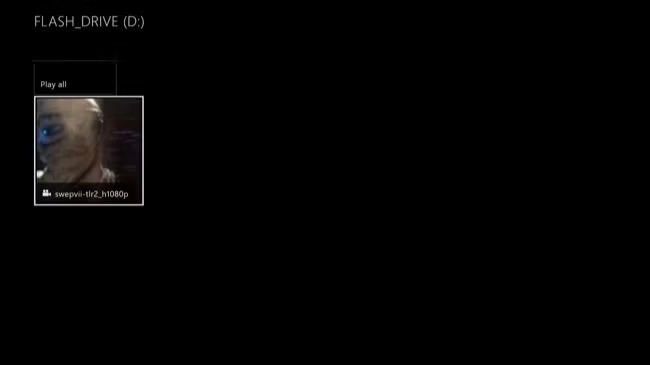
Then select the USB drive and browse all the media files, and select the MP4 Netflix video to start watching, no internet connection required. You can control the playback with your Xbox controller.
Part 3. FAQs about Watching Netflix Videos on Xbox One
How do I get Netflix on my Xbox One?
To get Netflix on Xbox console, open the Microsoft Store, go to the Apps or Entertainment category, search for Netflix, and select Install. Please note that Netflix is only available on Xbox One in regions that have both Netflix and Xbox Live service.
Why won’t Netflix work on my Xbox One?
If Netflix isn’t working on your Xbox One, try the following solutions:
- Check your internet connection.
- Restart your Xbox console.
- Update the Netflix app.
- Install the latest Xbox system update.
- Sign out and back into your Netflix account.
- Uninstall and reinstall the Netflix app
- Verify that Netflix services are available in your region.
If the problem persists, you can use iMovieTool Netflix Video Downloader to download Netflix videos to a USB drive, and then watch Netflix videos on your Xbox console from USB drive. This will completely avoid streaming-related issues altogether.
Can I watch Netflix videos on my Xbox One offline?
The official Netflix app for Xbox does not support offline downloads. It only lets you stream Netflix content on your Xbox with a stable network connection. If you want to watch Netflix on Xbox One offline, you’ll need to use a third-party downloader like iMovieTool Netflix Video Downloader. It lets you save Netflix videos as MP4 or MKV files, transfer them to a USB drive, and watch them on your Xbox via the Media Player app.
Part 4. Final Words
While Netflix makes it easy to watch content on Xbox One consoles, users still face the challenge of requiring a stable internet connection. That’s why we highly recommend everyone give iMovieTool Netflix Video Downloader a try. It allows you to download Netflix videos as MP4 or MKV files, transfer them to a USB drive, and watch Netflix on Xbox One offline from USB drive without worrying about buffering, network interruptions, or internet availability. Additionally, you can keep those downloaded Netflix videos permanently without expiration, and watch them offline anywhere, even after your Netflix subscription ends!
The Latest Articles
– Top 8 Solutions to Download Streaming Video
– Top 10 Free Movie Download Sites Recommended
– 3 Ways to Download Movies to Watch Offline
– 2 Verified Methods to Download X/Twitter Videos to MP4
– Download Twitter(X) Videos on PC, Mac and Mobile Phone
– Download Facebook Videos on PC, Mac and Mobile Phone
– 3 Ways to Download Facebook Video to MP4

Netflix Video Downloader
Download Netflix video to MP4 or MKV with multi-language audio track and subtitle kept. Up to 50X downloading speed. Easily to download your favorite movies/TV shows from Netflix to your computer for offline viewing.