






 United States (English)
 Japan (日本語)
 Russia (русский)
 Germany (Deutsch)
 France (Français)
 Spain (Español)
 Italy (Italia)
 Portugal (Portugues)
 China (繁体中文)
 Turkish (Türk dili)
 Dutch (Nederlands)
 Korean(한국인)
 Saudi Arabia(عربي)
 Download Netflix Movies and TV shows to watch offline.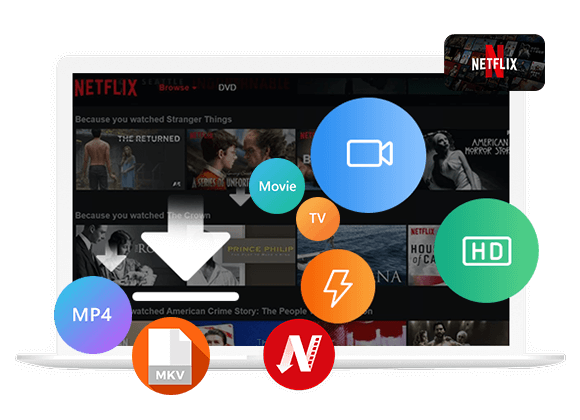
Wondering how to watch Netflix videos offline? This guide explains how to watch Netflix offline on any device, including the official download method and an alternative for downloading Netflix videos as MP4 files for offline viewing on all devices.
To watch Netflix offline, you need an active Netflix subscription. One you download Netflix movie or TV show to your device, you can watch it without Wi-Fi or cellular data. This is convenient when you’re streaming at home, on your flight, or during a trip. However, the way Netflix offline viewing works is not the same on every device.
Usually, Netflix only lets you download videos on your mobile devices through the Netflix app. It has stopped the download feature in Netflix Windows app since 2024. What is you are using a Windows laptop, or MacBook? So, how to watch Netflix offline on a laptop? Can you play Netflix videos offline on your TV? In this article, we’ll show you several methods to watch Netflix offline on any device, even without the Netflix app!
Method 1. Watch Netflix Offline on Mobile Devices
For mobile subscribers looking to watch Netflix offline with internet , the entire process is straightforward. Netflix’s offline viewing feature is available to all plans, including Standard with Ads, Standard, and Premium. If you have an eligible subscription plan, you can download select movies and TV shows directly to your phone or tablet for later viewing.
Step 1. Install or update the Netflix app from the App Store or Google Play Store, then sign in to your Netflix account.
Step 2. Search for the movie or TV show you want to watch. You can also browse the “Available for Download” category to see what is supported .
Step 3. Open the title’s details page and look for “Download” icon.
Step 4. Tap “Download”. For a TV series, download individual episodes or use the season download option if available.
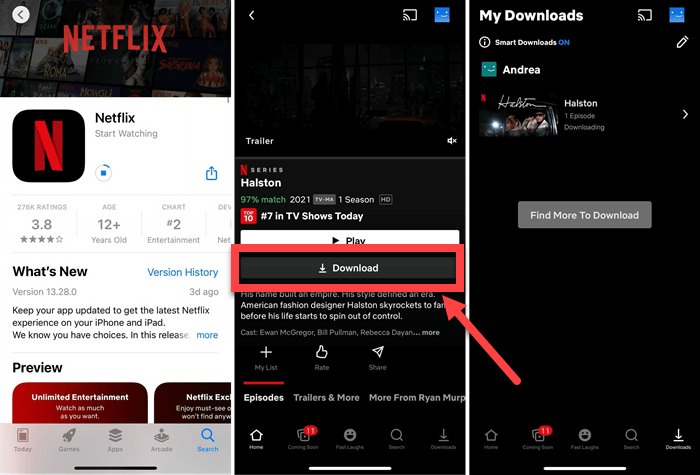
Step 5. Once the download is complete, you can access your content in the “Downloads” section. Here you can play the downloaded Netflix videos offline!
Method 2. Watch Netflix Offline on Chromebook
You can also watch Netflix offline on a Google Chromebook that supports the Google Play Store. If your Chromebook doesn’t support Android apps or the Netflix download feature, this method may not work. You can check your device’s compatibility in Netflix’s download help center.
Step 1. Open the Google Play Store on your Chromebook and install the Netflix app.
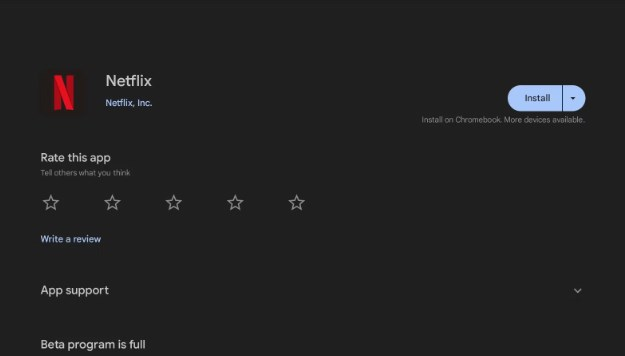
Step 2. Launch Netflix and sign in to your account.
Step 3. Browse the available titles and choose a movie or TV episode with a download option.
Step 4. Click “Download and” wait until the download finishes.
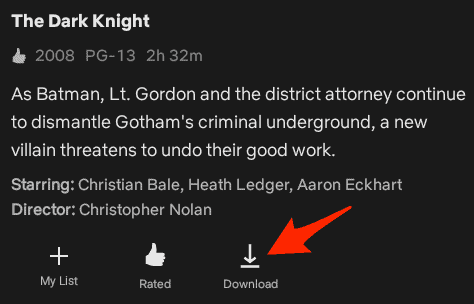
Step 5. Open the “Downloads” section in Netflix to play your saved content offline.

Method 3. Watch Netflix Offline on PC or Mac
Netflix no longer supports offline downloads in its current Windows app, while macOS users cannot download movies directly through the Netflix website. Moreover, videos downloaded through the Netflix mobile app expire and are not permanently saved on your mobile device. More importantly, you can only access and watch the downloaded videos within the Netflix app. If you want to watch Netflix offline on a laptop or desktop, a dedicated desktop Netflix downloader comes into handy.
iMovieTool Netflix Video Downloader is the best Netflix App alternative for Windows and Mac users. It allows you to log into your Netflix account within the software, search for titles, and download them as MP4 or MKV files in up to 1080p resolution. You can also customize output settings and choose your preferred audio tracks and subtitles. After downloading, you can keep Netflix videos forever, no expiration, and watch Netflix offline on any device!
Features of iMovieTool Netflix Video Downloader:
- Download Netflix movies, TV shows, web series, any video to PC/Mac with Netflix app.
- Built-in search function to find titles by name, keyword, or video URL.
- Saves Netflix videos in widely compatible MP4 or MKV formats.
- Retains the original HD 1080p video quality and audio tracks.
- Customize video quality, audio, subtitles, and output location freely.
- Download and embed subtitles, as well as select specific audio languages.
- Supports downloading entire seasons or multiple titles at once.
- Quickly export Netflix videos to local folder with up to 50X faster.
- Keep Netflix videos forever and transfer Netflix videos to any device, player.
How to Download Netflix Videos on Windows/Mac to Watch Offline
Step 1. Select Netflix and Log In
Download and install iMovieTool Video Downloader on your Windows PC or Mac. Open the program, choose Netflix from the available service options.
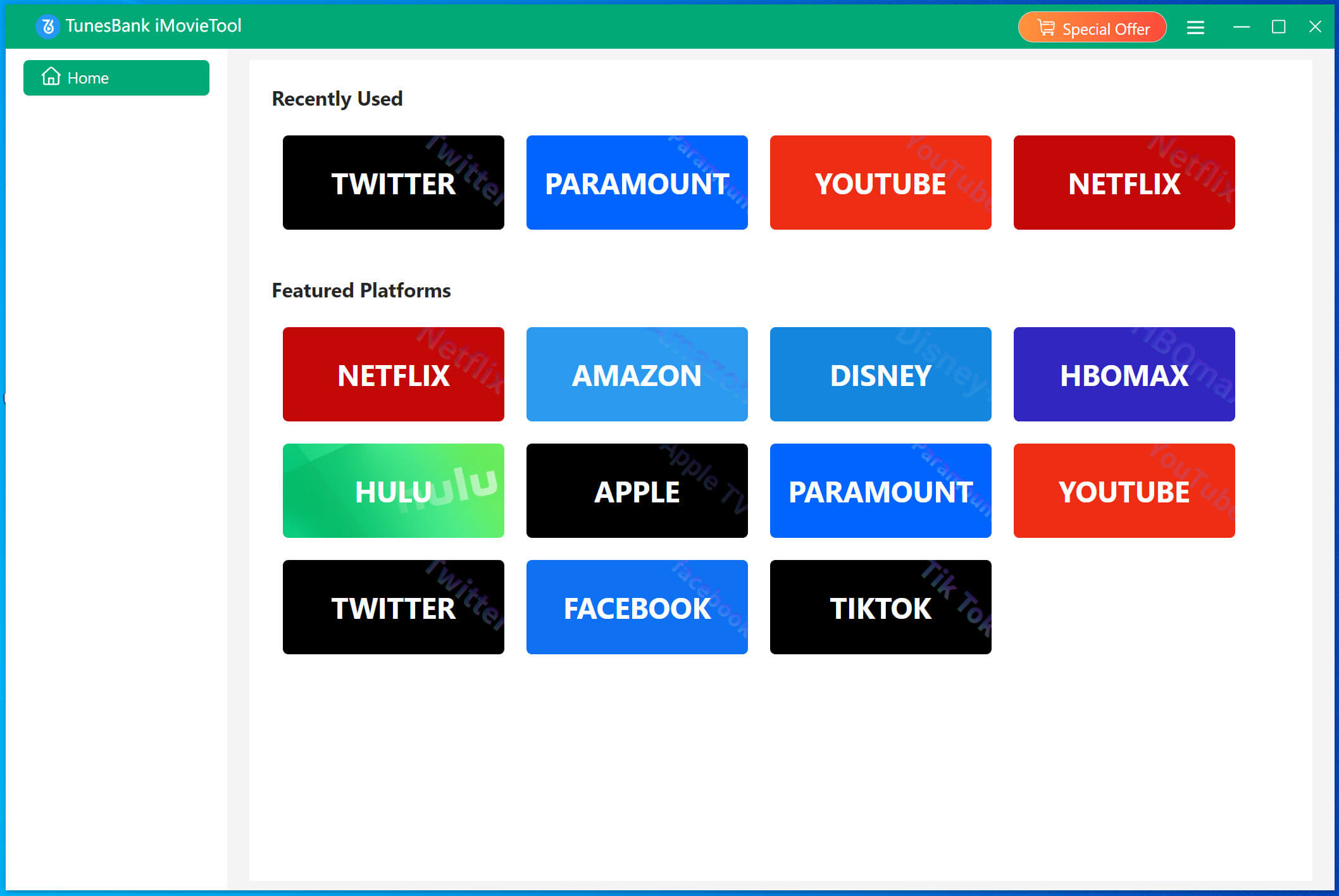
Then sign in using your Netflix account into the embedded browser within the software to access the catalog.
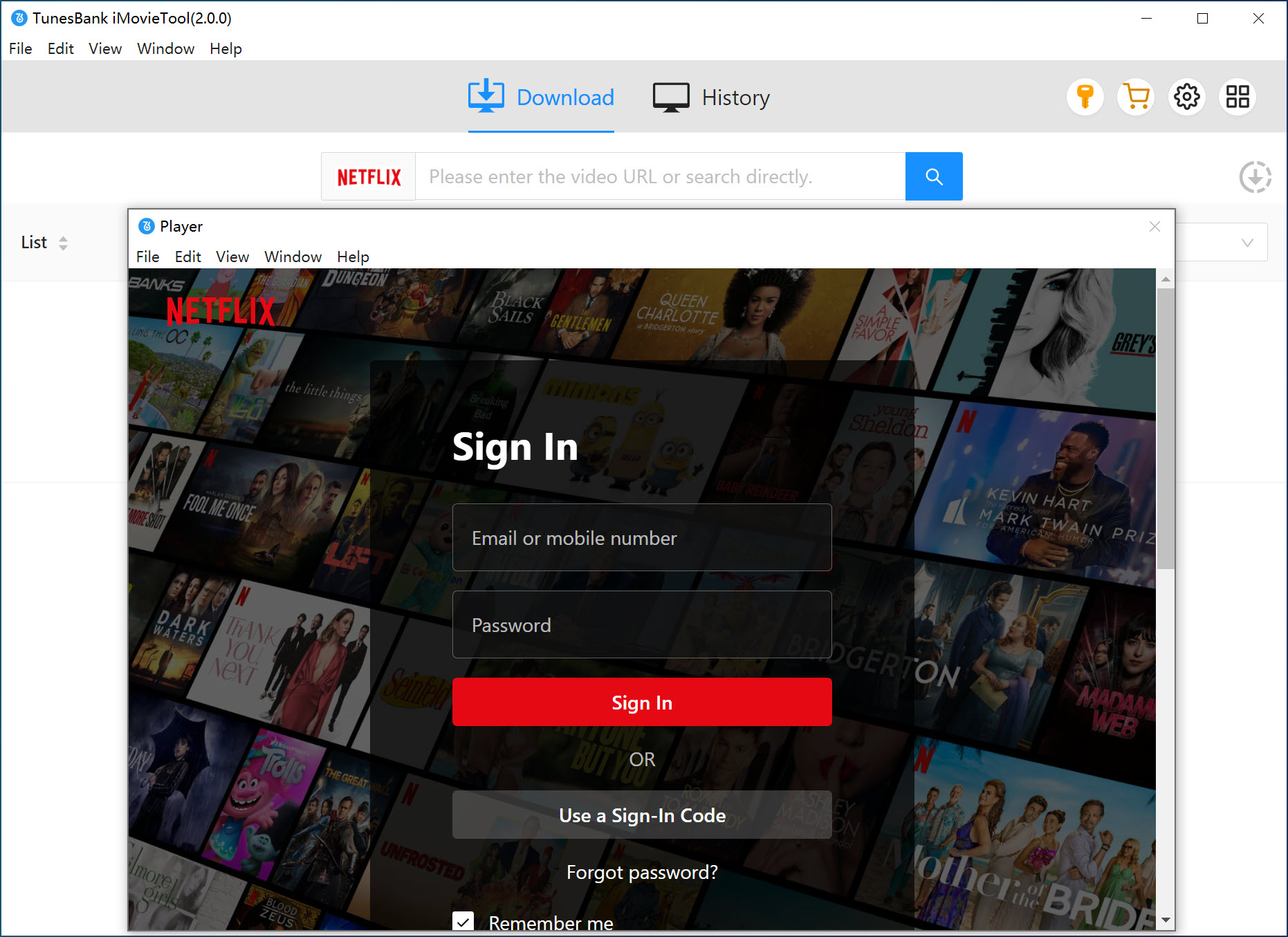
Step 2. Define Output Settings
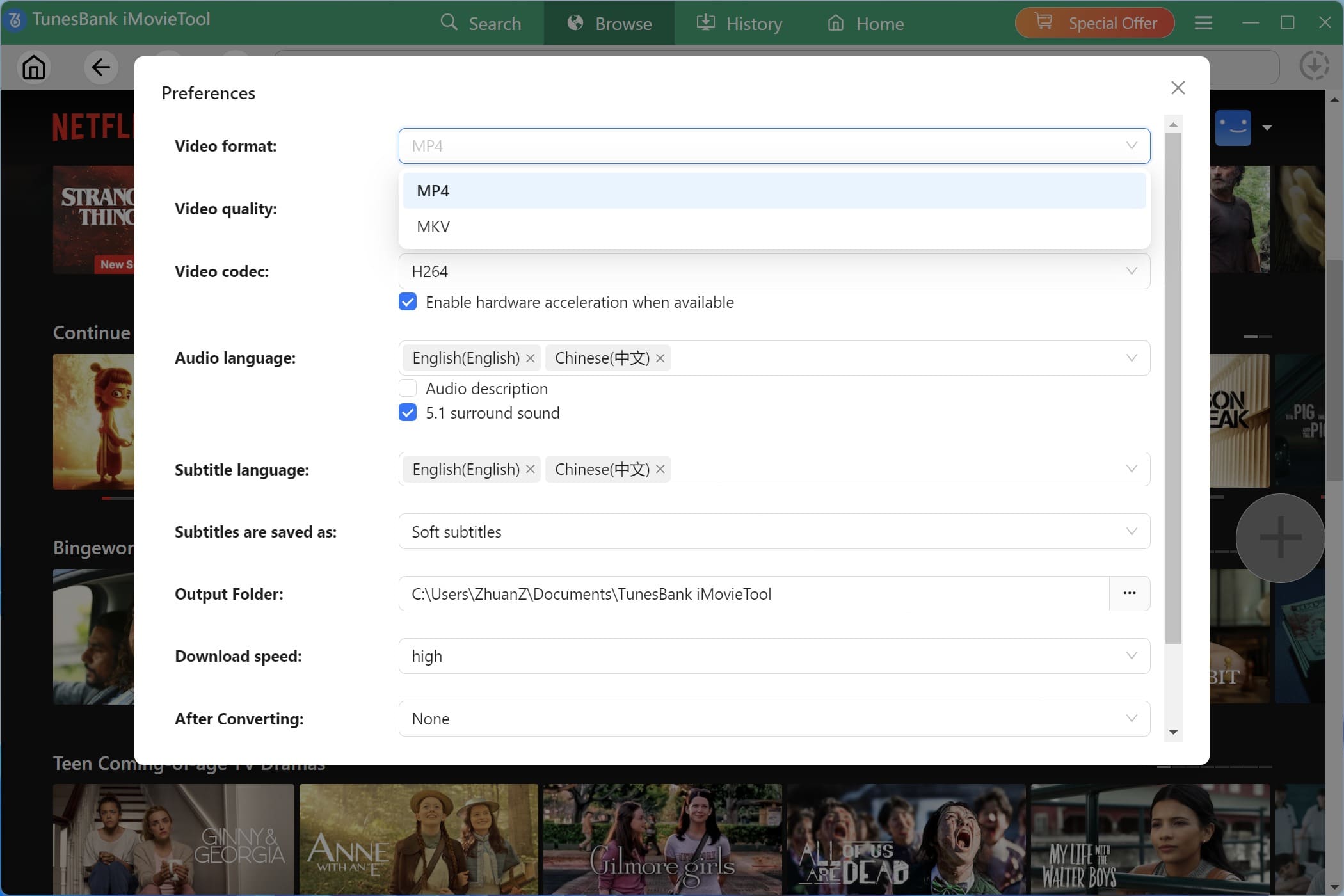
Navigate to “Menu” and select “Preferences” to configure your download preferences. Here you can set the default video format (MP4, MKV), video codec (H264, H265), video quality, preferred audio language, subtitle language, and subtitle type. To watch Netflix offline on all devices, MP4 format is recommended.
Step 3. Search for Netflix Movies or Shows
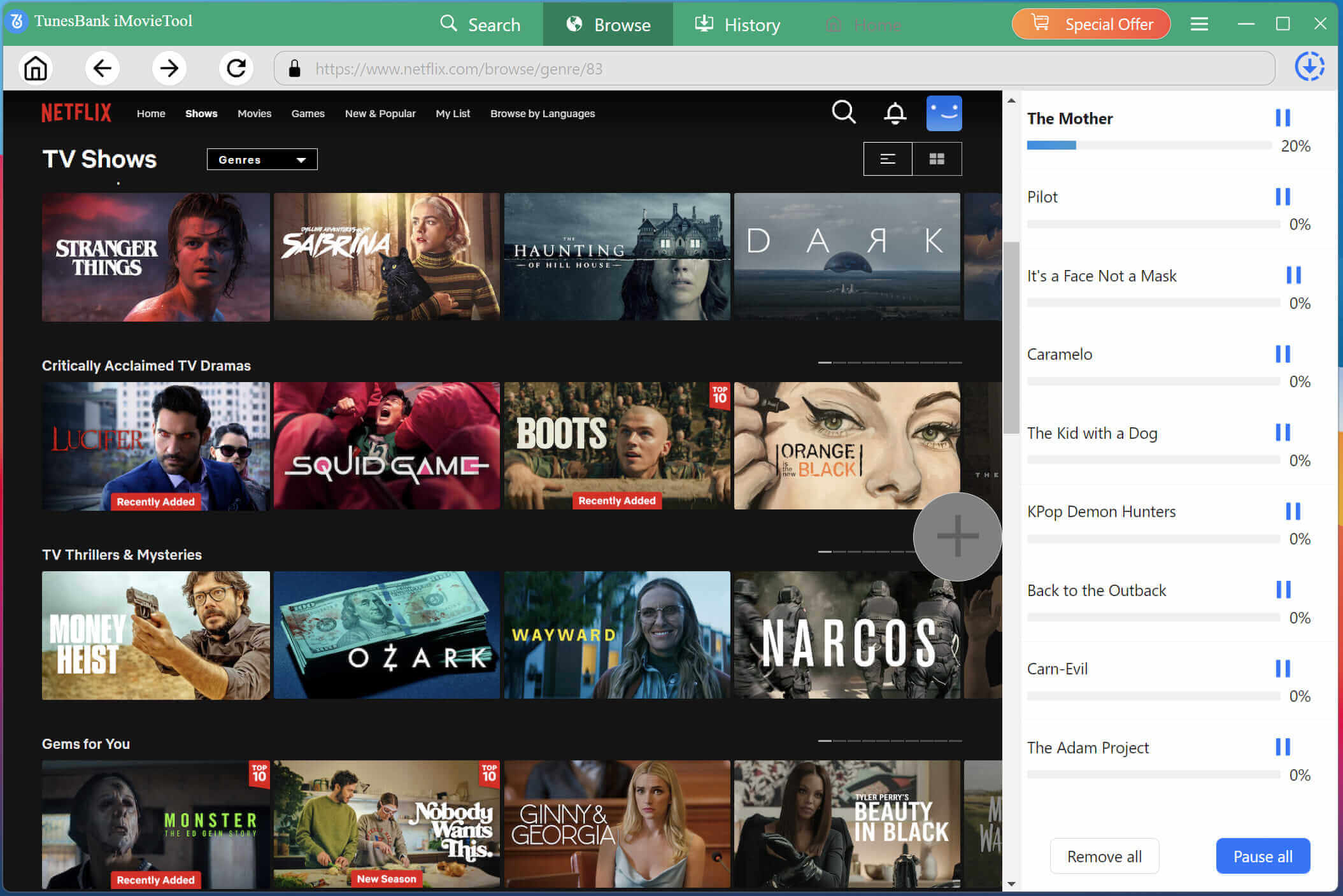
You have multiple options to find content. You can browse online directly within the software’s interface, and explore categories and recommendations.
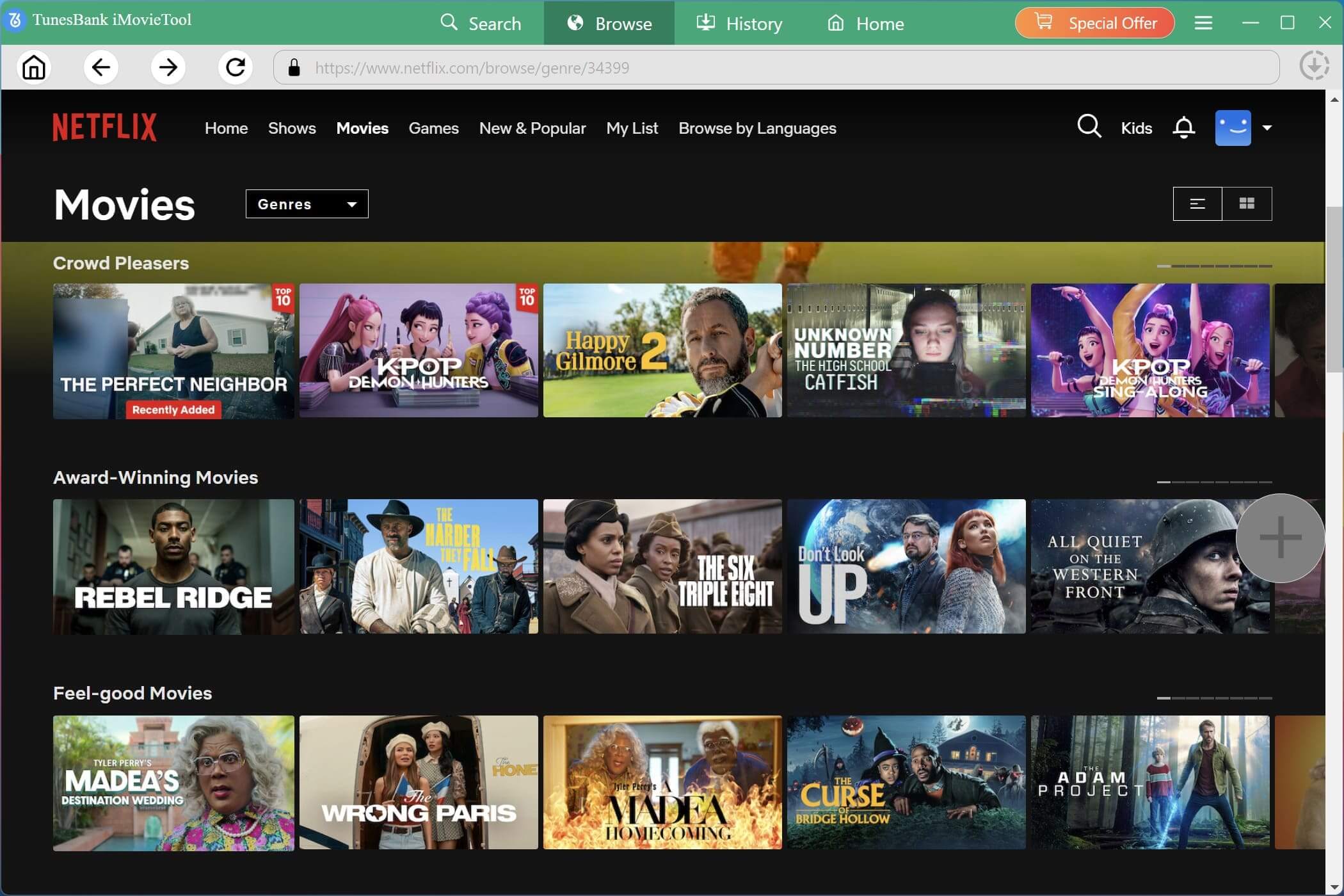
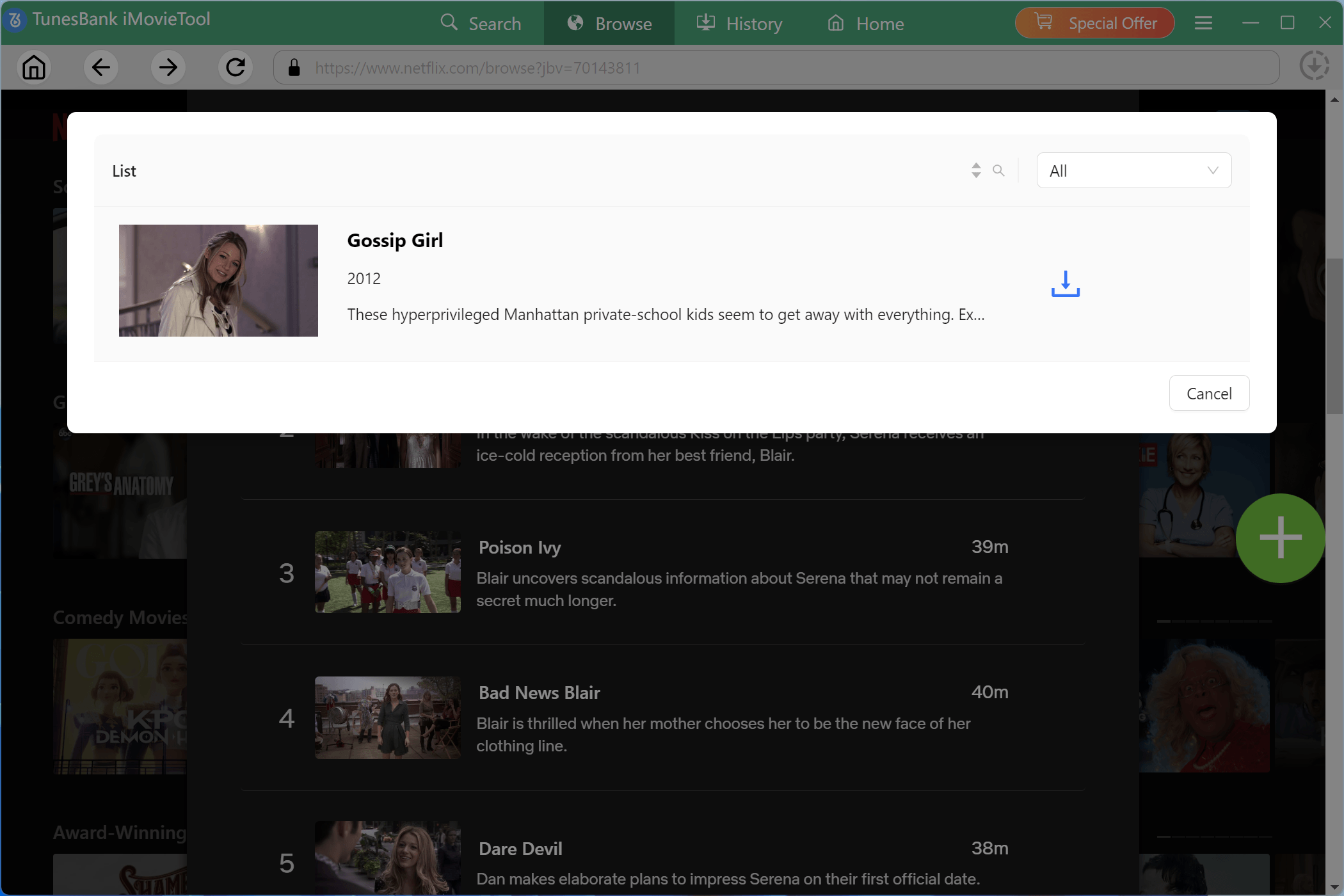
Once the video page loads, click the “+” icon to add it to your download queue.
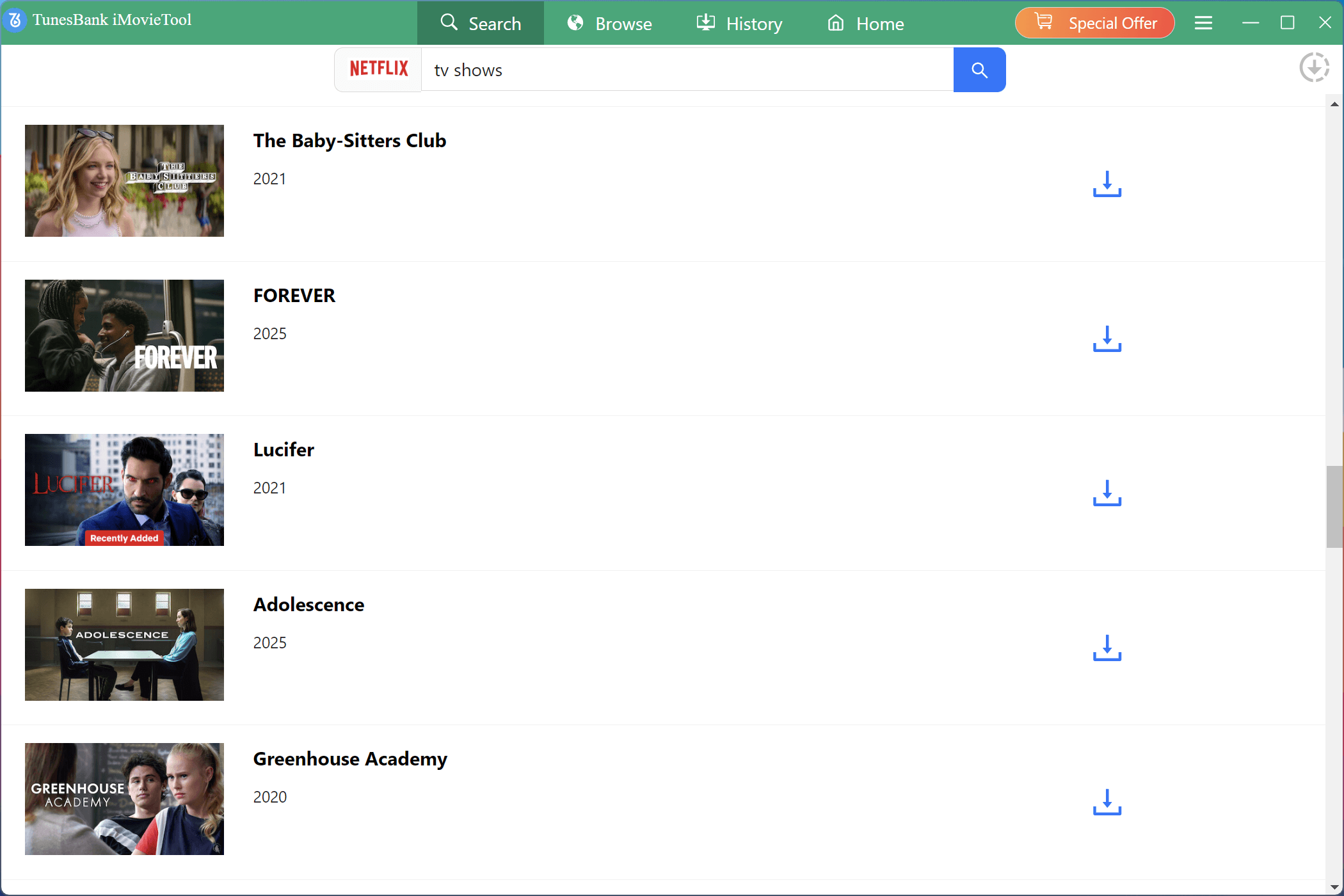
Also, you may go to “Search” tab, find the video by entering the keyword or name, or pasting the video URL into the search field.
Step 4. Begin Downloading Netflix Videos to Windows
After confirming your selections, click the “Download” button to start processing the queued videos. For a TV series, select the episodes you want first.
Step 5. Find Your Downloaded Netflix Videos
Once the process is complete, navigate to the “History” section of the software. Here, you can click “Blue Folder” icon to open the folder containing your downloaded Netflix MP4 files.
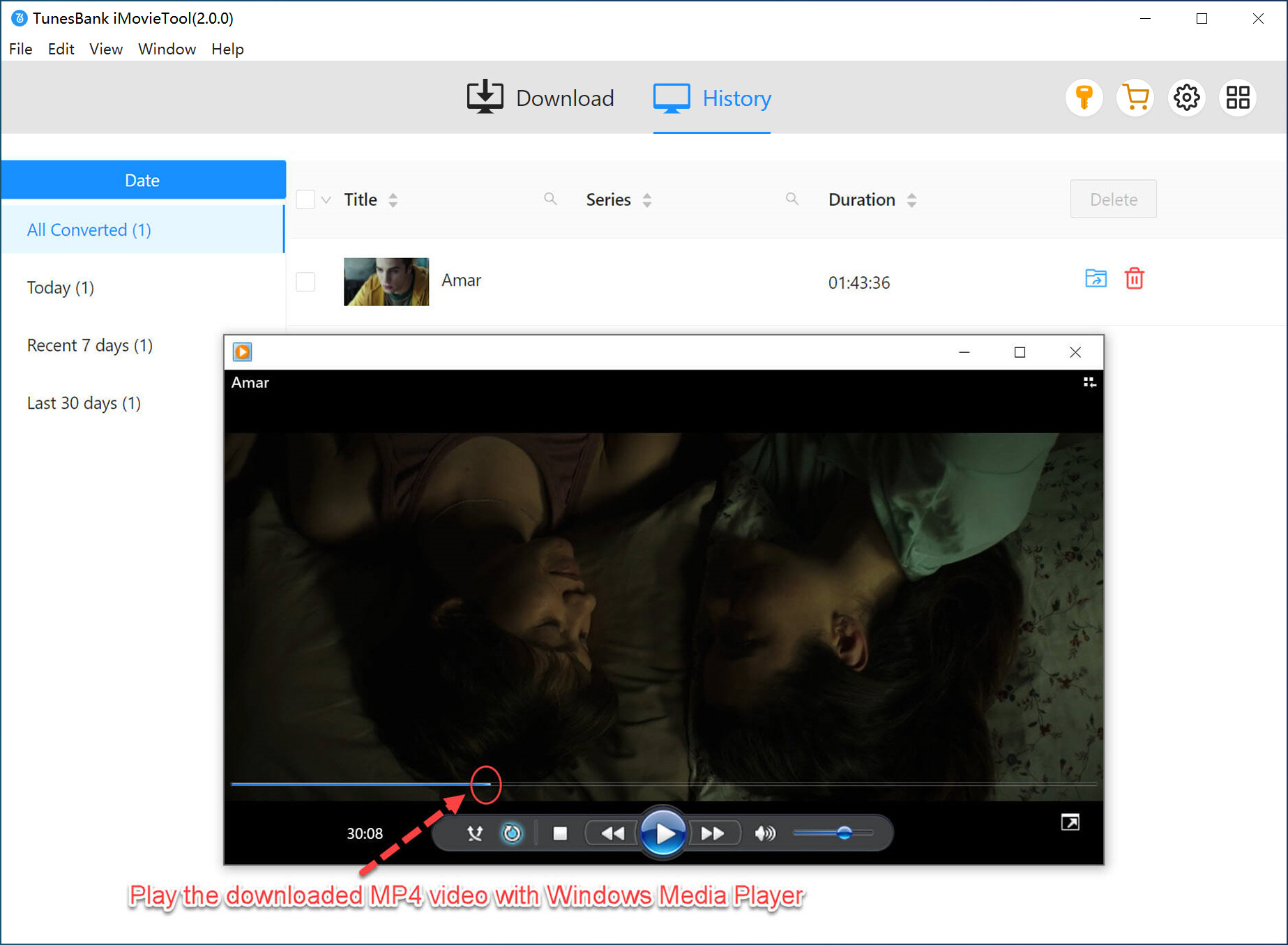
Step 6. Watch Netflix Videos Offline on Mac or PC
Now, you can use other media players like VLC, iTunes, or Windows Media Player to watch your downloaded content. Simply double-click the file, or drag it into your preferred player, and enjoy your movie without any internet connection.
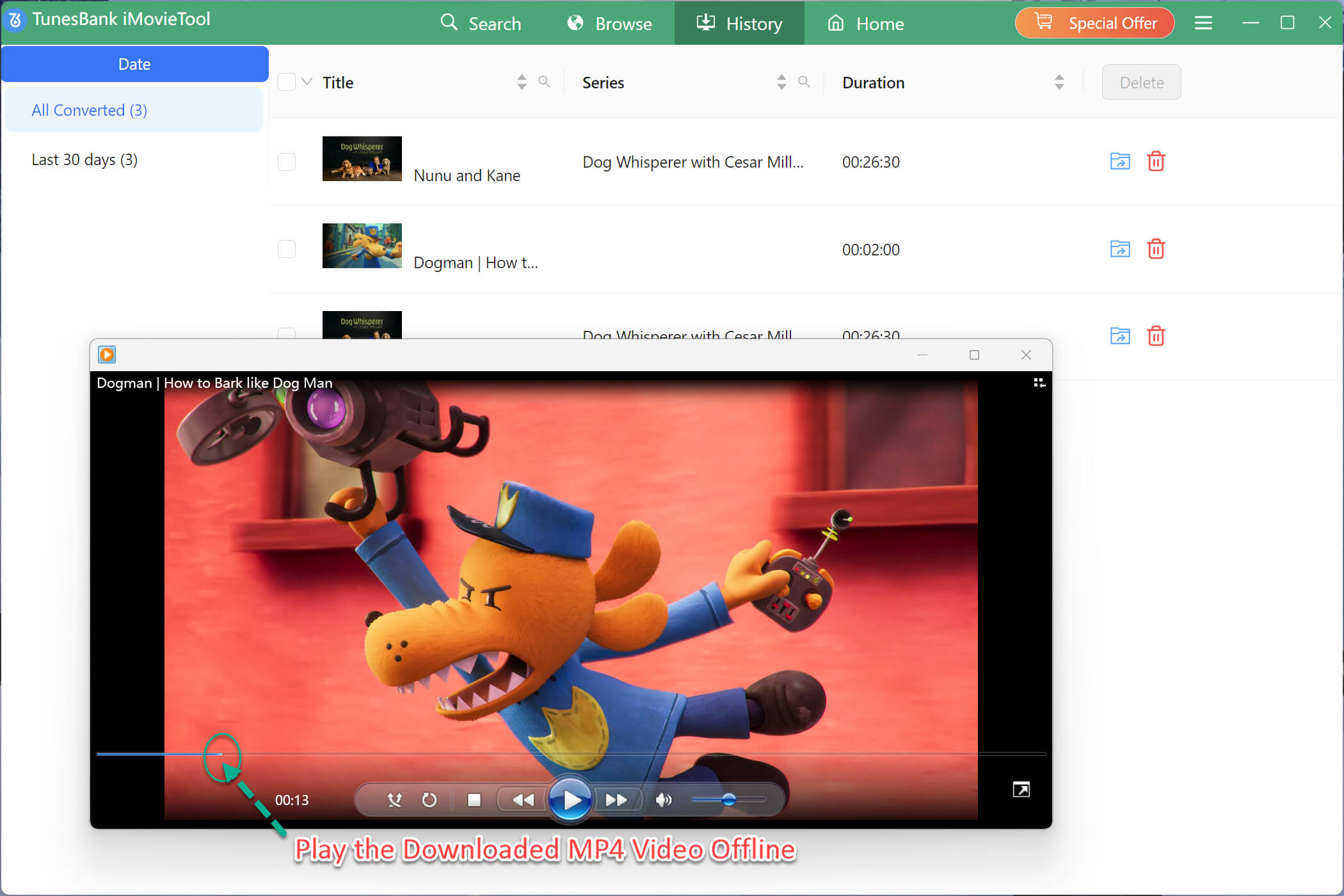
Method 4. Watch Netflix Offline on Any Device
Once you download Netflix videos to MP4 with iMovieTool, you can move them to a USB drive for offline watching on any device. This is the ultimate solution for watch Netflix offline on any device because it helps you bypass Netflix download limits, device and playback restrictions. You can plug that USB drive into a smart TV, a USB projector, a laptop, a game console (like an Xbox or PlayStation), or even a car’s infotainment system!
Step 1. Prepare Your USB Drive
Ensure your USB drive is formatted correctly for your target device (usually FAT32 or exFAT for broad compatibility across TVs and consoles).
Step 2. Transfer Netflix Video Files to USB Drive
Connect a USB drive to your computer and make sure it has enough free space for the videos. Copy the downloaded MP4 files from your iMovieTool output folder and paste them into a folder on the USB drive.
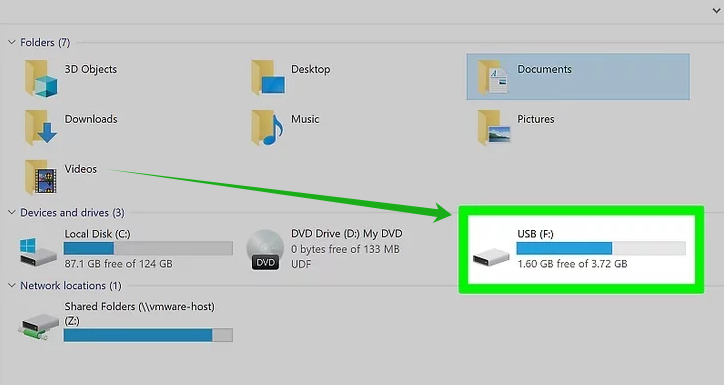
Step 3. Eject the USB Drive Safely
Once the transfer is complete, safely eject the USB drive from your computer.
Step 4. Connect to Your Target Device
Plug the USB drive into your smart TV, projector, or game console. Using the device’s remote or controller, navigate to the USB input or media player app.
Step 5. Play the Netflix Videos Offline
Select the Netflix MP4 video to play instantly without an internet connection or Netflix app.

FAQs About Watching Netflix Offline
How do I download Netflix movies so I can watch offline?
You can download Netflix videos on your mobile devices or Chromebook via the Netflix app. In addition, you may download Netflix movies and shows on your computer with iMovieTool Netflix Video Downloader without relying on the Netflix app.
How can I download movies from Netflix to watch offline on my laptop?
If your Chromebooks can install the Netflix Android app, you can download videos from Netflix to watch offline. For Windows and Mac, you need to use a third-party Netflix downloader (like iMovieTool) to download and save Netflix videos as MP4/MKV files on your computer.
How to watch Netflix on a Mac on a plane?
Since macOS has no Netflix app and no official downloads, you need to utilize a third-party desktop tool. You can download Netflix movies and TV shows on your MacBook as MP4 files using iMovieTool Netflix Video Downloader before you go, then play them offline with VLC or QuickTime in airplane mode.
Conclusion
After exploring the methods above, you now know how to watch Netflix offline on Android, iPhone, Windows, Mac, ChromeBook, smart TV, game console, and any device. While Netflix’s official mobile downloads are convenient, they are temporary, restricted to the app. By using a dedicated tool like iMovieTool Netflix Video Downloader, you can easily build a permanent library of your favorite shows and movies, and watch Netflix videos offline on all devices, without internet and Netflix app needed!
The Latest Articles
– Top 8 Solutions to Download Streaming Video
– Top 10 Free Movie Download Sites Recommended
– 3 Ways to Download Movies to Watch Offline
– 2 Verified Methods to Download X/Twitter Videos to MP4
– Download Twitter(X) Videos on PC, Mac and Mobile Phone
– Download Facebook Videos on PC, Mac and Mobile Phone
– 3 Ways to Download Facebook Video to MP4

Netflix Video Downloader
Download Netflix video to MP4 or MKV with multi-language audio track and subtitle kept. Up to 50X downloading speed. Easily to download your favorite movies/TV shows from Netflix to your computer for offline viewing.