








 United States (English)
 Japan (日本語)
 Russia (русский)
 Germany (Deutsch)
 France (Français)
 Spain (Español)
 Italy (Italia)
 Portugal (Portugues)
 China (繁体中文)
 Turkish (Türk dili)
 Dutch (Nederlands)
 Korean(한국인)
 Saudi Arabia(عربي)
 Download movies and TV episodes from Paramount+.
Wondering how to download Paramount Plus Video on VLC Media Player? Here you will get the complete guide to play Paramount Plus videos on VLC by downloading them offline. Keep on reading to figure out if it is possible to watch Amazon Prime on computers with VLC.
VLC Media Player is a powerful, cross-platform media player known for its wide compatibility with high-resolution video playback and nearly all mainstream video formats. It can also play local media files smoothly and even supports streaming content from certain online platforms such as YouTube. If you’re an Paramount Plus and searching for reliable ways to play Paramount Plus video on VLC Media Player, you’re in the right place.
However, the streaming content from Paramount Plus are DRM protected. To watch Paramount Plus offline through VLC Media Player, you need to download Paramount Plus videos as MP4 files. In this guide, we’ll show you how to download Paramount Plus video on VLC Media Player by using a professional Paramount+ video downloader, then walk you through transferring and playing Paramount Plus downloads on VLC in original quality. Let’s get started.
Paramount+ app vs. VLC Media Player
Unlike the official Paramount+ app, VLC Media Player supports extensive formats, subtitle customization, playback speed control, and hardware acceleration. However, when you download videos in the Paramount Plus app, they are stored as cached files, which means you can’t directly stream or open them in VLC.
Download Paramount+ Video to MP4 via TunesBank
To make it possible to play Paramount+ through VLC, you are required to download or convert Paramount+ videos into a VLC-supported format such as MP4. Here, you can ask help from a professional Paramount Plus video downloader – TunesBank iMovieTool.
TunesBank Paramount Plus Video Downloader is a safe and reliable desktop application designed specifically to help users download Paramount Plus videos to MP4 or MKV format, making them fully compatible with VLC Media Player. With this tool, you can remove DRM restrictions and permanently save Paramount Plus movies and TV shows on your computer for offline playback.
One of the biggest advantages of TunesBank is its built-in Paramount Plus web player. Instead of relying on external browsers or manual recording, users can log into their Paramount Plus account directly inside the software and browse content just like on the official website. This ensures a stability, smooth and easy-to-use video downloading experience.
In addition, TunesBank Paramount Plus Video Downloader supports full HD 1080p video quality, preserving original resolution, audio tracks, and subtitles. Another key benefit is batch downloading. It allow users to download entire seasons or multiple episodes from Paramount Plus at once, with speeds up to 50 times faster.
Features of TunesBank Paramount+ Video Downloader:
- Download Paramount Plus videos to MP4 or MKV.
- Support 1080p HD video quality and 5.1 audio tracks.
- Preserve original audio tracks and subtitles.
- Batch download movies & TV episodes from Paramount+ web browser.
- Download Paramount Plus movies, TV shows to PC/Mac at 50X.
- Allows seamless playback on VLC Media Player, WMP, iTunes, etc.
Step-by-step: How to Download and Play Paramount Plus in VLC
TunesBank Paramount Plus Video Downloader has an intuitive interface, making it quite easy to operate, even for beginners. In this section, we will divide the step guide into two parts. First, you will learn how to download and save videos from Paramount Plus to MP4 files using the TunesBank Paramount Plus Video Downloader. Then, you can import and play the Paramount Plus downloads through VLC Media Player. Scroll down!
Process 1: How to Download Paramount+ Videos in MP4 for VLC Media Player?
Step 1. Open TunesBank iMovieTool and Choose Paramount Plus
Download and install the TunesBank iMovieTool software on your computer or laptop. Start the software and select Paramount Plus service to access the TunesBank Paramount Plus video downloader.
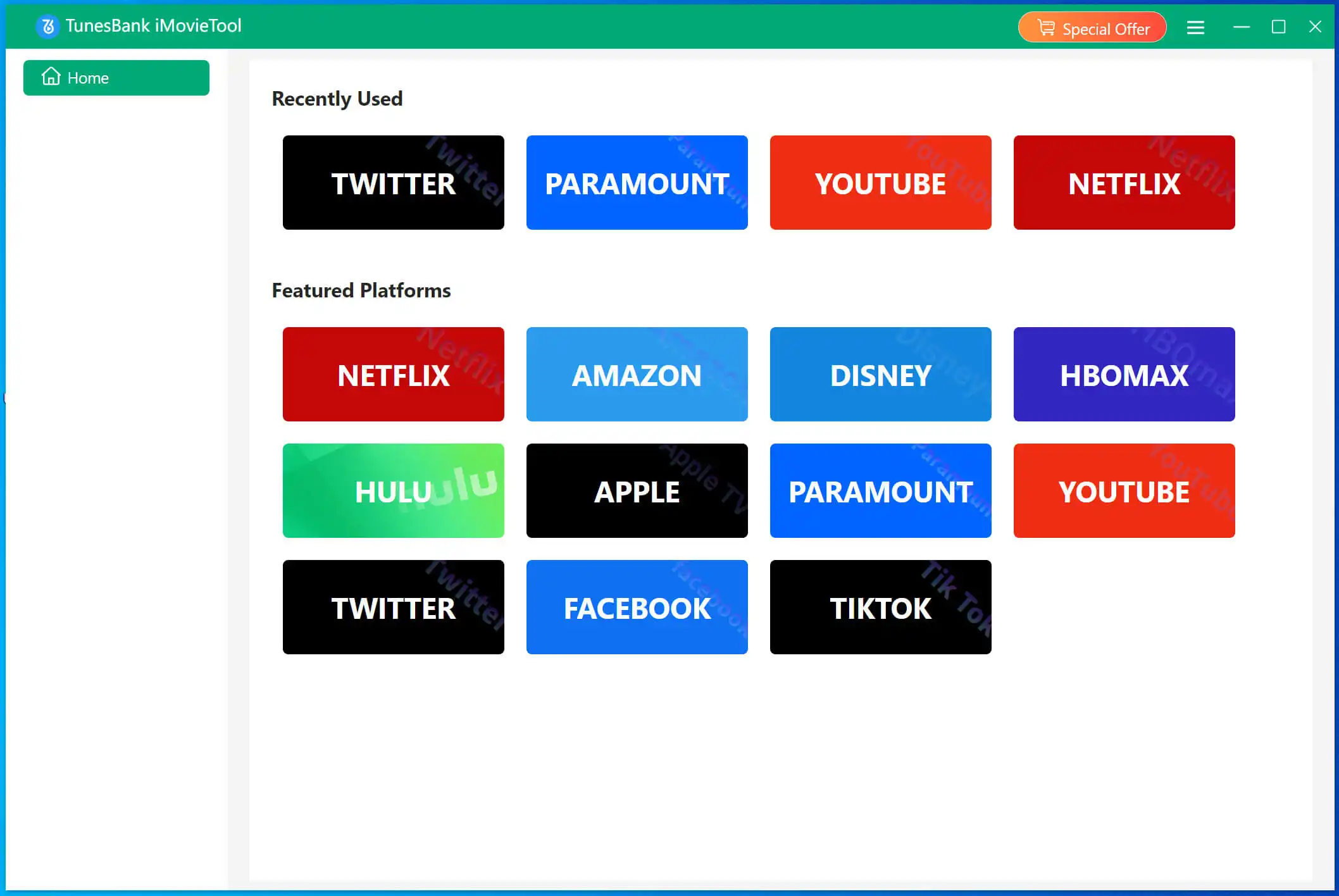
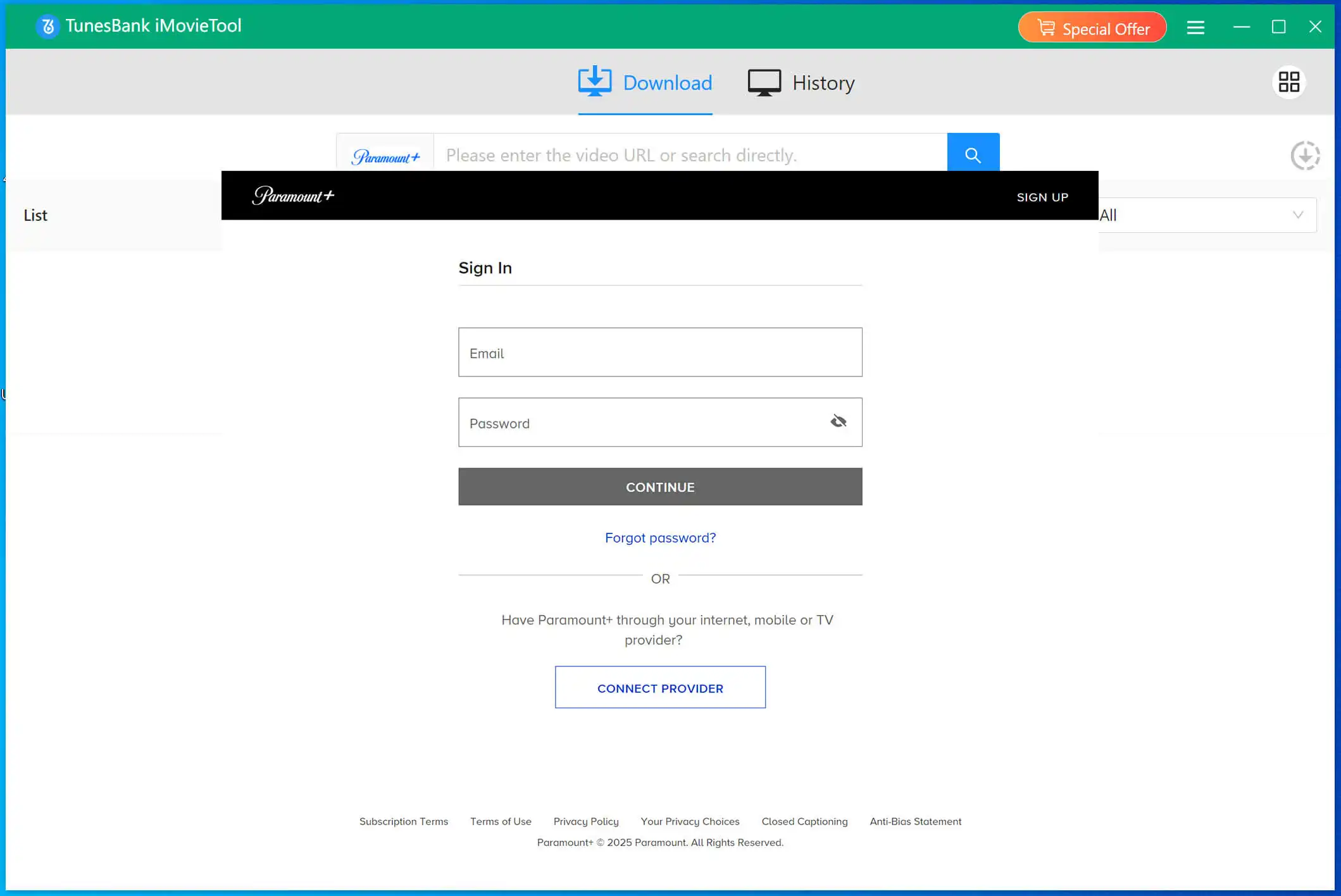
Next, you need to log in to your Paramount Plus account (either ad-supported or ad-free) using the built-in browser to access all available movies and TV shows.
Step 2. Define Output Settings
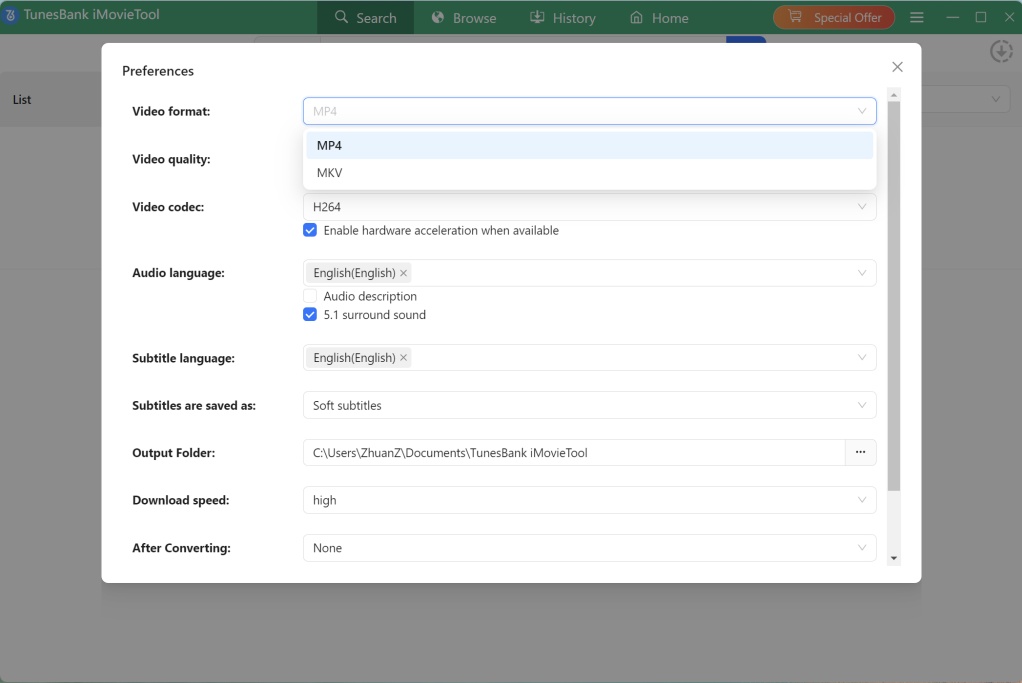
Go to “Menu” bar and choose “Preference” to open the settings panel. From where you can select MP4 as the output format, choose high 1080p resolution, set audio and subtitle preferences, and define the output folder for downloaded videos.
Step 3. Search for the Paramount Plus Videos
TunesBank provides three flexible ways to find Paramount Plus content quickly and accurately.
1# Tab “Browse” tab, navigate the Paramount Plus catalog inside TunesBank’s built-in player to manually locate content. Once located your desired movie or show, open it and click the green “+” icon to add it into the download queue.
2# Go to “Search” section, type the movie or TV show name directly into the search bar to load all available episodes instantly.
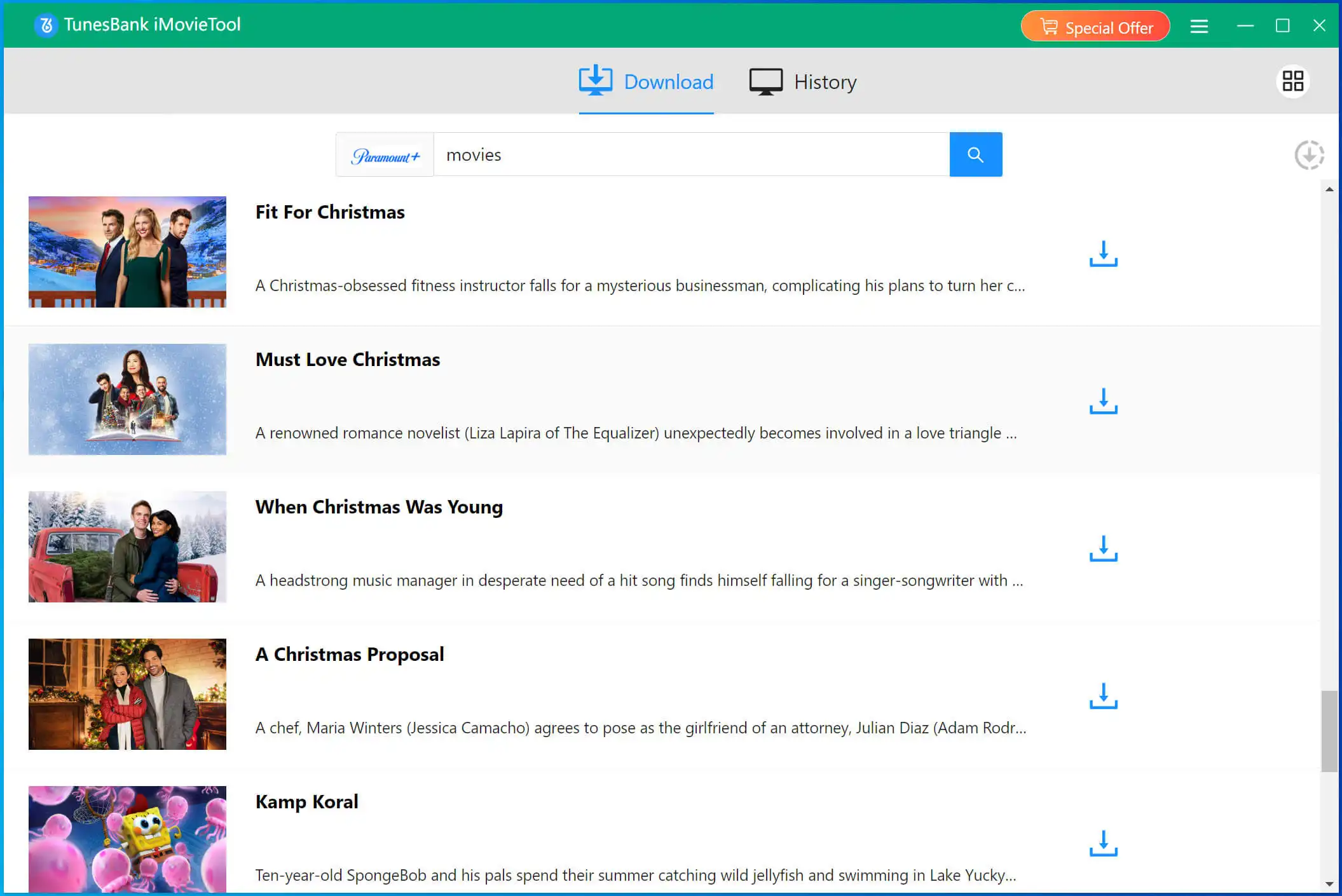
3# You may also copy and paste the Paramount Plus video URL into TunesBank to access the exact title without browsing.
Step 4. Download Paramount Plus Videos to MP4
For downloading movies from Paramount Plus, simply click the “Download” button next to the title.
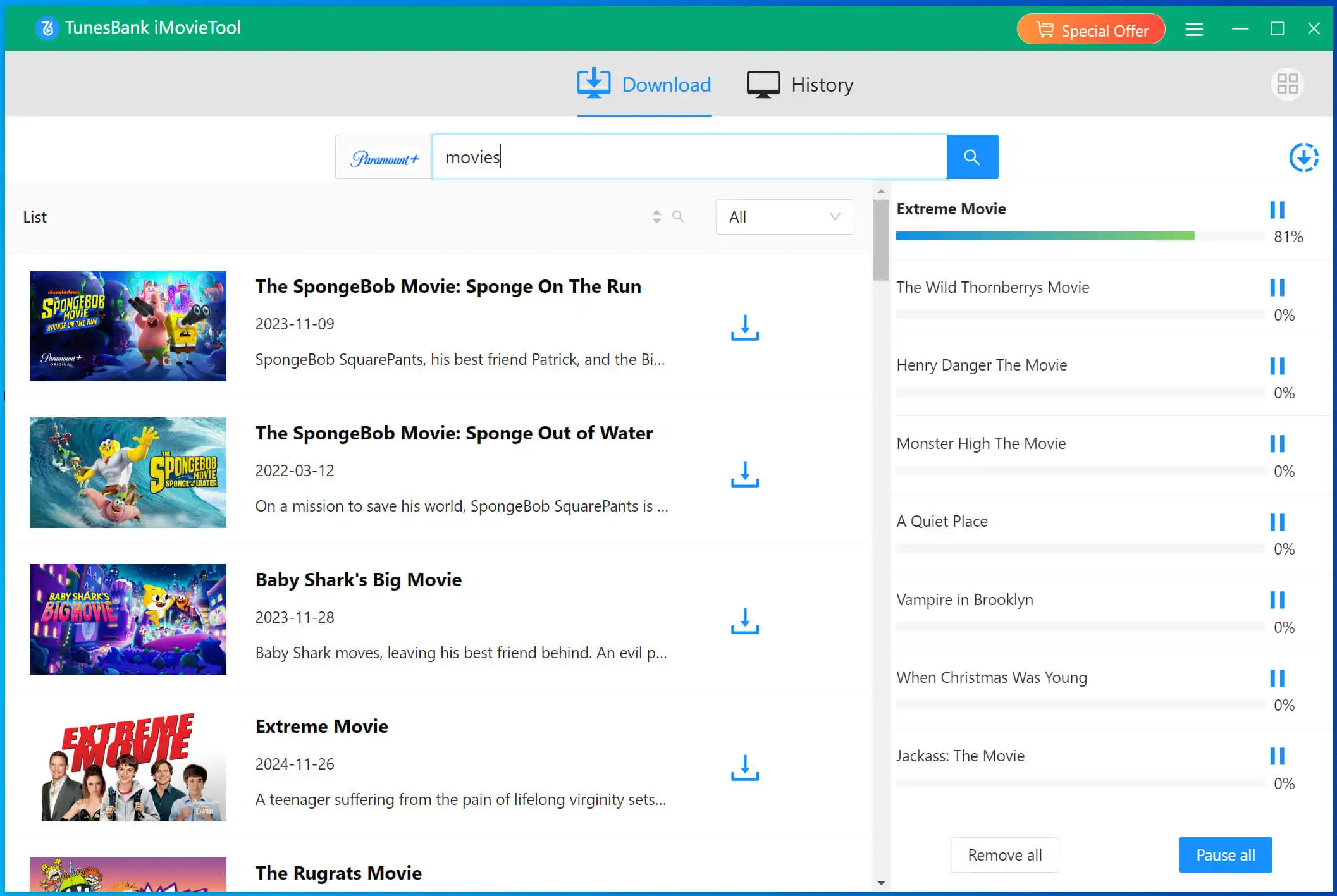
For downloading TV shows from Paramount Plus, you need to select the desired episodes or full seasons and click the “Download” button.
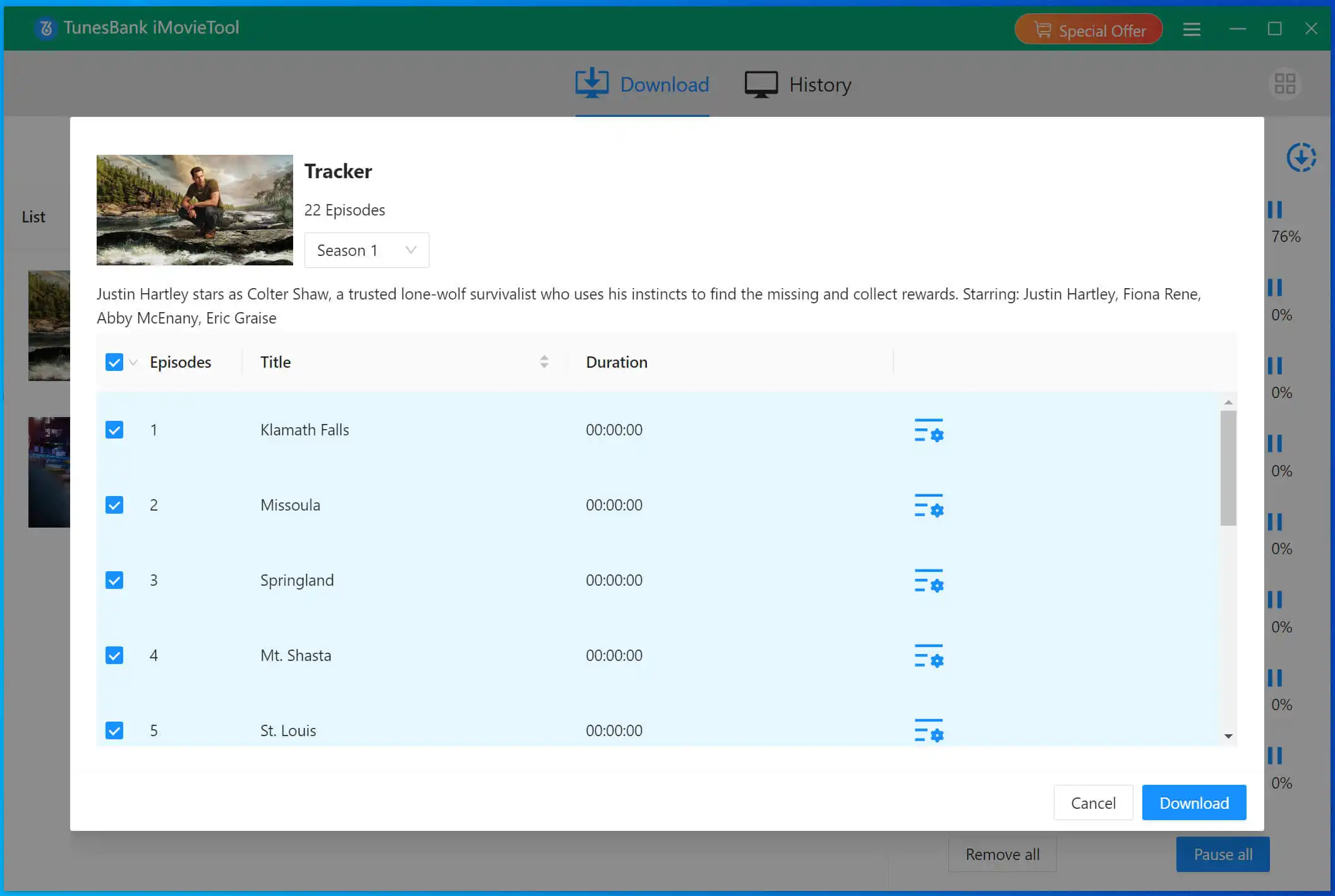
Step 5. Get Downloaded Paramount Plus Videos
Once downloaded, move to “History” section, open the output folder to access your saved Paramount Plus MP4 videos, ready for VLC playback.
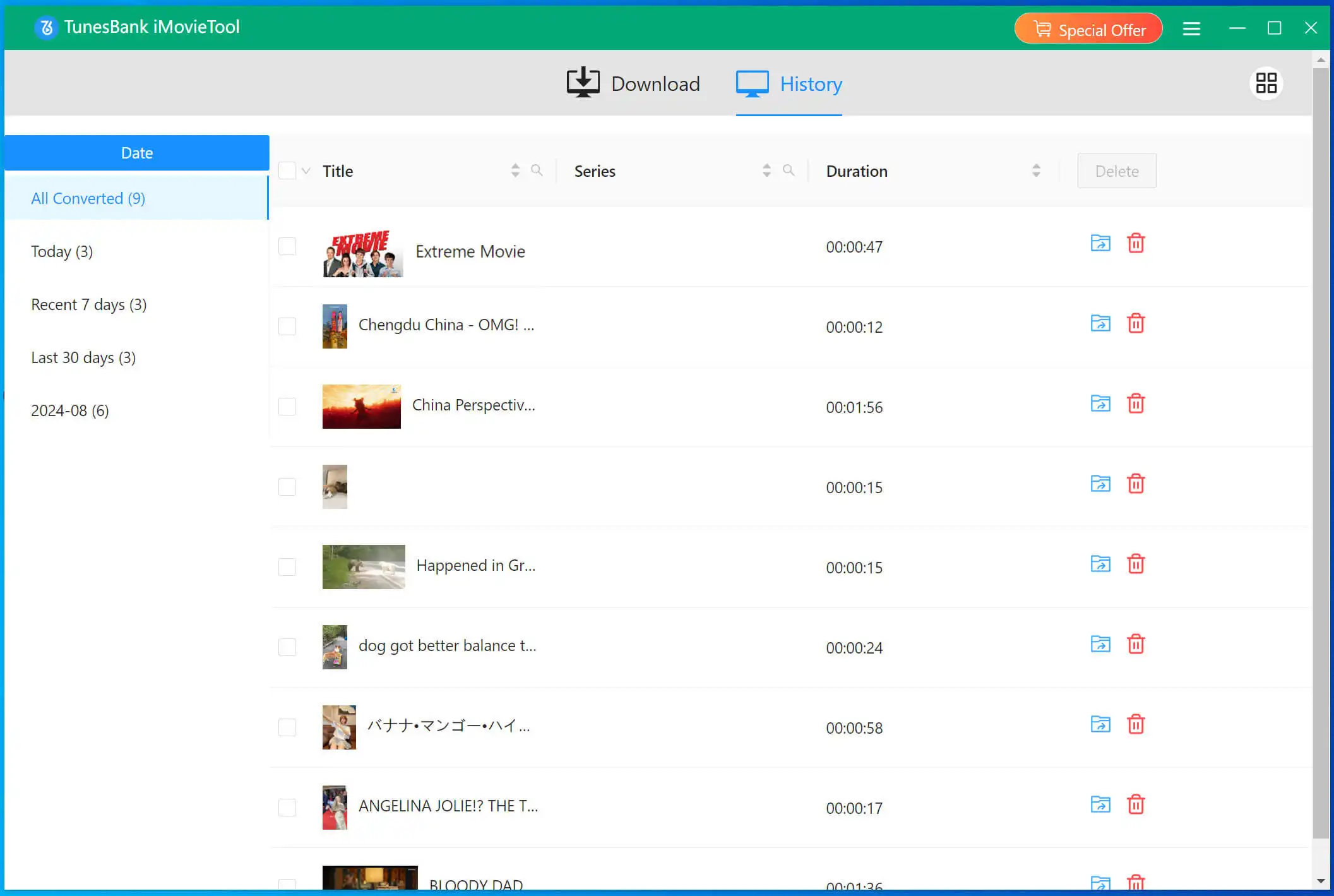
Now, you can transfer the Paramount+ videos into the VLC media player for playback and management.
Process 2. Transfer Paramount Plus Downloads to VLC Media Player
On PC/Mac:
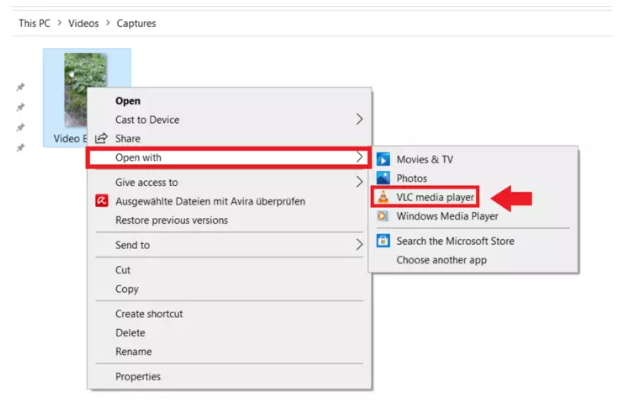
1# If VLC is installed on the same computer, simply right-click the MP4 Paramount Plus video file to open it with VLC media player.
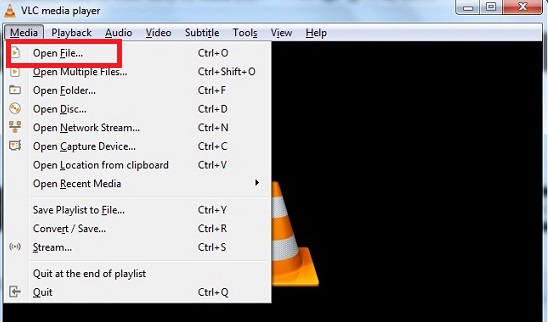
2# Open VLC media player on your computer, go to “Media” > “Open File…”, then select your downloaded Paramount Plus videos.
3# Launch the VLC media player, directly drag and drop the downloaded Paramount Plus videos to VLC’s interface.
After that, you can play the downloaded Paramount Plus videos with VLC media player without interruption.
On iPhone/Android:
If you want to play Paramount Plus videos on your phone through VLC media player, first you need to connect your phone with computer, then transfer the videos to your iPhone or Android using iTunes or USB cable.
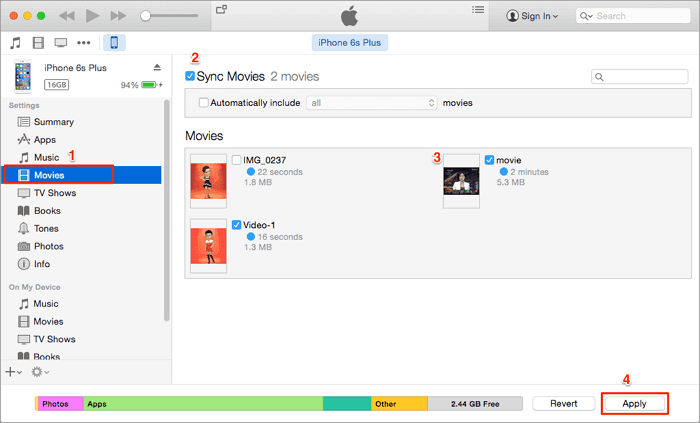
Then, open VLC media player on your phone, select the Paramount Plus video files to watch it offline.
Tips on Playing Paramount Plus Video on VLC
Once you successfully play Paramount Plus downloads on VLC, to get ensure a smooth and enjoyable video playback, you can further optimize your viewing experience with the following tips.
How to Disable Paramount+ Subtitle Language in VLC?
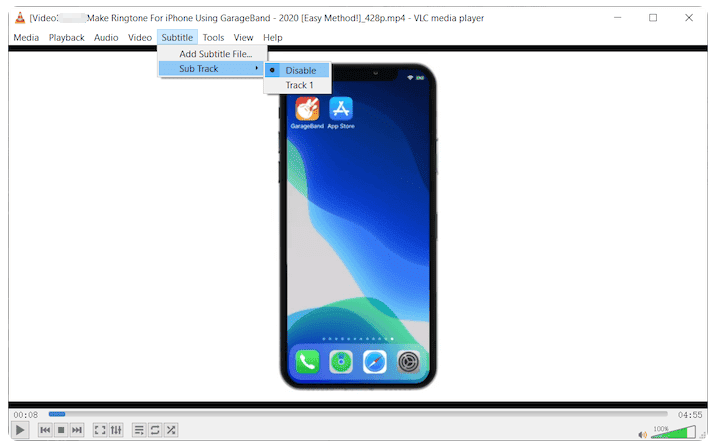
1. Open your local Paramount Plus videos in VLC media player.
2. Click “Subtitle” > “Sub Track” > “Disable” option.
How to Change Paramount+ Subtitle Language on VLC?
Before downloading Paramount+ videos through TunesBank Paramount Plus Video Downloader, you can go to the Settings window, in “Subtitles are saved as”, customize the downloading subtitle types as “External subtitles” or “Hard subtitles”.
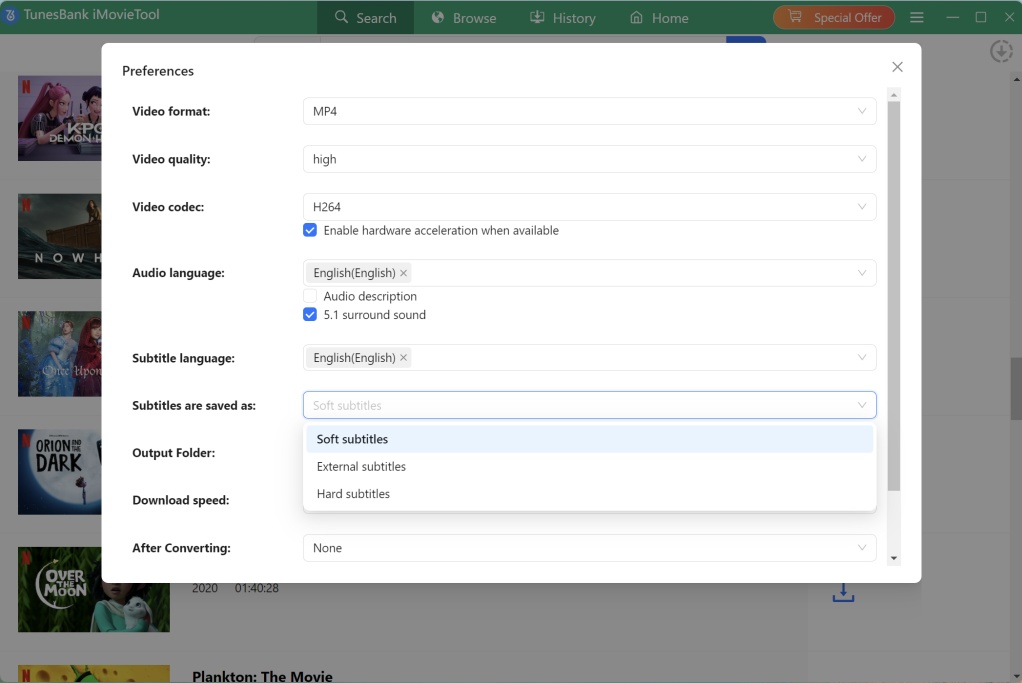
If external SRT subtitles are used, you can load them manually in VLC, simply click “Subtitle” > “Add Subtitle File…”.
How to Fix Subtitles Out of Sync in VLC?
If the captions don’t match the dialogue, VLC offers quick fixes.
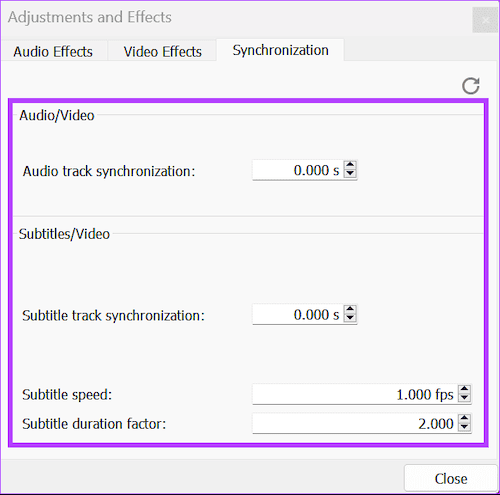
Keyboard Shortcut (Quickest Method): During playback, press the ‘G’ key to delay the subtitles (make them appear later) or the ‘H’ key to speed them them (make them appear earlier). Adjust until subtitles sync correctly
Manual Sync Menu: For more precise control, go to “Tools” > “Track Synchronization”. In the new window, find the “Subtitle track synchronization” option and enter a time value (e.g., +500ms for a half-second delay) to adjust the timing. Then close the window.
How to Enable Hardware Acceleration in VLC?
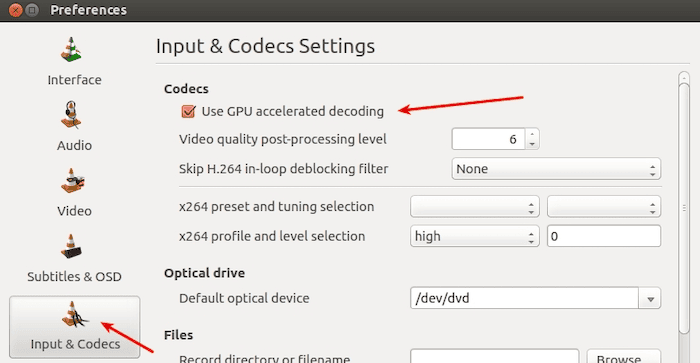
For smoother playback, especially for 1080p Paramount Plus videos, enabling hardware acceleration can reduce CPU usage. This can lead to smoother video and lower power consumption on laptops. Here’s how:
1. In VLC, go to “Tools” > “Preferences”.
2. Click on the “Input / Codecs” tab at the bottom.
3. In the “Codecs” section, find the dropdown for “Hardware-accelerated decoding” and change it from “Disabled” to “Automatic.”
4. Click “Save” and restart VLC for the change to take effect.
Conclusion
When VLC Media Player cannot directly stream Paramount Plus content due to DRM restrictions, you are required to download Paramount Plus videos to MP4 using the TunesBank Paramount Plus Video Downloader. By following this guide, you can safely save Paramount+ videos locally, and transfer downloaded Paramount+ videos to a VLC media player, or any other media players like iTunes, QuickTime Player, Windows Media Player, etc. This way, you can watch Paramount Plus videos through VLC on your computer, laptop, mobile anytime, anywhere, without expiration or device limitations.
The Latest Articles
– Download Paramount Plus Video on Mac
– Watch Paramount+ Outside the USA
– Download Paramount Plus Video from Web Browser
– Move Paramount+ Video to USB Drive
– Best ParamountPlus Video Downloaders
– Record Paramount Plus Without Black Screen
– Download Paramount+ Videos to Watch Offline
– Top 8 Solutions to Download Streaming Video
– Top 10 Free Movie Download Sites Recommended
– 3 Ways to Download Movies to Watch Offline
– 2 Verified Methods to Download X/Twitter Videos to MP4
– Download Twitter(X) Videos on PC, Mac and Mobile Phone
– Download Facebook Videos on PC, Mac and Mobile Phone
– 3 Ways to Download Facebook Video to MP4

Paramount Plus Video Downloader
The best Paramount Plus Video Downloader to download Paramount Plus movies and TV shows to FHD 1080P MP4/MKV files with selected subtitles and audio tracks in batch. Easily watch Paramount Plus videos offline on any device, anytime, anywhere!







