








 United States (English)
 Japan (日本語)
 Russia (русский)
 Germany (Deutsch)
 France (Français)
 Spain (Español)
 Italy (Italia)
 Portugal (Portugues)
 China (繁体中文)
 Turkish (Türk dili)
 Dutch (Nederlands)
 Korean(한국인)
 Saudi Arabia(عربي)
 Download Netflix Movies and TV shows to watch offline.
Netflix has removed download function from its Windows app. Learn how to download Netflix movies on Windows computer as MP4 files using a third-party Netflix downloader tool or online service. Thus, you can keep your Netflix downloads permanently and watch Netflix offline on Windows or other devices anytime, anywhere.
Netflix allows subscribers to download movies, TV shows, documentaries, and Originals to watch offline. However, its strict download restrictions can be very frustrating. Netflix has officially removed download function on Windows since July 2024 and replaced it with a web-based experience. As a result, only mobile users can download Netflix content, while Windows users are limited to online streaming with an active internet connection. This change has frustrated millions of subscribers who rely on the Windows app for offline viewing while traveling, commuting, or working in places without internet access. Meanwhile, Windows users have been looking for a reliable way to download movies from Netflix on Windows.
So, can you download Netflix movies on Windows computer? The answer is YES! This article provides alternative solutions that work in 2026. You can download Netflix movies on Windows computer PC, or laptop without the Netflix app by using a third-party Netflix downloader or online tool. Let’s dive in!
1. Download Netflix Movies on Windows Computer via iMovieTool
Since Netflix no longer supports downloads on Windows computers, and official Netflix downloads in the mobile app are DRM‑protected, they cannot be transferred to a computer and expire after 7 or 30 days. To download Netflix movies on PC, you can ask help from a professional third-party Netflix downloader. Here iMovieTool Netflix Video Downloader comes into play.
iMovieTool Netflix Video Downloader is a professional Windows and Mac application developed for downloading Netflix movies and TV shows in universal MP4 or MKV format for offline saving and viewing. The software features an embedded Netflix web browser, allowing users to access the official Netflix library and download any content directly inside the program without switching to Netflix app. Whether you want to download steamy movies, animation, korean dramas, or documentaries on Netflix on Windows, you can use this versatile tool to achieve it without hassle!
With advanced downloading technology, iMovieTool supports batch downloading and up to 50X faster download speed, making it easy to save entire seasons within minutes. To deliver you the best offline viewing experience on Windows PC and laptop, this powerful tool can preserve Full HD 1080p quality, multilingual audio tracks, Dolby 5.1 surround sound, subtitles, and video metadata information. iMovieTool enables you to save your favorite Netflix videos on Windows or Mac permanently, build your own offline media library, and enjoy offline watching across any device or player!
Features of iMovieTool Netflix Video Downloader:
- Download Netflix movies and TV shows in MP4 or MKV format
- Download Netflix movies on Windows computer and Mac
- Built-in official Netflix web browser, no Netflix app needed
- Preserve HD 1080p video quality and Dolby Digital 5.1 surround sound
- Provides various options for audio tracks and subtitles
- Batch download multiple movies or entire TV series at 50X speed
- Save subtitles as soft, hard, or external subtitles
- Save Netflix videos on PC, Mac permanently without expiration
Step-by-step: How to Download Netflix Movies on Windows Computer in MP4
Step 1. Choose Netflix & Sign In Account
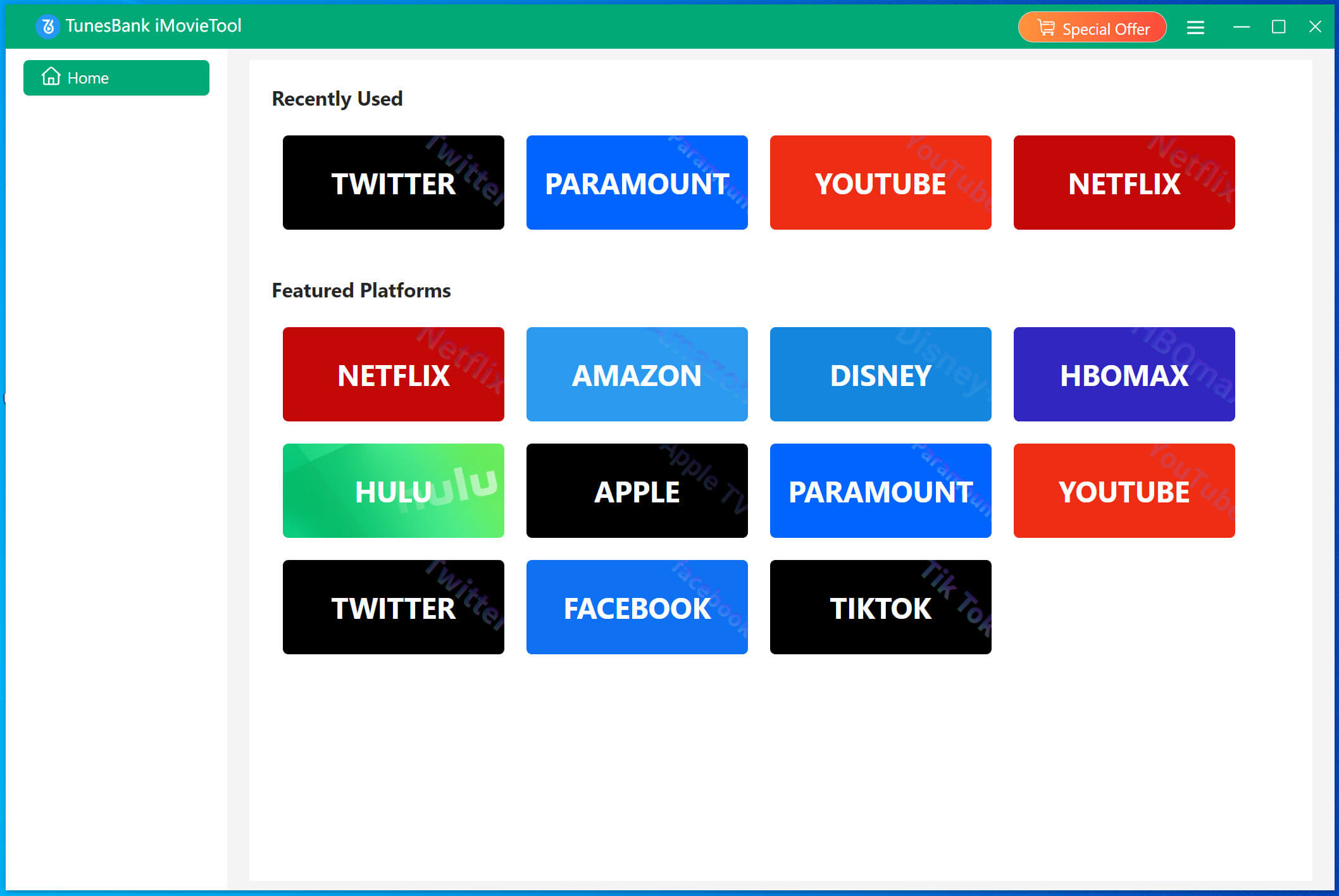
To begin with, download the TunesBank iMovieTool on your Windows computer, and install the program. Then, select Netflix from the supported streaming platforms.
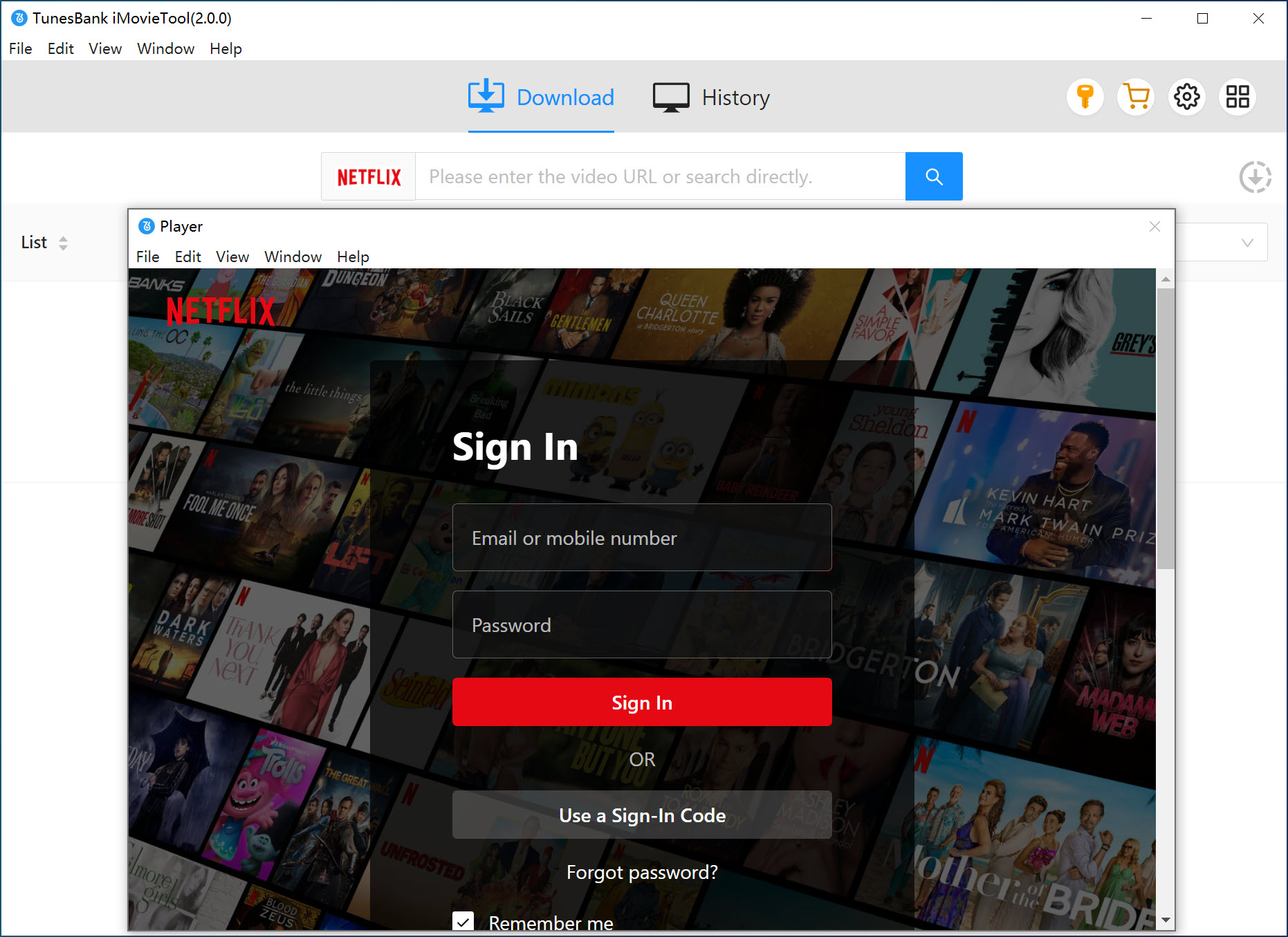
You will then enter the iMovieTool Netflix Video Downloader. Sign in with your Netflix account credentials through the built-in browser to access your streaming library securely.
Step 2. Set Download Parameters
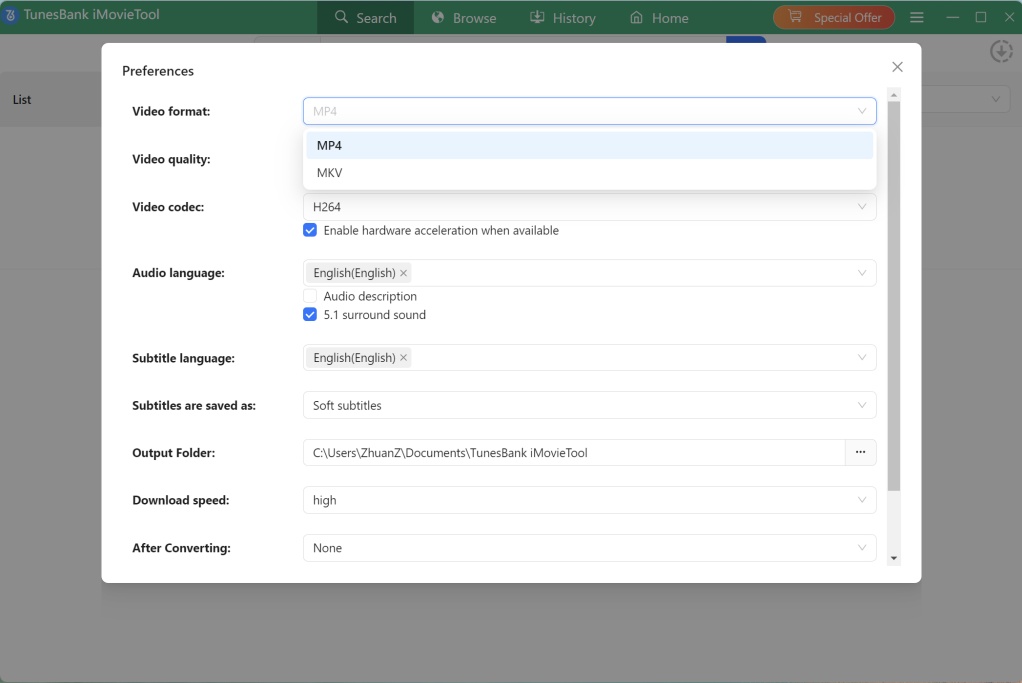
Click the Menu icon in the upper-right corner and choose “Preferences”. Here, you can customize the video format, video quality, video codec, subtitle mode, audio language, and output folder according to your preferences before downloading.
Step 3. Search and Add Netflix Movies
iMovieTool Netflix Video Downloader offers several convenient methods for locating Netflix content.
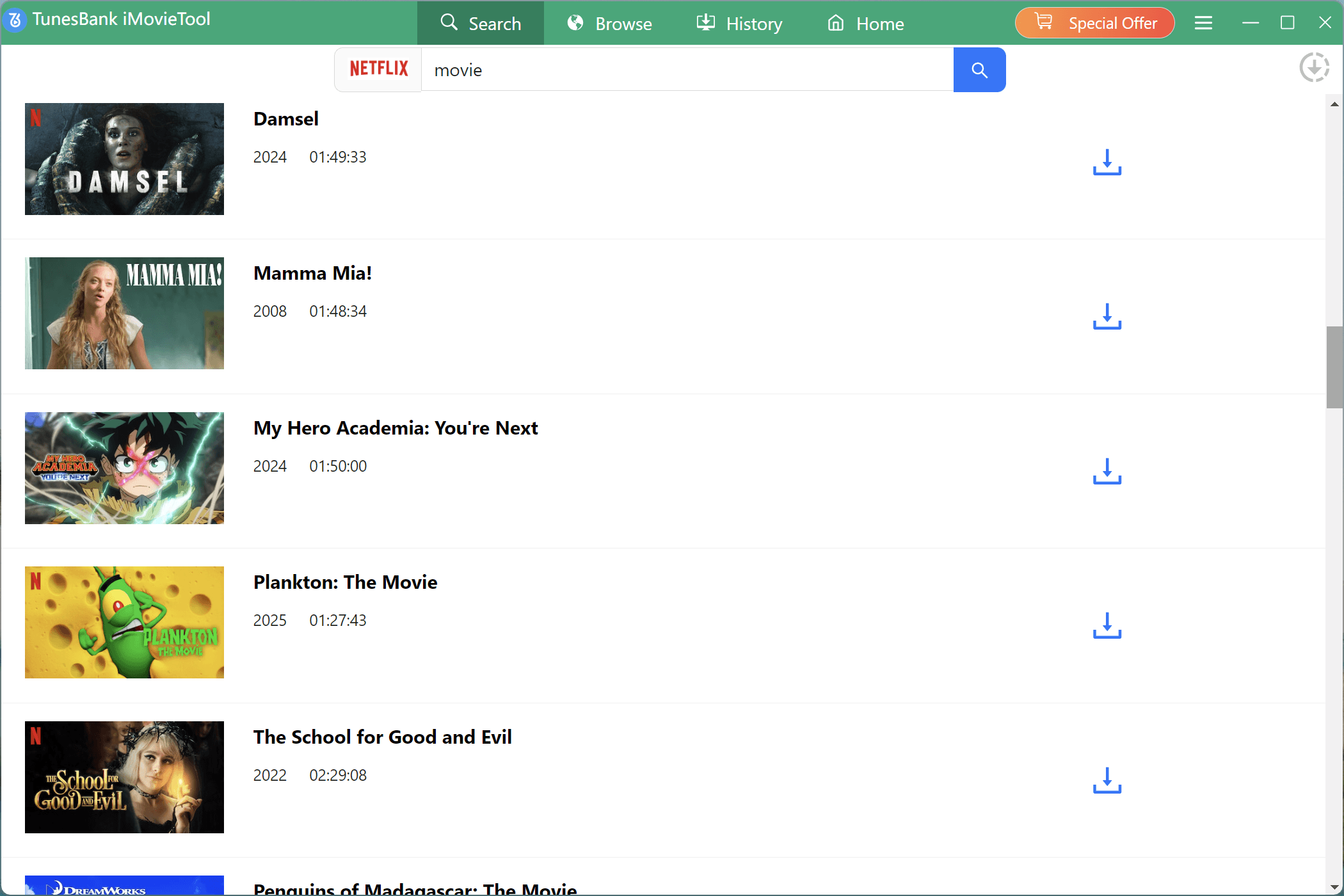
Method 1. Search by Name or URL
Tap “Search” tab, simply enter the title of the movie, or paste the URL into iMovieTool’s search bar. The program will instantly analyze the content and prepare it for downloading.
Method 2. Browse and Add Netflix Movie Online
Tap “Browse” tab, you can also browse Netflix directly inside the built-in browser. Explore categories, recommendations, trending content, and search results just like using the official Netflix website.
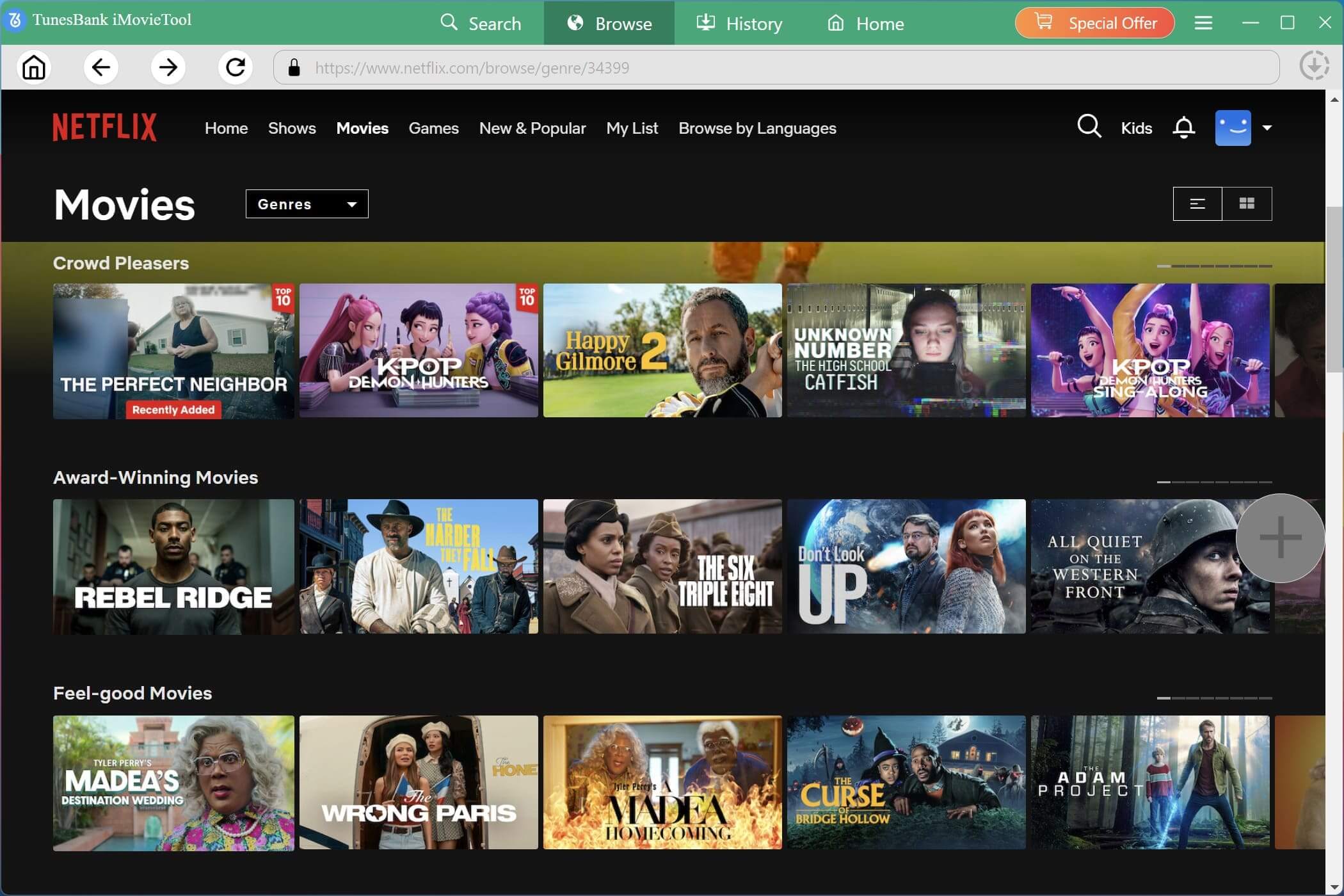
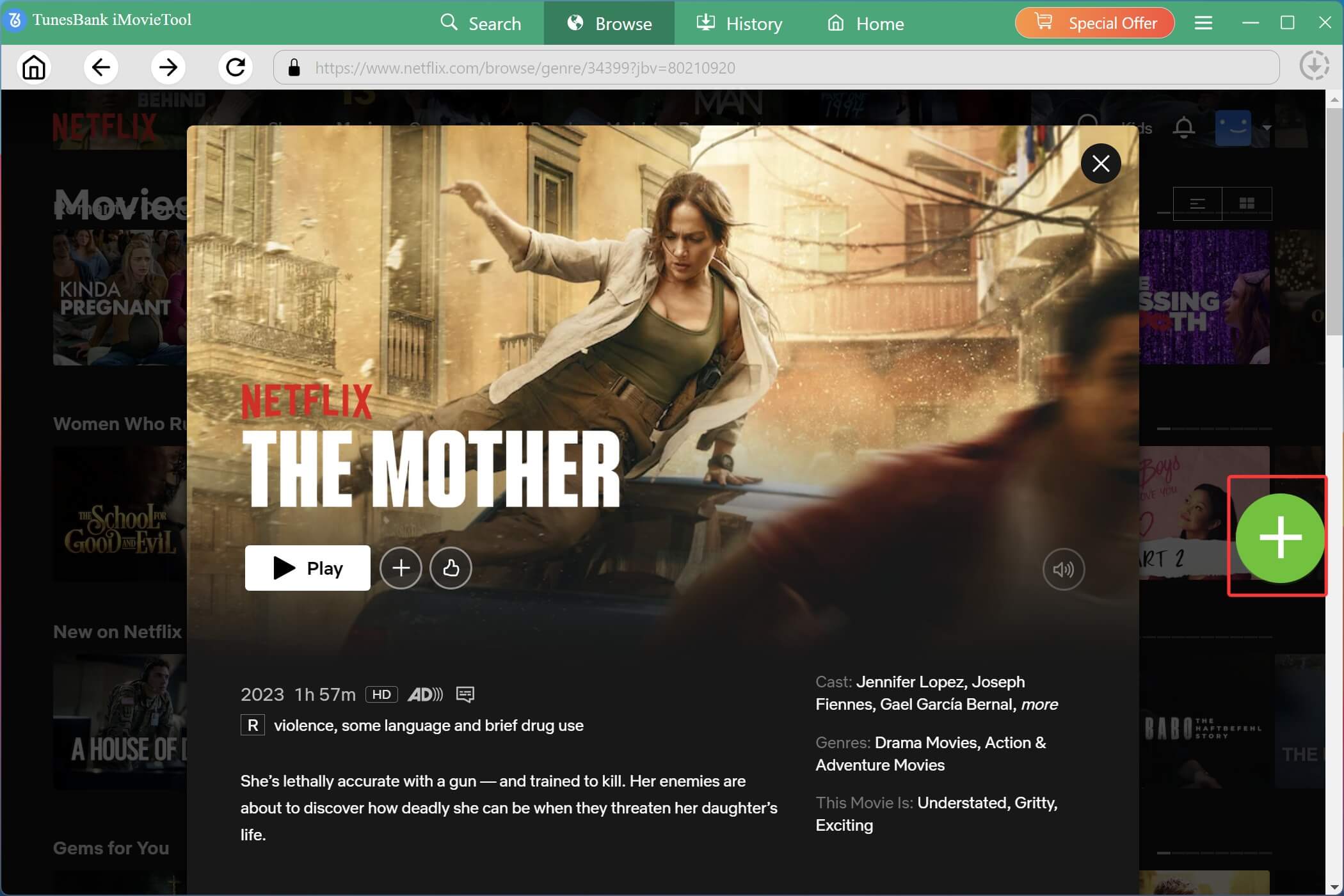
Open the movie you like and click the “+” icon to add it to the download queue.
Step 4. Start Downloading Netflix Movie on PC
After adding the movie to the queue, click the “Download” button to begin the process.
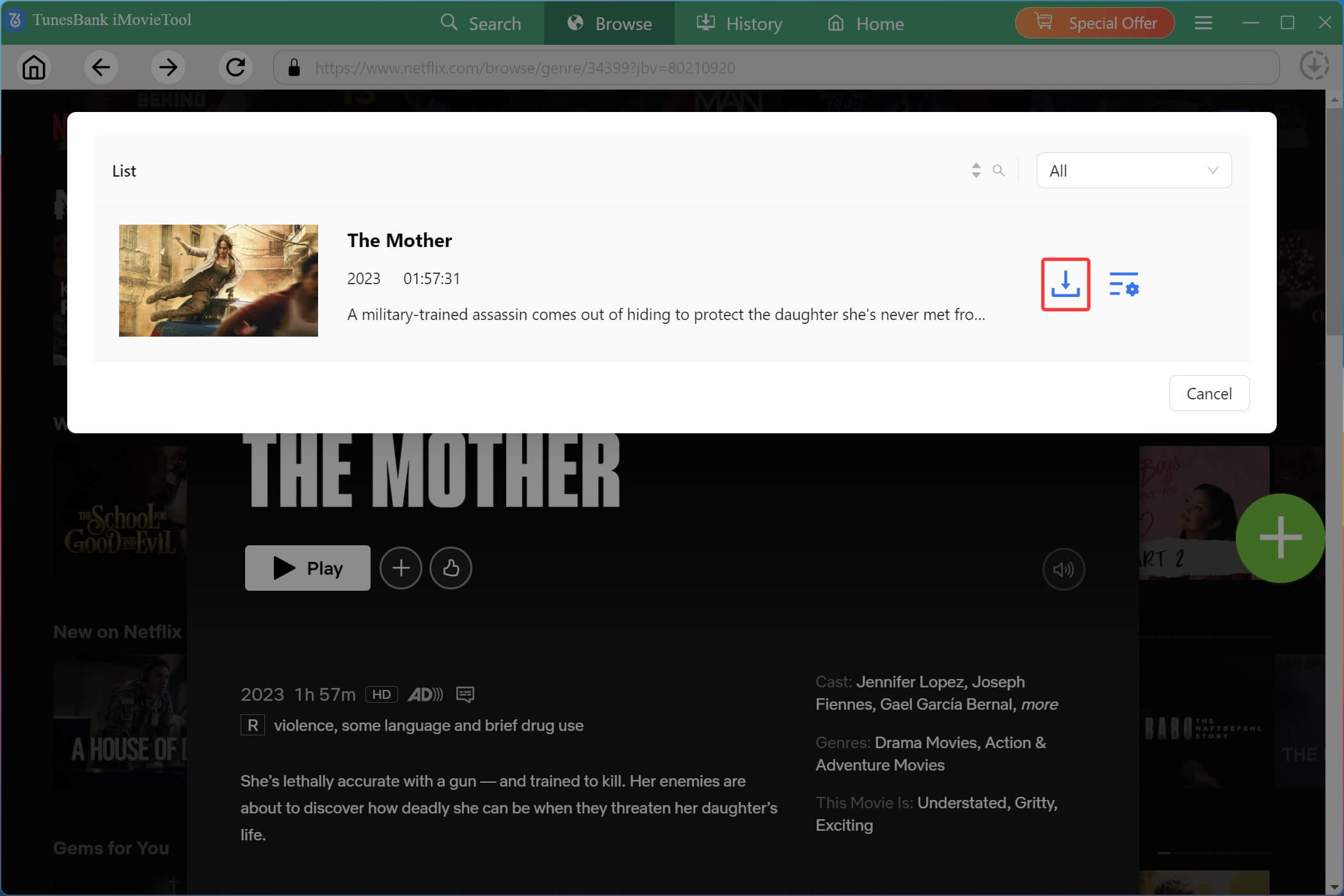
iMovieTool will begin downloading Netflix movie to your computer folder at high speed while maintaining original video quality, audio tracks, subtitles, and metadata.
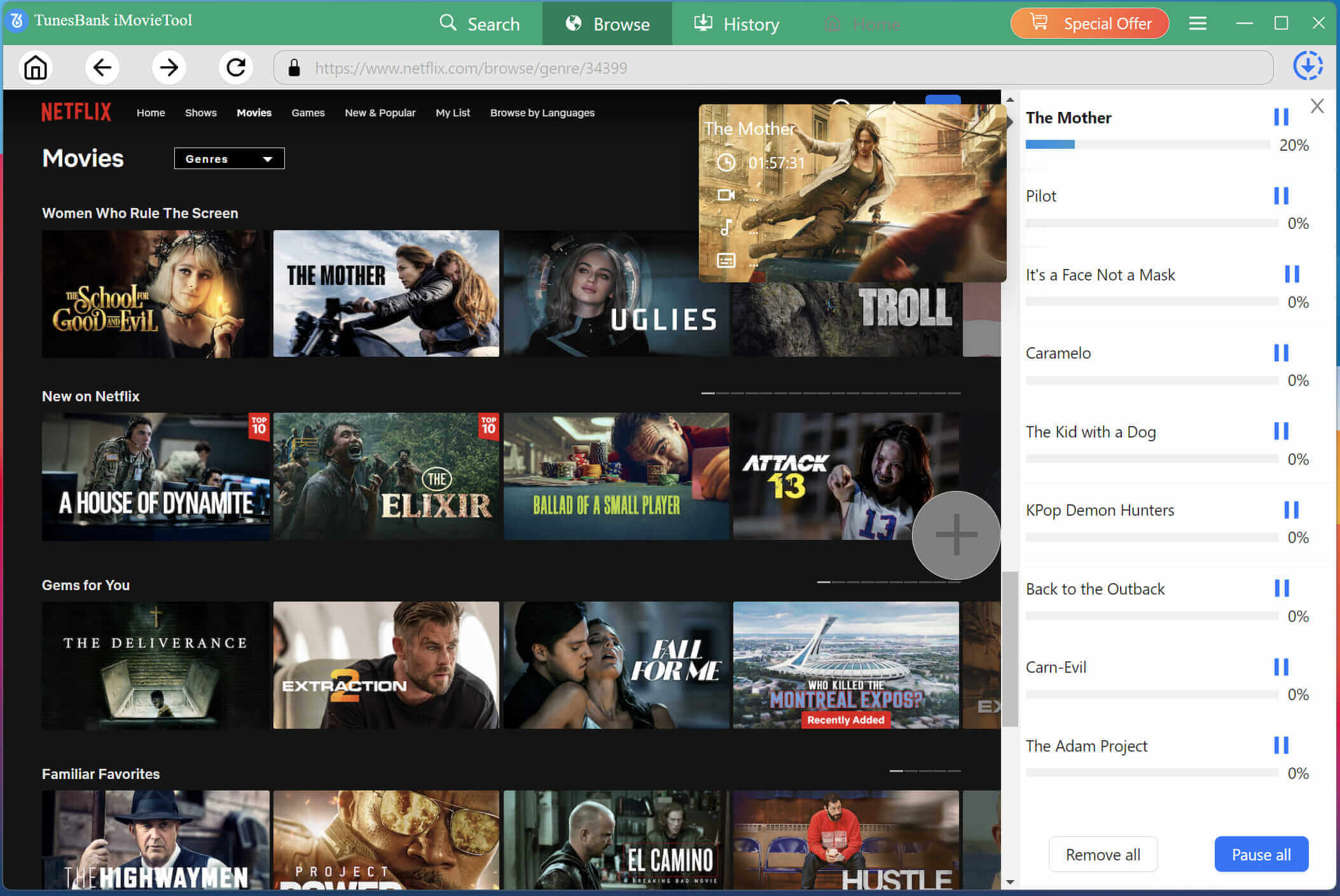
During the process, you can continue add more movies or shows for batch downloads.
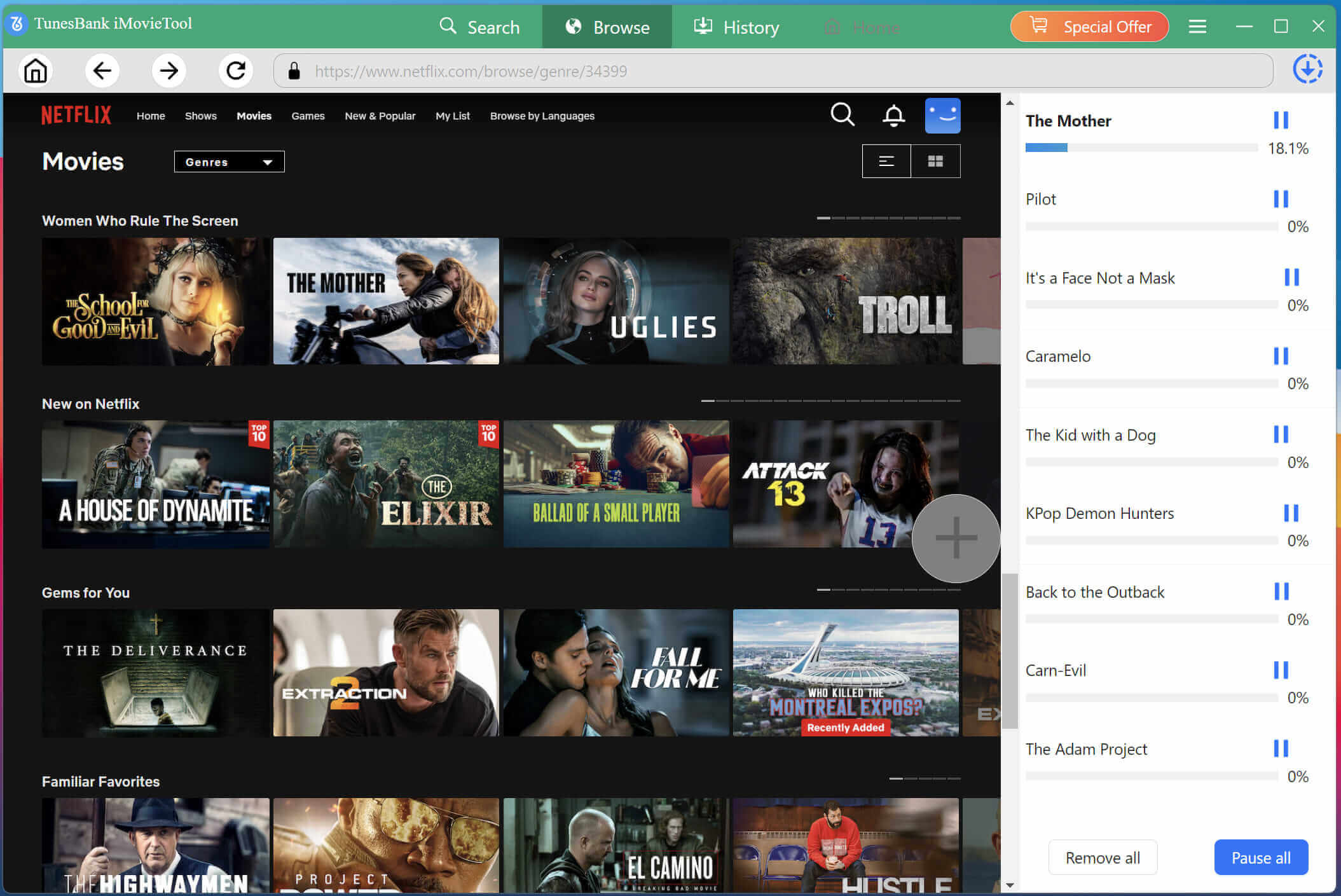
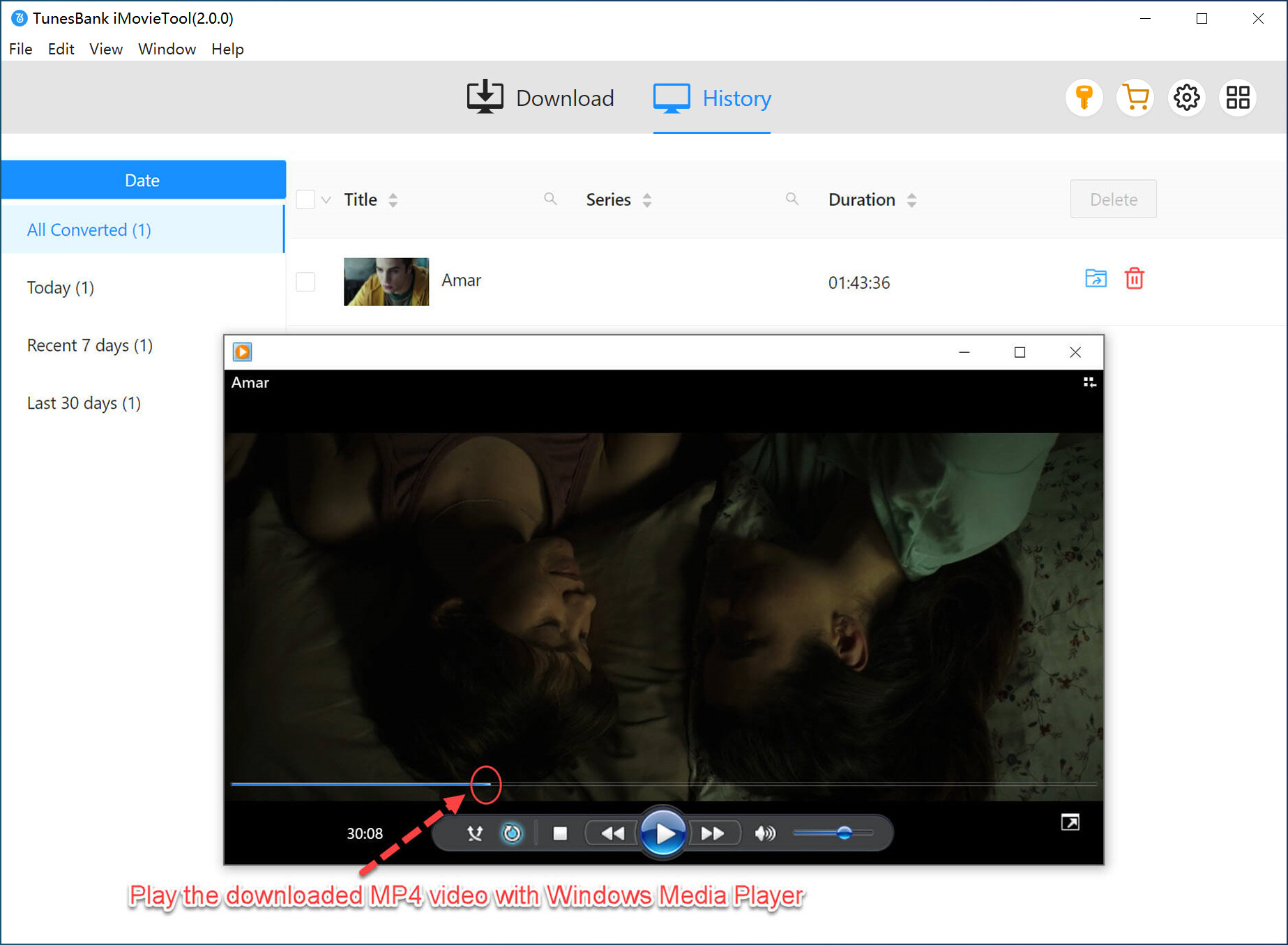
Step 5. Access Downloaded Netflix Movies
Once downloaded, go to the “History” tab to view all downloaded content. You can now watch Netflix movies offline on your Windows PC, transfer them to other devices, or store them permanently without expiration concerns.
2. Download Netflix Movies on Windows Computer via Online Tool
No matter if you are using a Windows computer or laptop, another method to download Netflix movies is using an online tool.
NetflixDownload is a free online Netflix video downloader that allows you to download Netflix movies on Windows PC without installing any software. It works directly through your web browser, supports both desktop and mobile devices, and requires no registration or payment. All you need to do is copy the Netflix movie URL, paste it into the online tool, and click “Download”. In testing, its operation was simple, but batch downloads were not supported.
Expert Tip: If you find this online service doesn’t work or need to download multiple movies or entire TV series from Netflix to your computer at once, a dedicated desktop software like iMovieTool Netflix Video Downloader could be the best option.
In the following, you can check the simple steps and see how to use NetflixDownload to download Netflix movies on laptop Windows immediately:
Step 1. First of all, go to Netflix app or website on your Windows. Find the movie or TV show you want to download, and copy the video URL.
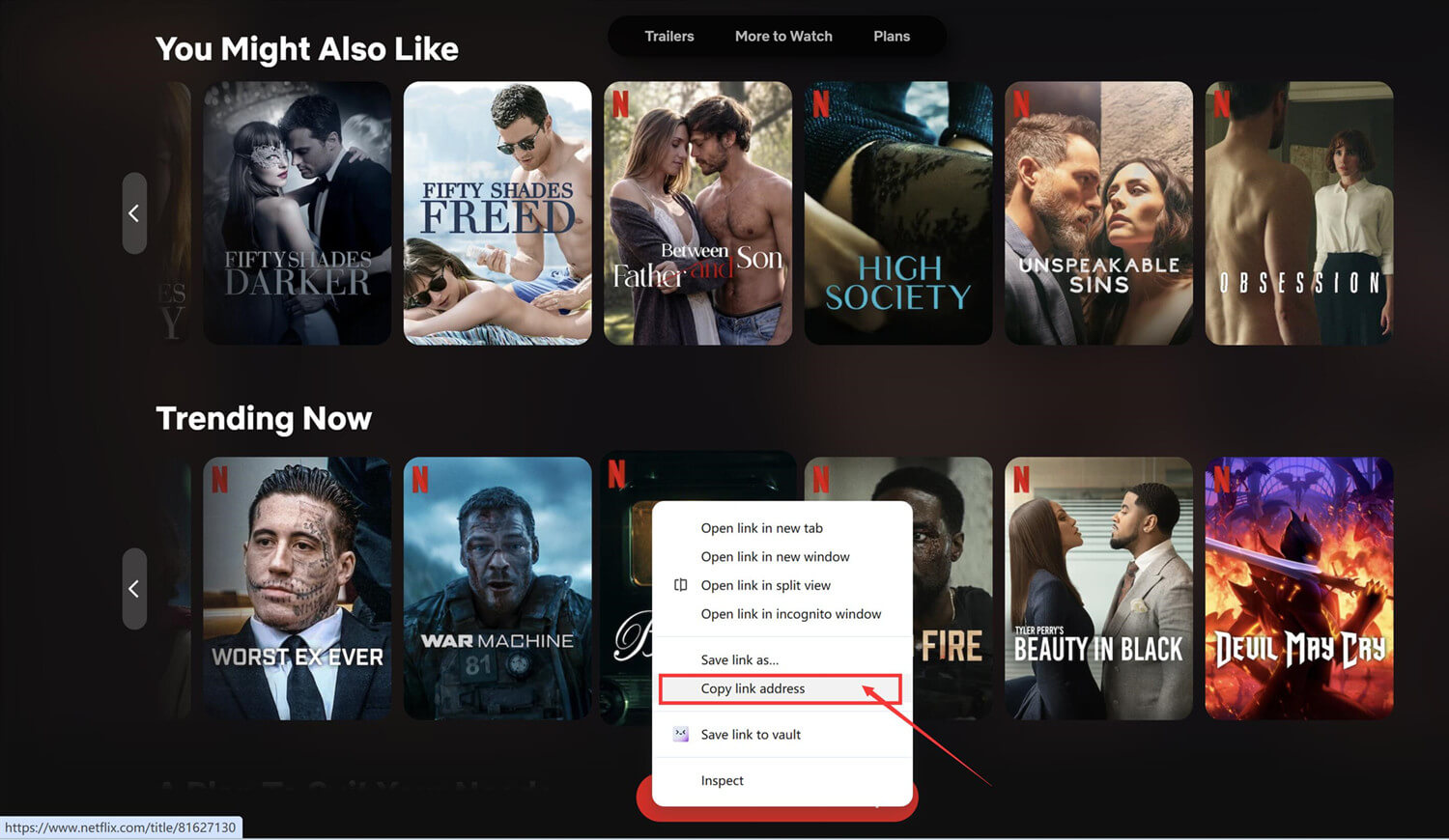
Step 2. Open the NetflixDownload in your browser, and paste the copied Netflix URL into the search field.
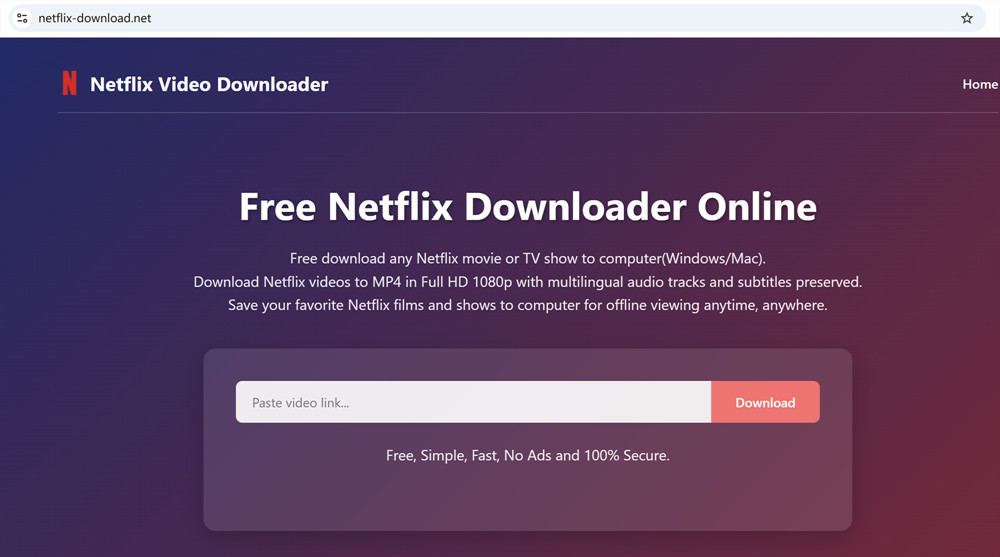
Step 3. Click the “Download” button. Select your preferred video quality and output format from the available options.
Step 4. Hit on the “Download” button again and wait for the server to process the video.
Netflix stopped supporting offline downloads on the Windows app in July 2024. After that, some Windows users shared a workable method to continue enjoy the download function in Netflix app for Windows. They tried to stop the automatically update in Netflix Windows app, and downloaded the older version of Netflix 6.99.50 app. This way, they could still download and watch Netflix content on a Windows PC or laptop.
However, Netflix discovered the vulnerability and disabled all download functionality in its Windows app. Even though some users were able to download Netflix movies on Windows computer, but downloads just didn’t work anymore, failed to play.
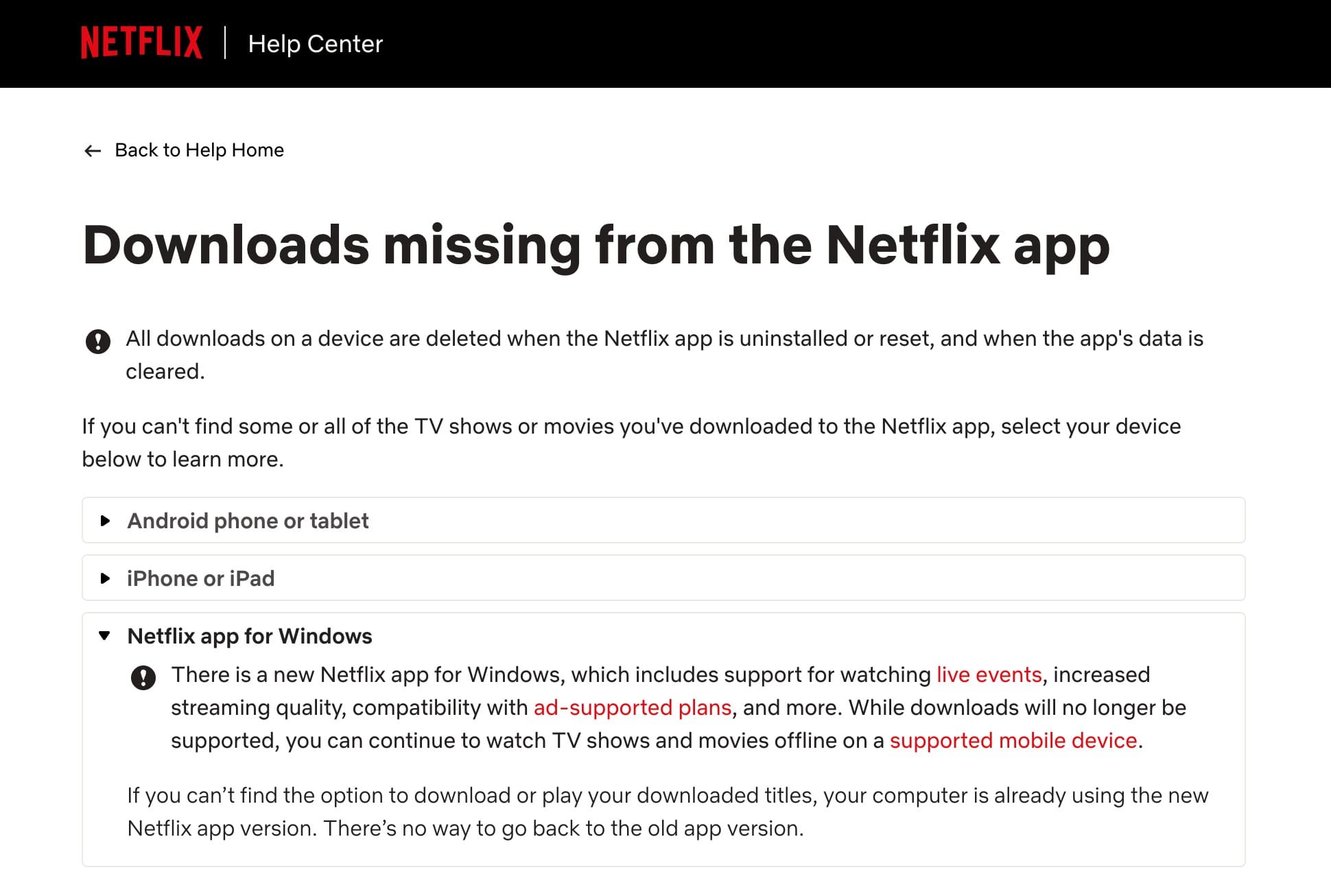
In Conclusion: This method is no longer effective.
FAQs About Downloading Netflix Movies on Windows
Can I Download the Netflix App on Windows PC?
Yes. You can still install the Netflix app on Windows computers through Microsoft Store. However, the current version no longer supports downloading content for offline viewing.
Why Is There No Download Option in Netflix on PC?
Netflix removed download functionality from the Windows app in July 2024. Users can now only stream Netflix content through the web-based experience provided by the updated application.
How to Watch Netflix Downloads Offline on Laptop?
The official Netflix app no longer supports offline downloads on Windows laptops. If you want to watch Netflix content offline on a laptop, you can use a third-party downloader such as iMovieTool Netflix Video Downloader to save Netflix movies and shows as local MP4 or MKV files. This allows you to keep, and watch your Netflix downloads permanently, in offline mode.
Conclusion
Since Netflix removed download support for Windows computers in July 2024, users can no longer download Netflix movies on Windows computer through the official Netflix application. Luckily, there are many helpful tools that can help you download movies from Netflix to your Windows PC, or laptop without the Netflix app. With the professional tool like iMovieTool Netflix Video Downloader, you can easily download unlimited Netflix movies, TV shows, and original videos on your Windows or Mac computer in high-quality MP4/MKV formats. Give it a try and take full control of your Netflix downloads!
The Latest Articles
– Top 8 Solutions to Download Streaming Video
– Top 10 Free Movie Download Sites Recommended
– 3 Ways to Download Movies to Watch Offline
– 2 Verified Methods to Download X/Twitter Videos to MP4
– Download Twitter(X) Videos on PC, Mac and Mobile Phone
– Download Facebook Videos on PC, Mac and Mobile Phone
– 3 Ways to Download Facebook Video to MP4

Netflix Video Downloader
Download Netflix video to MP4 or MKV with multi-language audio track and subtitle kept. Up to 50X downloading speed. Easily to download your favorite movies/TV shows from Netflix to your computer for offline viewing.








One Reply to “How to Download Netflix Movies on Windows Computer”
Comments are closed.