








 United States (English)
 Japan (日本語)
 Russia (русский)
 Germany (Deutsch)
 France (Français)
 Spain (Español)
 Italy (Italia)
 Portugal (Portugues)
 China (繁体中文)
 Turkish (Türk dili)
 Dutch (Nederlands)
 Korean(한국인)
 Saudi Arabia(عربي)
 Download Netflix Movies and TV shows to watch offline.
Do you want to save Netflix videos to your external hard drive? This guide introduces an easy way to download Netflix movies to MP4 files, allowing you to transfer Netflix movies to to external hard drive for permanent keeping and flexible offline playback.
While Netflix offers an official download feature, it comes with strict limitations that prevent users from permanently keeping their downloaded content. Usually, Netflix downloads expire after 7 or 30 days (or 48 hours after you start watching). In addition, it can be frustrating when a warning pops up saying you don’t have enough storage while you’re watching your favorite TV series or a great movie.
Therefore, some people want to save Netflix videos to external hard drive so they can build a permanent offline movie collection. So, is it really possible to download Netflix movies to external hard drive and keep them forever? Keep reading, here we’ll provide a step-by-step guide to teach you how to download and save Netflix movies to your external hard drive without expiration.
Can You Download Netflix Movies to an External Hard Drive?
Many users wonder if they are possible to download Netflix movies to an external hard drive, the answer is no. Currently, Netflix only allows downloads on mobile devices such as smartphones and tablets through its app. For another, Netflix has removed its download function from Windows PCs.
Even when downloads are possible, the downloaded Netflix videos are encrypted with DRM. All your Netflix downloads are locked inside the Netflix app. This means you cannot transfer Netflix movies to external hard drive, USB drive, or any other devices. Luckily, there are workarounds. You can bypass Netflix download limits by downloading Netflix videos to MP4 with a third-party tool.
Tool Required: iMovieTool Netflix Video Downloader
To successfully download Netflix movies to external hard drive, you’ll need a reliable third-party tool like iMovieTool Netflix Video Downloader.
With it, you can easily download Netflix movies to Mac, PC, or external hard drive directly without the Netflix App. It allows you to save Netflix content in MP4 or MKV format with HD 1080p quality, making it easy to transfer Netflix movies to external hard drive or any other storage device. Thus, you can save Netflix videos to your internal/external hard drive and keep them forever, even after your Netflix subscription ends.
What makes iMovieTool stand out is its blazing 50X download speed and stable performance. It also supports batch downloading, so you can queue an entire TV series season to download with one click. The software preserves multi-language audio tracks (5.1 surround sound) and subtitles (SRT or embedded). This means you can save your favorite Netflix movies in your preferred languages and play them on any device without limits.
Features of iMovieTool Netflix Video Downloader:
- Download Netflix videos to computer and and keep them forever
- Download Netflix movies, TV shows, original videos without Netflix app
- Built-in browser – search and browse Netflix inside the software
- Download and save Netflix videos in universal MP4 or MKV format
- Preserve FHD 1080p resolution and original sound tracks
- Batch download multiple movies or entire TV seasons with one click
- Up to 50X faster download speeds to save times and effort
- Keep multilingual subtitles and audio tracks for Netflix video
Process 1: How to Download Netflix Movies to HD MP4 Files?
Step 1. Choose Netflix & Sign In Account
First, download the TunesBank iMovieTool Video Downloader on your computer (running Windows OS or macOS). Install and launch the program, and choose Netflix as your platform.
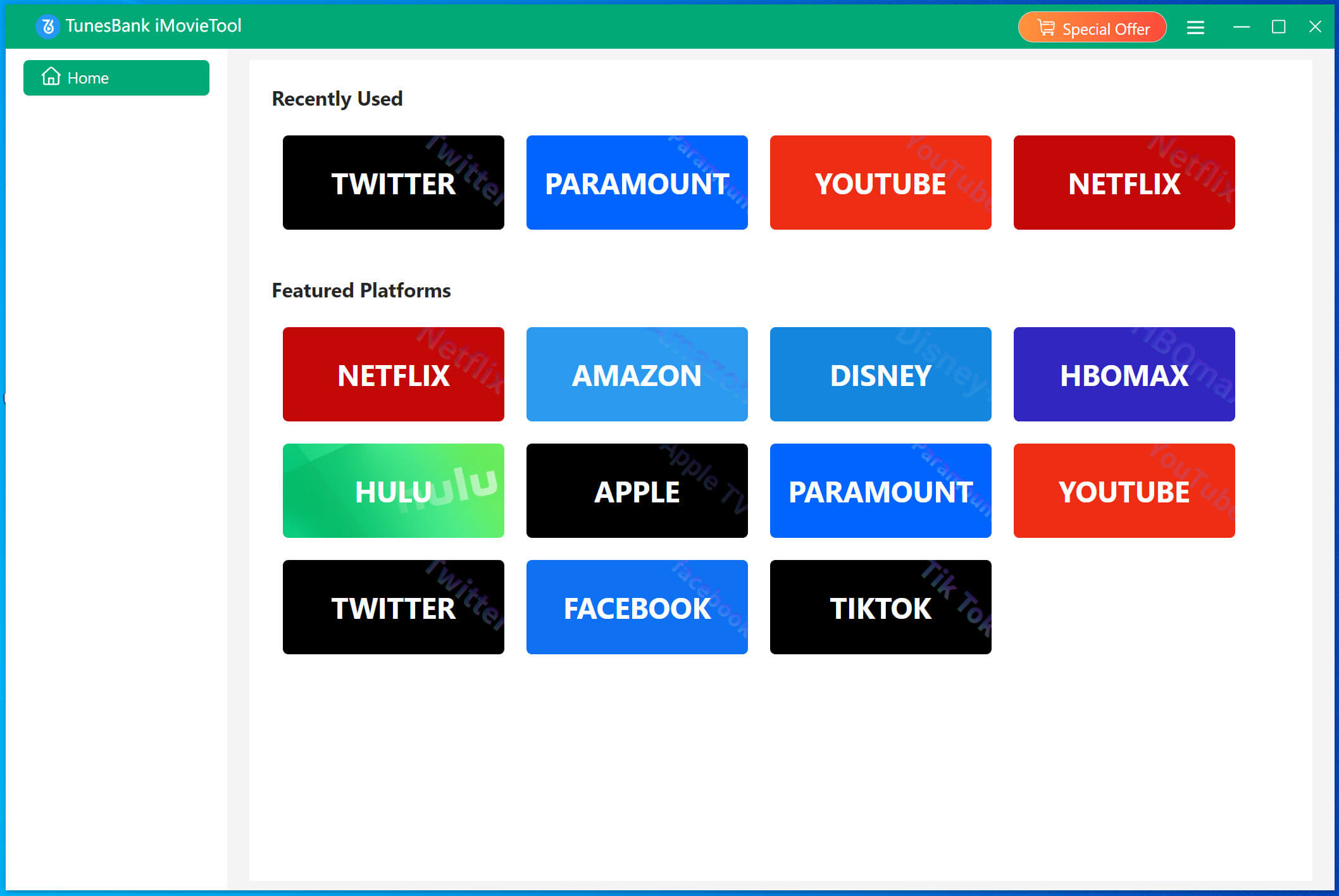
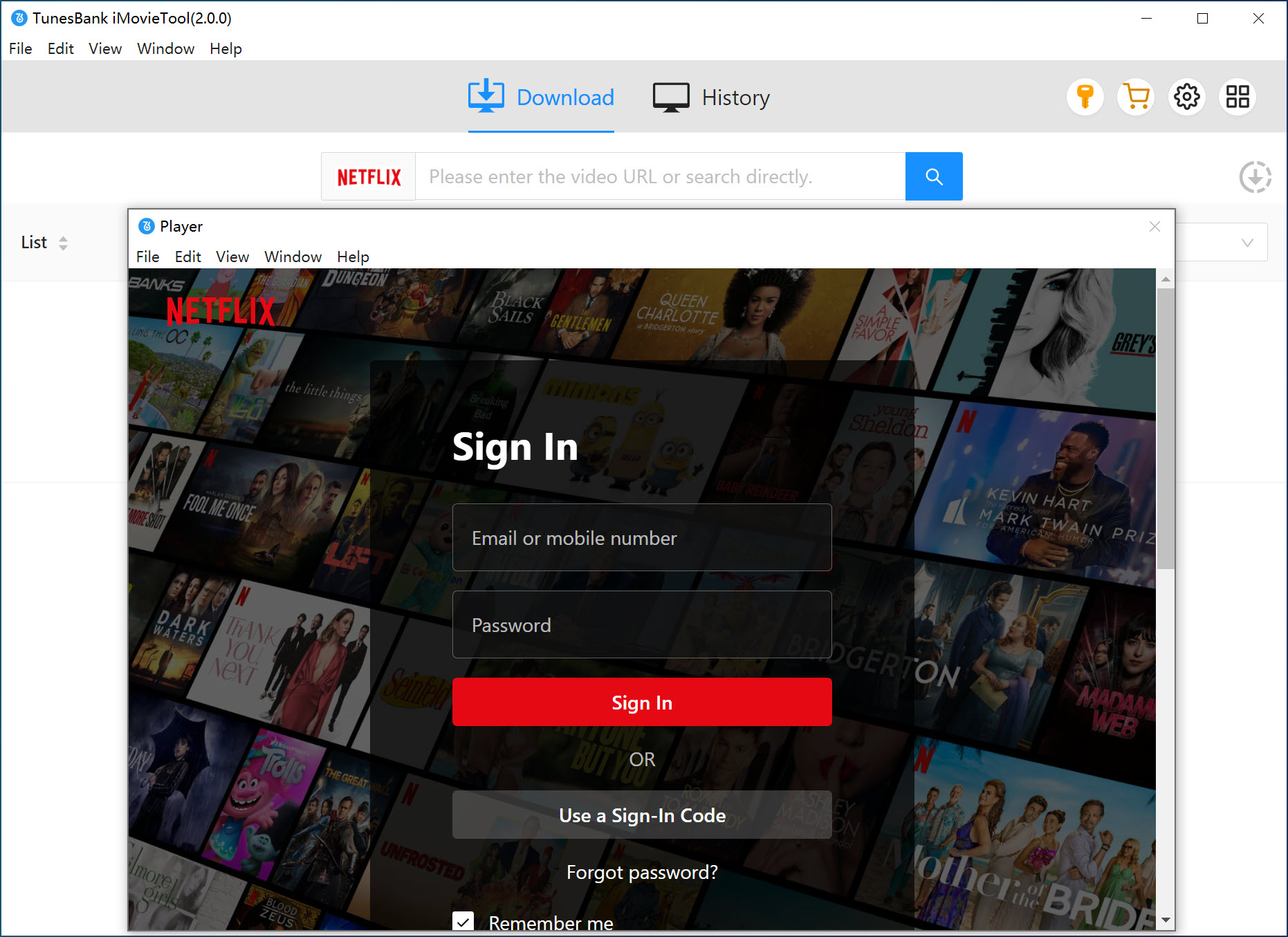
Then, you will enter the iMovieTool Netflix Video Downloader interface. Log in to your Netflix account within the built-in browser to access the full library of movies and TV shows available for download.
Step 2. Select MP4 Format for External Hard Drive
Hit on the Menu and choose Preference option. In the pop-up window, select your preferred output format (MP4 recommended), video quality (high), audio language, and subtitle options. This ensures your videos are ready to save Netflix videos to your hard drive in the best format.
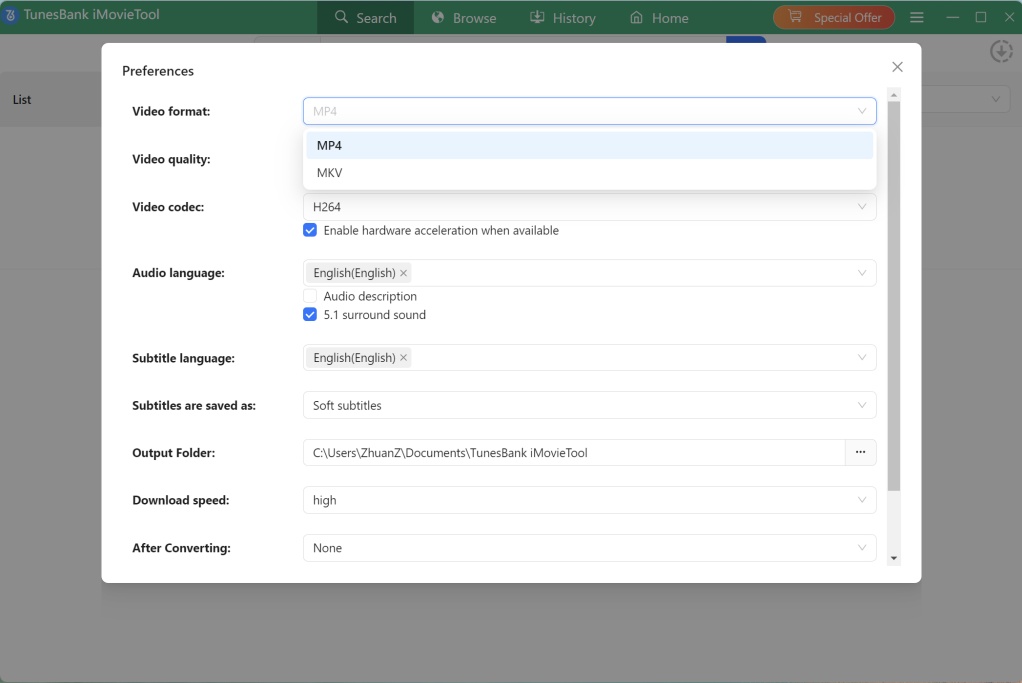
Optional Tips: Plug your external hard drive into an available USB port on your computer and set it as the output path or output folder in iMovieTool, this ensures you can download movies from Netflix to your external hard drive directly!
Step 3. Search and Add Netflix Movies
You can easily find content using three different methods inside the program.
1# Browse Online:
Move to “Browse” section, use the built-in Netflix web player inside iMovieTool to browse categories, trending shows, or recommendations. This helps you discover and select content directly without switching between apps.
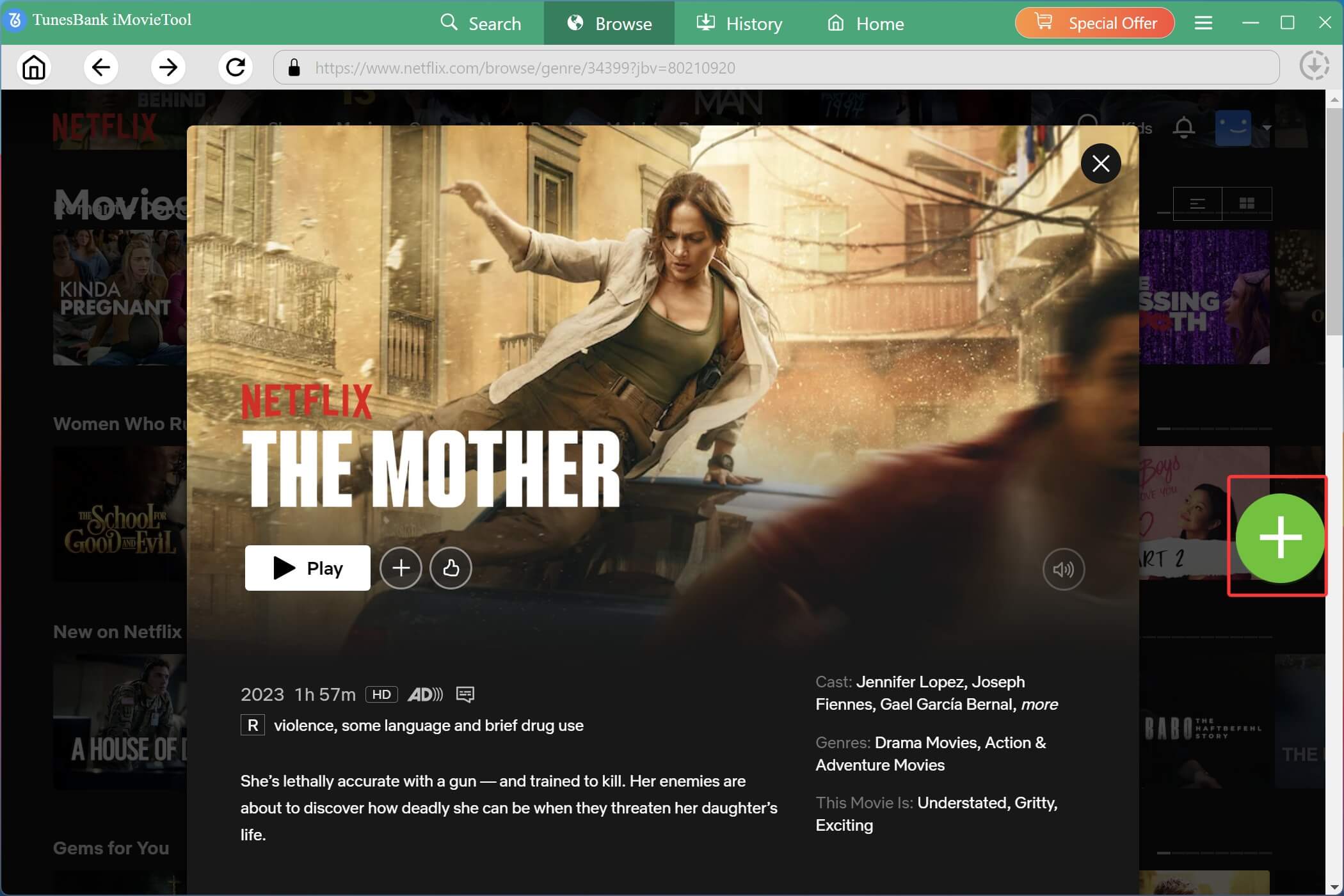
Open the movie page, and click the green “+” button to add it to the download queue. It will pop up a small window. Press on the “Download” icon to download the movie from Netflix instantly.
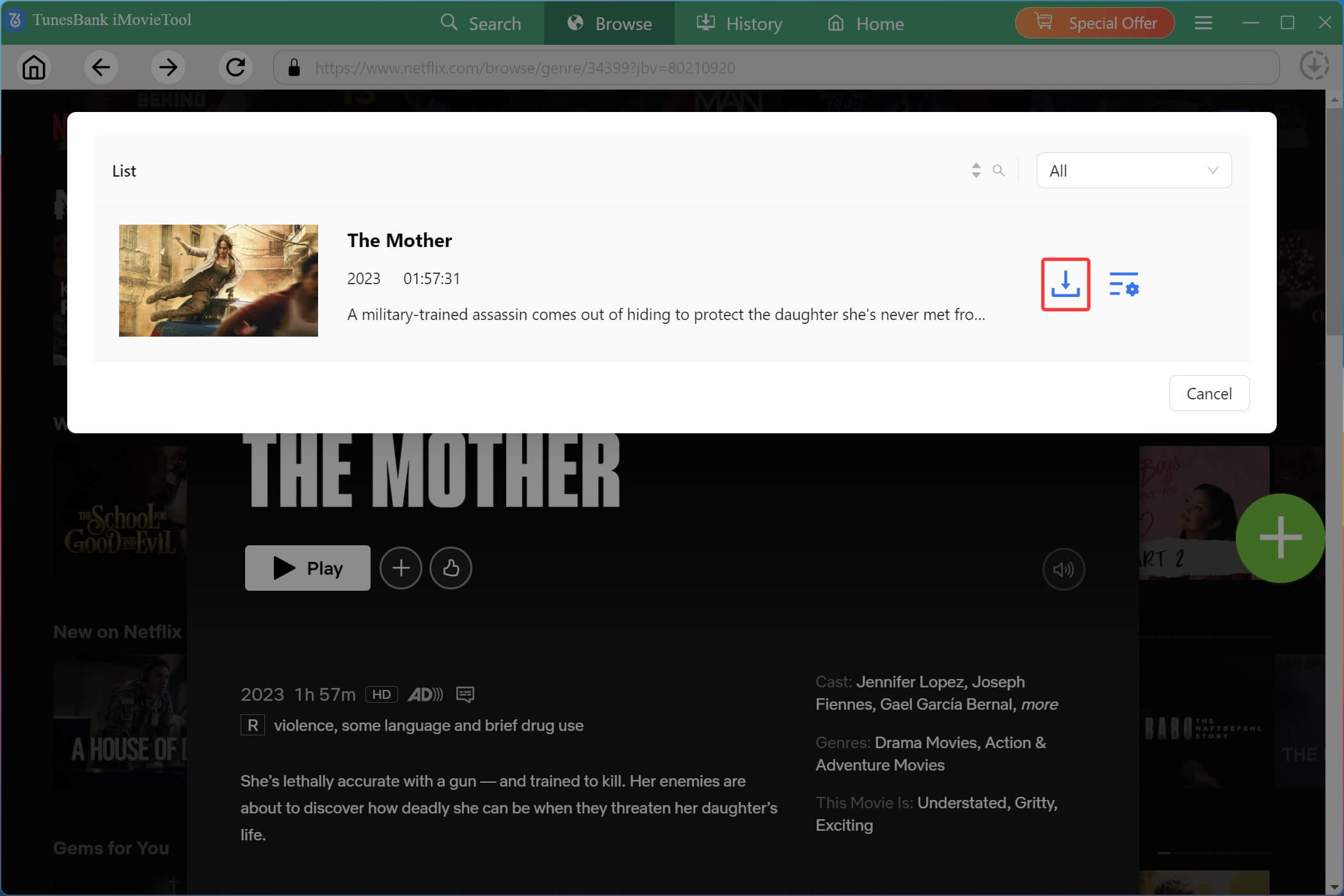
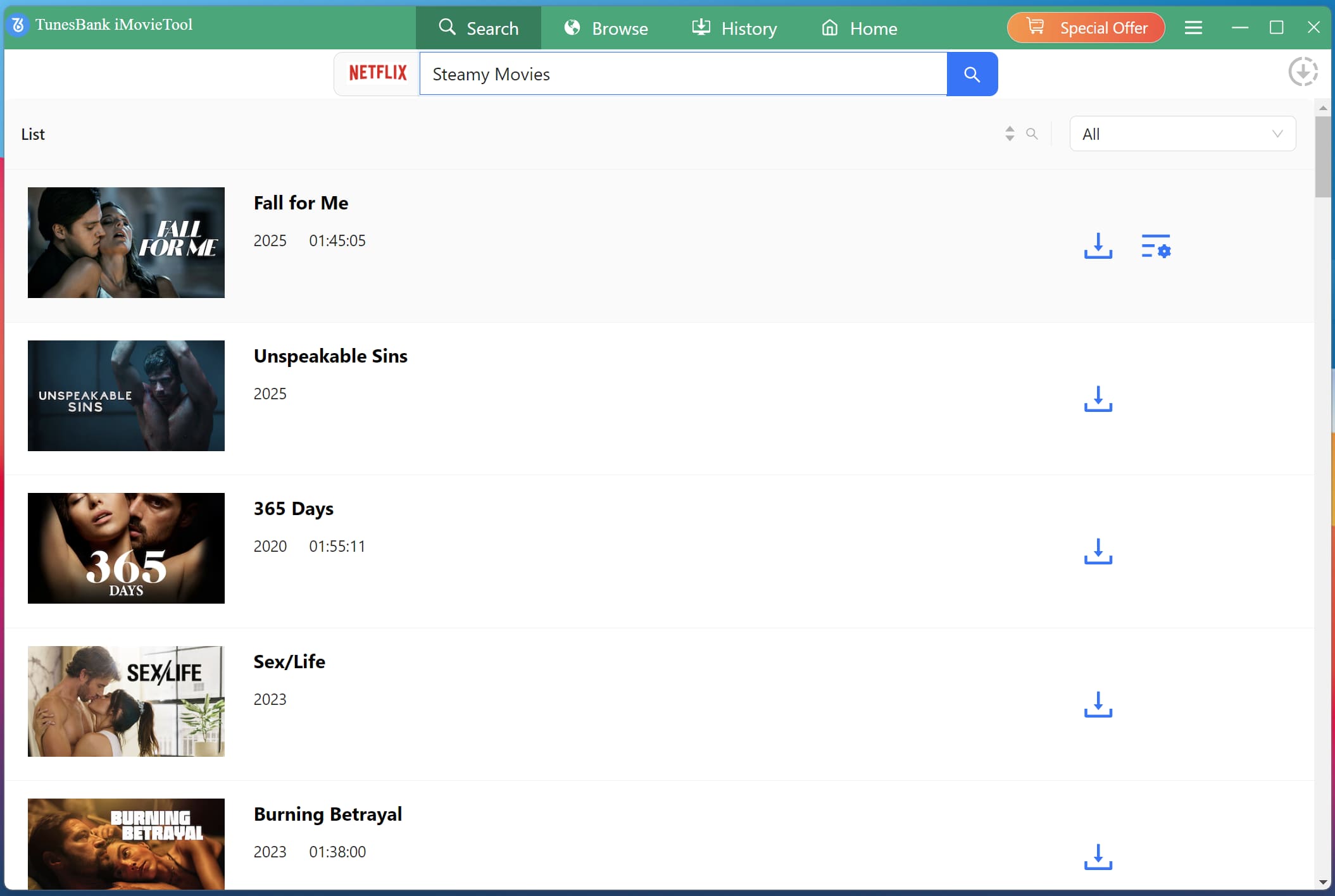
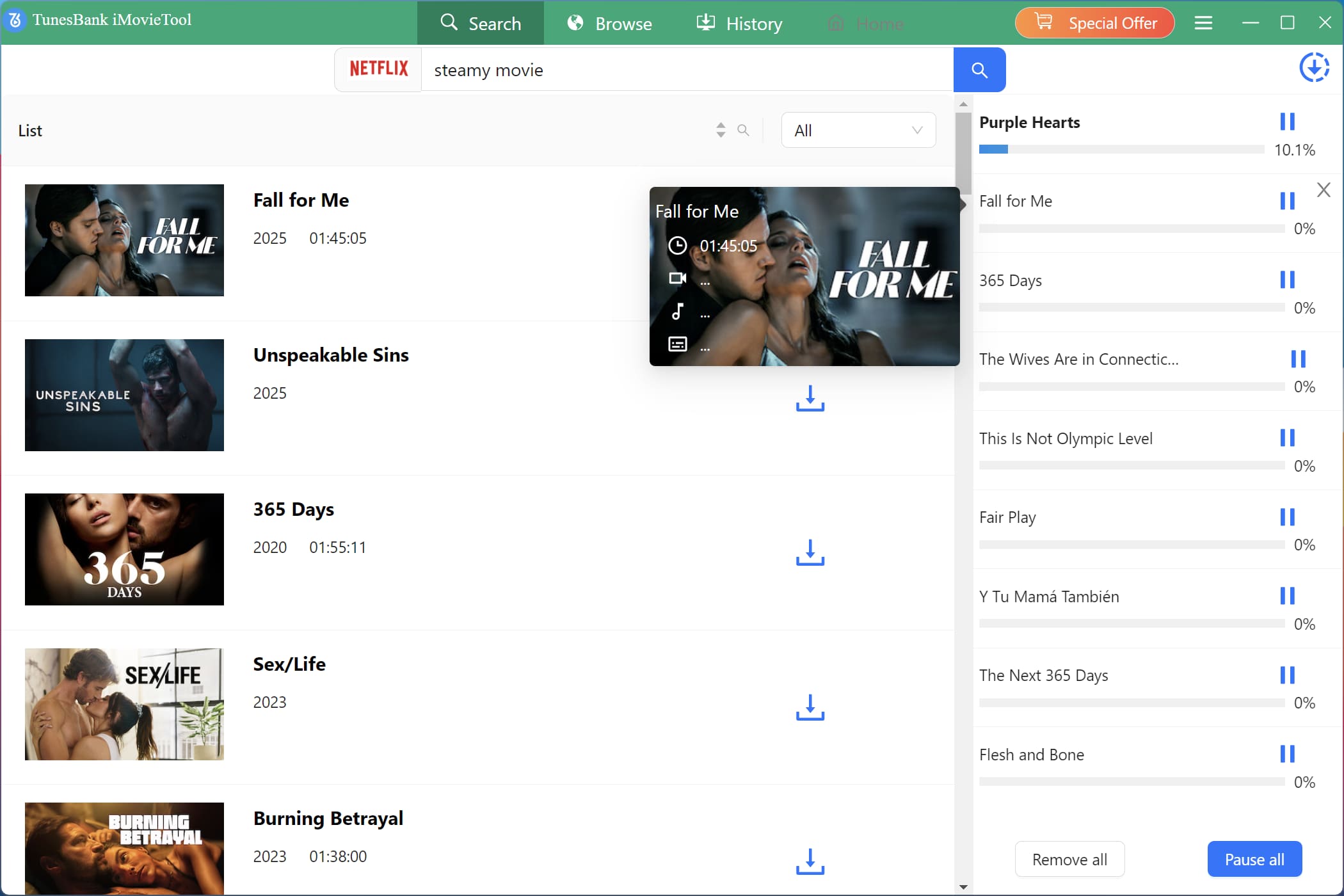
#2 Using Name: Go to “Search” section. Type the movie or show title into the search bar and press Enter. iMovieTool will display matching results from Netflix, allowing you to quickly locate the content you want to download.
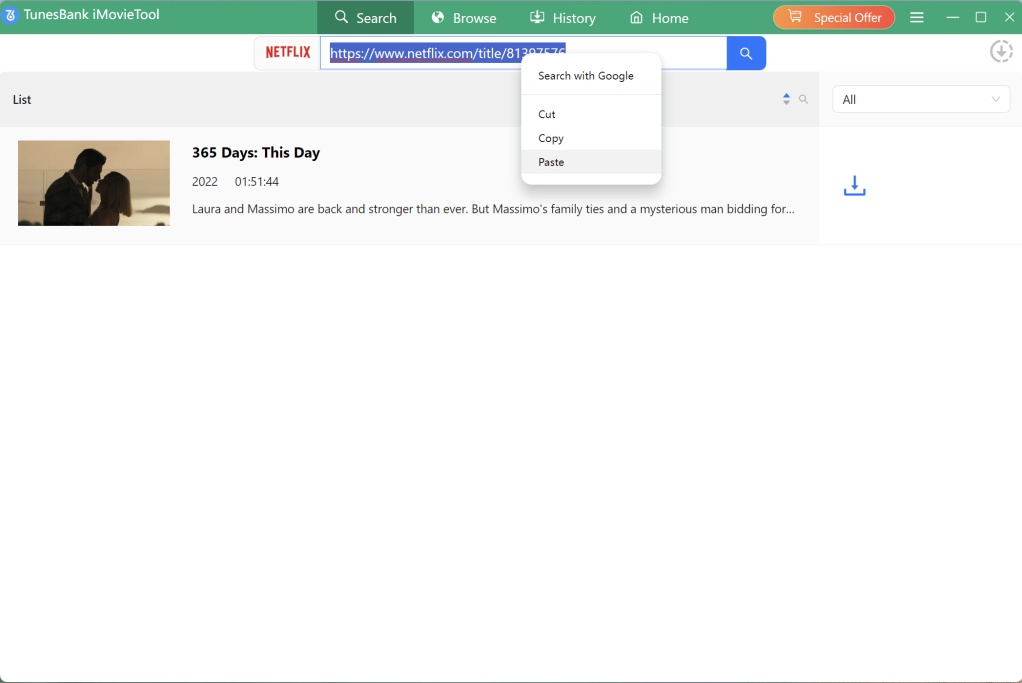
#3 Using URL: Or, copy the Netflix movie URL from the Netflix app or browser, and paste it into iMovieTool. The software will automatically analyze the link and load the movie for downloading.
Step 4. Download Netflix Movie to PC/External Hard Drive
Click on the “Download” button to begin the process. iMovieTool will begin to download the movie from Netflix web browser to your external hard drive or computer drive. Batch mode lets you add more movies and TV episodes to the download queue.
Step 5. Find the Downloaded Netflix Movies
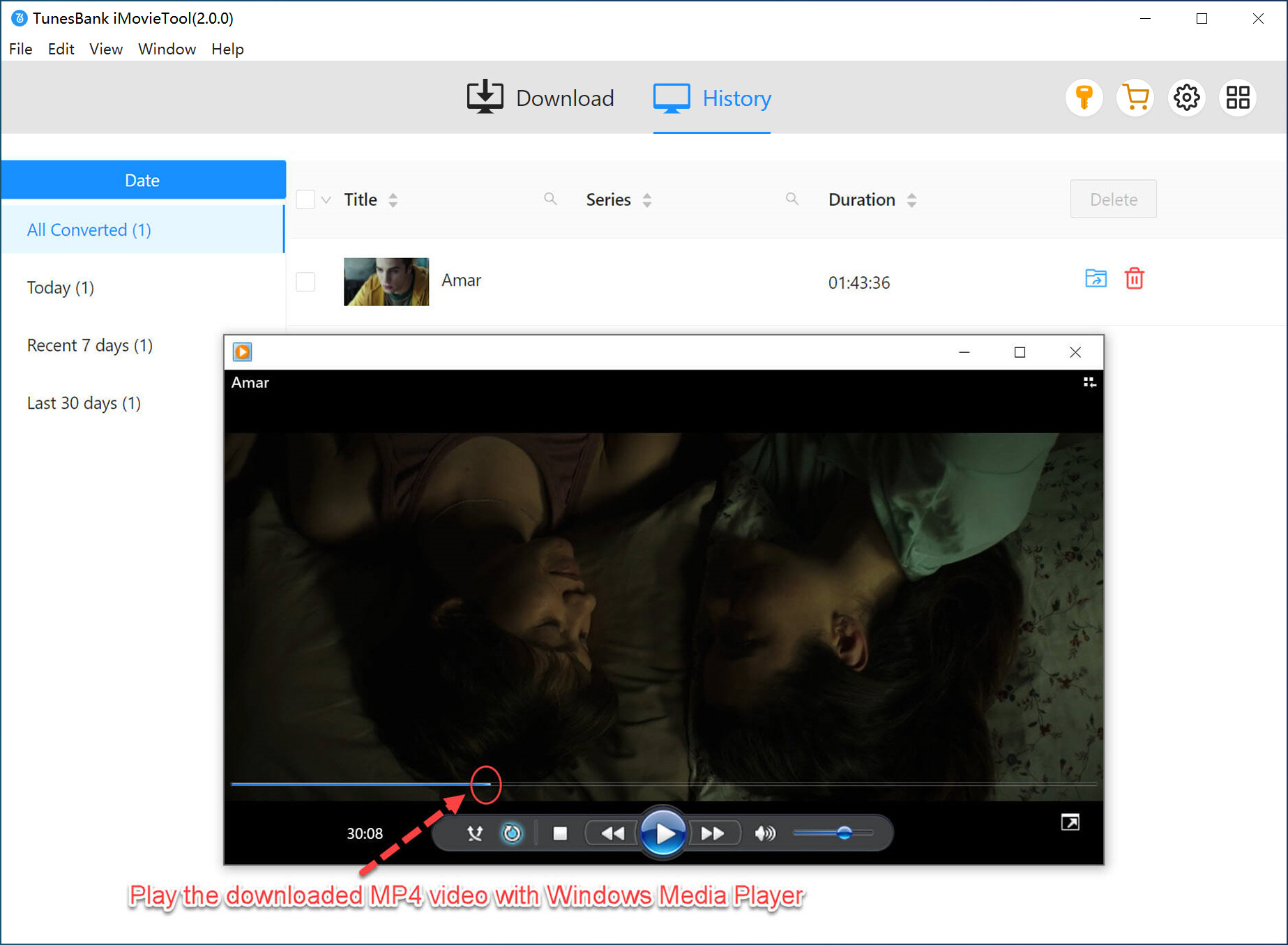
Once the download is complete, switch to the “History” section. Or directly open the output folder to locate the saved Netflix MP4 video files. These Netflix MP4 files are now ready to be copied anywhere – including your external hard drive.
Process 2: How to Transfer Netflix Movies to External Hard Drive
Step 1. Connect External Hard Drive
Plug your external hard drive into your computer using a USB cable. Wait for your system to recognize the device.
Step 2. Locate Downloaded Netflix Video Files
Open the folder where iMovieTool saved your Netflix movies. These video files are usually in MP4 format.
Step 3. Copy the Netflix Video Files
Select the downloaded Netflix movies or episodes, right-click, and choose “Copy”.
Step 4. Paste onto the External Hard Drive
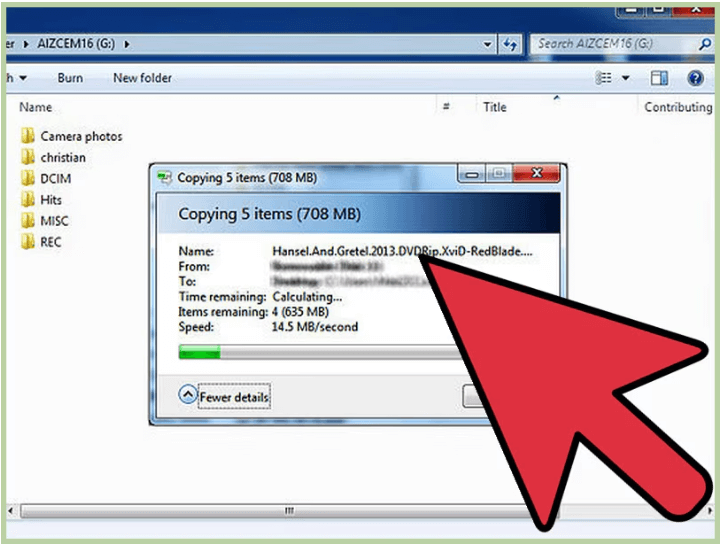
Open your external hard drive from “This PC” (Windows) or “Finder” (Mac). Right‑click inside the drive window and select “Paste”.
On PC:
On Mac:

This completes the process to transfer Netflix movies to external hard drive.
Step 5. Safely Eject Device
After the transfer completes, safely eject the external hard drive. You can then enjoy your Netlix movies anytime, even without internet access.
FAQs About Netflix Downloads on External Hard Drive
Can I move Netflix downloads from my phone to an external hard drive?
No. Netflix allows subscribers to download movies and TV shows for offline viewing, but only within its mobile apps (iOS and Android). You cannot take any downloads outside the Netflix mobile app.
To transfer Netflix downloads to an external hard drive, it is recommended to use a third-party tool like iMovieTool Netflix Video Downloader. It can get rid of all Netflix download limits and save any Netflix video as MP4 files. Afterwards, you can move these Netflix videos to any hard drive, USB drive, or devices and enjoy them offline anytime, anywhere.
How long will Netflix movies last on external hard drive?
Unlike the official Netflix app, it doesn’t have an expiration date. If you download Netflix movies as MP4 files with professional tool and store them in your external hard drive, your Netflix movies will never expire. In other words, you can keep your Netflix movies permanently on your external hard drive.
Final Words
After reading this guide, you now know how to download Netflix movies to an external hard drive. While the official Netflix app does not support on external hard drives, you need the help of third-party tool. This is where iMovieTool Netflix Video Downloader comes into rescue. It enables you to download Netflix movies and TV shows to PC/external hard drive as HD MP4 files. Then you can keep them permanently on your external hard drive or other devices without expiration and playback limits.
Now, follow our step-by-step guide, download the software, and start saving Netflix videos to your hard drive!
The Latest Articles
– Top 8 Solutions to Download Streaming Video
– Top 10 Free Movie Download Sites Recommended
– 3 Ways to Download Movies to Watch Offline
– 2 Verified Methods to Download X/Twitter Videos to MP4
– Download Twitter(X) Videos on PC, Mac and Mobile Phone
– Download Facebook Videos on PC, Mac and Mobile Phone
– 3 Ways to Download Facebook Video to MP4

Netflix Video Downloader
Download Netflix video to MP4 or MKV with multi-language audio track and subtitle kept. Up to 50X downloading speed. Easily to download your favorite movies/TV shows from Netflix to your computer for offline viewing.