








 United States (English)
 Japan (日本語)
 Russia (русский)
 Germany (Deutsch)
 France (Français)
 Spain (Español)
 Italy (Italia)
 Portugal (Portugues)
 China (繁体中文)
 Turkish (Türk dili)
 Dutch (Nederlands)
 Korean(한국인)
 Saudi Arabia(عربي)
 Download Netflix Movies and TV shows to watch offline.
Looking for ways to save your favorite Netflix content to your SD card and free up space on your device? This guide shows you how! Follow 2 simple methods to download and store Netflix videos to SD card with ease.
For mobile users, you can download videos from Netflix to watch offline if you have an active subscription. However, sometimes there is no sufficient storage space left on your phone or tablet to store downloaded Netflix videos. Hence, you may want to download Netflix to SD card.
Here comes the questions: Can you download movies from Netflix to an SD card? How can you do this to free up space on your device? Keep reading. This article will explore two methods to save Netflix downloads on SD card easily. You can even backup and save your favorite Netflix movies and shows on an external SD card without expiration! Let’s dive in.
Method 1. Download Netflix Video on SD Card Directly
For Netflix subscribers with an Android smartphone or tablet, or Amazon Fire tablet that support microSD card, congratulations! It is quite easy to save Netflix downloaded videos to SD card by changing the Netflix app settings. This way, you can enjoy better storage management and offline viewing.
Note:
● This method is not available for iOS users. You can skip ahead to Method 2 for an alternative solution.
● Netflix videos saved to a MicroSD card are DRM-protected cached files and can only be played within the Netflix app.
Here we take an Android phone as an example to show you detailed steps to save Netflix downloads to SD card on Android.
Step 1. Insert your microSD card into your Android phone.
Step 2. Open the Netflix app. Tap your profile icon, go to “More” and select “App Settings”.
Step 3. Select “Download Location”, choose “SD Card” as the default download location.
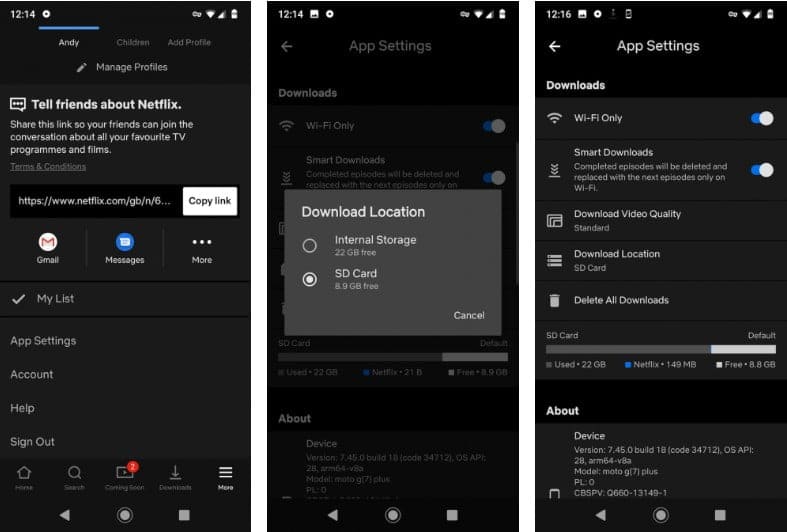
Step 4. Browse and download your favorite movies or shows.
Step 5. After which, the Netflix download will automatically be saved to your SD card.
Method 2. Store Netflix Downloads on SD Card Permanently
While the official method makes it easy to download Netflix content to SD card, it also comes with strict limitations. For instance, the Netflix downloads will expire after 7 or 30 days. All downoaded Netflix videos cannot be played outside the app, and are only supported on Android and Amazon Fire tablets.
If you want to store Netflix downloads to SD card permanently and enjoy flexible playback on other devices from SD card, you need a professional tool that removes these restrictions. iMovieTool Netflix Video Downloader can be the ideal solution. It integrates the official Netflix web browser, allowing you to download Netflix movies and TV shows to common formats such as MP4 and MKV that keep the best quality up to 1080p.
Better yet, it removes DRM protection from Netflix videos during the conversion process, while preserving the original audio tracks and multiple subtitle options. This means you can transfer downloaded Netflix videos to external SD card, USB drive, external hard drive, and keep them forever without worrying about expiration dates or playback restrictions.
Features of iMovieTool Netflix Video Downloader:
- Download Netflix movies, TV shows, all videos to Mac or PC
- Built-in web browser, no Netflix app is needed
- Download Netflix videos in MP4 or MKV format
- Preserve HD quality (up to 1080p) and original audio tracks
- Keep multiple audio languages and subtitle tracks
- Offer multiple subtitle options: soft, hard, and external (SRT/VTT)
- Batch download Netflix titles with up to 50X faster speed
How to Store Netflix Downloaded Videos to SD Card as MP4 Files?
Step 1. Run iMovieTool Netflix Video Downloader
Download and install TunesBank iMovieTool Video Downloader on your Windows PC or Mac. Launch the software, and select Netflix service from the main interface.
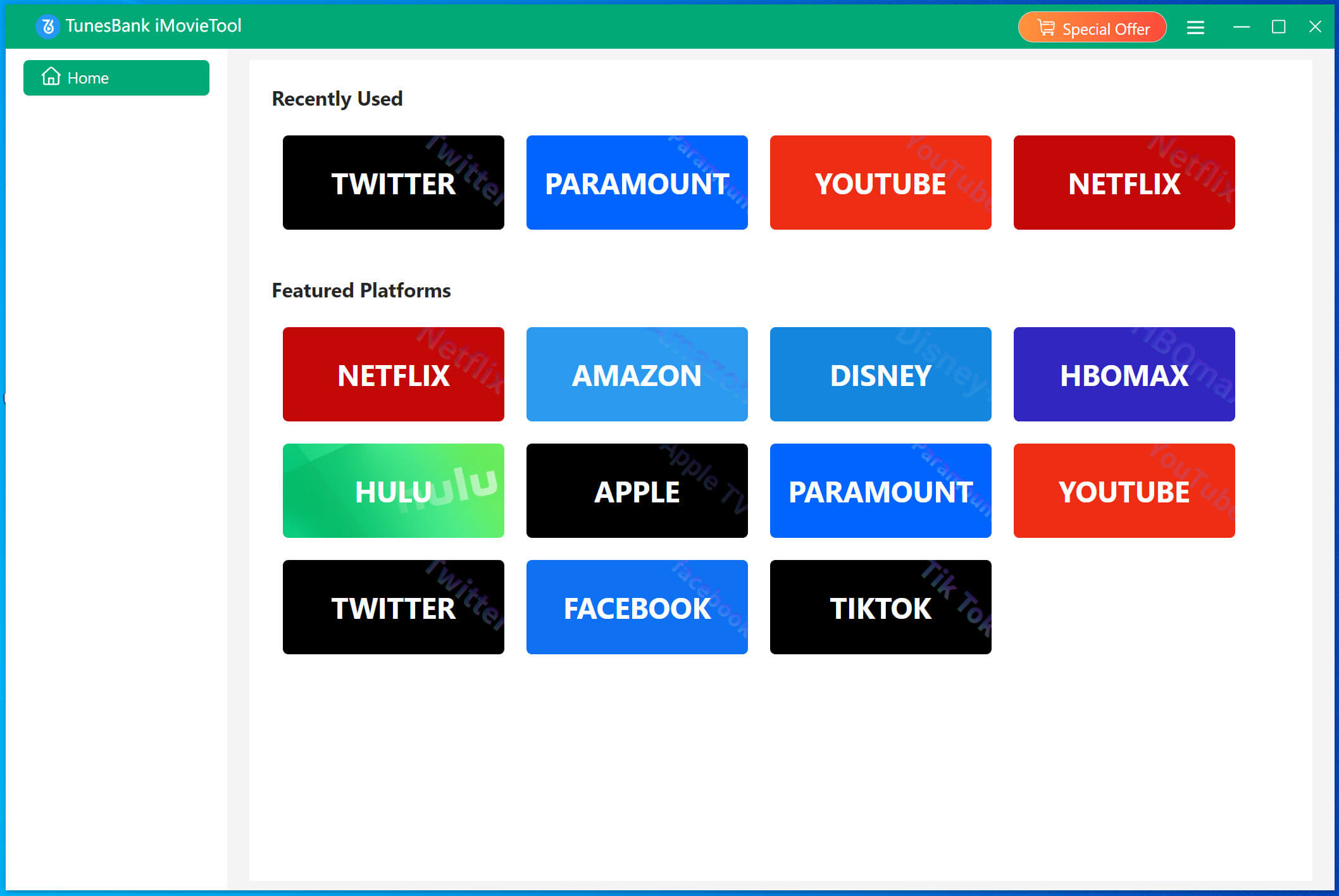
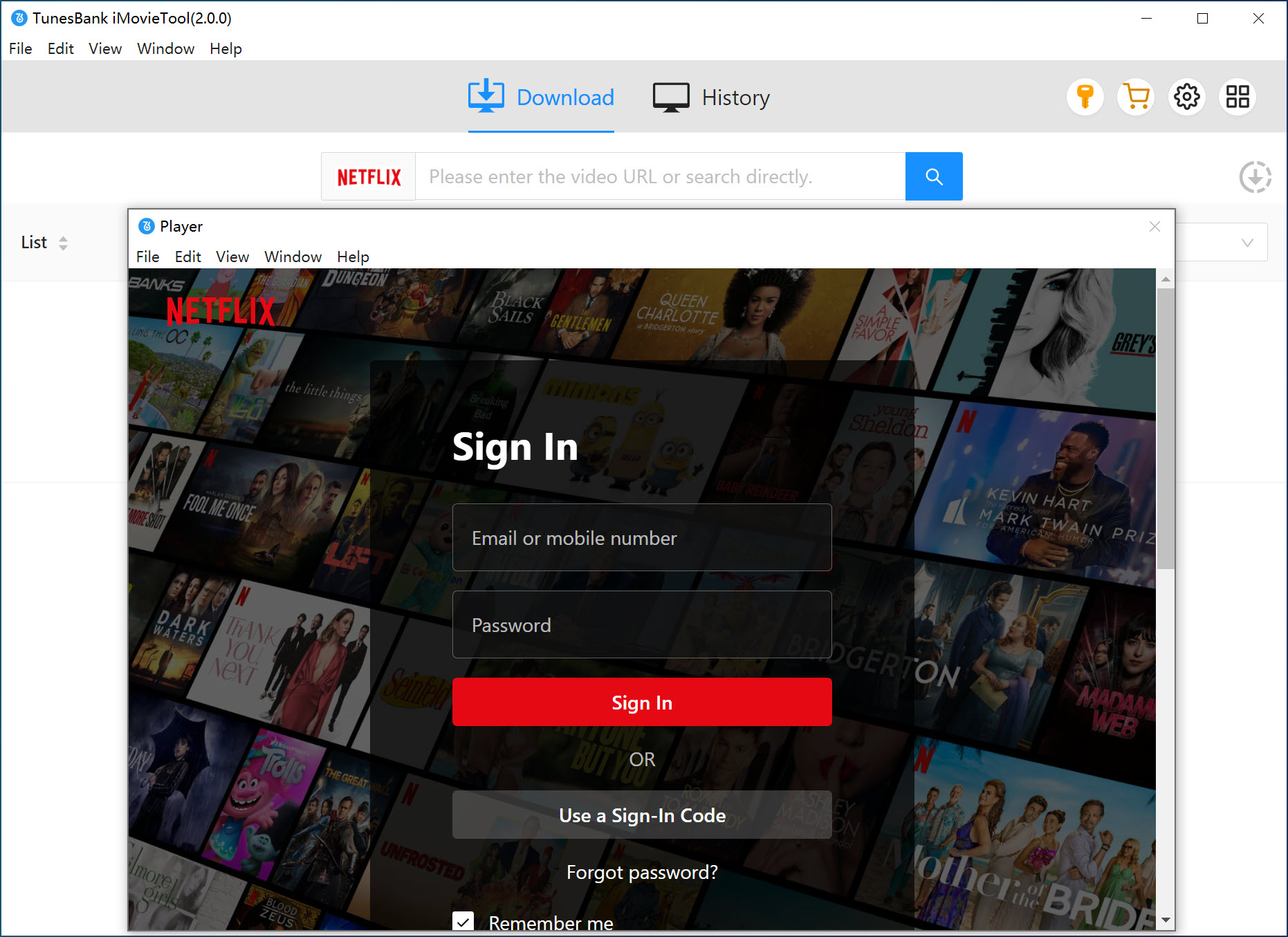
Next, you will enter the iMovieTool Netflix Video Downloader, please log into your Netflix account within the built-in browser. This allows you to access and select the content you want to download.
Step 2. Set Download Parameters
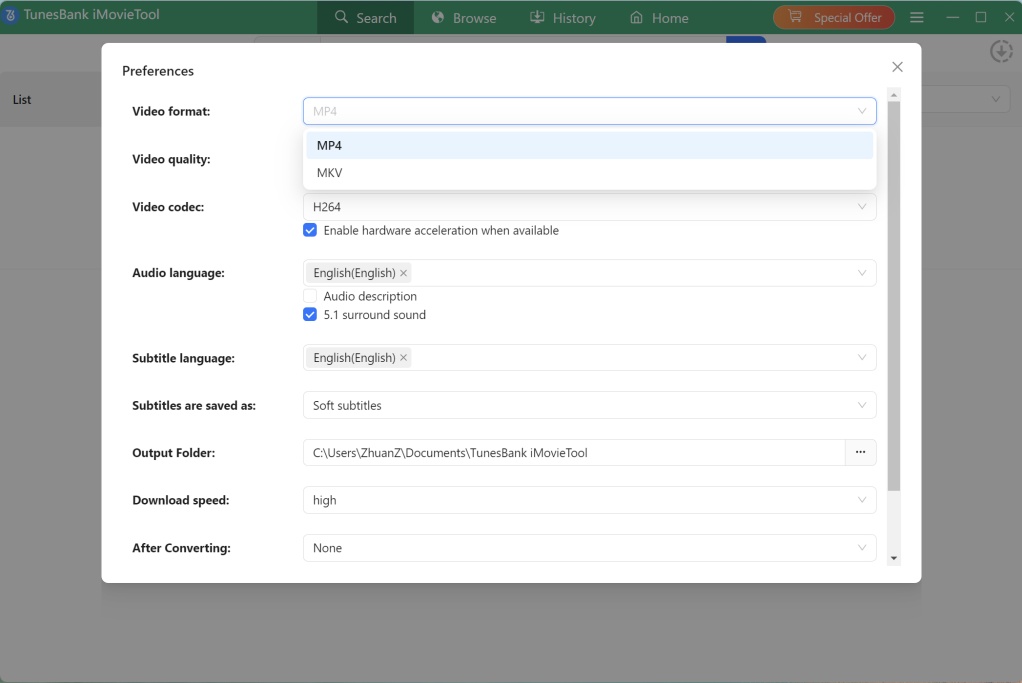
Click the Menu icon > Preference to open the settings window. You can choose your preferred video format, video quality, audio language, and subtitle preferences. To copy and store Netflix downloads onto SD card, here we pick MP4 format.
Step 3. Add Netflix Videos to Download
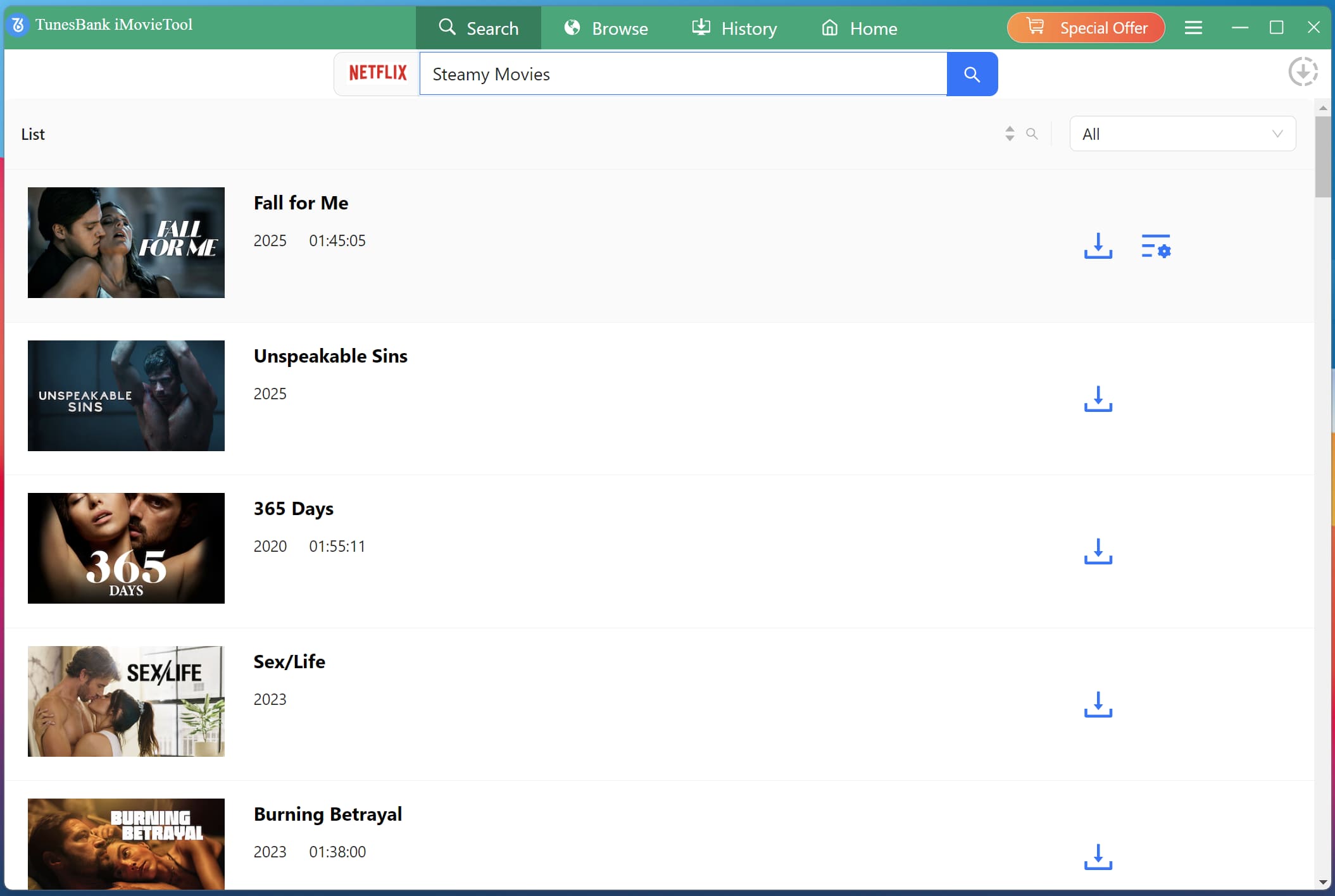
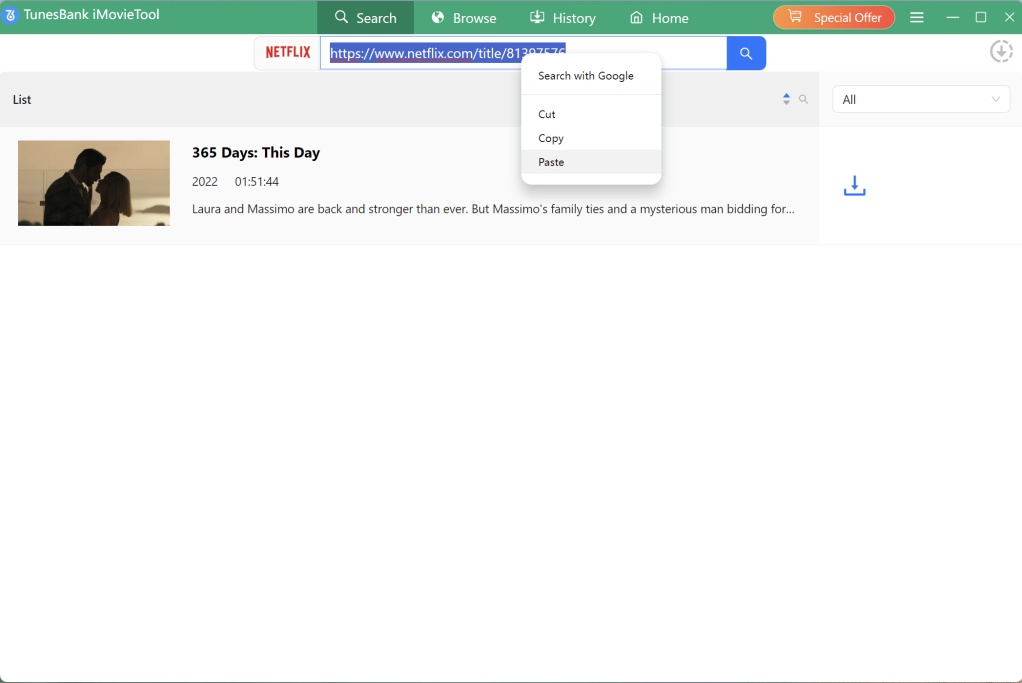
You can either paste the Netflix URL of the movie/show into the search box, or search by name using keywords. iMovieTool will then list matching titles in the interface. Select the one you want to download.
1# Using Name: Turn to the “Search” section. You can either enter the movie or TV show title or keyword in the search bar, then select the desired content from the results to prepare for download.
2# Using URL: Copy the Netflix video link and paste it into iMovieTool for accurate detection and fast access to the content.
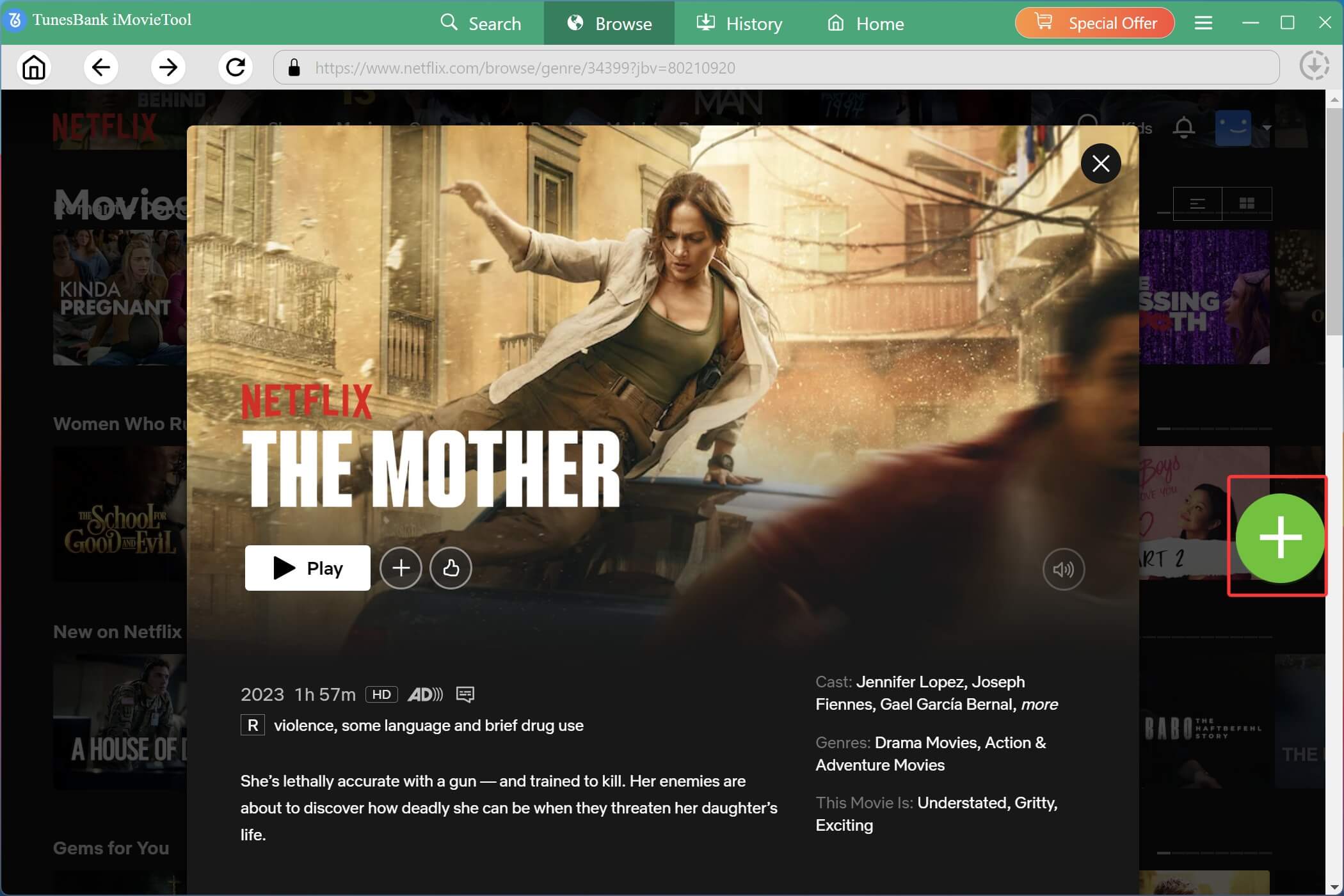
3# Browse Online: Under “Browse” section, browse and explore categories, trending shows, or your watchlist directly within the program. Open the video page and click “+” icon to add it to the download queue.
Step 4. Download Netflix Video to Computer in MP4
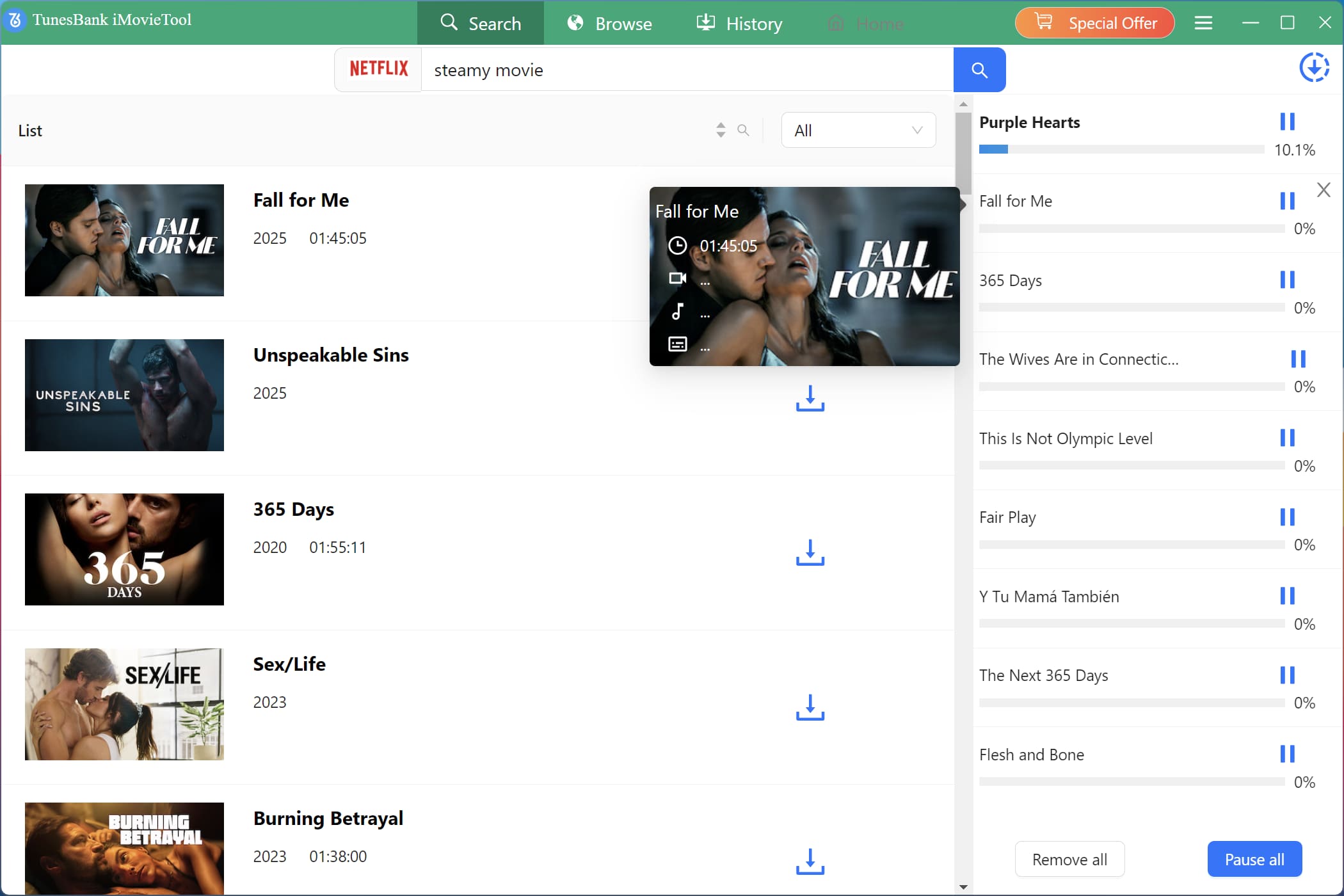
If ready, simply press on the “Download” button to start saving Netflix videos to your computer. iMovieTool will process the content and convert it into a compatible MP4 format for easy storage and playback.
Step 5. Get Downloaded Netflix Videos
After the download is complete, go to the “History” section. Click the “Blue Folder” icon next to any title to locate your saved Netflix videos. All Netflix video files are stored locally and are ready to be transferred to your SD card.
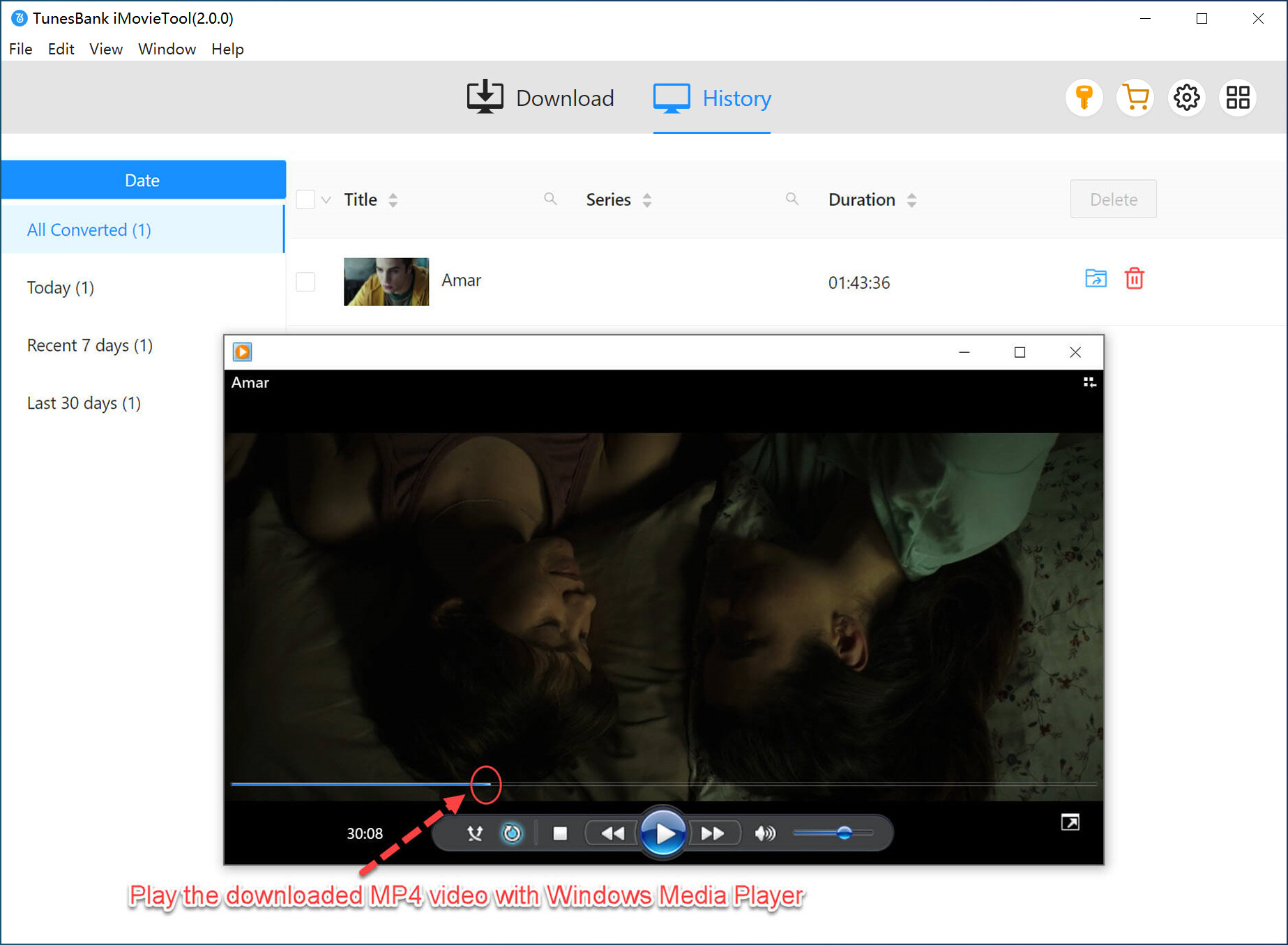
Step 6. Transfer Netflix Downloads to External SD Card
Now, insert your SD card into your computer using a card reader, then locate the downloaded Netflix videos. Simply drag and drop or copy and paste the Netflix MP4 files onto the SD card.
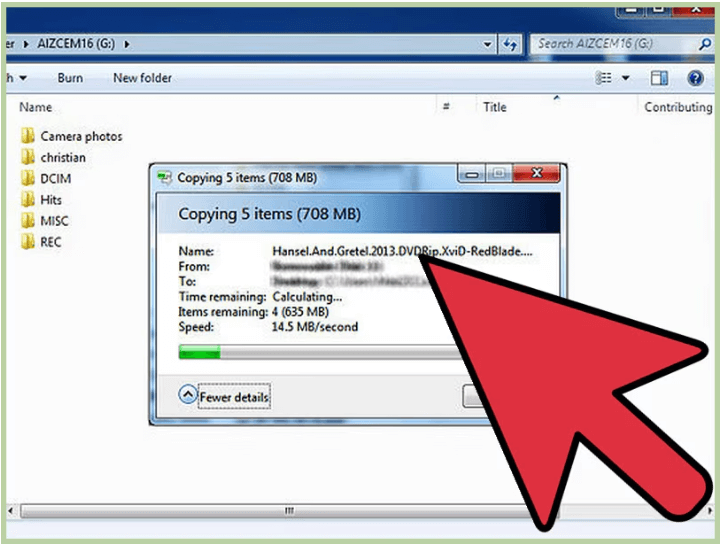
Once completed, you can store Netflix downloads on SD card forever and enjoy them on multiple devices without restrictions.
Conclusion
This article has walked you through two methods on how to download and store Netflix videos to an SD card. Changing the download location to SD card on the Netflix mobile app can be a viable solution for most users. However, it comes with limitations such as expiration dates and restricted playback. For users who want a permanent and flexible solution, iMovieTool Netflix Video Downloader is the optimal option.
It can download and convert videos from Netflix to HD MP4, allowing you easily move Netflix downloads to SD external card, keep and and enjoy your favorite Netflix content anytime, anywhere. You can download this good product today and give it a try!
The Latest Articles
– Top 8 Solutions to Download Streaming Video
– Top 10 Free Movie Download Sites Recommended
– 3 Ways to Download Movies to Watch Offline
– 2 Verified Methods to Download X/Twitter Videos to MP4
– Download Twitter(X) Videos on PC, Mac and Mobile Phone
– Download Facebook Videos on PC, Mac and Mobile Phone
– 3 Ways to Download Facebook Video to MP4

Netflix Video Downloader
Download Netflix video to MP4 or MKV with multi-language audio track and subtitle kept. Up to 50X downloading speed. Easily to download your favorite movies/TV shows from Netflix to your computer for offline viewing.








2 Replies to “How to Store Netflix Downloads on SD Card”
Comments are closed.