







 United States (English)
 Japan (日本語)
 Russia (русский)
 Germany (Deutsch)
 France (Français)
 Spain (Español)
 Italy (Italia)
 Portugal (Portugues)
 China (繁体中文)
 Turkish (Türk dili)
 Dutch (Nederlands)
 Korean(한국인)
 Saudi Arabia(عربي)
 Download Netflix Movies and TV shows to watch offline.
Are you looking for a way to watch Netflix on a plane during long flight? Learn the step-by-step guides on how to download Netflix movies, TV shows on your Windows laptop, MacBook, iPhone, or Android phone. Therefore, you can watch Netflix offline on a plane on laptop or phone without Wi-Fi.
While streaming movies and TV shows on Netflix is convenient, you may encounter poor internet connections during flights or limited mobile data. Can you watch Netflix on a plane? The answer is YES! Netflix allows mobile users to download supported titles in the app, making it possible to watch downloaded Netflix movies and TV shows on a plane without network.
However, it would be a challenge for Windows/Mac users, as Netflix no longer provides an official method to download Netflix videos on laptops or computers. That’s why we created this article. Here you will learn how to bypass Netflix’s official download limits and discover how to watch Netflix on a plane on laptop or phone offline without relying on in-flight Wi-Fi.
Part 1. Watch Netflix on a Plane on MacBook/Windows Laptop
Netflix has removed the download function from its Windows app, and it has never released a dedicated Netflix app for Mac. This means laptop users can only stream Netflix online with network connection. To watch Netflix movies offline on laptop, you can ask help from a third-party Netflix downloader.
iMovieTool Netflix Video Downloader is developed to help you get rid of Netflix official download limits and remove DRM protection in Netflix videos. Available on Windows and Mac, iMovieTool lets you download Netflix movies, TV shows, documentaries, anime, and other videos directly to your laptop or computer without relying on the Netflix app. Moreover, it saves Netflix videos in widely compatible MP4 or MKV formats with resolutions up to FHD 1080P. Thus, you can keep Netflix downloads permanently, and watch Netflix offline on a plane on MacBook, Windows laptop using other players! Plus, you may transfer your Netflix downloads to smartphone, tablet, PSP, Xbox, USB flash drive, and more devices for flexible offline playback.
What’s more, the software saves audio tracks and subtitles in multiple languages. For example, it allows you to download English dubbed animes from Netflix to watch offline! Better still, iMovieTool supports batch-download entire TV shows or seasons with just a few clicks, and it works at 50 times faster than the Netflix app, saving you time before your trip.
More Features of iMovieTool Netflix Video Downloader:
- Download Netflix content to Mac/PC in standard MP4 or MKV formats.
- Browse, search, and download Netflix videos directly within the software.
- Enjoy crisp video quality with FHD 1080p high-definition downloads.
- Download entire seasons or multiple episodes from Netflix simultaneously.
- Preserve original audio along with dubbed languages like English, Japanese, etc.
- Download internal, external, or hardcoded subtitles in multiple languages.
- Advanced hardware acceleration allows you to download Netflix videos at 50X speed.
- Watch Netflix downloads offline on a plane, abroad on any device or player.
How to Download Netflix Videos on Laptop to Watch Offline
Step 1. Launch iMovieTool and Select Netflix
Download and launch iMovieTool Video Downloader and select Netflix from the supported streaming platforms.
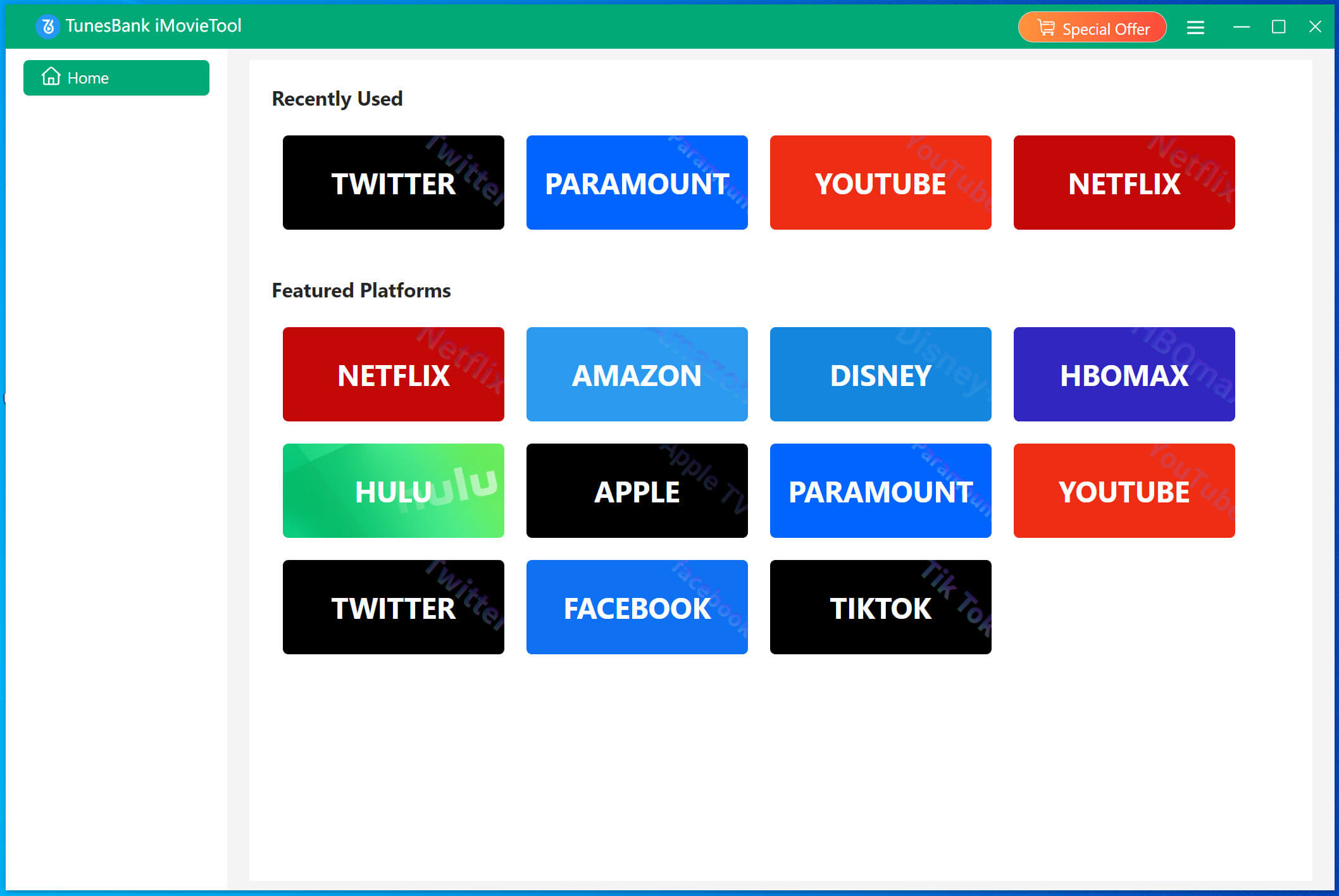
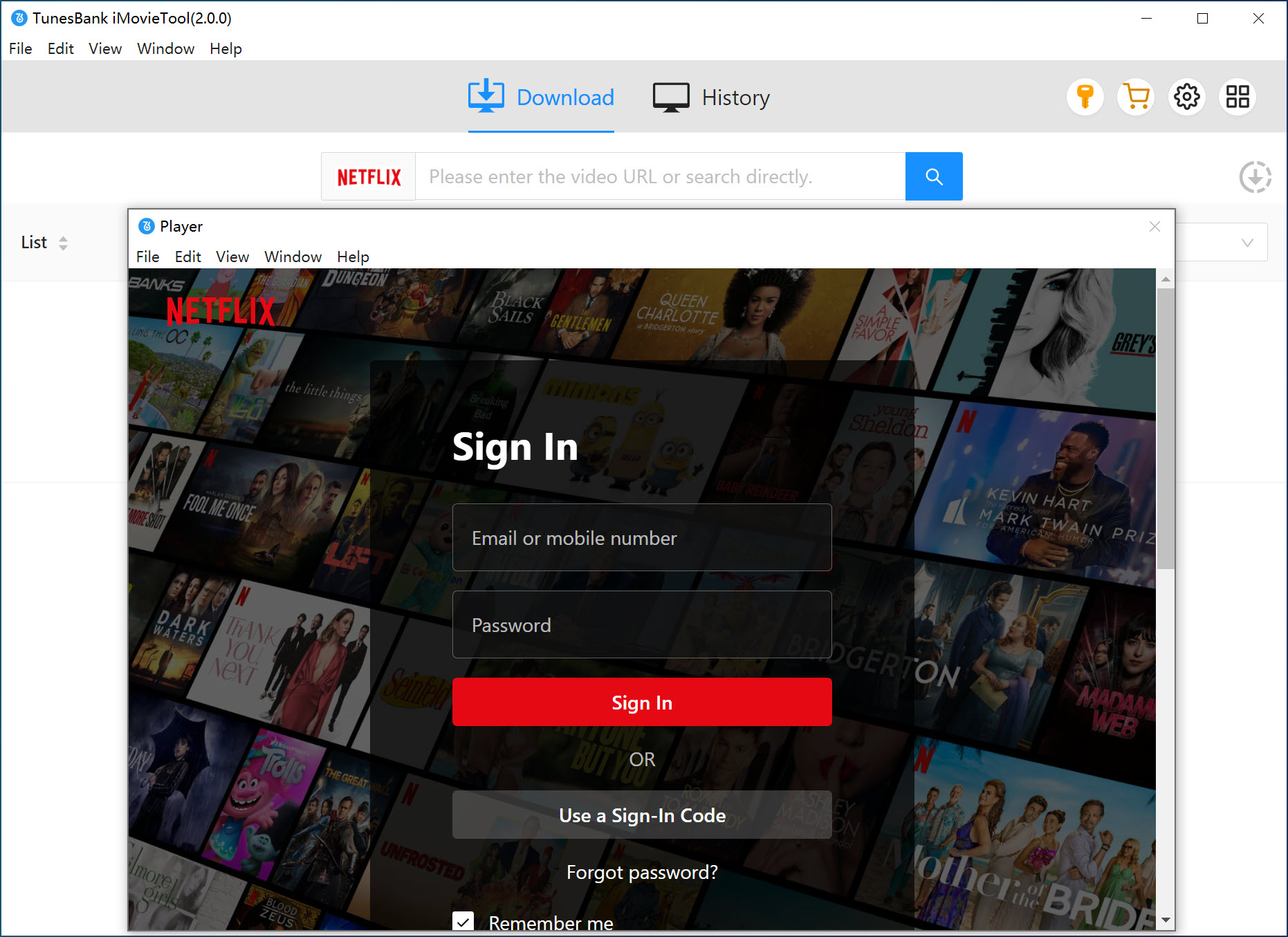
Then, you will enter the iMovieTool Netflix Video Downloader. Sign in to your Netflix account through the built-in Netflix web browser to access your personal library, recommendations, and watchlist.
Step 2. Customize Output Settings
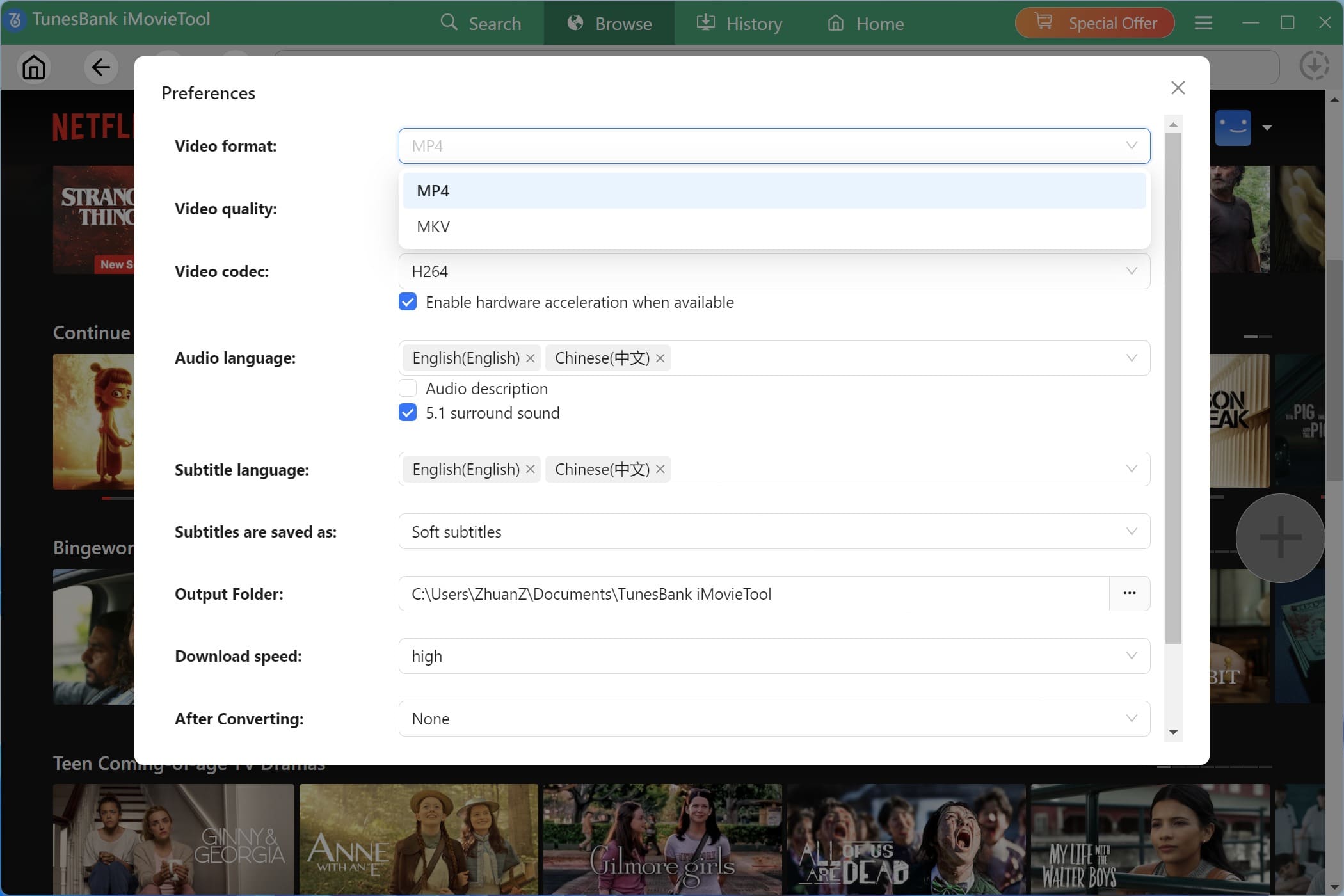
Click the Menu icon in the upper-right corner and choose Preferences. Configure your preferred output format (MP4 or MKV), video quality, output folder, subtitle mode, audio language, download speed, and other settings before downloading.
Step 3. Add Netflix Video to the Download Queue
iMovieTool offers three convenient ways to find the videos you want to download.
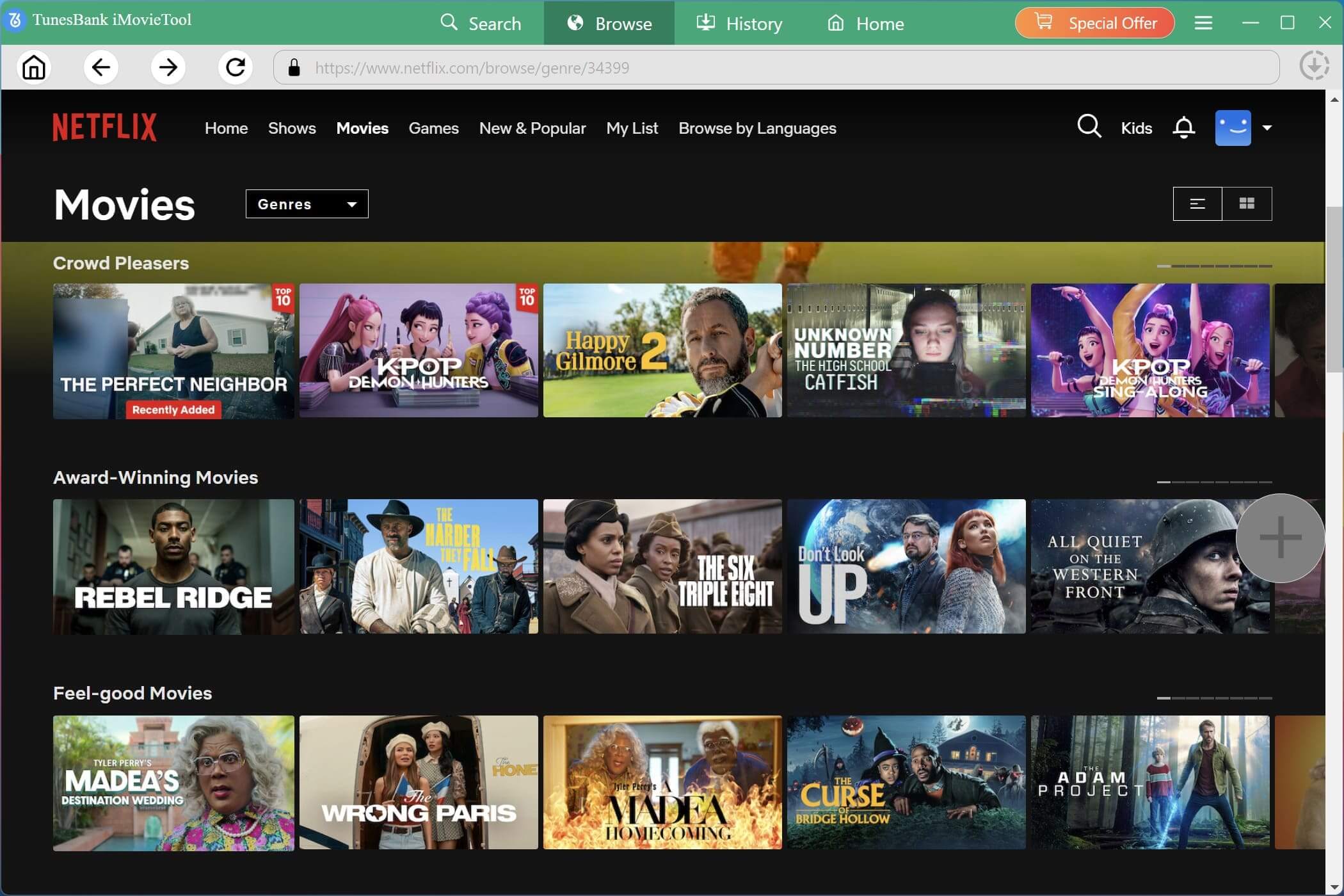
#1 Browse Online: Also, you may go to “Browse” section. Browse categories, recommendations, trending movies, or your watchlist just like you would on the Netflix website.
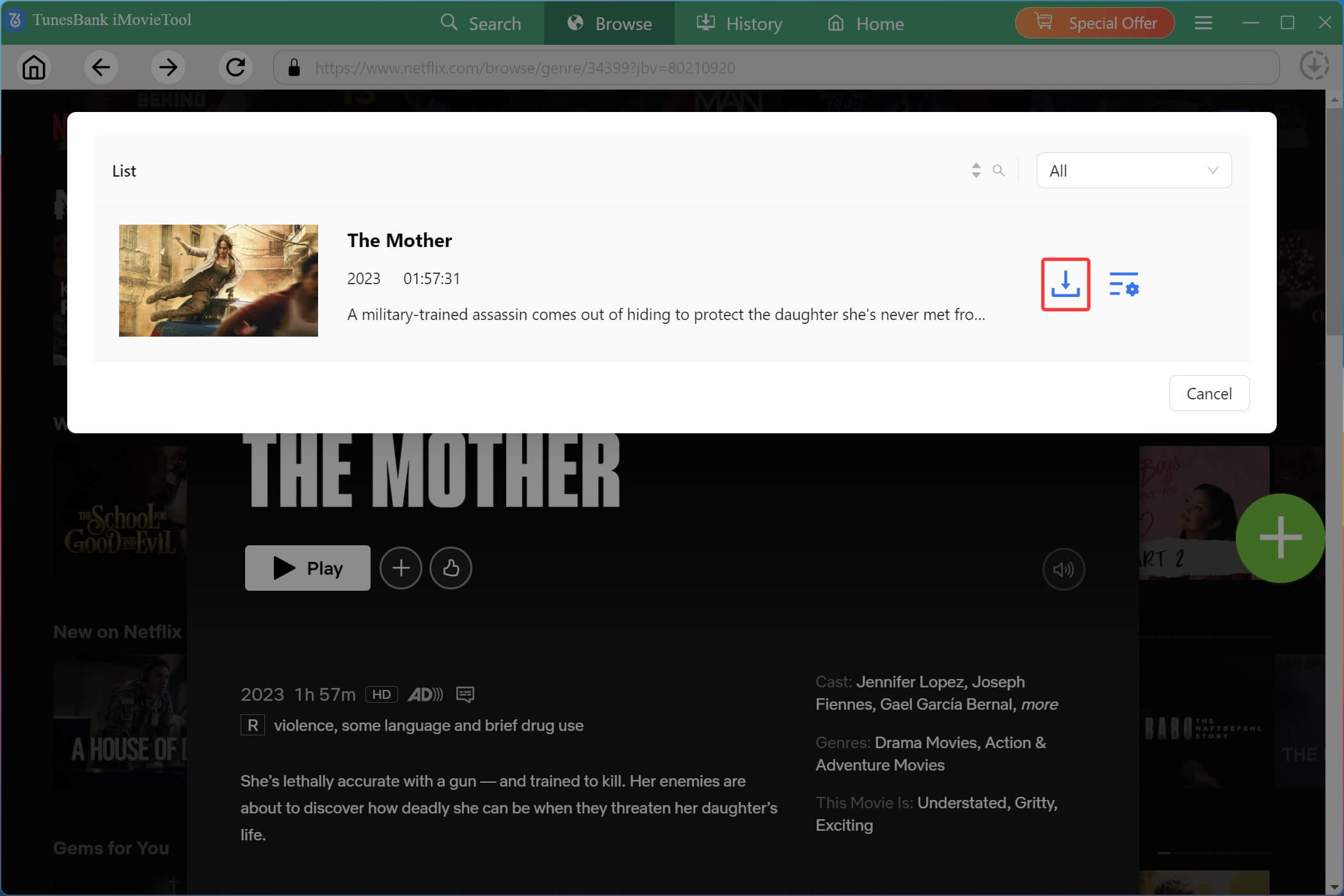
Then open any title, click the green “+” icon to add it to the download queue. It will then pop up a small window for Netflix video downloading.
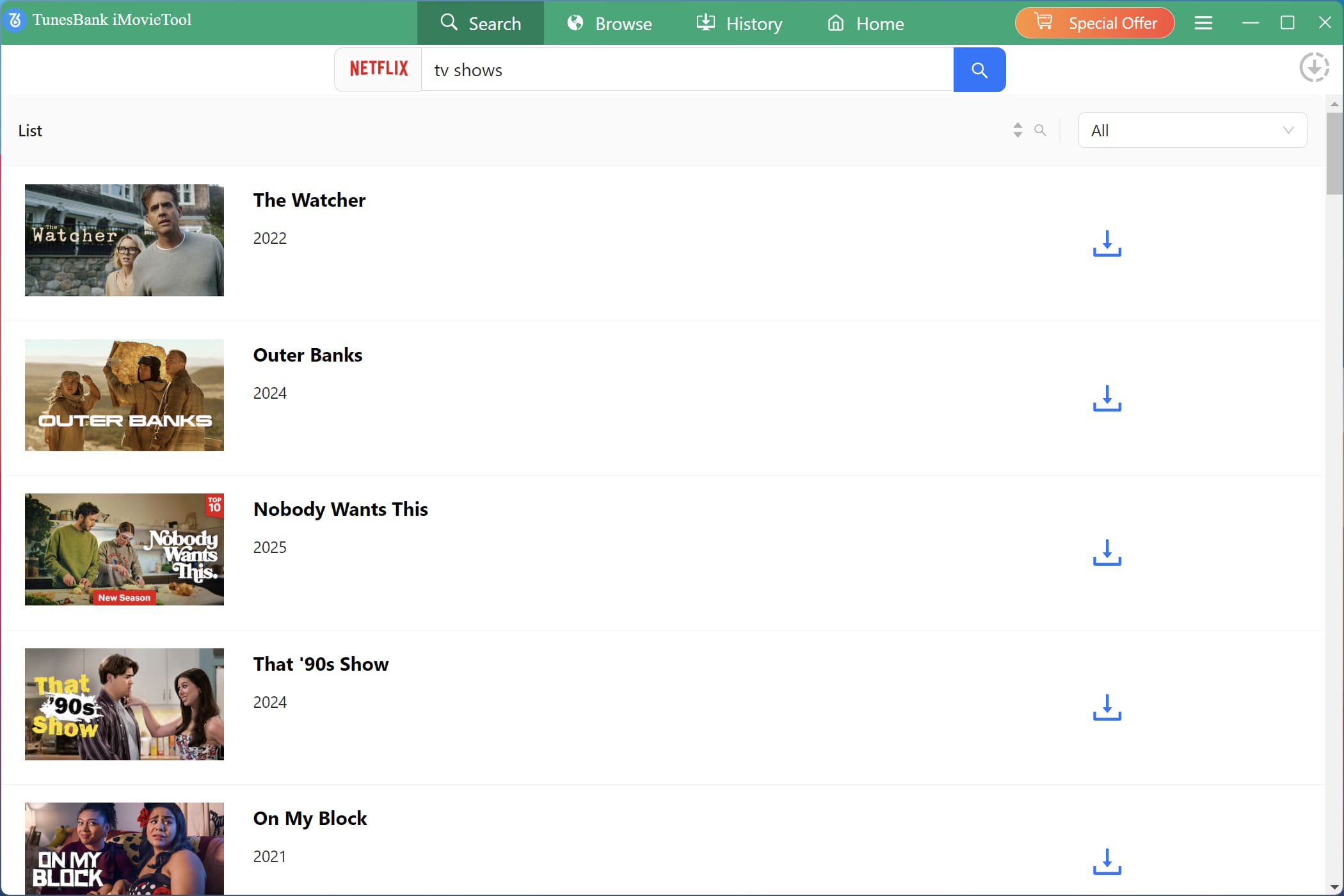
#2 Using Name: You can tap “Search” tab, enter the movie or TV show name, or keyword into the search box. iMovieTool quickly displays matching Netflix titles for you to choose from.
#3 Using URL: Copy the Netflix video URL directly from your browser, and paste the Netflix video URL into search box to locate the exact title instantly.
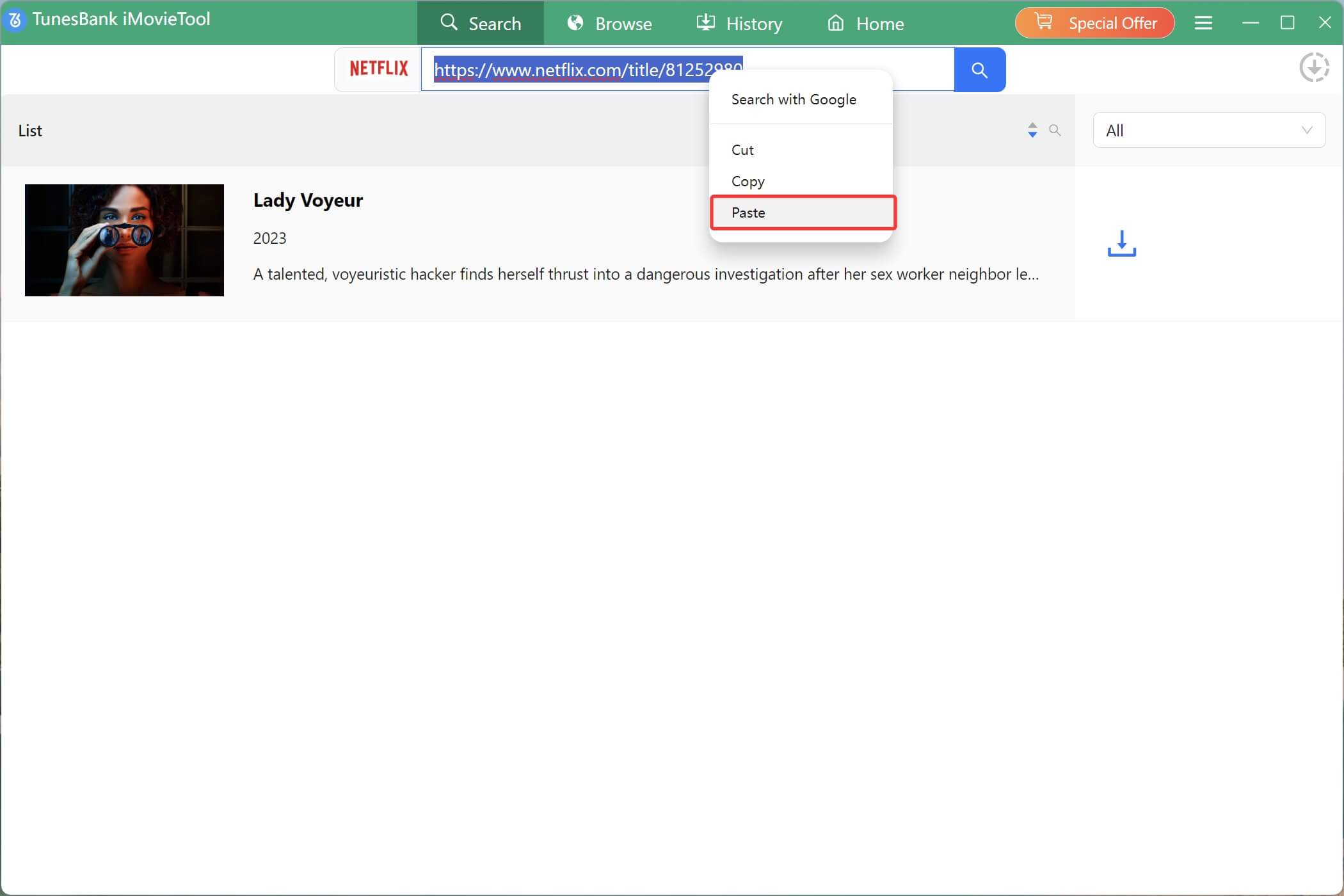
Step 4. Start Downloading Netflix Videos on Laptop
Once you’ve found your desired content, click the “Download” icon next to the title. If you’re adding a TV series, a window will open allowing you to select specific episodes.
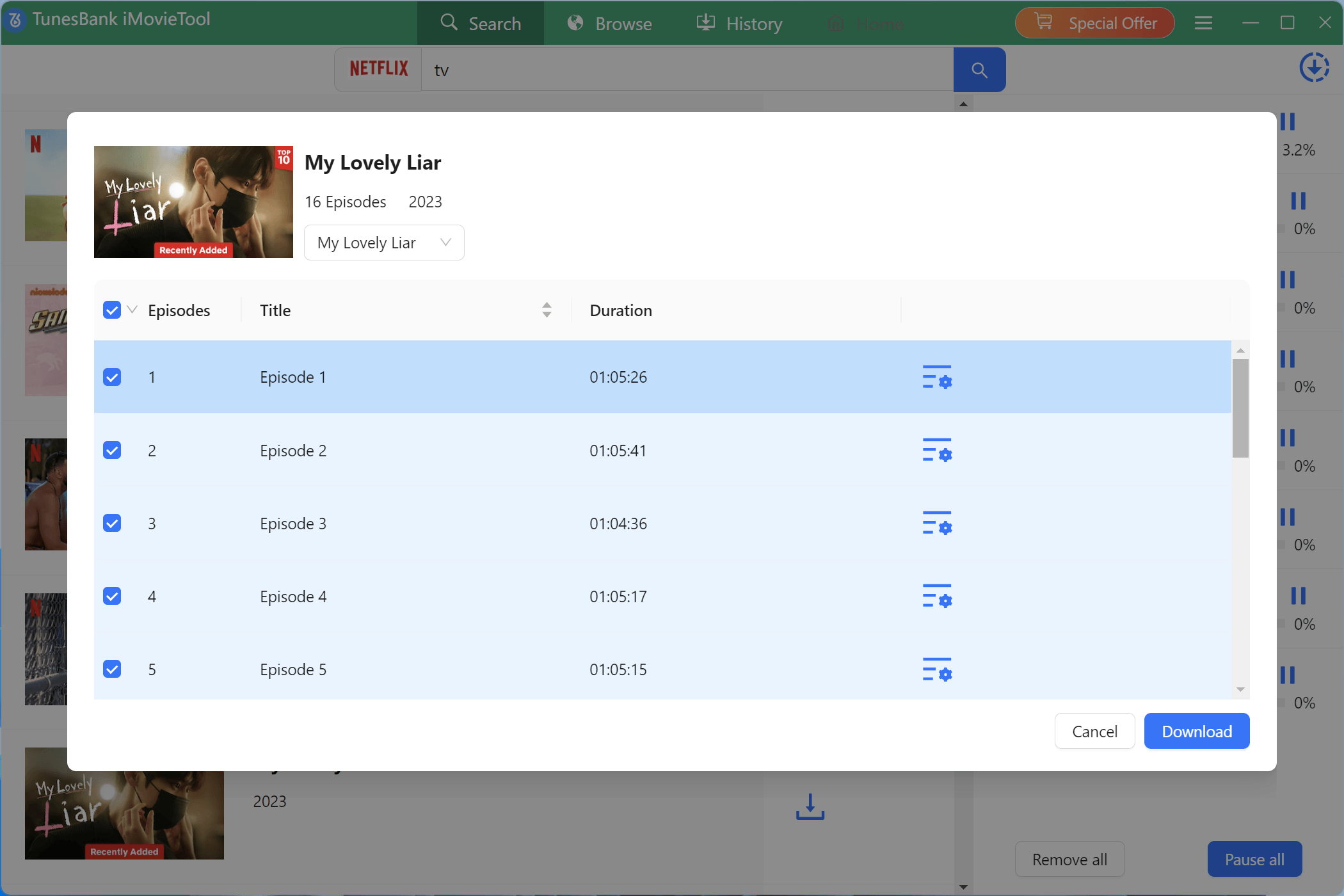
Then, click “Download” to start the process. During the process, you can continue adding more movies or TV shows to the download queue.
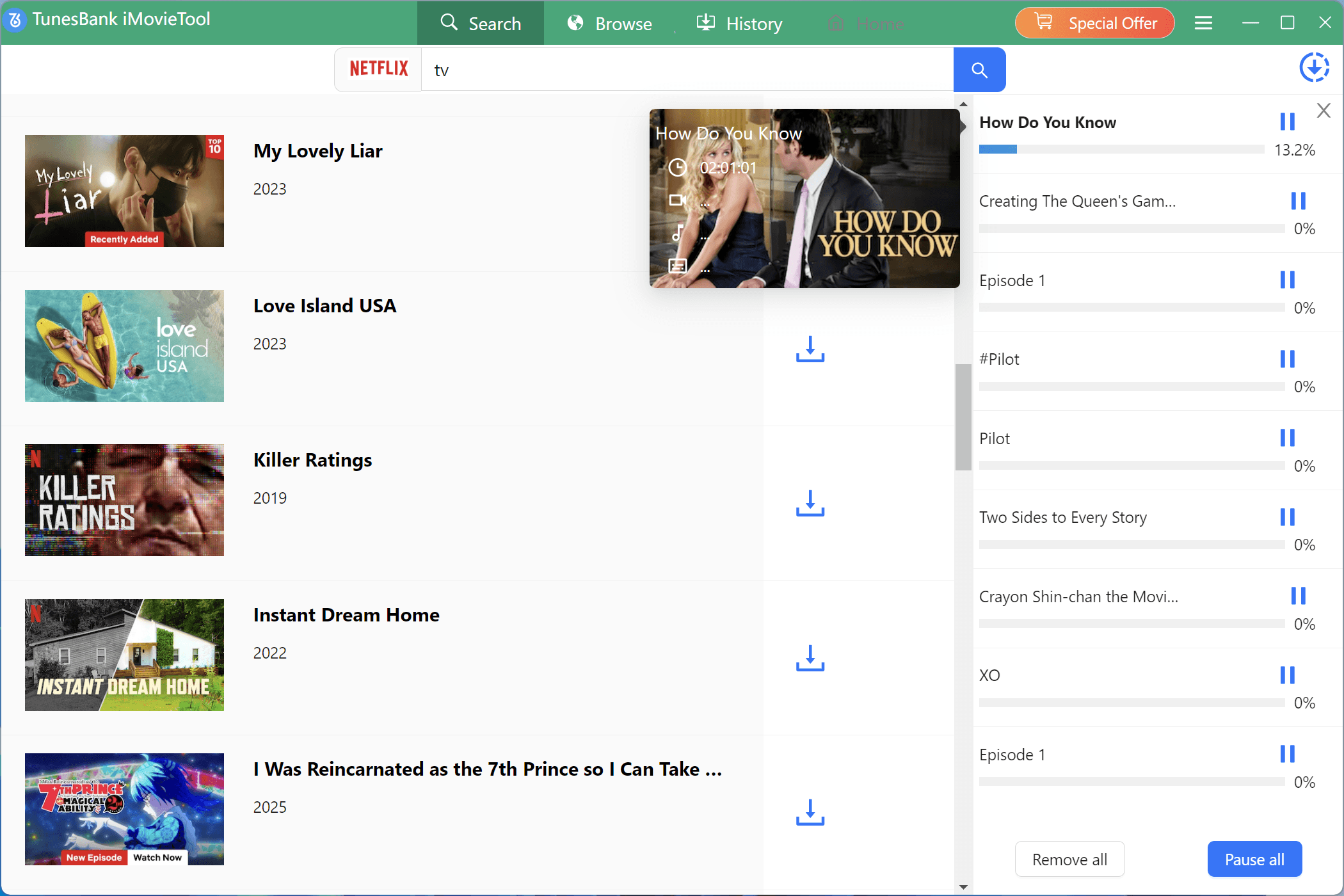
Step 5. Get Downloaded Netflix Videos
After the download is complete, navigate to the “History” section or open your designated output folder. Your Netflix videos are now saved as DRM-free MP4 or MKV files, no any expiration or playback restriction!
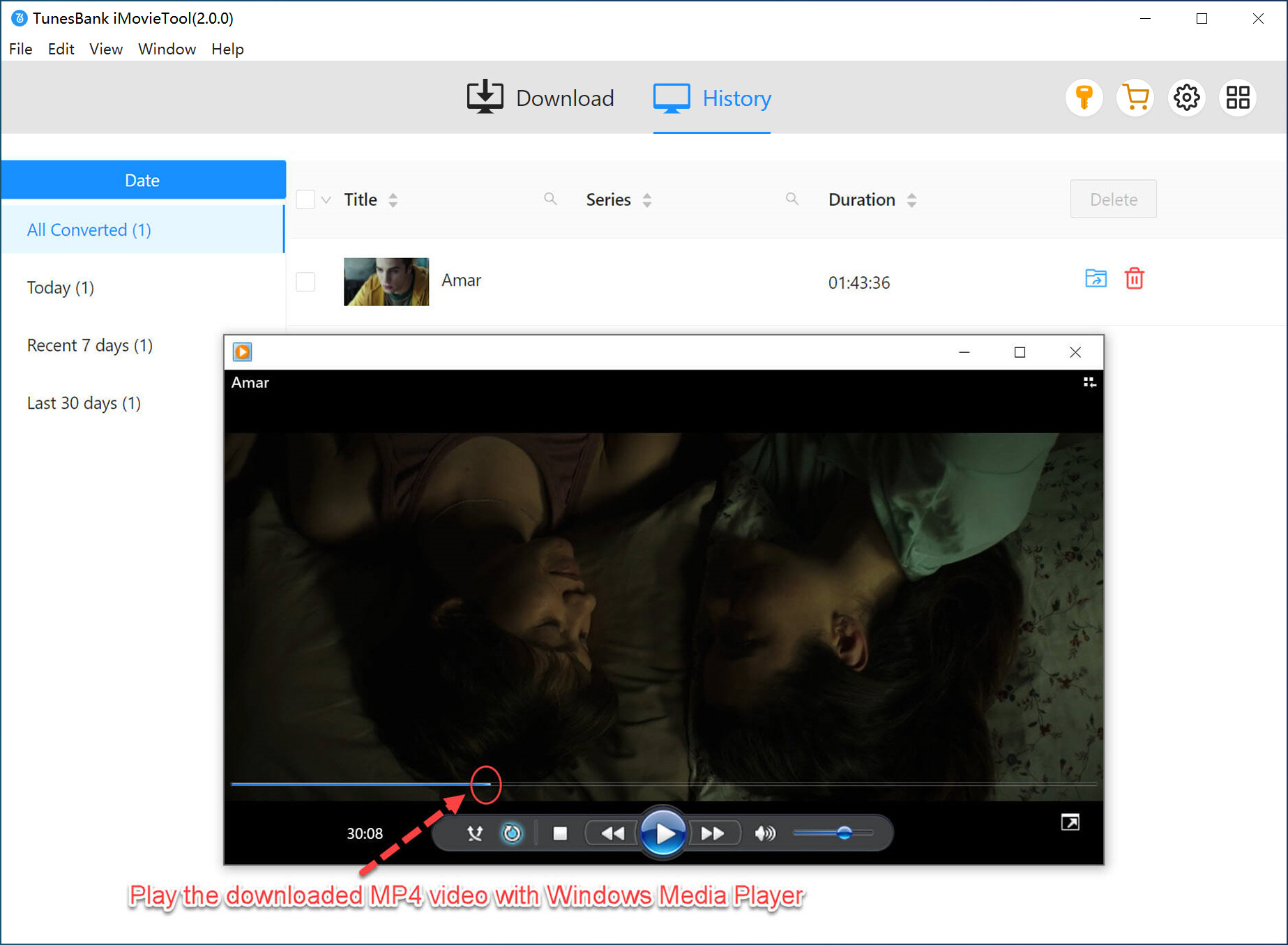
Step 6. Watch Netflix Movie on Laptop with Other Players
Once you’re on the plane, simply open the downloaded MP4 or MKV Netflix video files using media players like QuickTime Player, VLC Media Player, Windows Media Player, Movies & TV, iTunes, or any compatible video player.
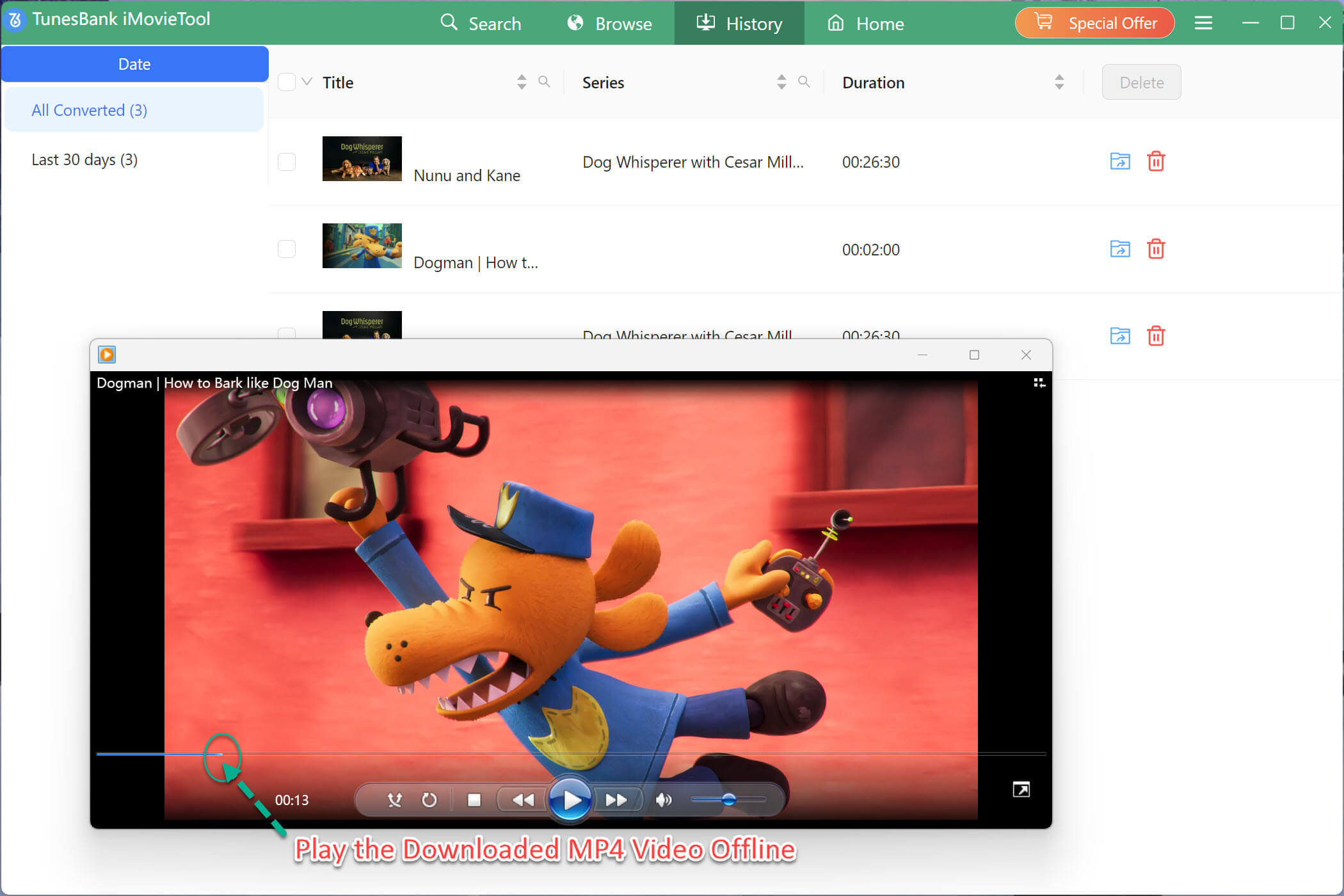
Since the files are stored locally, you can watch Netflix on a plane without Wi-Fi, without buffering, and without worrying about download expiration.
Part 2. Watch Netflix on a Plane on iPhone/Android
When Netflix app is compatible with iOS and Android devices, Amazon Fire tablets, even the Chromebook (running Android app), if you are using any of these devices, you can simply install the Netflix app and download your favorite movies and TV shows before your trip. Once downloaded, you can watch Netflix on a plane on phone without an internet connection.
How to Download Netflix Movies on Your Phone Before a Flight
Step 1. Download the latest version of the Netflix app from the App Store or Google Play Store, then open the Netflix app, and sign in with your Netflix account.
Step 2. Navigate to the “Available for Download” section in the menu, or browse for the movie or series you want to watch on the plane.
Note: Some titles may not be available for download due to licensing restrictions in certain countries or regions. If the title supports offline viewing, you’ll see the Download icon beside it.
Step 3. Tap the “Download” icon next to the title, and wait until the download is complete.
Step 4. Tap “Downloads” at the bottom of the screen, then select “My Downloads” to view all downloaded titles.
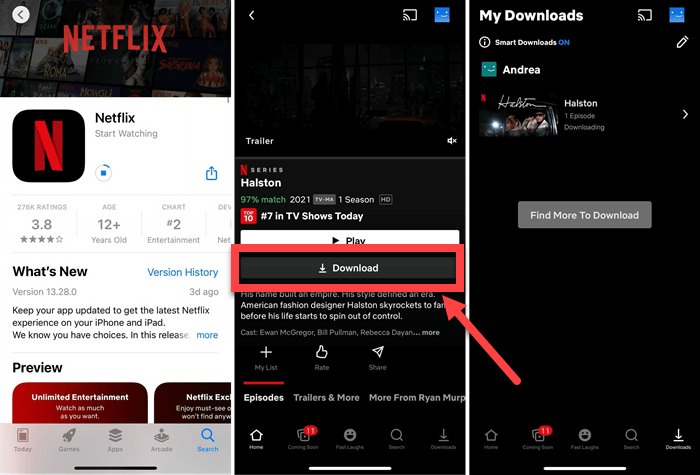
Step 5. After boarding, simply enable Airplane Mode or disconnect from the internet. Open the Netflix app, go to “Downloads” section, and start watching your saved movies or episodes without Wi-Fi!
• Expiration Dates: Your Netflix downloads have an expiration date, typically 7 days or 30 days depending on the • content.
• 48-Hour Rule: Once you start watching a downloaded title, you only have 48 hours to finish it before it expires.
• Subscription Required: If your Netflix subscription ends, all your downloaded content becomes inaccessible.
• App-Only Playback: Downloaded files can only be played within the Netflix mobile app, you cannot transfer them to other devices or players.
If you want to watch Netflix on a plane without Wi-Fi and without worrying about expiration dates, the best solution is to download Netflix videos as MP4 or MKV files using the iMovieTool Netflix Video Downloader, then transfer the Netflix videos to your phone. Please refer to the Part 1.
Part 3. FAQs About Watching Netflix on a Plane
Can I watch Netflix on my phone while on a plane?
Yes. Netflix supports offline viewing on both iPhone and Android devices. Before your flight, simply download the movies or TV shows you want to watch using the Netflix app while connected to the internet. Once you’re on the plane, put your phone in Airplane mode, open the Downloads section in the Netflix app to watch Netflix on a plane on your phone!
Can I watch Netflix on my laptop on a plane?
Yes, you can purchase an In-Flight Wi-Fi to watch Netflix on a plane on laptop, but this method may not be very good and the charges are relatively expensive. It is advisable to try third-party Netflix downloaders. You can utilize iMovieTool Netflix Video Downloader to download and save Netflix videos on your laptop in advance, thus you will get a smooth offline viewing experience.
Why is there no download option in the Netflix laptop app?
Netflix has discontinued the download feature in its Windows application and transitioned users to a web-based experience. Since macOS has never had a dedicated Netflix app, there is currently no official way to download Netflix content directly on a Windows laptop or MacBook. Instead, desktop users can rely on third-party tool like iMovieTool Netflix Video Downloader to download and watch Netflix movies offline on laptop.
How do I download a movie from Netflix to my laptop?
To download Netflix movies to a laptop, you need a third-party Netflix downloader like iMovieTool Netflix Video Downloader. It works based on the built-in web browser, allowing you to download Netflix videos on MacBook or Windows laptop directly.
Part 4. Final Words
Now you know how to watch Netflix on a plane across different devices. If you’re using an iPhone or Android phone, you can download supported Netflix titles with the official app and watch downloaded Netflix movies on a plane without Wi-Fi. However, the Netflix downloads are protected and expire over time. For Windows and Mac users, iMovieTool Netflix Video Downloader offers a better solution by saving Netflix videos as local MP4 or MKV files. This allows you to watch Netflix movies offline on laptop and enjoy your favorite content anytime, anywhere, even without in-flight Wi-Fi.
The Latest Articles
– Top 8 Solutions to Download Streaming Video
– Top 10 Free Movie Download Sites Recommended
– 3 Ways to Download Movies to Watch Offline
– 2 Verified Methods to Download X/Twitter Videos to MP4
– Download Twitter(X) Videos on PC, Mac and Mobile Phone
– Download Facebook Videos on PC, Mac and Mobile Phone
– 3 Ways to Download Facebook Video to MP4

Netflix Video Downloader
Download Netflix video to MP4 or MKV with multi-language audio track and subtitle kept. Up to 50X downloading speed. Easily to download your favorite movies/TV shows from Netflix to your computer for offline viewing.