








 United States (English)
 Japan (日本語)
 Russia (русский)
 Germany (Deutsch)
 France (Français)
 Spain (Español)
 Italy (Italia)
 Portugal (Portugues)
 China (繁体中文)
 Turkish (Türk dili)
 Dutch (Nederlands)
 Korean(한국인)
 Saudi Arabia(عربي)
 Download Netflix Movies and TV shows to watch offline.
Do you have trouble in downloading movies from Netflix to iPad or iPhone? Grasp the detailed guide and FAQs to download Netflix movies to iPhone/iPad for offline playback.
When Netflix has been the most popular streaming video platforms that offers a large collection of original movies, TV shows. However, when you are facing the unstable network or outside, you might experience Netflix buffering issues. Downloading Netflix movies on iPhone and iPad is a smart solution to avoid this problem.
Save more cellular data, enjoy smooth offline viewing, keep Netflix downloads on iPhone without expiration, no matter what your intention is, this article on how to download Netflix movies to iPhone/iPad can do you a great favor. After reading, you can easily watch your favorite Netflix movies on iPhone or iPad offline without Internet connection!
Method 1. Download Netflix Movies on iPhone/iPad in the Netflix App
In the Netflix app, Netflix provides a download button for movies, TV shows, drama, documentaries, and other content in your library. If you have subscribed to Netflix plan (Standard with Ads, Standard, or Premium), you can download Netflix movies to iPhone or iPad for offline viewing.
Here’s how to download Netflix movies on iPhone:
Step 1. Go to the App Store on your iPhone or iPad, download and install the Netflix app. Ensure your iOS version is running iOS 18.0 or later.
Step 2. Open the Netflix app and log in using your active Netflix subscription account.
Step 3. Search and select the movie you want to download.
Tips: If you have no idea, you can go to Menu > “Available for Download” and select the movie to save it offline.
Step 4. If available, choose the video quality among Standard or Higher.
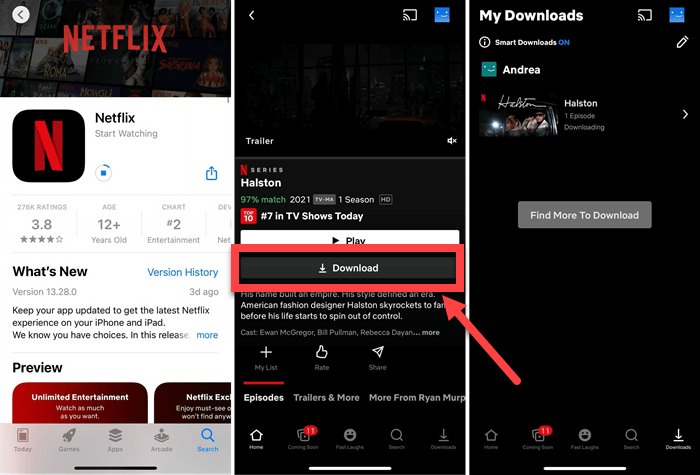
Step 5. Open the movie’s details page and tap the “Download” icon. Netflix will begin downloading the movie to your iPhone or iPad.
Step 6. When the download completes, go to “My Downloads” to watch Netflix movies on your iPhone/iPad offline without an internet connection.
• Not all titles are available for download.
• You can download no more than 15 or 100 video titles on your iDevice, depending on your subscription plan.
• The downloaded movies can only be watched inside the Netflix app.
• Downloaded Netflix movies expire within 7-30 days or 48 hours after playback starts.
To get rid of these restrictions and save Netflix movies on your iPhone/iPad forever, please scroll down to anther method.
Method 2. Download Netflix Movies to iPhone/iPad Permanently via Netflix Downloader
As mentioned above, the official Netflix app on iPad/iPhone impose some limitations. Therefore, you can get help from a desktop software called iMovieTool Netflix Video Downloader.
This professional yet effective Netflix video downloader is compatible with Windows and Mac computers. This empowers you to download Netflix movies on Mac and Windows directly without the Netflix app. Unlike the official Netflix app, iMovieTool allows you to save Netflix movies permanently in high-quality 1080p MP4 or MKV formats. Thus, you can easily transfer all downloaded Netflix movies to iPhone, iPad, Android phone or tablet, USB drive, SD card and more devices for unlimited offline watching and keeping.
In addition, it retains multilingual audio tracks and subtitles for all Netflix video downloads. Even better, the software provides up to 50X super-fast Netflix batch-download speeds, saving much time and effort.
Features of iMovieTool Netflix Video Downloader:
- Download Netflix movies to Mac, PC permanently
- Save Netflix movies, TV shows in MP4 or MKV format
- Batch download Netflix movies and TV shows in one click
- Keep original audio tracks, subtitles and HD 1080p quality
- Transfer Netflix downloads to any device, player, app freely
- Watch Netflix movies on iPhone/iPad offline without expiration
How to Download and Transfer Netflix Movies to iPhone/iPad?
Step 1. Select Netflix & Log In Account
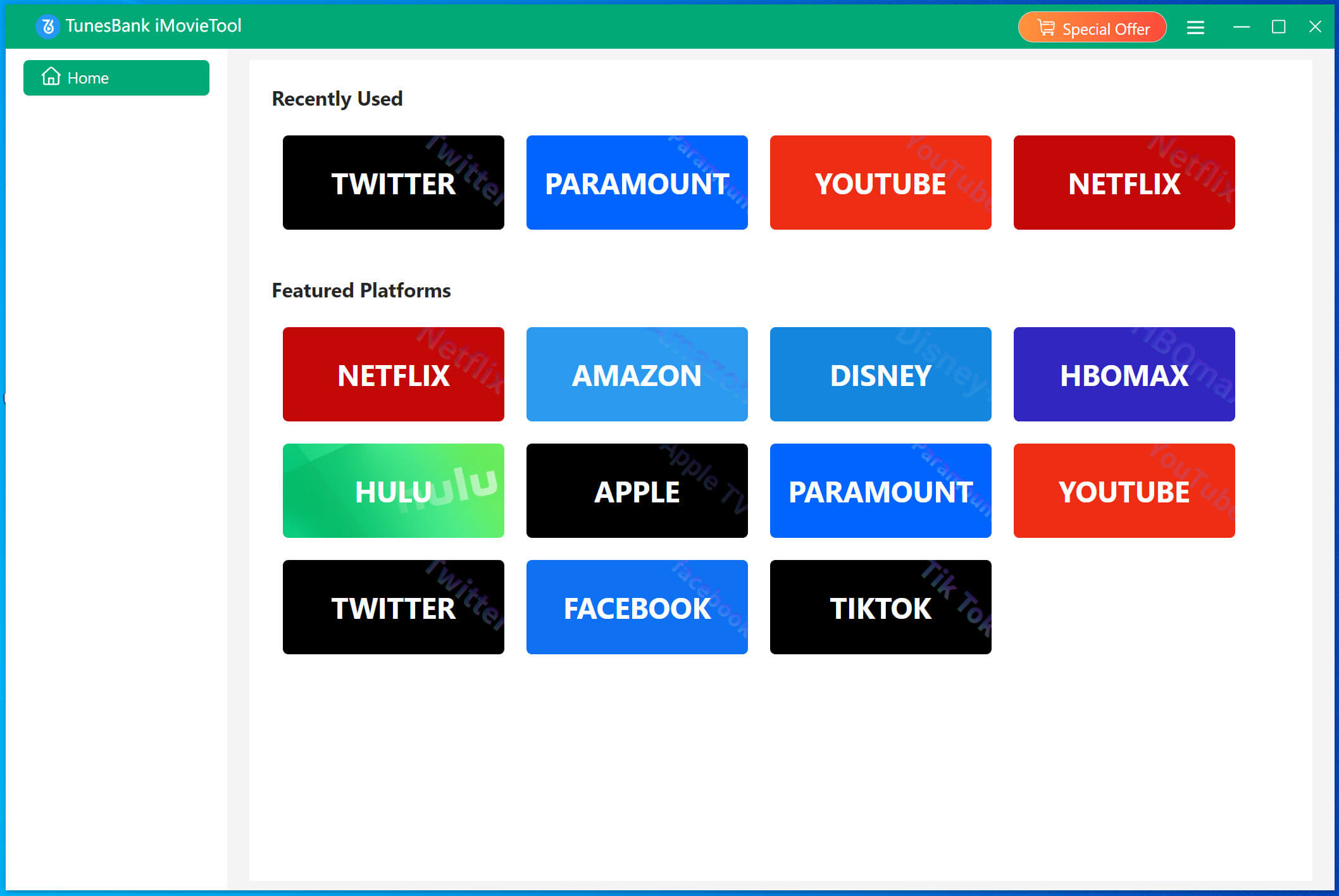
After downloading, fire up iMovieTool Video Downloader on desktop, choose Netflix service from the main interface.
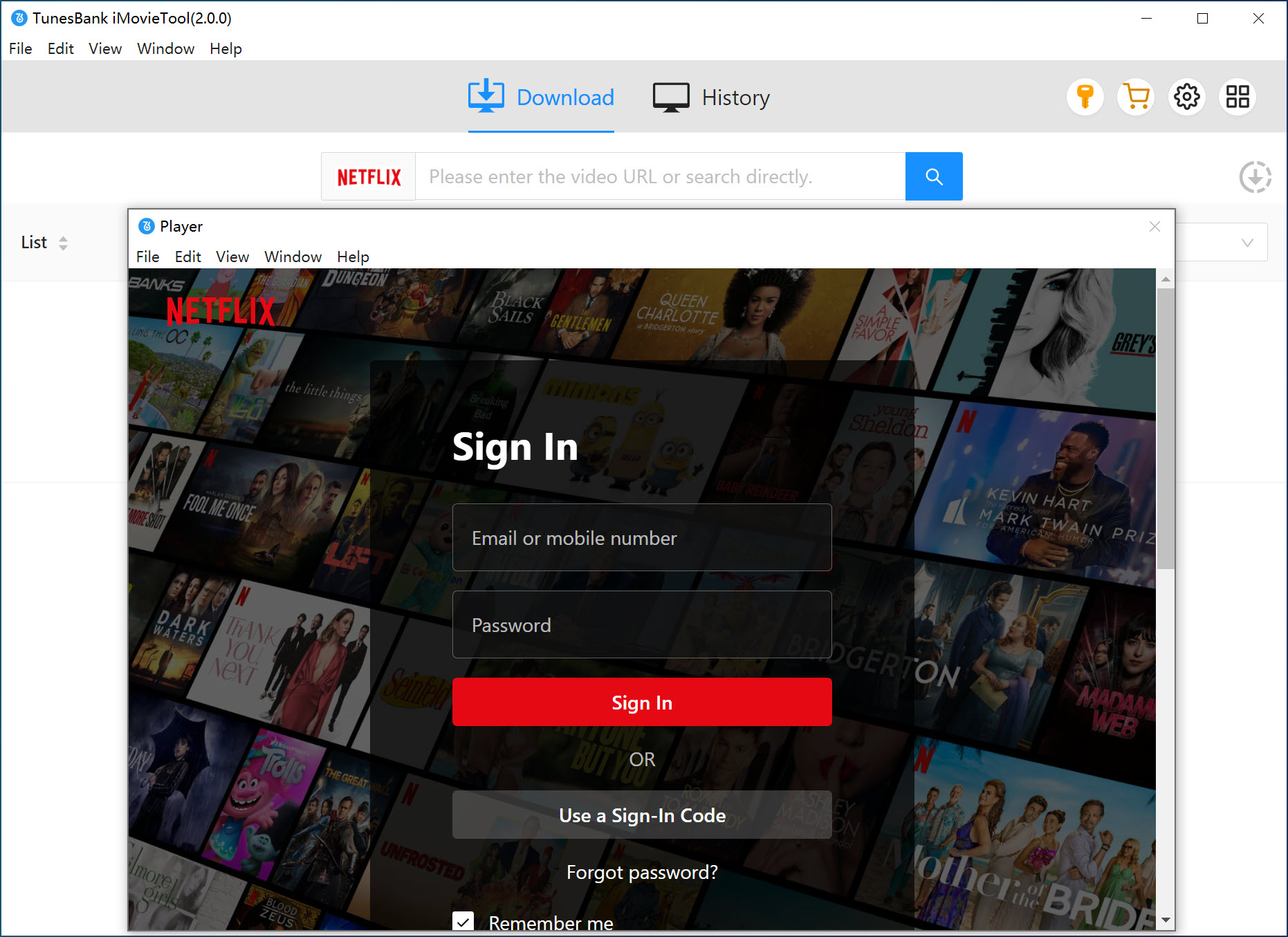
Go to the iMovieTool Netflix Video Downloader, and log in to your Netflix account within the built-in browser. This allows the software to access and identify downloadable Netflix movies securely.
Step 2. Choose Output Settings
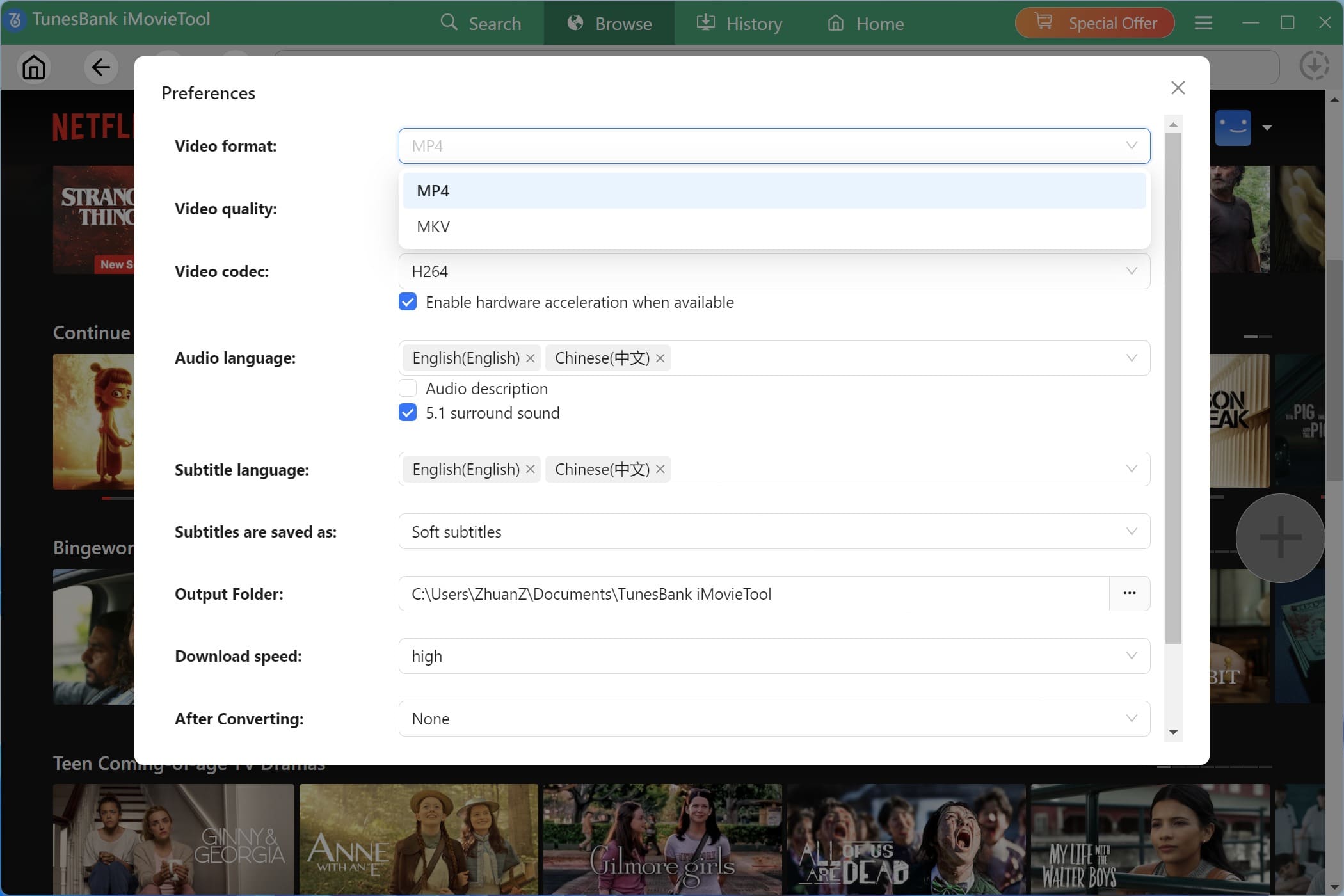
Go to Menu bar and choose Preference to access the settings window. Here you can choose MP4 format, high video quality, customize your preferred audio language, and subtitle preferences. These settings ensure downloaded Netflix movies are fully compatible with iPhone and iPad.
Step 3. Browse and Add Netflix Movies
This smart tool provides three flexible ways to find Netflix movies for download, making it easy to download Netflix videos to iPad/iPhone efficiently.
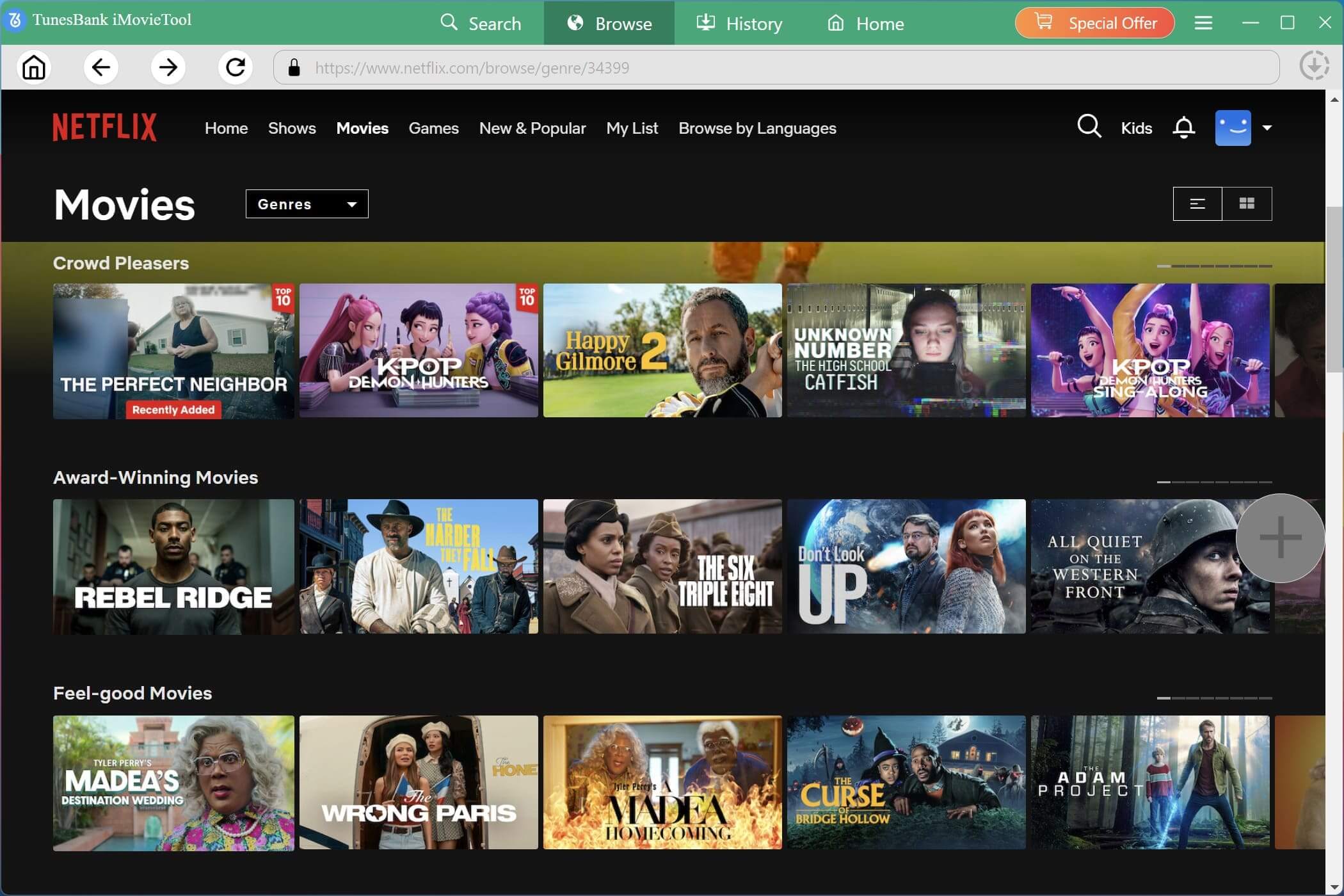
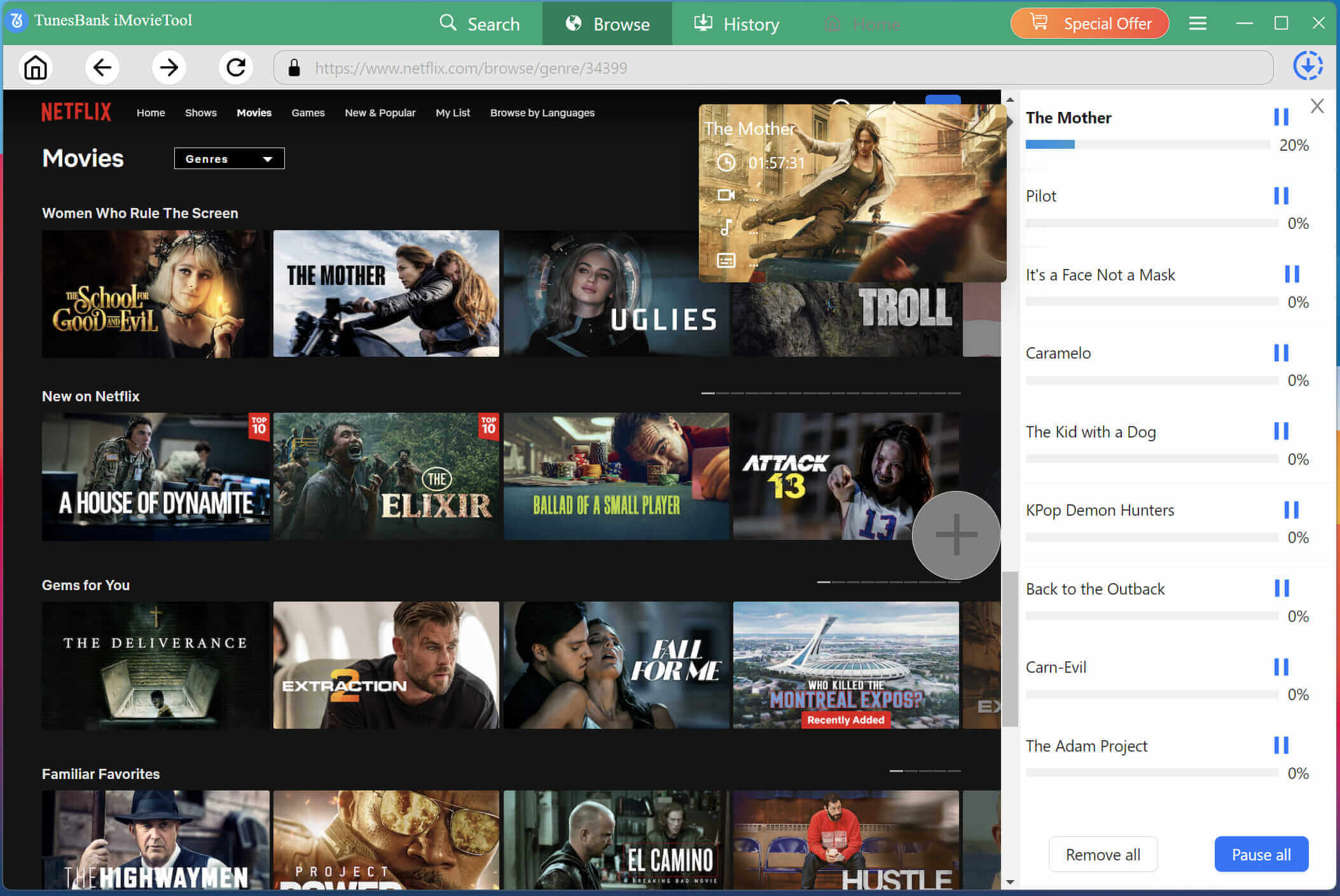
1# Browse Netflix Online. Tap “Browse” tab, browse Netflix categories, recommendations, or new releases, then select movies to download directly within the in-built web browser.
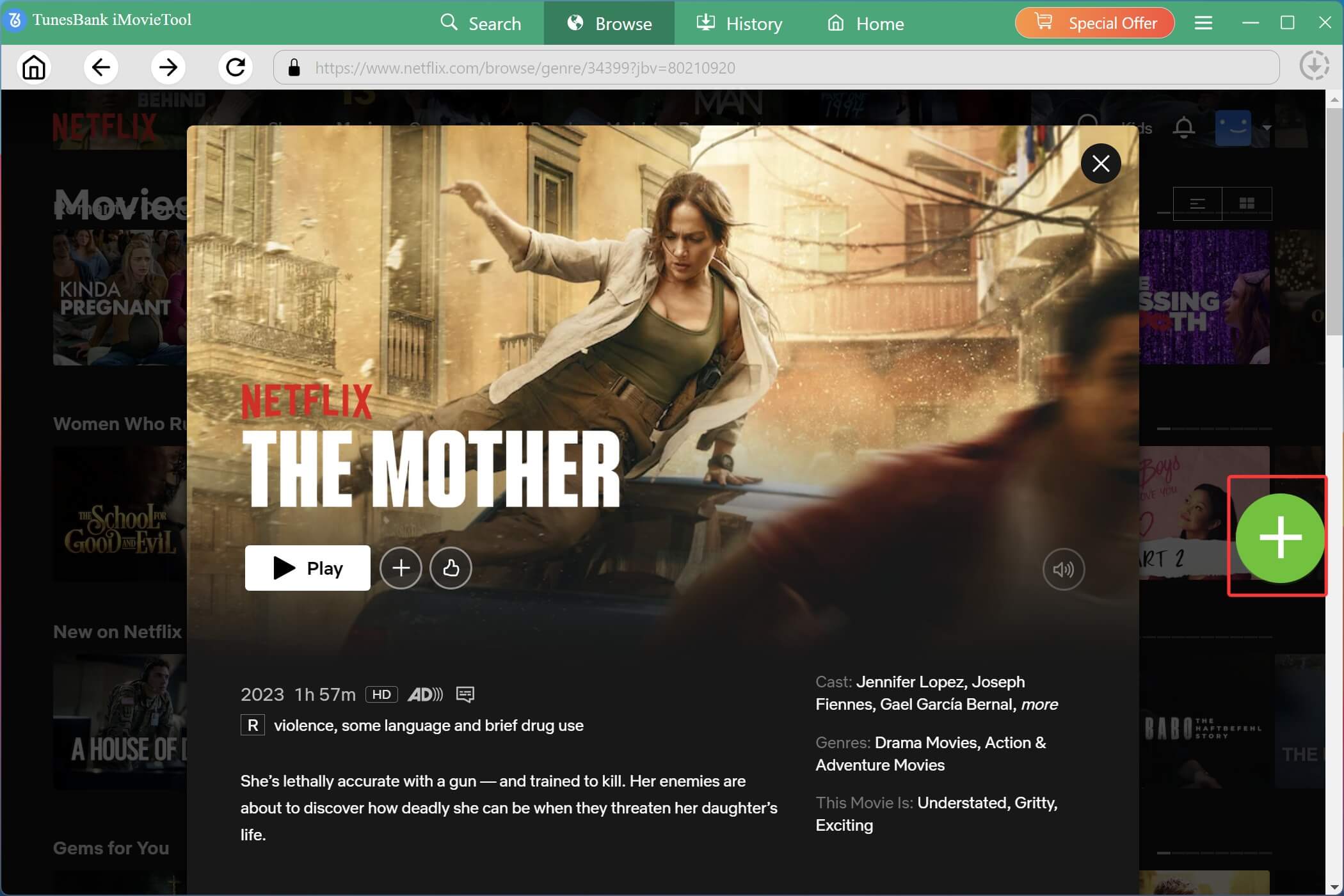
Open your target movie, then click the “+” icon to add it to the download queue.
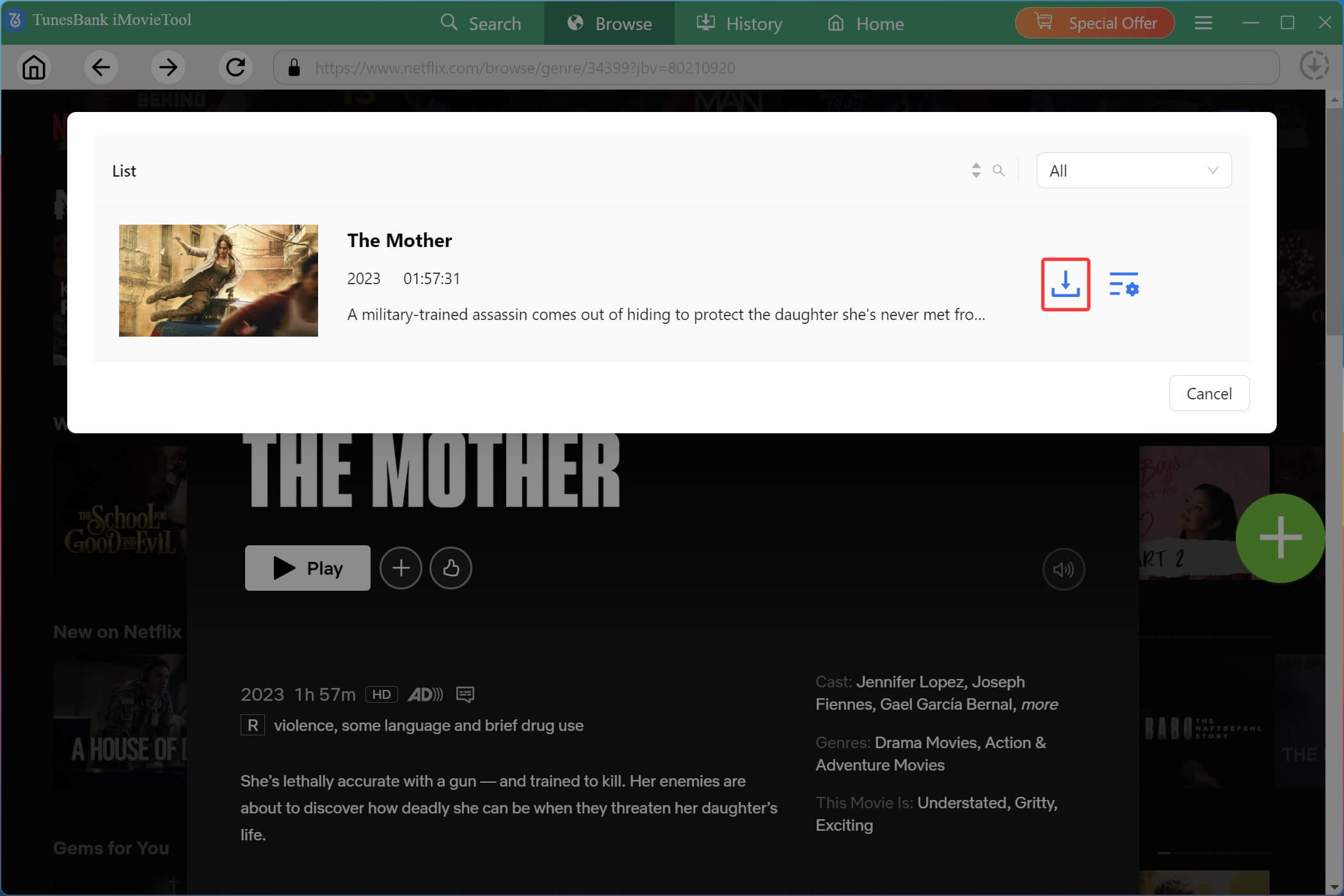
By the way, you can directly hit on the “Download” icon to save it to your local drive.
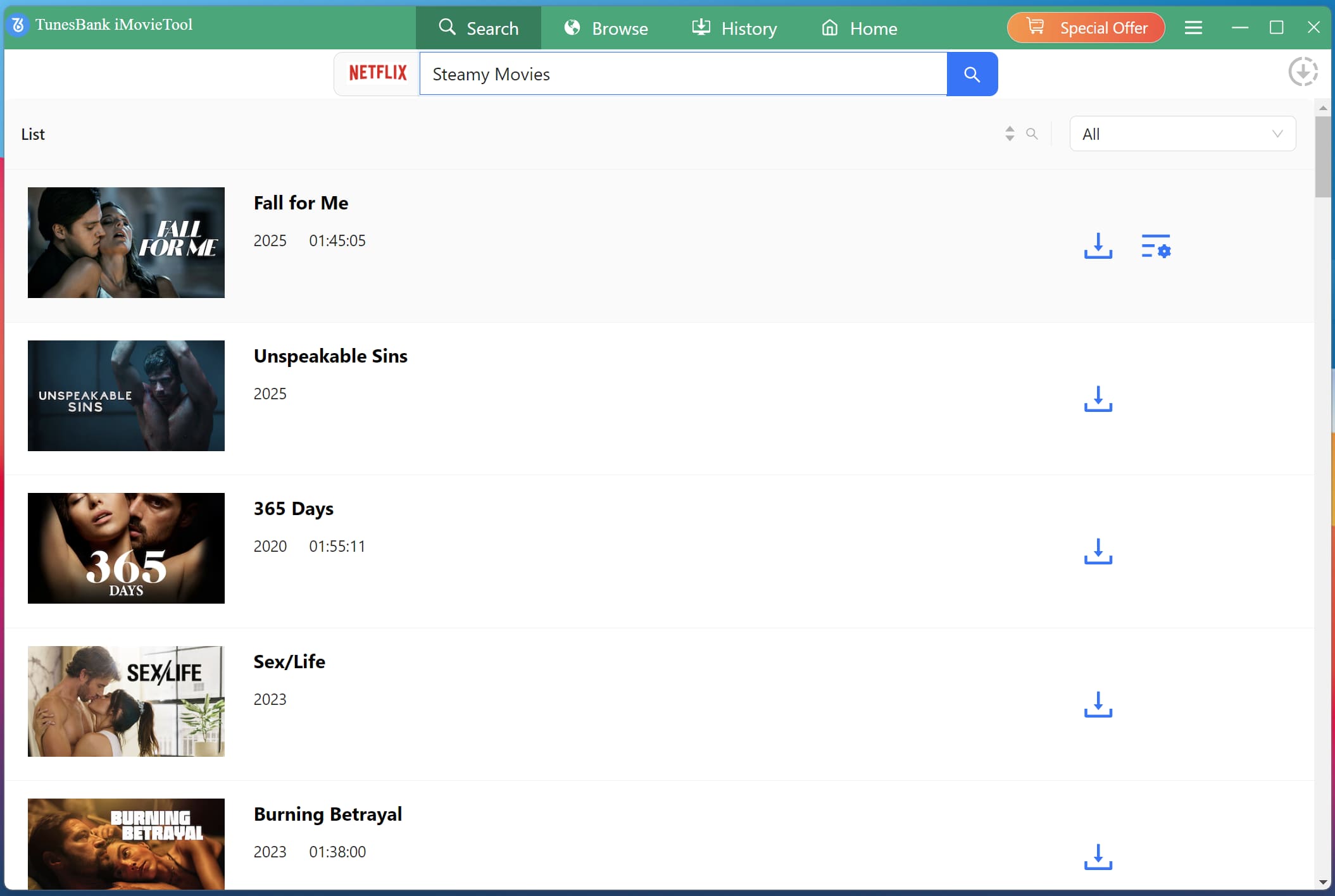
2# Using Movie Name. Go to “Search” at the top, enter the Netflix movie name directly into the search bar. For example, here I input “Steam Movie” keyword, iMovieTool instantly displays matching results, allowing you to select and download Netflix movies quickly.
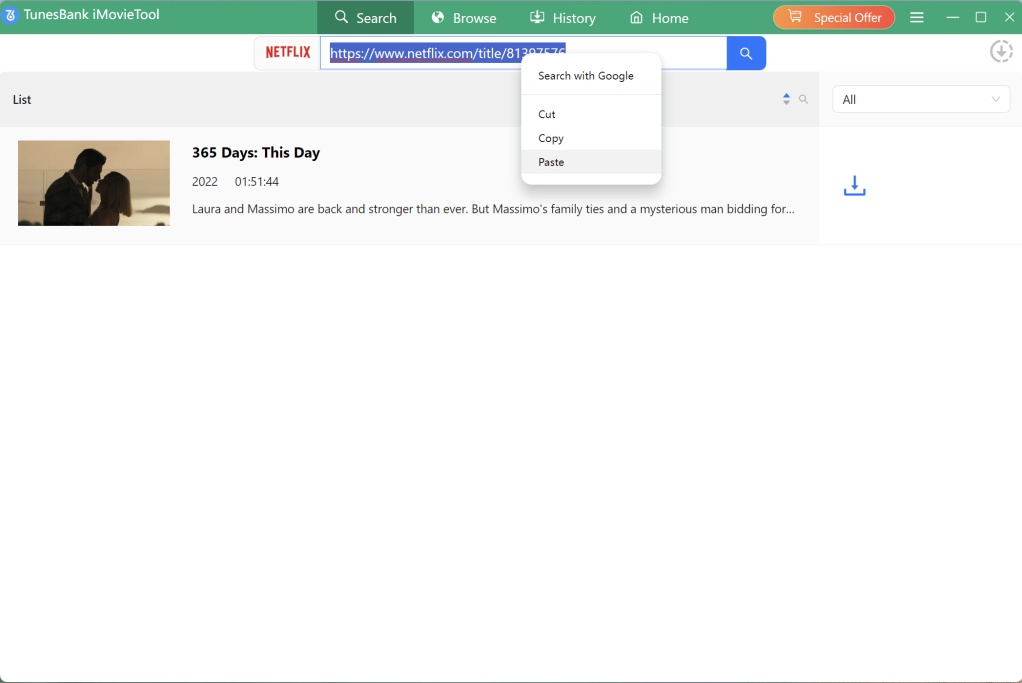
3# Using Netflix URL. Copy and paste the Netflix movie URL into iMovieTool. The software automatically analyzes the link and prepares the Netflix movie for download.
Step 4. Download Netflix Movies to MP4
Click “Download” button to start downloading Netflix movies. iMovieTool processes the video efficiently while maintaining high quality and original audio tracks.
Step 5. Get Downloaded Netflix Movies
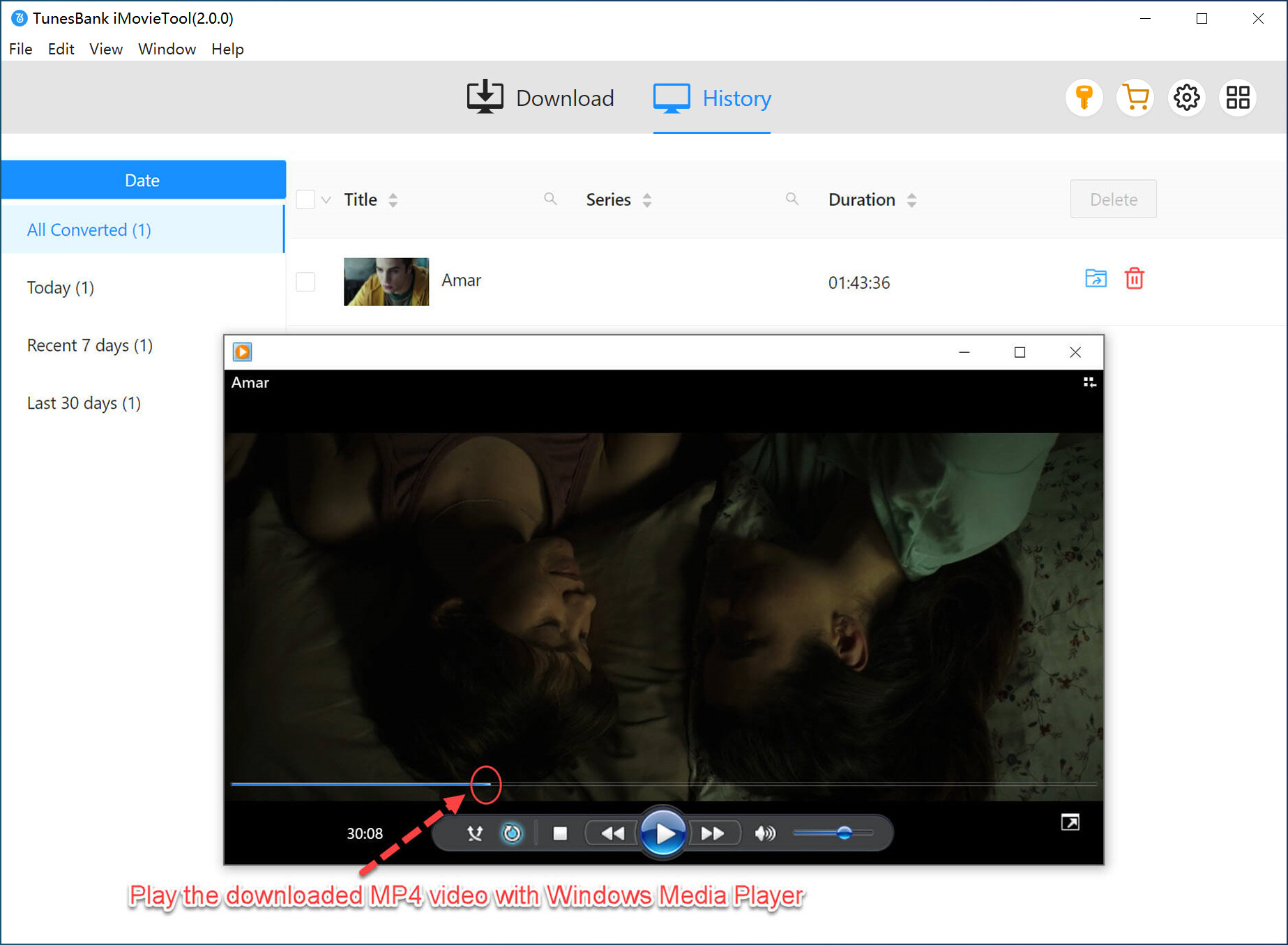
Once completed, access downloaded Netflix movies in the “History” section. And locate the output Netflix movies in local folder.
Step 6. Transfer Netflix Movies to iPhone or iPad
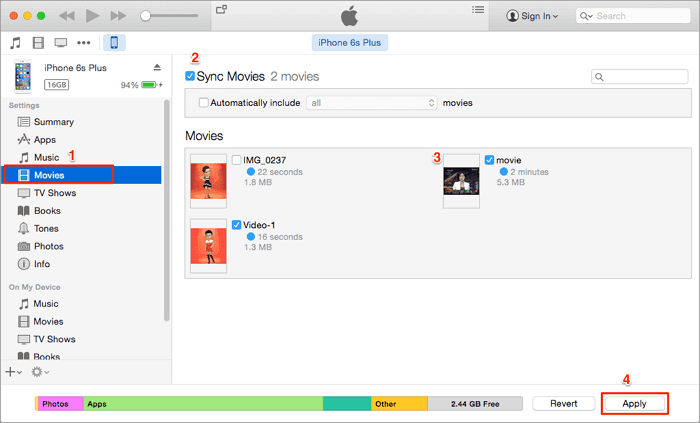
Now, connect your iPhone or iPad to your computer via USB cable. Open iTunes (or Finder on macOS), select your device, go to “Movies” (or “File Sharing” in Finder), and sync or drag-and-drop the downloaded MP4 Netflix movies directly onto your iPhone or iPad for offline enjoyment.
FAQs About Downloading Netflix Movies to iPhone/iPad
Where Do Netflix Downloads Go on iPhone?
The downloaded Netflix videos are just cache files, with DRM encryption. You can not get an exact file location on your iPhone or iPad when downloading Netflix videos. Please open the Netflix app and go to “Downloads” to watch/manage your downloads.
How Long Do Netflix Downloads Last on an iPhone?
Once downloaded Netflix videos on your iPhone, the Netflix downloads usually expire within 7-30 days. Some titles expire 48 hours after playback starts, making it impossible to save Netflix movies on iPhone/iPad permanently.
How to Keep Netflix Downloads on iPhone/iPad Without Expiration?
To keep Netflix movies permanently, you must use a professional Netflix downloader like iMovieTool. It removes DRM and allows you to download Netflix movies to local MP4 files for copying to iPhone/iPad. Then, you can store the Netflix movies on your phone forever.
- See Also: How to Keep Netflix Downloads Forever
Conclusion
To download Netflix movies to iPad/iPhone, as the official app has provided the direct download feature, you can subscribe to any Netflix plan to save your favorite movies, TV shows and other content to watch offline. Besides, the official Netflix app come with so many limitations as mentioned above. However, applying for a professional Netflix downloader like iMovieTool Netflix Video Downloader would be better if you want really own your Netflix downloads and enjoy full control over the downloads. This way, you do not need to worry about expiration and can watch these exciting Netflix movies on an iPhone/iPad anytime, anywhere!
The Latest Articles
– Top 8 Solutions to Download Streaming Video
– Top 10 Free Movie Download Sites Recommended
– 3 Ways to Download Movies to Watch Offline
– 2 Verified Methods to Download X/Twitter Videos to MP4
– Download Twitter(X) Videos on PC, Mac and Mobile Phone
– Download Facebook Videos on PC, Mac and Mobile Phone
– 3 Ways to Download Facebook Video to MP4

Netflix Video Downloader
Download Netflix video to MP4 or MKV with multi-language audio track and subtitle kept. Up to 50X downloading speed. Easily to download your favorite movies/TV shows from Netflix to your computer for offline viewing.







