








 United States (English)
 Japan (日本語)
 Russia (русский)
 Germany (Deutsch)
 France (Français)
 Spain (Español)
 Italy (Italia)
 Portugal (Portugues)
 China (繁体中文)
 Turkish (Türk dili)
 Dutch (Nederlands)
 Korean(한국인)
 Saudi Arabia(عربي)
 Download from Netflix, Disney+, Prime Video, YouTube, and more.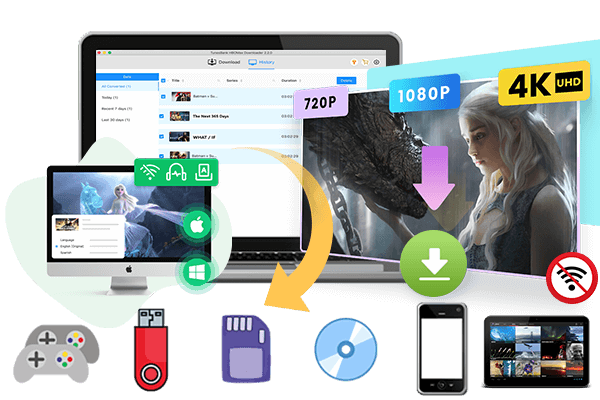
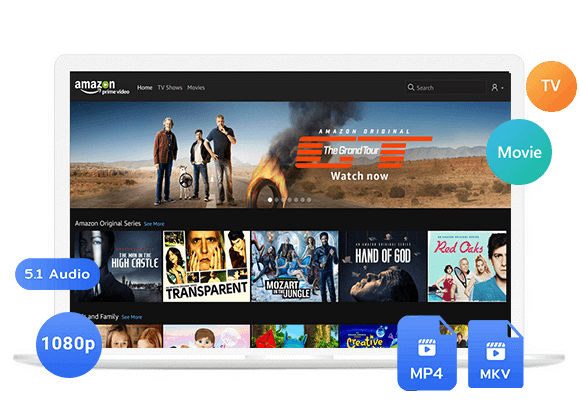
Explore which streaming services allow offline downloads on Mac. And learn 2 easy ways to download and watch streaming videos on iMac/MacBook, including using a dedicated streaming app, and third-party video downloader.
Want to download streaming videos on Mac for offline viewing? The answer is more complicated than it seems. Typically, you can watch streaming video content on your Mac through a web browser because many popular streaming platforms do not offer a download button for Mac computers.
In this guide, we will explain which video streaming platforms allow downloads on MacBook or iMac, and introduce you a professional streaming video downloader for Mac that allow you to download movies and TV shows on your Mac directly without relying on the streaming apps!
Part 1. What Video Streaming Services Allow Downloads on Mac?
If wan to to watch streaming videos offline on Mac, only a limited number of major streaming services provide official download options for macOS. The following platforms allow Mac users to download movies and TV shows directly through their official apps or supported web browsers.
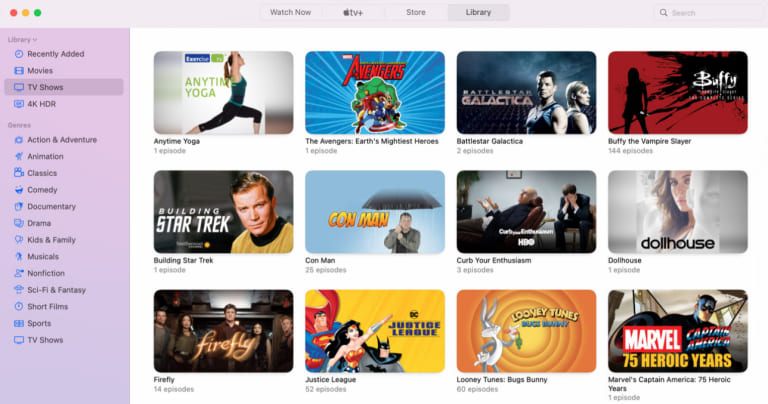
Apple TV+
Apple TV+ supports offline downloads on macOS through the built-in Apple TV app. You can download Apple TV+ shows and movies, as well as purchased or rented content, directly to your Mac for offline viewing.
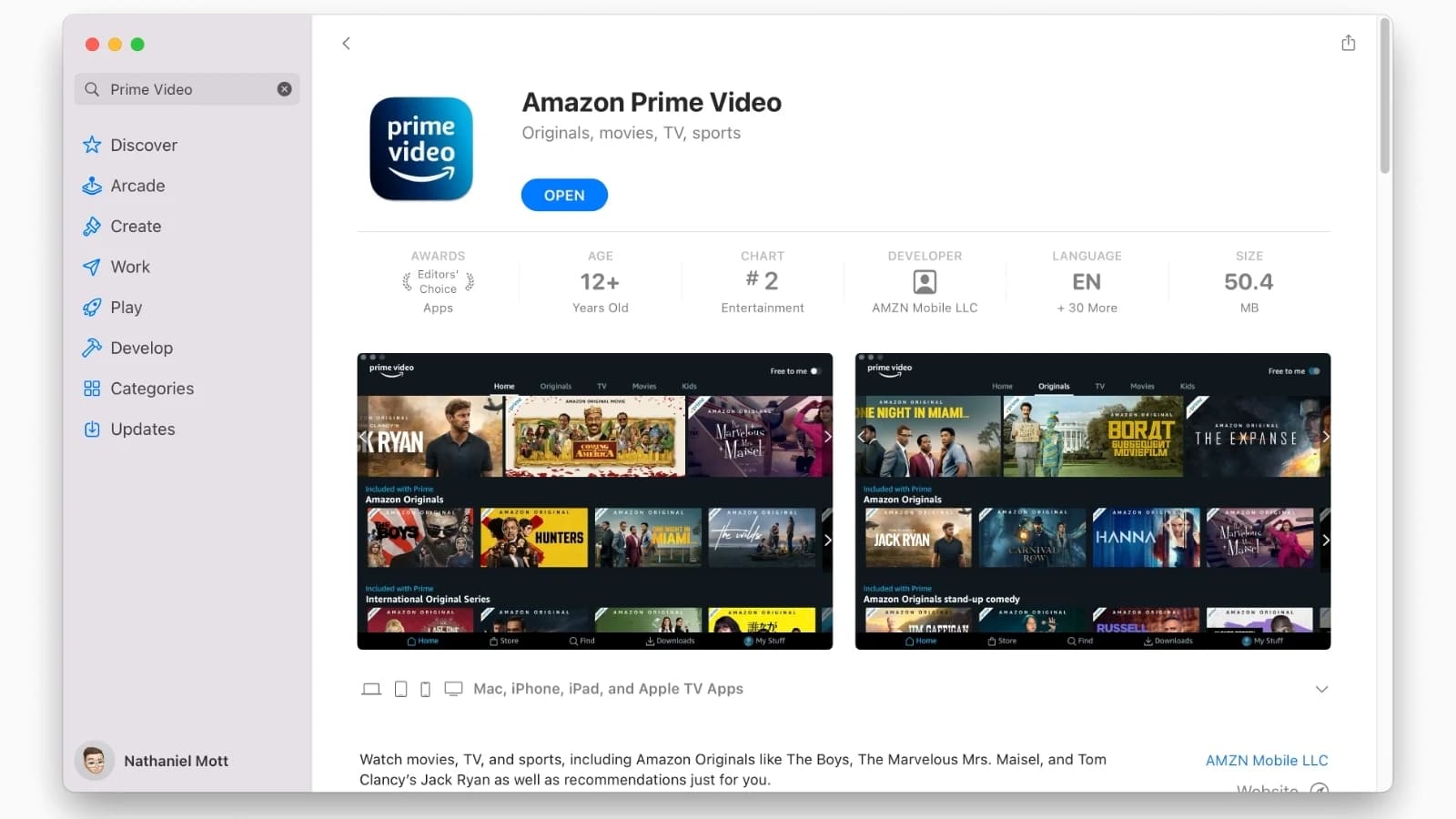
Amazon Prime Video
Amazon Prime Video offers a dedicated macOS app. Users can download Prime Video movies and TV shows to Mac with a Prime membership account. Additionally, the purchased or rented can be downloaded on Mac for offline viewing.
YouTube
YouTube Premium subscribers can download YouTube videos on Mac through a supported web browser such as Chrome, Edge, Firefox, or Opera. These downloads are intended for offline playback within the YouTube website rather than through a dedicated YouTube app.
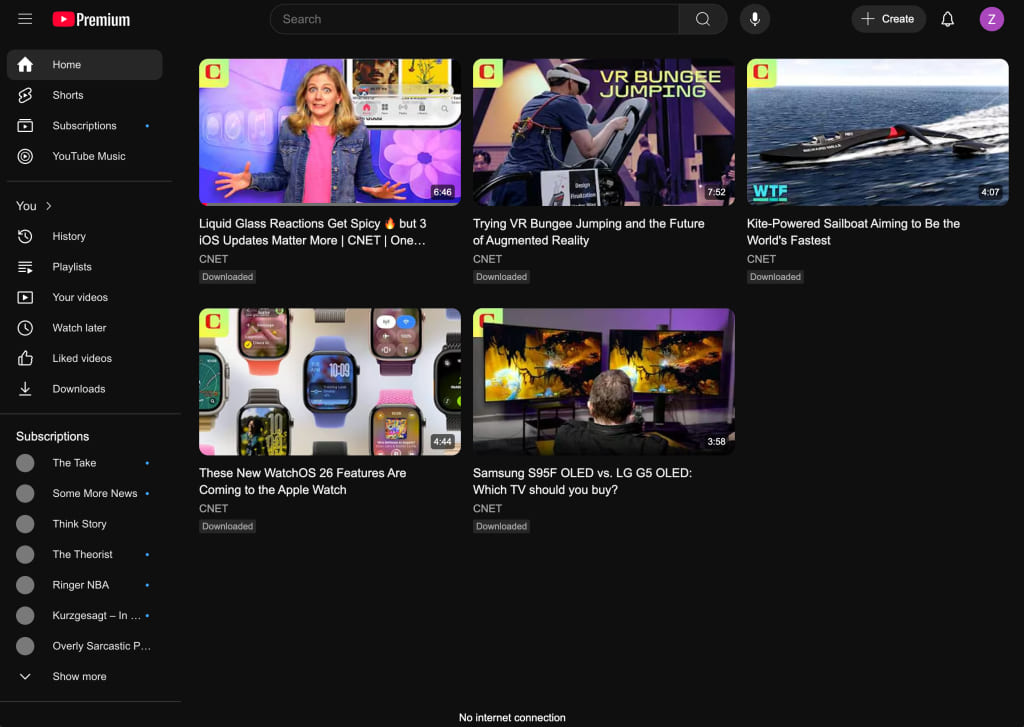
Below, we will take the Apple TV as an example to show you the step-by-step guide about how to download Apple TV shows and movies on Mac.
Step 1. Open the Apple TV App on your MacBook or iMac. Sign in with your Apple account associated with your Apple TV+ subscription or purchased content.
Step 2. Browse Apple TV+ or use the search function to find the movie, TV show, or episode you want to watch offline.
For purchased content, select “Library” and click “Movies” to see everything you own.
Step 3. Open the movie’s information page and click the “Download” button.
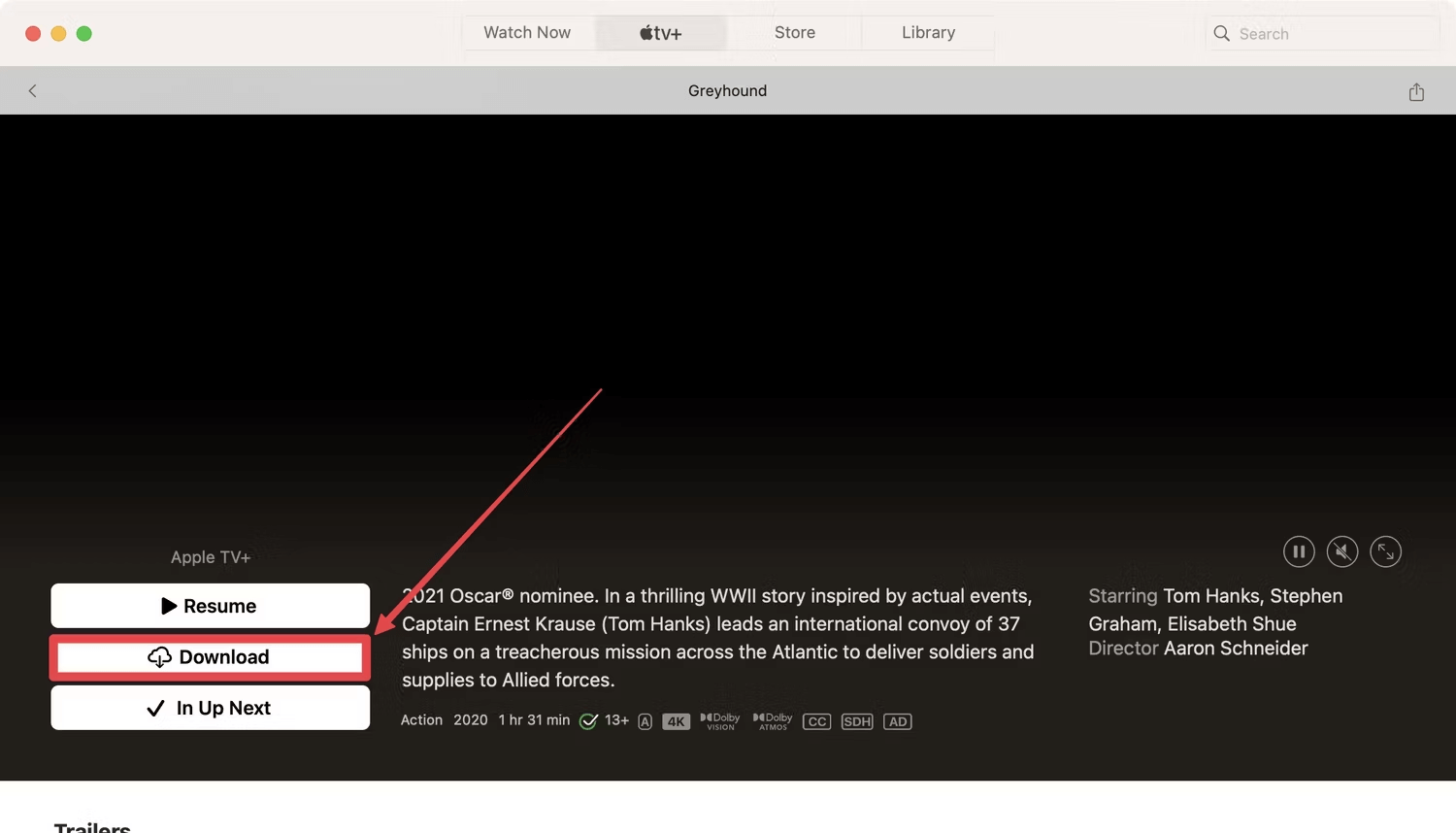
For a TV series, you may be able to download individual episodes or multiple episodes depending on the available options.
Step 4. After the download finishes, select the “Library” section and open “Downloaded” to view your offline content.
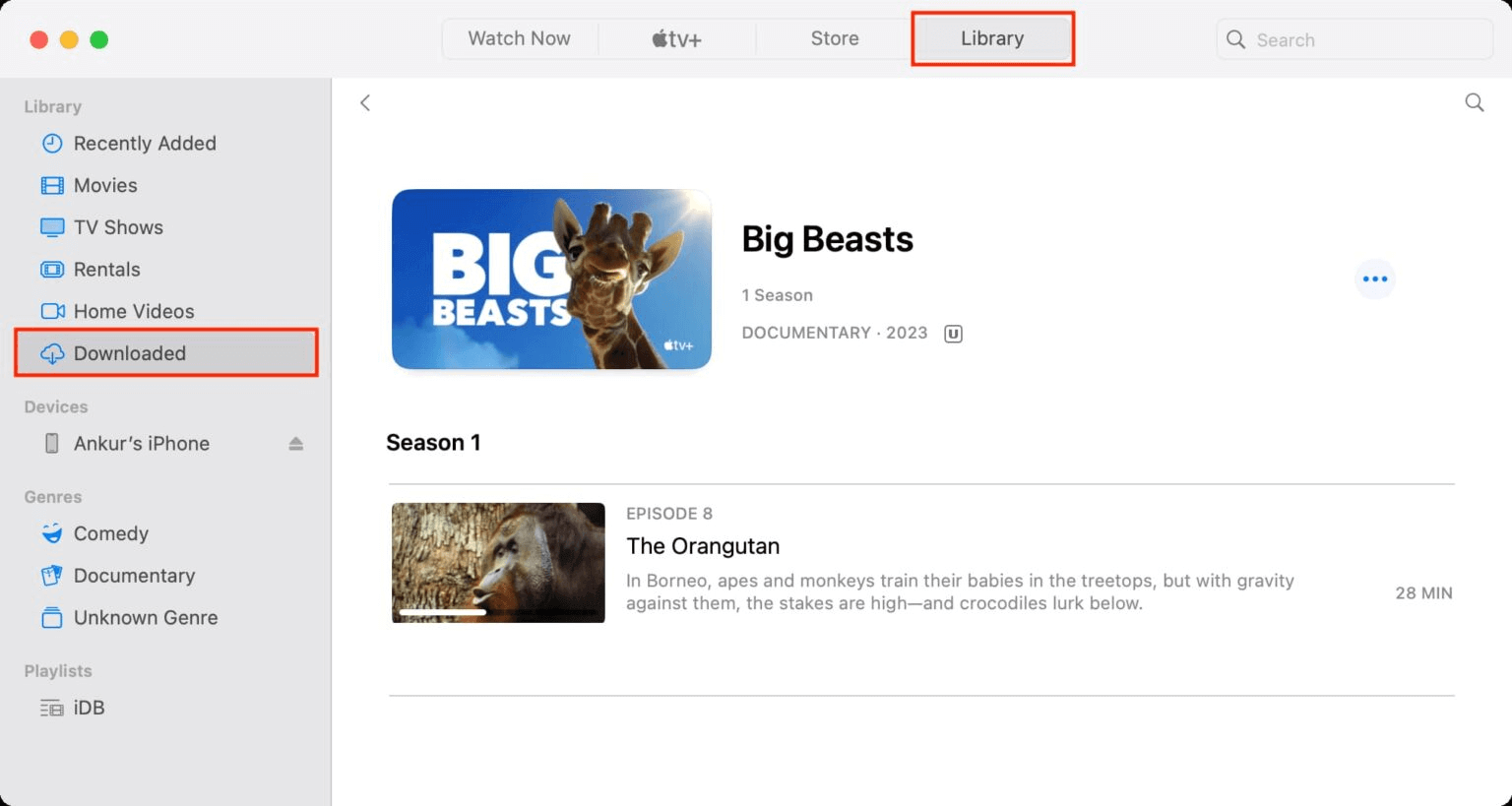
You can then watch the downloaded movie or episode offline on your Mac without an active internet connection.
Part 2. Which Video Streaming Platforms Do Not Allow Downloads on Mac?
Most popular streaming video platforms do not support official offline downloads on Mac, including Netflix, Disney+, Hulu, Max, Paramount+, Peacock, Crunchyroll, and others. Mac users are generally limited to browser-based streaming with an Internet connection.
While most videos services provide offline viewing on supported smartphones or tablets, or even Mac (Apple TV+, Prime Video), these official downloads often come with restrictions such as app-only playback, expiration dates, device limitations. They cannot be saved as regular MP4 files or moved to other devices or players. Therefore, if you want to download streaming videos on Mac and keep the streaming videos permanently, you may need a third-party streaming video downloader for Mac to unlock these restrictions. Keep reading!
Part 3. Best Streaming Video Downloader for Mac – iMovieTool
When it comes to downloading streaming videos on Mac, iMovieTool All-in-One Video Downloader is the best solution. It is a desktop video downloader designed to download movies and TV shows from multiple streaming platforms to Mac and Windows computers. This powerful desktop application supports major OTT platforms, including Netflix, Amazon Prime Video, Disney+, Hulu, Max, YouTube, and popular social media platforms like Twitter, Facebook, Instagram, and TikTok. It can save streaming videos as standard MP4 or MKV files that work on any device, media player, or editing software. For example, Netflix users can utilize iMovieTool to download Netflix videos on Mac to watch offline!
The software preserves original video quality (up to 1080p or 4K), supports multiple audio tracks and subtitles, and offers batch downloading capabilities for entire seasons. Whether you’re using a MacBook Air, MacBook Pro, iMac, or Windows PC, iMovieTool delivers a seamless, high-speed downloading experience, making it easy to build your offline video library.
More Features of iMovieTool Video Downloader:
- Support multiple popular streaming platforms in one application.
- Download movies, TV shows, anime, documentaries, sports, tutorials on Mac.
- Work with MacBook, iMac, Windows PC, and laptops.
- Save streaming videos as MP4 or MKV files permanently.
- Offers up to 50X faster download speeds to grab videos quickly.
- Download online videos in HD 1080p or 4K resolution.
- Batch download multiple movies, episodes, or TV seasons.
- Preserve original subtitles and multilingual audio tracks.
- Download and save subtitle in three subtitle formats.
- Provide a built-in browser for supported streaming services.
- Customize output location, format, quality, and other settings.
- Preserve video metadata for easier local video management.
How to Download Streaming Videos on MacBook as HD MP4 File?
Step 1. Choose a Platform and Log In
Once installed, open iMovieTool All-in-One Video Downloader on your MacBook or iMac, and select a streaming service from the available streaming platforms.
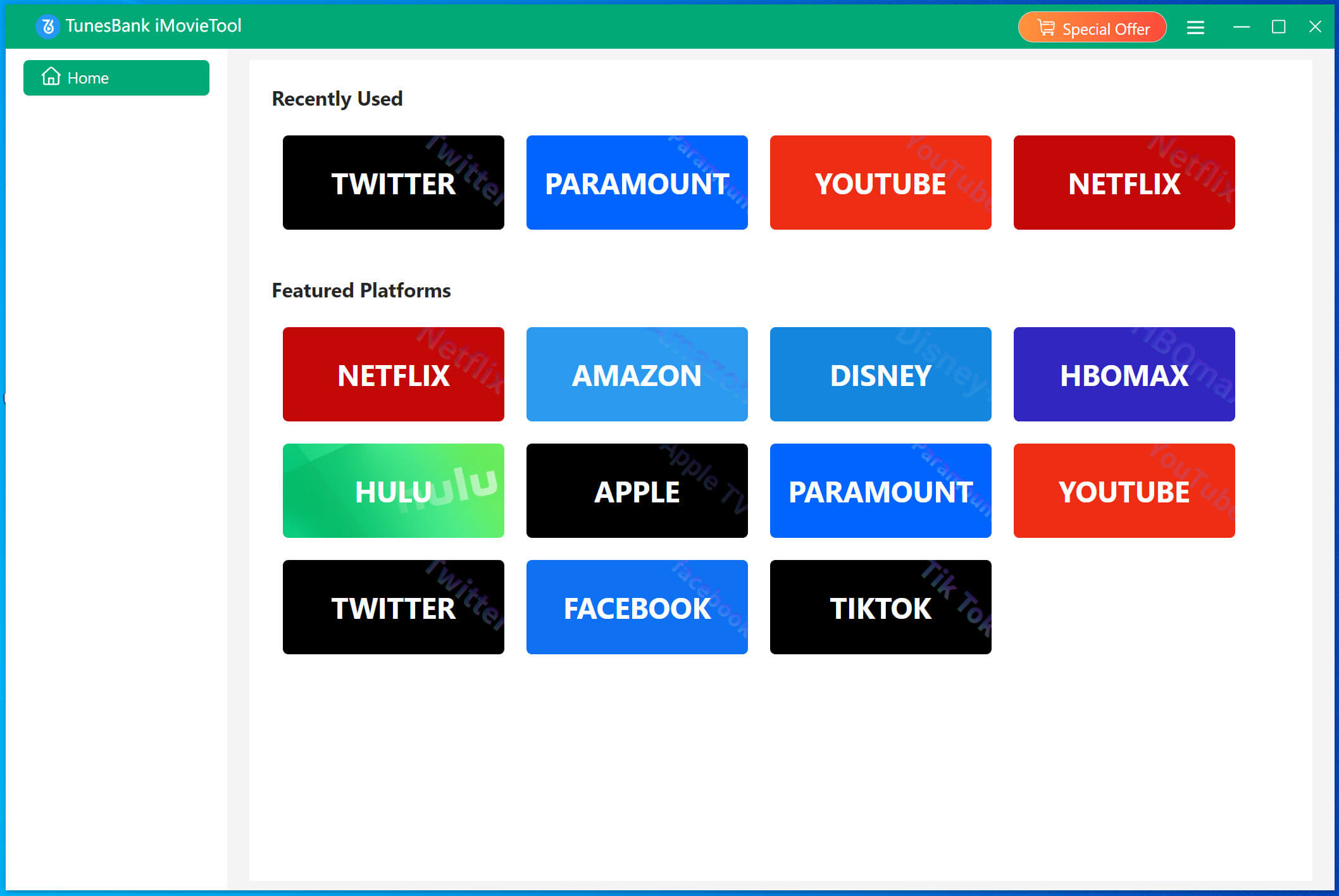
For example, here we choose Disney+, and sign in with an active Disney+ account to access eligible content.
Step 2. Modify Output Settings
Click “Menu” at the upper right corner and pick “Preferences” to open the settings panel. Here, you can choose the video format (MP4 is recommended), video quality (high), subtitles, audio tracks, and destination folder according to your needs.
Step 3. Search for Disney Plus Movie
Thanks to the built-in web browser, you have three ways to find Disney+ movies and TV shows: enter the title, paste the video URL, or browse Disney+ through the built-in browser.
Way 1. Using Name
Tap “Search” tab, enter the name of the Disney+ movie or TV show in the search box. iMovieTool will search the available Disney+ content and display matching results, allowing you to select the title you want to download.
Way 2. Using URL
Copy the URL of the Disney+ movie or TV show you want to save. Then paste it into iMovieTool’s search field. The software will analyze the link and identify the corresponding video when supported.
Way 3. Browse Online
Switch to “Browse” tab, you can also browse Disney+ directly through the built-in browser.
Find your preferred movie or series, open its details page, and click the “+” button to add it to your download list.
Step 4. Start Downloading Disney+ Video to Mac
Once everything is configured, click “Download” icon to begin processing the selected content, and save it to your Mac folder.
For TV series, you can select multiple episodes or an entire season and download them in batches, making it easier to prepare several episodes for offline viewing.
Step 5. Find the Downloaded Disney+ Videos
When the download is complete, open the “History” section in the top of the screen or go to the output folder selected in Preferences. The completed Disney+ videos will be stored locally in your chosen format and can be managed on your Mac. You can now open and watch these Disney+ videos on your Mac using iTunes, QuickTime, VLC player or other software!
Part 4. Final Words
To sum up, Apple TV+ and Amazon Prime Video offer a built-in solution with significant limitations, YouTube requires workarounds, and major platforms like Netflix and Disney+ offer no official Mac download support at all. iMovieTool All-in-One Video Downloader offers a convenient desktop solution for supported platforms. With multi-platform support, MP4/MKV output, HD quality options, batch downloading, and customizable subtitles and audio, it provides a flexible alternative for Mac users who need to download and watch streaming videos offline on Mac! Hit on the Download button and use it to grab your favorite videos locally!
The Latest Articles
– Top 8 Solutions to Download Streaming Video
– Top 10 Free Movie Download Sites Recommended
– 3 Ways to Download Movies to Watch Offline
– 2 Verified Methods to Download X/Twitter Videos to MP4
– Download Twitter(X) Videos on PC, Mac and Mobile Phone
– Download Facebook Videos on PC, Mac and Mobile Phone
– 3 Ways to Download Facebook Video to MP4

iMovieTool Movie Downloader
Download movies to MP4/MKV in 1080P, download movies from Netflix, Amazon Prime Video, Disney+, HBO Max, Hulu, Apple TV+, YouTube, and Paramount+. Download videos from Twitter, Instagram, Facebook, and TikTok for free.