








 United States (English)
 Japan (日本語)
 Russia (русский)
 Germany (Deutsch)
 France (Français)
 Spain (Español)
 Italy (Italia)
 Portugal (Portugues)
 China (繁体中文)
 Turkish (Türk dili)
 Dutch (Nederlands)
 Korean(한국인)
 Saudi Arabia(عربي)
 Download Netflix Movies and TV shows to watch offline.
When Netflix says ‘Download Limit Warning’ on your mobile device, it indicates that the download limit for a particular TV show or movie has been reached. Read on this article to get the reasons and solutions.
Netflix, as the king of OTT streaming platforms, allows users to download movies and TV shows for offline viewing. However, like most streaming platforms, Netflix sets strict download limits that can directly affect your viewing experience. Many users suddenly encounter messages such as “Netflix Says ‘Download Limit Warning’” or other Netflix download issues, preventing them from downloading the same title again.
So, what does the Download Limit Warning on Netflix actually mean? Why does Netflix restrict how many times you can download a specific movie or TV show each year? More importantly, how to solve Netflix Says ‘Download Limit Warning’? Read carefully and you will find all the answers and solutions to remove all Netflix download limits here.

Part 1. Why Netflix Says “Download Limit Warning”?
Netflix does allow download titles to watch offline, but it imposes download limits based on licensing agreements with content providers. Each TV show or movie on Netflix may have a different download cap. Some titles can only be downloaded a limited number of times per year per account. Some titles may even only be allowed to be downloaded once. Netflix does not tell you about the download limit for a whole year. But Once you exceed the allowed number of downloads, Netflix will automatically blocks further downloads for that specific title until the restriction resets.
You may encounter one of the following messages when this happens:
Netflix says ‘You have reached the yearly download limit for this video. (10016-22007)’

Netflix says ‘Download Limit Warning’. Due to licensing, this title can only be downloaded one more time before a specific date.
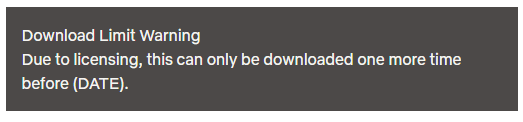
Netflix says ‘This title can only be downloaded 1 more time.’

Once you see any of these messages, you won’t be able to download the same movie or TV show again until the date shown in the error message. So, is there a way to solve Netflix says ‘Download Limit Warning’ problem and get unlimited downloads on Netflix? Of course! Scroll down to get the solutions.
Part 2. How to Solve Netflix Says ‘Download Limit Warning’
Netflix applies download limits to comply with licensing agreements from content providers. Below content we will show you how to solve the Netflix download issues.
Solution 1. Stream the Title Online or Choose Another Download
If Netflix displays a “Download Limit Warning” on your phone or tablet, it means you’ve reached the maximum number of downloads allowed for that specific movie or TV show. In such case, you can:
- Stream the title online with an internet connection.
- Download another movie or TV show that hasn’t reached its limit.
- Wait until the reset date shown in the error message.
Solution 2. Download Netflix Videos to MP4 and Keep Them Offline Forever 🔥
If you want to completely solve Netflix says ‘Download Limit Warning’ and remove all Netflix download limits permanently, using a professional Netflix video downloader is the most effective solution.
iMovieTool Netflix Video Downloader is a powerful desktop tool designed to help users bypass Netflix’s download restrictions and save movies and TV shows permanently. Unlike the official Netflix app, which imposes yearly limits, expiration dates, and device restrictions, iMovieTool allows you to download Netflix videos as standard MP4 or MKV files, so you can keep the Netflix videos offline forever and enjoy them anytime without restrictions, no expiration. Plus, you can even transfer your downloaded Netflix videos to any device without worrying about compatibility issues.
This tool also comes with a built-in Netflix web player, allowing you to log into your account securely and search for any available content for download. What’s more, it provides 50X fast-speed batch download, and preserves the original quality (up to HD 1080P), multilingual audio tracks and subtitles. With it, you can download and watch your favorite Netflix videos without the Netflix app!
More Features of iMovieTool Netflix Video Downloader:
- Download and save Netflix movies and TV shows permanently.
- Downloads Netflix videos in MP4 or MKV with 1080p quality.
- Download Netflix movies and TV shows to computer at 50X faster.
- Download an entire season or multiple movies in one queue.
- Allows to choose your preferred language, subtitle format.
- Keep the downloaded Netflix videos permanently with no expiration.
Next, let’s see how to download Netflix videos to MP4 using iMovieTool Netflix Video Downloader, so as to bypass Netflix download limits and keep your Netflix downloads forever.
Step 1. Pick Netflix & Log In Account
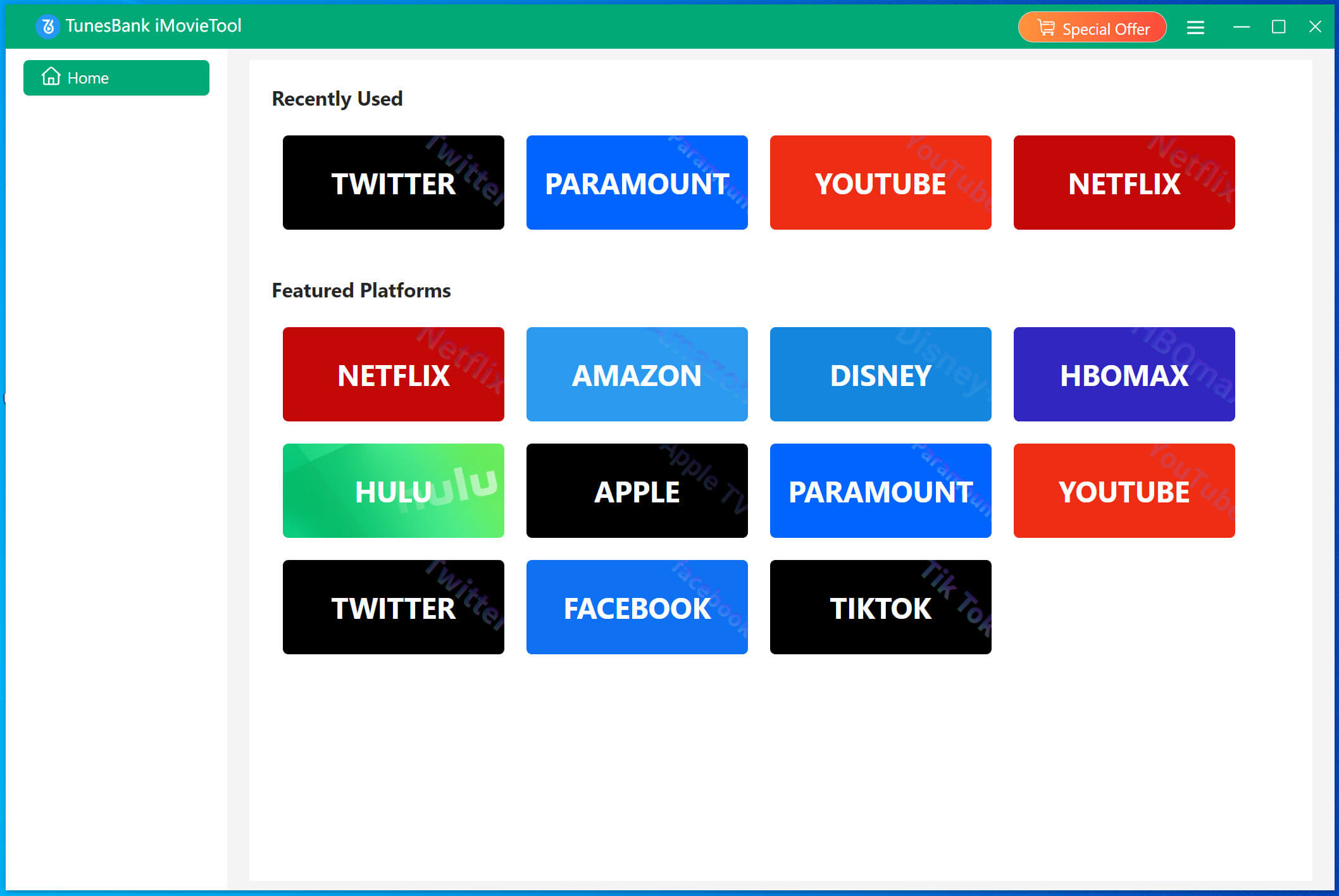
First, click on the above Download button. Run the installer and launch the TunesBank iMovieTool. Then, select Netflix service to enter the iMovieTool Netflix Video Downloader.
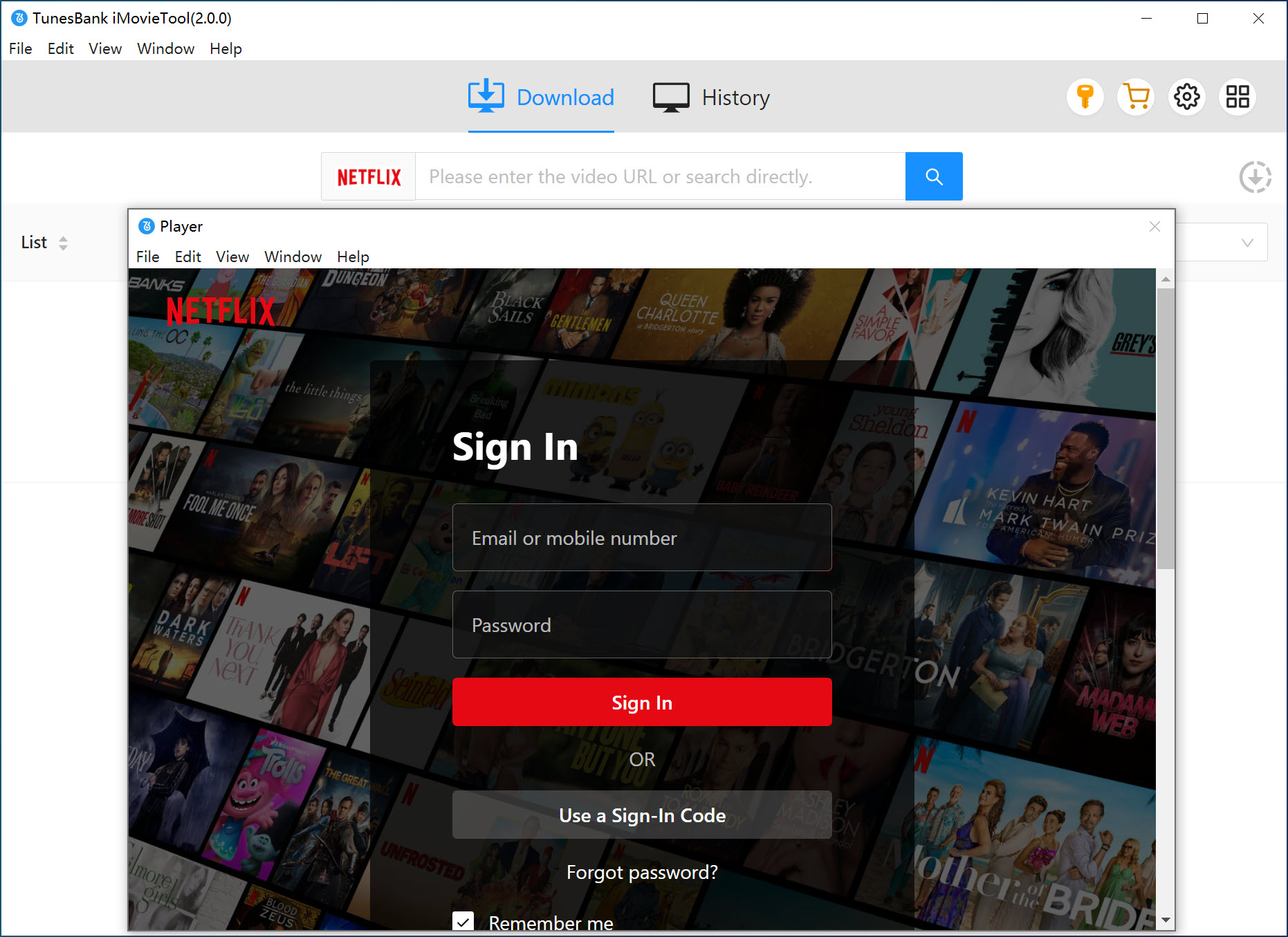
Sign in using the built-in Netflix web player inside inside iMovieTool. This allows you to directly access the Netflix video library online, no need to switch to official Netflix app.
Step 2. Customize Output Settings
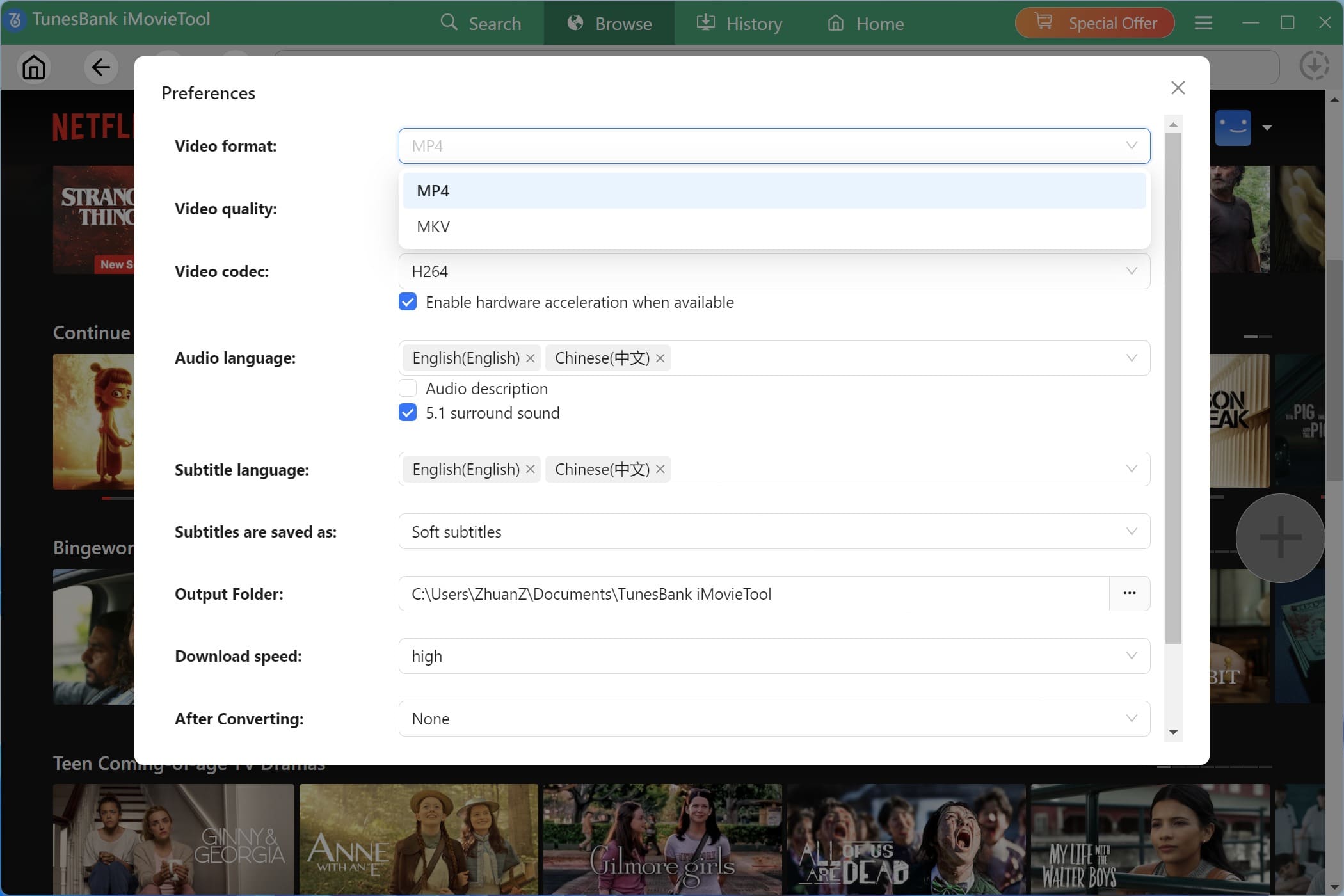
Before downloading Netflix videos, turn to the Menu bar and select Preference to access the settings window. Choose MP4 or MKV format, select video quality, audio language, and subtitle preferences.
Step 3. Browse Netflix Videos Online
Navigate through Netflix’s interface within iMovieTool just as you normally would. Tap “Browse” tab, find the movie or TV show that triggered the download limit warning.
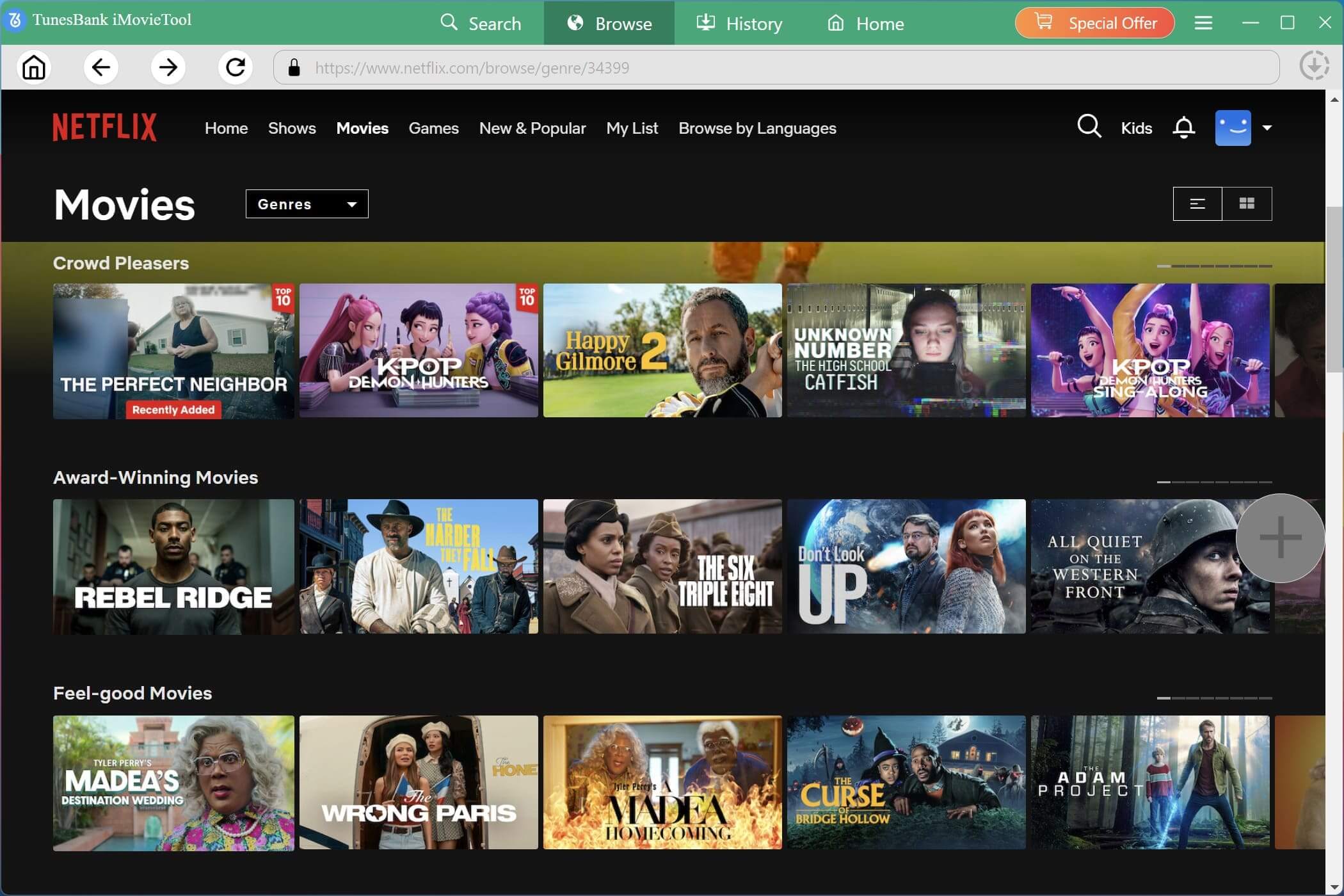
Step 4. Add Netflix Video
Click on it to load the details page. Click the green icon “+” to add it to the download queue.
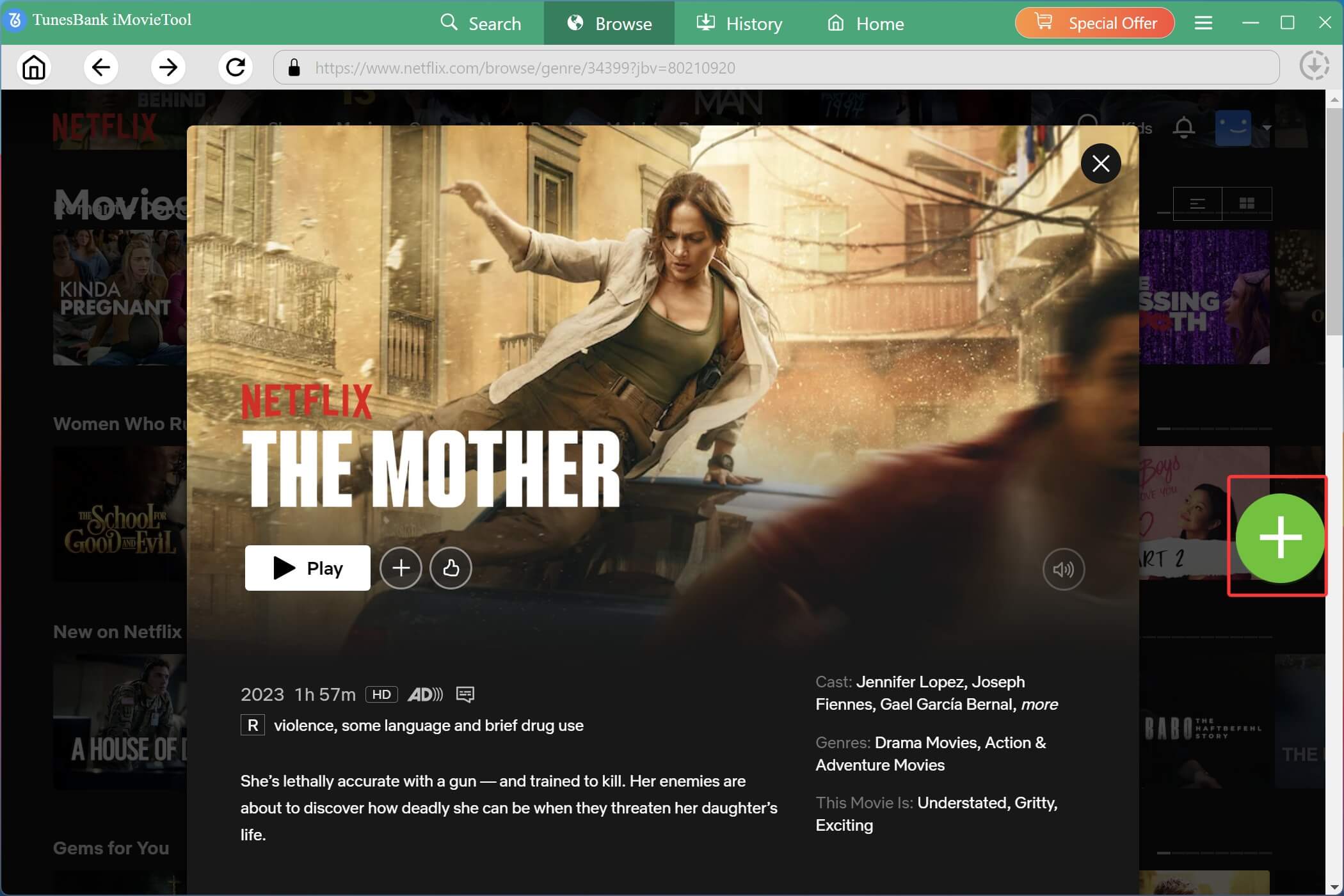
Tips: You may also search for the Netflix movie or show by entering the keyword, name, or pasting the URL in the search field.
Step 5. Download Netflix Videos to MP4
Click the “Download” button in the queue tab. It will immediately begin to download movie from Netflix web browser. For downloading TV shows, you need to select your desired episodes and seasons, and then hit on “Download” button.
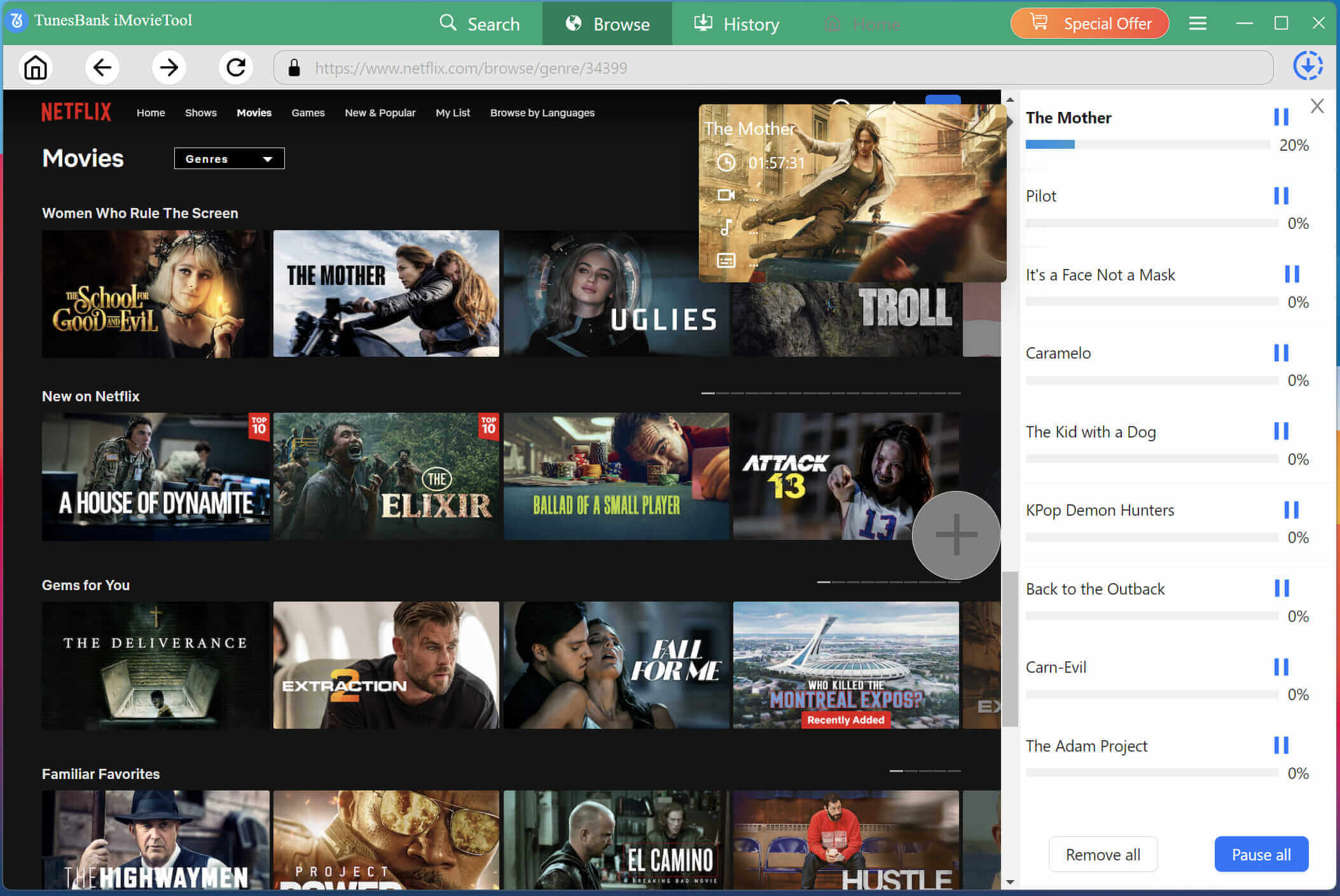
Step 6. Enjoy Permanent Access of Netflix Downloads
Once completed, the Netflix videos are saved on your local folder. You can go to “History” section or directly open the output folder, and get your local Netflix videos! This allows you to bypass Netflix’s download limit and watch them offline anytime!
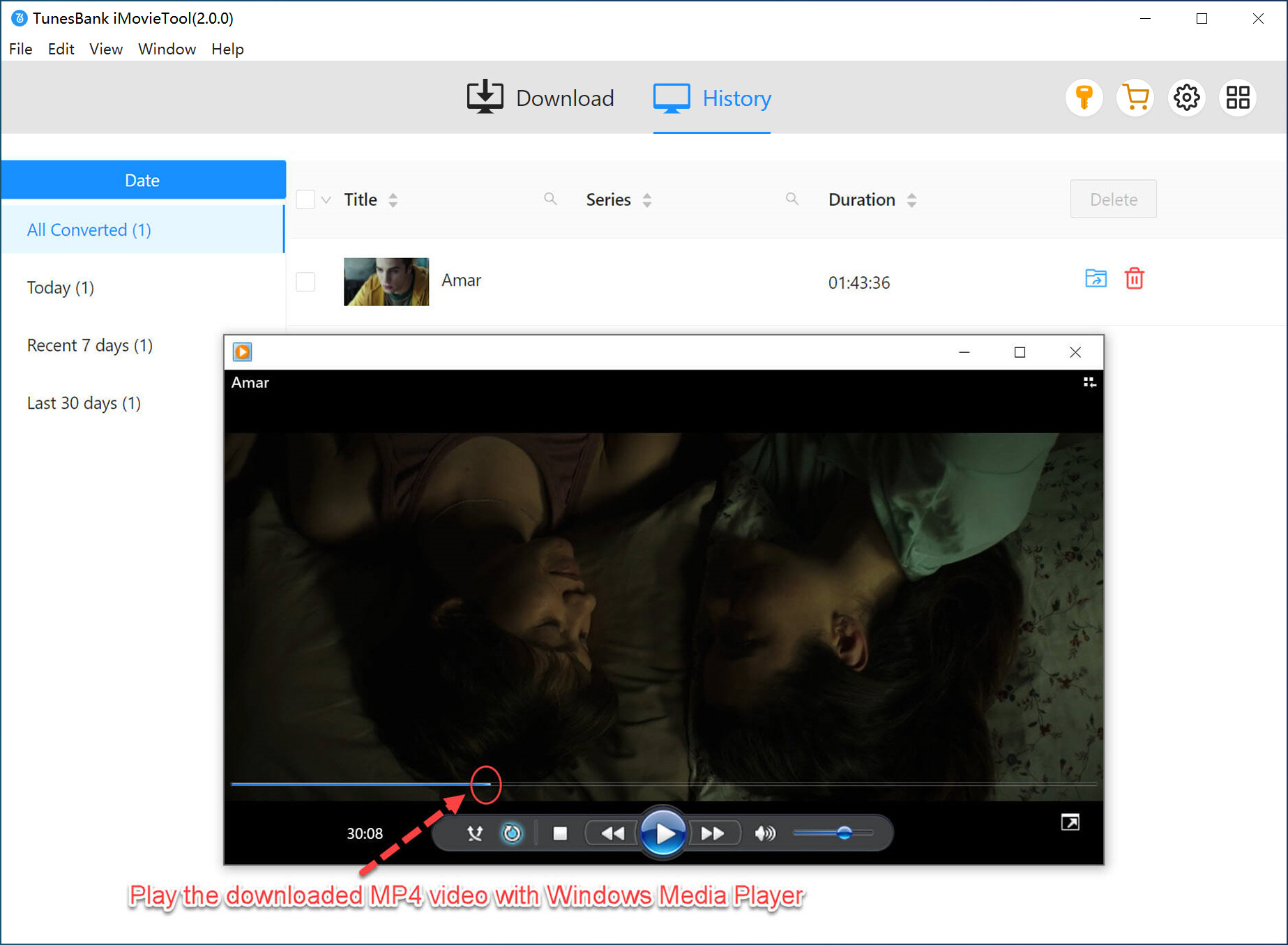
With the best Netflix app alternative – iMovieTool Netflix Video Downloader, you no longer need to worry about Netflix Says ‘Download Limit Warning’ or ‘You have reached the yearly download limit for this video (10016-22007)’ issues.
Final Words
To sum up, Netflix offers subscribers the incredible convenience of downloading movies and TV shows for offline viewing. However, Netflix’s “Download Limit Warning” is one of the Netflix download limits, frustrating users. Whether the yearly download limit, quantity limit, device limit, or subscription limit, the third-party tool – iMovieTool Netflix Video Downloader can help you get around of all these restrictions. With its help, you can enjoy unlimited Netflix videos downloads and offline viewing without expiration dates, device limits, or yearly caps. Now, start this tool and download your favorite Netflix video titles to MP4 HD!
The Latest Articles
– Top 8 Solutions to Download Streaming Video
– Top 10 Free Movie Download Sites Recommended
– 3 Ways to Download Movies to Watch Offline
– 2 Verified Methods to Download X/Twitter Videos to MP4
– Download Twitter(X) Videos on PC, Mac and Mobile Phone
– Download Facebook Videos on PC, Mac and Mobile Phone
– 3 Ways to Download Facebook Video to MP4

Netflix Video Downloader
Download Netflix video to MP4 or MKV with multi-language audio track and subtitle kept. Up to 50X downloading speed. Easily to download your favorite movies/TV shows from Netflix to your computer for offline viewing.







