








 United States (English)
 Japan (日本語)
 Russia (русский)
 Germany (Deutsch)
 France (Français)
 Spain (Español)
 Italy (Italia)
 Portugal (Portugues)
 China (繁体中文)
 Turkish (Türk dili)
 Dutch (Nederlands)
 Korean(한국인)
 Saudi Arabia(عربي)
 Download Netflix Movies and TV shows to watch offline.
Are you looking for a way to download Netflix movies on laptop to watch offline? This article provides two workable methods to help you easily download movies from Netflix on Windows laptop, MacBook, and Chromebooks.
Netflix is one of the world’s most popular streaming platforms, offering a vast collection of movies, TV shows, documentaries, and Netflix Originals. However, when you want to download Netflix movies on a laptop, you’ll be frustrated to find that no download button on laptop. Since mid-2024, Netflix has gradually changed its download policies, and now official downloads are limited to mobile devices. Transfer Netflix downloads from mobile devices to laptops won’t work either, because all downloaded videos are protected by DRM, and locked in the Netflix mobile app.
But this is no longer an issue! In this guide, we’ll show you how to download movies on Netflix on laptop devices, including Chromebooks, Windows laptops, and MacBooks. We’ll also introduce iMovieTool Netflix Video Downloader, a powerful tool that helps you download Netflix movies to your laptop in MP4 or MKV format for permanent offline viewing without restrictions.
Can You Download Netflix Movies on a Laptop?
The answer depends on your laptop type. Netflix allows offline downloads only on specific platforms:
Chromebooks: Yes, via the Netflix Android app.
Windows laptops: No official way.
MacBooks: No official way.
Linux laptops: No.
First, Windows laptop users can no longer download any title directly through the Netflix Windows app because Netflix removed the download feature from its Windows application. Second, MacBook users have never had an official way to download Netflix videos because there is no Netflix app for Mac. But if you’re using a Chromebook, you can download Netflix content through the Netflix Android app. Let’s dive in and find the workable and alternative methods below.
Method 1. Download Netflix Movies on Chromebooks via Netflix Android App
If you’re using a Chromebook, Netflix provides an official way to download Netflix movies on laptop for offline viewing. Since many modern Chromebooks running ChromeOS 76 or later support Android apps through Google Play Store integration, users can install the Netflix Android app and download supported movies and TV shows with a subscription. Now, let’s learn the way to sideload the Netflix app and download movies from Netflix on your Chromebook.
-
A paid Netflix account.
A Chromebook with Google Play Store installed.
The latest version of the Netflix Android app.
An active internet connection to download content.
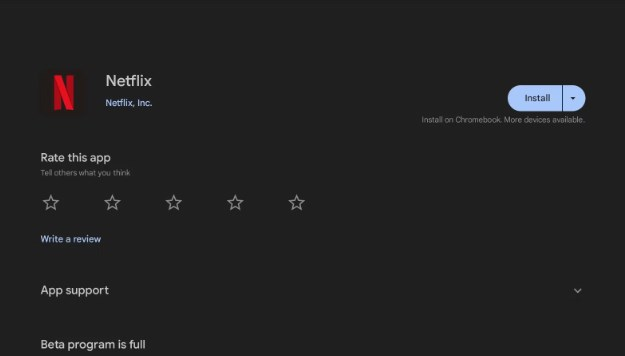
Step 1. Install Netflix from Google Play Store
Open Google Play Store on your Chromebook and install the Netflix Android app.
Step 2. Sign in to Netflix
Launch the Netflix app and log in using your Netflix account credentials.
Step 3. Find Downloadable Content
Browse movies and TV shows or select the “Available for Download” category.
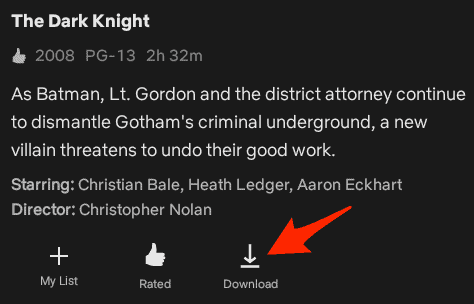
Step 4. Download Netflix Movie
Open the movie you like, and tap the “Download” icon to save it.
Step 5. Watch Netflix Offline
After downloading, navigate to Downloads and enjoy Netflix movie on your Chromebook without an internet connection.
● Some Netflix titles cannot be downloaded.
● Netflix downloads expire after a certain period, typically 7 days or 30 days.
● You can only watch these downloads within the Netflix app.
● The downloaded Netflix movies cannot be transferred to other devices.
Method 2. Download Netflix Movies on Windows Laptop & MacBook via iMovieTool
For Windows laptops and MacBooks, the situation is more challenging. The official Netflix Windows app no longer offer a download button. On macOS, there is no native Netflix app at all, instead you can only stream Netflix titles via a web browser. Fortunately, there are many useful third-party Netflix downloader tools, which help you easily bypass the download limits, download movies from Netflix to your laptops, and enjoy a smooth offline viewing experience.
iMovieTool Netflix Video Downloader offers a convenient Netflix video download service that works like a charm. This dedicated software enables you to download unlimited Netflix movies, TV shows, documentaries, anime, and Originals on Windows laptops and MacBooks. It can convert and save Netflix movies to MP4/MKV in 1080p with Dolby Atmos and 5.1 surround sound, delivering you a cinema-like playback experience! Compared to official Netflix downloads which will expire after a certain period, the downloads by iMovieTool will be available all the time, even if your Netflix subscription ends!
With advanced downloading technology, iMovieTool supports batch downloads, and delivers download speeds up to 50X faster to grab movies from Netflix. The software also preserves original audio tracks and subtitles in dozens of languages, perfect for language learners. You can watch the downloaded Netflix movies on your laptop using any media player, like VLC, QuickTime, Windows Media Player, or iTunes, and transfer them to other devices without restrictions!
Main Features of iMovieTool Netflix Video Downloader:
- Download Netflix movies and TV shows on Windows/Mac laptop.
- Save Netflix movies in common MP4 or MKV formats.
- Download Netflix movies in Full HD 1080p quality.
- Batch download Netflix movies on laptop at up to 50X faster.
- Preserve multilingual audio tracks and subtitles.
- Watch downloaded Netflix videos on laptop any other devices.
- Compatible with both Windows laptops and MacBooks.
Detailed Steps to Download Netflix Movies on Laptop in 1080p MP4
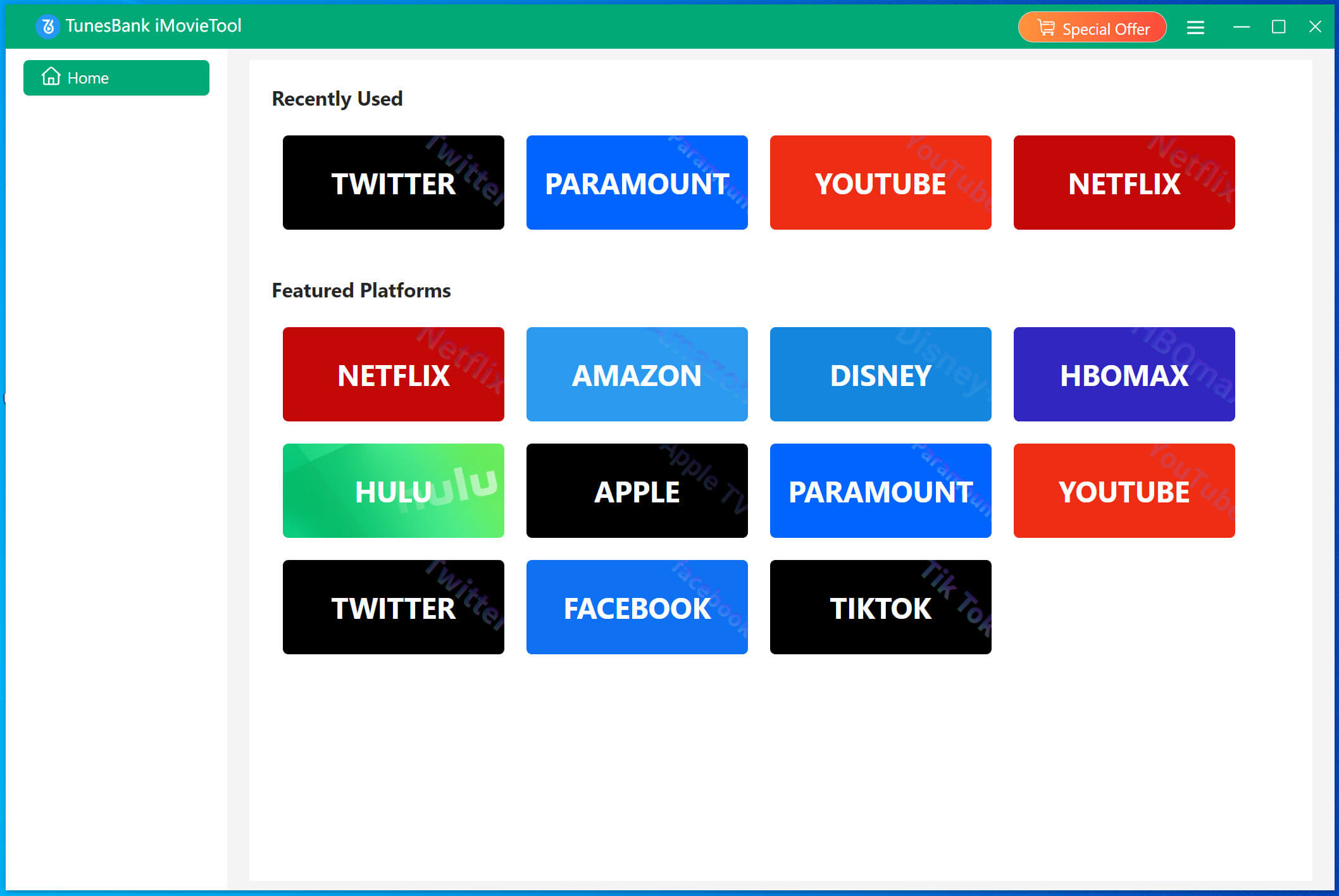
Step 1. Download iMovieTool and Sign In to Netflix
Download and install iMovieTool Video Downloader on your Windows laptop or MacBook. Launch the software, and you will see all the streaming platforms it supports. Select Netflix from the supported platforms.
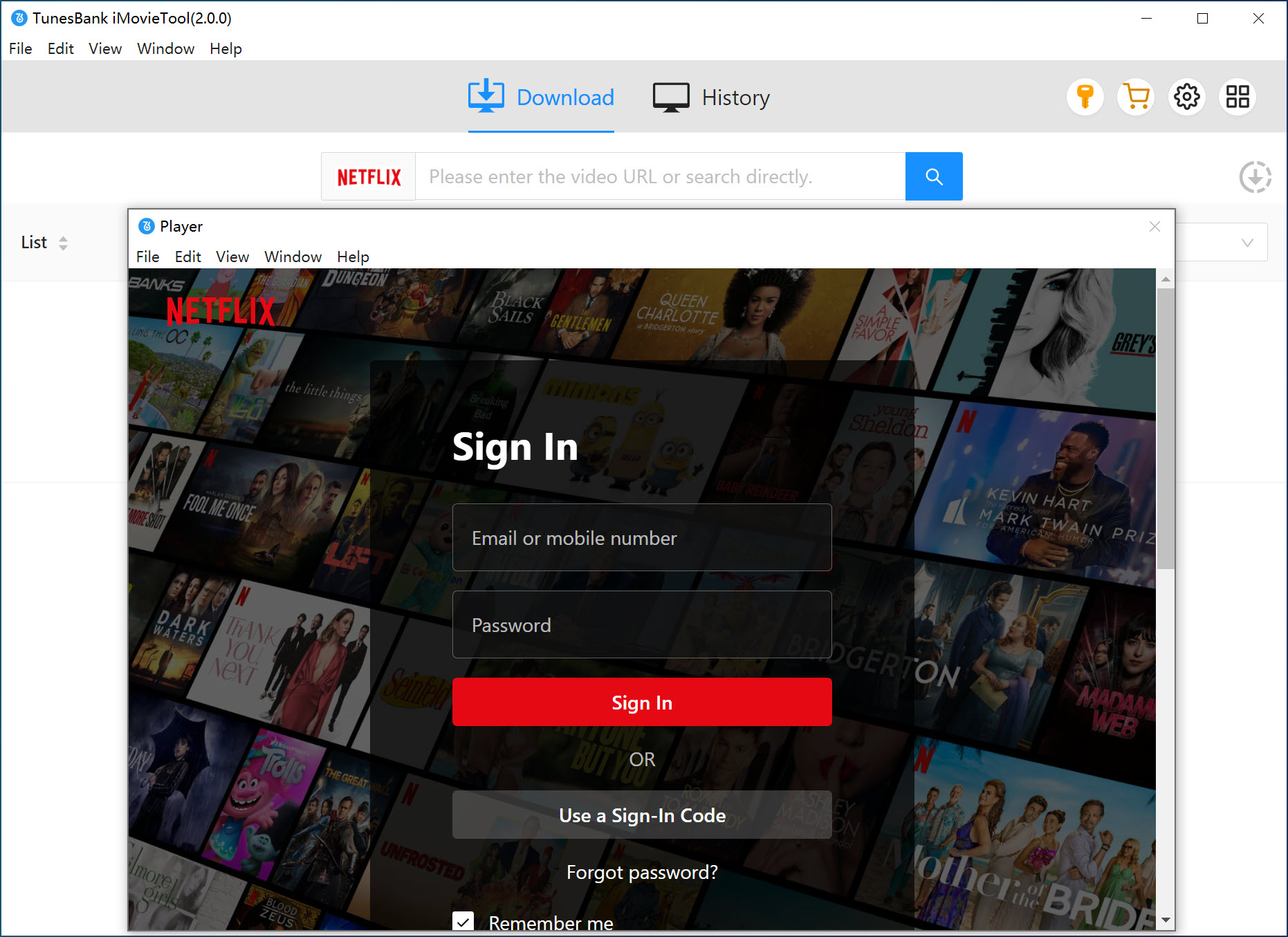
Log into your Netflix account using your email and password. Then you can access the full movie library in the software directly.
Step 2. Adjust Download Settings
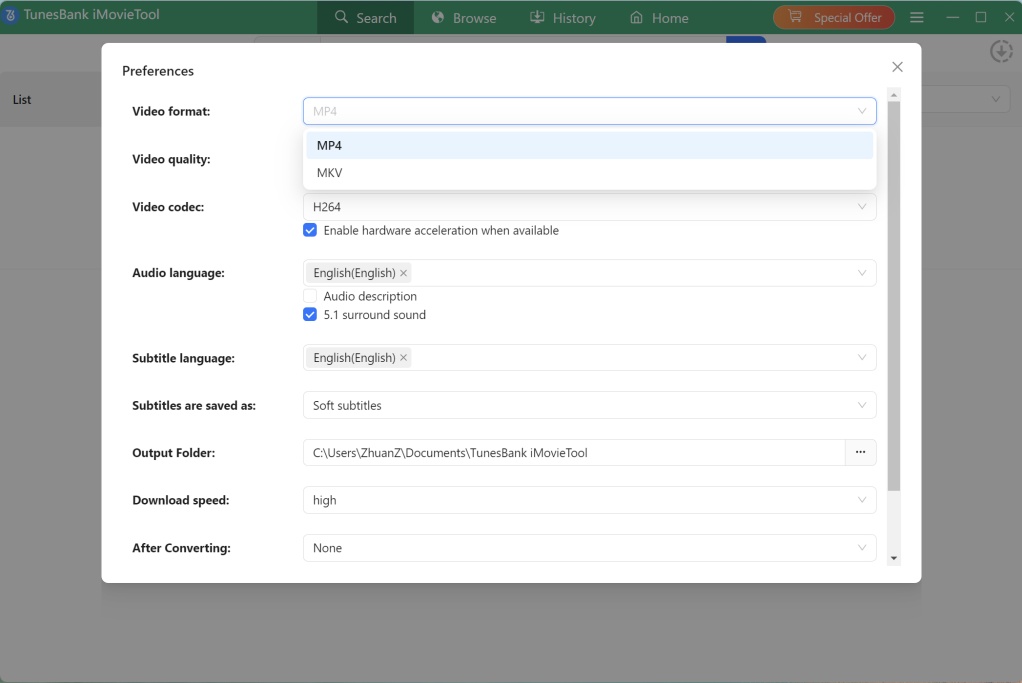
Click the Menu icon (three horizontal lines) in the top‑right corner, then choose Preference. A settings dialog will appear. Here you can select video format (MP4 or MKV), video codec, video quality, audio language, subtitles, and more.
Step 3. Browse and Add Netflix Movie to the Downloader
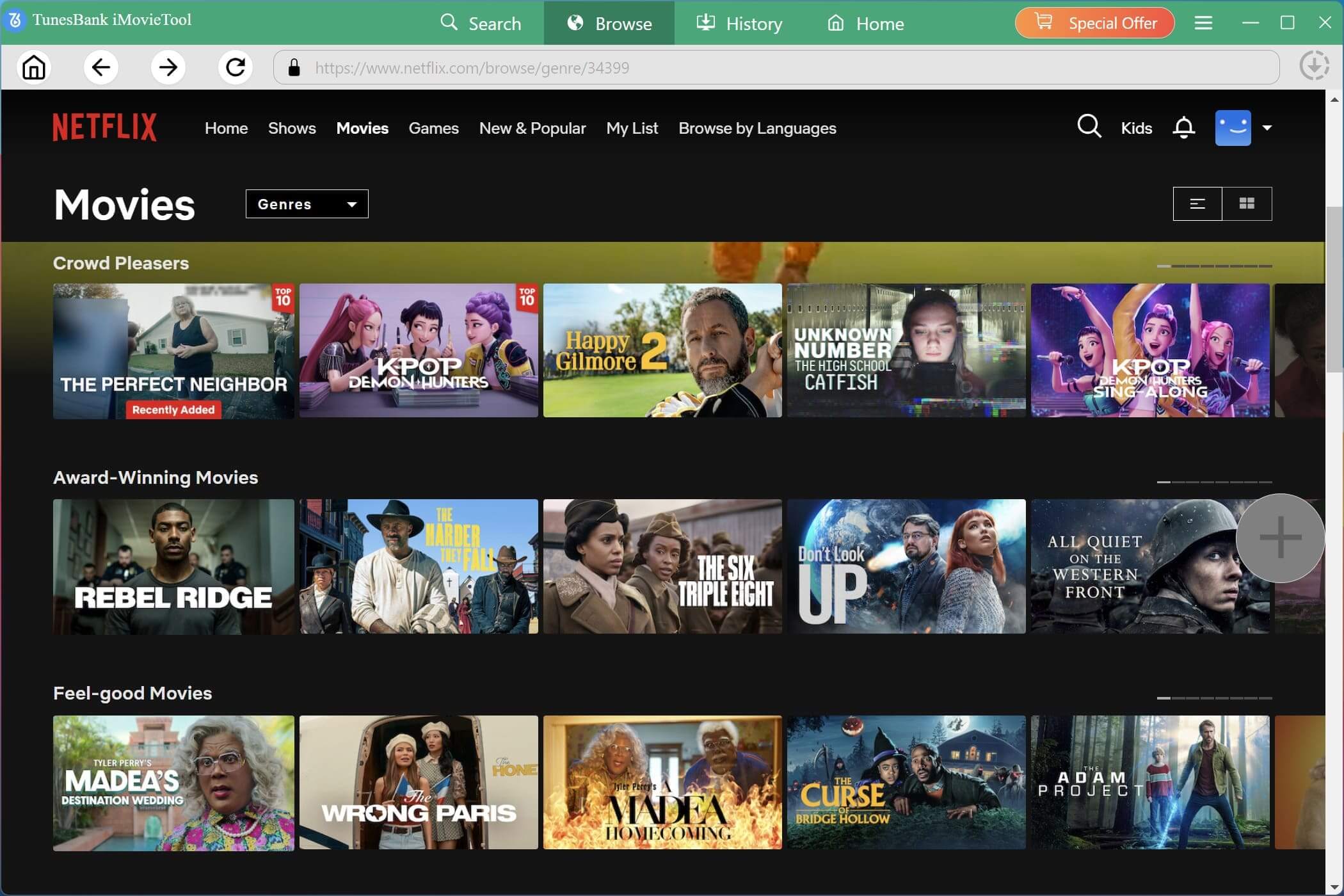
Go to “Browse” section. Click through categories like “Movies,” “Trending Now,” “My List,” or “New Releases.” Scroll through posters and click on any movie that interests you.
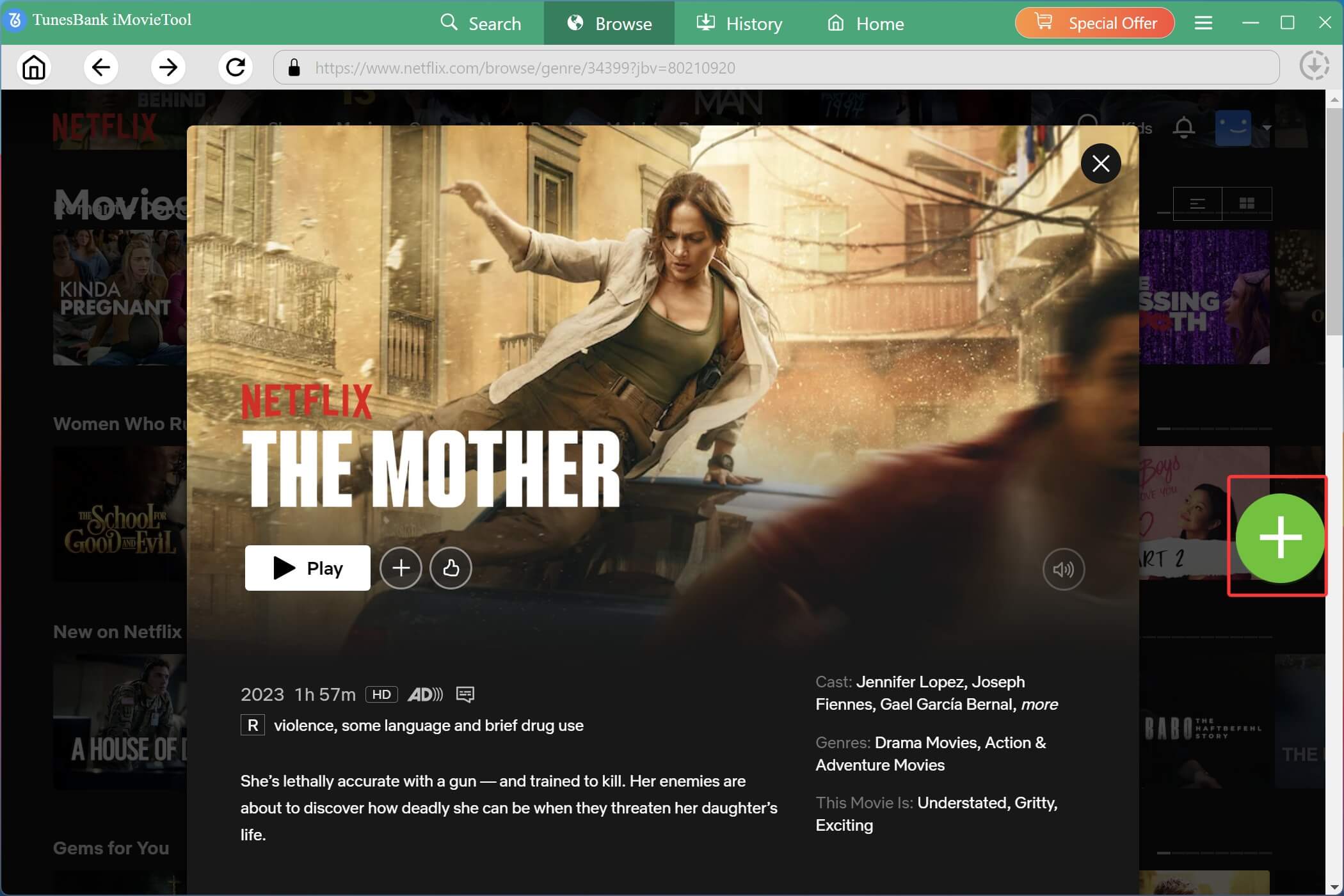
Once you’re on the movie’s details page (e.g., The Mother), look for the “+” icon (or green icon, usually located in the right side). Click this icon.
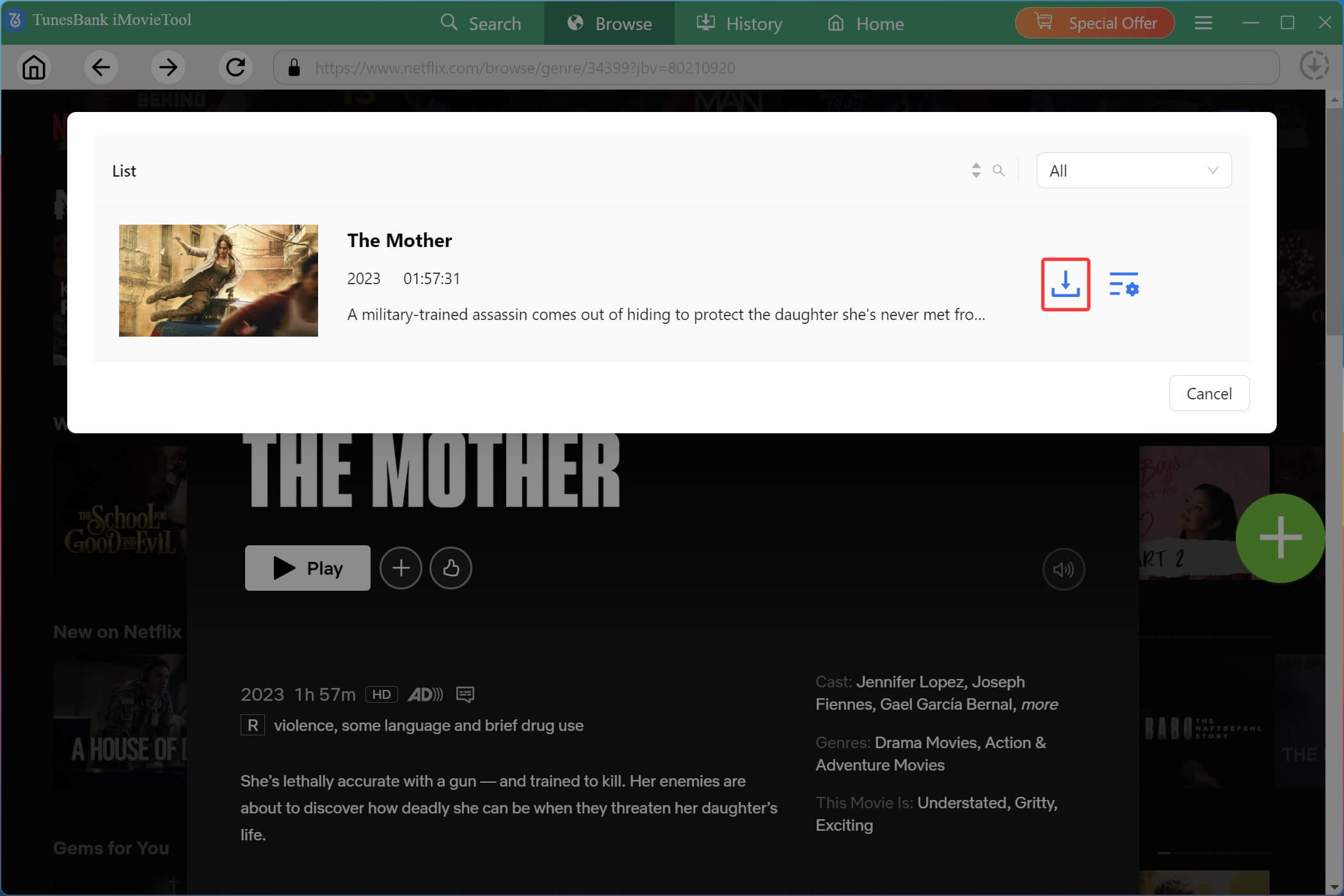
A pop‑up window will appear, with a Download and Gear icon. You can also click the Gear icon next to the movie to set single video settings such as video quality, audio, or subtitle language.
Step 4. Start Downloading Netflix Videos on Laptop
After confirming your movie selection and any per‑video settings, click on the “Download” icon. iMovieTool will add the movie to your download queue.
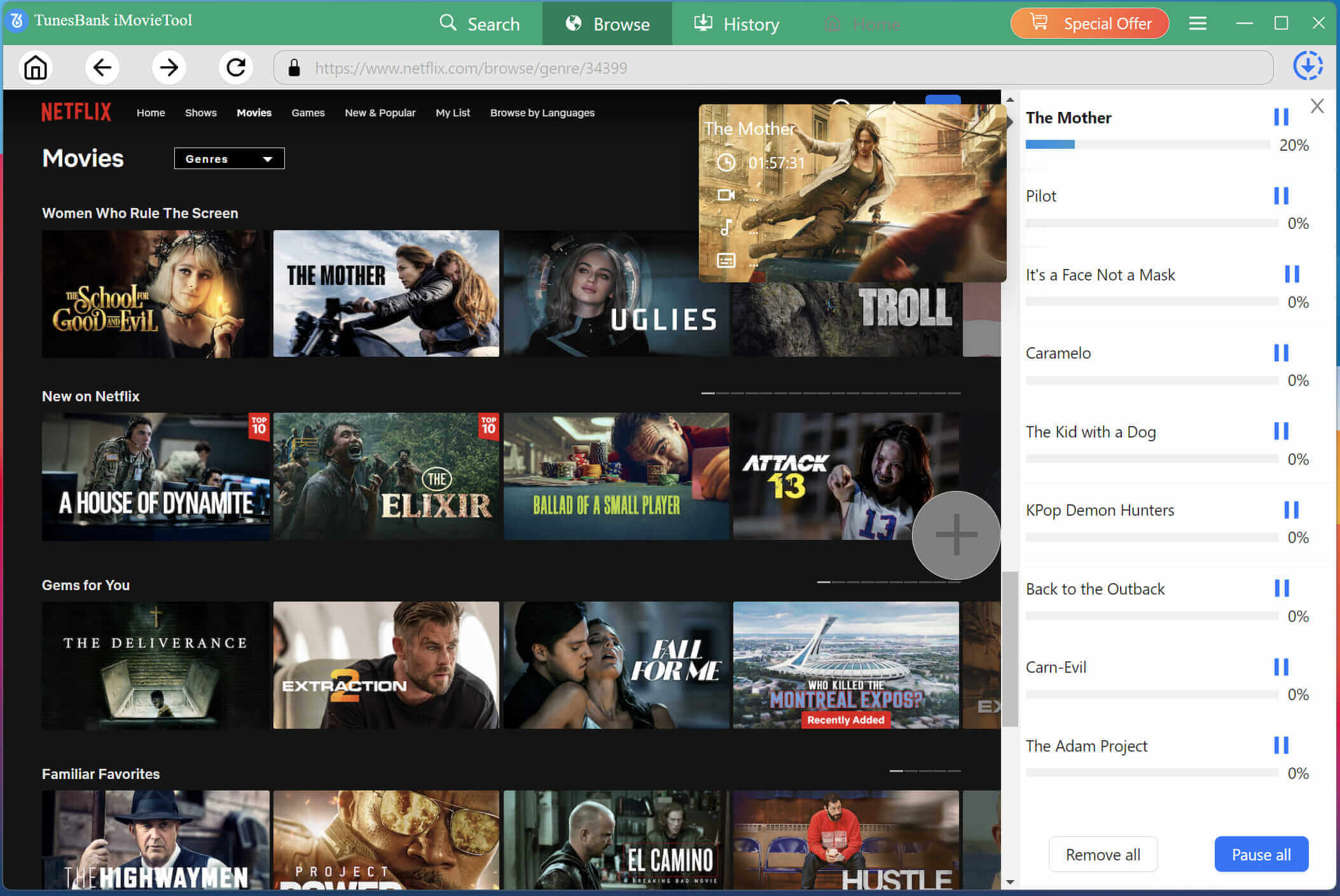
During the process, you can turn back to the “Browse” section, search and add more movies to the download queue.
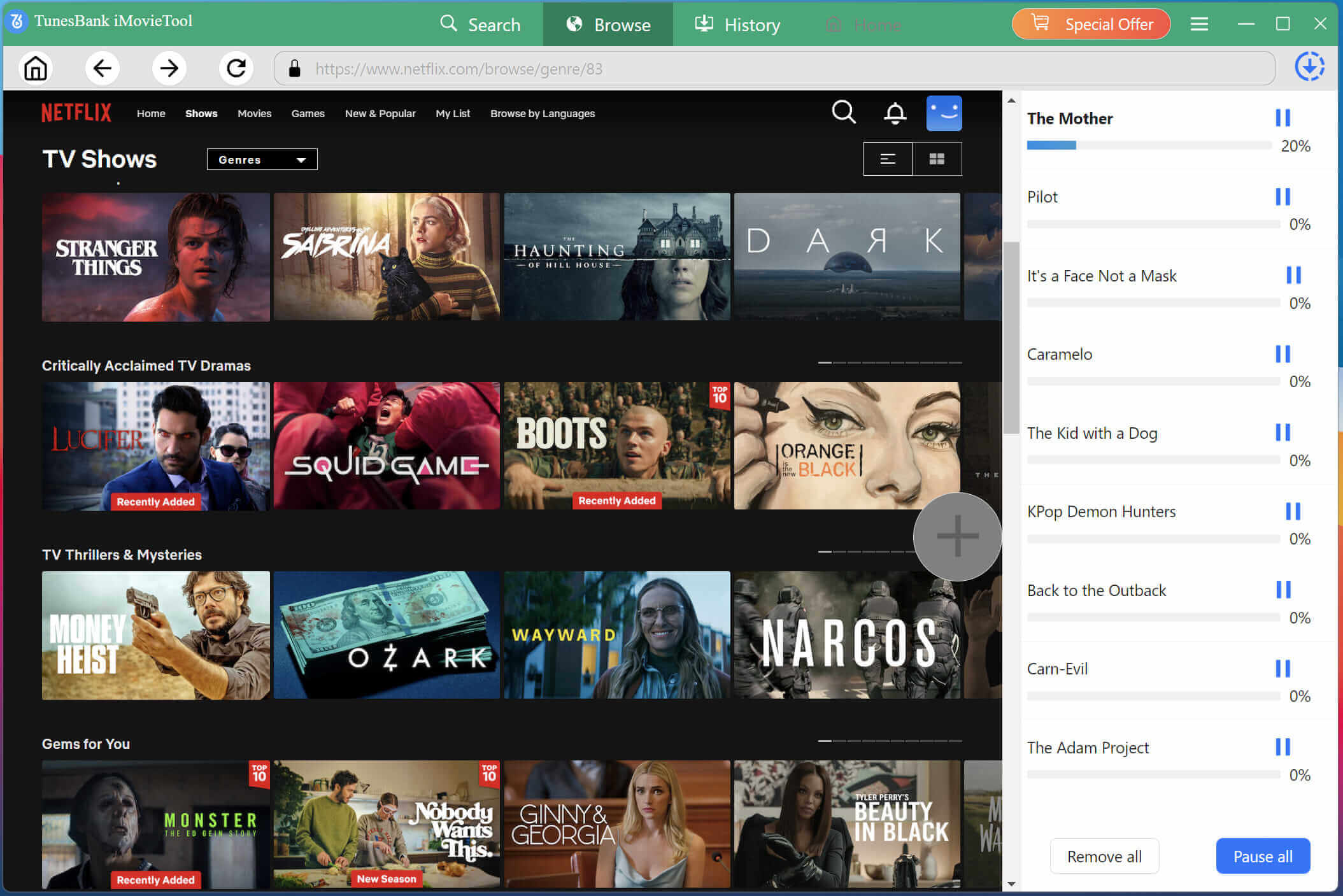
Step 5. Find Downloaded Netflix Movies
Once the download process is complete, navigate to the “History” section or directly open the output folder. All downloaded Netflix movies will be saved locally on your laptop permanently!
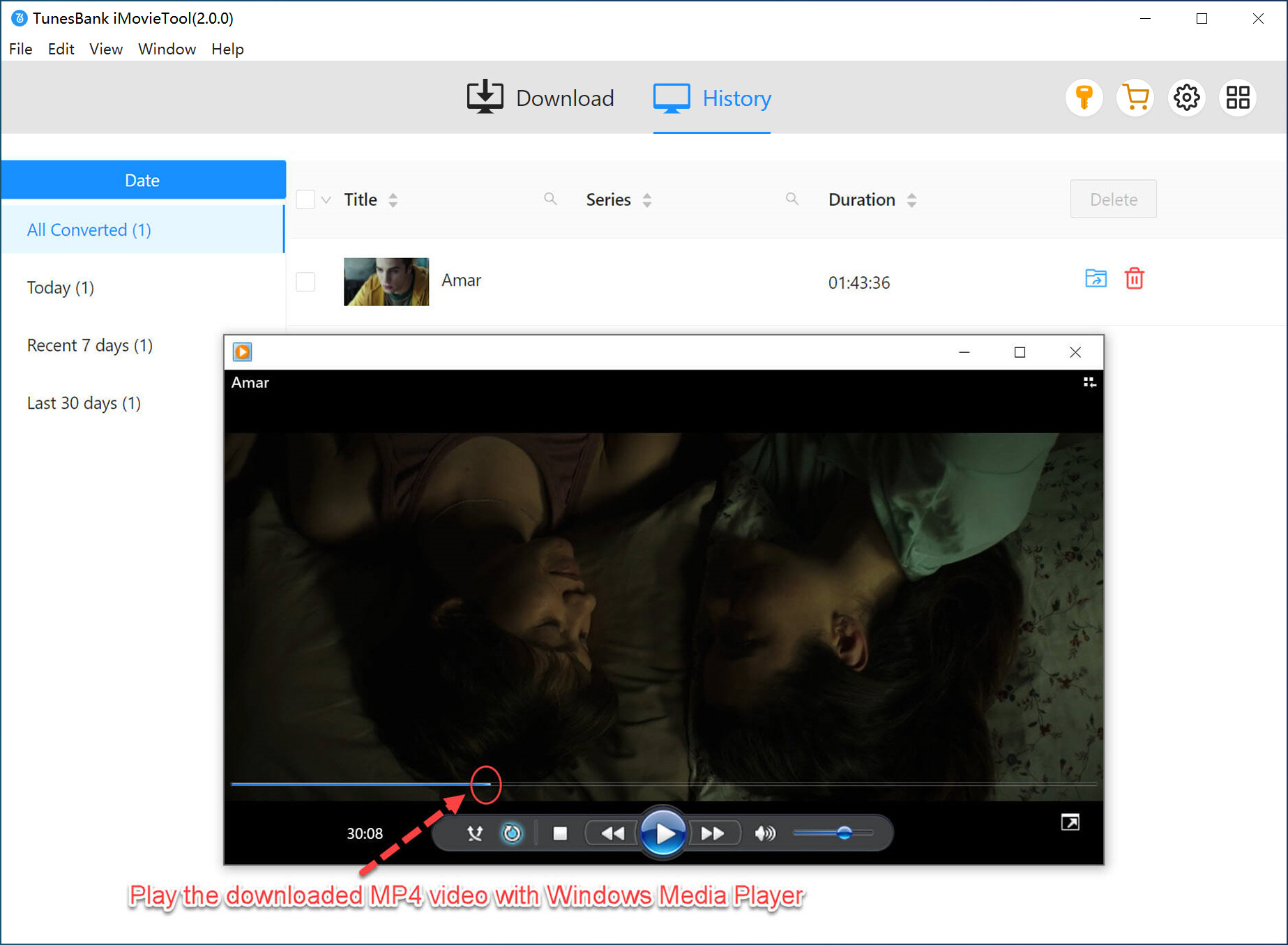
Step 6. Watch Netflix Movie on Laptop with Other Players
Now, choose any downloaded Netflix movie, open it with any media player, such as VLC, QuickTime, Windows Media Player. Enjoy a smooth offline playback experience!
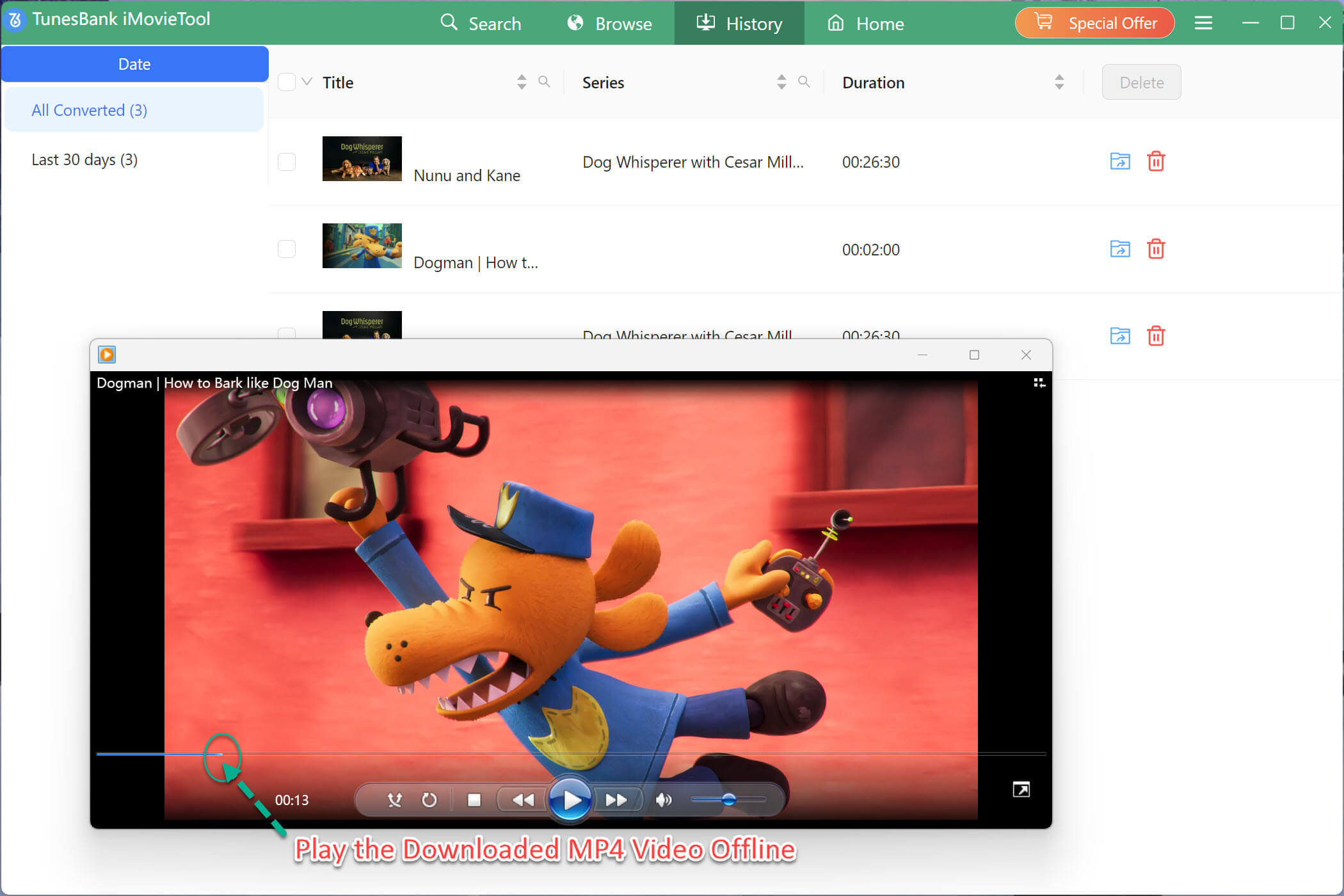
FAQs About Downloading Netflix Movies on Laptop
Where Is the Download Button on Netflix on Laptop?
On a Windows laptop or MacBook, there is no download button in the Netflix Windows app or the official Netflix web player. Netflix only provides download buttons on mobile apps (iOS, Android) and the Android app on Chromebooks. To download movies on Windows laptop or MacBook, you need a third‑party tool like iMovieTool Netflix Video Downloader.
How to Download Movies on Netflix on Laptop Windows 10?
Since Netflix no longer supports downloads on Windows laptops, users can download Netflix movies on Windows laptop devices using iMovieTool Netflix Video Downloader and save them as permanent MP4 or MKV files locally.
How to Download Netflix Movies to MacBook Pro?
MacBook Pro users with Apple Silicon (M1/M2/M3) can install the iOS version of the Netflix app, or use PlayCover on macOS 12 or later to install the iOS Netflix app and access Netflix downloads. For a simple and effective method, you can install iMovieTool Netflix Video Downloader, sign in to Netflix, search for movies, and download Netflix movies directly to MacBook Pro for permanent offline viewing.
Final Words
To sup up, downlading function of Netflix is only valid on your mobile devices. To download movies on Netflix on laptop or computer, you need a third-party Netflix downloader tool – iMovieTool Netflix Video Downloader. It removes restrictions from Netflix, and download Netflix movies on laptop Mac, Windows to common video formats like MP4, and MKV. With 50X faster speeds, batch downloads, and full subtitle/audio support, iMovieTool transforms your laptop into a portable offline cinema. Hit the Download button to build up your personal Netflix video library with it!
The Latest Articles
– Top 8 Solutions to Download Streaming Video
– Top 10 Free Movie Download Sites Recommended
– 3 Ways to Download Movies to Watch Offline
– 2 Verified Methods to Download X/Twitter Videos to MP4
– Download Twitter(X) Videos on PC, Mac and Mobile Phone
– Download Facebook Videos on PC, Mac and Mobile Phone
– 3 Ways to Download Facebook Video to MP4

Netflix Video Downloader
Download Netflix video to MP4 or MKV with multi-language audio track and subtitle kept. Up to 50X downloading speed. Easily to download your favorite movies/TV shows from Netflix to your computer for offline viewing.








One Reply to “How to Download Movies on Netflix on Laptop”
Comments are closed.