








 United States (English)
 Japan (日本語)
 Russia (русский)
 Germany (Deutsch)
 France (Français)
 Spain (Español)
 Italy (Italia)
 Portugal (Portugues)
 China (繁体中文)
 Turkish (Türk dili)
 Dutch (Nederlands)
 Korean(한국인)
 Saudi Arabia(عربي)
 Download HD movies & TV shows from Prime Video fastly and losslessly.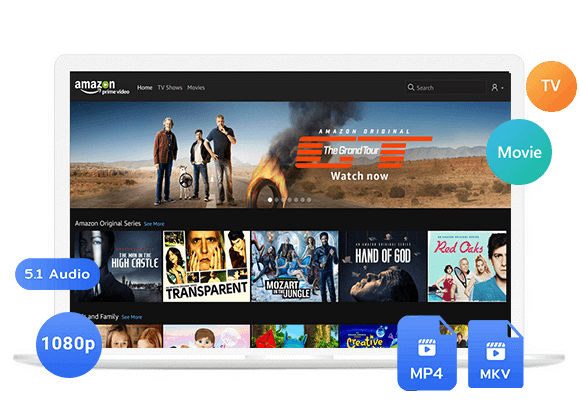
Prime video frequent buffering? Check out this guide. Here you’ll learn how to fix Amazon Prime Video keeps buffering on TV, mobile, PC and other devices. Plus, you will explore a professional downloader that lets you permanently watch Amazon Prime videos offline without interruption!
You probably have been running into any of the following situations while streaming content on Prime Video:
- The Prime video application just keeps buffering every few seconds.
- Prime Video constantly buffering while other streaming services work perfectly.
- Amazon Prime Video keeps buffering on smart TV while playing Amazon Prime titles.
- You are finally settled in to watch Crime 101 or Scream 7, and suddenly the video freezes, the audio cuts out, and you are staring at a loading screen.
If your Prime Video keeps buffering, you’re not alone. Millions of users face Amazon Prime Buffering Issues daily, whether on a smart TV, Fire Stick, smartphone, or web browser. Why Prime Video is constantly buffering? How to fix this issue to have a fluent playback again? In this guide, we will walk you through every possible solution to help you fix Amazon Prime Video keeps buffering, from quick network checks to advanced system tweaks. Let’s dive in!
To get rid of buffering permanently, download Amazon Prime videos to MP4 using the TunesBank Amazon Video Downloader. With TunesBank, you are no longer restricted to the Prime Video app. Once downloaded, your Amazon videos are yours to keep and watch anytime – without buffering.
In addition, you can also fix common issues with Prime Video, such as login, not downloading, not working, not loading, app down, freezing, etc. As you can watch the downloaded Amazon videos offline on any device or player outside the Prime Video app!
Part 1. Why Does Prime Video Keep Buffering?
Actually, Amazon Prime Video keeps buffering for a variety of reasons. In summary, the most common causes include the following:
- Unstable internet connections
- Outdated app or device firmware
- Corrupted cache data
- VPN interference
- Amazon Prime server congestion
- Incorrect settings
These are some of the main reasons Prime Video keep buffering and stopping on your TV, mobile, computer or other streaming devices. Accordingly, the following section outlines 12+ proven solutions to help you resolve Prime Video streaming problems and ensure Amazon Prime plays titles smoothly and continuously.
Part 2. Quick Fixes for Prime Video Buffering for All Devices
Before you dive into complex settings, try below simple fixes to quickly resolve the issue within minutes.
2.1 Check Your Internet Connection
Generally, Amazon Prime video streaming relies on a stable network connection, especially for HD or 4K high resolution videos. If your connection fluctuates, your Prime Video keeps buffering or drops to lower quality.
- Check your Wi-Fi or mobile signals.
- Try moving closer to your router.
- Disconnecting other devices that are hogging bandwidth.
2.2 Check Amazon Prime Servers
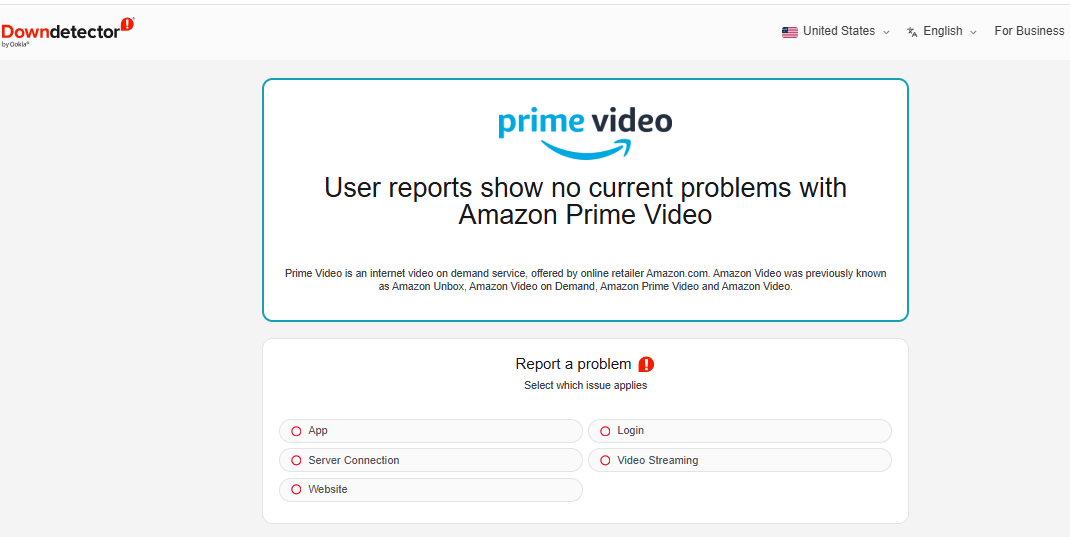
Sometimes the issue is not on your side. If Prime Video keeps buffering, it could be due to temporary server outages or heavy traffic on Amazon Prime Video. Before performing advanced troubleshooting, you can visit a site like DownDetector and search for “Amazon Prime Video”. Alternatively, you may also check Amazon’s official @PrimeVideo Twitter/X account for updates.
2.3 Close and Re-open the Prime Video App
Sometimes, background glitches or temporary bugs may disrupt continuous streaming. If your Prime Video application just keeps buffering, try restarting the app.
On Fire TV or Android: Go to “Settings”, select “Applications”, select “Manage Installed Applications”, and then “Prime Video”, tap “Force Stop”.
On iOS: Swipe up from the bottom and flick the Prime Video card off the screen.
On Apple TV: Double-click the TV button and swipe up.
Then relaunch the app. This often instantly resolves playback stutter.
2.4 Restart Your Device or Router
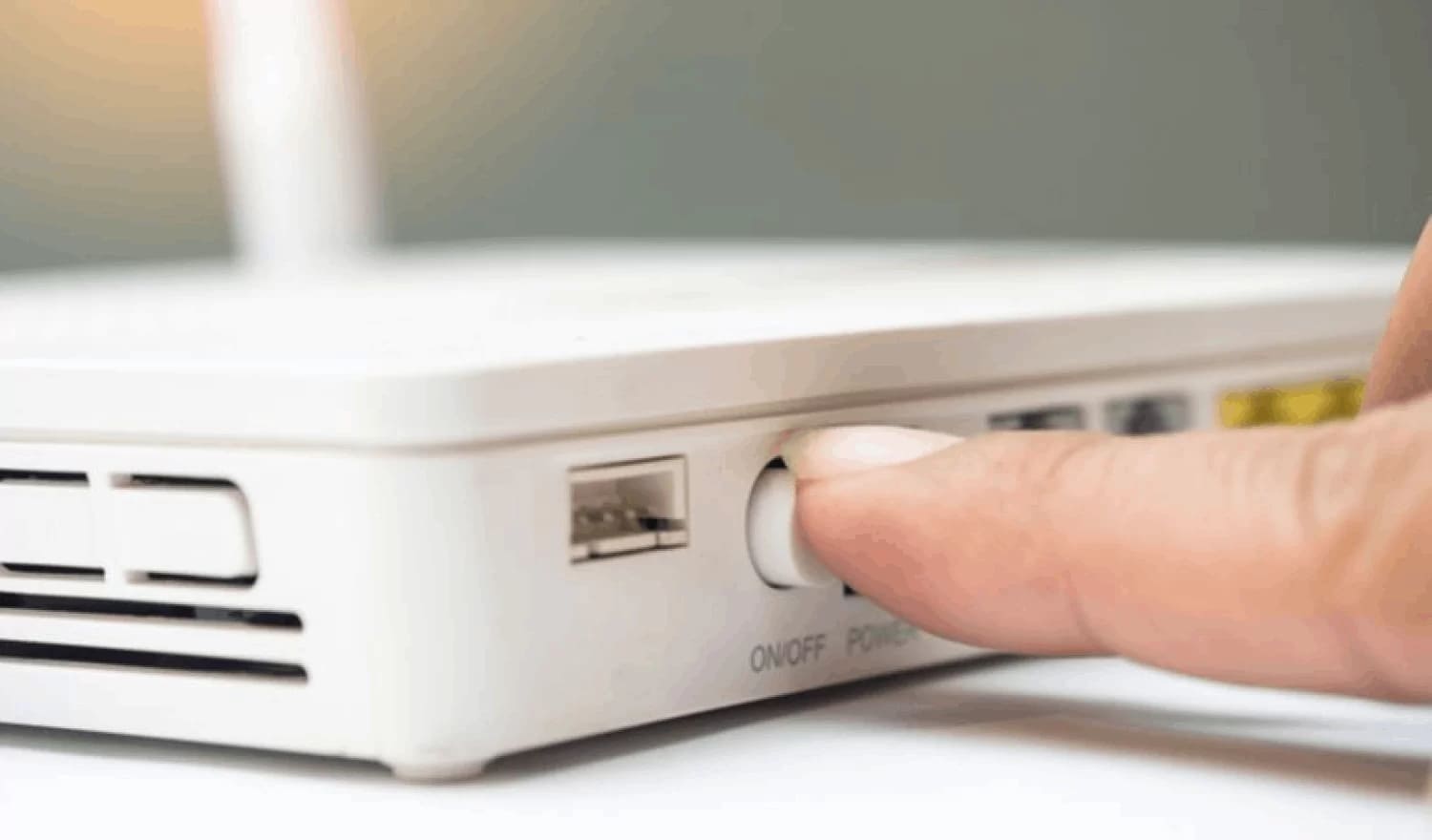
If closing the Prime Video app does not work, perform a full power cycle. Usually, restarting your device or router can fix many hidden issues causing Prime Video keeps buffering.
For your device: Turn off your smart TV, Fire Stick, phone, or computer completely. Unplug it from power for 30 seconds. Plug it back in and turn it on.
For your router: Unplug your modem and router from power. Wait 60 seconds. Plug the modem back in first, wait for all lights to become stable (about 2 minutes), then plug in the router.
2.5 Update the Prime Video App
Running an outdated version of Amazon Prime Video can cause compatibility problems and frequent buffering. Therefore, updating Prime Video app is a good idea to prevent playback problems from appearing. Follow below simple steps:
On iOS: Open the App Store, tap your profile icon, scroll to Prime Video, and tap “Update”.
On Android mobile: Open Google Play Store, search for Prime Video, and tap “Update”.
On Fire TV / Android TV: Go to the Amazon Appstore, search for Prime Video, and tap “Update”.
On Samsung Smart TV: Navigate to Apps, find Prime Video, press and hold the “Select” button, and choose “Update”.
On PC (Windows app): Open the Microsoft Store, click “Library”, and check for updates.

If you streaming Prime Video titles using a browser, make ensure your browser is up-to-date.
2.6 Disable Any VPN or Proxy Servers
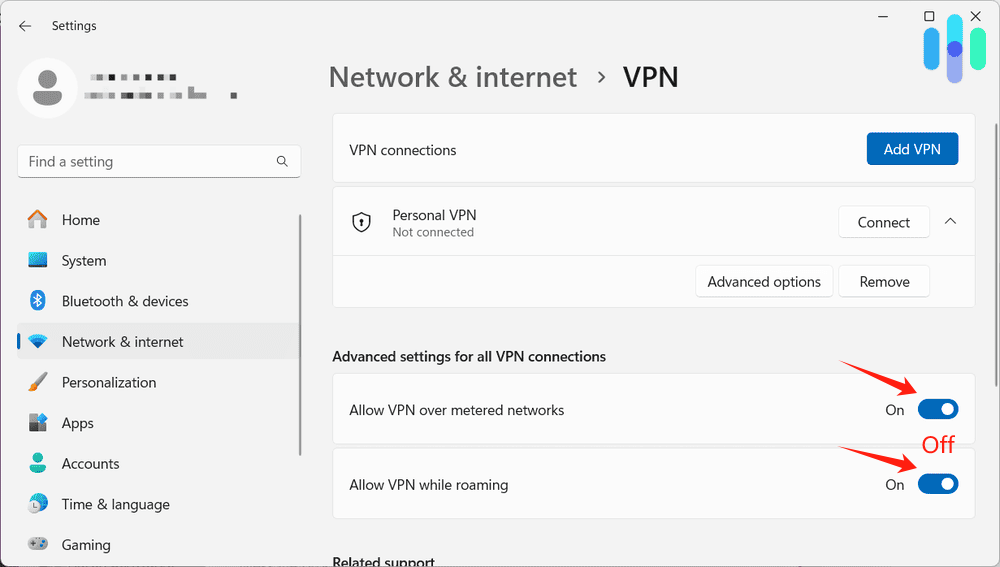
Due to licensing agreements and copyright laws, some titles are not available in some countries and regions. To bypass regional restrictions on Prime Video, some people would use a VPN to hide IP address. However, VPNs and proxies can slow down your connection and cause Amazon Prime buffering issues. To solve the issue, go to your device’s network or VPN settings, toggle off the VPN or disconnect the proxy.
Part 3. Advanced Troubleshooting for Persistent Prime Video Buffering
If the quick fixes above did not solve the problem, your Prime Video application just keeps buffering due to deeper system issues. Here are some advanced fixes to help you play Prime Video again.
3.1 Clear Prime Video Cache and Data
When the Prime Video app runs, it consumes device memory and continuously generates cache files. Over time, excessive cache buildup can lead to corrupted data, leading to persistent issues where Prime Video keeps buffering. Therefore, it’s essential to regularly clear the Prime video cache and data, ensuring a stable streaming performance.
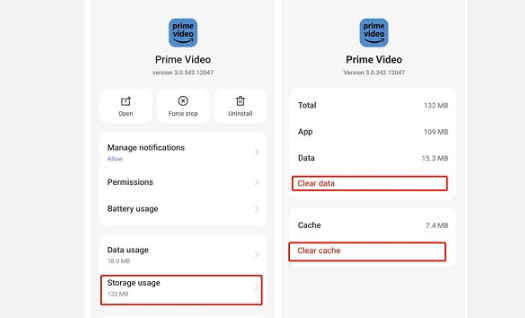
On mobile (Android):
– Go to “Settings”, select “Apps”, then “Prime Video”.
– Select “Storage usuage”, then click “Clear data” and “Clear cache”.
On Windows:
– Go to “Settings”, select “Apps”, select “Apps & features”. Locate the “Amazon Appstore”.
– Choose “Advanced Options”. Select “Storage”, then click “Clear Cache/Data”.
On Mac:
First, close the Prime Video app, then manually delete files within ~Users > [your_user] > Library > Containers > Prime Video > Data > Library > Caches.
On computer (Web browser):
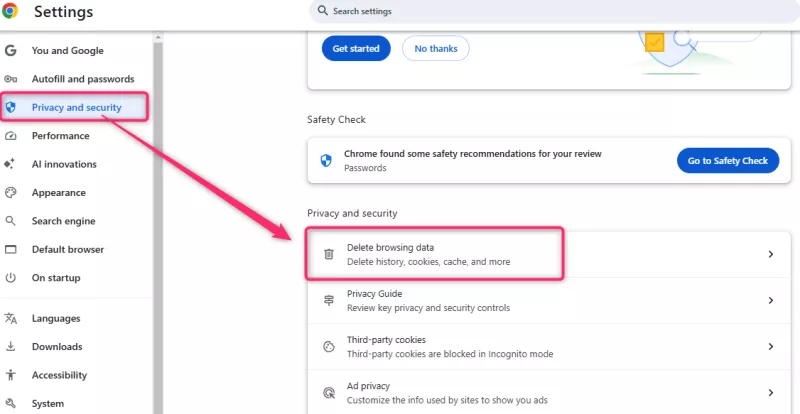
– Clear your browser’s cache. In Chrome, go to “Settings”, select “Privacy and security”.
– Select “Delete browsing data”, choose “Cached images and files”, choose “All time”.
On Smart TV (Fire TV / Android TV):
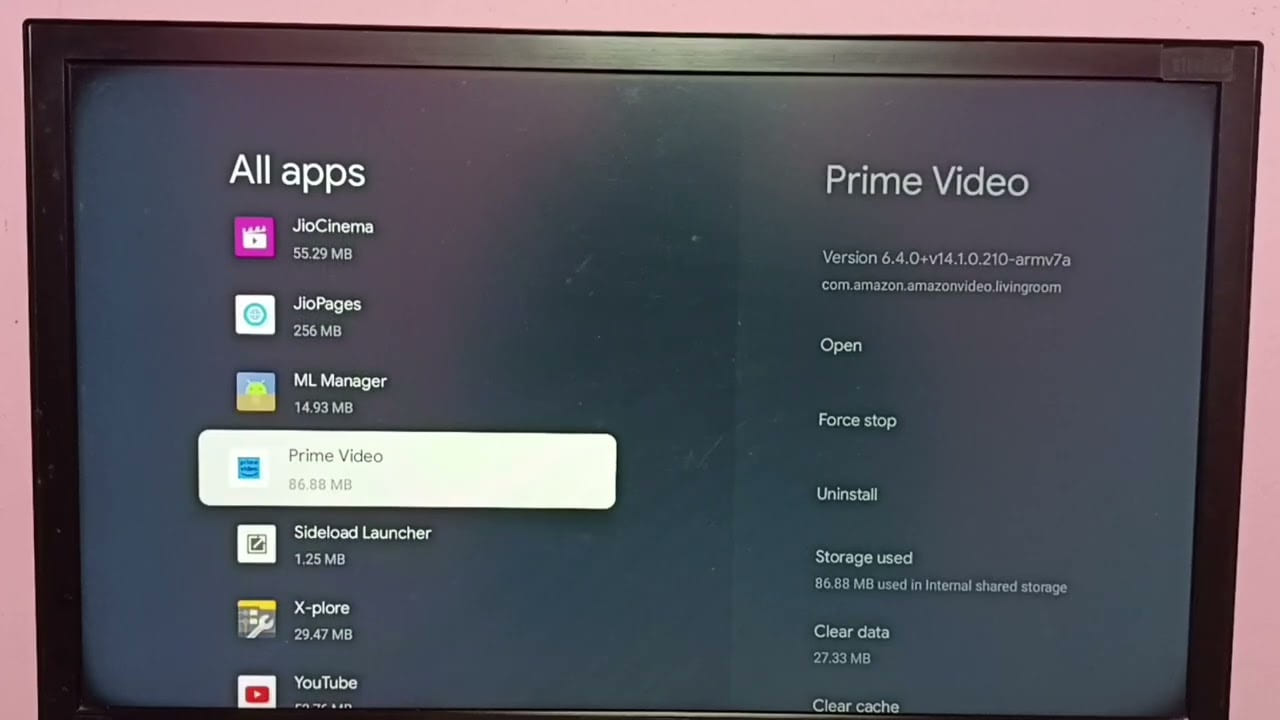
– Go to “Settings”, select “Applications”, select “Manage Installed Applications”, choose “Prime Video”.
– Select “Clear Cache” and “Clear Data”, confirm your action.
After that, you will need to log in your Amazon account again.
3.2 Uninstall and Reinstall the Prime Video App
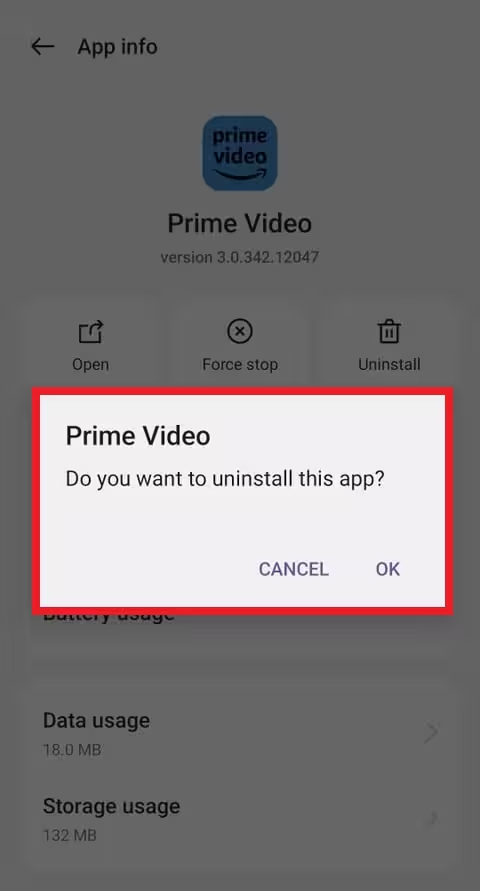
If problems persist, there may be underlying errors within the Amazon Prime Video, such as missing or corrupted startup files. In this case, performing a full reinstallation of Prime Video is an effective way to fix “Prime Video is constantly buffering” problem. Here is how to do that:
Step 1. First, uninstall Prime Video app from your device.
Step 2. Restart the device, reinstall from the official app store.
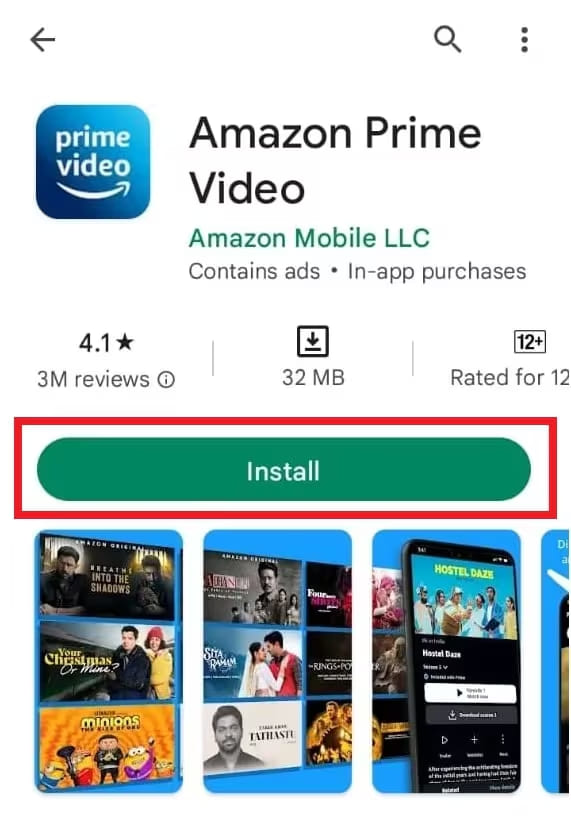
Step 3. Then open the Prime Video app, and log in your Amazon account again.
3.3 Update Your Device Software, Fire TV, or Firmware
If you haven’t updated your device system for a long time, outdated system software can lead to compatibility issues. Many users successfully solve Amazon Prime buffer issues simply by installing the latest system update. Amazon frequently patches Fire OS and Android TV to improve streaming stability. Let’s see how to make it.
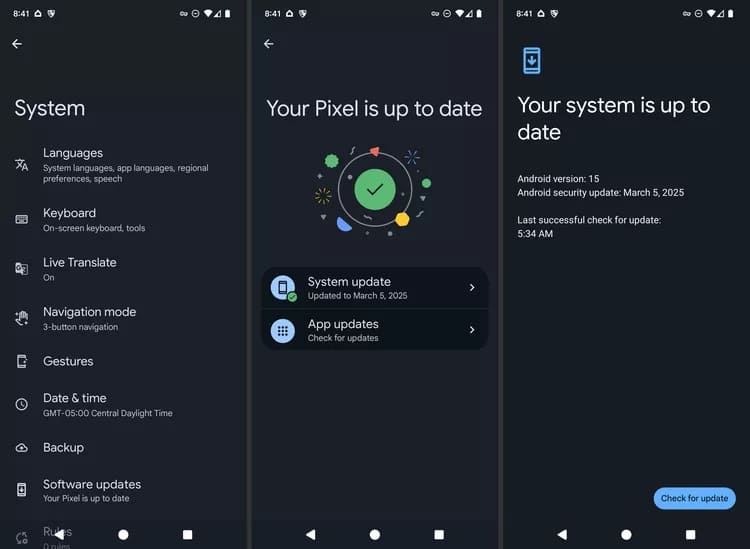
On Android: Go to “Settings”, choose “System”, select “System Update”, select “Check for update”.
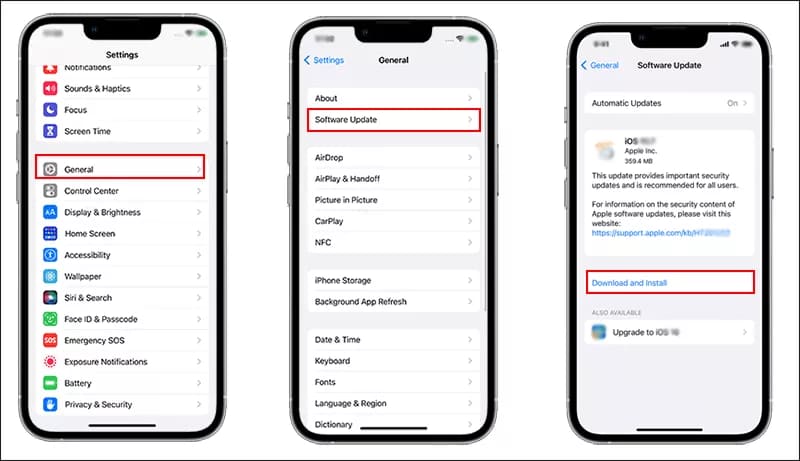
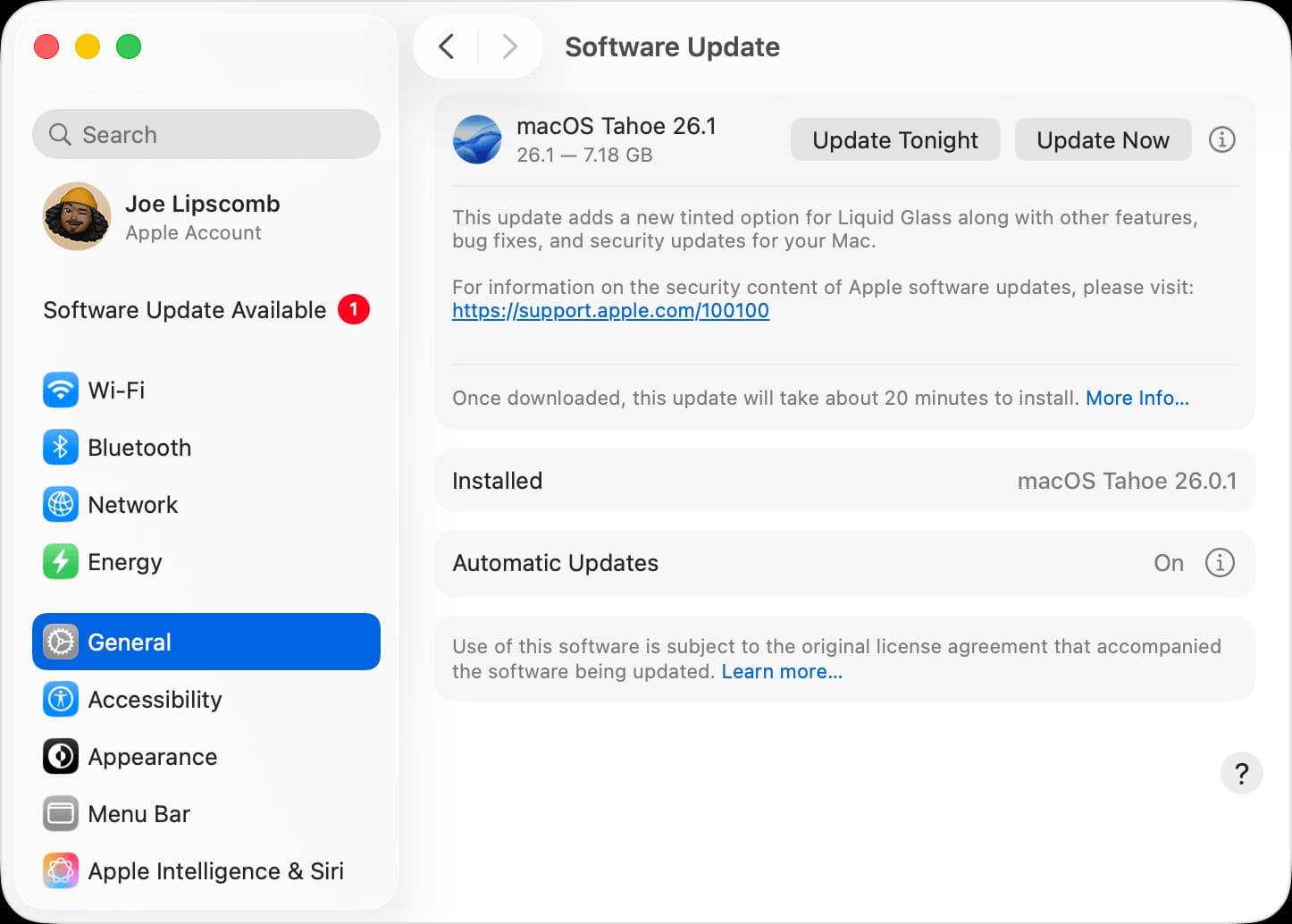
On iOS: Go to “Settings”, select “General”, choose “Software Update”.
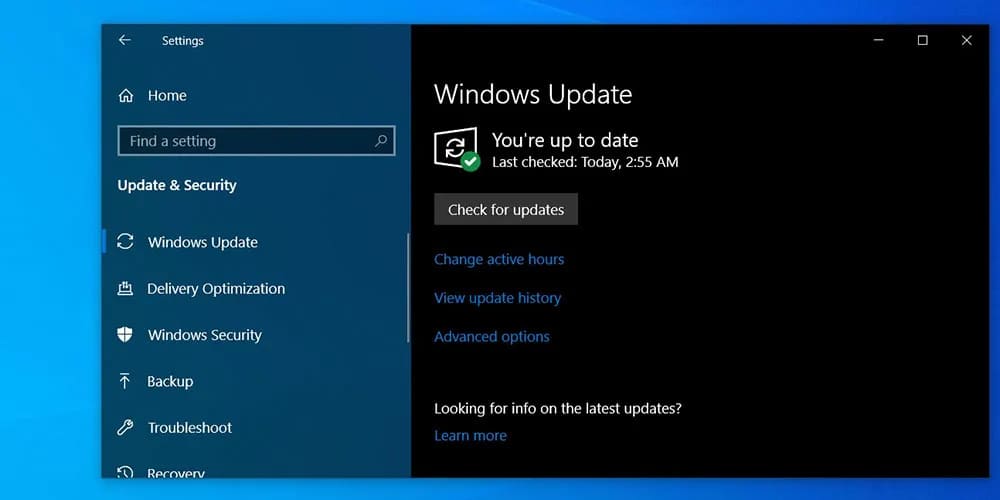
On Windows: Go to “Settings”, select “Update & Security”, choose “Windows Update”.
On Mac: Go to “System Settings”, select “General”, and select “Software Update”.
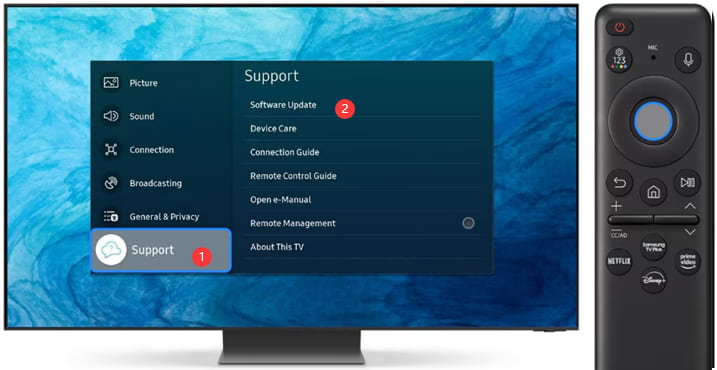
On Samsung/LG/Sony TVs: Go to “Support”, select “Software Update”.
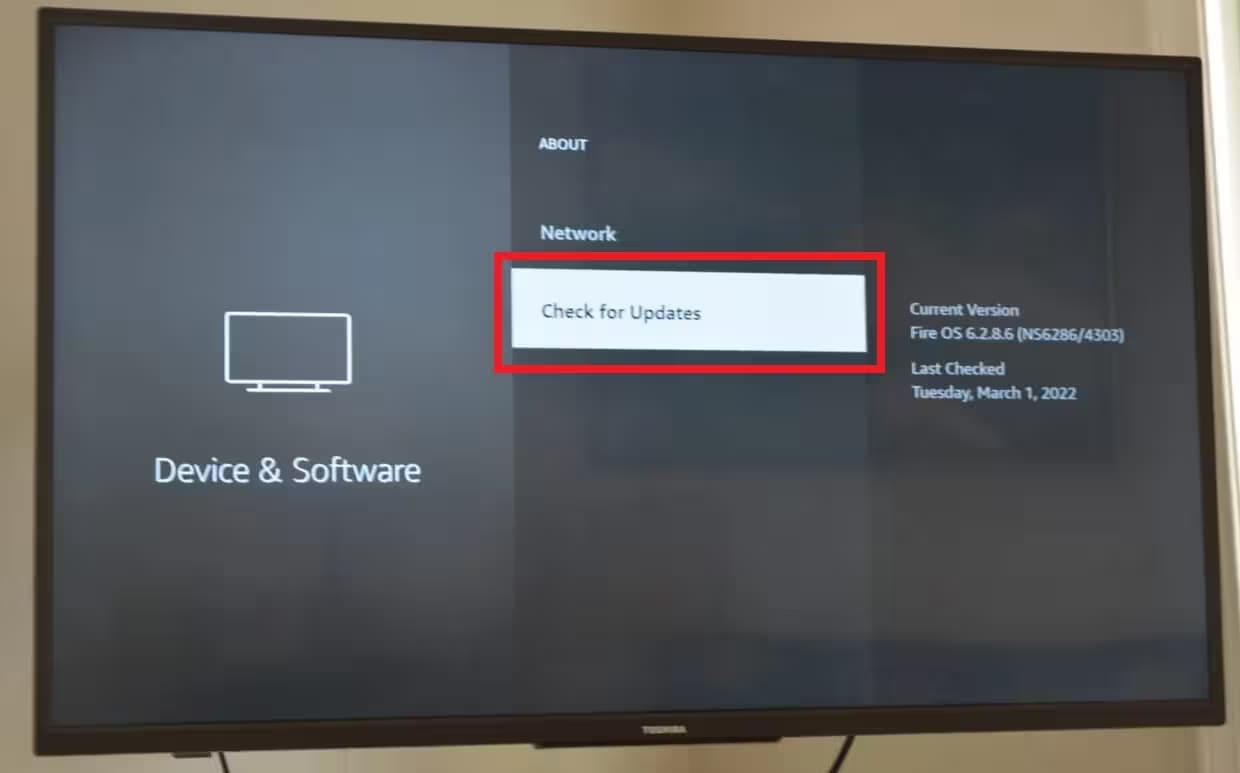
On Fire TV Edition TVs, Fire TV Stick: Go to “Settings”, choose “Device & Software” (or “My Fire TV”), choose “About”, choose “Check for System Update”.
3.4 Adjust Lower Streaming Quality for Amazon Videos
Prime Video supports streaming in HD (1080p) and 4K Ultra HD (UHD). Therefore, a stable, high-speed internet connection is required.
Check Prime Video Speed Requirements:
- SD (480p): 1 Mbps minimum
- HD (720p/1080p): 5 Mbps minimum
- UHD (4K): 25 Mbps minimum
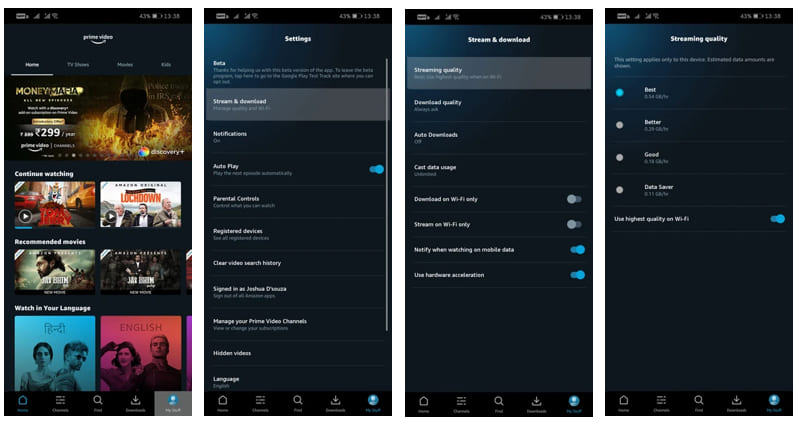
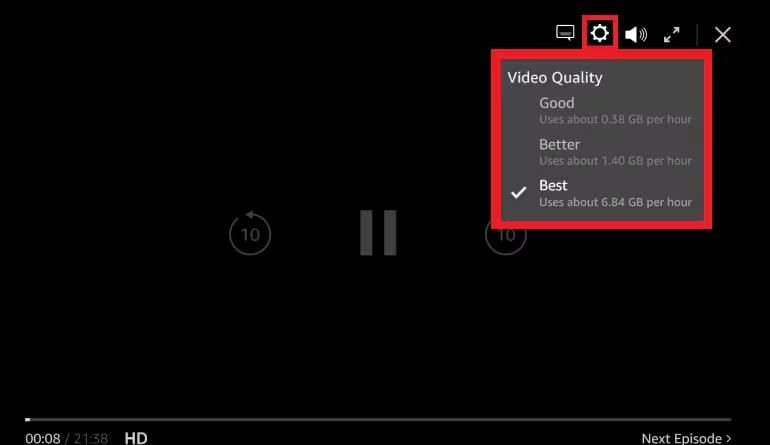
If you’ve set Amazon Prime Video to the highest quality, poor or inconsistent network conditions can easily trigger Prime Video keeps buffering problems. To fix buffering on Prime Video, switch to lower streaming quality.
On Mobile (iOS/Android): Open Prime Video app. Go to “Settings”, select “Streaming & Download”, choose “Streaming Quality”, select a lower quality.
On PC/Mac: While playing a video, click the “Settings” (a gear icon). Under “Video Quality”, choose a lower setting.
On Fire TV / Smart TV: While watching, press the “Menu” button on your remote. Navigate to “Streaming Quality” and change from “Best” to “Better” (1080p) or “Good” (720p).
3.5 Try Another Streaming Device
If Prime Video keeps buffering on your smart TV, the issue may be device-specific. Don’t worry, Amazon Prime Video is available on multiple devices and players! Try streaming on a smartphone, tablet, game console, laptop or computer to identify whether the problem lies with your TV hardware or app. If the buffering stops, consider upgrading to your smart TV. For more details, turn back to above Solution 3.3.
3.6 Switch to Another Streaming Platform
If you find that Prime Video constantly buffering while other streaming services work perfectly, consider alternative platforms. There are many good alternatives to Amazon Prime Video, such as Netflix, Hulu, Max, Apple TV+, YouTube Movies, etc. Some Amazon Prime movies and TV shows are also available for purchase on other platforms. For example, the Supernatural episodes can be bought on Apple TV, YouTube, Vudu, etc.
Part 4. Avoid Buffering Permanently – Watch Amazon Prime Videos Offline
When Amazon Prime Video still has unexpected errors and restrictions in streaming or downloading, some of you may wonder if you can watch Amazon Prime Video offline without buffering or restrictions. The answer is positive. You can ask help from a professional third-party tool – TunesBank Amazon Video Downloader.
Main Features: The software allows you to download unlimited Amazon Prime movies, TV shows, original titles, purchased/rented videos directly to your computer in MP4 or MKV format. What’s more, it retains the original video quality (up to 1080P), and provides options for multilingual audio tracks, and subtitles.
Why Use It? It helps you get rid of buffering permanently and remove all limitations such as expiration dates, playback restrictions, and device compatibility. Say goodbye to Prime Video app and web player! Enjoy smooth playback anytime, anywhere!
Benefits: After downloading, you can play Amazon videos using popular media players such as Windows Media Player, VLC media player, or iTunes. You can also transfer Amazon videos to mobile devices, tablets, or even watch them on your smart TV via USB drive.
• Download movies, TV shows, sports, originals, purchased/rented Amazon videos.
• Download Amazon videos to MP4 or MKV and play offline forever.
• Save Amazon videos in up to 1080p (Full HD) with EAC3 5.1 audio.
• Ensure 50X faster to batch download entire TV series seasons with one click.
• Automatically keeps movie posters, cast info, and episode numbers, etc.
• Keep subtitles as separate SRT files or burn them into video.
• Downloaded Amazon videos never expire; you own them permanently.
• Works with Amazon Prime Video in all regions (US, UK, Canada, Germany, Japan, etc.).
Easy Guide to Download Amazon Video to HD MP4:
Step 1. Log In Amazon Account
Download, install and launch TunesBank iMovieTool Video Downloader. Choose Amazon Prime Video service, and log into your account through the built-in web player securely.
Step 2. Adjust Output Settings
Click on the Menu icon and choose Preference option. In the settings window, you are allowed to select MP4 format, adjust video quality, and choose subtitles or audio tracks according to your preferences.
Step 3. Search for Amazon Videos
You can find content in three easy ways: by name, URL, or browsing within the platform. For example, turn to “Search” tab, enter the title or paste the video link directly in the search bar to quickly locate videos and prepare for download.
Step 4. Begin to Download Amazon Video
Click the “Download” icon to next to the video title. For TV series, you need to select your desired seasons and episodes and then click the “Download” button.
Once the download completes, go to the “History” section to get your downloaded Amazon videos and enjoy offline!
Part 5. Conclusion
It would be frustrating when you plan to watch the TV show or movie but discover Prime Video app keeps buffering. Fortunately, with this post provided, you can quickly fix buffering issues on Amazon Prime Video and enjoy your favorite titles again. And, you can use TunesBank Amazon Video Downloader to download Amazon videos to MP4 offline, thus you can permanently get rid of buffering and playback issues. It offers a free trial, get it right now!
The Latest Articles
– Top 8 Solutions to Download Streaming Video
– Top 10 Free Movie Download Sites Recommended
– 3 Ways to Download Movies to Watch Offline
– 2 Verified Methods to Download X/Twitter Videos to MP4
– Download Twitter(X) Videos on PC, Mac and Mobile Phone
– Download Facebook Videos on PC, Mac and Mobile Phone
– 3 Ways to Download Facebook Video to MP4

Amazon Video Downloader
Download movies and TV shows from Amazon Prime Video in MP4 or MKV format with audio track and subtitles kept. Up to 50X downloading speed. Save your favorite Amazon Prime videos to your computer for viewing offline.







