








 United States (English)
 Japan (日本語)
 Russia (русский)
 Germany (Deutsch)
 France (Français)
 Spain (Español)
 Italy (Italia)
 Portugal (Portugues)
 China (繁体中文)
 Turkish (Türk dili)
 Dutch (Nederlands)
 Korean(한국인)
 Saudi Arabia(عربي)
 Download HD movies & TV shows from Prime Video fastly and losslessly.
Amazon Prime Video streaming in low quality? How to fix poor streaming quality on Prime Video? In this comprehensive guide, we’ll explore why your Prime Video quality is bad and provide nine effective fixes for better streaming quality.
Amazon Prime Video offers a vast library of movies, TV shows, live sports, live TV channels, and exclusive originals, with streaming available in HD and even 4K Ultra HD quality. However, many users sometimes encounter frustrating playback issues such as Amazon Prime Video poor streaming quality. This can significantly affect your viewing experience especially when watching a gripping plot.
In this article, we will discuss why Amazon Prime Video quality is bad and give you nine free fixes for better streaming quality, along with a powerful tool to download Prime Video in HD MP4 for offline viewing. Let’s explore!
Why Is My Prime Video Quality So Bad?
Before attempting to fix Amazon Prime Video bad quality, let’s go down the list of potential causes in the first place. In most cases, poor video quality is caused by slow or unstable internet connections, incorrect in-app streaming settings, ISP bandwidth throttling, outdated device firmware, or platform-level compression. It may also result from outdated apps, device compatibility issues, or background processes consuming network bandwidth.
Below are nine proven methods to fix bad Amazon Prime Video quality and enjoy smooth, high-definition streaming.
Fix 1. Check Your Internet Connection
A stable internet connection is essential for high-quality streaming on Amazon Prime Video. If your network speed is slow or unstable, the platform will automatically reduce video resolution to maintain smooth playback.
Recommended internet speeds:
- SD streaming: 1 Mbps
- HD streaming: 5 Mbps
- 4K streaming: 15 Mbps or higher
To improve your Internet connection:
- Restart your router or modem
- Move closer to your Wi-Fi router
- Use a wired Ethernet connection
- Stop other devices from consuming bandwidth
These steps can quickly help fix bad Amazon Prime Video quality caused by slow internet speeds.
Fix 2. Adjust the Amazon Prime Video Streaming Quality
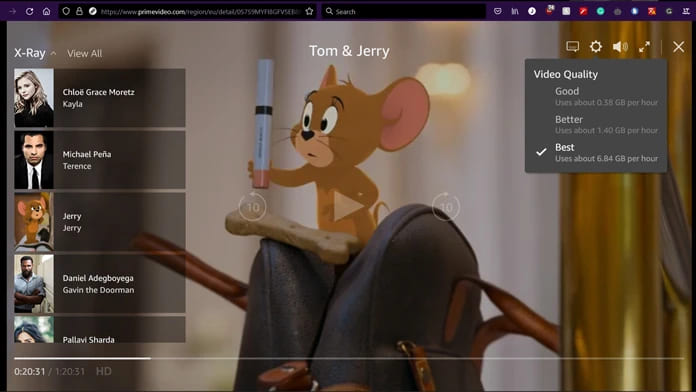
By default, Amazon Prime Video may automatically adjust video quality based on network conditions. When your Prime Video quality is bad, you can manually adjust video quality in Amazon Prime Video. Here’s the detailed steps:
On Web Browser (Prime Video Website):
Step 1. Go to PrimeVideo.com and sign in your Amazon account.
Step 2. Select any movie or show and start playing it.
Step 3. Click on “Gear” icon at the upper right corner.
Step 3. Under “Video Quality”, choose “Best” option for maximum resolution.
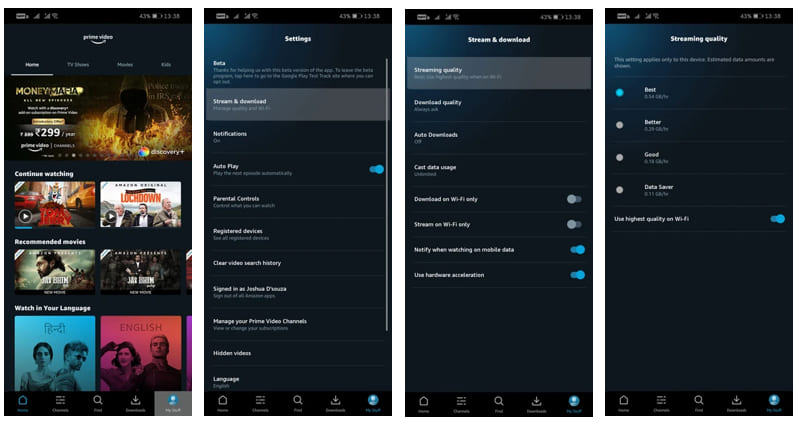
On Amazon Prime Video App (iOS/Android):
Step 1. Open the Prime Video app and tap the “My Stuff” icon.
Step 2. Go to “Settings” and select “Stream & download”.
Step 3. Select “Streaming quality,” choose “Best” to ensure you’re getting the highest possible resolution.
On Smart TVs and Streaming Devices:
Most TV apps automatically adjust quality based on your connection, but you can sometimes find quality settings within the App’s “Settings” or “Playback” menu to to get the best video quality.
Fix 3. Upgrade to Amazon Prime Video Ultra
Recently, Amazon Prime Video introduced changes to its streaming plans. The basic Prime Video package may limit users to 1080p streaming. If you want to watch Amazon Prime Video content in 4K Ultra HD, you may need to upgrade your subscription for an additional $4.99 per month.
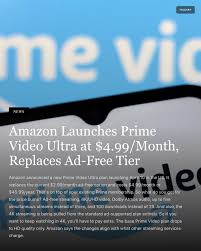
If your plan only supports HD resolution, upgrading may help fix Amazon Prime Video quality is bad when trying to watch 4K content.
Fix 4. Clear App Cache and Browser Data
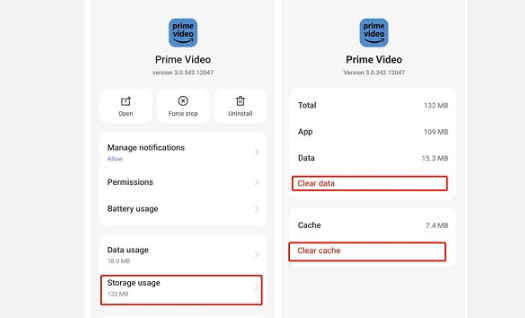
Over time, too much cached data can also cause cause performance problems. When the issue of Prime Video bad quality happens, you can try to clear Prime Video app cache. Go to Settings > Apps > Prime Video > Storage > Clear Cache.
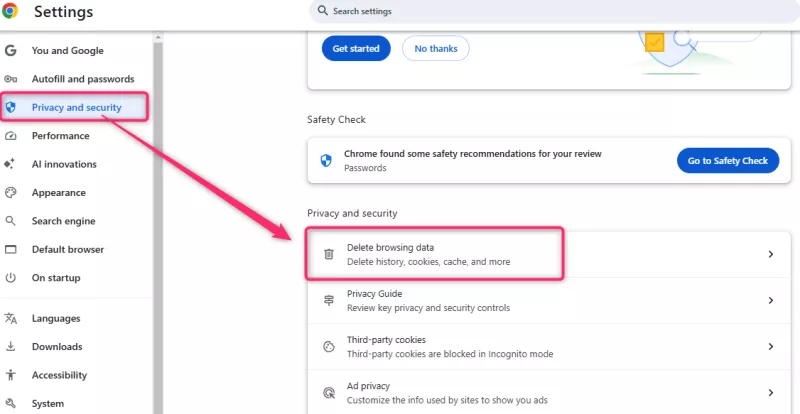
If your watch Amazon Prime video in your browser, you can consider clearing browser data cache.
Fix 5. Close Other Internet Activities or Background Apps
Additionally, running multiple internet activities at the same time, such as large downloads, video calls, or online gaming, can consume significant bandwidth. When bandwidth is limited, Amazon Prime Video may automatically reduce video resolution to maintain smooth playback.
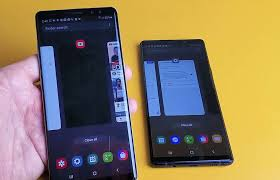
To fix bad video quality on Prime Video, close unnecessary applications and pause background downloads while streaming. Restarting the Prime Video app or device after clearing the cache can also help restore better video quality.
Fix 6. Disable Any VPN or Proxy Servers
Some users rely on VPN services for privacy or to access region-restricted Prime Video content. However, VPNs and proxy servers can sometimes cause Amazon Prime Video poor streaming quality because they reroute your internet traffic through remote servers.
This may slow down your connection, increase latency, and lead to buffering or lower video resolution. In some cases, Amazon Prime Video may also detect VPN connections and restrict certain features.
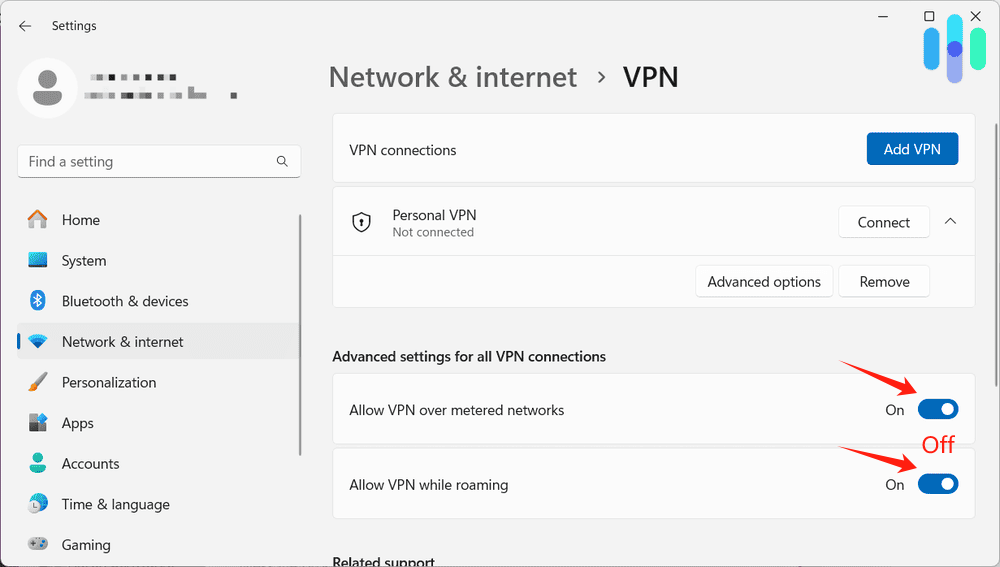
If you notice Prime Video poor streaming quality, try turning off your VPN and reconnecting to the platform.
Fix 7. Check the Compatibility of Your Device
To fix bad Amazon Prime Video quality, please check and confirm your device compatibility. Not all devices support HD or 4K streaming on Amazon Prime Video. For example, older smart TVs, streaming sticks, or set-top boxes may be limited to 720p or 1080p, even if you have a fast internet connection.
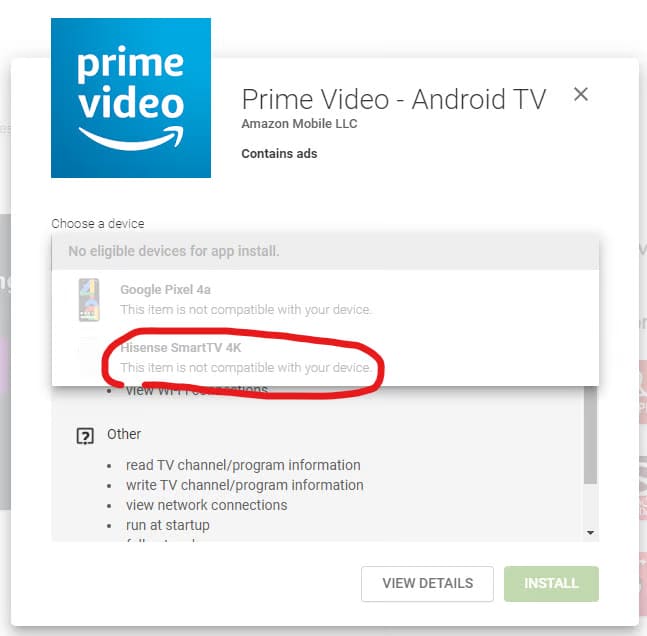
What to do:
- Check your device specifications to confirm the maximum resolution supported for Prime Video.
- Make sure both the device firmware and the Prime Video app are updated.
- If your device is outdated, consider upgrading to a newer streaming device such as Fire TV Stick 4K, Roku Ultra, or Apple TV 4K.
Fix 8. Contact Amazon Prime Video Customer Service
Sometimes, the issues like poor video quality, freezing, not downloading, may be related to account settings, server problems, or technical issues with the platform. If you still experience bad Amazon Prime Video quality, try to contact Amazon Prime Video customer service and report the problem.
Fix 9. Download Prime Video to MP4 in 1080p for Offline Watching (Best)
If none of the solutions above can help you fix bad video quality on Prime Video, don’t worry. We still have the final trump card – using a third-party Amazon video downloader to download Prime Video to HD MP4 for offline playback.
TunesBank Amazon Video Downloader is highly recommended. It comes from TunesBank iMovieTool All-in-One Video Downloader, available on Windows and Mac. This powerful desktop program designed to help users download movies and TV shows from Amazon Prime Video directly to their computers. The software has an integrated web browser, which lets you to browse the entire Prime Video library, search for movies and TV shows, and download them directly within the program.
Unlike the official Prime Video with limited download feature, this software allows users to download Prime Video content in common MP4 or MKV format with full HD 1080p resolution. TunesBank also offers flexible subtitle and audio options, allowing users to choose from multiple audio languages and subtitle formats before downloading videos. This way you can keep your Amazon Prime downloads permanently, and watch these high-quality Amazon videos offline on your own device with other players!
Main Features of TunesBank Amazon Video Downloader:
- Download any Prime Video content from any region without limits
- Download Prime Video movies, TV shows, and purchased/rented content
- Download Prime Video movies and TV shows in 1080p HD
- Save Amazon Prime videos as a standard MP4 or MKV file
- Keep multiple audio languages and subtitle tracks
- Batch download entire seasons of a TV show at 50X speed
- Keep Amazon videos forever and watch offline on all devices
Simple Steps to Download Prime Video to HD MP4:
Step 1. Log In Amazon Account
Download and launch TunesBank iMovieTool, choose Amazon Video service and sign in to your Amazon account.
Step 2. Adjust Output Settings
Open the settings panel to choose your preferred output format, video quality, subtitle language, and output folder.
Step 3. Search Amazon Videos
Tap “Browse” tab, explore categories, open the video you want, and add it to the download list.
Step 4. Begin Download Amazon Video
Click the “Download” button to start downloading the Prime Video movie or episode to your computer in high-quality MP4 format.
Conclusion
After reading this guide, the issue of Amazon Prime Video poor streaming quality is no longer a challenge. You can follow above methods to uncover the potential reason and conduct a quick fix. Plus, to enjoy a smooth and high-quality offline playback, TunesBank Amazon Video Downloader is the best ideal, as it can bypass Amazon Prime Video download limits and directly download Prime Video to HD MP4 or MKV file. Then you can keep and watch them anytime without buffering or quality drops. Hit the Download button and start a free trial!
The Latest Articles
– Top 8 Solutions to Download Streaming Video
– Top 10 Free Movie Download Sites Recommended
– 3 Ways to Download Movies to Watch Offline
– 2 Verified Methods to Download X/Twitter Videos to MP4
– Download Twitter(X) Videos on PC, Mac and Mobile Phone
– Download Facebook Videos on PC, Mac and Mobile Phone
– 3 Ways to Download Facebook Video to MP4

Amazon Video Downloader
Download movies and TV shows from Amazon Prime Video in MP4 or MKV format with audio track and subtitles kept. Up to 50X downloading speed. Save your favorite Amazon Prime videos to your computer for viewing offline.







