








 United States (English)
 Japan (日本語)
 Russia (русский)
 Germany (Deutsch)
 France (Français)
 Spain (Español)
 Italy (Italia)
 Portugal (Portugues)
 China (繁体中文)
 Turkish (Türk dili)
 Dutch (Nederlands)
 Korean(한국인)
 Saudi Arabia(عربي)
 Download Netflix Movies and TV shows to watch offline.
Having issues with Netflix VPN proxy error? Searching for ways to fix Netflix Says, ‘You seem to be using a VPN or proxy.’ issue? Follow this guide to find the solutions to get around Netflix detecting VPN usage. Plus, get a powerful tool to download and watch Netflix offline on any device without restrictions.
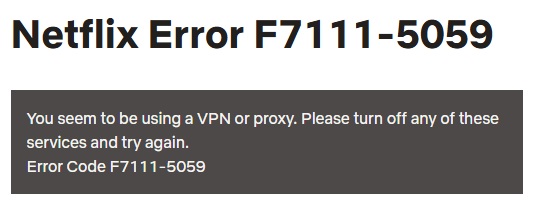
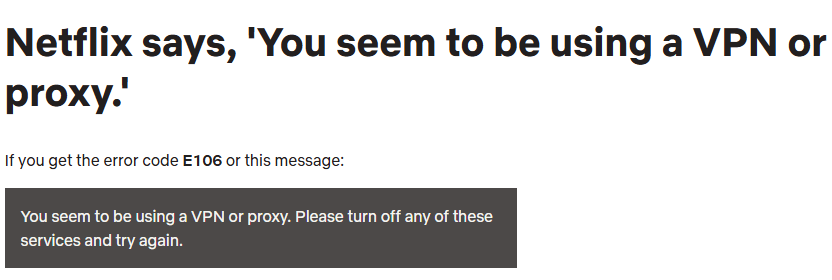
If you suddenly see the message Netflix Says, “You seem to be using a VPN or proxy.”, you’re not alone. This warning, commonly associated with Netflix error F7111-5059 or error code E106, appears when Netflix detects an IP address that looks like it’s coming from a VPN, proxy server, or anonymizing service.
Netflix Error F7111-5059
Netflix error code E106
In fact, Netflix enforces download limits and regional licensing restrictions. For example, if your IP address shows South Korea, you won’t be able to watch movies available in the US. In this case, you may want to use a VPN to hide your IP address and access Netflix content online. However, Netflix may immediately detect it and display an error message. How do you fix Netflix Error F7111-5059 or E106? How to solve Netflix “You seem to be using a VPN or proxy” problem? Keep reading, you will find the solutions here. Additionally, you will get bonus tip to watch Netflix offline on any device without restrictions!
Part 1. How to Fix Netflix “You seem to be using a VPN or proxy” Error
Below are four proven solutions to fix Netflix says, “You seem to be using a VPN or proxy” issue step by step.
Solution 1: Check if a VPN is Enabled
One of the most common reasons Netflix Says, “You seem to be using a VPN or proxy.” is that a VPN or proxy service is active in the background. The VPN software can trigger Netflix Error F7111-5059. In such case, you need to turn off your VPN.
Step 1. Check Your Device Settings
On Windows: Go to Settings > Network & Internet > VPN and disconnect any active VPN.
On Mac: Go to System Settings > Network and disable VPN connections.
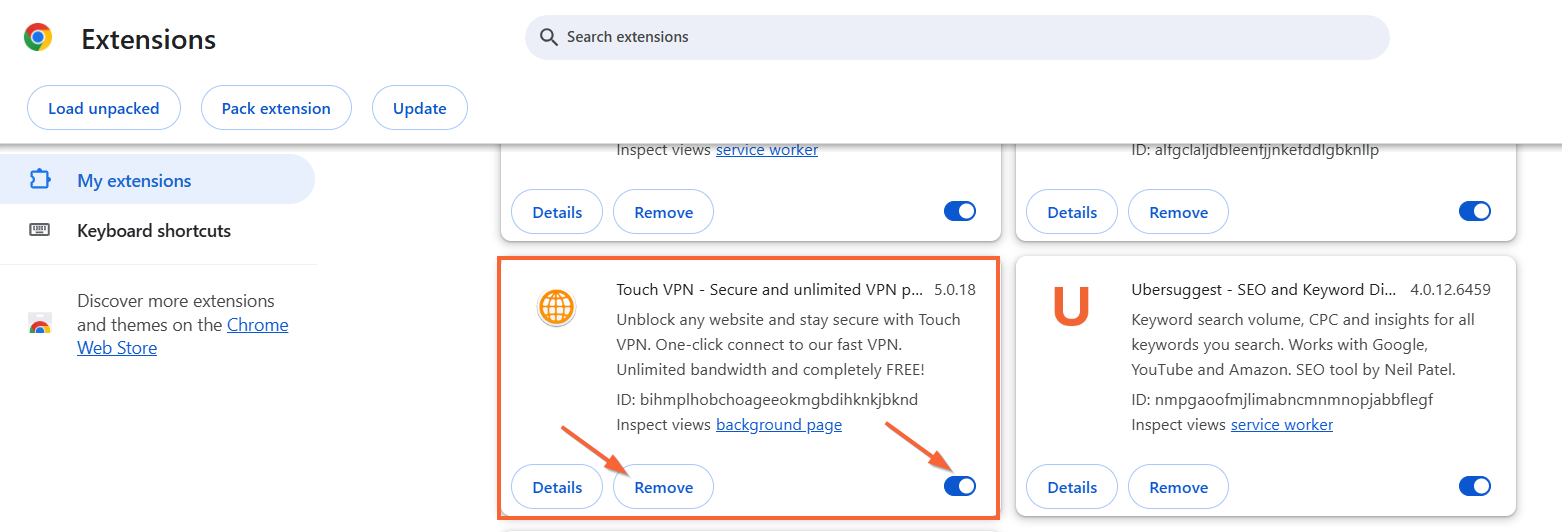
Step 2. Disable Browser Extensions
Open Chrome or Edge. Go to Extensions and disable VPN-related add-ons.
Step 3. Turn Off Smart DNS Services
Check router settings if you configured Smart DNS.
Step 4. Restart Netflix
Close and reopen Netflix app or web player after disabling VPN.
Solution 2: Check Your Netflix Plan
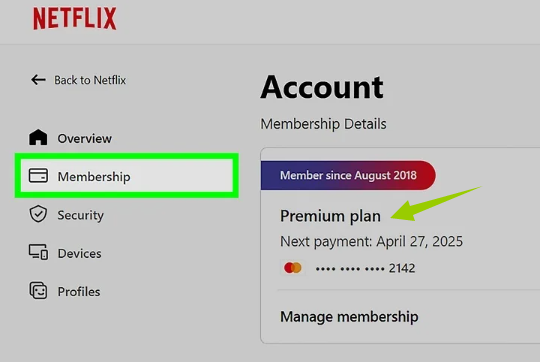
Sometimes the issue isn’t just network-related. Netflix offers different subscription plans: ad-free and ad-supported plan. If you’re subscribed to Netflix’s ad-supported plan (such as the “Standard with Ads” tier), you generally cannot use a VPN while streaming. If you try, Netflix will likely display the message.
So, go to your Account page to check your current plan. If you’re using an ad-supported plan, you’ll need to upgrade to an ad-free plan to use a VPN while streaming Netflix content.
Solution 3: Reset Your Network Settings
Corrupted network configurations can cause Netflix to falsely detect a proxy connection. Resetting your network may help fix Netflix Error F7111-5059.
Step 1. Try to turn off the VPN if you are using it.
Step 2. Reset the network settings on your device:
On Windows
Open Settings > Network & Internet.
Click Advanced Network Settings.
Select Network Reset.
Restart your computer.
On Mac:
Go to System Settings > Network.
Remove current network connection.
Reconnect to Wi-Fi.
On Router:
Turn off the router.
Wait 5 minutes.
Restart it.
Step 3. After resetting, open Netflix again to accee the content.
Solution 4: Contact Your ISP
After trying above solutions, if Netflix Says, “You seem to be using a VPN or proxy.” still appears, then you’ll need to contact your ISP’s technical support for help.
Part 2. Bonus Tip: Watch Netflix Offline On Any Device Without Netflix App
When Netflix detects VPN activity, it blocks streaming due to content licensing agreements. This results in Netflix Error F7111-5059, preventing users from accessing shows. For another, even if you download content legally, some titles are only playable in specific countries. To permanently solve Netflix Says ‘You seem to be using a VPN or proxy’ problem, the solution is to watch Netflix without using a VPN. You can download Netflix videos as MP4 files for unrestricted playback outside the Netflix app.
Here you need the help of iMovieTool Netflix Video Downloader. With it, you are able to download Netflix movies, TV shows and other content to local computer with quick and simple actions up to FHD 1080P great quality. iMovieTool is suitable for a all Netflix users who want to enjoy a smooth and high-quality viewing experience, without having the Netflix app installed.
Compared with Netflix official app, which sets download limit, device limits, download quantity limits, expiration, geographic restrictions and more, iMovieTool has no limit. It lets you download unlimited Netflix video titles to MP4 or MKV format for permanent offline playback on any device, player. The software also preserves multi-language audio tracks and subtitles, and ensures 50X fast download speeds with batch processing. You no longer need to repeatedly get around a Netflix proxy error with a VPN. Instead, you can enjoy your favorite Netflix movies and shows offline anywhere in the world.
Features of iMovieTool Netflix Video Downloader:
- Download any Netflix video to Mac, PC directly
- Download content from any Netflix region (US, Japan, Korea, UK, etc.)
- Download Netflix movies and series in MP4/MKV format
- Preserve 1080p HD quality and original sound tracks
- Batch download entire seasons and multiple movies
- Keep the episode titles, season numbers, and descriptions, etc.
- Save Netflix videos forever, and watch offline anywhere
How to Download and Watch Netflix Videos Offline?
Step 1. Enter iMovieTool Netflix Video Downloader
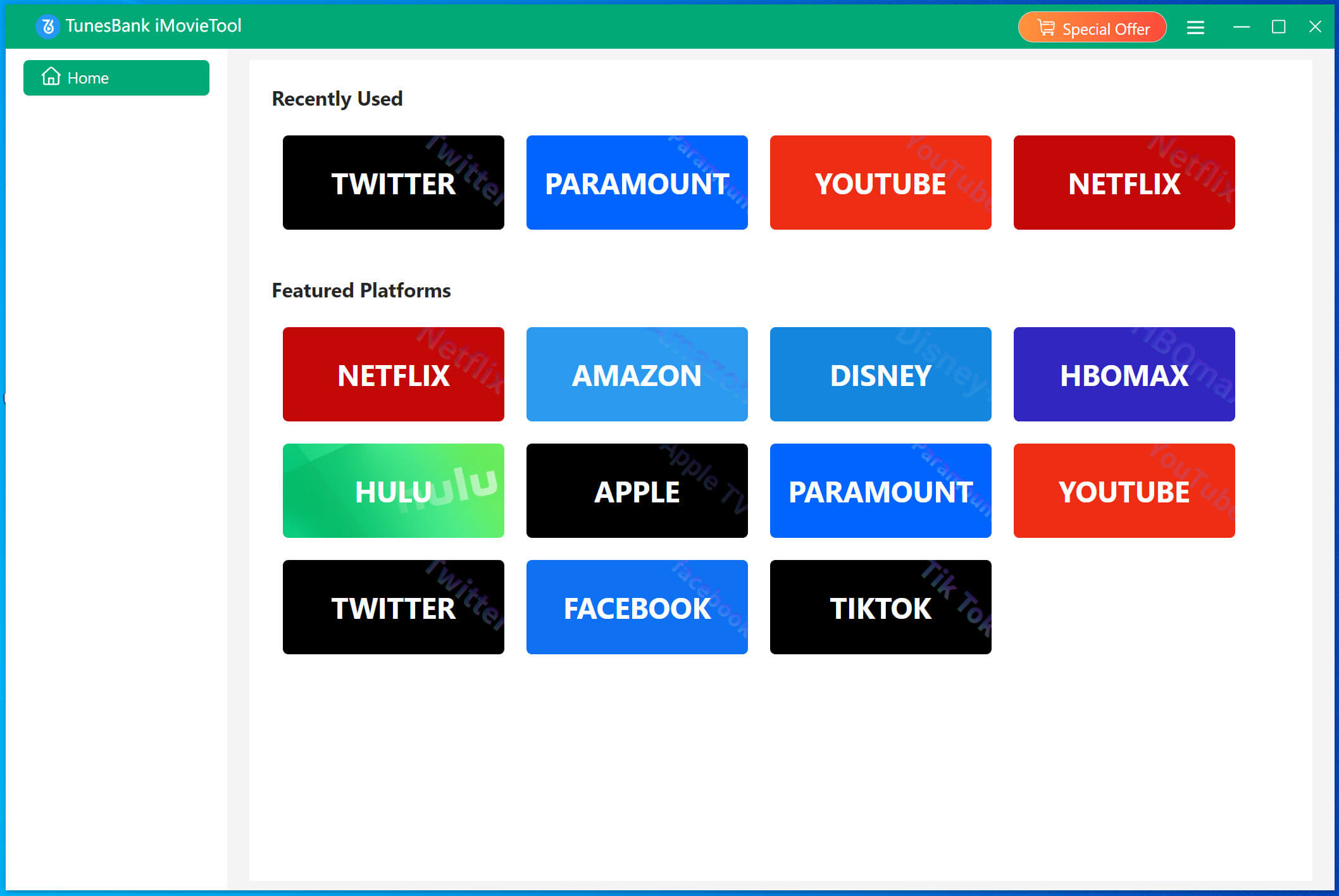
Click above Download button, get TunesBank iMovieTool Video Downloader downloaded on your PC or Mac. Install and launch the program, pick Netflix service to go on.
To begin with, download and install the TunesBank iMovieTool Video Downloader on your computer. When you open the software, you can see 12 streaming platforms in the main interface. Here, we select Netflix service to open the iMovieTool Netflix Video Downloader.
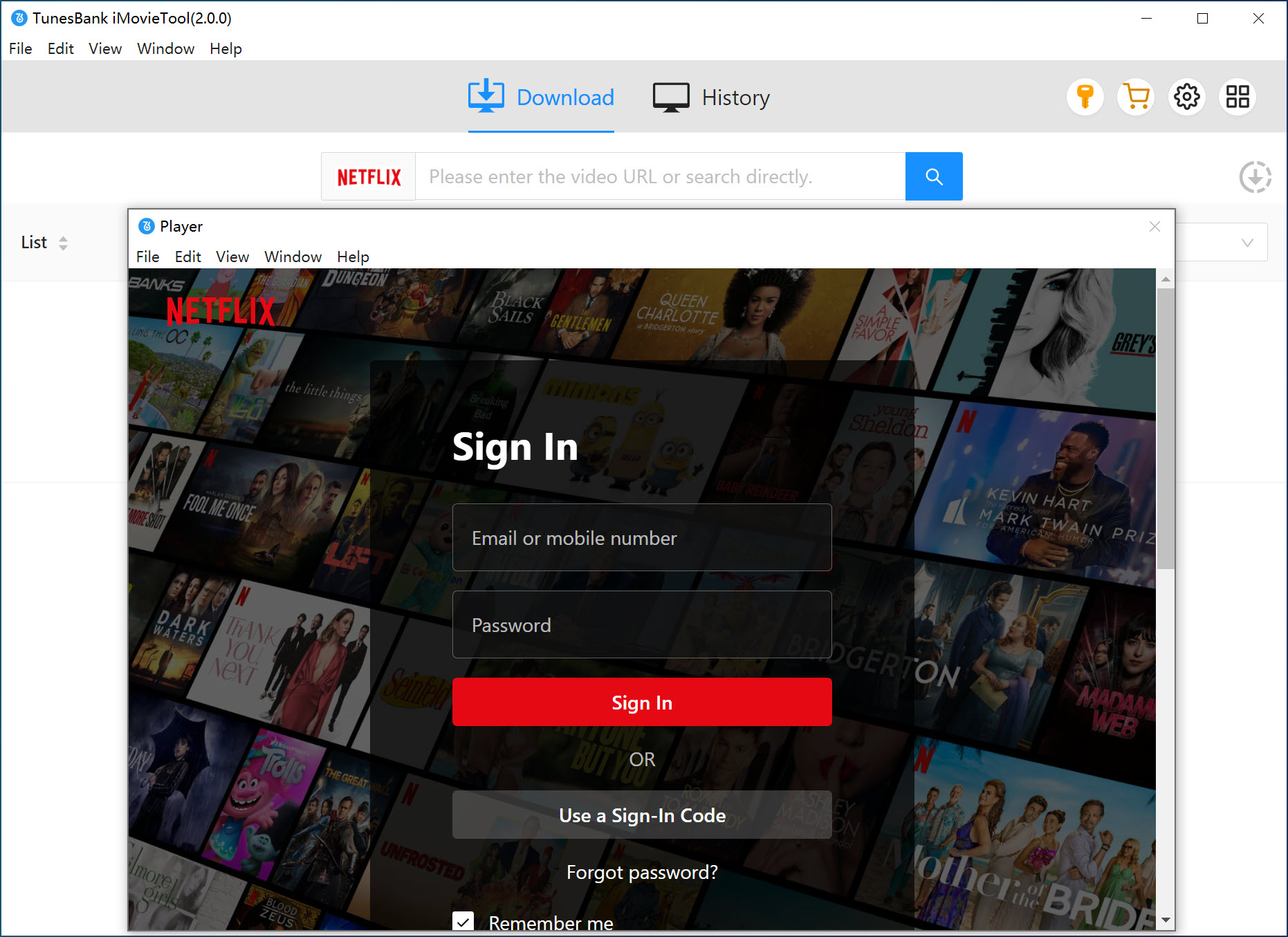
Log in to your Netflix account within the built-in browser. This ensures access to your subscription library directly without opening the Netflix app.
Step 2. Define the Output Settings
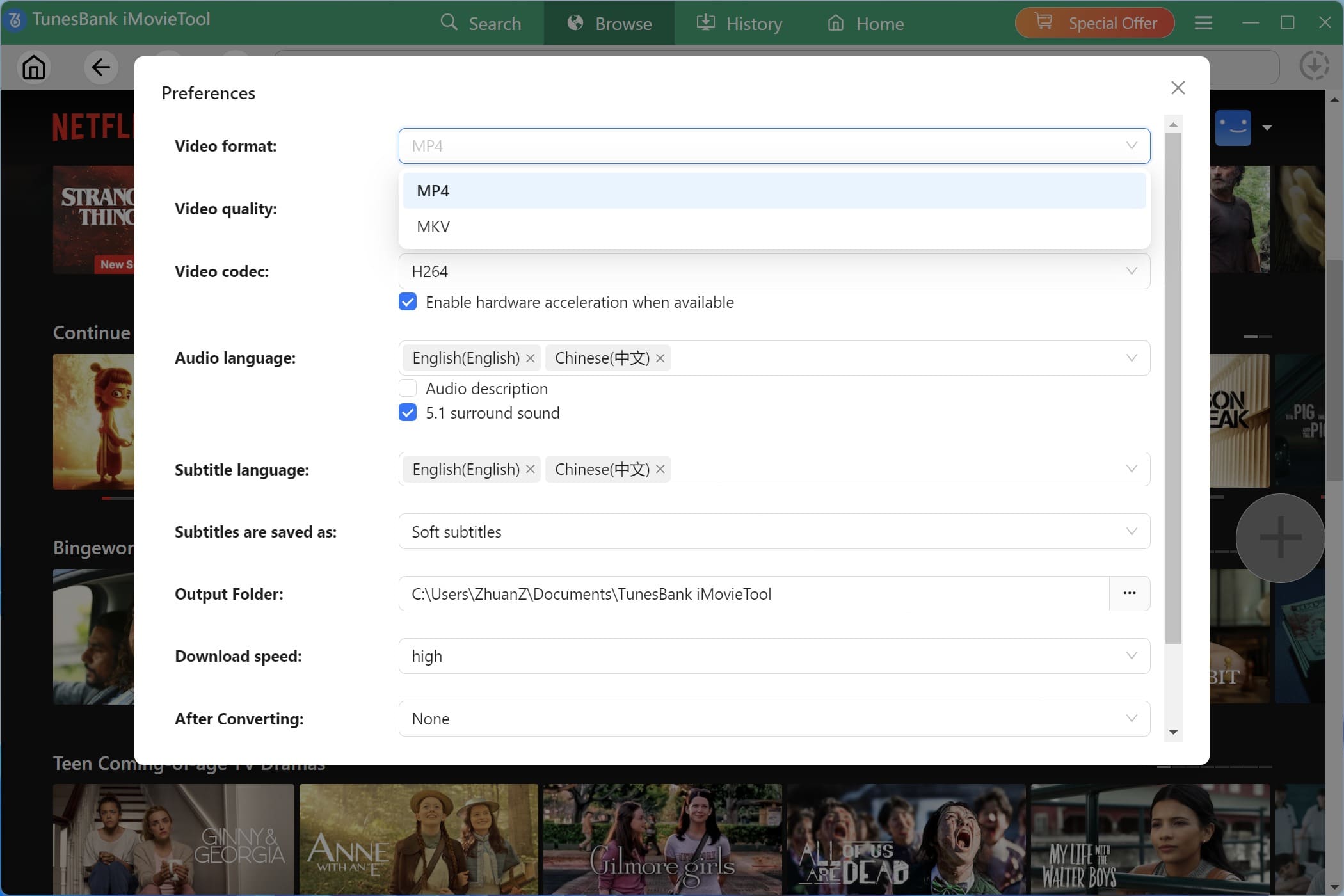
Before adding the Netflix titles, you can turn to the Menu bar at the upper right corner. Select “Preference” option to open the settings window. Then, select MP4 format, high video quaity, change the output folder, pick your preferred audio language and subtitle options.
Step 3. Browse and Add Netflix Videos
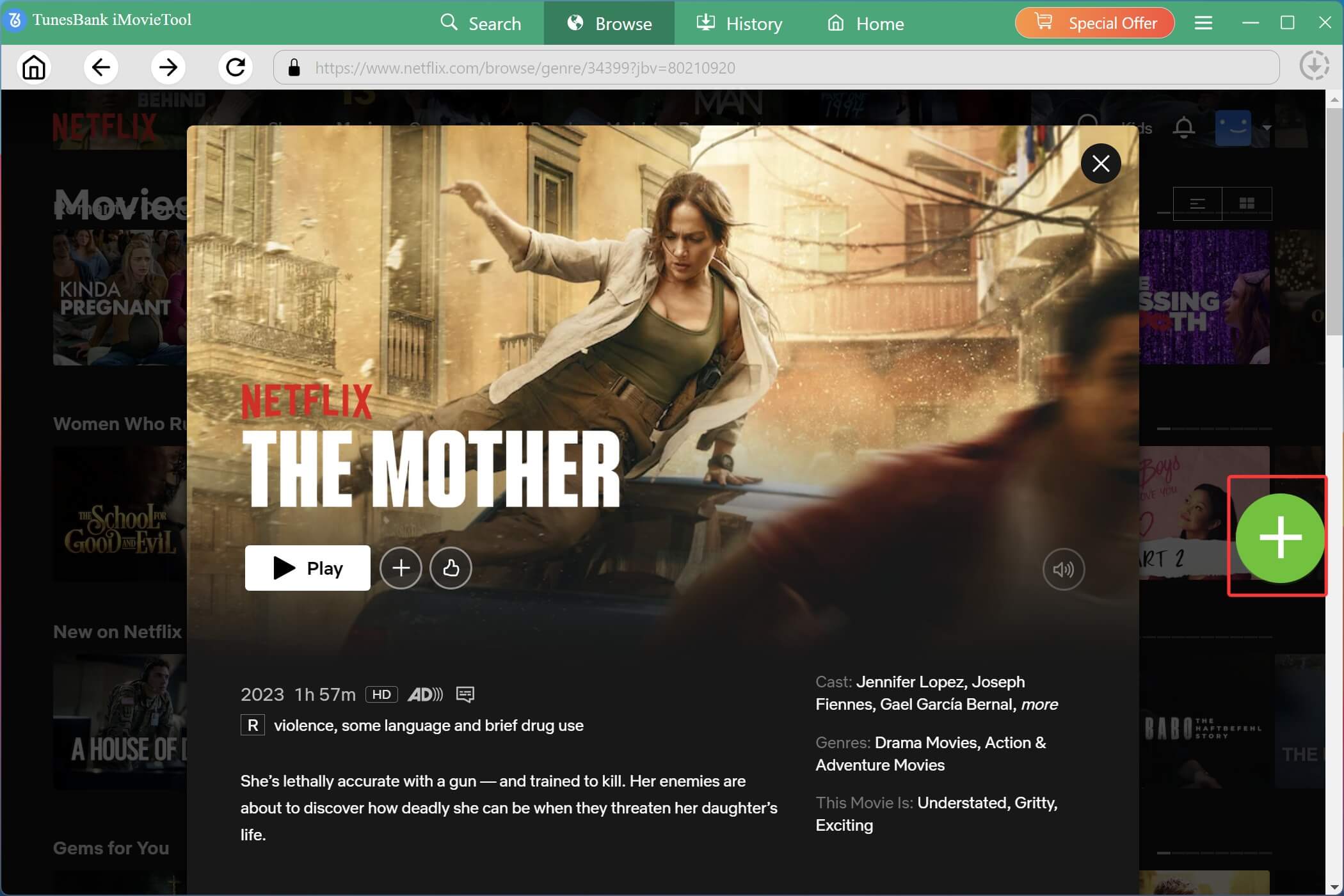
Tap “Browse” tab at the top of the screen. Navigate through Netflix’s internal interface within the downloader. Browse categories online and find the movie or show you want to download.
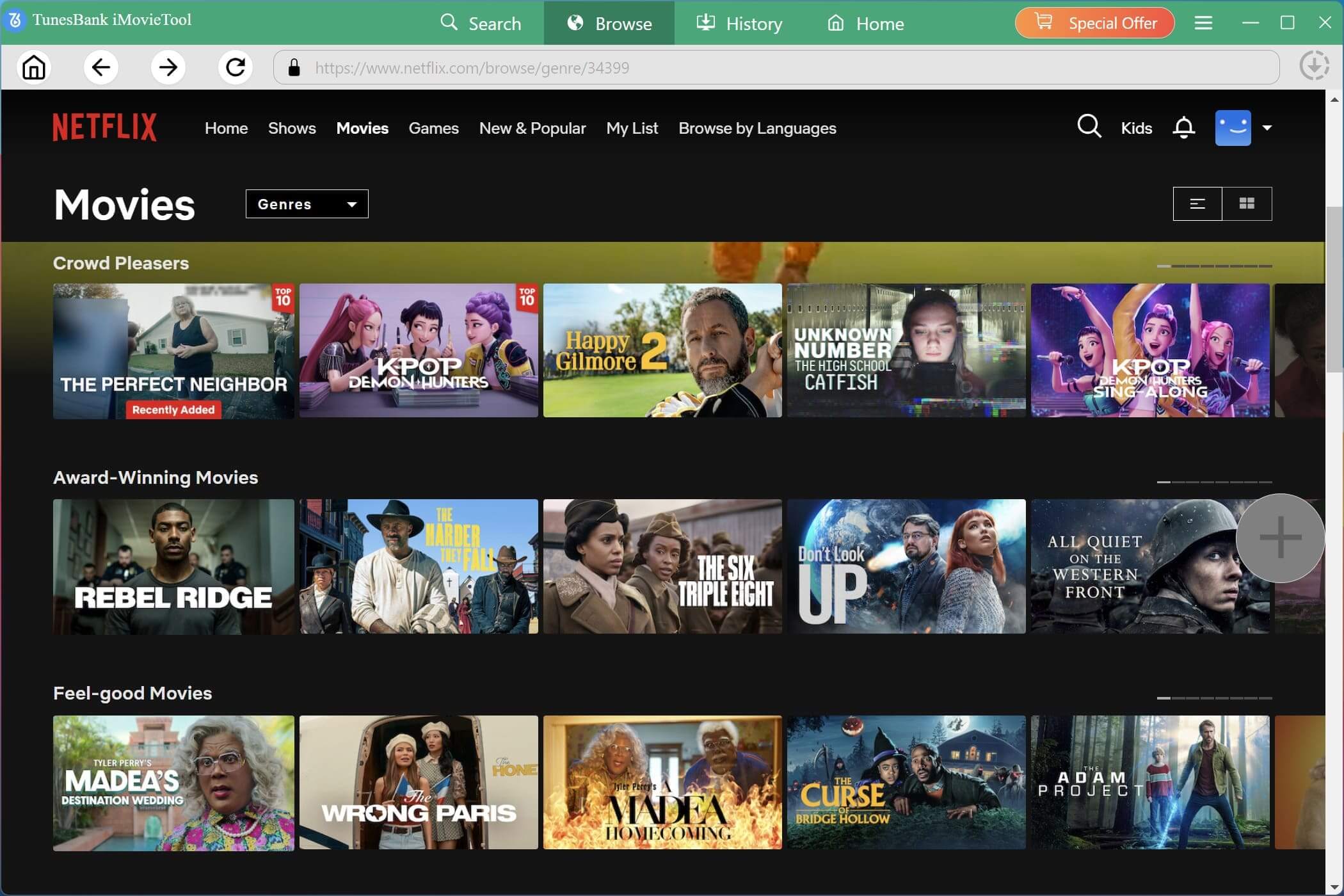
Open the video page, and click the “+” icon in the right side to add it to the download queue.
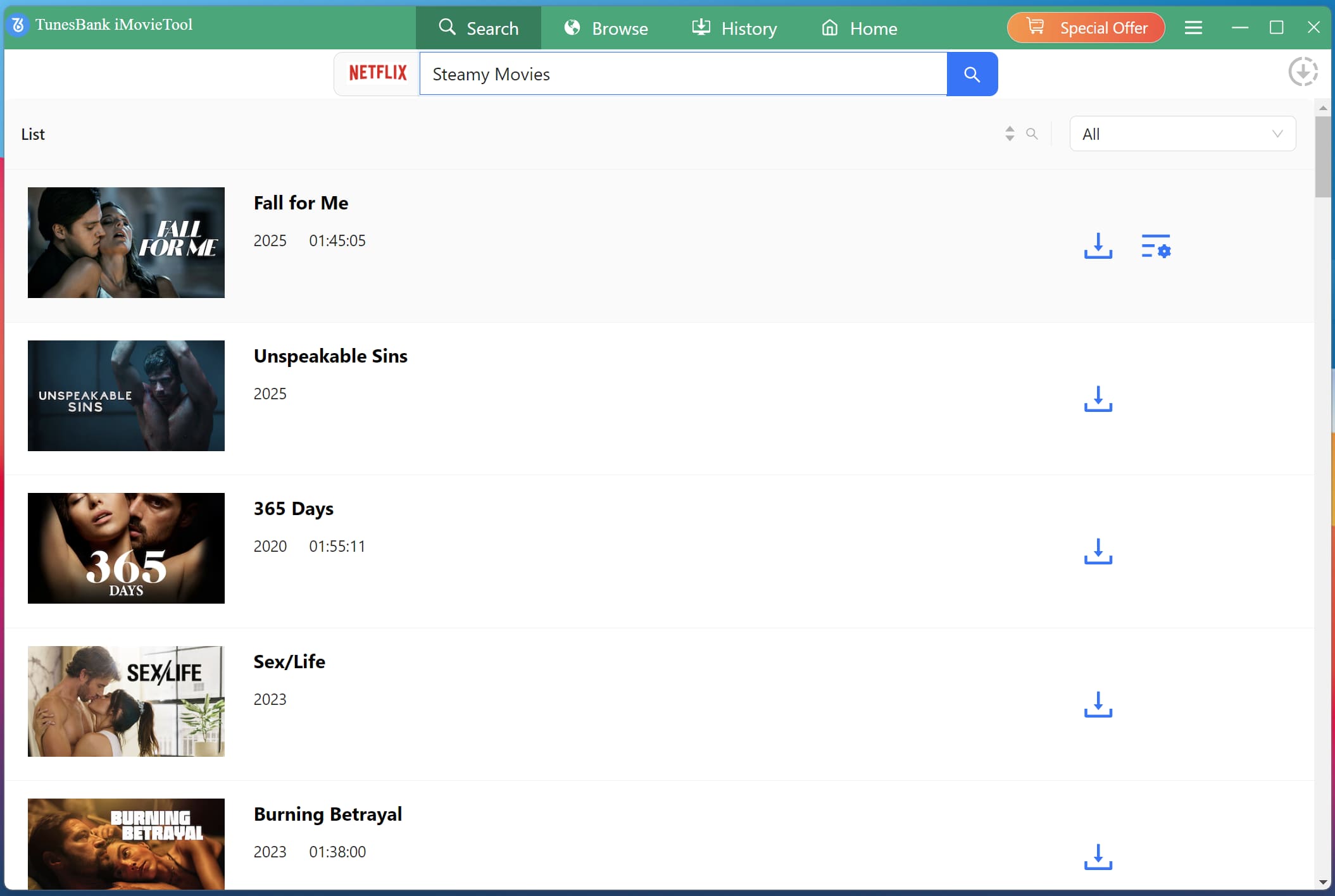
Tips: You may also search any video using name, keyword or even URL in the search field. iMovieTool will analyze it and display related videos in the screen.
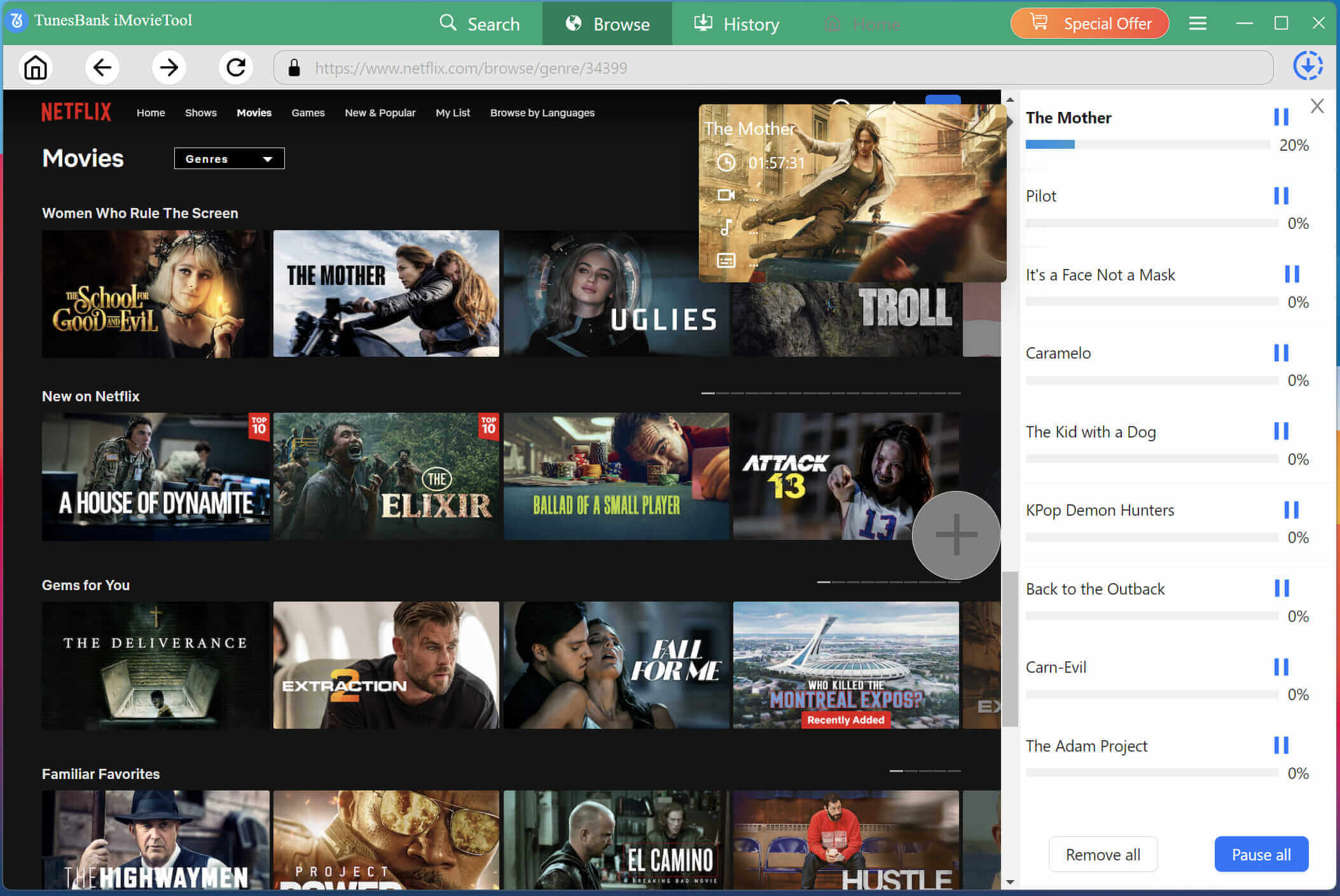
Step 4. Download Netflix Videos to MP4
Once added the title, it will pop up a small window. For single video setting, you can hit on the “Gear” icon. Or, directly press on the “Download” icon to start processing and downloading the video from Netflix web browser to local folder.
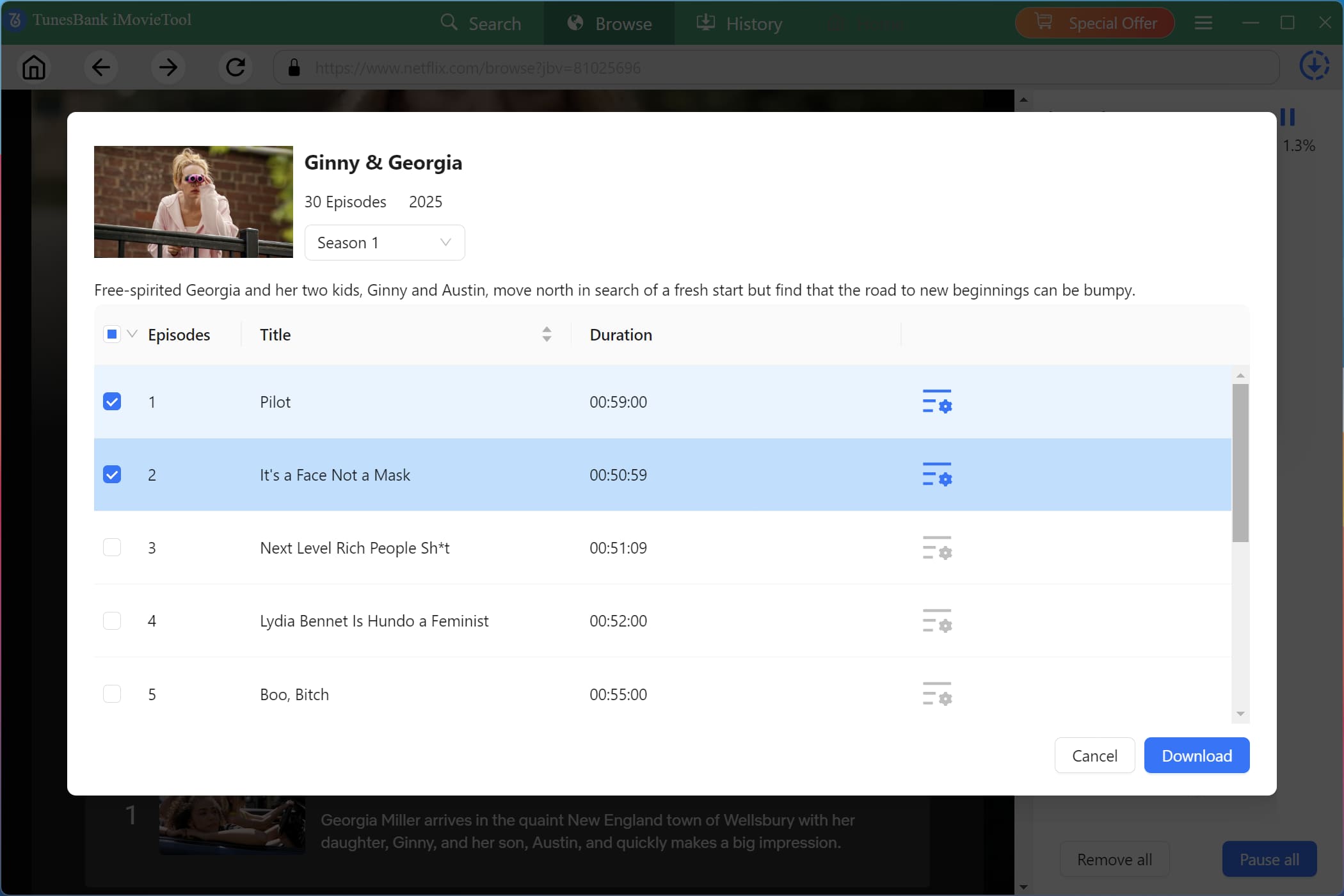
For download TV show, when you click on the “Download” icon. A pop-up window will appear, allowing you to select specific seasons or episodes. Confirm your selections and click the “Download” button.
Step 5. Get Downloaded Netflix Videos
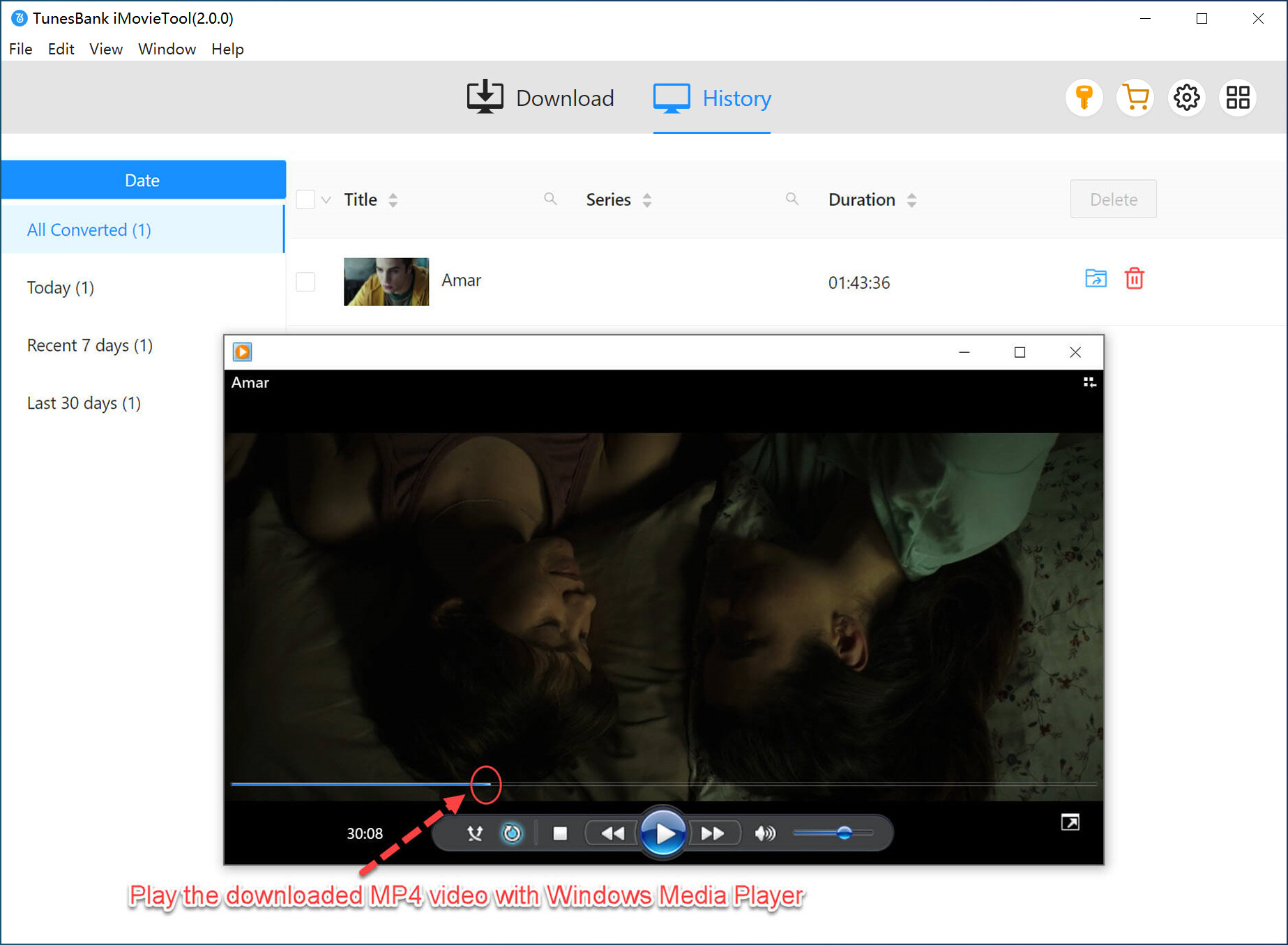
When the download is complete, go to the “History” section to check the well downloaded Netflix videos. Your Netflix movies and episodes are saved as standard MP4 files, which are playable on any device without the Netflix app, without Internet connection, without VPN!
Final Words
When Netflix Says, “You seem to be using a VPN or proxy.”, it can interrupt your streaming and create unnecessary frustration. Luckily, there are multiple ways to fix Netflix VPN proxy error, you can disable your VPN, upgrade to ad-free plan, reset your network, or even contact your ISP. For users who want a permanent solution to fix Netflix errors, you can download Netflix videos to MP4 with iMovieTool Netflix Video Downloader. This way, you can enjoy Netflix videos offline anytime, anywhere, without using the Netflix app or web player!
The Latest Articles
– Top 8 Solutions to Download Streaming Video
– Top 10 Free Movie Download Sites Recommended
– 3 Ways to Download Movies to Watch Offline
– 2 Verified Methods to Download X/Twitter Videos to MP4
– Download Twitter(X) Videos on PC, Mac and Mobile Phone
– Download Facebook Videos on PC, Mac and Mobile Phone
– 3 Ways to Download Facebook Video to MP4

Netflix Video Downloader
Download Netflix video to MP4 or MKV with multi-language audio track and subtitle kept. Up to 50X downloading speed. Easily to download your favorite movies/TV shows from Netflix to your computer for offline viewing.








One Reply to “[Fixed] Netflix Says, ‘You seem to be using a VPN or proxy.’”
Comments are closed.