






 United States (English)
 Japan (日本語)
 Russia (русский)
 Germany (Deutsch)
 France (Français)
 Spain (Español)
 Italy (Italia)
 Portugal (Portugues)
 China (繁体中文)
 Turkish (Türk dili)
 Dutch (Nederlands)
 Korean(한국인)
 Saudi Arabia(عربي)
 Download from Netflix, Disney+, Prime Video, YouTube, and more.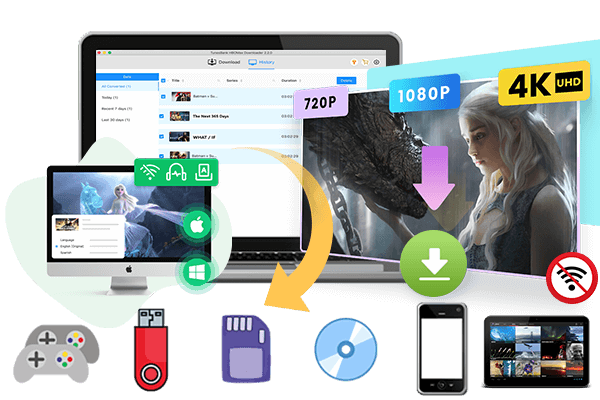
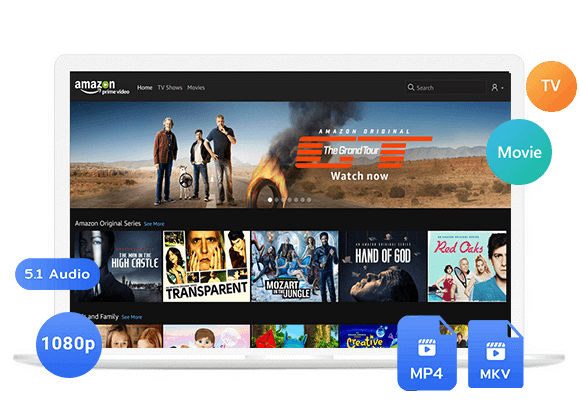
Can you download streaming videos on a laptop? Learn which streaming services support official downloads on laptop & PC, and how to download streaming videos to Windows PC or laptop from popular streaming platforms.
Streaming services have made it easier than ever to watch movies and TV shows online. Windows PC and laptop can watch popular videos on most streaming services, but they are not listed for current offline downloads. Most streaming services currently only lists mobile devices as supported download devices. If you want to watch streaming videos on your PC or laptop, you can rely on a powerful streaming video downloader.
In this guide, we will explain which streaming services that allow downloads on laptop and PC, which ones do not. Plus, we’ll also show you how to download streaming videos to Windows PC and laptop for permanent and flexible offline viewing!
Part 1. Which Streaming Services that Allow Downloads on Laptop & PC?
# Amazon Prime Video
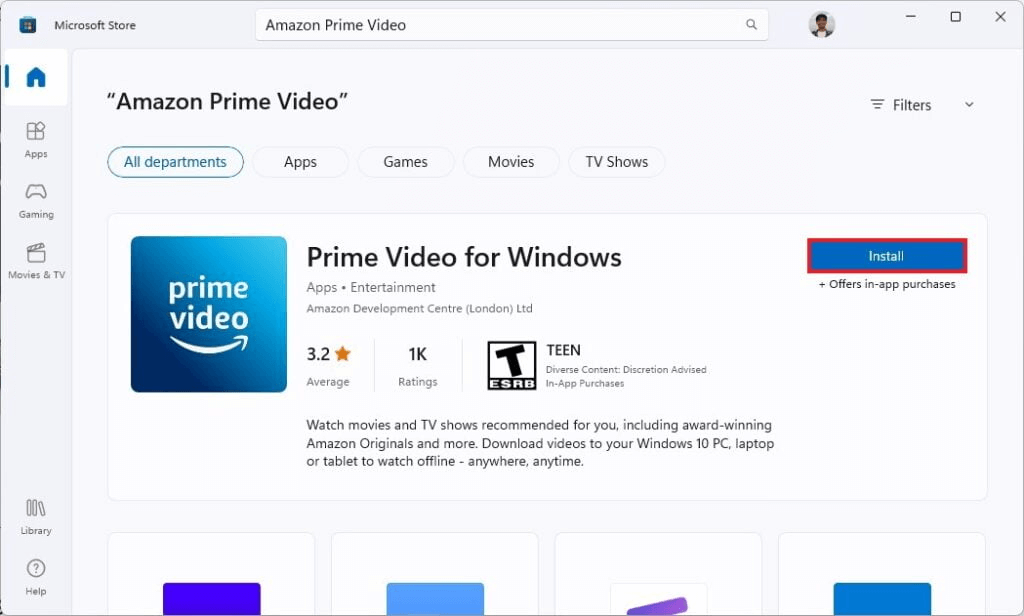
When it comes to downloading streaming videos on computer, Amazon Prime Video is a good option. Currently, Amazon Prime Video is the streaming services with offline viewing functionality on laptop or PC. Amazon Prime Video provides a dedicated app for Windows 10/11 laptops in the Microsoft Store, allowing you to download purchased, rented, and Prime Membership videos for offline viewing directly on your laptop.
How to Download Amazon Prime Video on a Laptop or PC
If you want to download streaming videos on laptop using the official Prime Video method, follow these general steps:
Step 1. Download and install the official Amazon Prime Video application for your supported Windows computer.
Step 2. Open the Prime Video app and sign in using your Amazon account.
Step 3. Search for the movie, series, or episode you want to watch offline. Or locate your purchased movie or show.
Step 4. Click the movie or show to open its information page. Look for the “Download” option and click it.
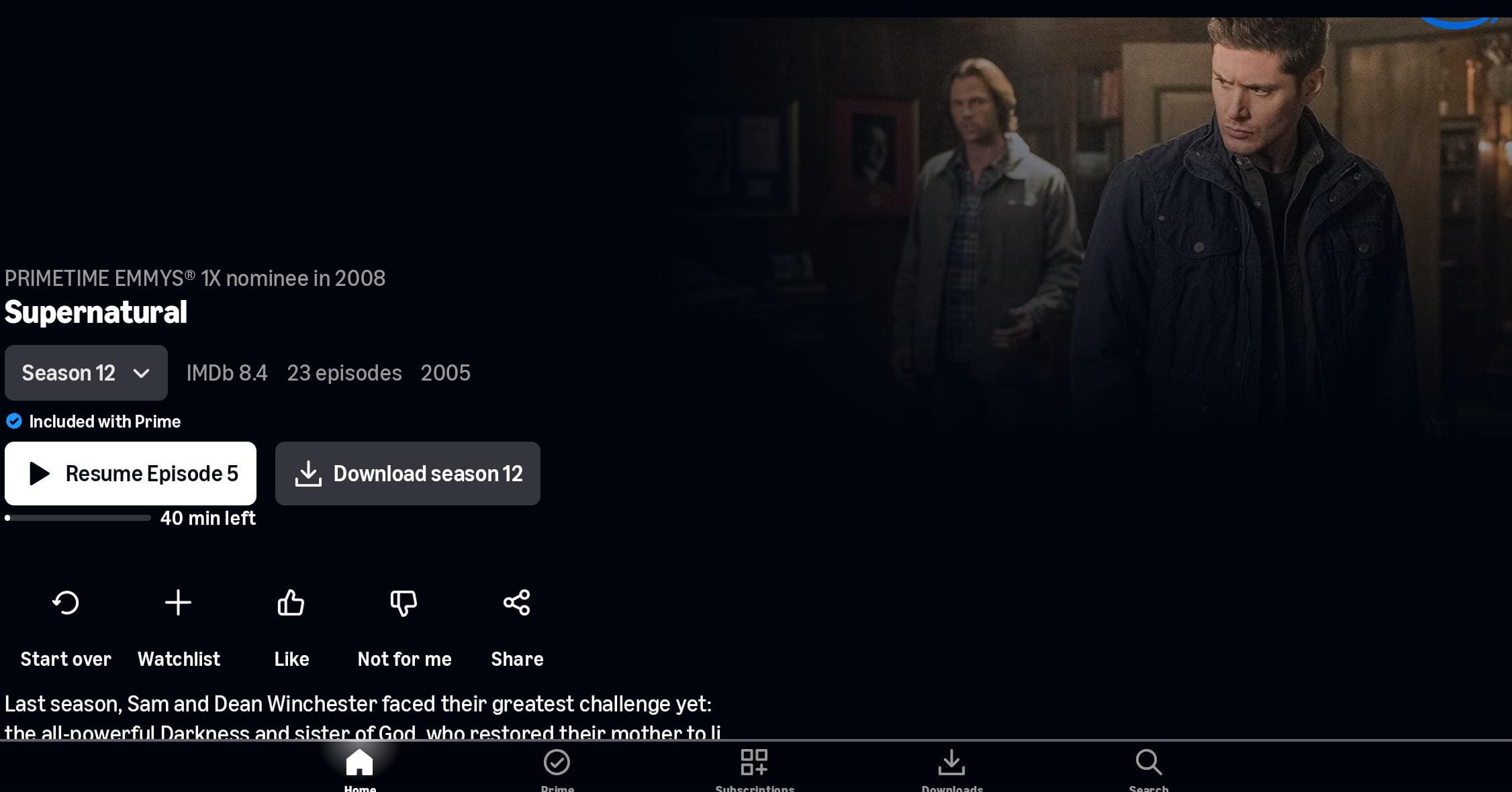
Step 5. Choose your preferred video quality and audio language, then begin the download.
Step 6. After the download finishes, go to “My Downloads” section to watch the content without an internet connection.
# YouTube
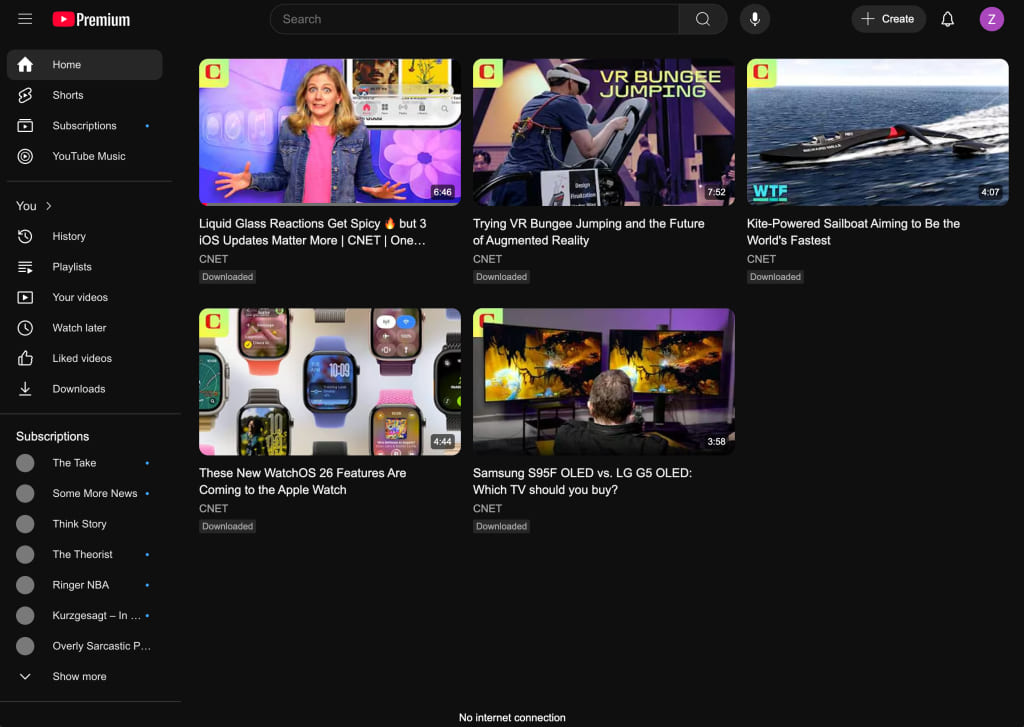
In addition, YouTube Premium allows users to download supported videos for offline viewing through desktop browsers. But official downloads only play inside the browser and cannot be saved as standard video files. You can follow these steps to download YouTube videos to PC through browser.
Step 1. Open YouTube in a supported browser on your Windows PC or laptop and sign in with your YouTube Premium membership.
Step 2. Find the video you want to save and open its watch page.
Step 3. Click the three dots (…) near the bottom right corner of the video. If the video is eligible for offline viewing, you will see a Download button. Click it to save it offline.
Step 4. If prompted, choose your preferred download quality.
Step 5. When finishes, click “Downloads” from YouTube’s left-side navigation menu to view your offline videos.
Part 2. Which Video Streaming Platforms Do Not Support Offline on Laptop?
Most streaming services mainly offer downloads on smartphones and tablets but not Windows PC or Mac computers. Below is a list of popular video streaming platforms that do not officially support offline downloads on laptops or PCs.
- Netflix
- Hulu
- Max
- Disney+
- Apple TV+
- Paramount+
- Peacock
- Vudu
- Fandango at Home
- Crunchyroll
- BritBox
- Acorn TV
- AMC+
- MUBI
- Shudder
- Kanopy
- Hoopla
- PBS
(Netflix removed the download feature from its Windows app in July 2024, meaning Windows users can no longer use the Windows application to download Netflix videos on laptop for offline playback.)
Part 3. Best Streaming Video Downloader for PC – iMovieTool
Streaming platforms use DRM and other protection technologies to restrict how downloaded movies and TV shows can be accessed. Official downloads are typically limited to supported apps or devices, selected titles, and specific viewing periods (30 days or 48 hours). And you cannot transfer any downloaded title to other media players or personal devices.
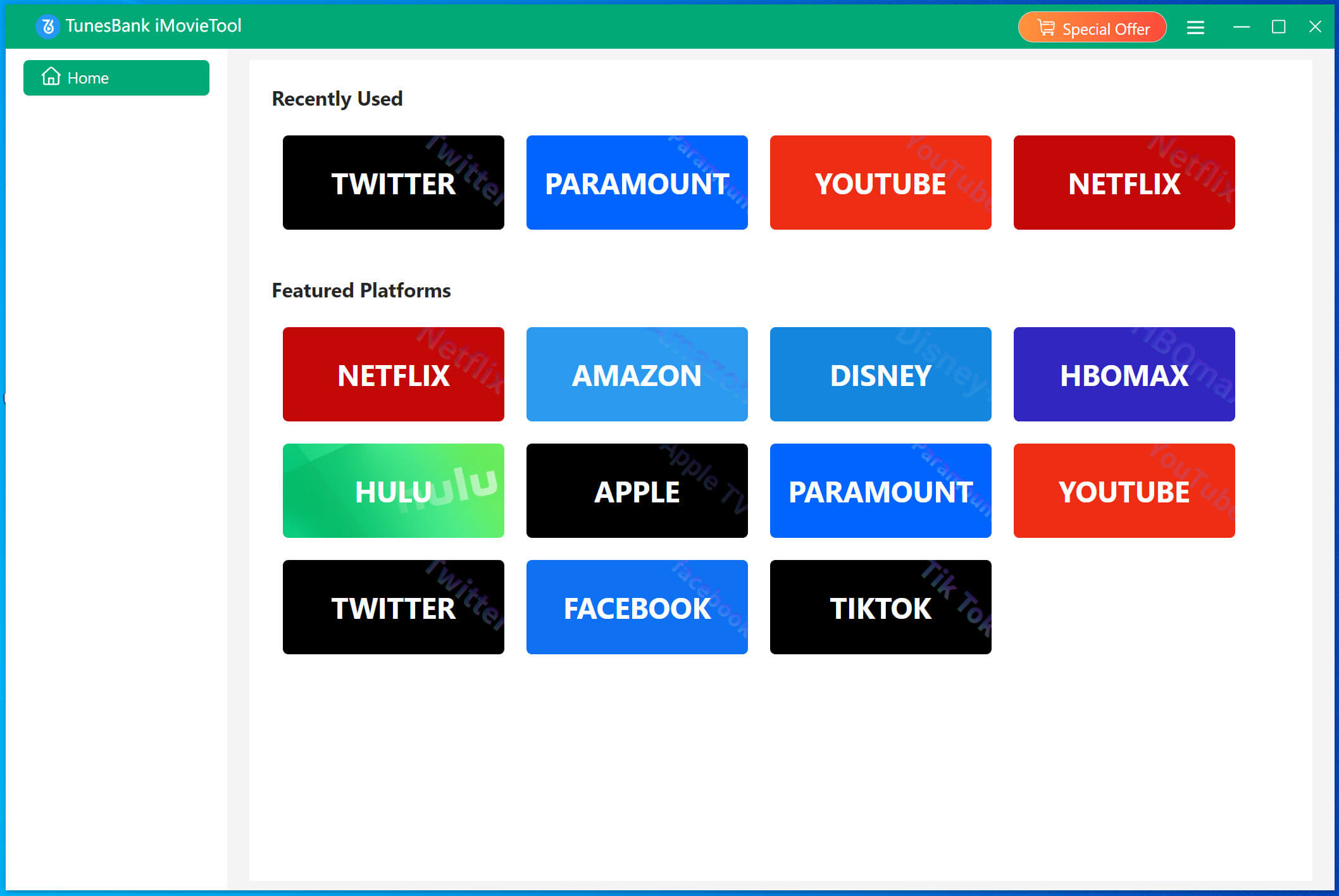
Luckily, there are many professional third-party streaming video downloader tools come into help. iMovieTool All-in-One Video Downloader provides a centralized solution for major streaming video platforms. It combines 12+ platforms into one software, including Netflix, Amazon Prime Video, Hulu, Max, Disney+, YouTube, YouTube TV, Apple+, Paramount+, Twitter, Facebook, Instagram, and TikTok. Thanks to its built-in web browsers, this makes it easy to download streaming videos to Windows PC, laptop, iMac, or MacBook, without relying on the streaming app!
The software supports downloading movies and TV shows in MP4 or MKV format, with selectable 720P, 1080P, or 4K output quality. What’s more, it lets you save videos with multilingual audio tracks and subtitles. After downloading, you can keep these video downloads permanently, and move them to a USB drive, phone, tablet, or any device for offline viewing.
Features of iMovieTool Video Downloader:
- Supports multiple popular streaming platforms in one application.
- Downloads movies, TV shows, videos to Windows PCs, laptops at 50X speed.
- Works with laptops, iMac, and MacBook computers.
- Saves streaming videos as MP4 or MKV files.
- Supports HD 1080p and up to 4K quality with Dolby 5.1 surround sound.
- Downloads multiple movies or entire TV episodes in batches.
- Preserves selected subtitles and available audio tracks.
- Supports customized output settings for flexible playback.
- Watch streaming videos offline on laptop, PC permanently, no expiration.
How to Download Streaming Videos on Laptop & PC
Step 1. Choose Netflix Service & Sign In Account
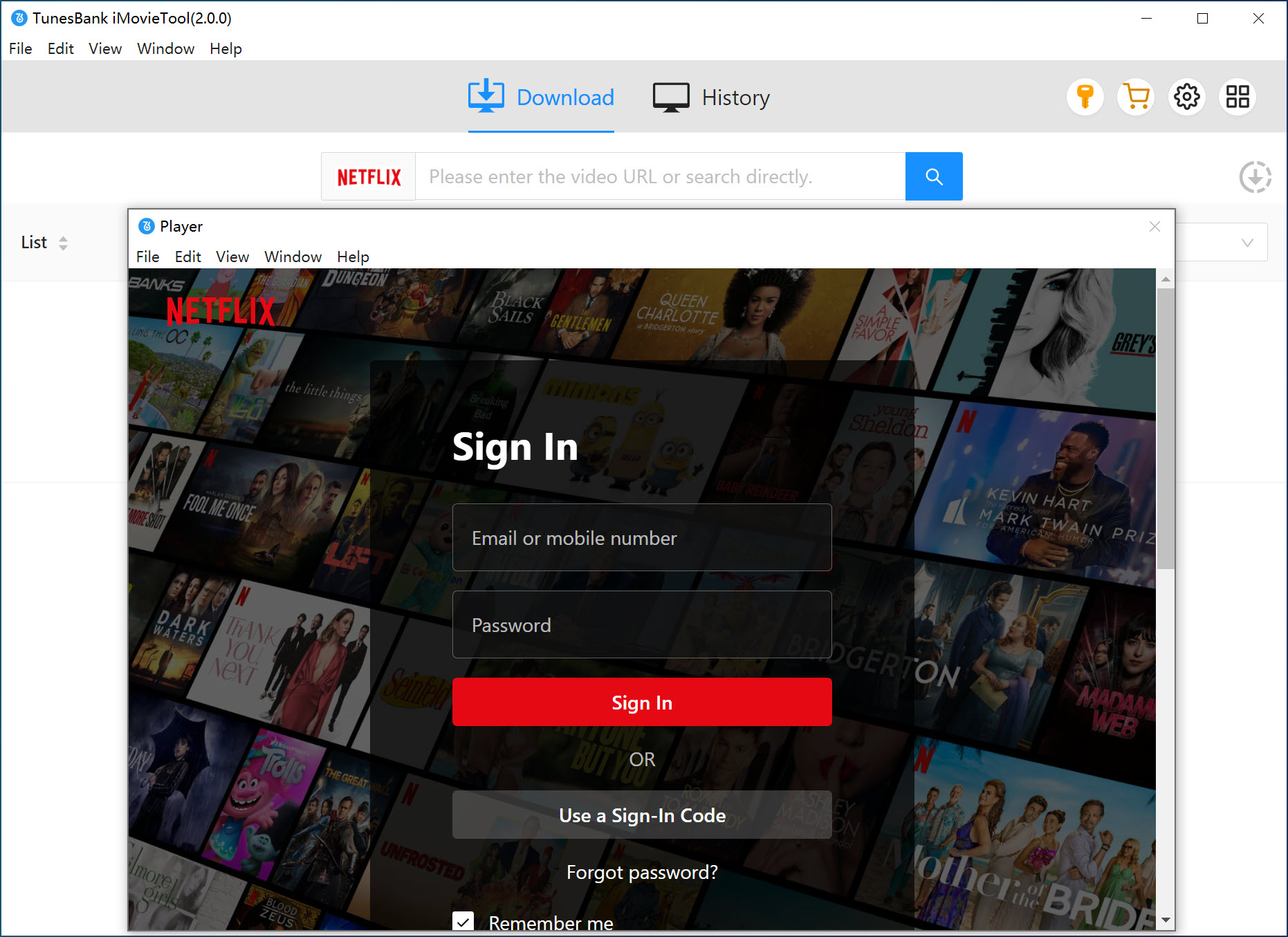
After installtion, open iMovieTool All-in-One Video Downloader and select the streaming service containing your desired movie or TV show. For this guide, choose Netflix, then sign in with your Netflix account.
After logging in, you can access supported Netflix content directly through the software’s built-in web browser.
Step 2. Define Download Settings
Click “Menu” in the upper-right corner and select “Preferences”. Here, you can configure the output format, video quality, subtitles, audio tracks, download location, and other available settings.
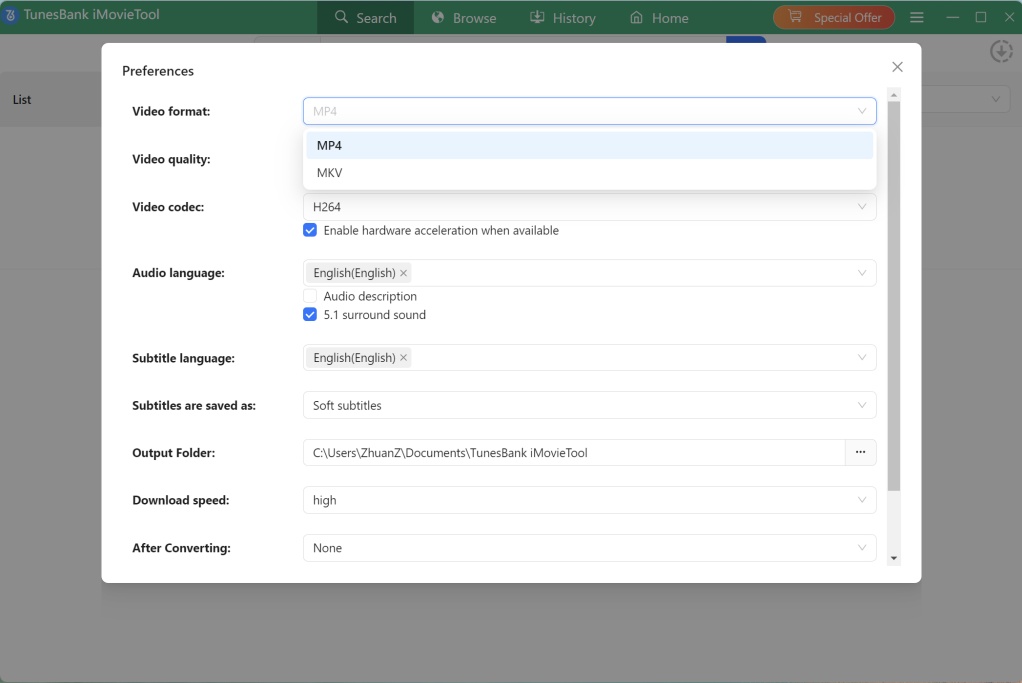
For example, choose MP4 if you want broad compatibility with common media players and devices.
Step 3. Browse and Add Netflix Videos
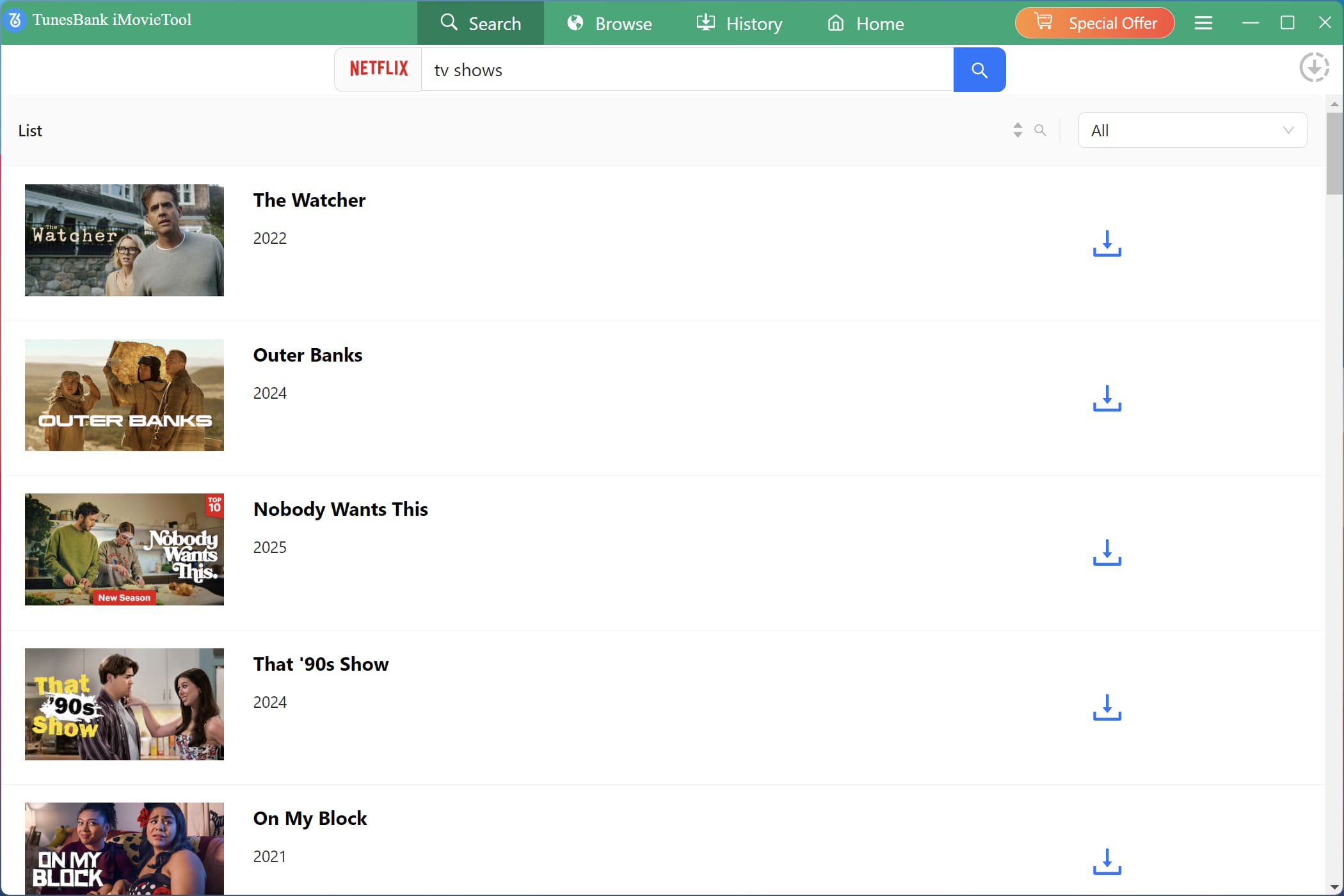
iMovieTool provides three convenient ways to locate a Netflix movie or TV show: search by name, paste a supported video URL, or browse Netflix directly through the built-in browser.
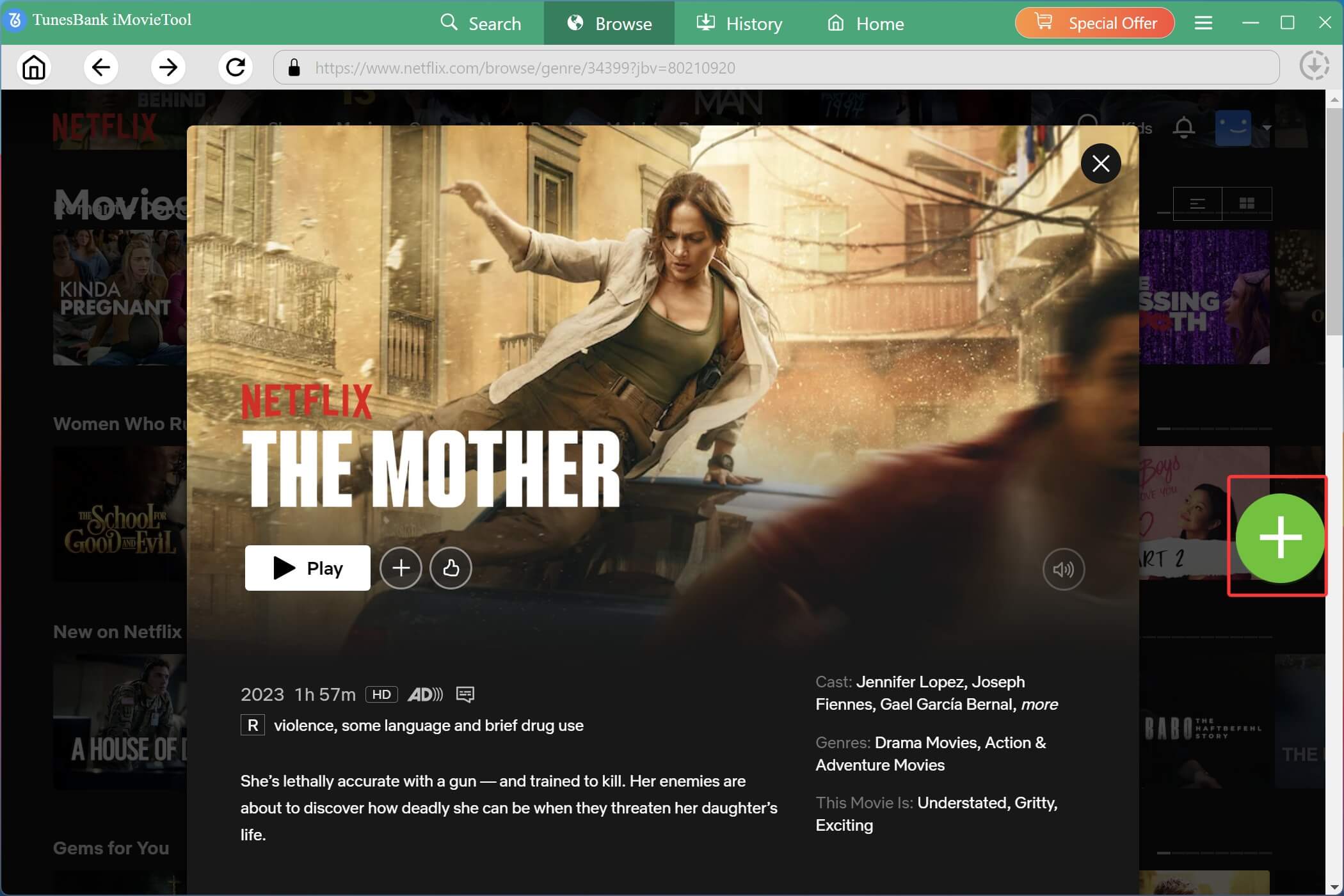
Go to “Browse” section, you can navigate through categories or recommendations.
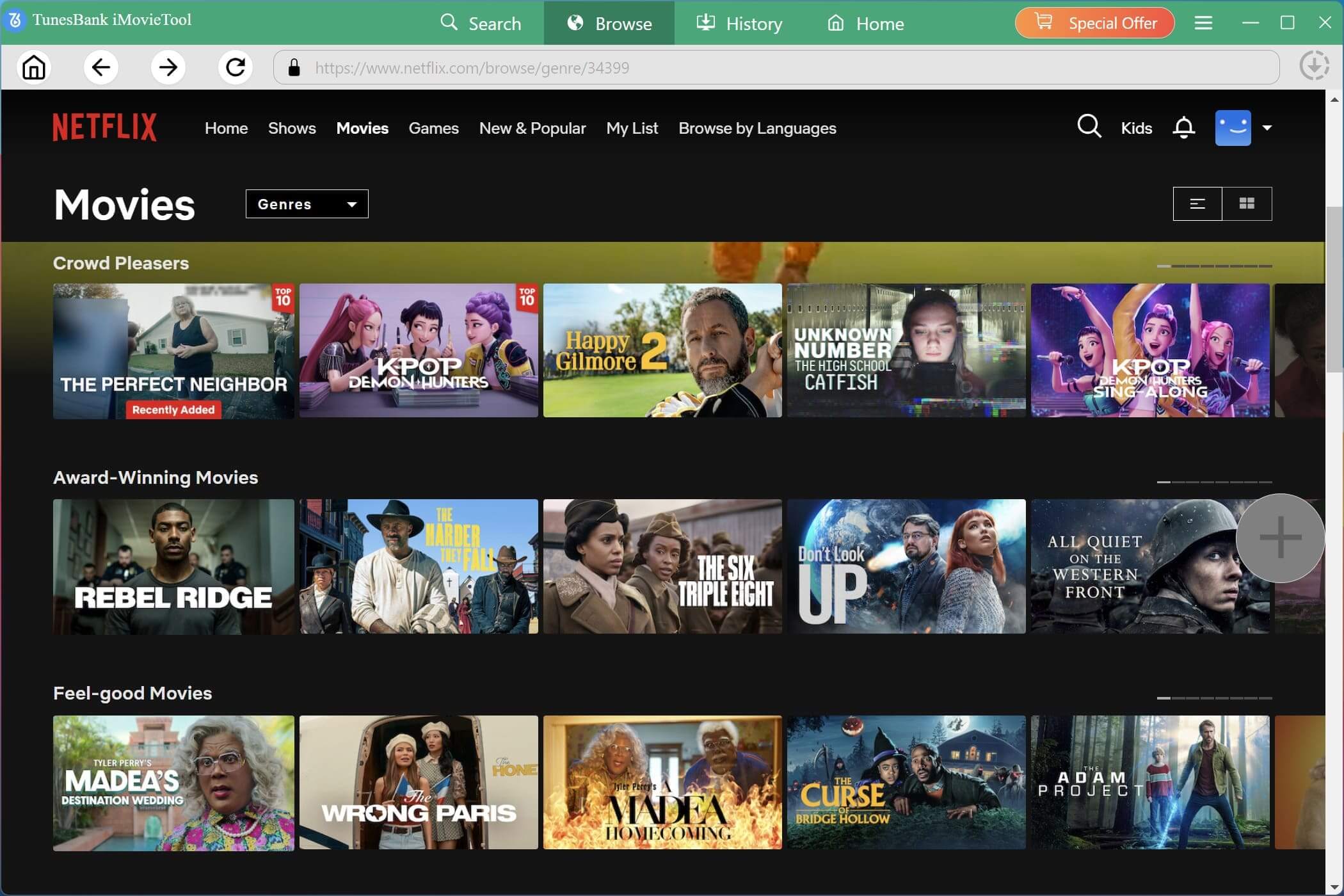
Open the desired movie or series page, and click the “+” icon to add it to the download queue.
Also, you may go to “Search” section, enter the name or paste the URL of the Netflix movie or TV show into iMovieTool’s search box. The software will analyze it and display matching titles, allowing you to select the correct movie or series.
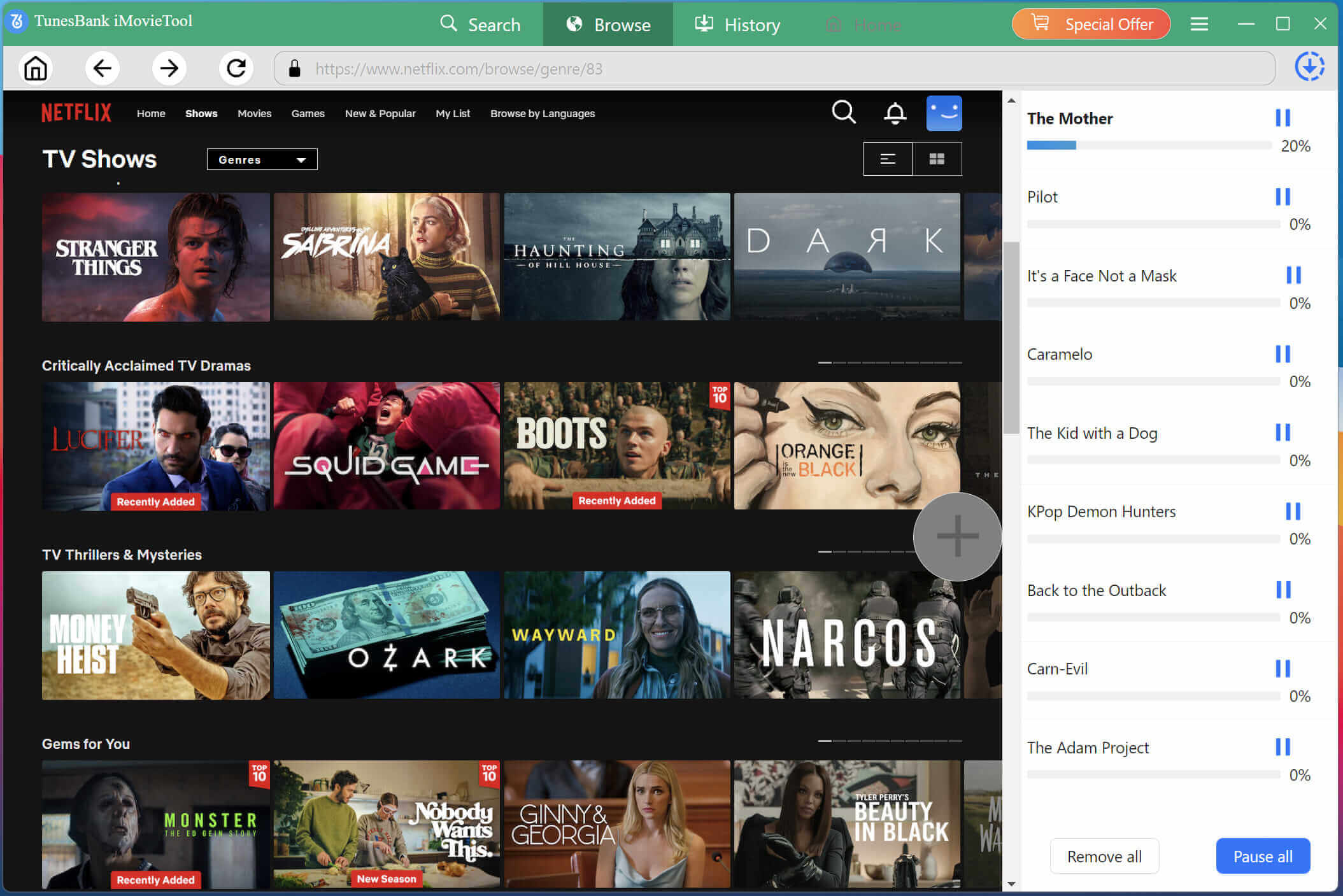
Step 4. Begin Downloading Netflix Videos on Laptop
After selecting the desired movie or episodes, you can click the “Gear” icon next to the title to review the output format, resolution, subtitles, and audio settings. Then click “Download” icon to begin processing the selected content.
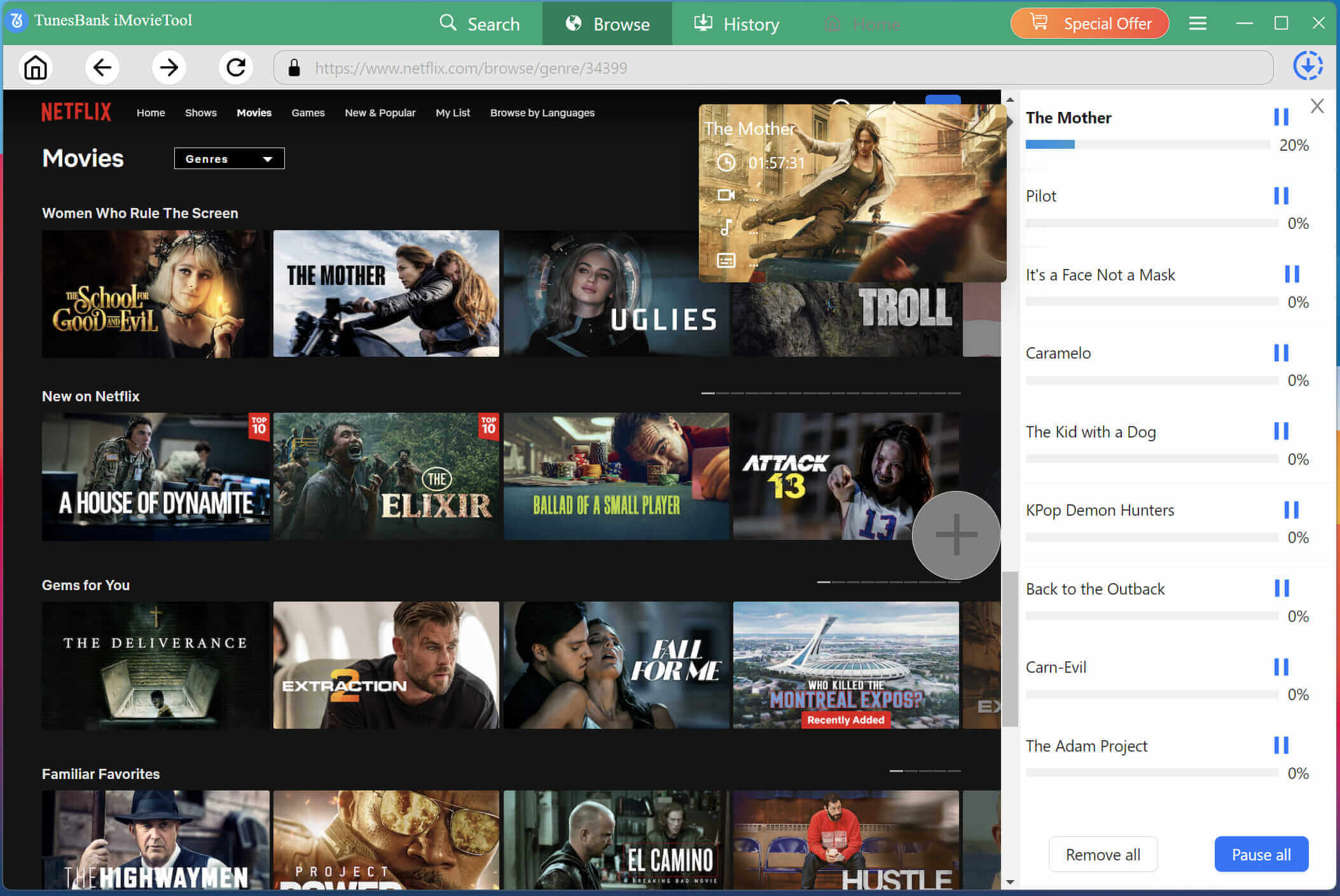
For TV shows, you can choose individual episodes or multiple episodes at once. Batch downloading can be particularly useful when you want to prepare an entire season for personal offline viewing.
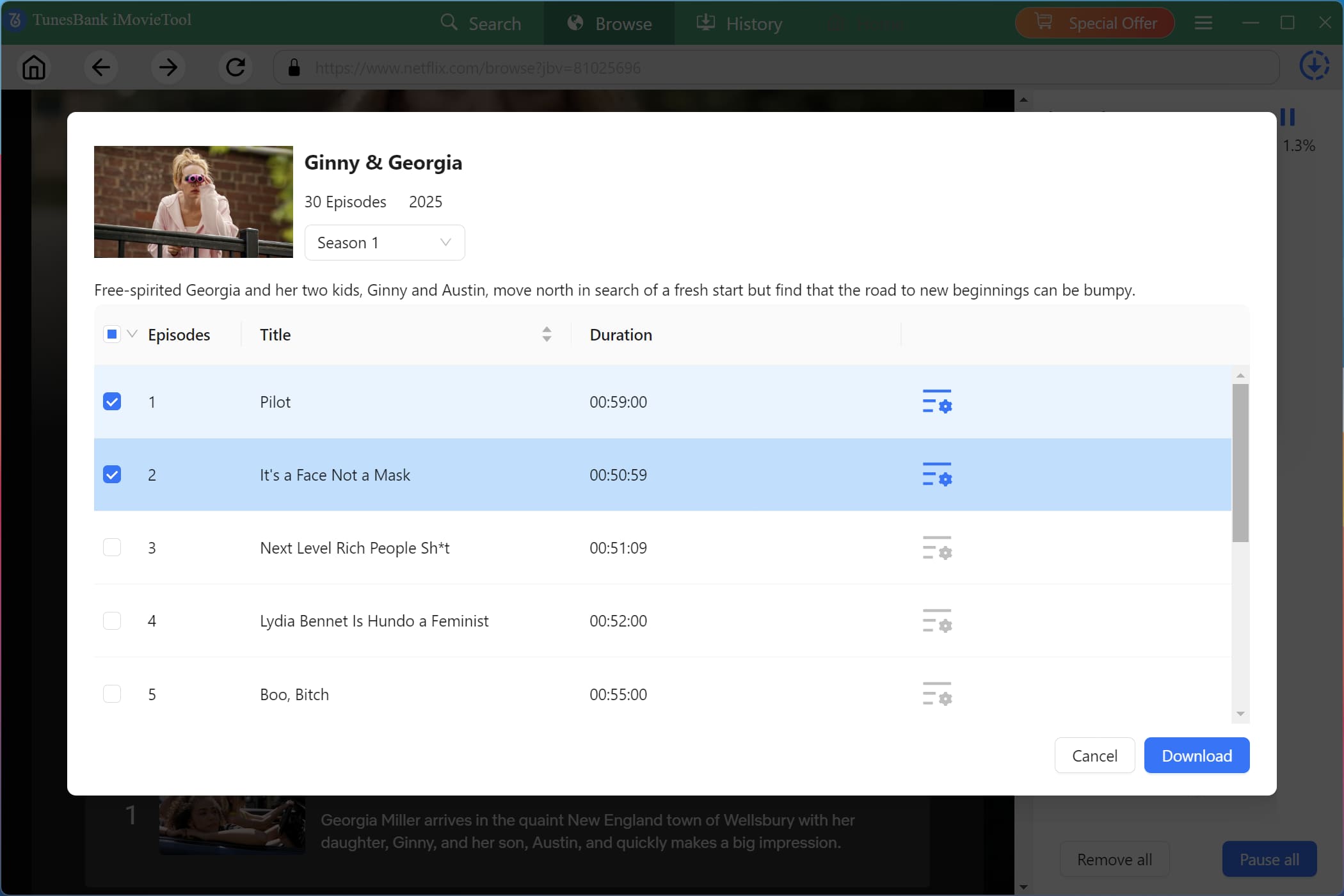
The software will display the download progress so you can monitor the process.
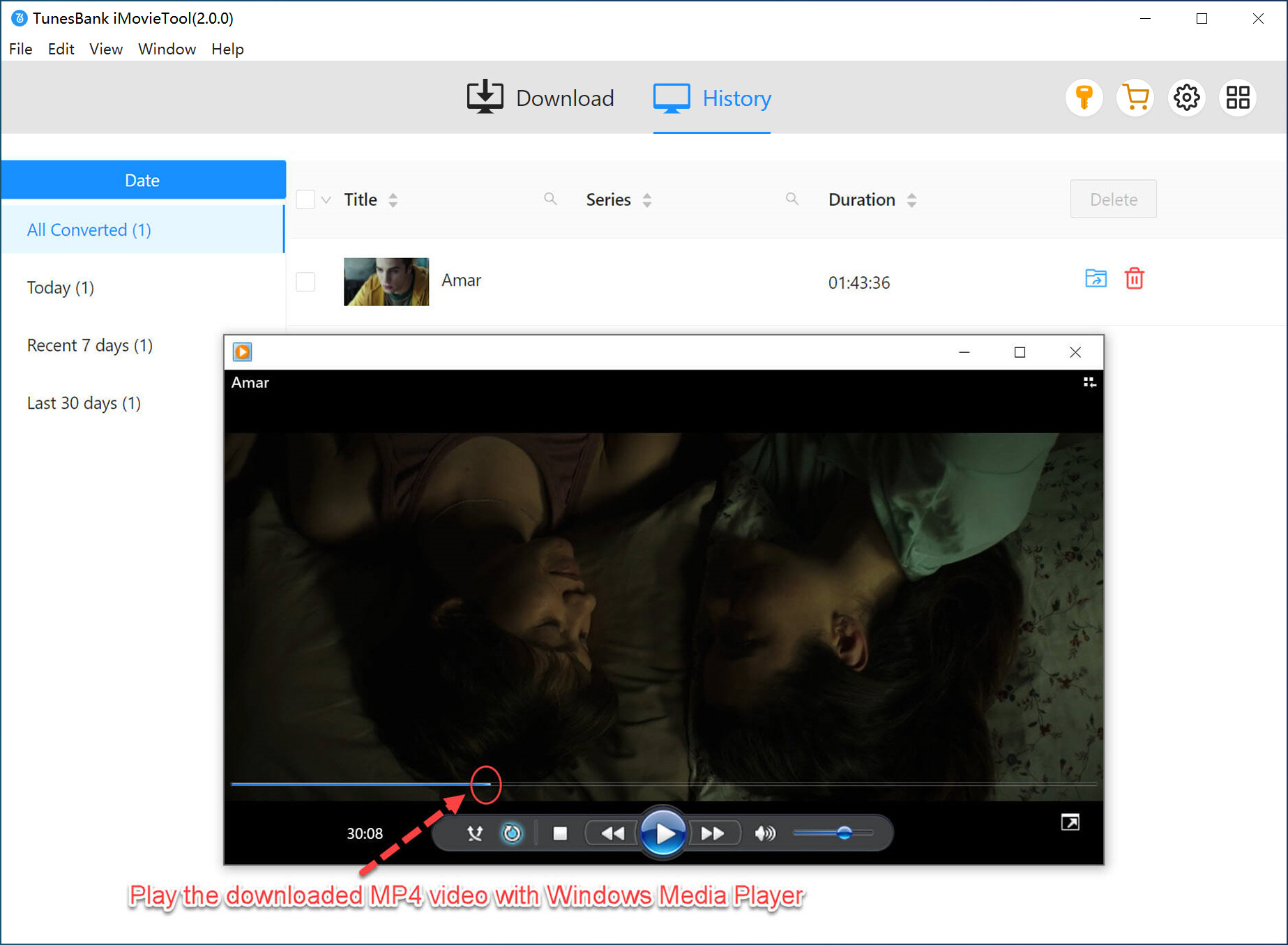
Step 5. Get Downloaded Netflix Videos
When the download is complete, open the “History” section or navigate to your selected output folder. Your completed videos will be available as local files in the format and quality you selected.
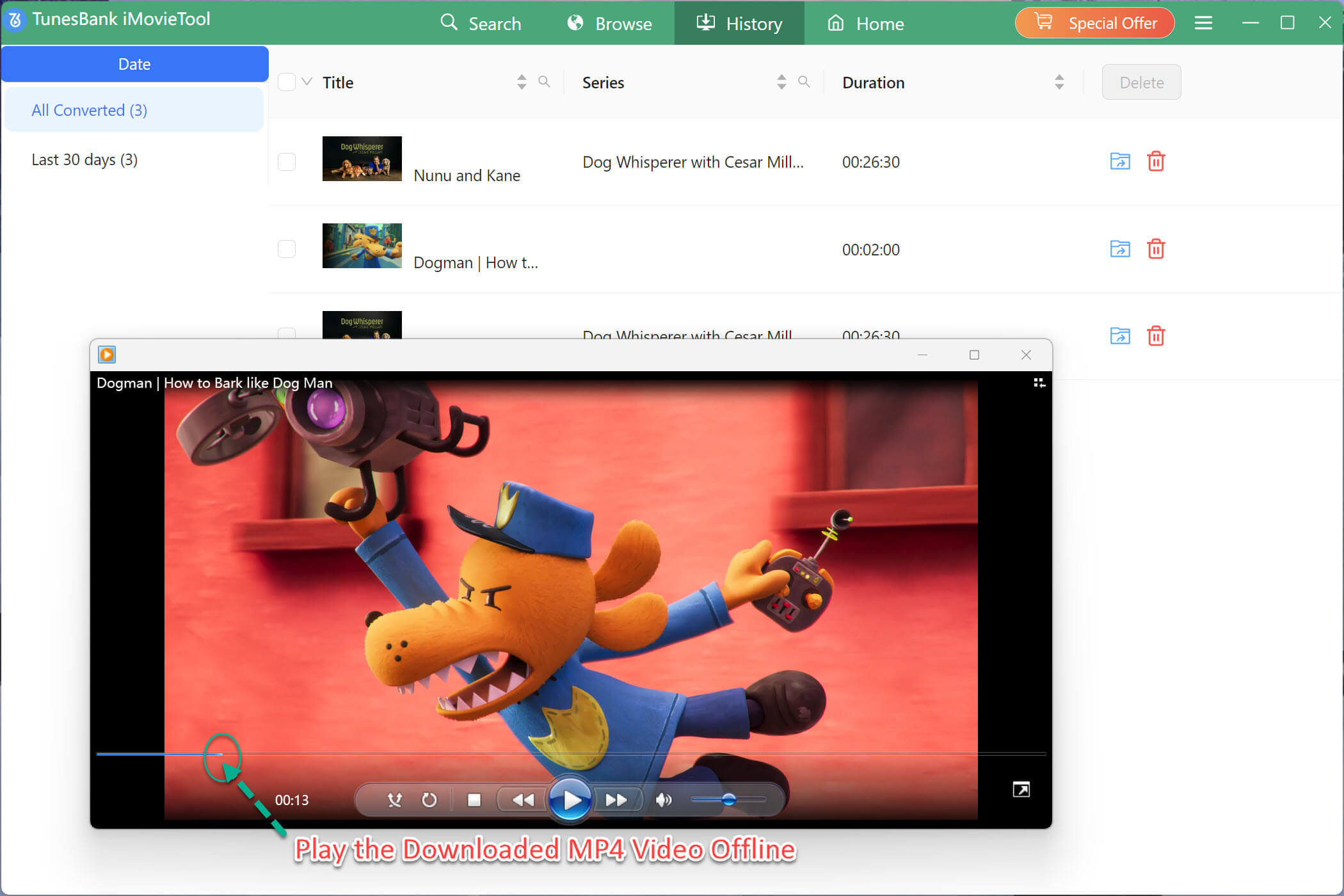
Step 6. Watch Netflix Videos on Laptop Offline
You can then organize the downloaded movies or episodes on your computer and play compatible files with supported media players such as Windows Media Player, iTunes, VLC, and so on.
Part 4. Conclusion
Offline downloads on PCs or laptops are now platform-dependent. If you have an Amazon Prime membership or any purchased title, you can install the official Prime Video app, select a title with the download button, and watch it offline inside the Prime Video app. Moreover, YouTube offers a browser-based download workflow for Premium subscribers, but this is not the official process. In short, most streaming video services only allow to stream content online with Internet connection, and currently they only have an official mobile application download method.
If you want to download download streaming videos to PC or laptop, iMovieTool All-in-One Video Downloader is the ultimate solution. With multi-platform support, MP4/MKV output, HD 1080p and 4K options, batch downloading, and advertised speeds of up to 50X, it provides a convenient desktop workflow for personal offline video downloads and management. Now, download this tool to have a free try!
The Latest Articles
– Top 8 Solutions to Download Streaming Video
– Top 10 Free Movie Download Sites Recommended
– 3 Ways to Download Movies to Watch Offline
– 2 Verified Methods to Download X/Twitter Videos to MP4
– Download Twitter(X) Videos on PC, Mac and Mobile Phone
– Download Facebook Videos on PC, Mac and Mobile Phone
– 3 Ways to Download Facebook Video to MP4

iMovieTool Movie Downloader
Download movies to MP4/MKV in 1080P, download movies from Netflix, Amazon Prime Video, Disney+, HBO Max, Hulu, Apple TV+, YouTube, and Paramount+. Download videos from Twitter, Instagram, Facebook, and TikTok for free.