








 United States (English)
 Japan (日本語)
 Russia (русский)
 Germany (Deutsch)
 France (Français)
 Spain (Español)
 Italy (Italia)
 Portugal (Portugues)
 China (繁体中文)
 Turkish (Türk dili)
 Dutch (Nederlands)
 Korean(한국인)
 Saudi Arabia(عربي)
 Download Netflix Movies and TV shows to watch offline.
If you experience buffering while streaming Netflix or your TV show or movie loads slowly, you can follow this ultimate guide to troubleshoot Netflix buffering issues and get a smooth uninterrupted playback.
Netflix offers a wide collection of movies, TV shows, documentaries, and original content. It also allows users to download Netflix videos to watch offline. However, the download feature is only available on Netflix mobile app. Many users have to watch Netflix content online. Sadly, the streaming process is not always smooth sailing. Some users have found that Netflix keeps buffering when streaming.
Don’t worry, here you’ll learn how to fix Netflix buffering issues when streaming on laptops, smart TVs, gaming consoles, or mobile devices. After reading, you can finally enjoy a smooth, uninterrupted streaming experience.
Why Does Netflix Keep Buffering?
There could many reasons why Netflix keeps buffering or freezing during streaming. Below are the most common reasons:
- Internet speed below Netflix’s minimum requirement
- Too many devices connected to the same Wi-Fi network
- Low device storage causing the app to crash
- Outdated hardware struggling to stream smoothly
- Your subscription plan limiting UHD streaming quality
- Router problems, such as outdated firmware or misconfigured settings
- Peak evening congestion slowing down ISP speeds
- Weak Wi-Fi signal due to distance or physical obstacles
Now, scroll down to get 13 proven ways to fix Netflix buffering issues on your devices.
Fix 1. Check Network Limits
Before attempting advanced troubleshooting, first you need to determine whether your network is public or private. Many users who experience Netflix keeps buffering on a smart TV are connected to public networks that restrict streaming traffic. Hotels, schools, cafes, and office Wi-Fi often throttle video bandwidth or block Netflix entirely.
If using public Wi-Fi, ask the administrator if streaming services are restricted. If it’s possible, switch to a private mobile hotspot or home network. This often helps fix Netflix buffering issues on TV immediately.
Fix 2. Check Your Internet Connection Speed
When Netflix is slow to load, it might be due to a slow connection. If your bandwidth does not meet Netflix’s minimum requirements, buffering will occur regardless of device performance.
Netflix recommends the following minimum speeds:
0.5 Mbps – Minimum speed (buffering likely)
1.5 Mbps – Minimum recommended speed
3.0 Mbps – SD quality
5.0 Mbps – HD quality
25 Mbps – UHD/4K streaming
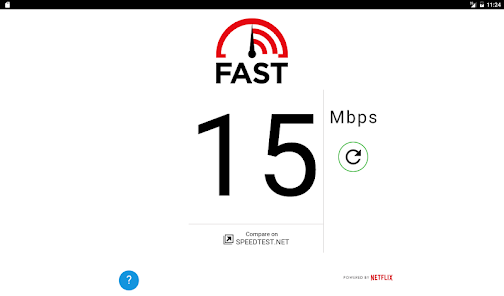
To resolve Netflix buffering issues, you’d better to run an online speed test. If your speeds are consistently below these thresholds, contact your Internet Service Provider (ISP) to discuss upgrading your plan. Or, stream Netflix content in a lower quality. Keep reading.
Fix 3. Adjust Streaming Quality
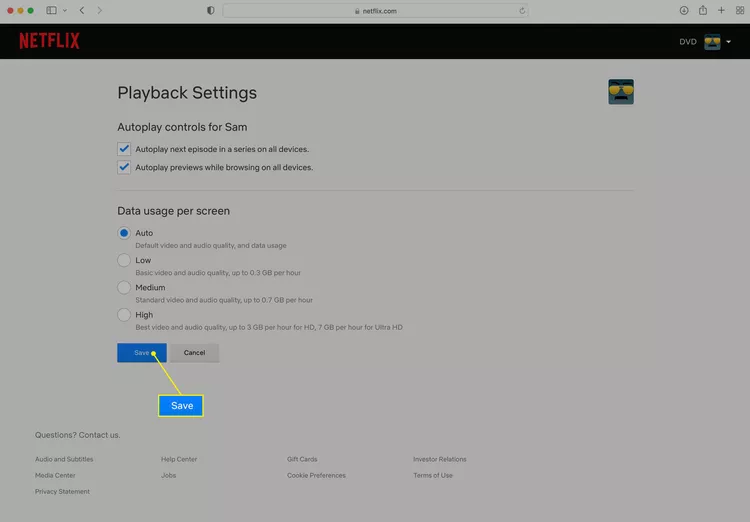
If your connection speed is limited, lowering video quality can significantly fix Netflix buffering. So, you can manually change playback settings to reduce buffering frequency, here’s the steps:
Step 1. Open Netflix website on a browser, and log into Netflix account.
Step 2. Go to “Account” at the upper right corner, click “Playback Settings”.
Step 3. Choose “Medium” or “Low” instead of High.
Step 4. Save changes and restart playback.
Fix 4. Restart Modems, Routers, and Devices
Even with a strong internet connection, temporary network glitches can still cause buffering. In such case, all you need to to is to restarting device, modem, or router. This can help refresh your IP connection and clear temporary network errors.

Fix 5. Restart Your Web Browser
If Netflix keeps buffering in Chrome, Edge, or Safari, your browser may be overloaded. To fix buffering when streaming Netflix on a browser, try to close all tabs and restart the browser completely. This helps clear memory and refresh the streaming scripts, thus improving playback performance.
Fix 6. Clear Browser Cache
Your browser automatically stores images and site data while you browse. When Netflix keeps buffering on your web browser, another quick method to resolve issue is to clear browser cache.
Step 1. Open browser settings, go to “Privacy & Security”.
Step 2. Select “Clear Browsing Data”, check “Cookies and Cached Files”.
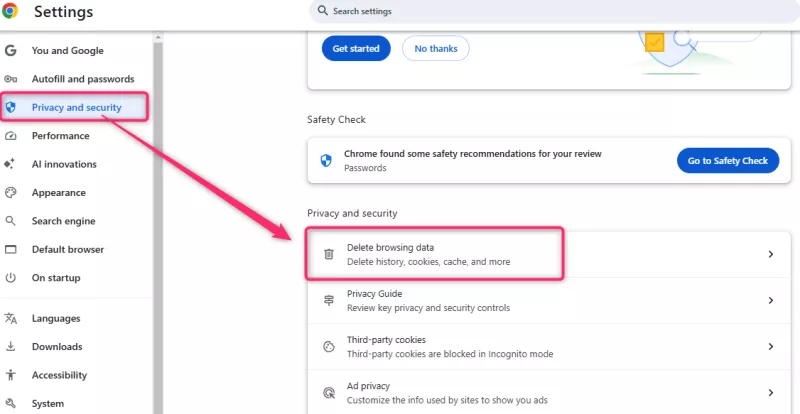
Step 3. Confirm and restart browser, and try Netflix again.
Fix 7. Update Netflix App and Device Software
If the Netflix app hasn’t been updated for a long time, it might be some bugs causing Netflix buffering. Moreover, an outdated software may cause compatibility issues that result in buffering. So, how to fix it when Netflix keeps buffering?
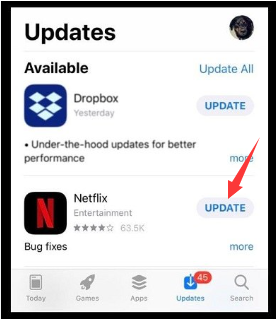
That’s easy! First, access the app store on your device, update the Netflix app to the newest version.
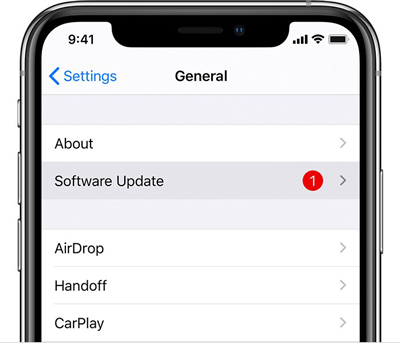
Plus, go to device settings, update your mobile device, laptop, desktop, or streaming device (Smart TV, Roku, game console) to the latest operating system. This operation can improve compatibility and performance.
Fix 8. Reinstall Netflix App
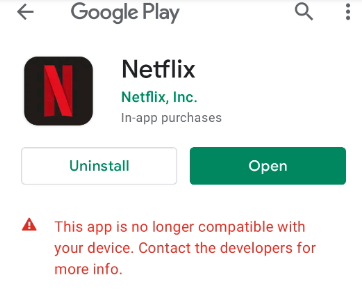
If you’re still experiencing repeated buffering interruptions with Netflix after trying above methods, the app installation itself may be corrupt. Therefore, you can attempt this method: uninstalling the Netflix app and reinstalling it. A fresh install ensures you have the latest version without any corrupted temporary files and can effectively solve Netflix buffering problem.
Step 1. Uninstall Netflix app from your device.
Step 2. Restart your device completely.
Step 3. Go to your device’s official App Store.
Step 4. Search for Netflix and download the latest version.
Step 5. Then, open the Netflix app, log in and test playback.
Fix 9. Turn Off Other Apps
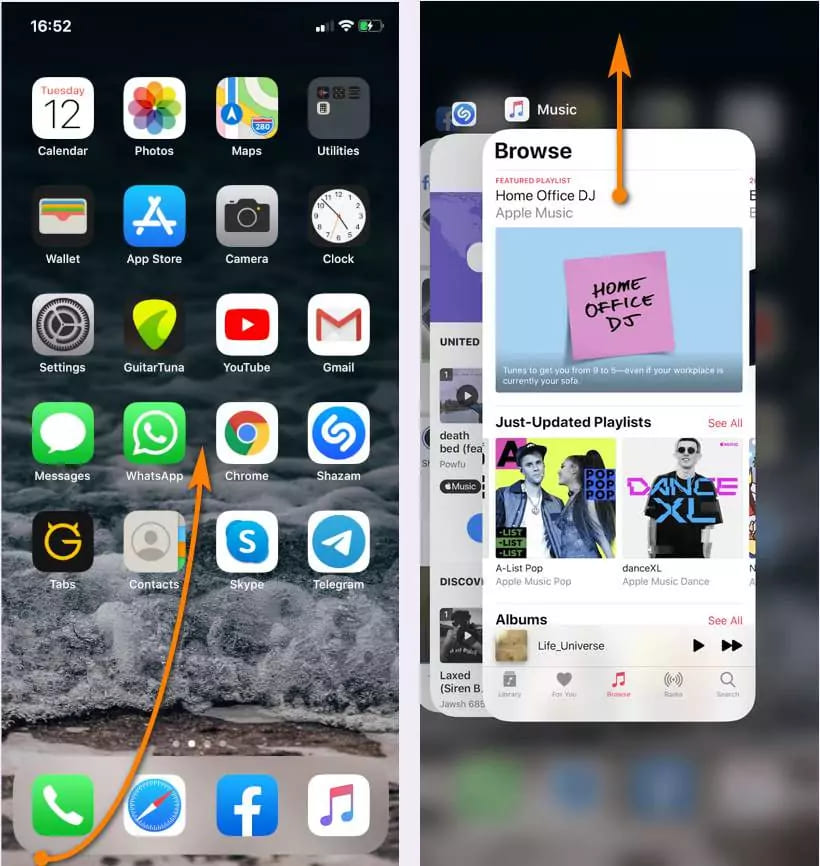
Background applications consume bandwidth and memory, which directly impacts streaming performance. For smooth streaming, close unused apps on your TV, phone, or PC to resolve Netflix buffering issues more quickly.
Fix 10. Switch to Netflix Web Player or App
Sometimes buffering is device-specific rather than network-related. Switching platforms can help solve Netflix buffering issues caused by hardware limitations.
If TV show or movie loads slowly or keeps buffering in the Netflix web browser, try using the Netflix app. Likewise, If Netflix keeps buffering on a smart TV, try switching to a laptop browser or streaming device.
Fix 11. Adjust Netflix Buffering Rate (Advanced)
If your internet is running smoothly everywhere else, use these steps to check the actual Netflix buffering rate.
While a video is playing:
- Windows PC: Press Shift + Alt + Left Click
- macOS: Press Shift + Option + Click
- Game Console: Press Up > Up > Down > Down > Left > Right > Left > Right > Up > Up > Up
Adjust buffer settings cautiously.
Fix 12. Improve Your Wi-Fi Signal
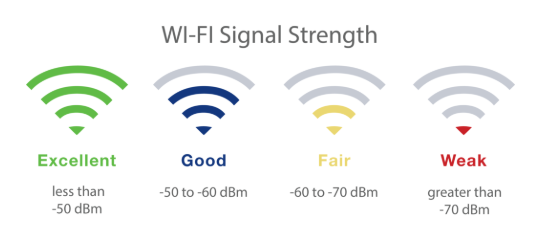
Weak signal strength is a major reason Netflix keeps buffering on your device. If you are watching Netflix on TV, gaming console, or other similar devices, consider repositioning your wireless router or streaming device. And, remove any obstructions that you can, such as fish tanks, thick walls, or large metal objects.
Best Method to Avoid Netflix Buffering Issues Permanently
Through the 12 methods introduced above, you can fix Netflix keeps buffering in most cases. However, Netflix streaming depends heavily on real-time internet stability. Even downloads within the Netflix app are restricted by region, subscription limits, and expiration.
The most reliable way to permanently solve Netflix buffering issues is to download Netflix videos as MP4 files to watch offline outside the Netflix app or web player.
iMovieTool Netflix Video Downloader is a professional desktop application designed to help users download Netflix movies and TV shows in MP4 or MKV format. The software saves Netflix videos permanently in FHD 1080p resolution while preserving subtitles and multiple audio tracks. After downloading, you can keep Netflix downloads permanently on your computer folder, and watch Netflix offline anytime, anywhere, even transfer Netflix videos to other devices, players.
Features of iMovieTool Netflix Video Downloader:
- Download Netflix TV shows, movies, videos to PC, Mac without Netflix app
- Download Netflix videos in MP4 and MKV formats for maximum compatibility
- Preserves original multilingual audio tracks and subtitles
- Batch download entire seasons and multiple movies at 50X fast speed
- Keeps 5.1 surround sound and 1080p quality for a cinematic experience
- Watch offline permanently on any device, no buffering interruptions
How to Download Netflix Videos in MP4 to Watch Offline?
Step 1. Open iMovieTool Netflix Video Downloader
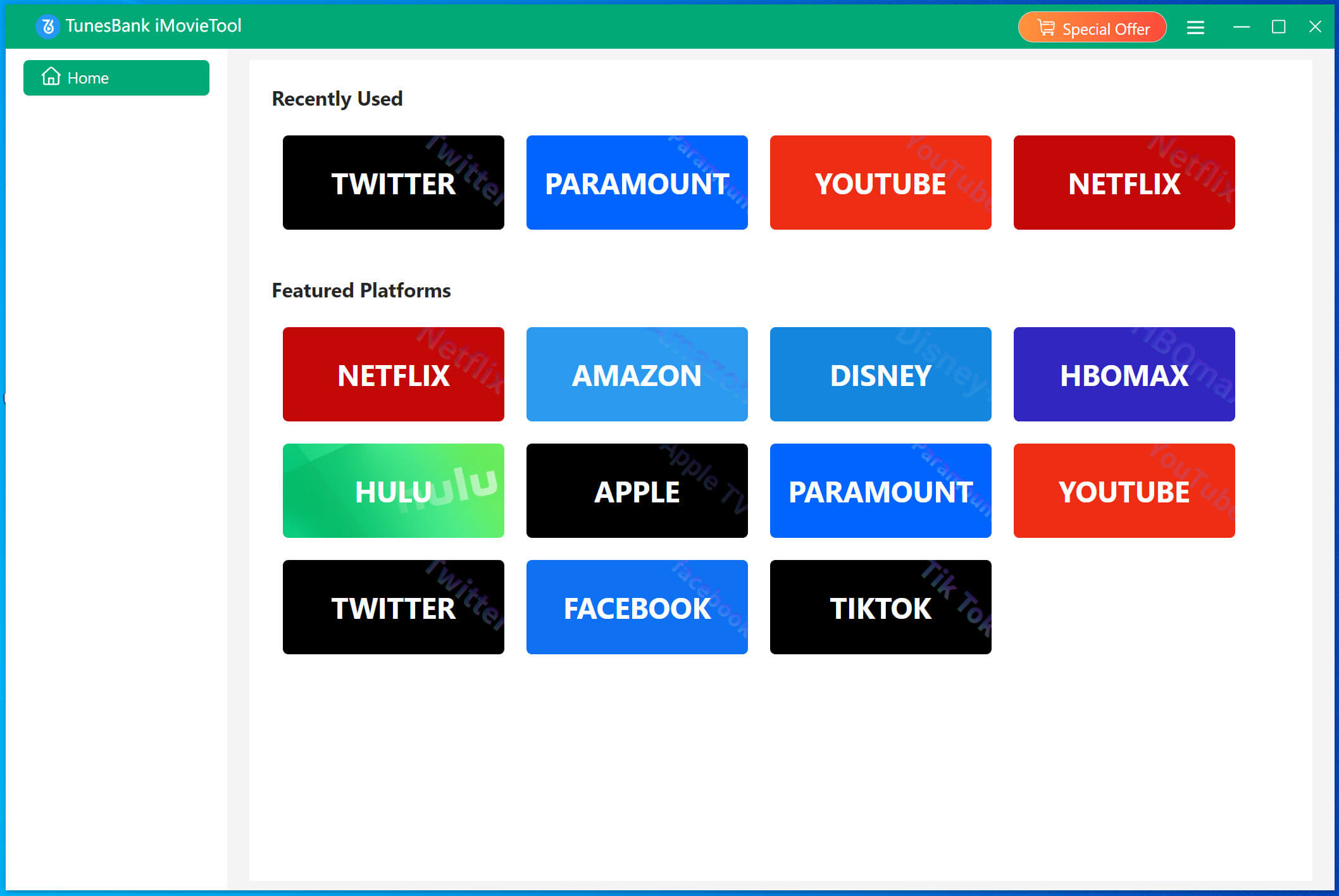
Download, install and launch the TunesBank iMovieTool Video Downloader on desktop or laptop (running Windows OS or mac OS). To access the iMovieTool Netflix Video Downloader, select Netflix service from main interface.
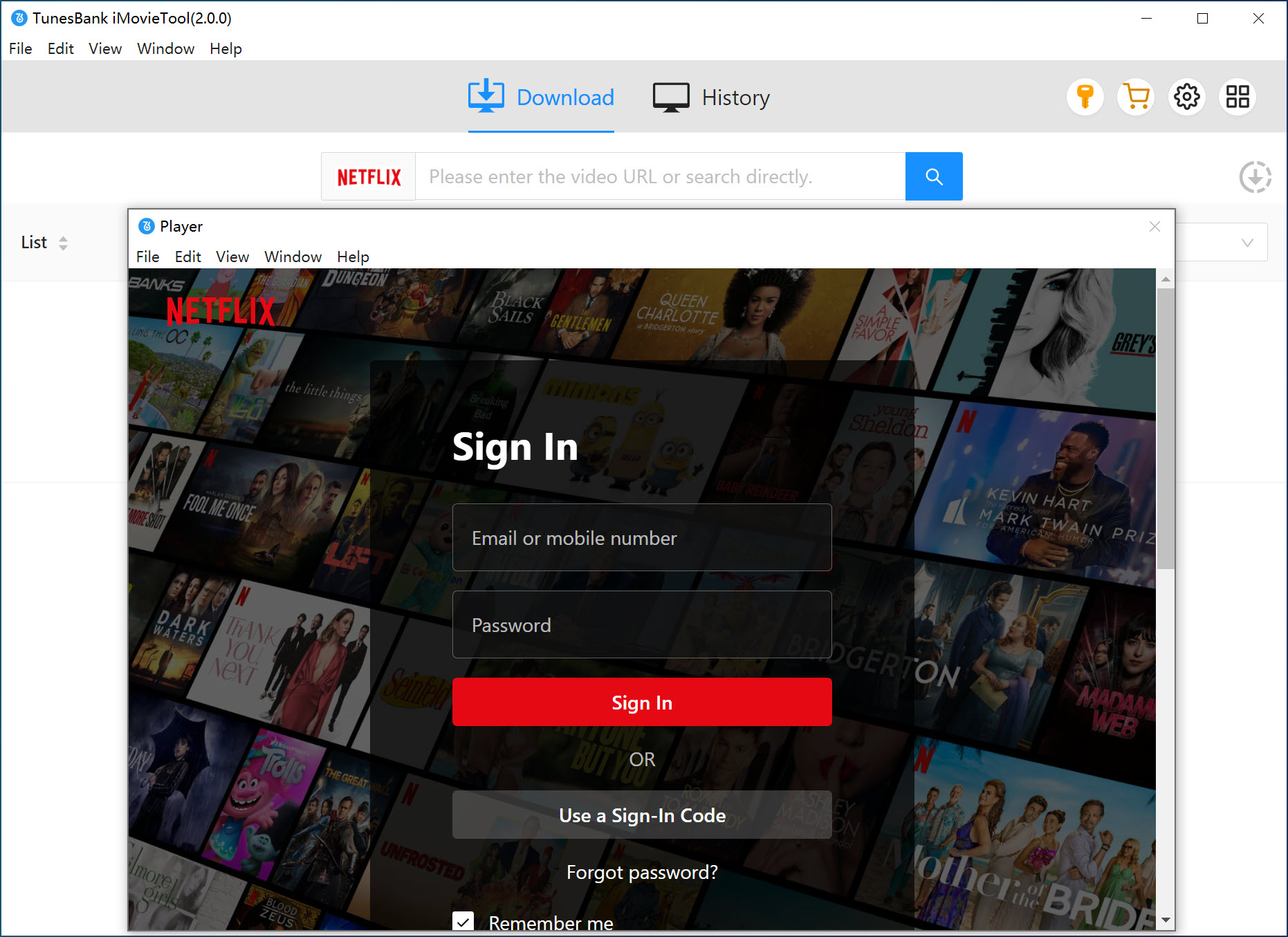
Then, sign in to your Netflix account on the software to access the official Netflix library.
Step 2. Change the Download Settings
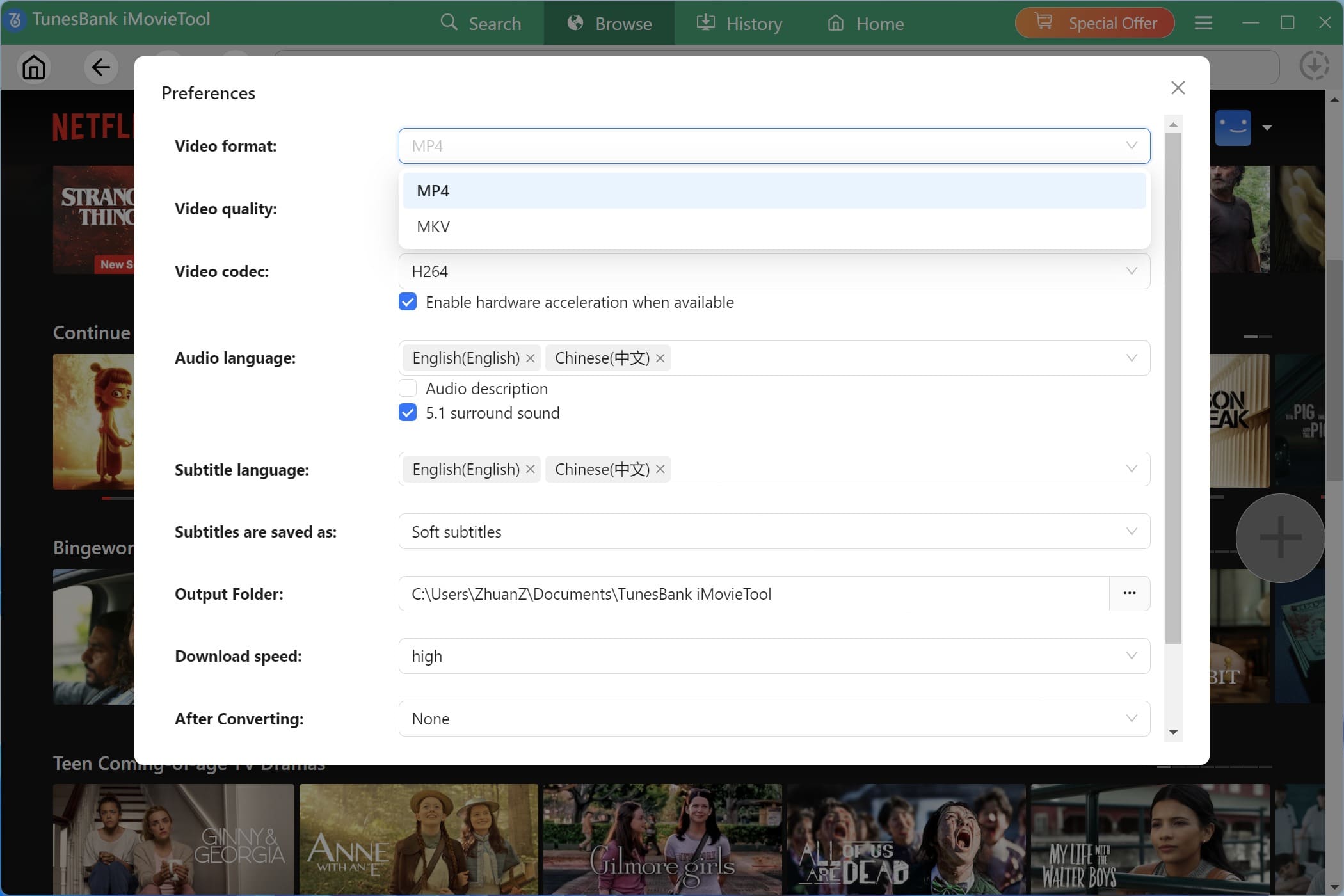
The next step is to define the download settings. Move to the Menu bar at the upper right corner, choose Preference option. In the pop-up window, choose output format (MP4 is recommended), video quality (high), audio tracks, subtitle language, and destination folder to match your device compatibility needs.
Step 3. Search and Add Netflix Videos
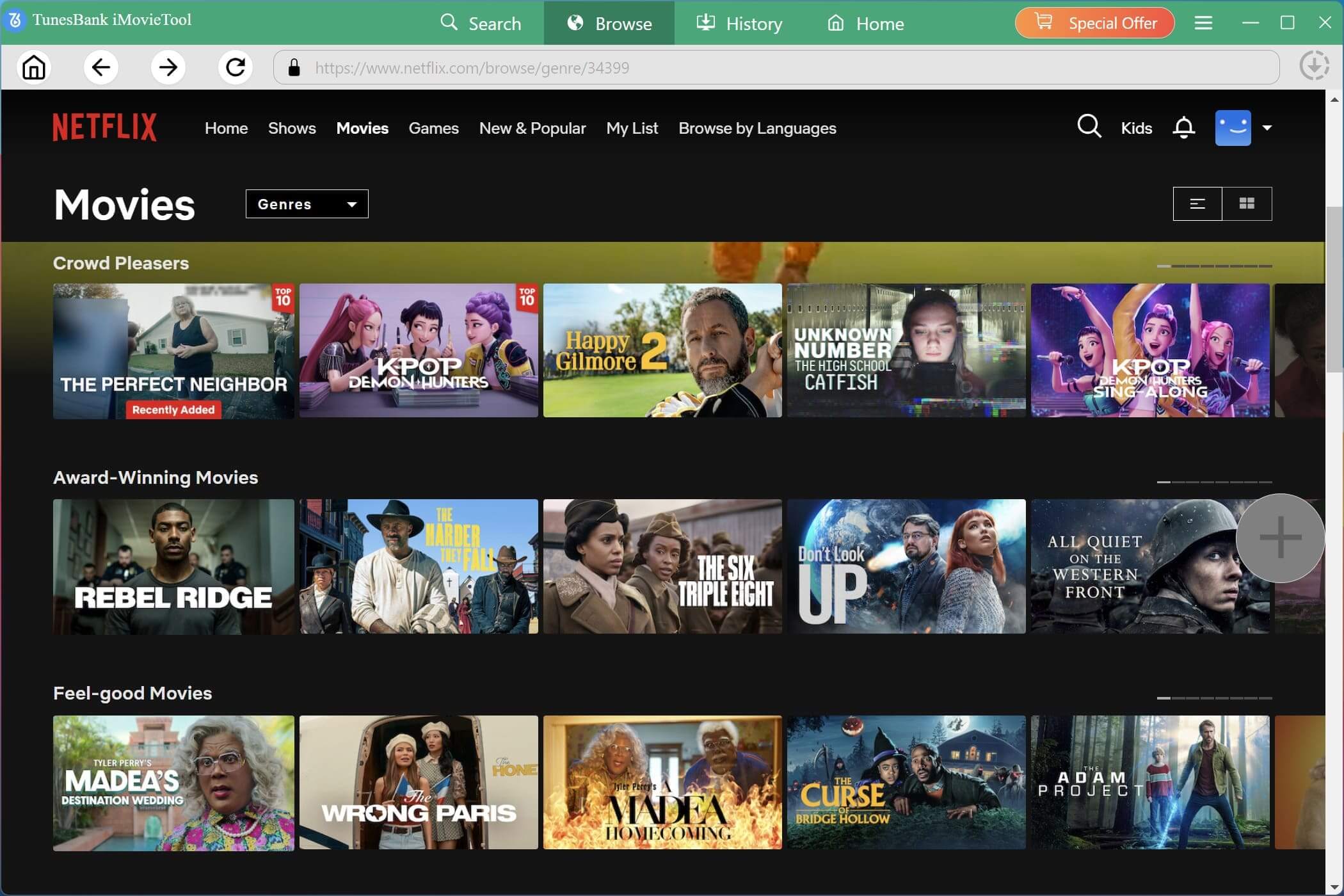
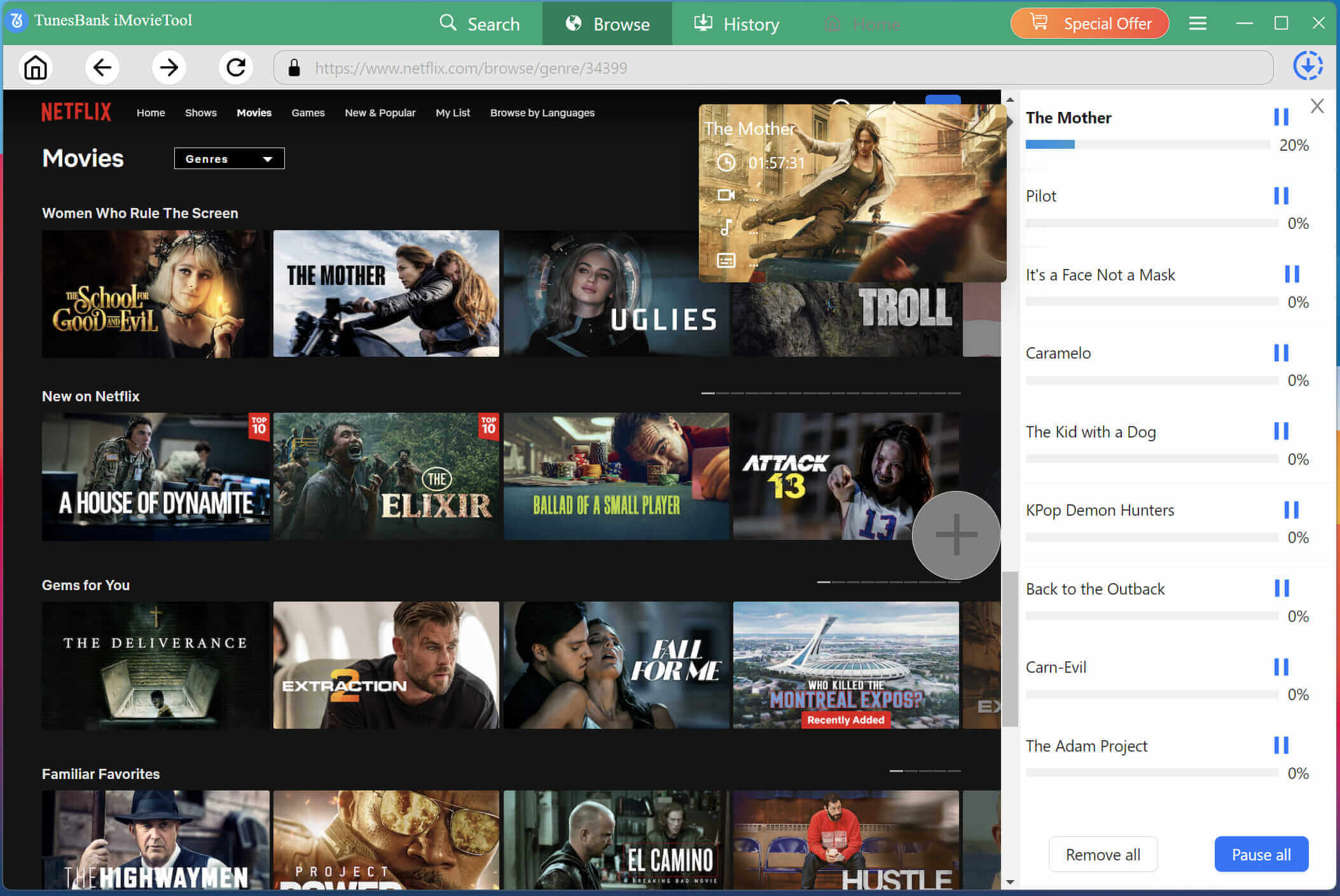
Way 1. Browse Content Online: Tap “Browse” tab at the top of the screen. Navigate Netflix normally just as you would on the official website. Browse through categories, recommendations, and trending titles online.
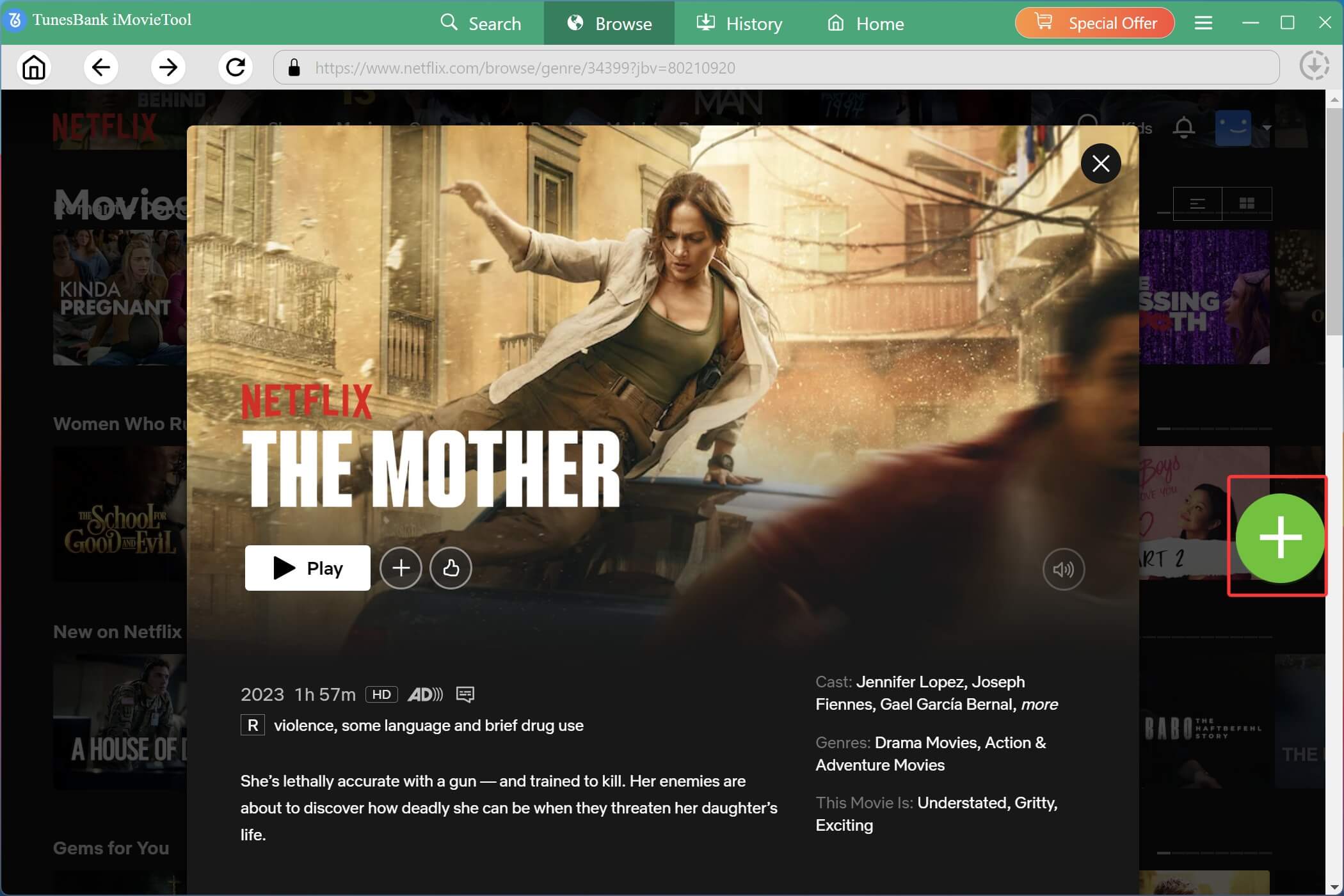
Open the video you want to save, you will find a green “+” icon in the right side. Click on it to add the title to the download queue.
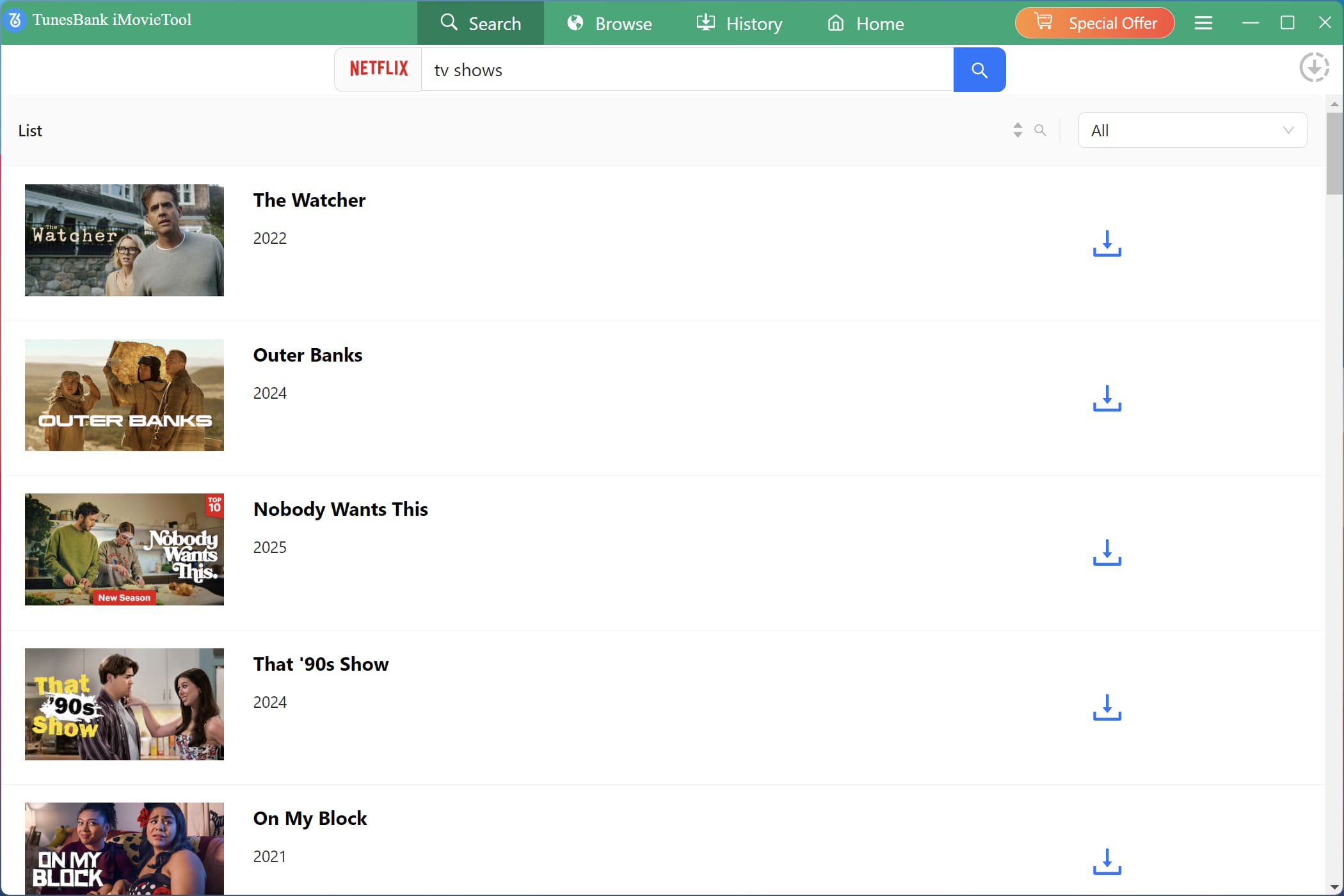
Way 2. Using Name: Simply type the title of the movie or show you’re looking for into the search bar. The software will display matching results from Netflix’s library.
Way 3. Using Video URL: If you already have the specific URL of the Netflix title open in your regular browser, copy and paste it into iMovieTool’s search bar to jump directly to that content.
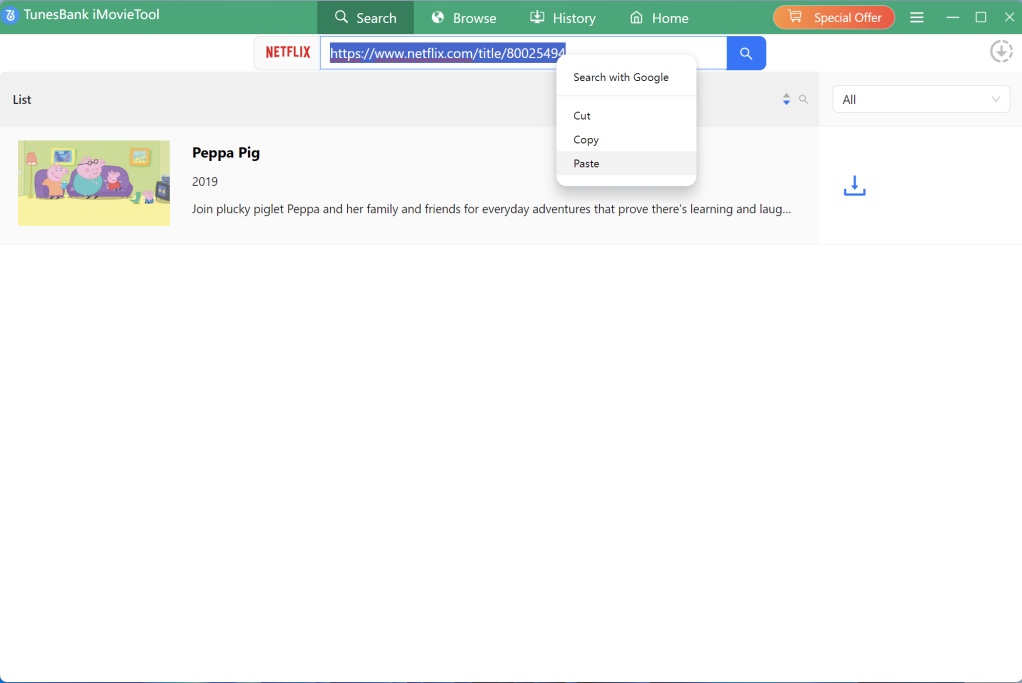
Step 4. Begin Downloading Netflix Videos to MP4
Once you’ve selected your movie or episode, click the “Download” icon next to the title. The software will begin processing and downloading the content at 50X higher speed.
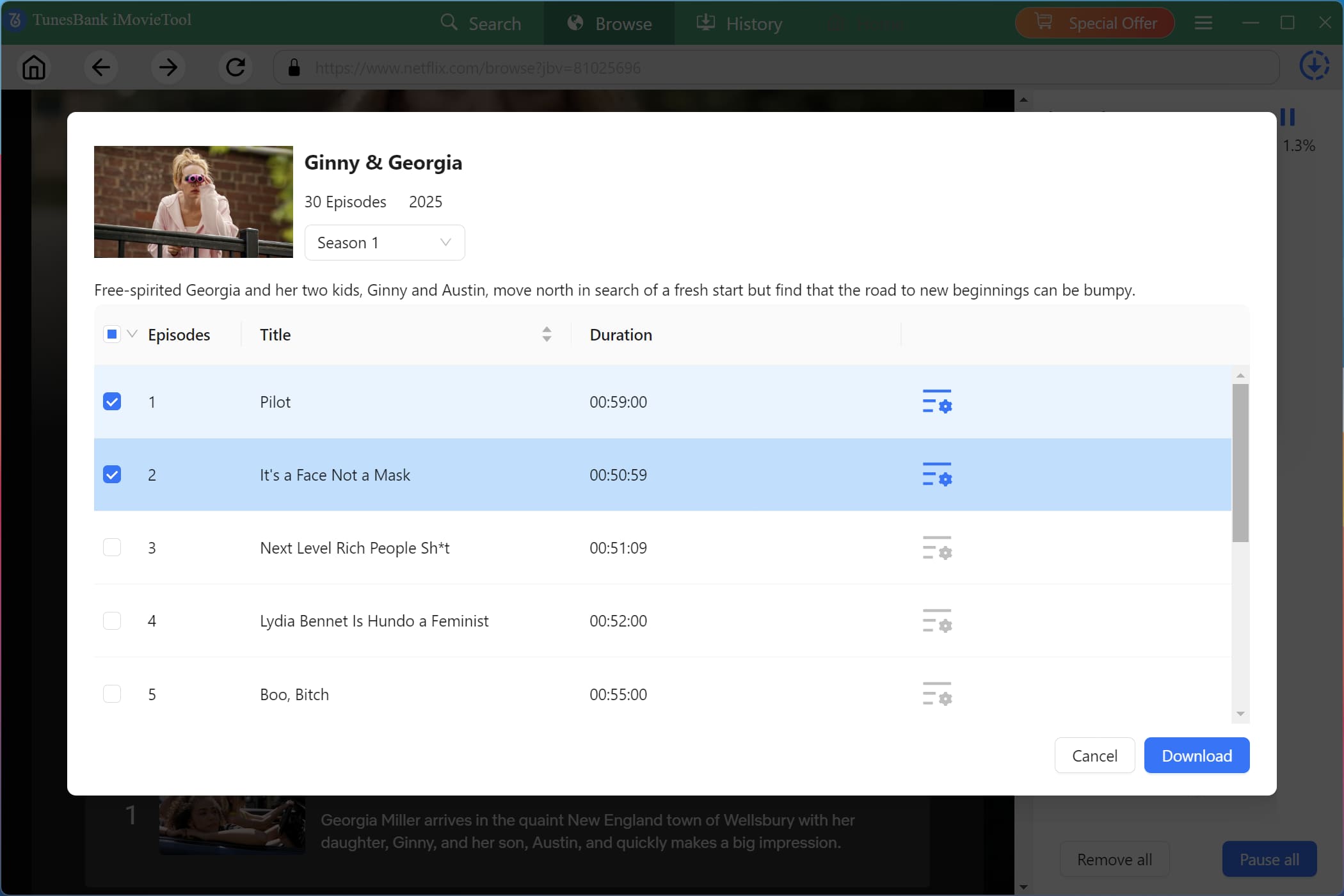
For TV series, you can choose specific seasons and episodes to download. Then hit on the “Download” button.
Step 5. Located Downloaded Netflix Videos
After the download completes, click the “History” tab to access your downloaded Netflix videos. Click the blue folder icon to open the local storage location.
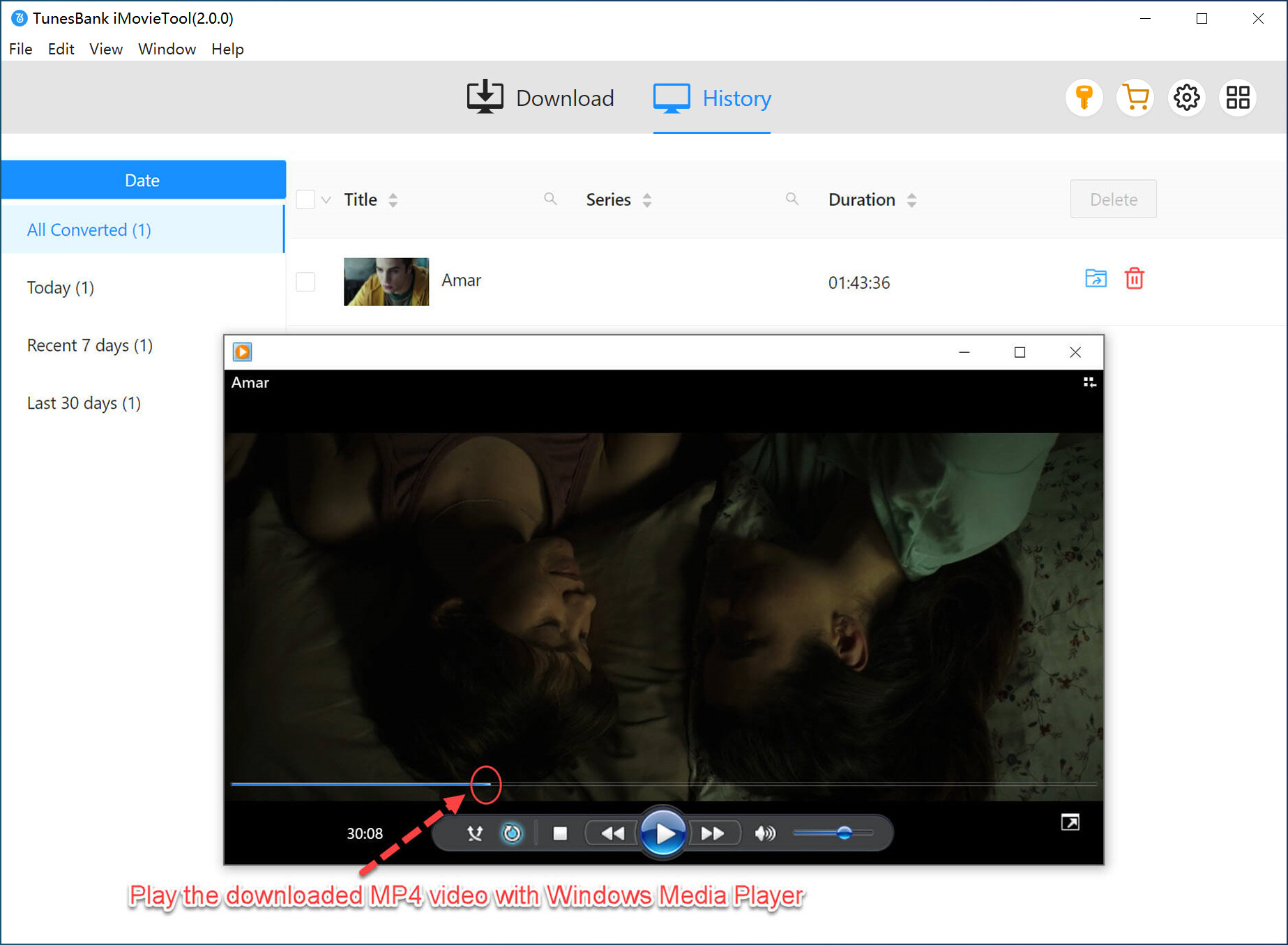
Step 6. Watch Netflix Offline Outside Netflix App
You can play these downloaded Netflix videos on any media player, or transfer them to other devices, or even burn to disc for collection.
Conclusion
If Netflix keeps buffering, don’t panic. From checking network speed to adjusting playback settings, there are many ways to fix Netflix buffering issues on any device effectively. For a permanent solution, consider using iMovieTool Netflix Video Downloader to build your own offline collection. It helps you download Netflix videos as local MP4 files, ensuring you don’t need to rely on the Netflix app or web player. With its help, you can finally enjoy buffer-free entertainment forever.
The Latest Articles
– Top 8 Solutions to Download Streaming Video
– Top 10 Free Movie Download Sites Recommended
– 3 Ways to Download Movies to Watch Offline
– 2 Verified Methods to Download X/Twitter Videos to MP4
– Download Twitter(X) Videos on PC, Mac and Mobile Phone
– Download Facebook Videos on PC, Mac and Mobile Phone
– 3 Ways to Download Facebook Video to MP4

Netflix Video Downloader
Download Netflix video to MP4 or MKV with multi-language audio track and subtitle kept. Up to 50X downloading speed. Easily to download your favorite movies/TV shows from Netflix to your computer for offline viewing.







