






 United States (English)
 Japan (日本語)
 Russia (русский)
 Germany (Deutsch)
 France (Français)
 Spain (Español)
 Italy (Italia)
 Portugal (Portugues)
 China (繁体中文)
 Turkish (Türk dili)
 Dutch (Nederlands)
 Korean(한국인)
 Saudi Arabia(عربي)
 Download HD movies & TV shows from Prime Video fastly and losslessly.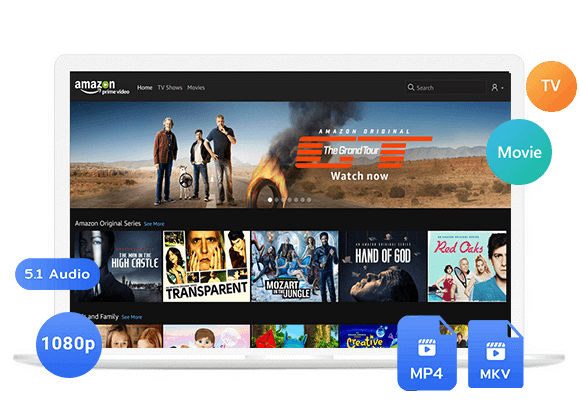
This article will explain how to watch Prime Video on iPad without an app. You can access Prime Video on your iPhone using a Chrome or Firebox browser, or play Amazon videos on iPad offline with built-in Files or Photo app, or third-party video players.
Question: “I want to watch Amazon Prime video on an old iPad, but the app is not supported. Can I watch Prime Video in the browser instead of the app? And, is there a way to watch Prime Video on iPad through other players?”
If you’re an Amazon Prime member with an iPad, you can watch Amazon Prime Video on your iPad through the official app. The Amazon Prime Video app is compatible on any iPad model that running iPadOS 15 or newer. But There are situations when you can’t install the Prime Video App on an old iPad, your iPad has limited storage, or you prefer watching movies directly in a browser. Fortunately, there are multiple options to watch Prime Video on iPad without App.
In this guide, we’ll introduce 2 ways on how to watch Prime Video on iPad without the official app. First, you can access Prime Video content on your iPad through a browser. Alternatively, you may download Amazon Prime video on computer as MP4 files, then transfer the videos to your iPad for offline viewing using other players. Let’s get started!
Method 1. Watch Prime Video on iPad Using a Browser (Online)
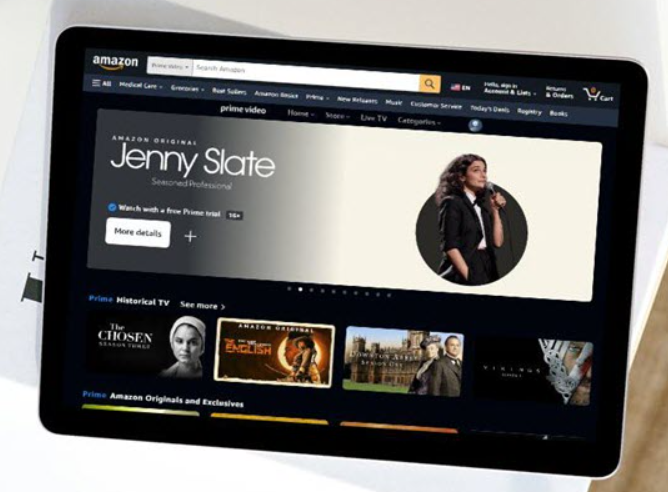
If you simply want to stream and refuse to install the Prime Video app, using the browser is the simplest way. However, Safari, the default browser on iPad, does not work reliably with Prime Video, so you can use the Chrome or Firebox instead.
Here are the steps for you to watch Prime Video on your iPad through a browser.
Step 1. Download Chrome or Firefox from the App Store.
Step 2. Open your chosen browser and navigate to the Prime Video website.
Step 3. Sign in with your Amazon Prime or Prime Video account.
Step 4. Browse the homepage and fine the title you want to watch.
Step 5. Open the title’s details page and tap the “Play” button to stream it online.
Method 2. Watch Prime Video on iPad With Other Players (Offline)
If browser playback doesn’t work or you want to watch videos without relying on the Prime Video app, you can consider importing Amazon video files to other players for offline playback. The solution is to download Amazon Prime videos as MP4 files on your computer, then transfer those files to your iPad.
Here TunesBank Amazon Video Downloader comes into rescue. This desktop software embeds the Prime Video web player, allows you to log in with your Amazon account, and saves Amazon videos as MP4 or MKV files. It offers multiple options for video quality, audio tracks, and subtitles to export your Amazon videos.
Unlike the official Prime Video app, which locks downloads to the app and imposes 30-day/48-hour expiration limits, TunesBank lets you keep your Amazon videos permanently. So you can transfer them to your iPad, iPhone, Android phone or tablet, USB drive and other devices, and watch them whenever you want, with no internet connection and no Amazon app required!
Features of TunesBank Amazon Video Downloader:
- Download Amazon movies and TV episodes in HD 1080p on computer.
- Save Amazon Prime videos in MP4 or MKV output formats.
- Choose suitable video quality and audio settings before downloading.
- Download multiple episodes or titles in batches with one click.
- Preserve original audio tracks and subtitles where supported.
- Transfer Amazon videos to other devices or players for playback.
- Keep downloaded Amazon videos permanently, no expiration date.
- Watch Amazon videos offline without relying on the Prime Video app.
How to Download Amazon Prime Videos to MP4 and Transfer to iPad?
Step 1. Sign with Amazon Account in TunesBank
Download and install TunesBank Amazon Video Downloader on your Windows PC or Mac. Launch the program, select the Amazon Prime Video platform, and sign in through the provided interface using your Amazon account.
Step 2. Customize Output Settings
Hit on Menu bar in the upper right corner and tap Preferences. Choose MP4 as your output format (best for universal compatibility), select your preferred video quality, audio language, and subtitle.
Step 3. Search for a Movie or TV Show
TunesBank provides several ways to find the Amazon video you want. You can search by title, enter a video URL, or browse content through the built-in browser.
Way 1. Tap “Search” tab, enter the movie or TV show’s name in the search box and run the search. Review the matching results, then select the correct title and season or episode before adding it to your download list.
Way 2. Copy the URL of the supported Amazon video from your browser and paste it into the program’s search field.
Way 3. Tap “Browse” tab to enter the built-in browser, from where you can navigate Amazon’s video catalog.
Find the title you need and open its detailed page. Then click the “+” icon to add it to the download list.
Step 4. Download Amazon Video to Computer
Before downloading, you can click the “Gear” icon for advanced settings for your selected title. If ready, click the “Download” button next to your chosen movie or episode.
For TV series, select the specific episodes you want. Confirm and click “Download” to start the process.
Step 5. Find Downloaded Amazon Videos
When the download finishes, go to the “History” tab. Click the folder icon to open the location of your Amazon MP4 video files.
Step 6. Transfer the Amazon Videos to Your iPad
Connect your iPad to your computer using a USB cable. Open iTunes (or Finder on macOS Catalina and later), select your iPad, and drag the MP4 Amazon video files into your iPad’s file storage or a compatible media player app like VLC.
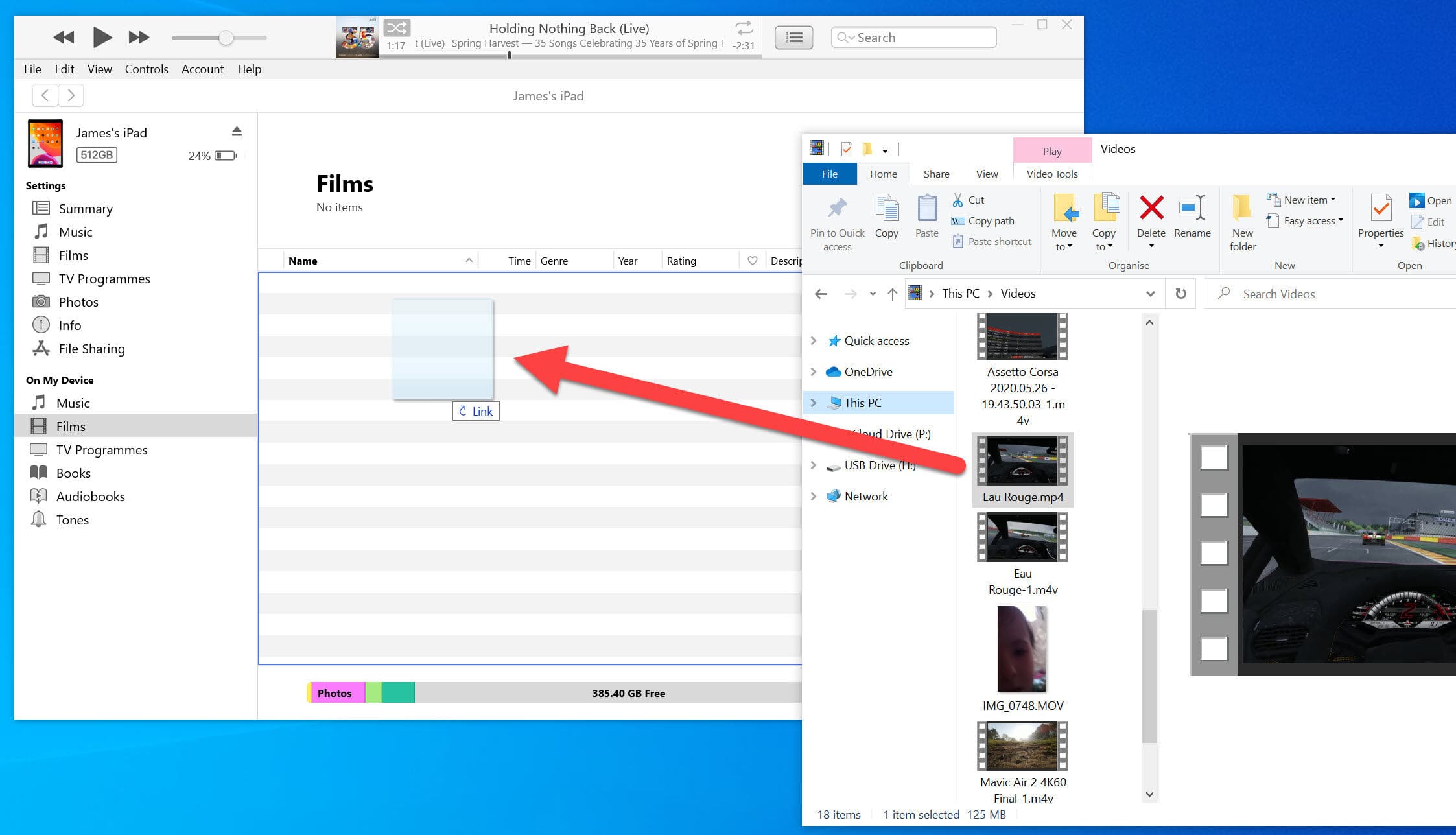
Once transferred, you can play Amazon Prime videos on iPad without the app, without internet, and without any restrictions.
Comparison: Which Method Should You Choose?
| Feature | Browser Streaming | Save as Local Video Files via TunesBank |
| Install Prime Video app | Not needed if browser playback works | Not needed as you can add downloaded Amazon videos to iPad’s video players |
| Internet connection | Required for streaming | Not required during local playback |
| Setup | Simple | Requires a computer and file transfer |
| Offline viewing | No, online streaming on browser | Yes, offline viewing in iPad’s built-in Files app, Photos app, or third-party video players like VLC, Outplayer, nPlayer, etc. |
| Best for | Quick online viewing | Smooth offline playback |
Final Verdict
After reading this article, you’ve learned how to watch watch Prime video on iPad without an app. For a quick way, you can visit a browser to access Prime Video on iPad without installing its app. If you want a smooth offline playback, the best option is to use TunesBank Amazon Video Downloader to download Amazon Prime videos as MP4 files and then sync them to your iPad. Thus, you can play your Amazon videos on an iPad using the built-in Files app, the Photos app, or a third-party media player such as VLC media player, nPlayer, Outplayer! Now, download the software and build you offline video collection for iPad!
The Latest Articles
– Top 8 Solutions to Download Streaming Video
– Top 10 Free Movie Download Sites Recommended
– 3 Ways to Download Movies to Watch Offline
– 2 Verified Methods to Download X/Twitter Videos to MP4
– Download Twitter(X) Videos on PC, Mac and Mobile Phone
– Download Facebook Videos on PC, Mac and Mobile Phone
– 3 Ways to Download Facebook Video to MP4

Amazon Video Downloader
Download movies and TV shows from Amazon Prime Video in MP4 or MKV format with audio track and subtitles kept. Up to 50X downloading speed. Save your favorite Amazon Prime videos to your computer for viewing offline.