








 United States (English)
 Japan (日本語)
 Russia (русский)
 Germany (Deutsch)
 France (Français)
 Spain (Español)
 Italy (Italia)
 Portugal (Portugues)
 China (繁体中文)
 Turkish (Türk dili)
 Dutch (Nederlands)
 Korean(한국인)
 Saudi Arabia(عربي)
 Download Netflix Movies and TV shows to watch offline.
Can you download Netflix movies on your Chromebook for offline playback? Of course. This post will introduce two methods on how to download and watch Netflix on Chromebooks with or without the Netflix app.
Chromebooks have become the go-to laptops for education, productivity, and entertainment, thanks to their speed, simplicity, and seamless integration with Google services. Want to download Netflix movies on your Chromebook and enjoy them without Wi-Fi? You’re not alone. Watching Netflix offline on Chromebook can be more convenient and flexible, especially for travel, school breaks, or areas with limited internet access.
Although Netflix allows offline downloads through its app, Chromebook users often face restrictions depending on device compatibility and system configuration. If you’re searching for a reliable way to download Netflix movies on Chromebooks laptop, this tutorial will walk you through every method step by step. Read on to get started!
Method 1. Download Netflix Movie on Chromebook via Netflix App (Limited)
The most straightforward method is no further than using the official Netflix app! If your Chromebook supports Android apps through the Google Play Store, you can get the official Netflix app, and then use your subscription account to download Netflix movies on your Chromebook.
While the Netflix app is convenient, but it comes with restrictions such as expiration dates, device limitations, and app-only playback. To get rid of Netflix download limits and save Netflix movies on Chromebook permanently, you can refer to Method 2 below.
-
● Google Chromebooks (with Google Play Store installed)
● An active Netflix subscription account
● A stable Wi-Fi network connection
Note: Netflix app is not available on all Chromebooks, make sure your Chromebooks is running ChromeOS 76 or later and supports the Google Play Store before proceeding.
How to Download Netflix Movies on Chromebooks via Netflix App
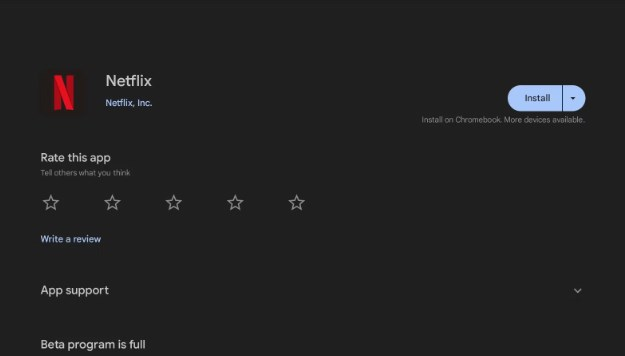
Step 1. Install Netflix App on Chromebook
Open Chromebook settings and enable the Google Play Store feature. Search for Netflix in the Google Play Store and install the app on your Chromebook.
Step 2. Log in to Your Netflix Account
Launch the Netflix app and sign in with your active Netflix subscription credentials.
Step 3. Choose a Downloadable Title
Browse or search for movies and TV shows that support offline viewing. Open the video to start playing. Look for the “Download” icon and click it.
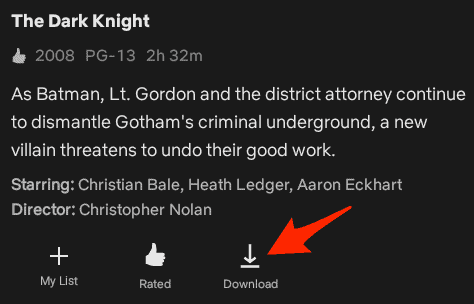
Note: Not all Netflix titles are downloadable. You can go to “Downloads” section > “Find More to Download”.
Step 5. Watch Netflix Offline on a Chromebook
After downloading, go to the “Downloads” section in the Netflix app to start playback without internet.

Method 2. Download and Watch Netflix Movie on Chromebook via USB Drive
Unfortunately, some older Chromebooks often cannot download the Netflix app. For another, Netflix downloads will be removed from your Chromebook laptop after 7/30 days. Once you start watching, it only last for 48 hours. And when a title is removed from the library, you’ll lose access to the resource. Therefore, downloading Netflix movies to USB drive can be a more flexible and helpful choice. Here you need the help of this professional tool – iMovieTool Netflix Video Downloader.
iMovieTool Netflix Video Downloader is a powerful desktop software designed to help users download Netflix movies and TV shows to Windows and Mac computer without the Netflix app. Unlike the Netflix app, iMovieTool removes expiration restrictions and allows you to store Netflix video content locally for unlimited offline access.
With iMovieTool, you can search for Netflix movies, TV shows and other content directly within the app, saving them in MP4 or MKV formats with resolutions up to 1080p. In this way, you can not only keep Netflix downloads permanently, but also watch Netflix on any Chromebook laptop or other devices via USB drive, without worrying about network connections or viewing limitations.
Features of iMovieTool Netflix Video Downloader:
- Download Netflix videos to Mac, PC without Netflix app
- Download Netflix movies, TV shows in MP4 or MKV format
- Save Netflix movies with original surround sound and 1080p quality
- Batch download full seasons and multiple movies at once
- Download Netflix videos at 50X super-faster speed to save time
- Transfer Netflix videos to any device, player for permanent offline playback
How to Download and Watch Netflix Movies on Chromebook via USB?
Step 1. Select Netflix & Log In Account
Click above Download button, get TunesBank iMovieTool Video Downloader downloaded on your PC or Mac. Install and launch the program, pick Netflix service to go on.
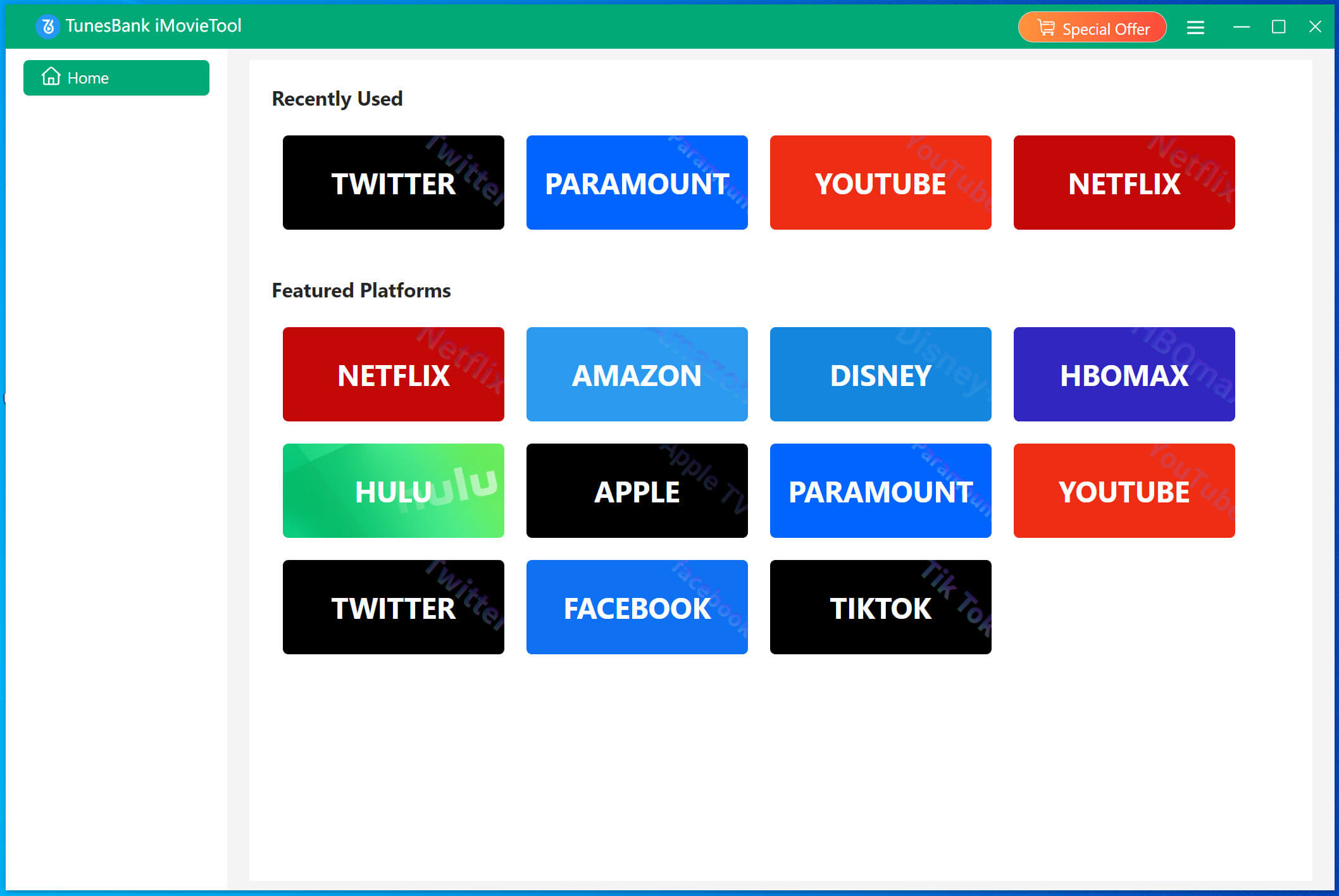
Next, you will enter the iMovieTool Netflix Video Downloader, and and sign in your active Netflix account to access the full streaming library within the downloader online.
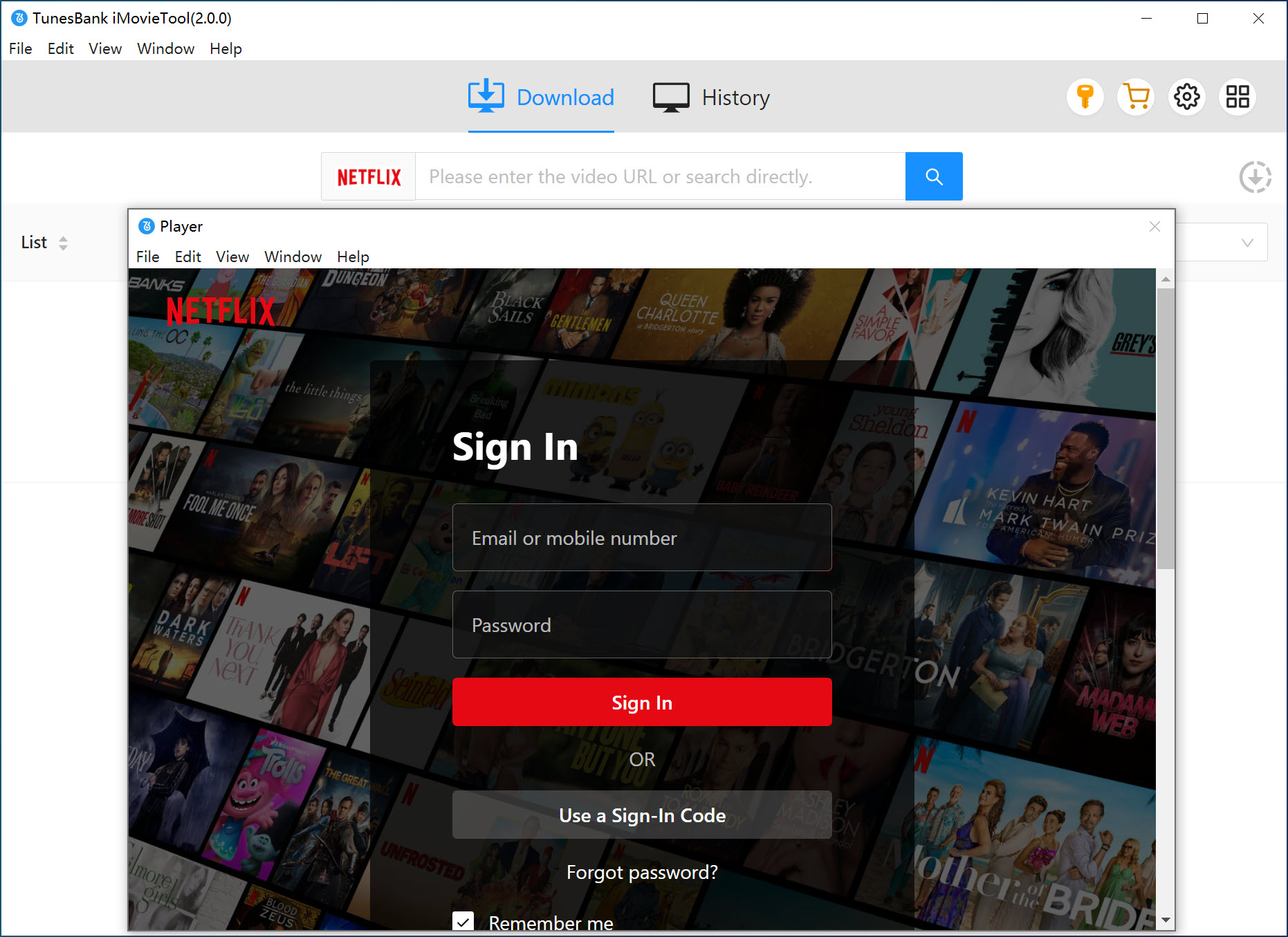
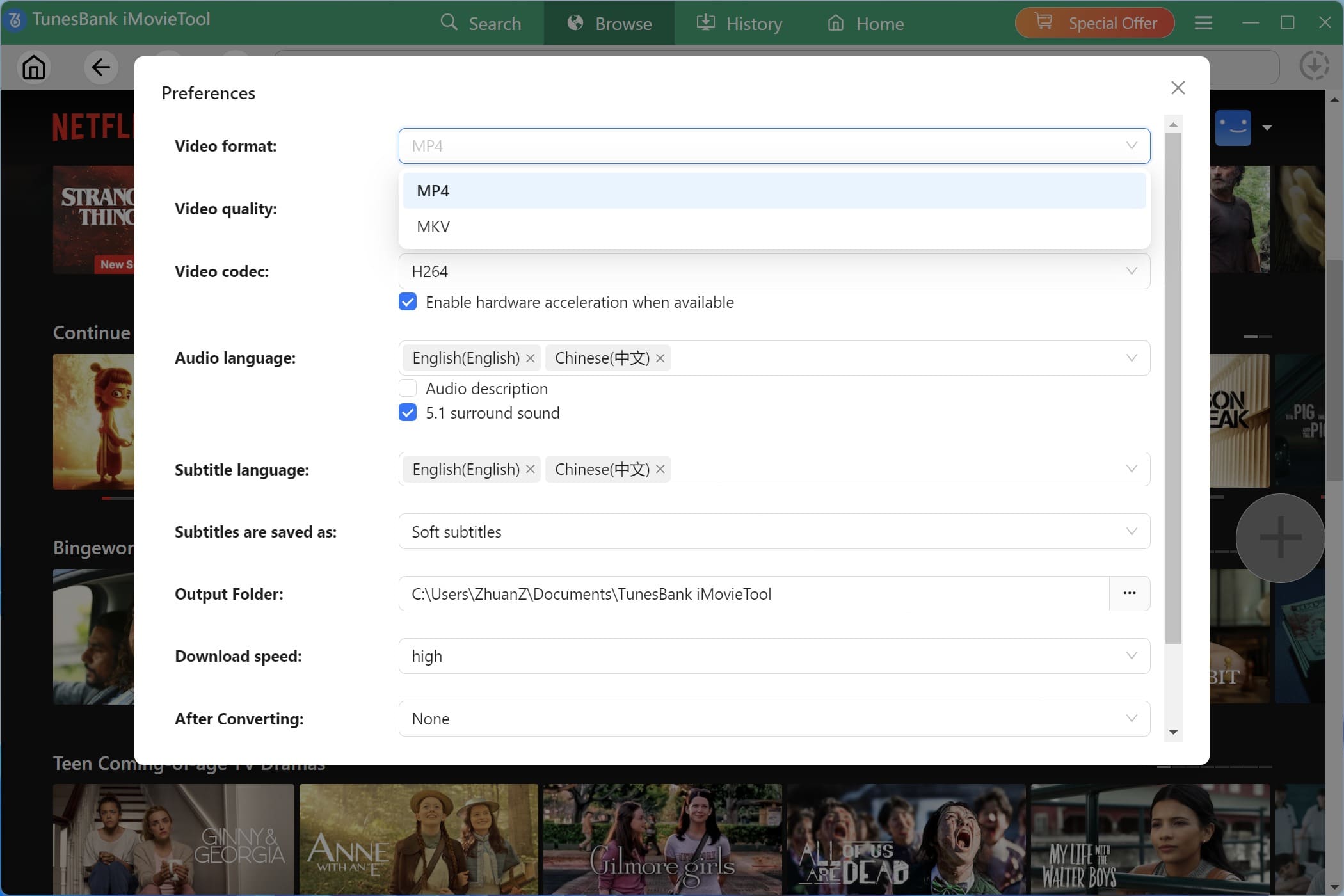
Step 2. Change Output Settings
Go to Menu bar and choose Preference to access the settings window. Here you can choose MP4 format, high video quality, customize your preferred audio language, and subtitle preferences.
Step 3. Search and Add Netflix Movies
You can search for Netflix movies using the title name, paste the movie URL directly, or browse inside the built-in Netflix interface. Let’s see.
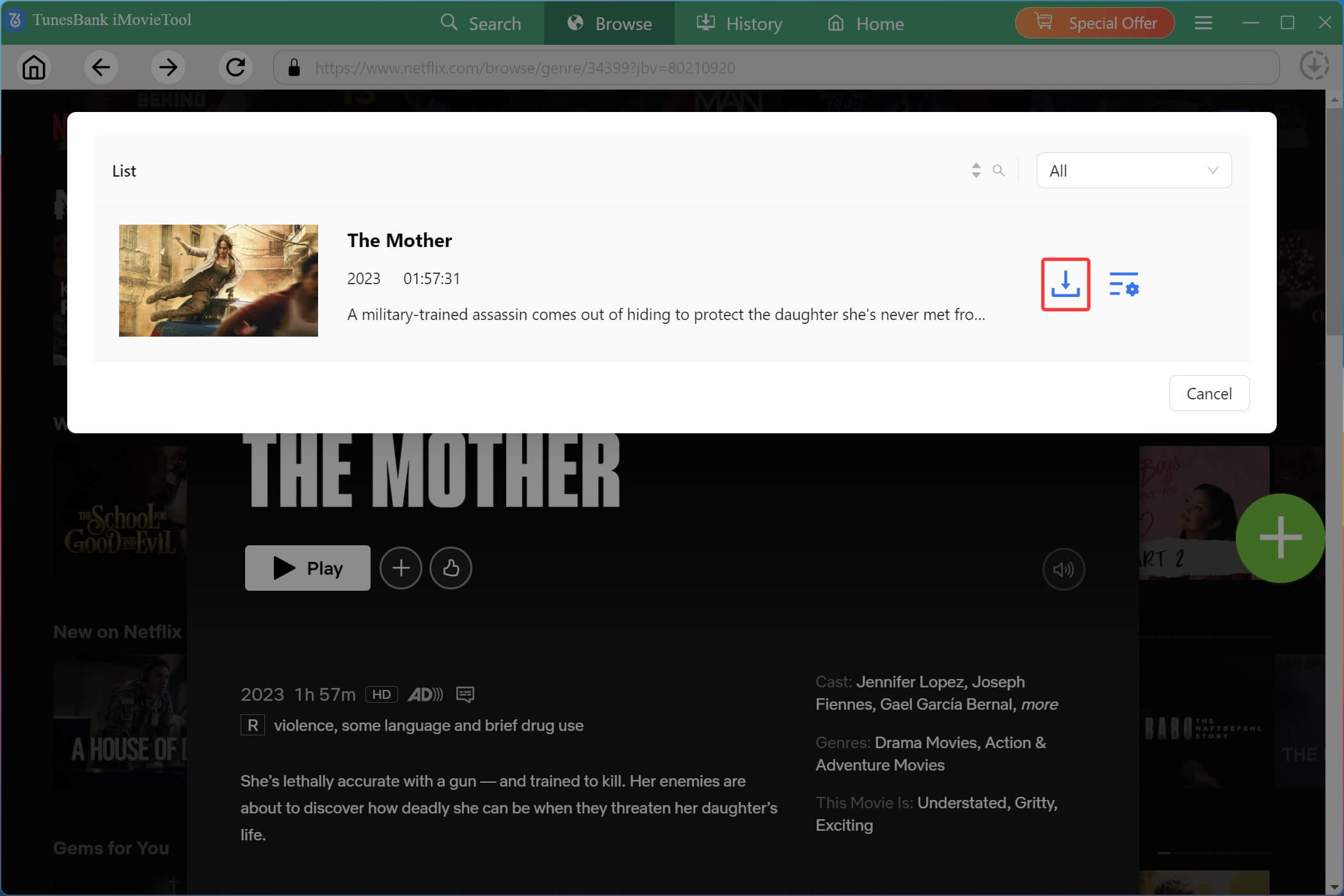
1# Browse Online. Click “Browse” at the top, explore categories, trending titles, or recommendations before selecting the content you want to download.
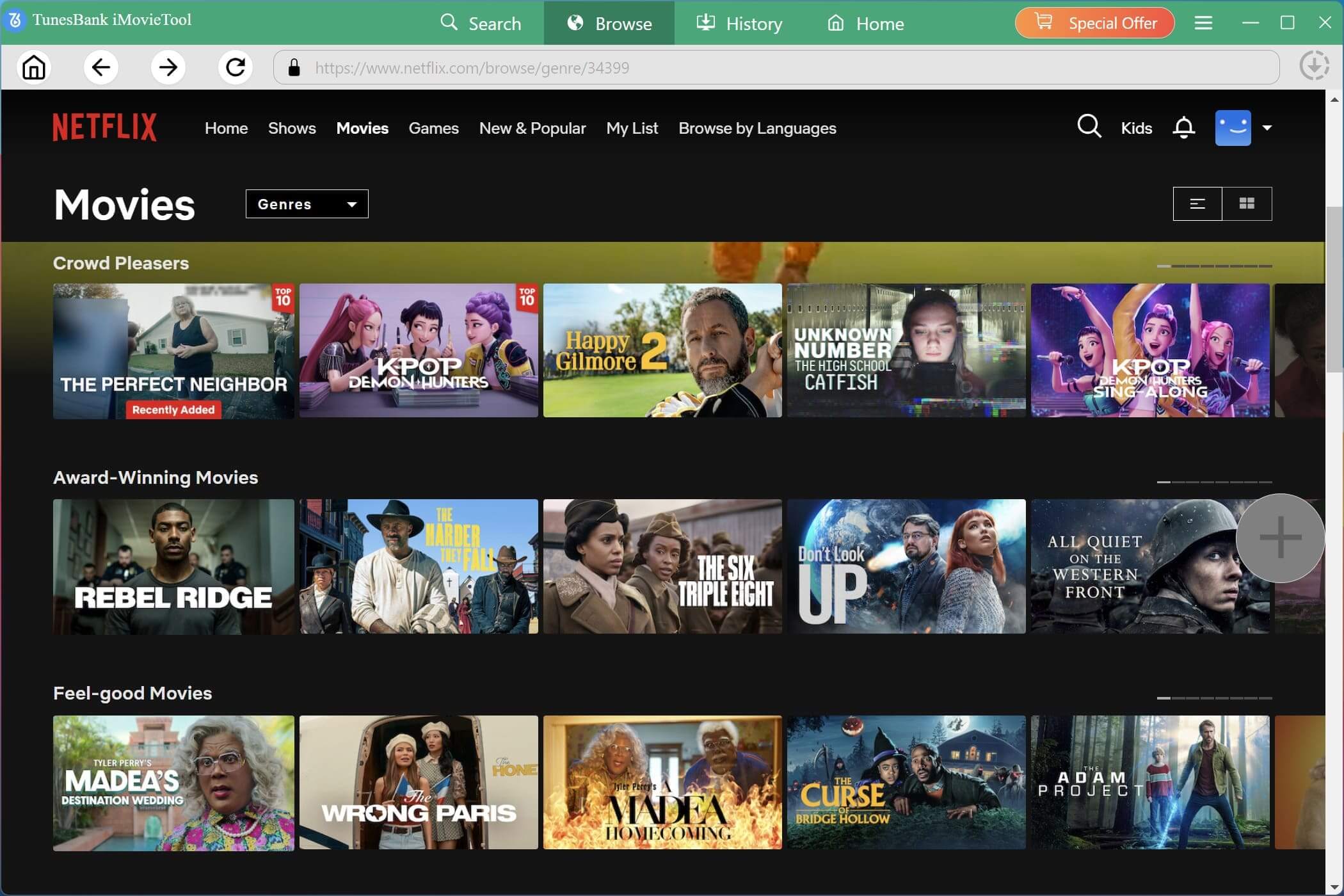
When you find your target movie, open it, and click the “+” icon to add it to the download queue.
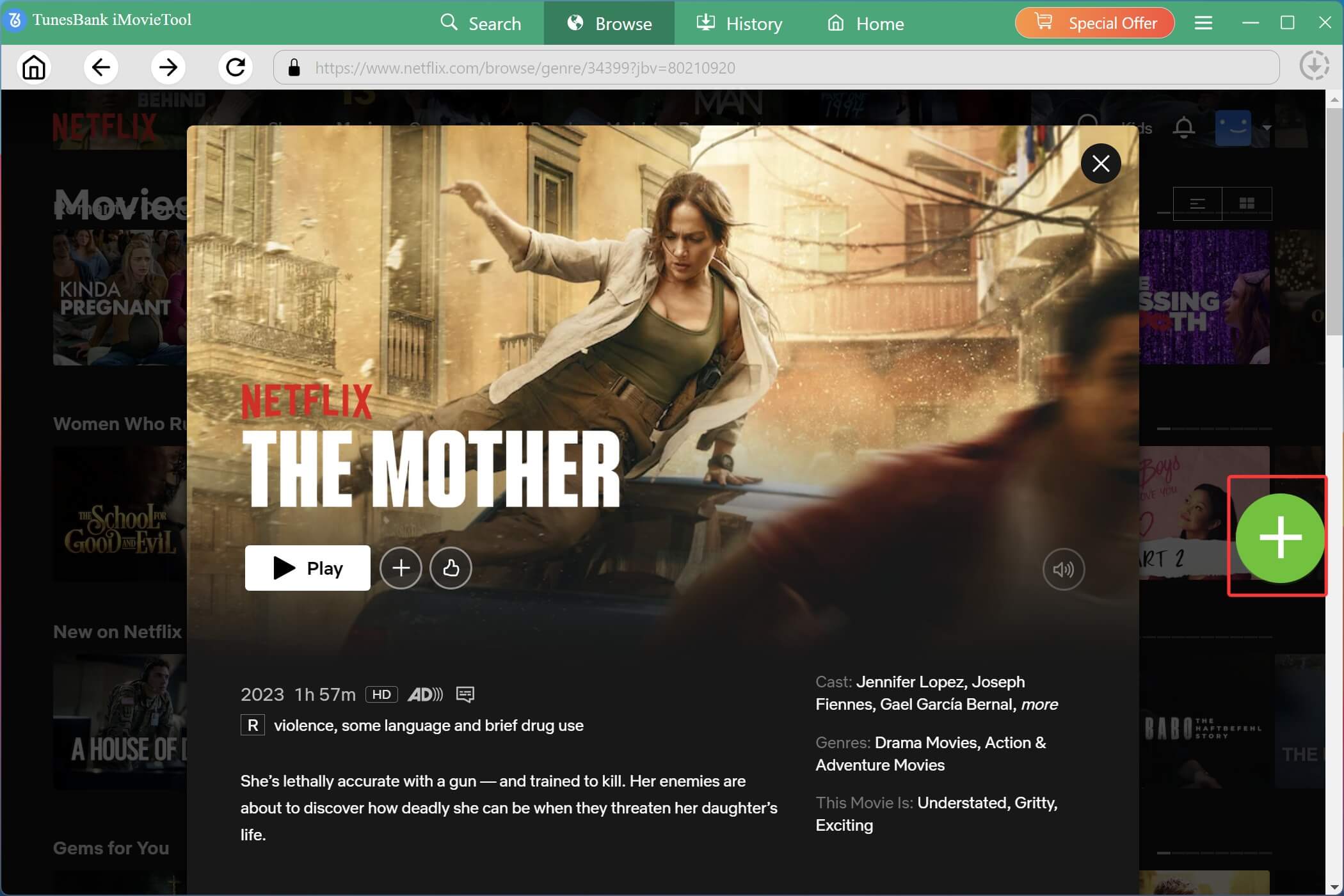
In the pop up window, you can directly tap on the “Download” icon to start downloading locally.
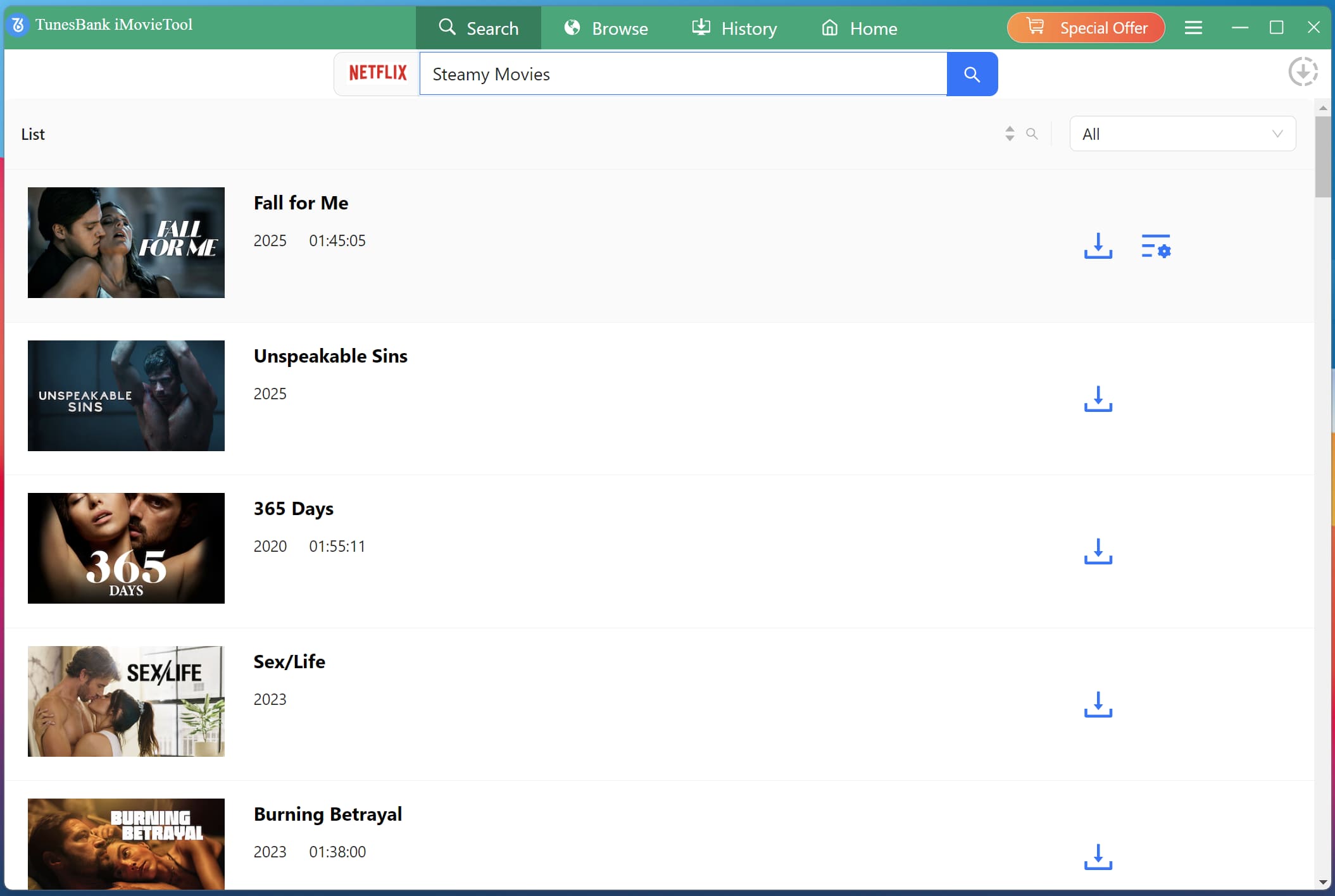
2# Using Movie Name. Switch to “Search” at the top. Enter the movie name or keyword in the search bar. For example, here I type “Steamy Movies“, the program will instantly display matching results for selection and downloading.
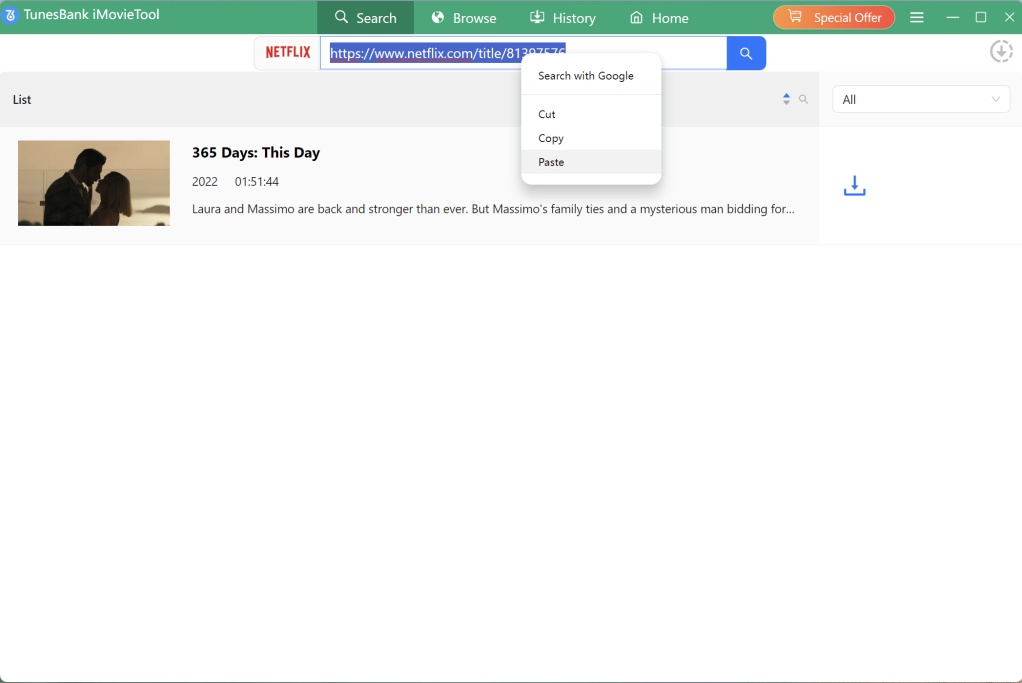
3# Pasting Movie URL. Copy the Netflix movie URL from your browser and paste it into the search box for direct and accurate content identification.
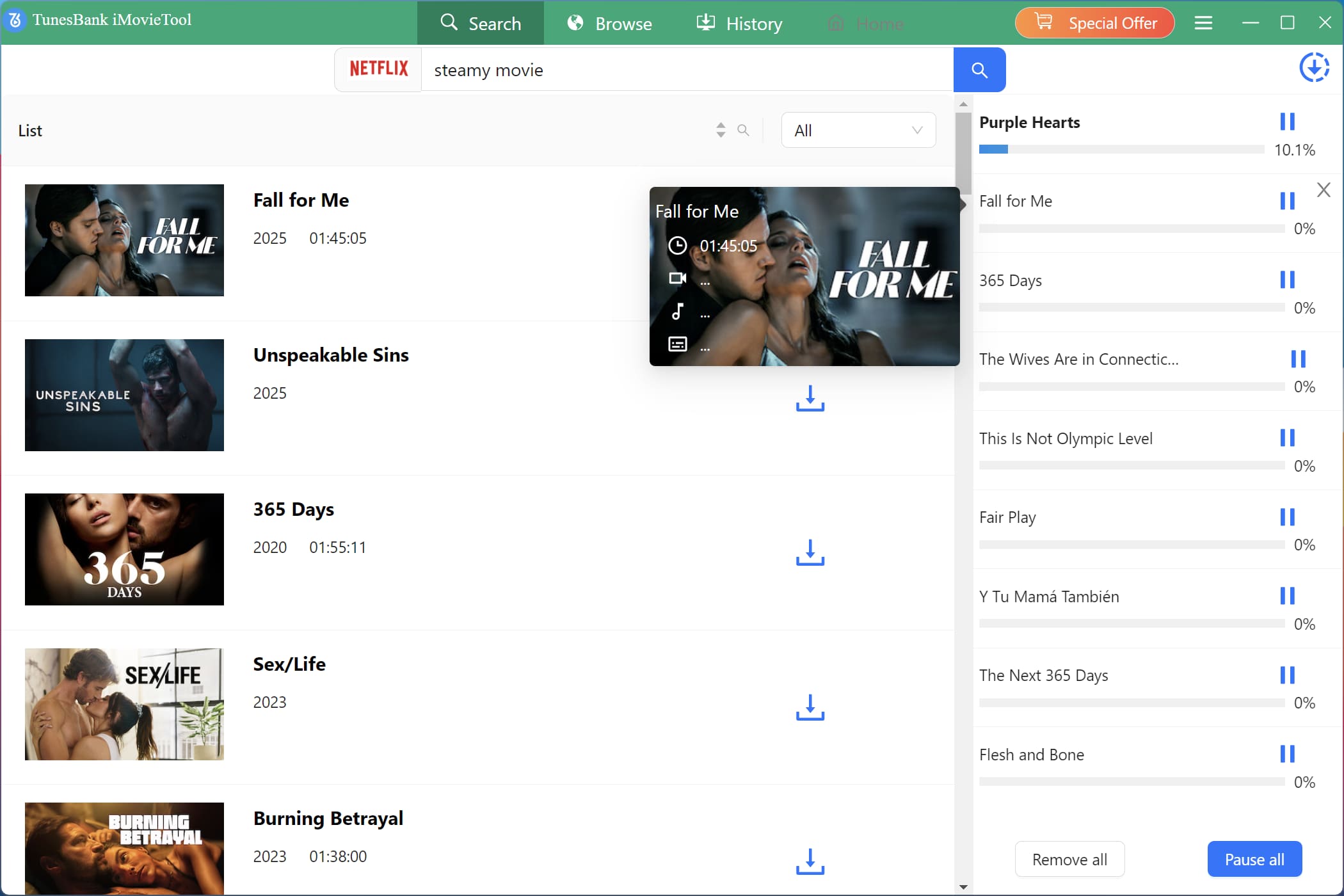
Step 4. Download Netflix Movies to MP4
After selecting the movie, click the “Download” button. The software will begin processing and saving the Netflix movie locally with HD 1080p resolution.
Step 5. Get Downloaded Netflix Movies
Once completed, move to the “History” section to get the well downloaded Netflix movies. Then open the output folder to access your downloaded Netflix files in MP4 format.
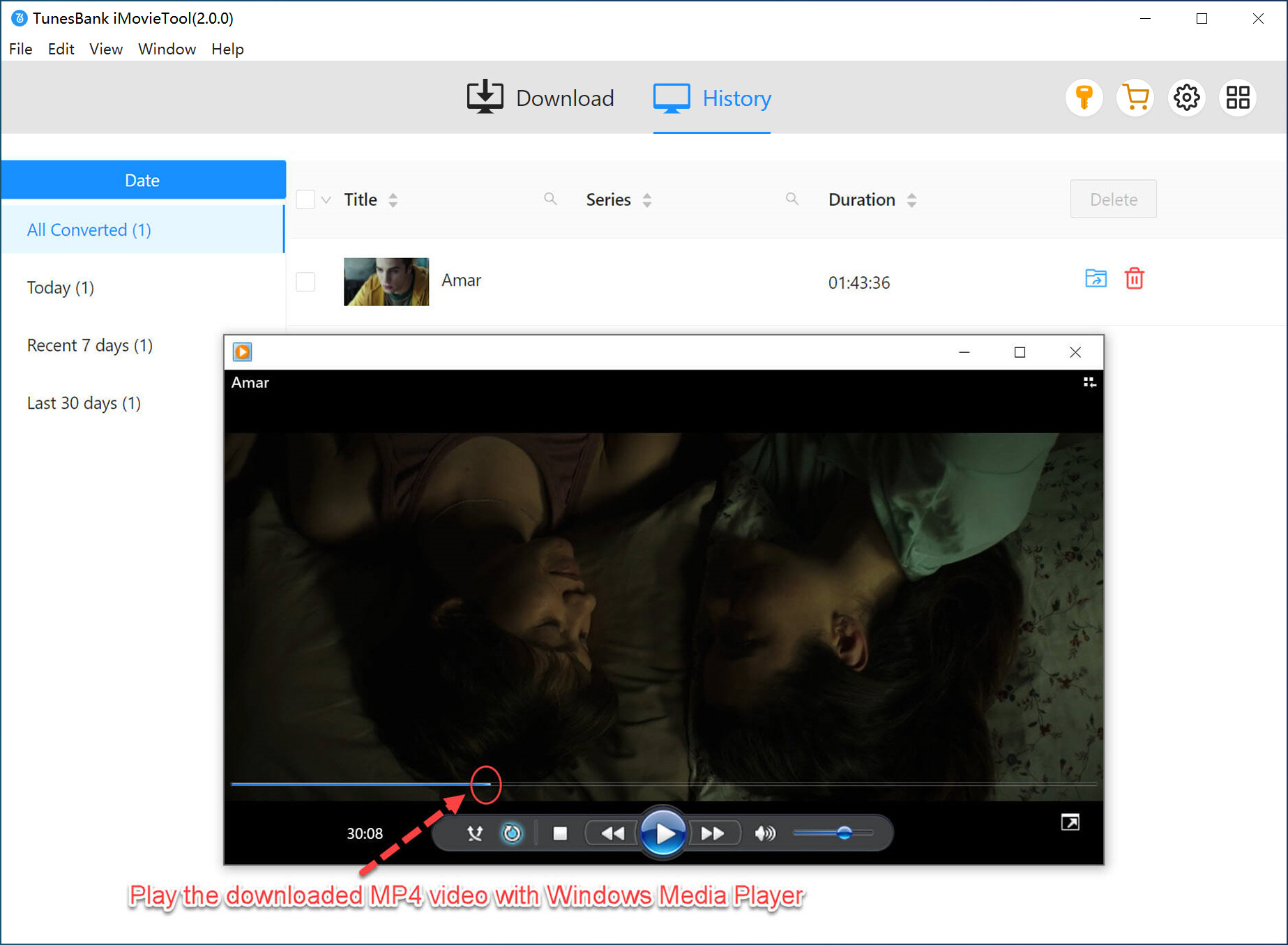
Step 6. Transfer Netflix Downloads to USB Drive
Insert your USB flash drive into your computer. Copy the downloaded Netflix MP4 files and paste them into the USB storage folder. Safely eject the USB drive once the transfer is complete.
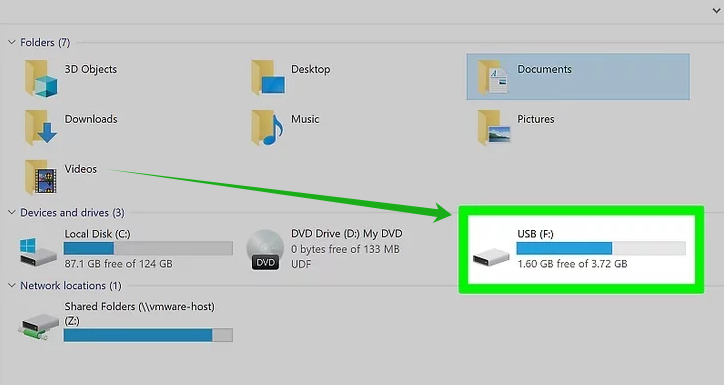
Step 7. Watch Netflix Offline on a Chromebook via USB
Now, plug your USB flash drive into one of the USB slots on the Chromebook. Open the USB drive, locate the Netflix video file, and play the Netflix movie using VLC player for smooth offline playback.
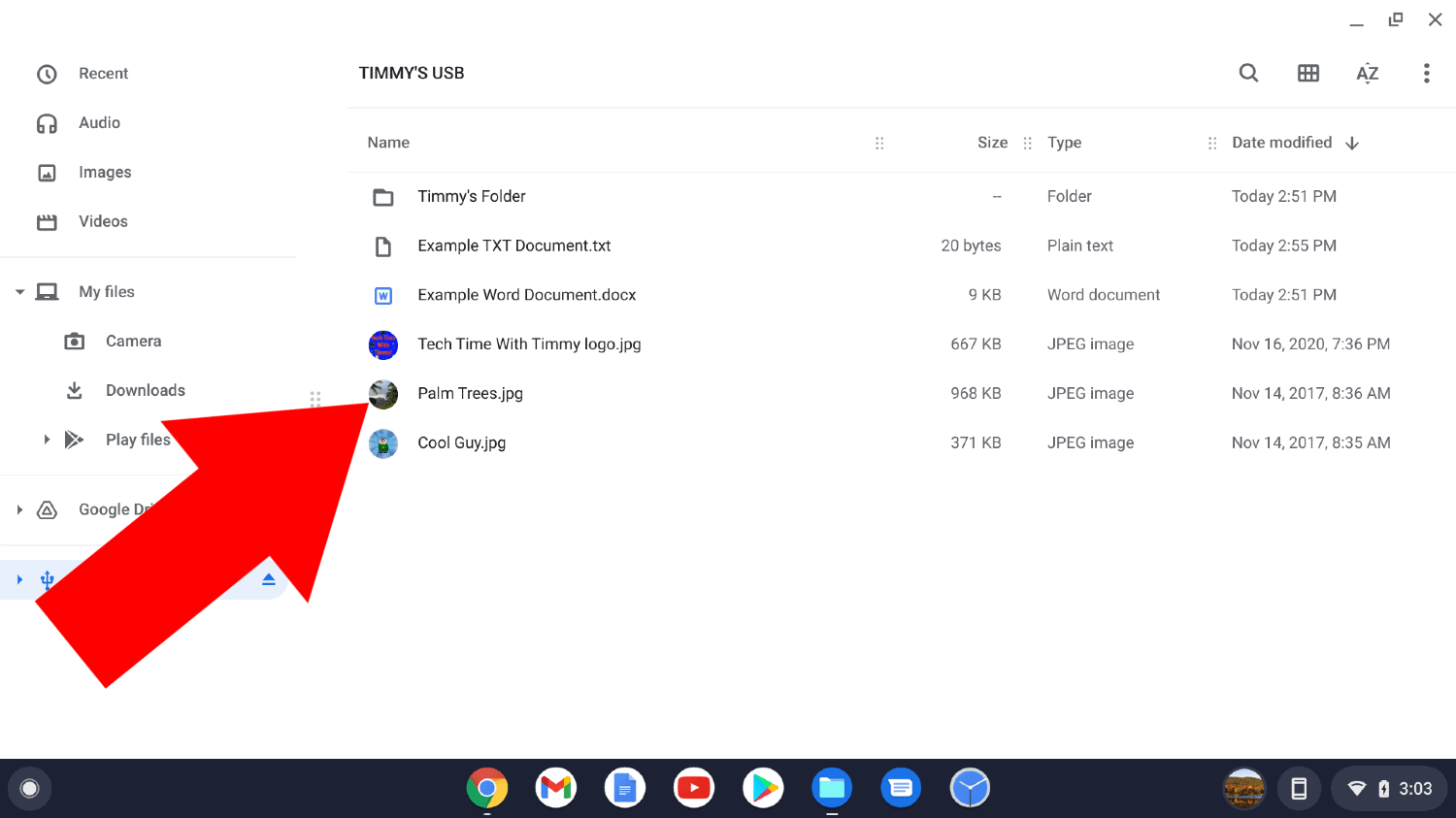
Conclusion
In short, this post makes how to download Netflix movies on Chromebook a breeze. For compatible Chromebook laptops, you can use the official Netflix app directly. For older Chromebooks, try another more advanced offline solution. The iMovieTool Netflix Video Downloader can be a good helper as it can download Netflix movies to MP4 or MKV formats. This way you can transfer them to a USB flash drive and play them directly on your Chromebook using a media player like VLC media player. Try it now!
The Latest Articles
– Top 8 Solutions to Download Streaming Video
– Top 10 Free Movie Download Sites Recommended
– 3 Ways to Download Movies to Watch Offline
– 2 Verified Methods to Download X/Twitter Videos to MP4
– Download Twitter(X) Videos on PC, Mac and Mobile Phone
– Download Facebook Videos on PC, Mac and Mobile Phone
– 3 Ways to Download Facebook Video to MP4

Netflix Video Downloader
Download Netflix video to MP4 or MKV with multi-language audio track and subtitle kept. Up to 50X downloading speed. Easily to download your favorite movies/TV shows from Netflix to your computer for offline viewing.







