








 United States (English)
 Japan (日本語)
 Russia (русский)
 Germany (Deutsch)
 France (Français)
 Spain (Español)
 Italy (Italia)
 Portugal (Portugues)
 China (繁体中文)
 Turkish (Türk dili)
 Dutch (Nederlands)
 Korean(한국인)
 Saudi Arabia(عربي)
 Download Netflix Movies and TV shows to watch offline.
Due to licensing and regional restrictions, it will result in Netflix VPN block issues and some error codes. If you wonder how to bypass VPN blocks on Netflix, this article is written for you. Here you will get six proven fixes to avoid the Netflix VPN ban in 2026.
While most streaming lovers worldwide rely on a VPN to unlock global content libraries, the Netflix VPN Ban has become increasingly strict in recent years. There are two types of Netflix bans: the regional ban and the Netflix VPN Ban. You will be annoyed when you receive the message Netflix Says, ‘You seem to be using a VPN or proxy.‘
So how do you bypass Netflix regional restrictions? Is it possible to avoid the Netflix VPN ban safely and reliably? The answer is yes. This article will show you 6 methods to fix Netflix VPN block issue.
Fix 1. Choose a Reliable VPN for Bypassing Netflix Geo-Restrictions
Not all VPNs can successfully get around the Netflix VPN ban. Some free VPNs do support to change Netflix region, however, Netflix can easily detect it and block your account. Always choose a reputable paid VPN service because it keeps you streaming on Netflix at incredible speeds. For 2026, VPN providers like NordVPN, Surfshark, and Proton VPN remain among the most reliable choices for unblocking Netflix libraries.
To effectively avoid the Netflix VPN Ban, consider these factors when using a VPN service:
- Look for VPNs offering dedicated IP addresses.
- Ensure the VPN provides servers in the specific country you want to access (e.g., US, UK, Japan, Germany).
- Avoid free VPNs, as their IPs are quickly detected and blocked.
- Choose a VPN optimized for streaming performance.
Fix 2. Connect to a VPN Server in the Required Country
Netflix applies strict geo-restrictions. While a VPN can change your virtual location, selecting the wrong server may trigger the Netflix VPN ban.
To bypass Netflix VPN block, always connect to a server located in the country whose Netflix library you want to access. For example:
- Use a US server for Netflix US.
- Use a UK server for British content.
- Use a German server for Netflix Germany.
- Use a Japan server for Japanese anime content.
If you still see the error, switch to another server within the same country. Sometimes only specific IP ranges are blocked.
Fix 3. Use Obfuscated Servers
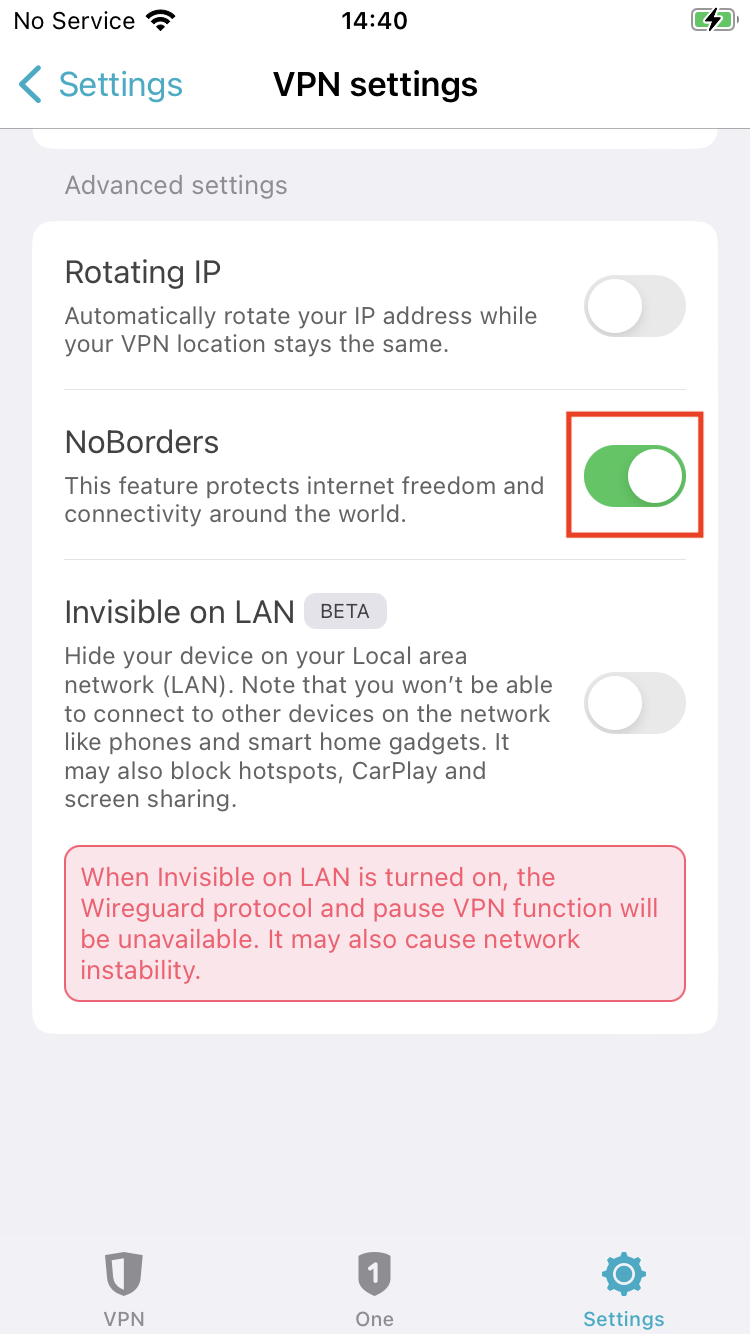
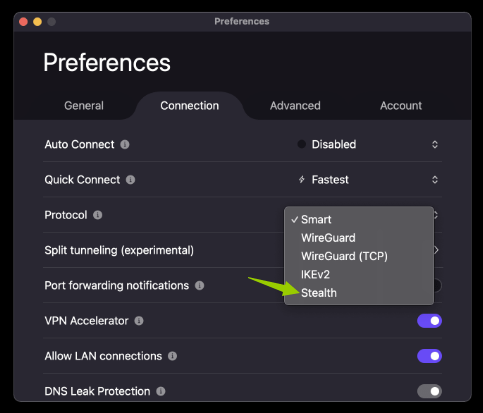
Obfuscated servers hide your VPN traffic by disguising it as regular internet activity, making it harder for Netflix to detect and trigger a Netflix VPN block. Therefore, to avoid the Netflix VPN Ban more effectively, you can enable this feature in your VPN settings.
Many premium VPN providers include this feature under different names:
● Surfshark calls it NoBorders Mode.
● Proton VPN calls it Stealth Mode.
Fix 4. Upgrade to Netflix Premium Plan
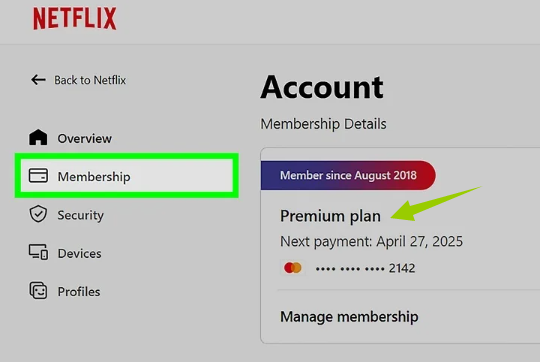
According to Netflix’s official policy, you cannot use a VPN while watching Netflix if you are on an ad-supported plan. This restriction directly contributes to the Netflix VPN Ban for users on lower-tier subscriptions.
To bypass Netflix VPN block, ensure you are on an ad-free plan. Go to Netflix app or web player, click “Account” > “Plan Details”. Check if you are on an ad-supported tier. If yes, upgrade to an ad-free plan (either Standard or Premium).
Fix 5. Clear Your Browser’s Cookies and Cache
Sometimes Netflix stores location data in cookies. Even after switching servers, the platform may continue showing the Netflix VPN block message. Clearing cookies and cache can help fix Netflix VPN block quickly.
Step 1. Open your browser settings. Navigate to “Privacy & Security”.
Step 2. Click “Delete browsing data”, select Cookies and Cached Images.
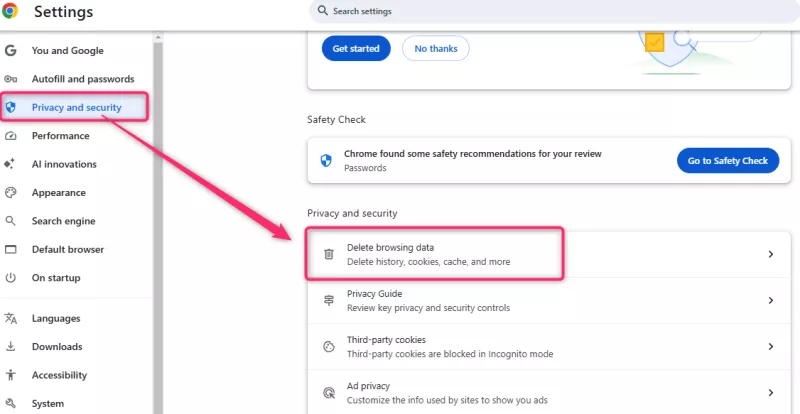
Step 3. Confirm and restart your browser.
Step 4. Then, reconnect to your VPN and reload Netflix.
Fix 6. Download Netflix Videos to MP4 for Flexible Offline Playback – Ultimate Guide
Normally, Netflix restricts downloaded content to the app and specific regions. When you’re traveling to another country, your downloads may stop working. Even though you can use a VPN to hide your ID address and access the content worldwide, we don’t recommend you do that. To ensure a safe, reliable and smooth viewing experience, the best alternative to downloading Netflix videos to MP4.
iMovieTool Netflix Video Downloader empowers you to download movies, TV shows, documentaries, animes, cartoons, and other content from Netflix to your Windows or Mac computer in MP4/MKV formats. Once downloaded, the Netflix videos are playable offline on most video players and devices without the Netflix app, VPN connection, or regional verification.
Apart from this, iMovieTool supports HD quality up to 1080p, preserves multiple audio tracks and subtitles, and allows batch downloading entire seasons by one click.
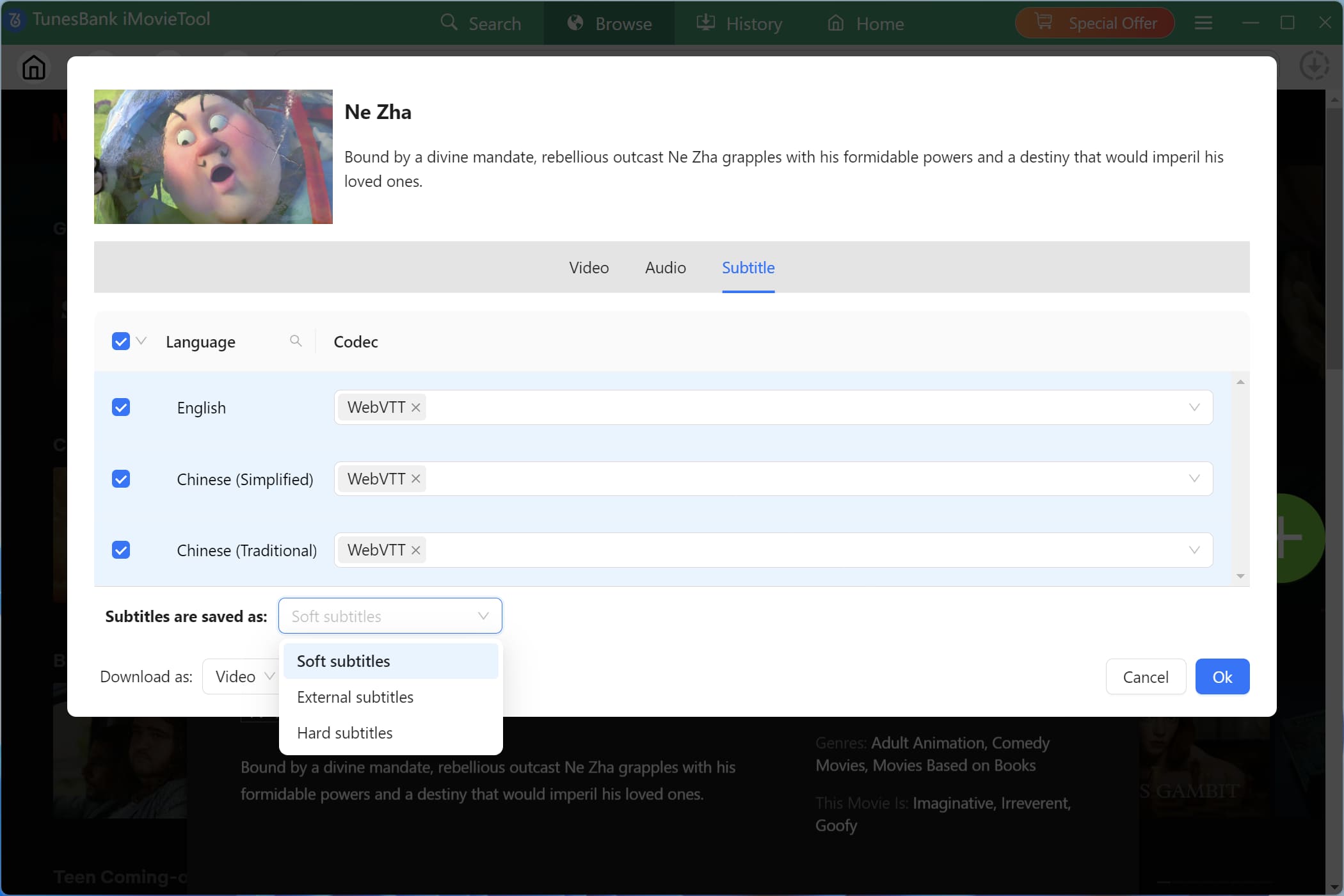
To sum up, iMovieTool effectively helps users avoid the Netflix VPN Ban and get around Netflix download limits.
More Features of iMovieTool Netflix Video Downloader:
- Download videos from any Netflix region to to Mac, PC locally
- Download Netflix movies and TV shows in universal MP4/MKV format
- Download Netflix videos in 1080p resolution with AAC/E-AC3 audios
- Download entire seasons of a show in bulk with 50X download speed
- Preserve audio tracks and subtitles in multiple languages
- Keep Netflix downloads permanently, and watch offline anywhere
How to Download Netflix Videos to MP4 to Watch Offline Anywhere?
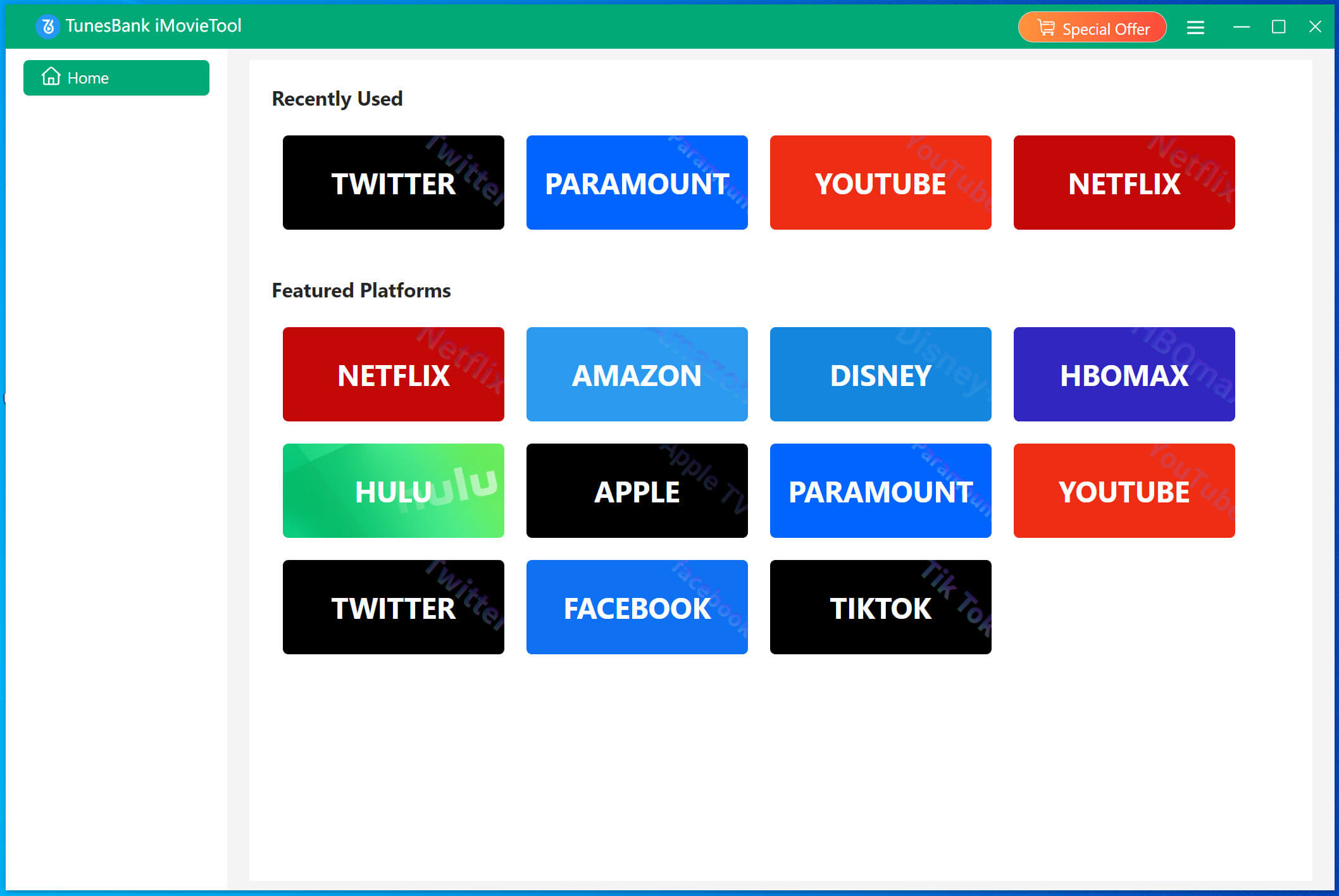
Step 1. Enter iMovieTool Netflix Video Downloader
After downloading and installing TunesBank iMovieTool Video Downloader on desktop. Launch the software and select Netflix platform to continue.
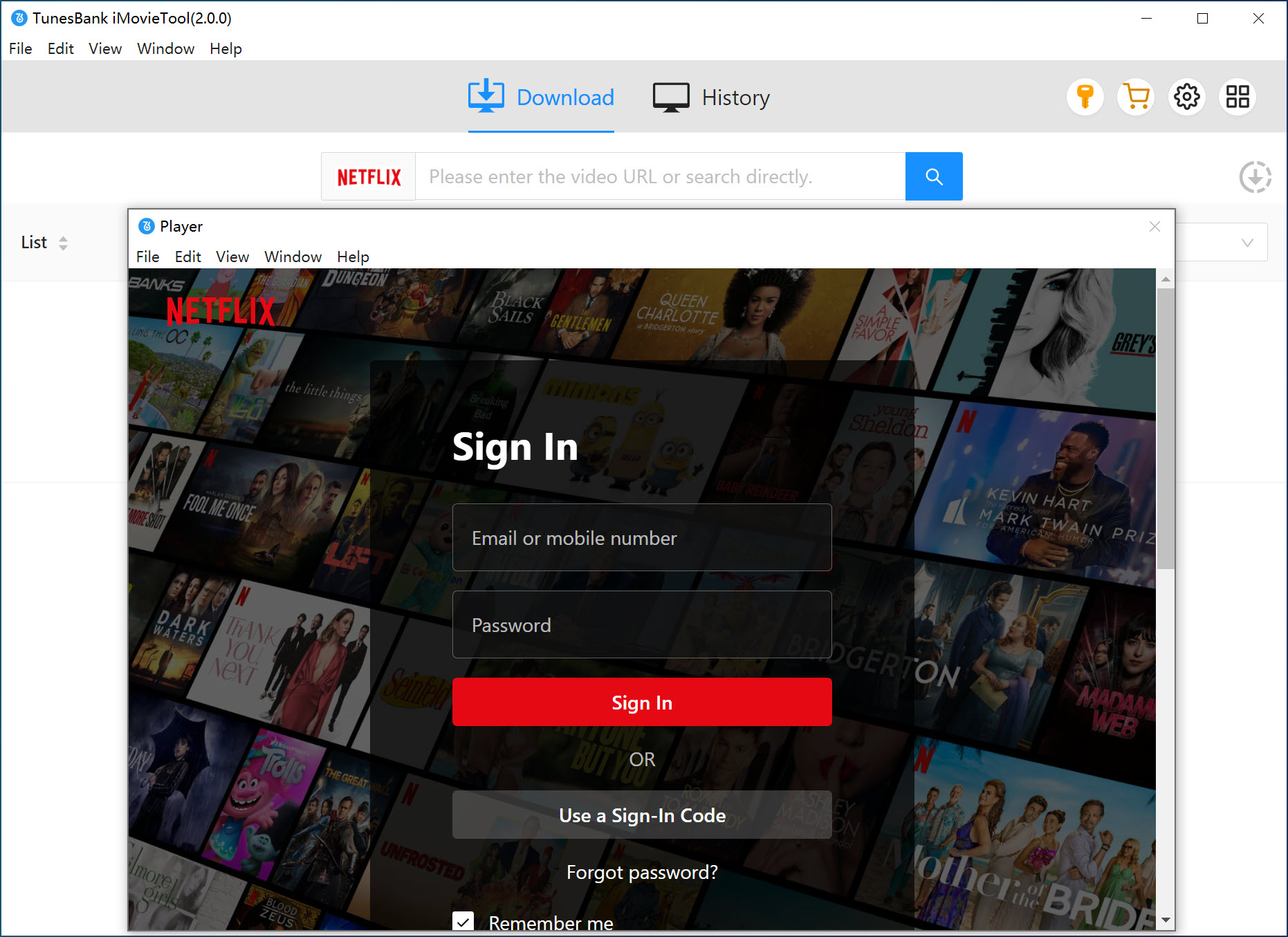
Then you will enter the iMovieTool Netflix Video Downloader. To access the full download functions, enter your activation code. Then sign in with your active Netflix account within the downloader software. Don’t worry, it’s 100% safe and reliable.
Step 2. Customize the Download Settings
Before you start searching for content, configure your output preferences. Go to the Menu bar > Preference. Here, you can set the output folder (where your downloaded Netflix videos will be saved), choose the video format (MP4 is the most compatible), pick the video quality and video codec, and select your preferred audio language and subtitle language.
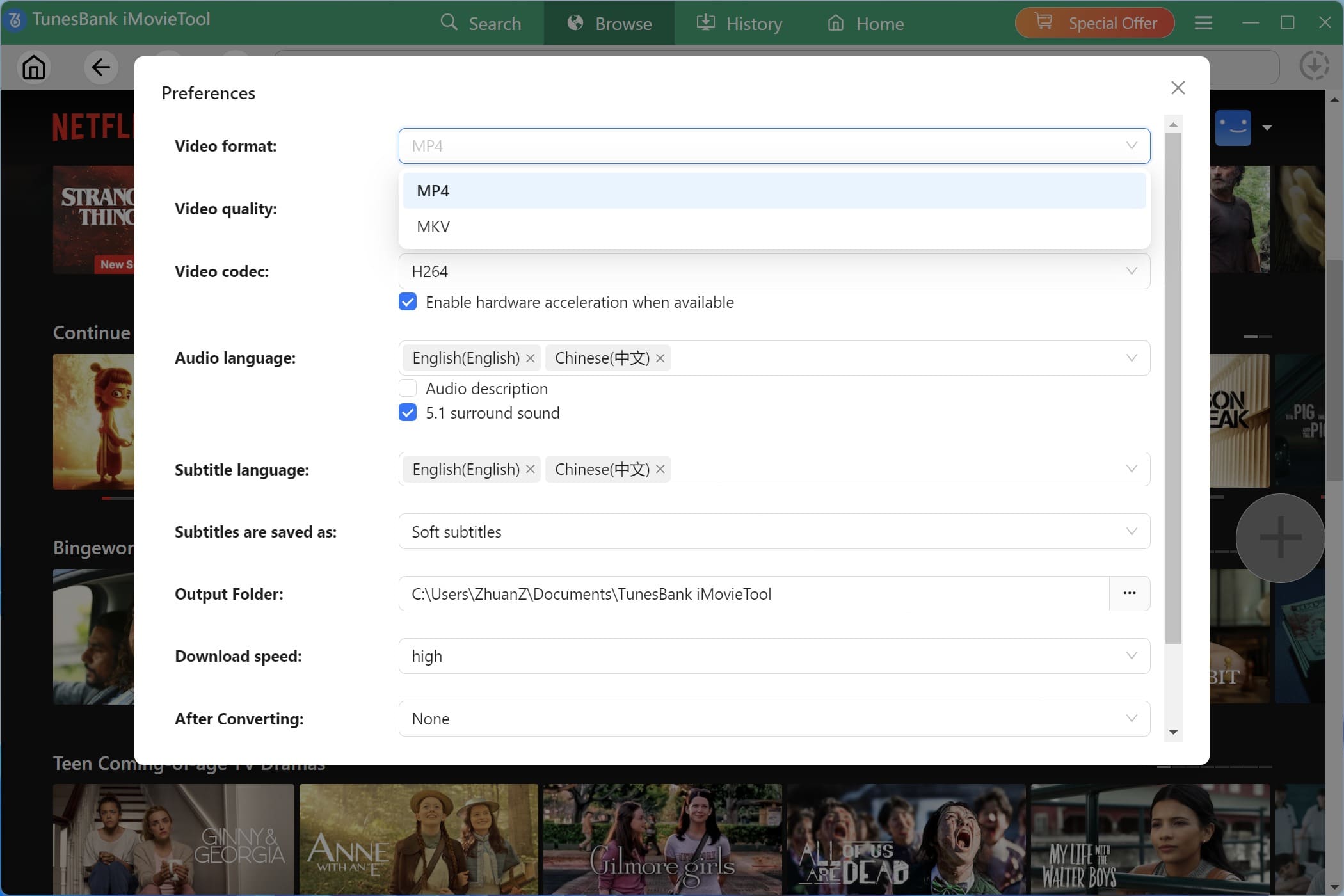
Step 3. Browse and Add Netflix Videos Easily
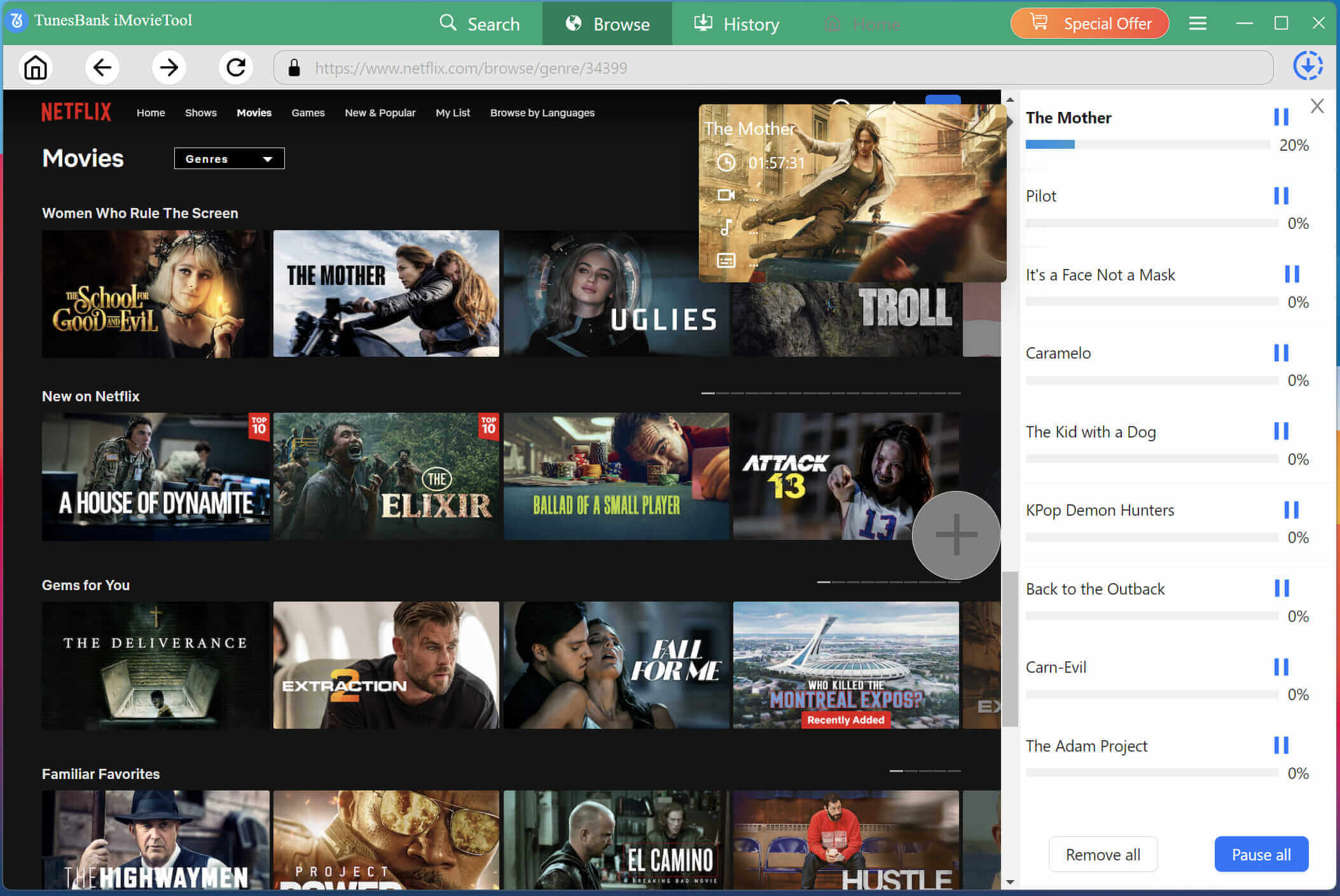
With the built-in web browser, you can browse, search, add and download any Netflix content online. Tap “Browse” tab, browse through categories like “Shows”, “Movies” or “New & Popular” to discover new content directly within the iMovieTool interface.
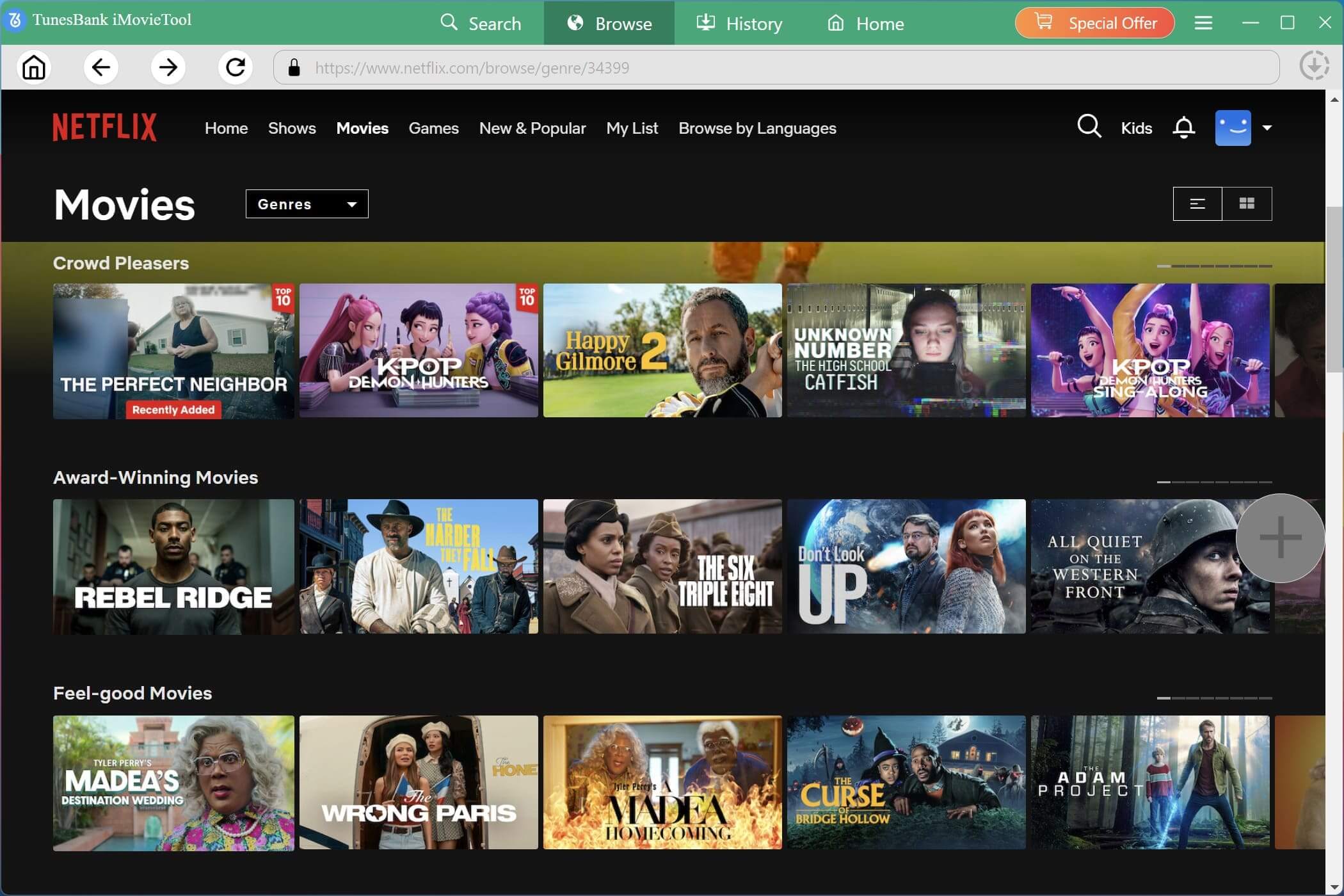
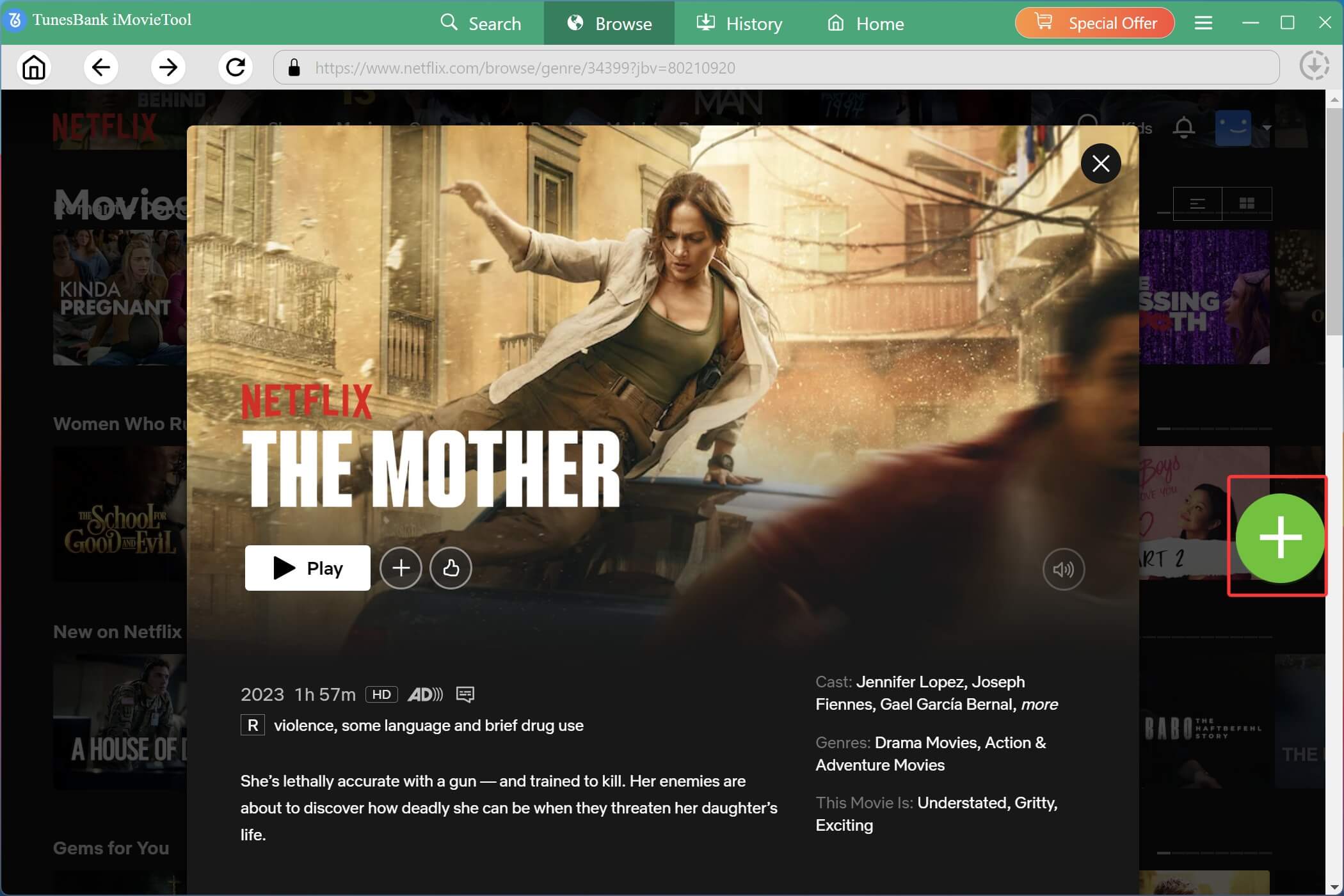
Once you are on the play page of your chosen title, click the green “+” icon to add it to the download queue.
Tips: iMovieTool also allows you to search for title or paste URL to locate the content. Type the name of the movie or show you want, or paste the video URL into the search field for direct access.
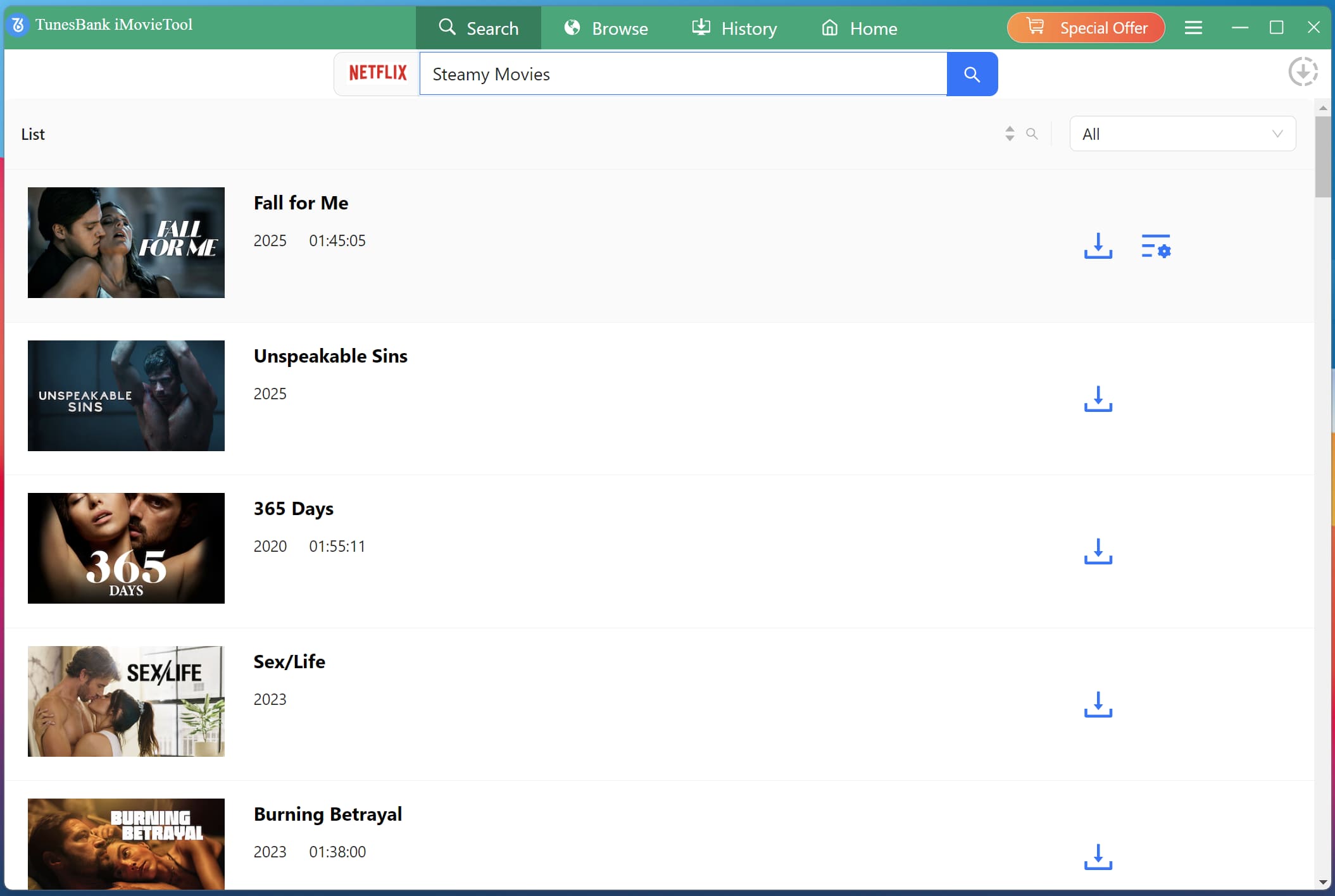
Step 4. Start Downloading Netflix Videos to MP4
A pop-up window will appear, click the “Download” icon, iMovieTool will process the download immediately while maintaining high video quality. You can monitor the download progress in the right side.
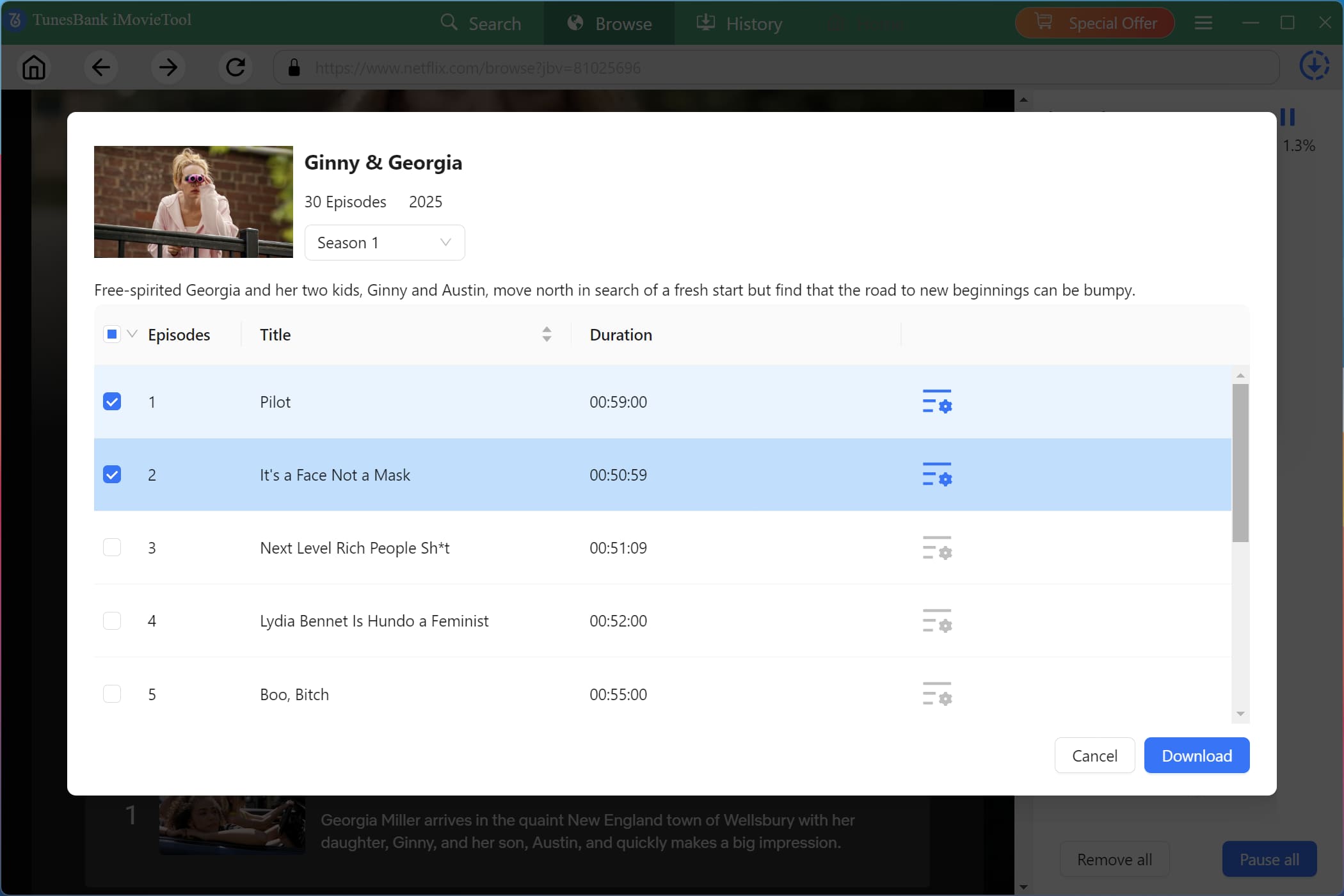
Select specific seasons or episodes if you’re downloading a series. Confirm your selections and click the “Download” button.
Step 5. Find Downloaded Netflix Videos
After completion, turn to the “History” section and open the designated output folder to locate the output Netflix video files on your hard drive
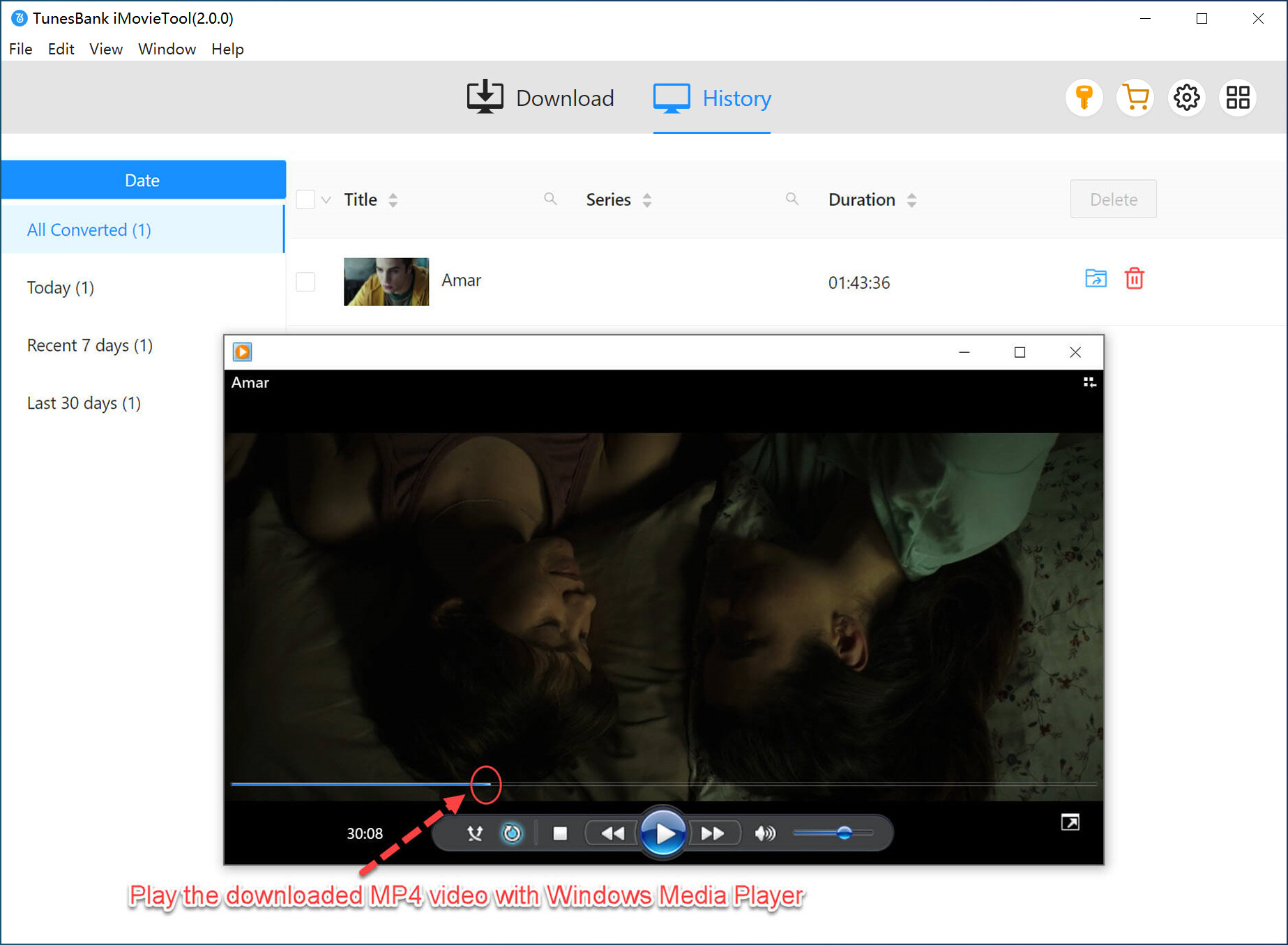
Step 6. Watch Netflix Offline on Any Device
Your Netflix videos are saved locally in MP4 format and can be played on any device without Netflix app restrictions.
Final Words
By and large, this article offers 6 methods to solve the problem of Netflix VPN block. However, some solutions can be time-consuming and frustrating to test one by one. In this case, iMovieTool Netflix Video Downloader is a highly recommended alternative. It allows you to download Netflix movies and TV shows as MP4 or MKV files for local saving. The only thing you should do after downloading is watch the local Netflix videos offline permanently on any device. Say goodbye to Netflix app or web player. No need to use VPN to access Netflix library!
The Latest Articles
– Top 8 Solutions to Download Streaming Video
– Top 10 Free Movie Download Sites Recommended
– 3 Ways to Download Movies to Watch Offline
– 2 Verified Methods to Download X/Twitter Videos to MP4
– Download Twitter(X) Videos on PC, Mac and Mobile Phone
– Download Facebook Videos on PC, Mac and Mobile Phone
– 3 Ways to Download Facebook Video to MP4

Netflix Video Downloader
Download Netflix video to MP4 or MKV with multi-language audio track and subtitle kept. Up to 50X downloading speed. Easily to download your favorite movies/TV shows from Netflix to your computer for offline viewing.







