








 United States (English)
 Japan (日本語)
 Russia (русский)
 Germany (Deutsch)
 France (Français)
 Spain (Español)
 Italy (Italia)
 Portugal (Portugues)
 China (繁体中文)
 Turkish (Türk dili)
 Dutch (Nederlands)
 Korean(한국인)
 Saudi Arabia(عربي)
 Download HD movies & TV shows from Disney Plus.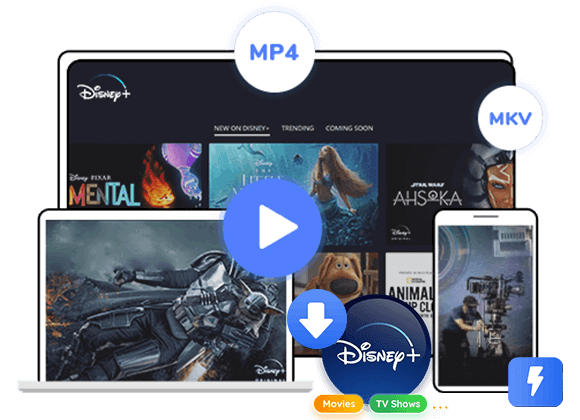
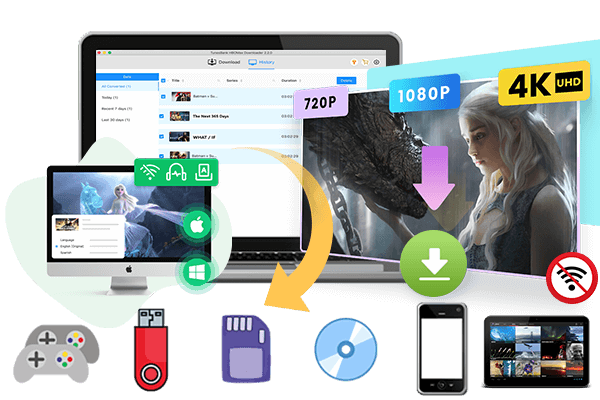
Want to know how to watch Disney Plus offline? In this guide, we’ll show you the official way to download movies and shows on iPhone and Android so you can watch them without internet. We’ll also share a simple way to download Disney Plus videos as MP4 on a Windows or Mac computer, so you can play the videos offline on any device without restrictions.
If you’re looking for a way to watch Disney Plus offline, you’re definitely not the only one. Many users want offline access when traveling, dealing with slow internet, or trying to save mobile data. Being able to stream without a connection makes watching much easier and more flexible. While Disney Plus does provide a download feature, it is mainly available through its mobile app.
In this guide, you’ll learn how to download Disney Plus movies and shows so you can enjoy Disney Plus offline on iOS and Android devices, as well as on Windows and Mac computers. We’ll also compare the official download option with other available tools, helping you choose the best way to watch your favorite Disney content anytime and anywhere.
Part 1. Is It Possible to Watch Disney Plus Offline?
The answer is both yes and no. Currently, Disney Plus does not support offline downloads on desktop apps or through web browsers, so you cannot directly save movies or shows to a Windows PC or Mac for offline playback. However, the platform does allow users to download content through its official mobile app. With the app, you can easily watch Disney Plus offline on an iPhone, iPad, or Android device after downloading your favorite titles in advance.
In the following sections, we’ll walk you through the official steps to download Disney Plus movies and shows on mobile devices. We’ll also introduce alternative solutions that make it possible to enjoy your favorite content on Windows and Mac computers. Keep reading to discover the most suitable way to enjoy Disney Plus offline anytime and anywhere.
Part 2. Official Method to Watch Disney Plus Offline on iOS and Android
For mobile users, it’s much simpler to watch Disney Plus offline. Disney has built an offline viewing feature directly into its mobile app, so all you need to do is install the app on your iPhone or Android device and subscribe to an eligible Disney+ plan. Once you’re signed in, you can access the download option and save titles for offline playback.
Here’s how to download a movie and enjoy it without an internet connection on iPhone or Android:
Step 1. Open the Disney Plus app and sign in with your account credentials. Make sure your Disney+ subscription is active.
Step 2. Go to the Home tab and browse or search for the movie you want to download for offline viewing.
Step 3. Open the movie’s detail page, then tap the Download icon. Wait while the app finishes downloading the video to your device.
Step 4. After the download is complete, switch to the Downloads section in the app. From there, you can select the saved movie and start watching it offline anytime.
Part 3. Download Disney Plus to MP4 for Offline Viewing on a Computer [Best]
Although the official app allows users to watch Disney Plus offline, there are still several limitations you should know.
- ⚠️Works only on iPhone, iPad, and Android phones or tablets
- ⚠️Cannot download through Windows or Mac browsers
- ⚠️Downloads stay inside the app and cannot be moved to other devices
- ⚠️You must have an active Disney+ subscription to watch downloaded videos
- ⚠️Downloads may expire if you do not watch them in time
- ⚠️You need to go online sometimes to refresh your access
- ⚠️Some titles may disappear if they are removed from Disney Plus
To overcome these limitations and watch Disney Plus offline on a computer, downloading Disney Plus to MP4 is the best solution, here we introduce the best Disney Plus downloader – TunesBank Disney Plus Downloader.
TunesBank Disney Plus Downloader is an easy tool for people who want more freedom when watching Disney Plus videos. It works on both Windows and Mac, and lets you download Disney Plus movies and TV shows directly to your computer for offline viewing. With this tool, you can save videos in MP4 or MKV format, so they can play on many devices and media players. Moreover, the program keeps the HD video quality and original sound, giving you a clear picture and great audio. This way, you can enjoy your favorite Disney titles offline anytime without needing an internet connection.
👍Key Feaures of TunesBank Disney Plus Downloader
- Download movies and shows on Disney Plus.
- Download Disney Plus to MP4/MKV in HD quality.
- Batch download Disney Plus videos at 50X faster speed.
- Keep original audio quality and subtitles multilingual.
- Preserve Dolby Atmos and 5.1 surround sound for an immersive listening experience.
- Keep Disney Plus video forever for offline playback on any device.
- Fully compatible with Windows & Mac.
Guide: How to Download Disney Plus Video to MP4 to Watch Offline
Here’s a simple step by step guide to using TunesBank Disney Plus Downloader to watch Disney Plus offline on your Windows laptop or Mac:
Step 1. Open TunesBank Disney+ Downloader
Install and launch the program on your computer. Sign in to the built in web player using your Disney+ account.
Step 2. Add Disney+ Movies or TV Shows
TunesBank provides three easy ways to add videos for download:
Way 1: Browse Online
Click the “Browse” tab at the top. You can explore movies and TV shows by genre or category.
Open the title you want to download and click the “+” icon. A download window will appear. You can click the “Gear” icon to change output settings or press “Download” to start directly.
Way 2: Search by Name
Type the movie or show name into the search bar. For example, enter “dog” and the program will list related videos for you to choose from.
Way 3: Paste Video URL
Copy the video link from the Disney+ website and paste it into the search bar in TunesBank. Then click the “Search” icon.
Step 3. Change Output Settings
Click the Menu icon in the top right corner to open the settings window. Here you can choose MP4 format, video quality, codec, audio language, subtitle language, output folder, and other options.
Step 4. Start Downloading Disney+ Videos to MP4
#Download a Movie or Single Episode
Click the “Download” button to begin saving the selected video to your computer.
#Download a Full TV Series or Season
When downloading a TV show, a window will appear. Select the seasons and episodes you want, then confirm to start downloading.
Step 5. Find Your Downloaded Videos
After the download finishes, go to the “History” section to view your completed videos.
Click the “Blue Folder” icon next to the title to open the output folder.
By default, the videos are saved in MP4 format with original quality and audio, so you can start to watch Disney Plus offline on Windows or Mac without using the Disney+ app.
FAQs of How to Watch Disney Plus Offline
Q1. Will offline watching affect my Disney Plus Wrapped or viewing history?
If you download and watch videos in the official Disney Plus app, your viewing history will still be recorded. But if you use a third party tool like TunesBank Disney Plus Downloader and play the videos with another media player, that activity will not appear in your Disney Plus account.
Q2. How long do official downloads last?
Downloads in the official app will expire after 30 days if you do not watch them. After you start watching, you usually have 48 hours to finish before you need to go online again.
Q3. Can I move Disney Plus videos to another device?
Official downloads stay inside the app and cannot be transferred. Videos downloaded with third party tools can be moved to other devices more easily. You can choose the method that works best for you.
Final Words
In conclusion, iOS and Android users can easily download movies and TV shows through the Disney+ app as long as they have an active subscription. This makes it simple to watch Disney Plus offline on mobile devices anytime and anywhere. However, if you use a Windows or Mac computer and want to watch Disney Plus offline, you will need help from a third party tool. TunesBank Disney Plus Downloader is a great choice thanks to its powerful features and high quality output. It helps you enjoy a cinema level viewing experience at home. You can download it and see how it works for yourself.
The Latest Articles
– Top 8 Solutions to Download Streaming Video
– Top 10 Free Movie Download Sites Recommended
– 3 Ways to Download Movies to Watch Offline
– 2 Verified Methods to Download X/Twitter Videos to MP4
– Download Twitter(X) Videos on PC, Mac and Mobile Phone
– Download Facebook Videos on PC, Mac and Mobile Phone
– 3 Ways to Download Facebook Video to MP4

Disney+ Video Downloader
Download any Disney+ movies/series/originals to MP4/MKV in high quality on your computer.







