








 United States (English)
 Japan (日本語)
 Russia (русский)
 Germany (Deutsch)
 France (Français)
 Spain (Español)
 Italy (Italia)
 Portugal (Portugues)
 China (繁体中文)
 Turkish (Türk dili)
 Dutch (Nederlands)
 Korean(한국인)
 Saudi Arabia(عربي)
 Download from Netflix, Disney+, Prime Video, YouTube, and more.

In this article, we will take a closer look at CocoCut Video Downloader and explain how it works for downloading online videos. We will go through its main features, show you how to use it, and discuss some of its limitations and drawbacks. In addition, we will introduce the best alternative to CocoCut that can help you download high quality videos faster, more safely, and for free.
Watching videos online is easy, but downloading them is not always simple. That’s why many people use tools like CocoCut Video Downloader. In this CocoCut Video Downloader Review, we will see if this browser extension is safe, reliable, and worth using. We will also introduce the best alternative for downloading online videos. This article will cover CocoCut’s features, pros and cons, pricing, and limitations. You will also learn how to download and use it step by step. At the end, we will share a better alternative to CocoCut Video Downloader.

Part 1. Overview of CocoCut Video Downloader
CocoCut is a browser based video downloader available for Chrome and Edge. It can detect videos playing on a webpage and lets you save them directly to your computer without installing extra software. The extension collects cached video segments from your browser and merges them into one MP4 file locally on your device. CocoCut does not upload your personal data to its servers. It also supports many popular video formats, including streaming formats such as HLS and M3U8.
Part 2. Is CocoCut Downloader Free?
Yes, CocoCut Video Downloader is free to use. After installing the extension on Chrome or Edge, you can download videos and audio files without creating an account or paying any fee. The free version supports common formats like MP4, MP3, and AAC, and also allows batch downloads and streaming video downloads such as HLS and M3U8. It also includes a recording feature for videos that cannot be downloaded directly.
CocoCut also has a Pro version with extra features, such as faster download speeds and more recording options. However, the official CocoCut website does not clearly show the price of the Pro plan.
Part 3. How to Add CocoCut Extension to Chrome or Firefox
Follow these easy steps to install the CocoCut Video Downloader extension on your browser.
For Chrome Browser:
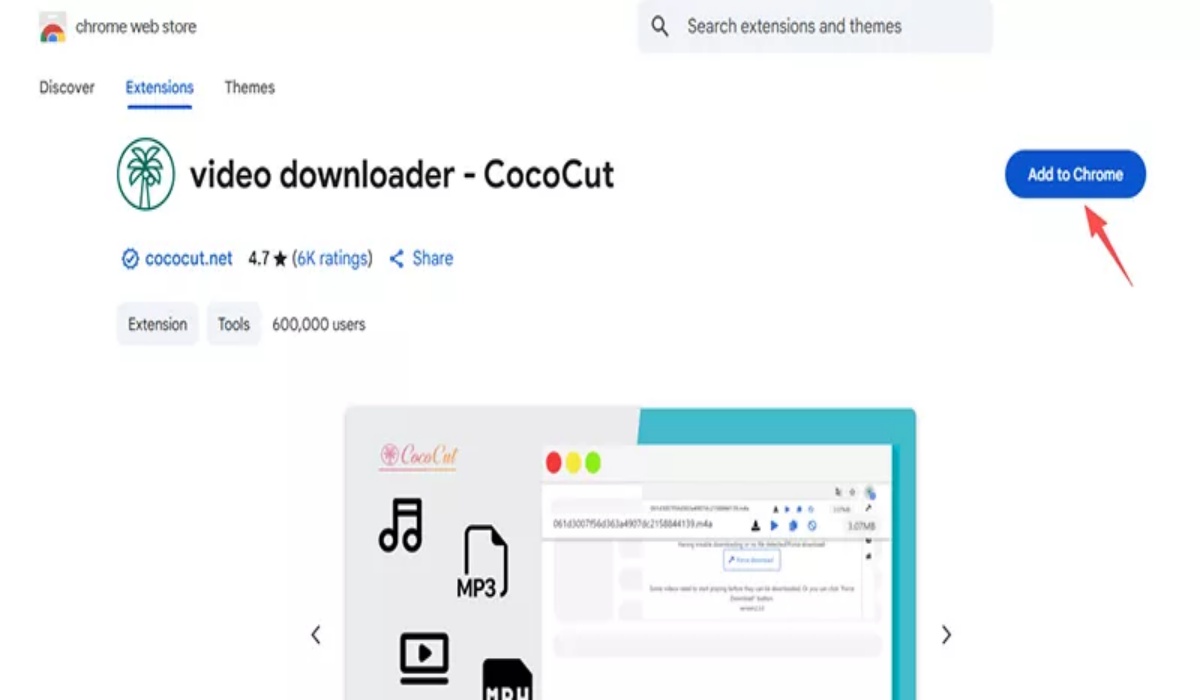
Step 1. Open the CocoCut extension page for Chrome.
Step 2. Click the “Add to Chrome” button.
Step 3. In the pop up window, click “Add Extension” to continue.
Step 4. Wait for the installation to finish. Once installed, the CocoCut icon will appear in the Chrome toolbar.
For Firefox Browser:
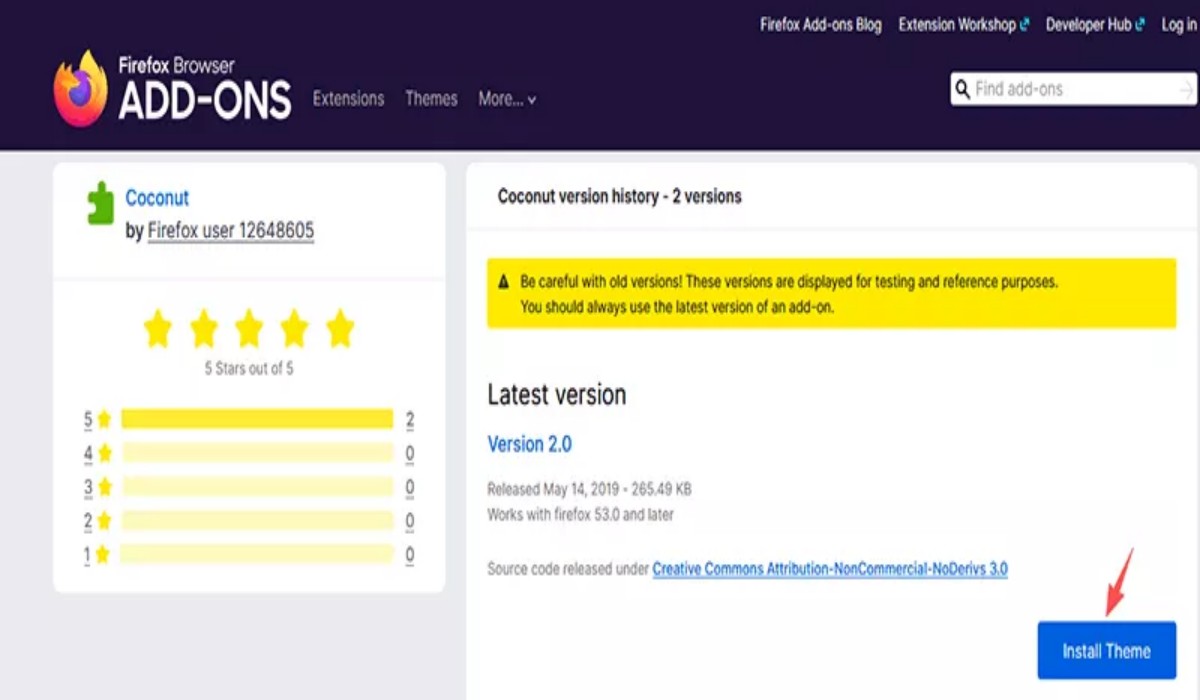
Step 1. Visit the CocoCut extension page for Firefox.
Step 2. Click the “Add to Firefox” button.
Step 3. Confirm the installation if Firefox asks for permission.
Step 4. After installation, the CocoCut icon will show up beside the Firefox address bar.
Part 4. How to Download Videos with CocoCut
Once installed, CocoCut is very easy to use for downloading videos and audio files. The extension works on Chrome and Firefox and can detect playable media on many webpages. Follow these steps to use CocoCut:
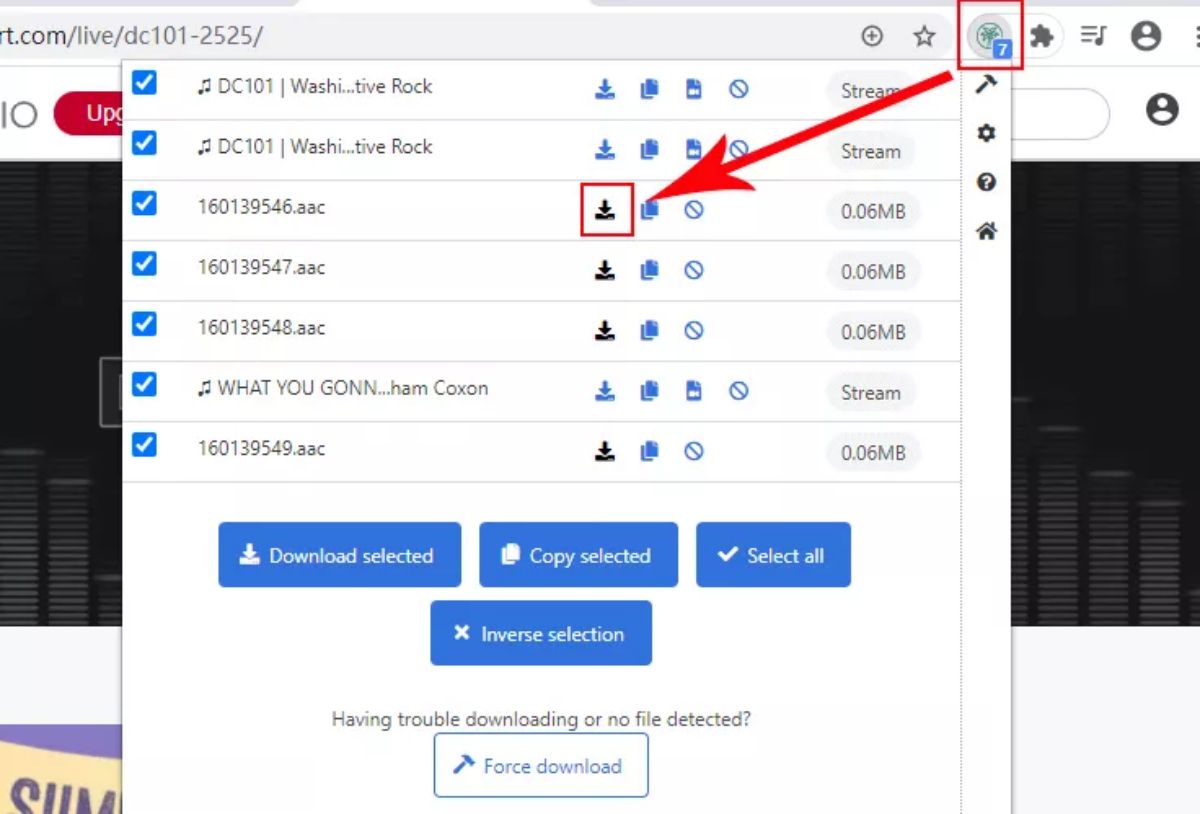
Step 1. Open the webpage that contains the video or audio you want to save. CocoCut will automatically detect available media files.
Step 2. Click the CocoCut extension icon in your browser toolbar. If media files are found, you will see a number on the icon.
Step 3. Browse the detected files and choose the video or audio you want to download. Then click the download button next to the file. The download page will open in a new browser tab.
Part 5. Is CocoCut Video Downloader Safe and Reliable?
Reviews from Reddit and the Chrome Web Store show that many users are satisfied with CocoCut. Reddit users say it is easy to use and works well for downloading videos from different websites. Some users also mention that they have used it for a long time without problems. On the Chrome Web Store, CocoCut has a 4.7 out of 5 star rating from more than 6,000 users. Many people like its fast download speed, simple design, and support for different video formats.
For safety, CocoCut’s official website looks reliable and has a good rating from ScamAdviser. There are no major signs that it is a scam website. Still, it is safer to download the CocoCut extension only from official sources.
Part 6. Pros & Cons of CocoCut Video Downloader
✅Pros:
- Simple to use after installing the extension.
- Supports common formats like MP4, MP3, AAC, and HLS.
- Fast download speed.
- Downloads files directly to your computer.
- Free to use.
❌Cons:
- Cannot download videos from some websites like YouTube.
- Some videos may not keep high quality after downloading.
- Browser extensions may stop working after updates.
- Some features may be difficult for new users at first.
Limitations of Video Downloader Extensions
Browser extensions like CocoCut are convenient, but they also come with some disadvantages:
⚠️Platform restrictions
Some websites, such as YouTube, do not allow video downloads through browser extensions.
⚠️Extension availability
Extensions may be removed from the Chrome Web Store or Firefox Add-ons, which can affect their performance or availability.
⚠️Limited quality and formats
Certain extensions only support a few video formats or lower download quality options.
⚠️Privacy and security concerns
Some browser extensions may collect user data or create security risks.
Because of these issues, users should be careful when choosing a video downloader extension. It is also a good idea to look for other video downloading solutions that offer better stability, security, and format support.
Part 7. Best Alternative to CocoCut Video Downloader
If you need a safer and more reliable alternative to CocoCut, iMovieTool All-in-One Video Downloader is a good option. It helps users download movies and TV shows from popular streaming services like Netflix, Disney+, Amazon Prime Video, YouTube, Hulu, Max, and more. You can save videos in MP4 or MKV format with HD 1080p quality for offline watching on different devices.
Unlike browser extensions, iMovieTool provides a more stable downloading experience. It has a built-in browser that lets you search, watch, and download videos directly in the program. It also supports fast batch downloads without slowing down your computer. All downloads are private, safe, and free from ads or pop ups. With its simple interface and support for many streaming platforms, iMovieTool is an easy all in one video downloader.
👍Key Features of iMovieTool All-in-One Video Downloader
- Download movies and TV shows from Netflix, Disney+, Amazon Prime, YouTube, etc.
- Download streaming videos to MP4/MKV in HD 1080p/720p.
- Keep audio tracks and subtitles in multilingual.
- Batch download streaming video at 50X faster speed.
- Keep streaming videos permanently for offline playing on any device.
- Fully compatible with Windows and Mac.
Guide: How to Download Streaming Video with iMovieTool
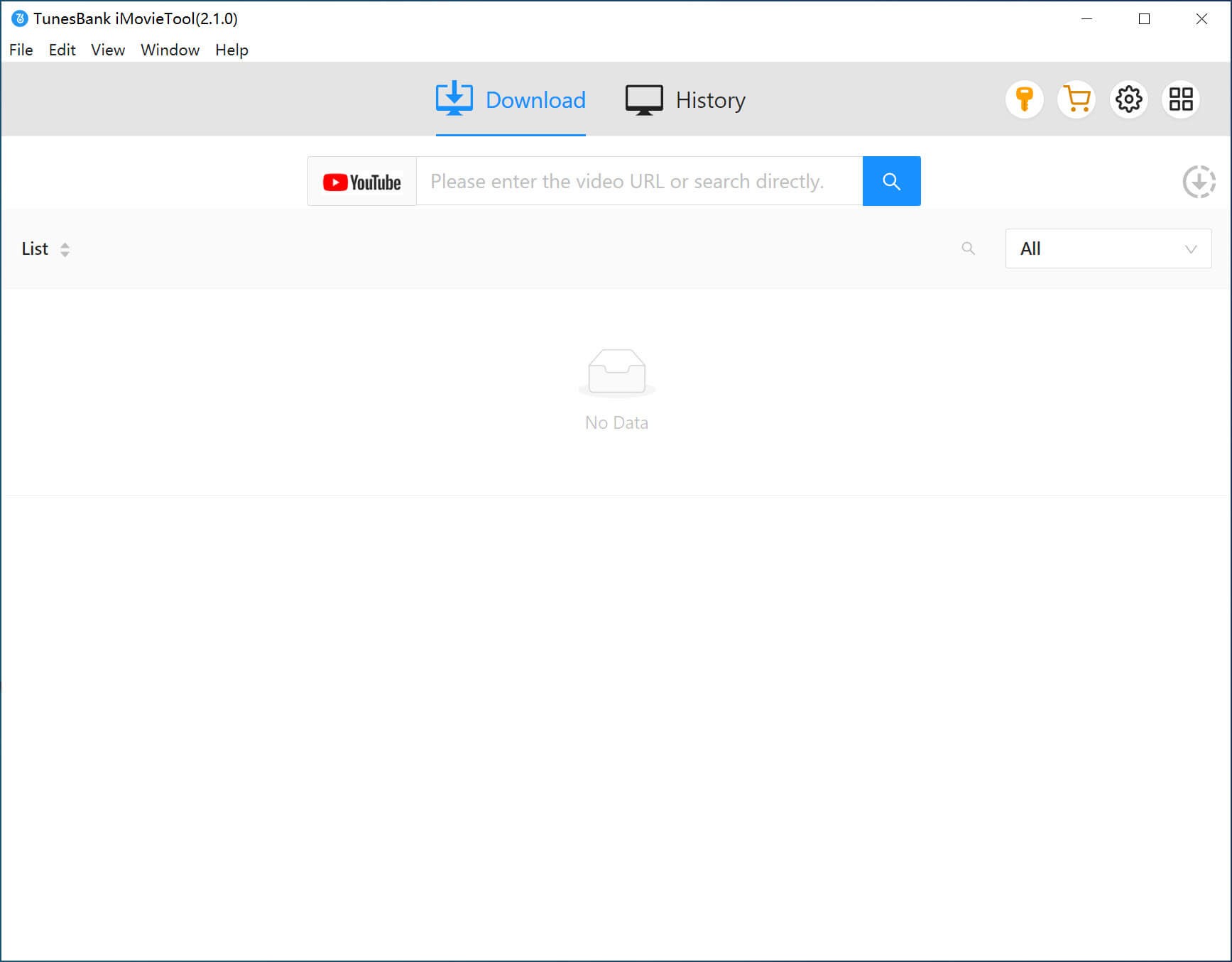
Step 1. Choose YouTube Service and Sign In
Launch iMovieTool All in One Video Downloader on your computer. The software supports 12 streaming platforms. To download videos from YouTube, select the YouTube service and sign in with your YouTube account.
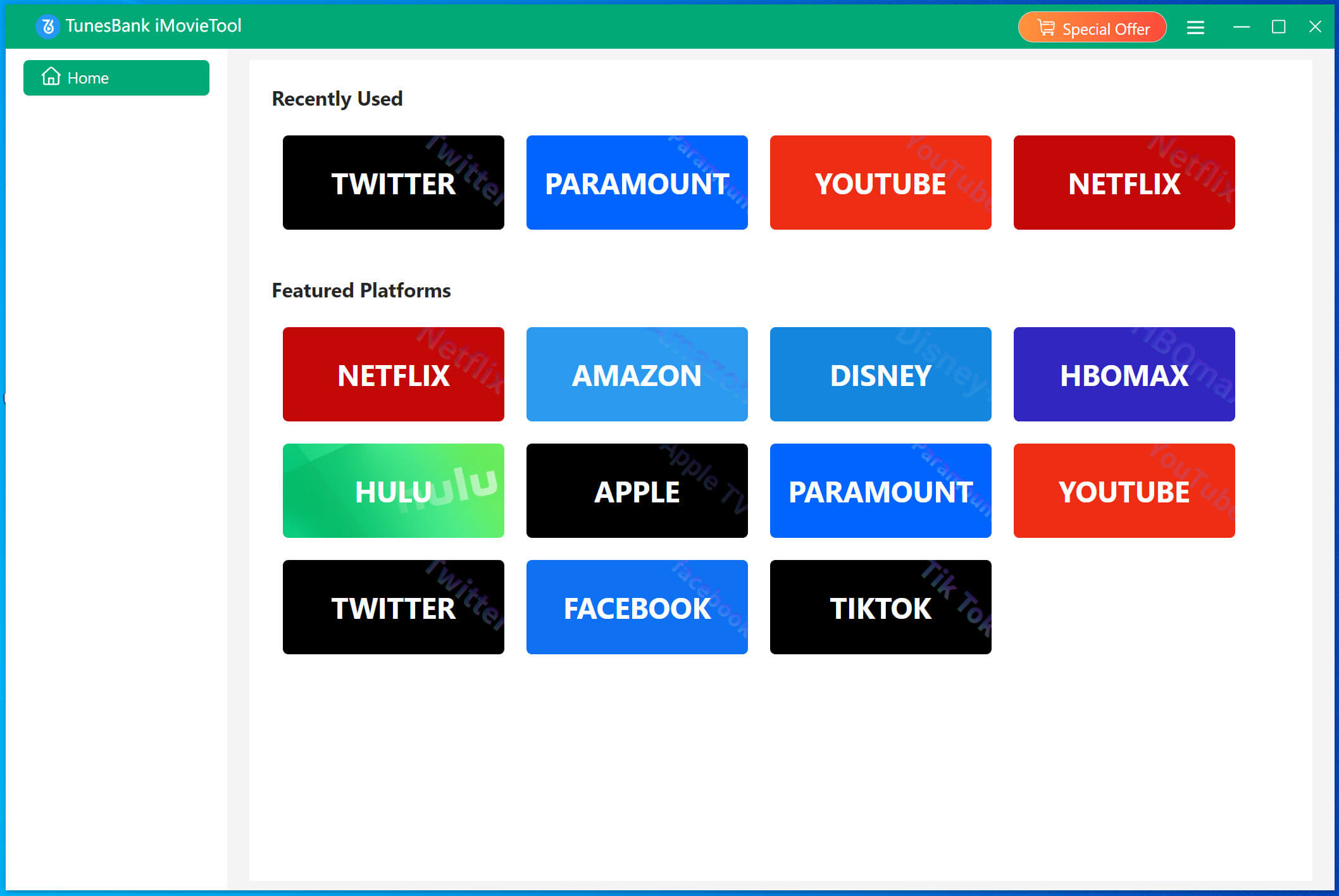
After logging in, you will see the main interface.
Step 2. Search for YouTube Videos
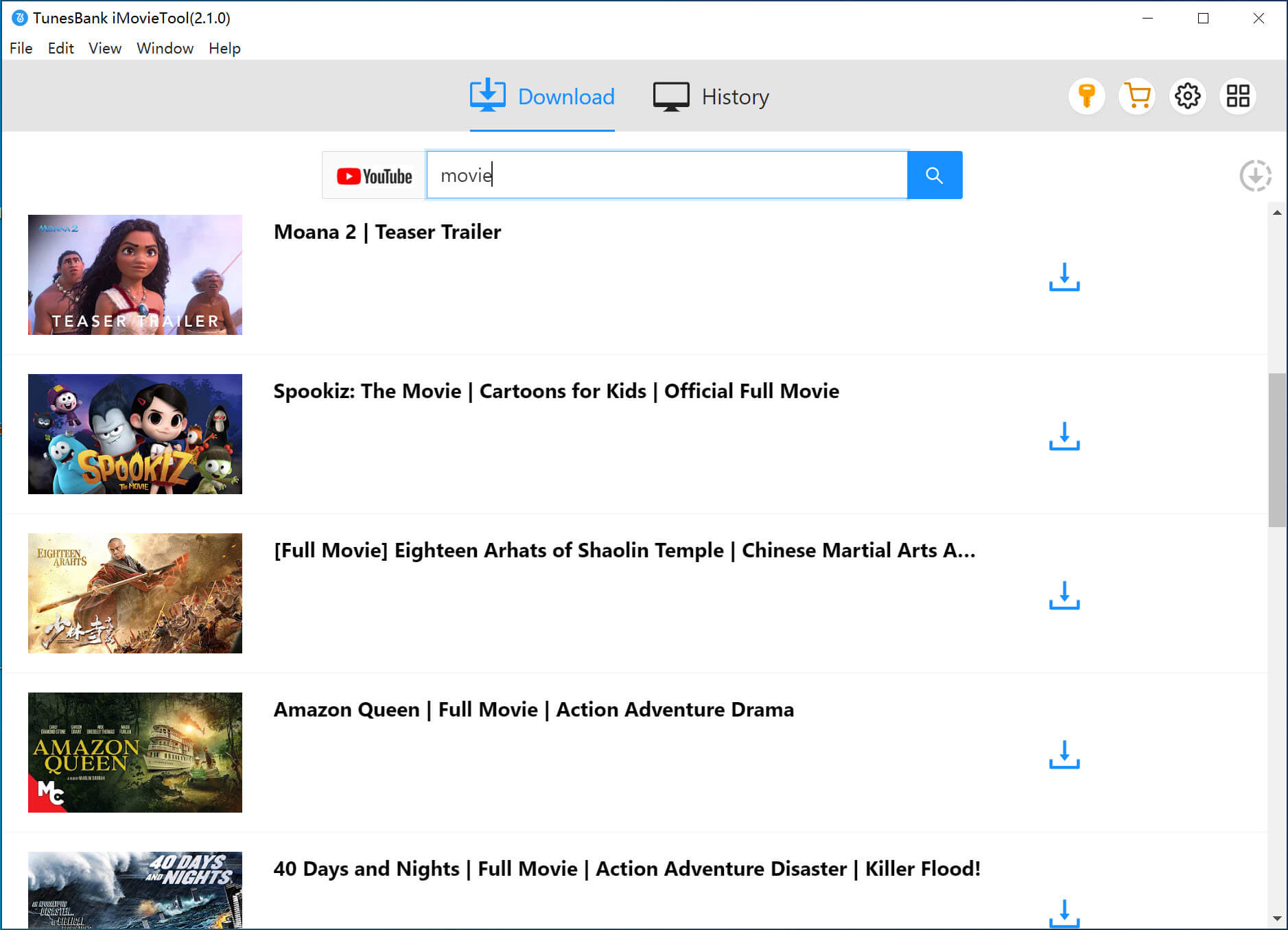
Use the built in browser to search for the video or movie you want to download. For example, search for a Korean drama, then click the “+” button to add it to the download list.
Step 3. Set Video Output Options
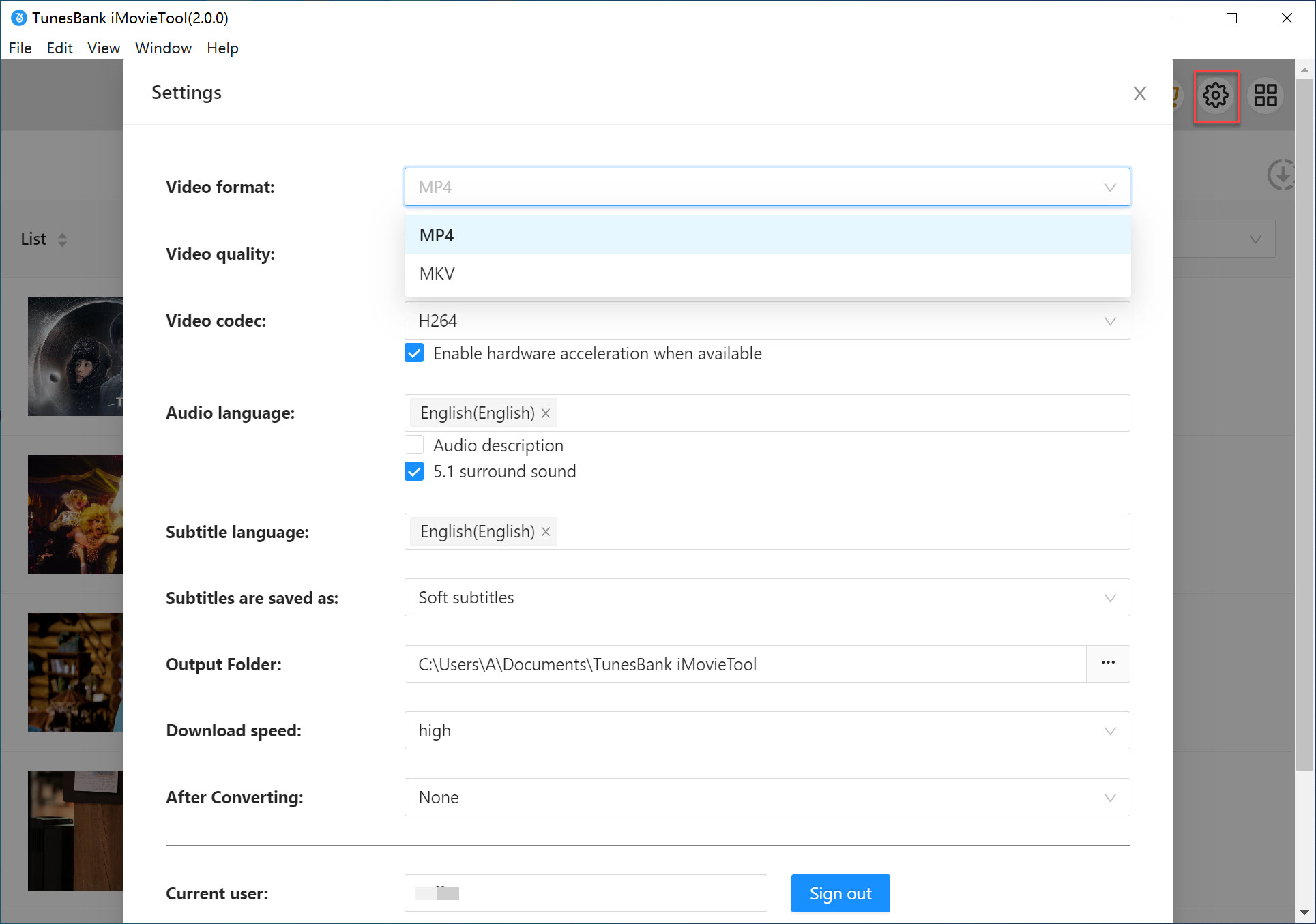
Click the “Gear” icon in the top right corner. Here, you can choose MP4 or MKV as the output format, change video quality, select the video codec, set audio and subtitle languages, and choose the output folder.
Step 4. Download YouTube Videos to MP4 or MKV
Click the “Download” button to start downloading videos from YouTube. After the download is finished, the videos will be saved as MP4 or MKV files on your computer.
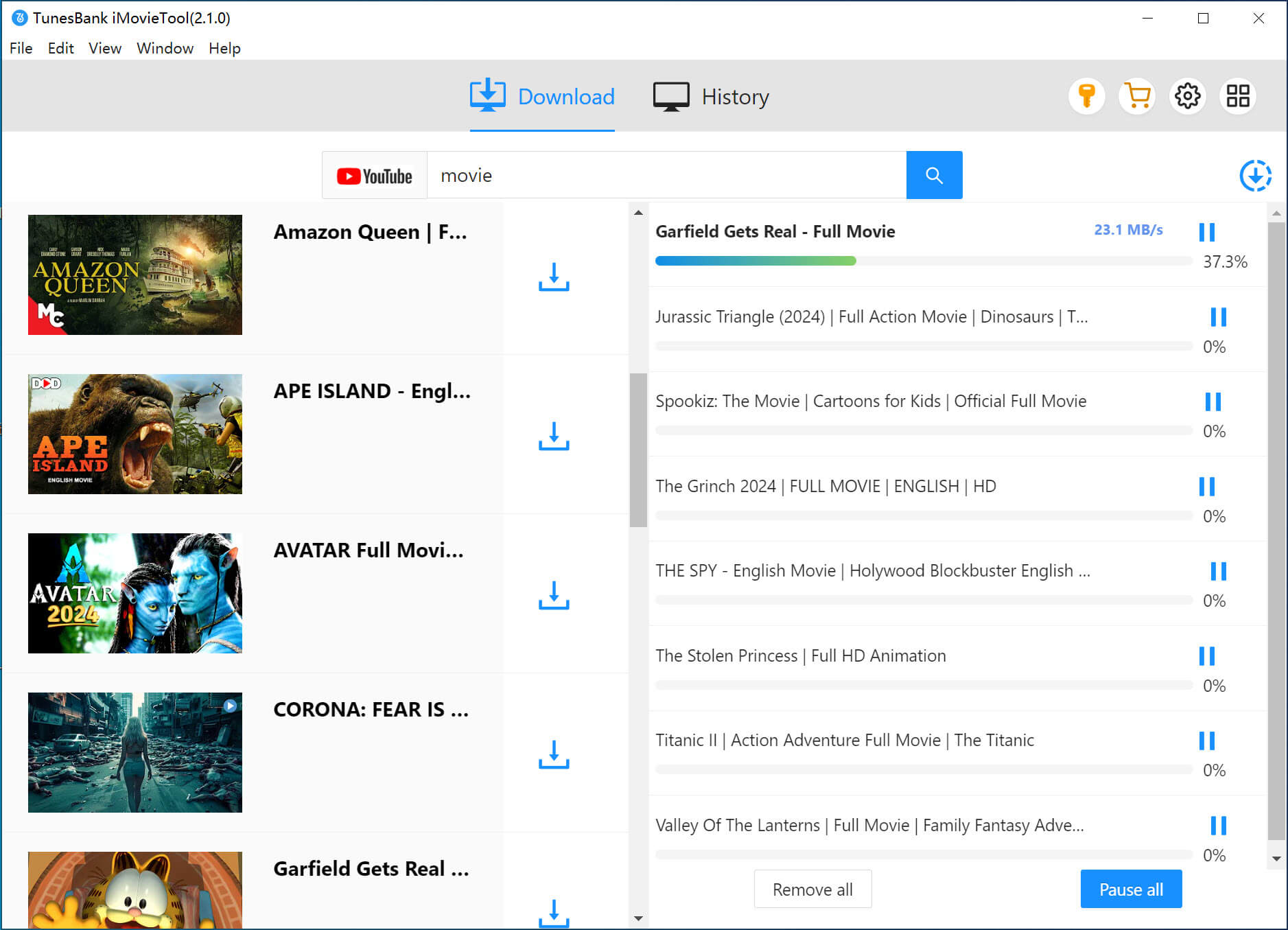
Once completed, you can find the downloaded YouTube videos on your computer and watch them anytime offline or transfer them to other devices for playback.
Conclusion
Downloading online videos does not have to be difficult or risky. Browser extensions like CocoCut can help download videos, but they also have some limits, such as slower speeds, fewer format options, and problems downloading certain videos. That is why many users prefer a dedicated tool like iMovieTool All-in-One Video Downloader.
iMovieTool is a more stable, faster, and safer solution for downloading videos. It supports popular streaming platforms like YouTube, Netflix, Amazon Prime Video, Disney+, and more. You can save videos in MP4 or MKV format with high quality up to 1080p, making it easy to watch your favorite videos offline on any device without restrictions.
The Latest Articles
– Top 8 Solutions to Download Streaming Video
– Top 10 Free Movie Download Sites Recommended
– 3 Ways to Download Movies to Watch Offline
– 2 Verified Methods to Download X/Twitter Videos to MP4
– Download Twitter(X) Videos on PC, Mac and Mobile Phone
– Download Facebook Videos on PC, Mac and Mobile Phone
– 3 Ways to Download Facebook Video to MP4

iMovieTool Video Downloader
Download videos to MP4 and MKV in 1080p/720p. Download Netflix, Amazon Prime Video, Disney+, HBO Max, Hulu, Apple TV+, YouTube, and Paramount+ movie/shows onto computer. Download HD videos from X/Twitter, Instagram, Facebook, and TikTok.