








 United States (English)
 Japan (日本語)
 Russia (русский)
 Germany (Deutsch)
 France (Français)
 Spain (Español)
 Italy (Italia)
 Portugal (Portugues)
 China (繁体中文)
 Turkish (Türk dili)
 Dutch (Nederlands)
 Korean(한국인)
 Saudi Arabia(عربي)
 Download from Netflix, Disney+, Prime Video, YouTube, and more.
In this review, we will show you how to use SaveFrom, explain whether it is safe, and discuss its pros and cons. We will also look at some common reasons why SaveFrom may not work and share a few useful alternatives for downloading videos.
As online video platforms like YouTube and Niconico continue to grow in popularity, more users want to save videos for offline viewing or sharing with others. SaveFrom is one of the most widely used video download tools, but many new users may not know how to use it properly. In this SaveFrom.net review, we will explain how SaveFrom works, discuss whether it is safe, and introduce the best alternative when SaveFrom is unavailable or not working.
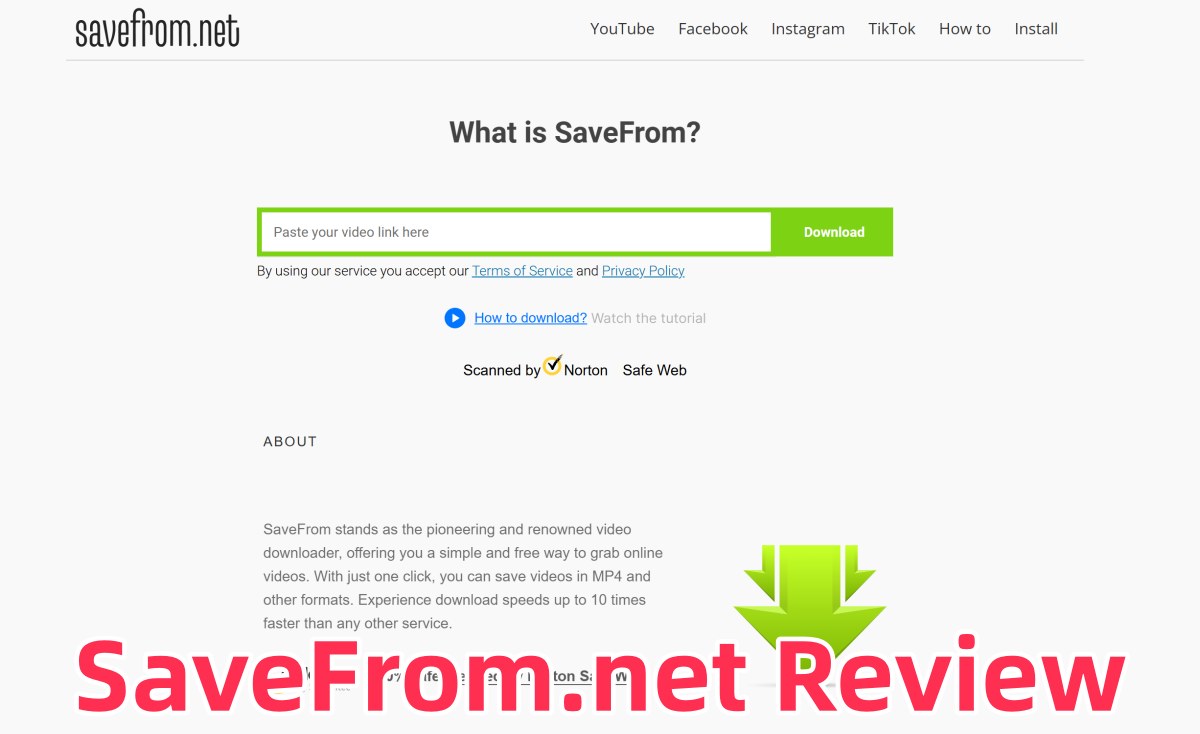
Part 1. Introduction to SaveFrom
SaveFrom is a popular and well developed video downloader that allows users to download videos in different resolutions, including high quality formats. It supports major web browsers such as Chrome, Firefox, and Safari, and works smoothly on both computers and mobile devices. The download process is simple and only requires a few easy steps, making it suitable even for first time users. With SaveFrom, users can save their favorite videos and watch them offline anytime without needing an internet connection.
Part 2. How to Use SaveFrom.net
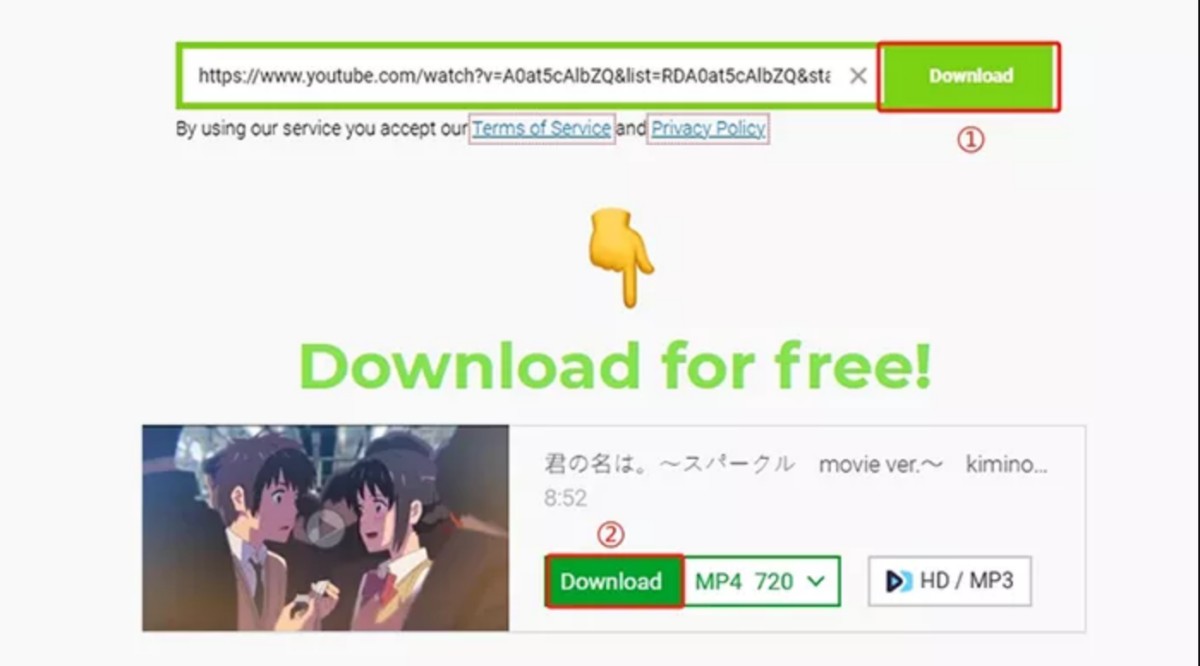
Step 1. Open the video you want to save, copy its URL, and paste the link into the SaveFrom search box.
Step 2. Press the “Download” button, choose your preferred video quality and format, then begin the download process.
Part 3. Is SaveFrom.net Safe to Use?
Many users care about safety and privacy when using third party video download tools. SaveFrom is generally safe to use and has passed security checks from securl.nu. However, users should only use the official SaveFrom website and avoid fake or unknown links that may contain ads, pop ups, or unsafe software. It is also best not to click suspicious download buttons while using the site. In addition, downloaded videos should only be used for personal viewing. Reuploading or using copyrighted videos for commercial purposes may violate copyright laws.
Part 4. Pros & Cons of SaveFrom
✅Pros:
- Simple and user friendly interface
- Completely free to use
- No need to install extra software or apps
❌Cons:
- Download speed can sometimes be slow
- Some videos may not be available for download
- Limited choices for video quality and format
- Does not support batch downloading
Part 5. Common Reasons Why SaveFrom Is Not Working
Many users may face problems when SaveFrom.net cannot download videos properly. Below are some common reasons and simple solutions based on user experience:
⚠️Outdated or Unsupported Browser
An old browser version or conflicting browser extensions may cause SaveFrom to stop working properly.
🛠Solution: Update your browser to the latest version or try using another browser like Chrome, Firefox, or Safari.
⚠️Poor Internet Connection
A weak or unstable network may interrupt the download process.
🛠Solution: Restart your router or switch to a more stable internet connection.
⚠️SaveFrom Server Problems
Sometimes SaveFrom.net may be under maintenance or temporarily unavailable.
🛠Solution: Wait for a while and try opening the website again later.
⚠️Firewall or Security Blocking
Your firewall or security software may block access to SaveFrom.net.
🛠Solution: Add SaveFrom.net to the firewall whitelist or temporarily disable the blocking settings.
⚠️Video Download Restrictions
Some video platforms limit or block video downloads because of copyright protection.
🛠Solution: Try using another professional video downloader that supports more websites and features.
⚠️Regional Access Limitations
SaveFrom.net may not work in some countries or regions because of local policies or restrictions.
🛠Solution: Use a VPN service to change your IP location and access the site again.
After testing SaveFrom, many users find that it is very simple and convenient to use. You only need to copy and paste a video link into the search box to start downloading, and no software installation is required. It is also free to use.
However, SaveFrom mainly offers basic download features. It does not support advanced functions like batch downloading or subtitle management, and the download speed may sometimes be slow. If you need more powerful features and better performance, using a dedicated video downloader may be a better choice.
Part 6. Best Alternative to SaveFrom: iMovieTool
iMovieTool All-in-One Video Downloader is a simple and convenient tool for downloading movies, TV shows, and online videos for offline viewing. It supports many popular streaming platforms and allows users to save videos in MP4 or MKV format while maintaining high video quality. The software is designed to make video downloading quick and easy for all users.
Compared with SaveFrom or other online download websites, iMovieTool offers faster download speed, more stable performance, and a safer experience without ads or pop ups. It also supports batch downloads, allowing users to download multiple videos at once. In addition, users can save subtitles and multilingual audio tracks. With its clean and user friendly interface, both beginners and experienced users can easily search for videos, select output settings, and start downloading in just a few clicks.
👍Key Features of iMovieTool All-in-One Video Downloader
- Download videos from Netflix, Disney+, Amazon Prime, YouTube, etc.
- Download streaming videos MP4/MKV in HD 1080p/720p.
- Keep original audio tracks and subtitles in multilingual.
- Batch download streaming video at 50x faster speed.
- Save video permanently for offline playback on any device.
- Built-in web browser for easy operating across streaming platforms.
- Compatible with Windows and Mac.
Guide: How to Download YouTube Movie with iMovieTool
Step 1. Choose YouTube and Sign In
Install and launch iMovieTool All in One Video Downloader on your computer. On the home screen, you will see support various streaming services. Select YouTube and sign in with your YouTube account to access the built in web player.
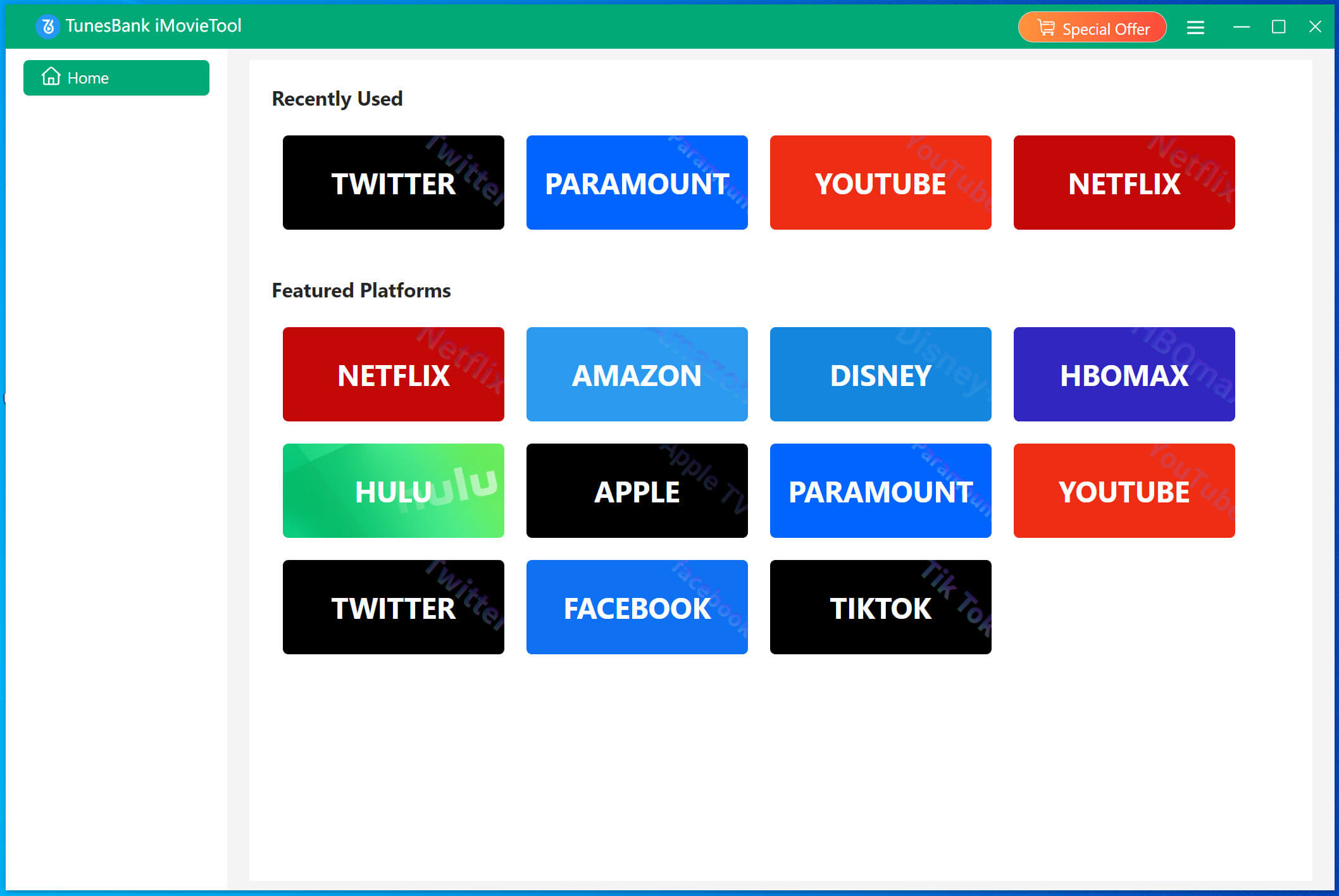
After signing in, you will enter the main interface where you can search and download YouTube movie directly.
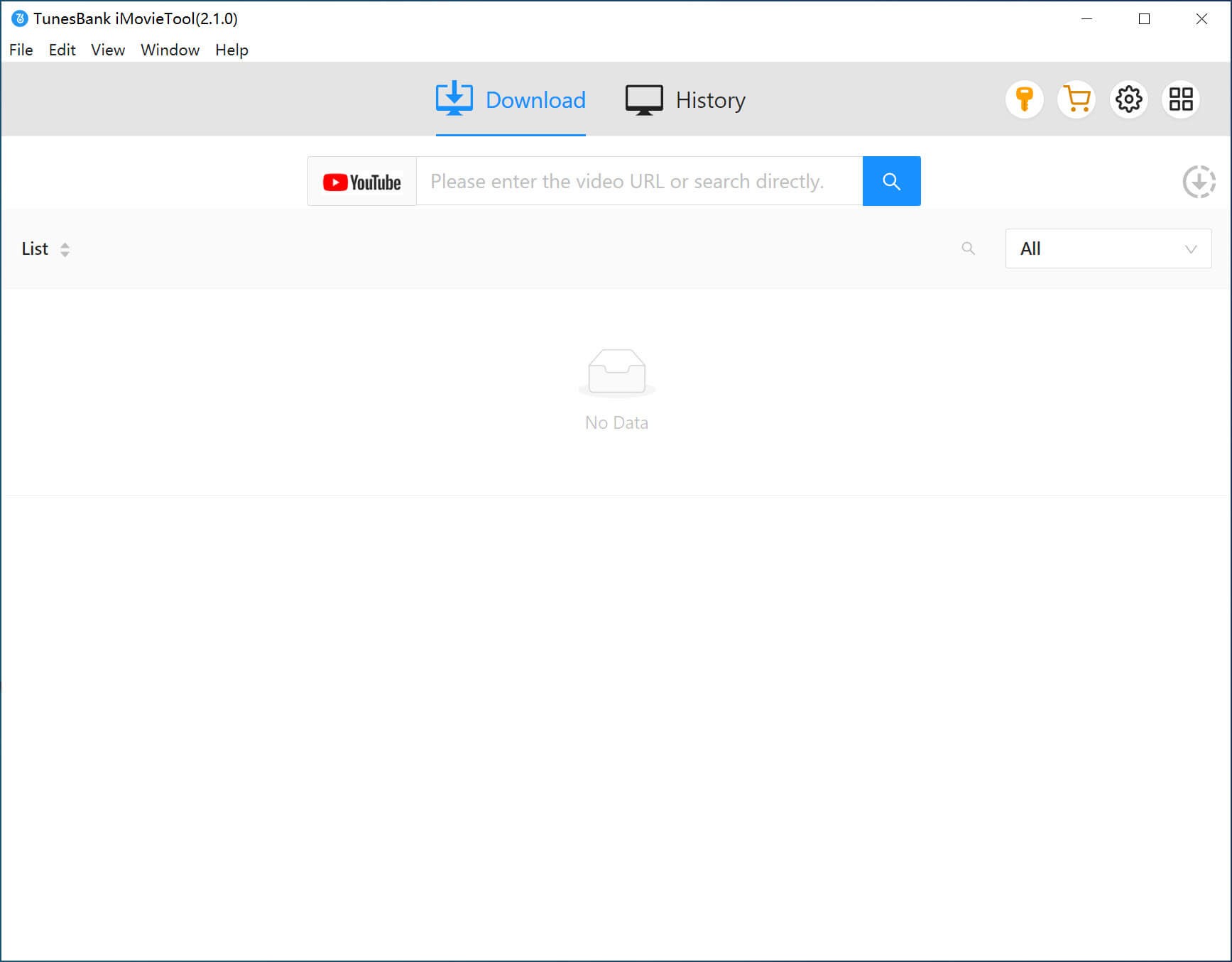
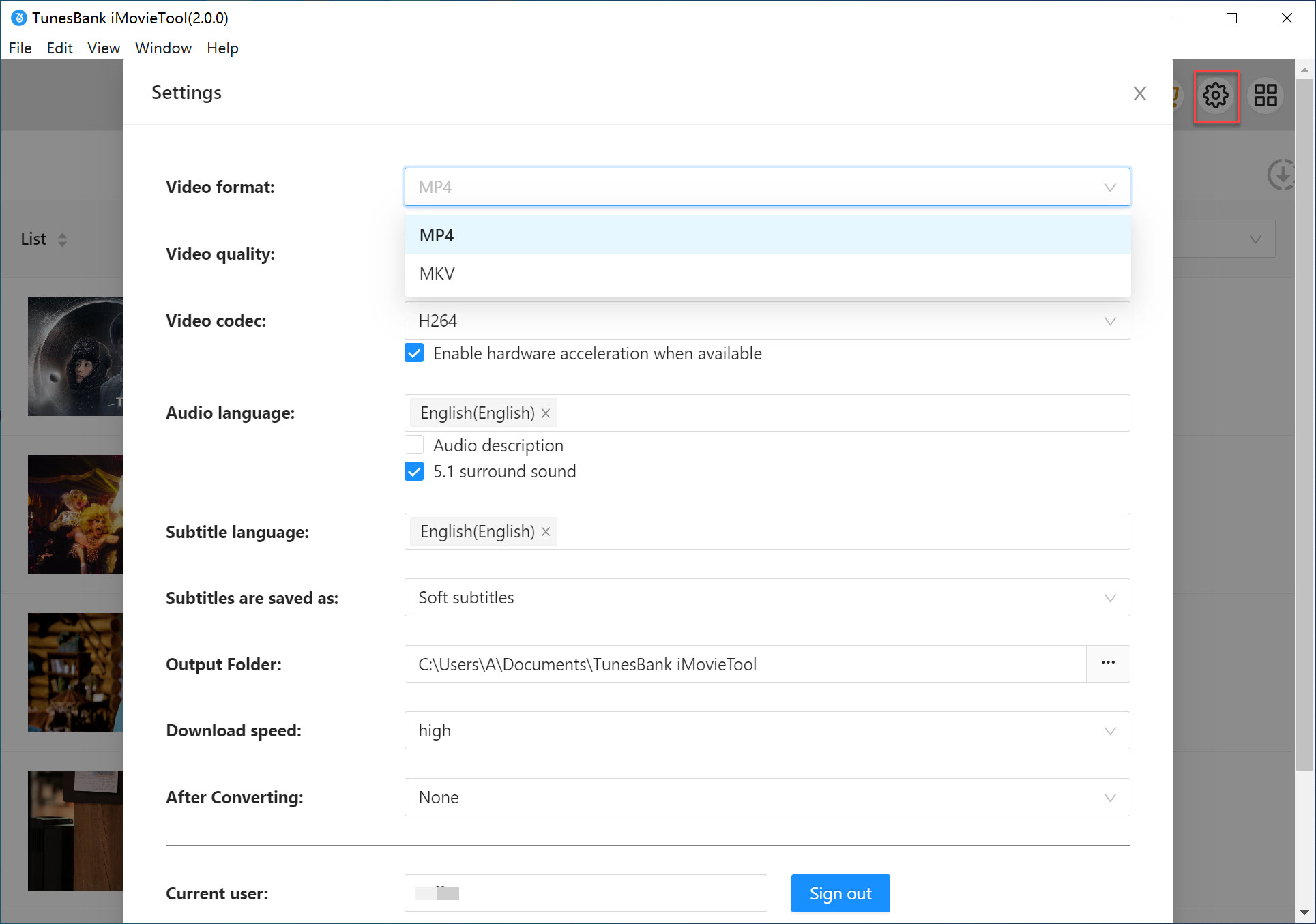
Step 2. Set Your Download Preferences
Click the “Gear” icon in the top right corner to open the settings menu. From there, you can choose MP4 or MKV as the output format, select the video quality, set your preferred audio and subtitle language, and choose where to save the downloaded videos.
Step 3. Search for the YouTube Movie
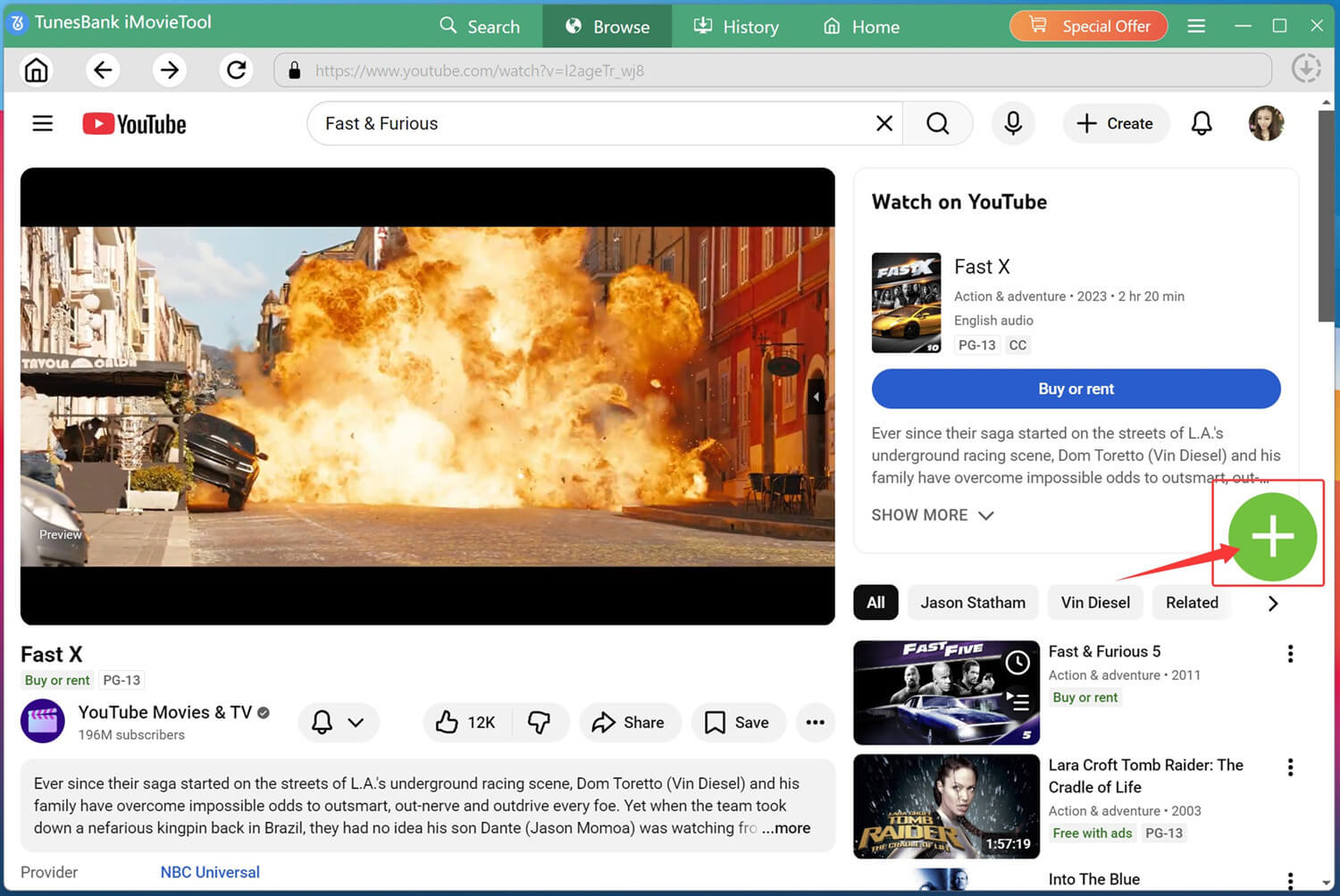
Go to the “Browse” section and enter the name of the movie you want to download. For example, you can search for Fast & Furious.
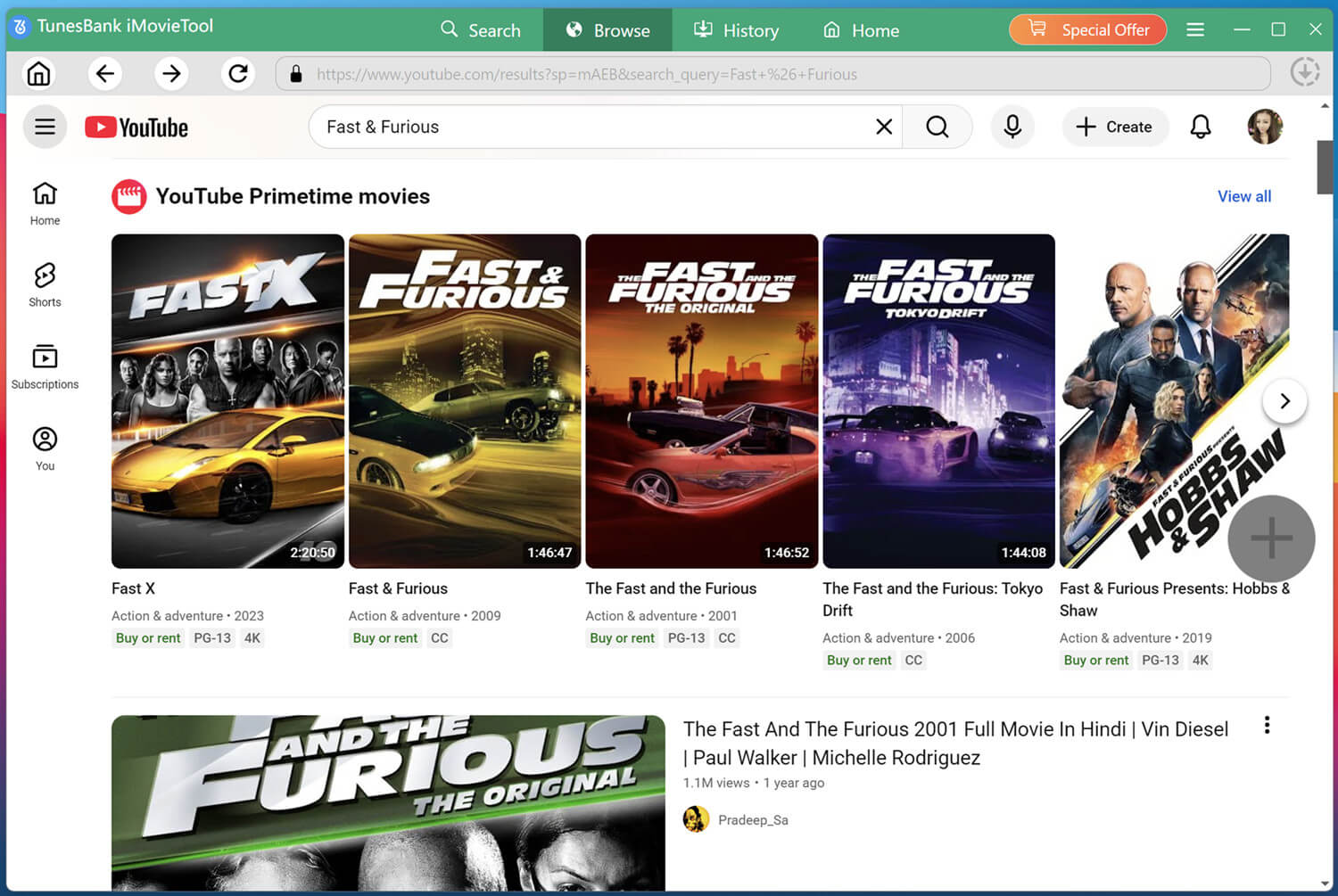
When the search results appear, click the green “+” icon next to the movie title to add it to the download list.
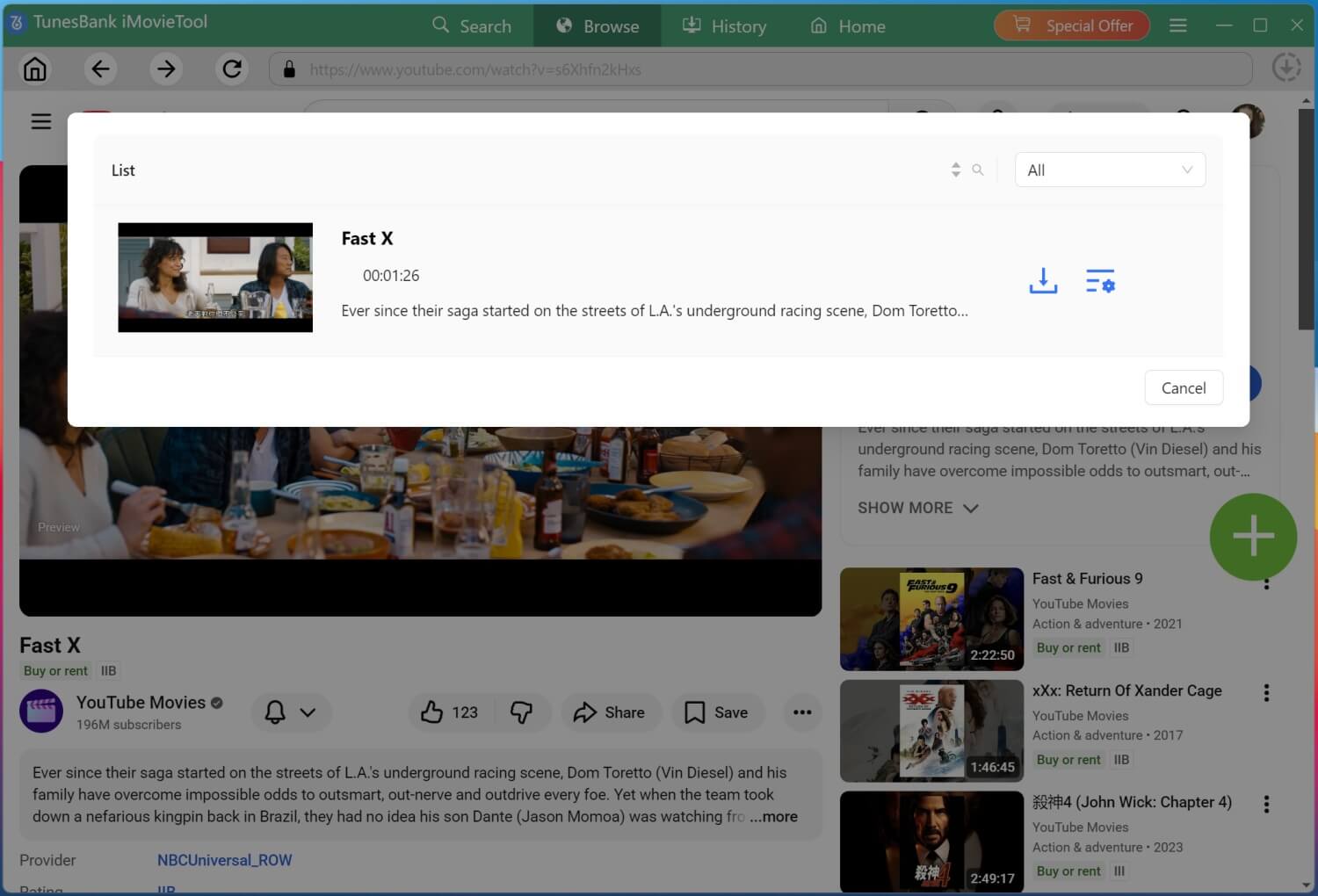
A pop up window will then appear, showing the movie details along with the Download and Settings options.
Step 4. Start Downloading the YouTube Movie
Click the “Download” button to begin downloading the selected YouTube movie. The software will save the video to your computer in MP4 or MKV format.
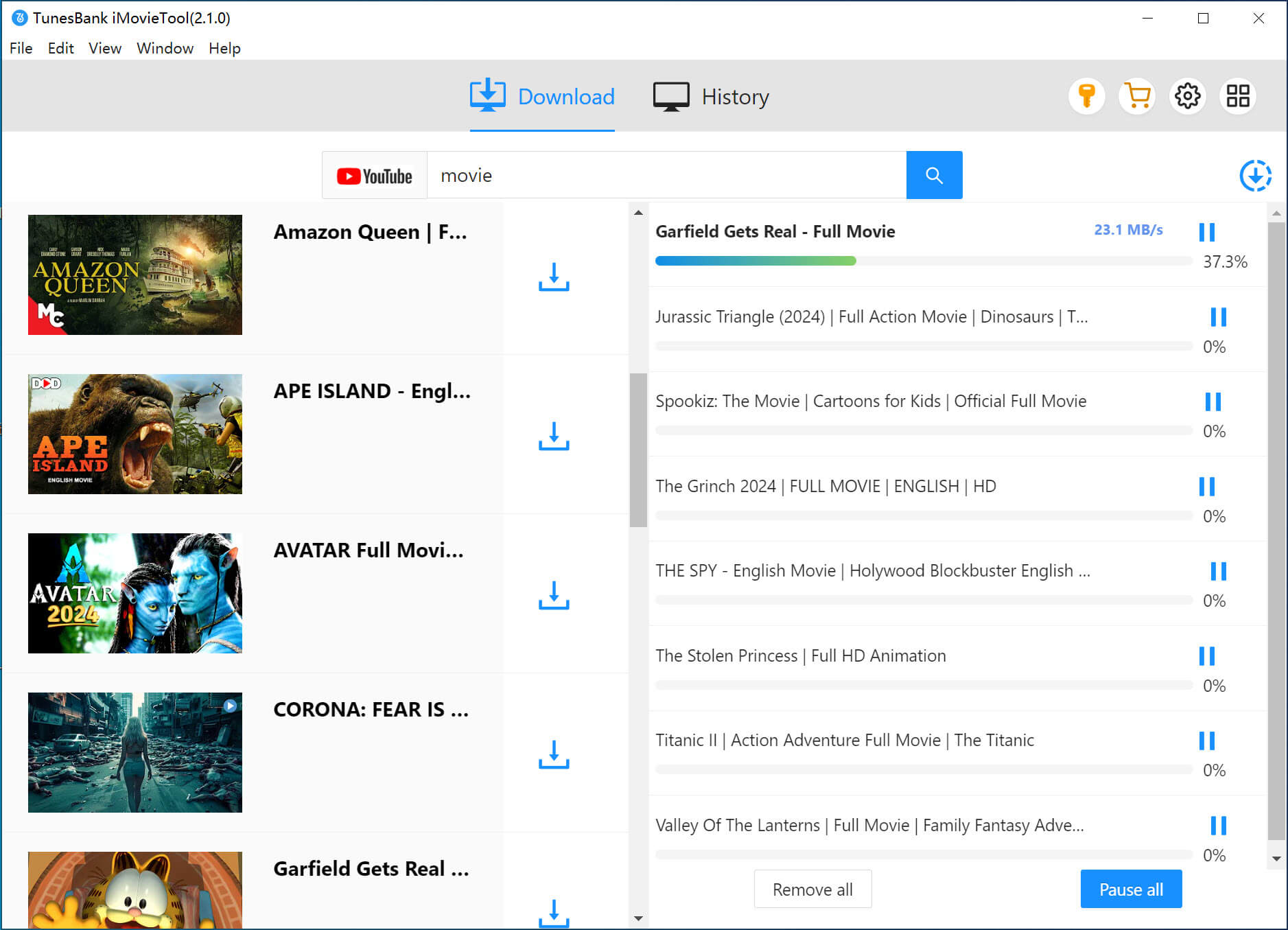
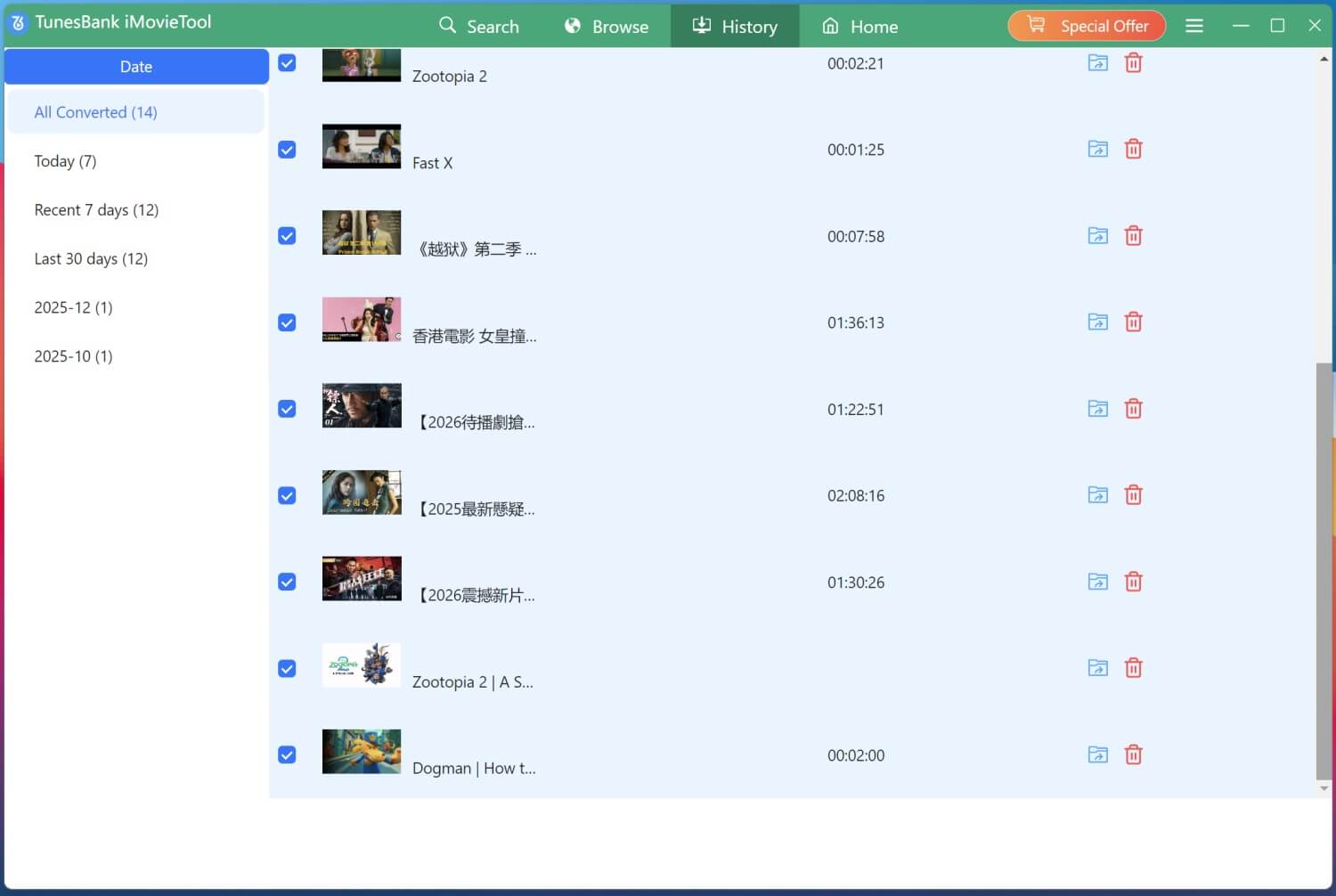
After the download is finished, you can find the video in the output folder you selected. You can watch it on your computer anytime or transfer it to other devices for offline viewing.
Part 7. Comparison: SaveFrom vs. iMovieTool
To make it easier for users to compare these two tools, the table below shows their main features and differences:
| Feature | SaveFrom | iMovieTool |
|---|---|---|
| Supported Platforms | Supports many websites like YouTube, Facebook, and Instagram | Supports Netflix, Amazon Prime Video, Disney+, YouTube, and more |
| Ad Free Experience | Not available | Automatically removes ads |
| Supported Formats | MP3, MP4, and other common formats | MP4/MKV |
| Video Quality | Usually up to 720p, sometimes lower | Supports 1080p and 720p |
| Download Speed | Normal download speed | Up to 50X faster speed |
| Advanced Video Support | Not available | Supports downloading protected streaming videos |
Conclusion
This review explained how to use SaveFrom, discussed its safety, and reviewed its pros and cons, along with common reasons why it may not work properly. SaveFrom is a good option for simple video downloads, but users who need faster speed, batch downloading, and higher video quality may find iMovieTool All-in-One Video Downloader to be a better and more reliable choice.
The Latest Articles
– Top 8 Solutions to Download Streaming Video
– Top 10 Free Movie Download Sites Recommended
– 3 Ways to Download Movies to Watch Offline
– 2 Verified Methods to Download X/Twitter Videos to MP4
– Download Twitter(X) Videos on PC, Mac and Mobile Phone
– Download Facebook Videos on PC, Mac and Mobile Phone
– 3 Ways to Download Facebook Video to MP4

iMovieTool Video Downloader
Download videos to MP4 and MKV in 1080p/720p. Download Netflix, Amazon Prime Video, Disney+, HBO Max, Hulu, Apple TV+, YouTube, and Paramount+ movie/shows onto computer. Download HD videos from X/Twitter, Instagram, Facebook, and TikTok.







