








 United States (English)
 Japan (日本語)
 Russia (русский)
 Germany (Deutsch)
 France (Français)
 Spain (Español)
 Italy (Italia)
 Portugal (Portugues)
 China (繁体中文)
 Turkish (Türk dili)
 Dutch (Nederlands)
 Korean(한국인)
 Saudi Arabia(عربي)
 Download HD movies & TV shows from Disney Plus.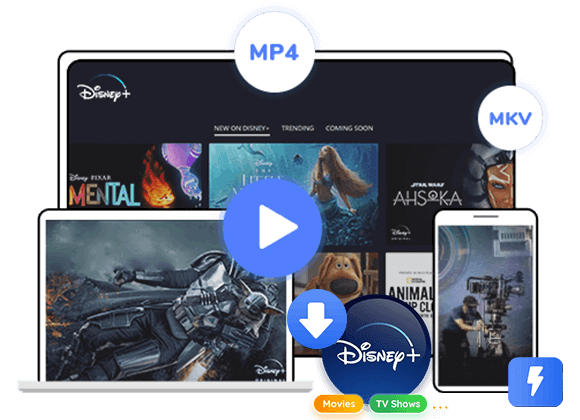
Having trouble with Disney Plus downloads or Disney Plus not working? In this guide, we will share effective ways to fix Disney Plus not working and solve common playback or download issues. We will also introduce a powerful tool that lets you download Disney Plus videos to MP4, so you can watch them offline on any device without restrictions.
Many people run into Disney Plus not working. Even though it is a very popular streaming service, problems like network issues, account errors, device compatibility, and regional restrictions can stop it from working. This often leaves users stuck opening the app, seeing errors, and restarting.
To fix Disney Plus not working, this guide shares tips from tech websites and real users. You will find easy steps and advanced solutions to solve common issues, including error code 42, 41, and connection problems. Plus, we will show you an ultimate solution to download Disney Plus to MP4 on your computer, so you can play them on any device without errors and limits.
Part 1. Reasons Why Disney Plus is Not Working
⚠️Internet connection problems
Slow or weak internet can stop Disney Plus from loading videos correctly. It may also cause buffering, freezing, or playback errors.
⚠️App glitches or errors
The Disney Plus app may sometimes have bugs or temporary problems that cause crashes, loading issues, or playback failures.
⚠️Server issues
Disney Plus servers can go down or become busy, making it hard to log in, stream videos, or use some features.
⚠️Outdated devices
Older devices or systems may not fully support the latest Disney Plus app, which can lead to performance or playback problems.
⚠️Incorrect account settings
Issues like login errors, expired subscriptions, or wrong account details can stop you from accessing Disney Plus content.
⚠️Regional restrictions
Some Disney Plus content is only available in certain countries, so trying to watch from a restricted region may cause errors.
Part 2. Easy fixes Disney Plus Not Working
🛠Solution 1. Check Your Internet Connection
A slow or unstable internet connection can stop Disney Plus from working properly. Make sure your internet speed is fast enough for streaming. You can restart your router, reconnect to WiFi, or use a wired connection for a more stable network. Also, avoid using too many devices on the same Disney Plus account at once.
🛠Solution 2. Clear Disney Plus Cache and Data
Cache files and app data may sometimes cause Disney Plus to freeze or fail to load. Clearing the cache can remove temporary files and help the app run smoothly again. Go to Settings > Apps > Disney Plus > Storage > Clear Cache on your device.
🛠Solution 3. Force Close and Restart Disney Plus
If Disney Plus keeps freezing or staying on the loading screen, try force closing the app and opening it again. This can refresh the app and fix temporary problems. Go to Settings > Apps > Disney Plus > Force Stop, then reopen the app.
🛠Solution 4. Update or Reinstall the App
An old version of Disney Plus may cause playback or login problems. Check the App Store or Google Play Store for updates. If the issue continues, uninstall and reinstall Disney Plus to get a fresh and updated version of the app.
Part 3. How to Fix Common Error Codes
Disney Plus may show error messages to help explain what is going wrong, making it easier to identify and fix the issue. Below is a simple guide to the most common error codes and how to solve them.
⚠️Error 24/43: This usually means your internet connection is unstable.
You can fix it by restarting your router or switching to a stronger and faster network.
⚠️Error 73: This appears when you try to access content that is restricted in your region.
To solve it, turn off any VPN and make sure your account region matches your current location.
⚠️Error 83: This is often caused by device compatibility issues or an outdated system.
You can fix it by updating your device system, checking if your device is supported (especially for Fire TV), updating the Disney Plus app, or reinstalling the app.
Part 4. Ultimate Solution to Fix Disney Plus Not Working
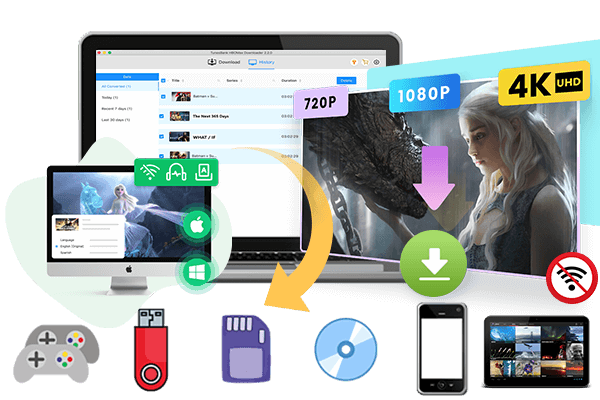
If nothing else works, you can use a specialized tool to help you access Disney Plus content without interruptions. TunesBank Disney Plus Video Downloader is a powerful software that can help fix Disney Plus not working by allowing users to download movies and shows from Disney Plus to MP4 or MKV directly to their computer. With this tool, you can save Disney Plus videos in high quality and watch them offline anytime, even when your network is unstable. It is easy to use, supports batch downloads, and keeps the original video quality intact, making it a reliable solution for users who frequently encounter playback issues or error codes on Disney Plus.
👍Main Features of TunesBank Disney Plus Video Downloader
- Download Disney Plus movies and shows to MP4/MKV in HD 720P.
- Batch download Disney Plus videos at 50X faster speed.
- Keep audio track and subtitles multilingual.
- Save Disney Plus video forever for offline playing on any device.
- Built-in web browse, easy to use, no Disney+ app required.
- Fully compatible with Windows & Mac.
Guide: How to Download Disney Plus Video to MP4 with TunesBank
Step 1. Open TunesBank Disney+ Downloader
Launch TunesBank Disney+ Downloader on your computer and sign in to the built in Disney+ web player with your Disney+ account.
Step 2. Choose Disney+ Movies or TV Shows
Click the “Browse” section at the top of the screen to explore movies and TV shows by category or genre.
Select the movie or series you want to save and start playing it. Then click the “+” icon, and the software will automatically analyze the video.
You can directly click the “Download” icon to start, or open the “Gear” icon to change the output settings first.
Step 3. Set MP4 as the Output Format
Open the settings window by clicking the Menu icon in the top right corner. Here, you can choose MP4 or MKV as the output format, adjust video quality, select audio and subtitle languages, and change the output folder.
Step 4. Start to Download Disney+ Videos to MP4
Click the “Download” button to begin downloading Disney+ movies or TV shows to your computer in MP4 format.
During the download process, you can continue adding more videos for batch downloading.
Step 5. View Downloaded Disney+ Videos
After the download finishes, go to the “History” section to see all downloaded videos. Click the blue folder icon next to the video title to open the output folder and access your saved Disney+ videos in MP4 format.
Conclusion
If you find Disney Plus not working, first check your internet connection. Restarting your router or changing to another network can often fix the problem. You can also try clearing the app cache, force restarting the app, or updating Disney Plus to the latest version. For error codes like 24/43, 73, or 83, you may need to reset your network, check regional settings, or update your device system.
To better fix Disney Plus not working, you can also try TunesBank Disney Plus Video Downloader. It allows you to download Disney Plus movies and shows for offline watching, so you can enjoy videos more smoothly without streaming problems.
The Latest Articles
– Top 8 Solutions to Download Streaming Video
– Top 10 Free Movie Download Sites Recommended
– 3 Ways to Download Movies to Watch Offline
– 2 Verified Methods to Download X/Twitter Videos to MP4
– Download Twitter(X) Videos on PC, Mac and Mobile Phone
– Download Facebook Videos on PC, Mac and Mobile Phone
– 3 Ways to Download Facebook Video to MP4

Disney+ Video Downloader
Download any Disney+ movies/series/originals to MP4/MKV in high quality on your computer.







