








 United States (English)
 Japan (日本語)
 Russia (русский)
 Germany (Deutsch)
 France (Français)
 Spain (Español)
 Italy (Italia)
 Portugal (Portugues)
 China (繁体中文)
 Turkish (Türk dili)
 Dutch (Nederlands)
 Korean(한국인)
 Saudi Arabia(عربي)
 Download Netflix Movies and TV shows to watch offline.
Are you looking for a way to download Netflix shows on Mac for offline viewing? This article is for you! Here we will introduce a powerful Netflix video downloader, it can help you download TV shows from Netflix on Mac in batches, and save them as local MP4/MKV files for permanent offline playback.
Netflix is home to thousands of popular TV shows, Netflix Originals, documentaries, and binge-worthy series, including Stranger Things, Bridgerton, Squid Game, Wednesday, The Witcher, and many more. Watching Netflix shows on a MacBook or iMac offers a much more immersive viewing experience than a smartphone. However, streaming Netflix online isn’t always ideal, especially when you encounter buffering, loading issues, unstable internet connections, or playback interruptions. Therefore, many Mac users are looking for ways to you download Netflix shows on Mac for viewing offline.
Actually Netflix doesn’t provide an official method to download Netflix on Mac. Fortunately, there are reliable alternatives. In this guide, you’ll get a powerful Netflix video downloader for Mac and learn how to download Netflix shows to Mac as HD MP4 files. Afterwards, you can easily enjoy your favorite Netflix shows on your iMac or MacBook offline anytime, anywhere.
Can You Download Netflix Shows on Mac?
The short answer is No. Normally, mobile users use Netflix’s built-in download feature to download Netflix shows to watch offline. However, Mac users can only watch Netflix content on your Mac through a web browser web browsers like Safari, Chrome, or Firefox, because Netflix hasn’t released a dedicate app for macOS.
Even then, downloaded Netflix titles are protected by DRM, meaning they can only be watched within the Netflix mobile app. The Netflix downloads cannot be transferred to other devices, including an iMac or MacBook, and they may expire after a certain period. Luckily, there are many third-party Netflix downloader tools can help you download and save Netflix shows to your Mac permanently.
Best Netflix Video Downloader for Mac
When it comes to downloading Netflix TV shows on Mac, iMovietool Netflix Video Downloader is one of the most reliable tools available.
iMovietool Netflix Video Downloader is an innovative tool to enhance your viewing experience by allowing you to download Netflix TV shows and movies to local computer as MP4 or MKV files. The program has a built-in Netflix web player, letting users browse, search, and download Netfilx TV shows on your MacBook/iMac directly, without having the Netflix app installed. What’s more, it supports downloading Netflix videos in up to Full HD 1080p quality while preserving multilingual audio tracks and subtitles in various languages.
The tool can batch-download Netflix shows and movies at a speed of 50X faster. Whether you want to download a full season of a show on Netflix on Mac, or download multiple Netflix movies on Windows, it can help you quickly complete the task. Best of all, it works with all Netflix regions and subscription plans, including Standard With Ads, Standard, and Premium.
Features of iMovieTool Netflix Video Downloader:
- Download Netflix movies, TV shows, TV dramas, videos, etc.
- Download Netflix shows on Mac as MP4 or MKV files
- Download Netflix TV shows on MacBook or iMac at 50X faster speed
- Download Netflix videos in 720p or 1080p Full HD quality
- Keep original audio, and even download 5.1 surround sound
- Batch download entire Netflix seasons in one click
- Save subtitles as soft, hard, or external subtitle files
- Save Netflix TV shows permanently without expiration
- Compatible with MacBook, iMac, and Windows PCs
- Watch Netflix shows offline on Mac with other players
How to Download Netflix Shows on Mac as MP4 HD Files
In this section, we will show you two detailed tutorial on how to download Netflix shows on Mac with iMovieTool Netflix Video Downloader.
1. Download Netflix Shows on Mac in MP4 HD
Step 1. Select Netflix and Login
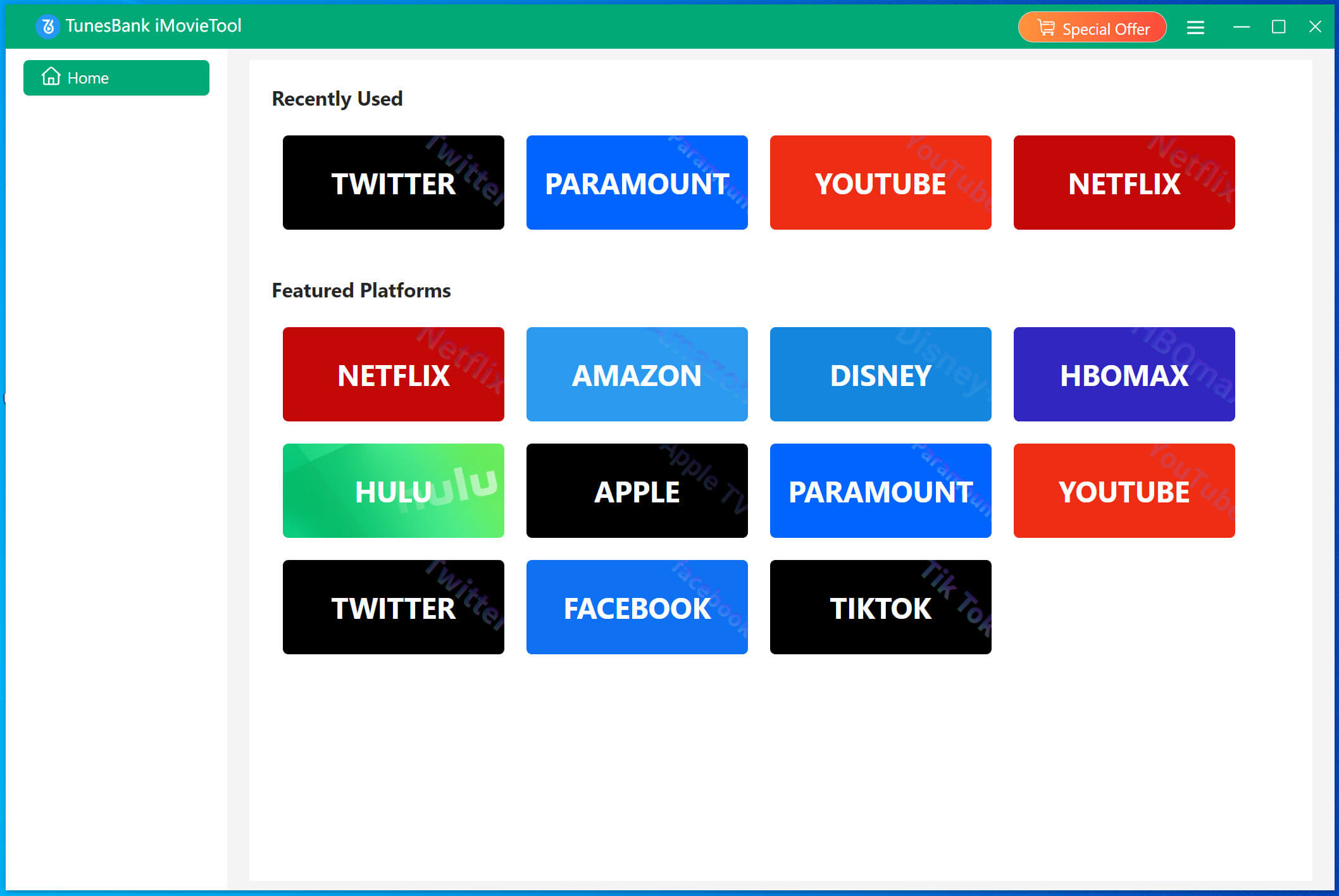
First, download and install TunesBank iMovieTool to your iMac or MacBook. Launch the application on your Mac. Select Netflix from the supported streaming services, you will then go to the iMovieTool Netflix Video Downloader.
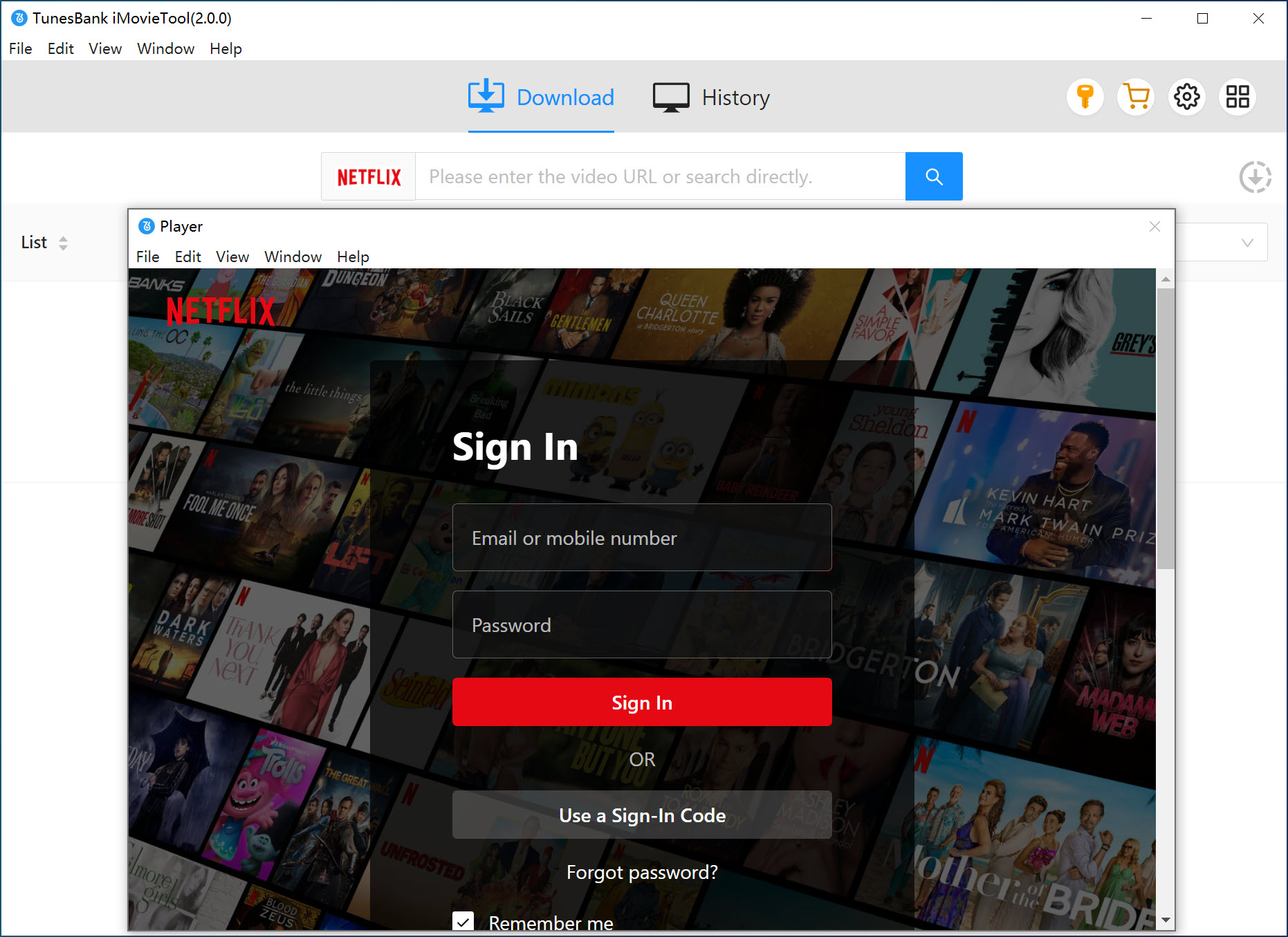
Sign in to your Netflix ad-free or ad-supported account to access the full content library available under your subscription plan.
Step 2. Define Output Settings
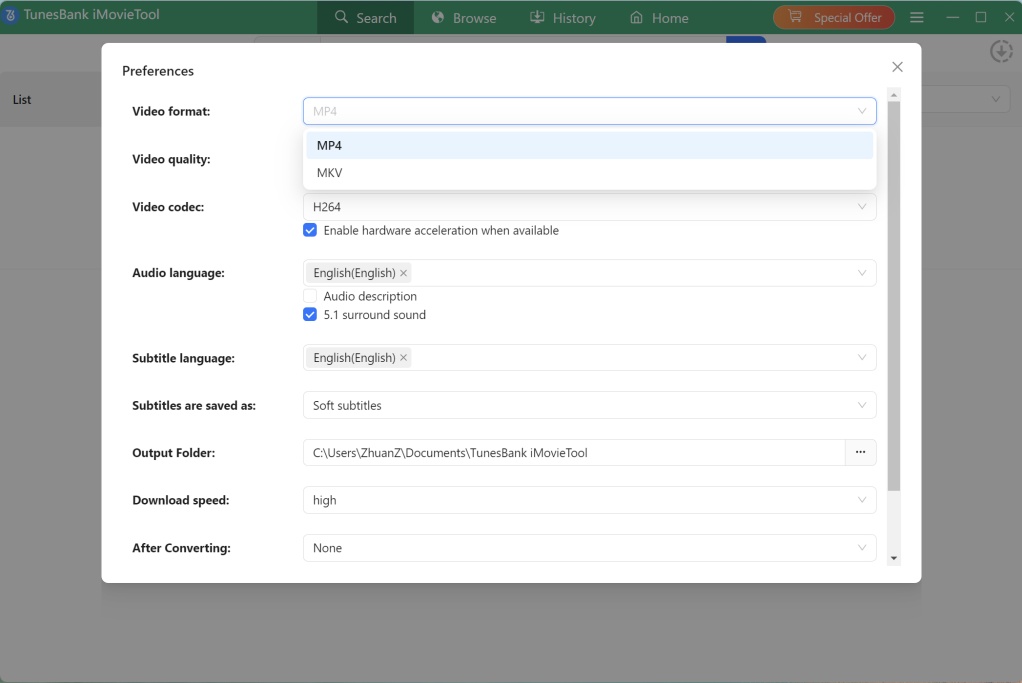
Click on the Menu icon at the top right corner of iMovieTool, and select “Preferences” option. In the pop-up window, you can select MP4 or MKV format, adjust video quality, choose subtitle type, set audio language, and specify the output folder for downloaded Netflix shows.
Step 3. Add Netflix TV Shows to iMovieTool in 3 Ways
Now that iMovieTool is configured, it’s time to locate the content you want to download. You have several convenient ways to search for any TV show or web series.
Method 1. Search Netflix TV Shows by Name or KeyWord
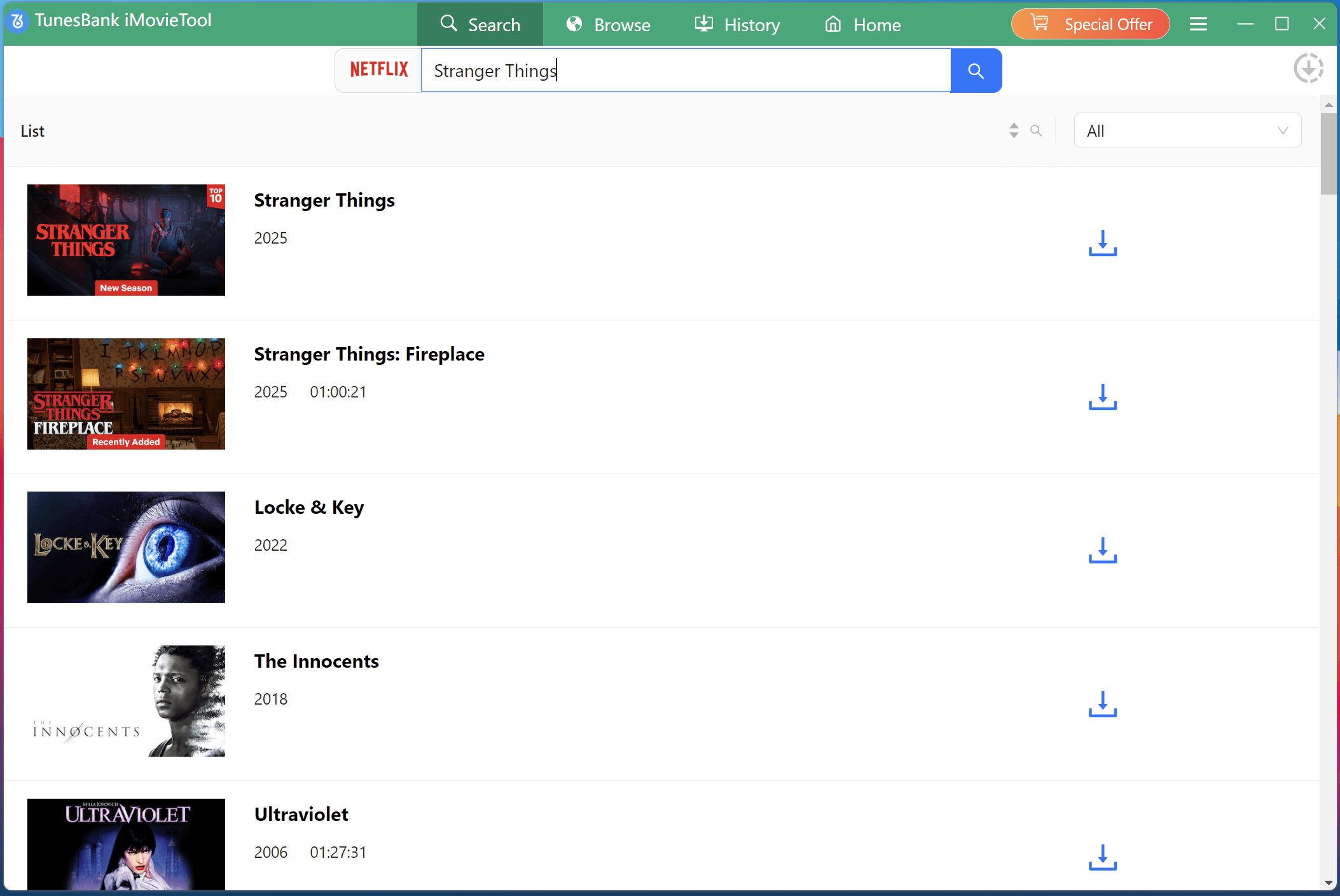
First, tap “Search” tab, simply type the keyword or title of a Netflix series into the search bar. iMovieTool will quickly display matching results from the Netflix catalog.
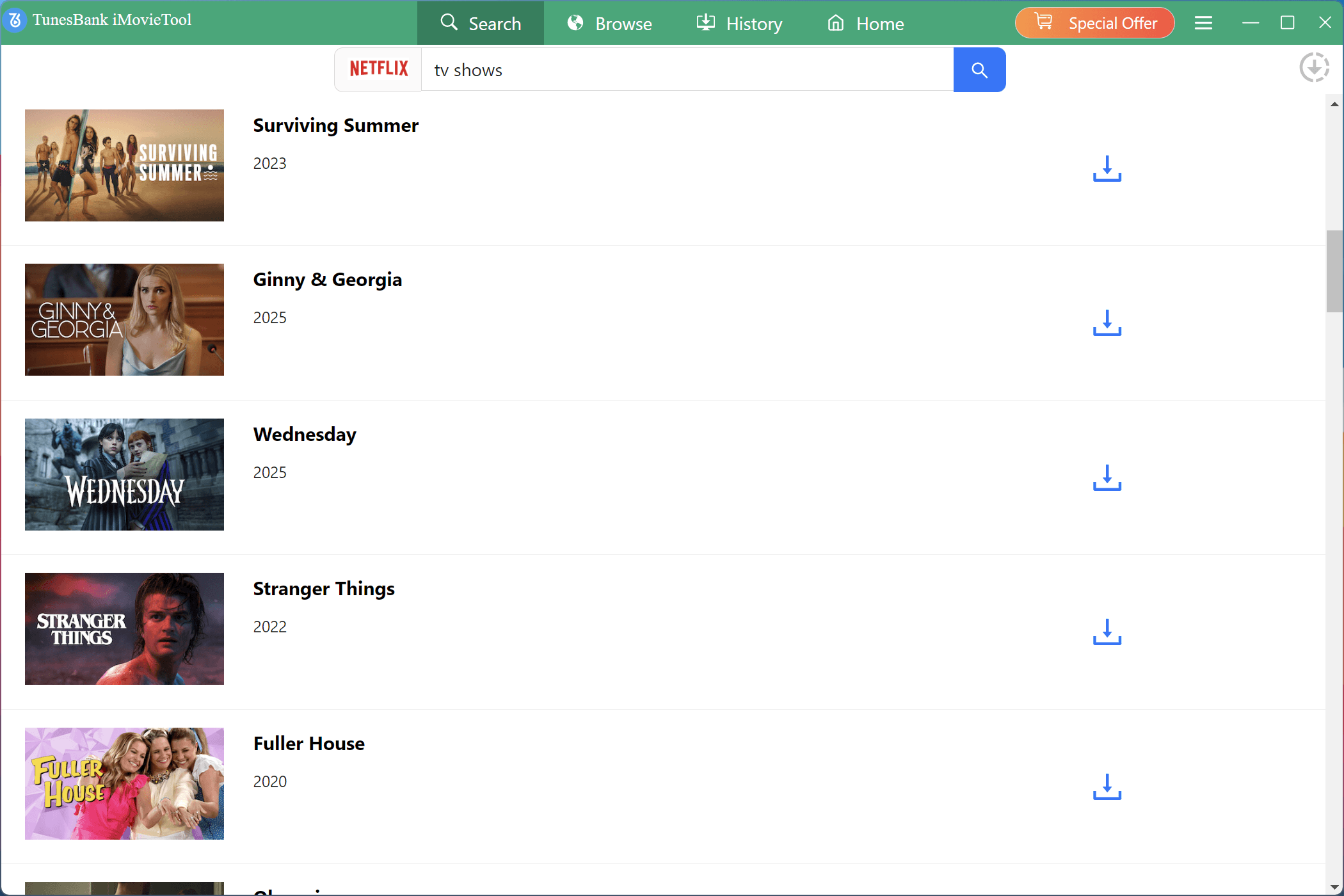
For our example, type “Stranger Things” and press Enter. iMovieTool will display search results from Netflix, showing matching TV shows.
Method 2. Search Netflix TV Shows Using URL
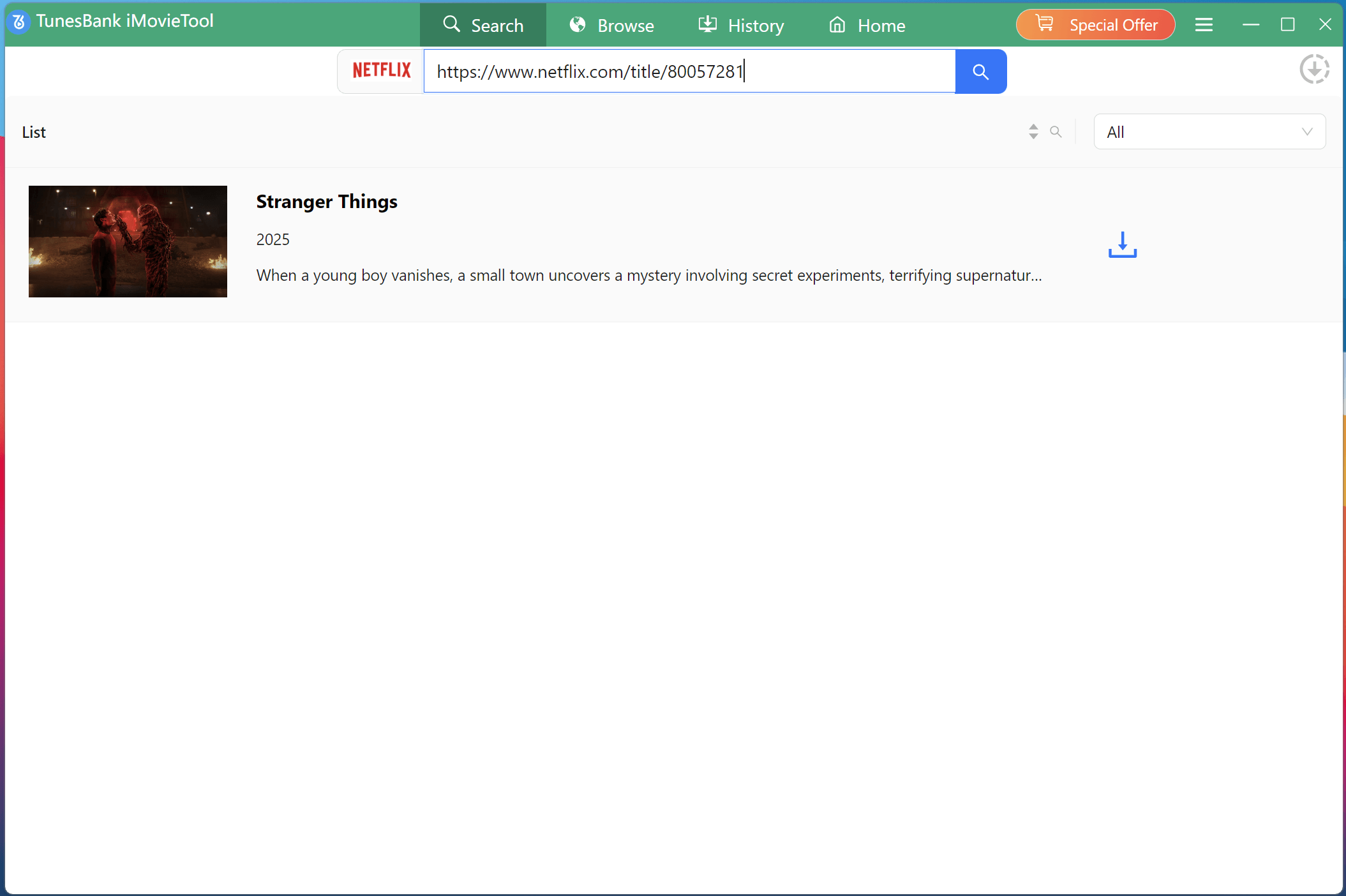
If you already have a Netflix webpage open in your regular browser, copy the URL of the TV show’s page. Then paste that URL into iMovieTool’s address bar and press Enter. The software will instantly load the same page, allowing you to proceed without typing the title.
Step 4. Select Desired Netflix TV Episodes
Under “Search” tab: Click the “Download” icon next to the title. In the pop-up window, you’ll see all seasons of Stranger Things (Season 1, 2, 3, 4, etc.). Select the season you want, or expand each season to select individual episodes.
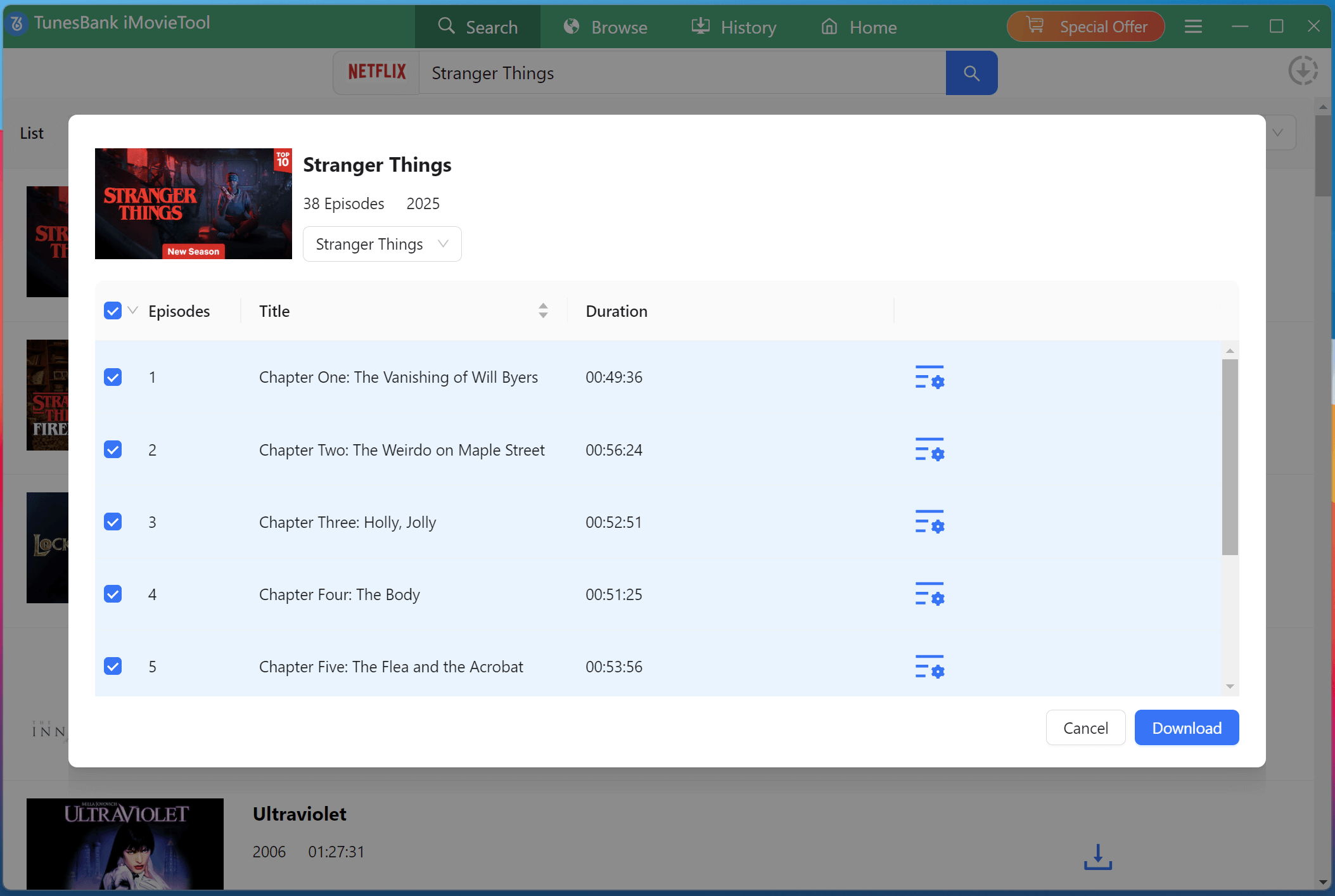
Tips: Click on the “Advanced Gear” icon next to any episode to change the format, quality, audio track, or subtitle language for that individual file.
Step 5. Start Downloading Netflix TV Shows on Mac
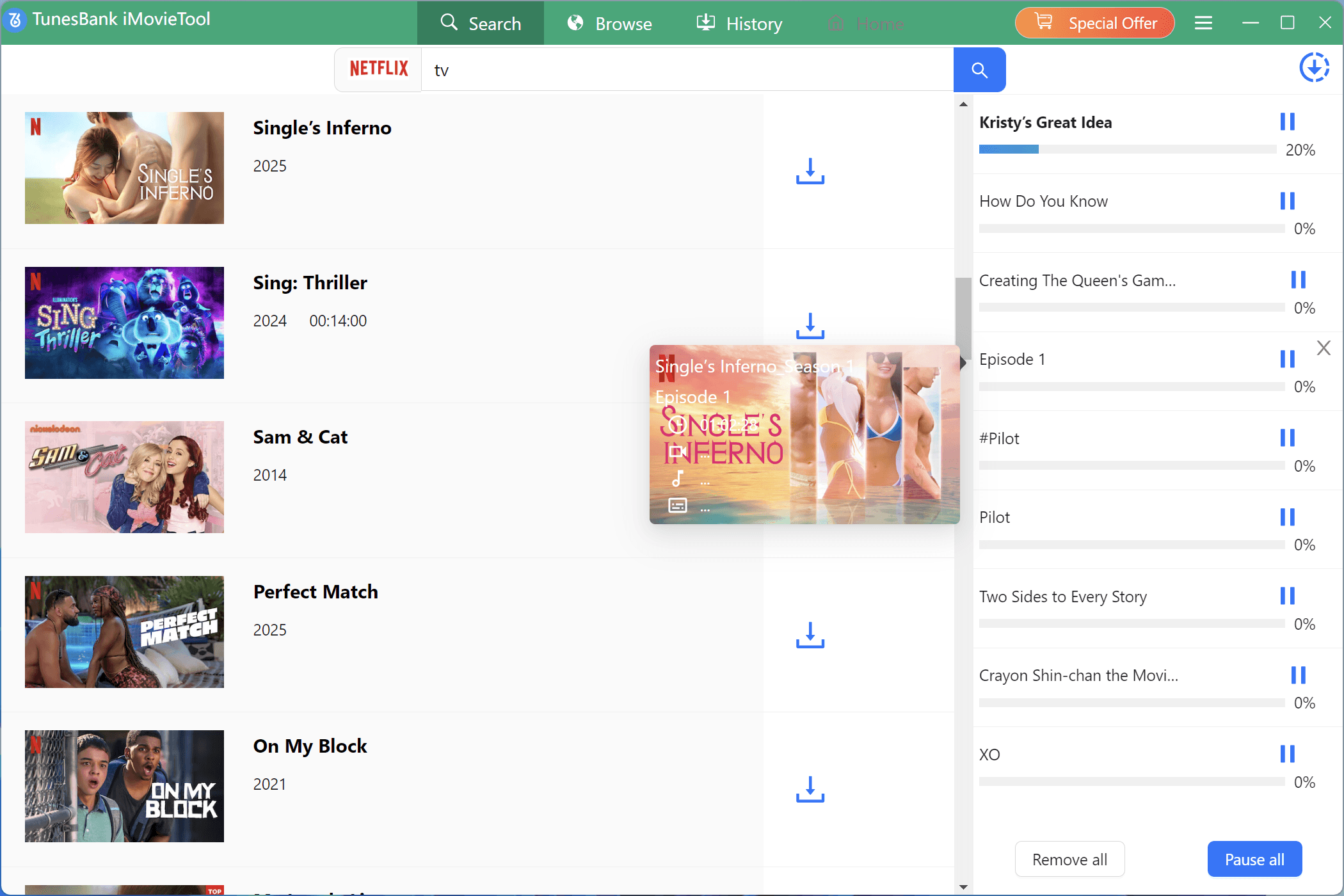
After confirming your selections, click the “Download” button. iMovieTool will start downloading the chosen Netflix episodes to your Mac in high-quality MP4 or MKV format while retaining original audio tracks and subtitles.
Step 6. Get Downloaded Netflix TV Shows
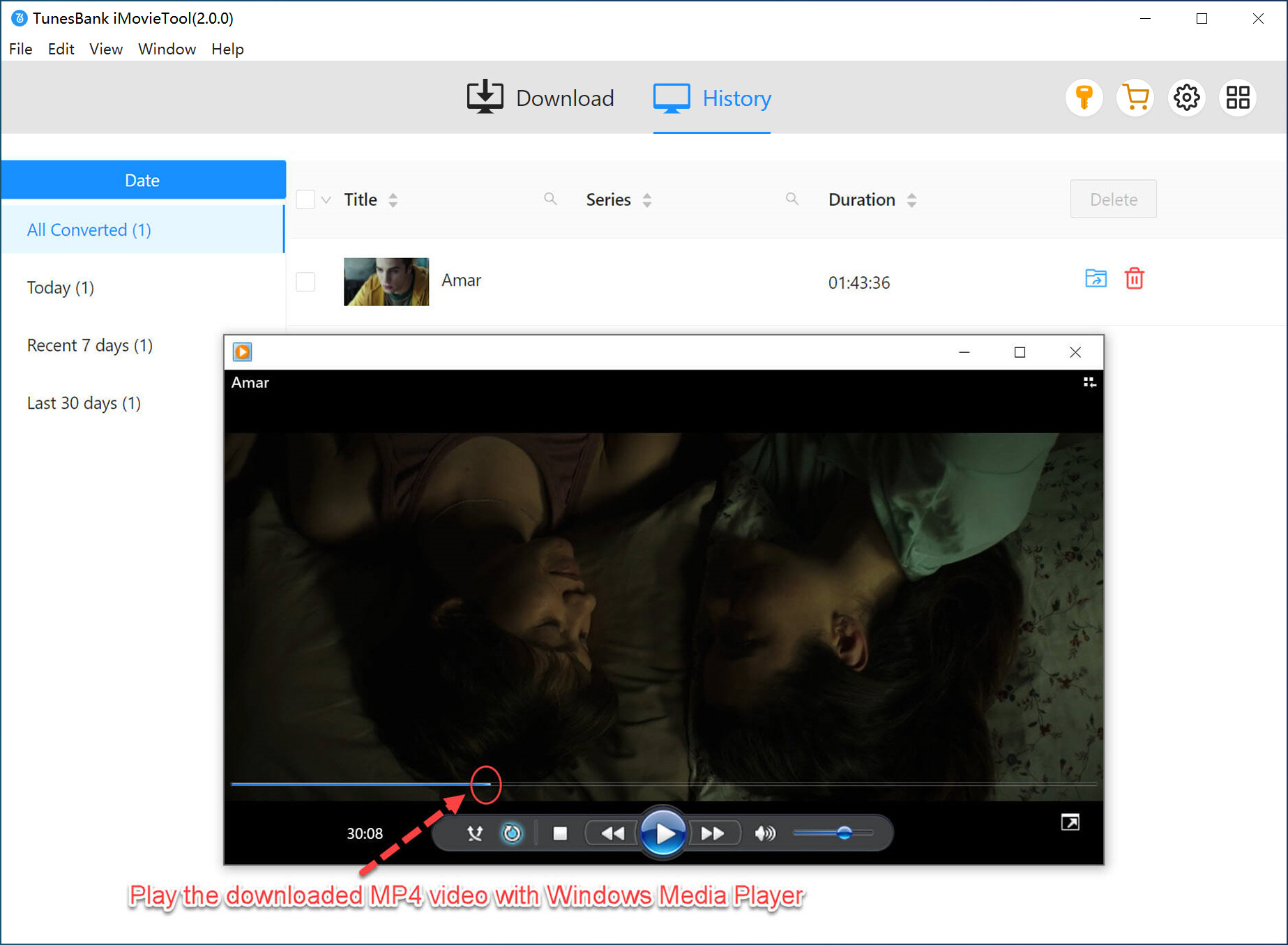
After iMovieTool finishes processing all episodes, navigate to the “History” tab. Here you’ll see a list of successfully downloaded Netflix shows. You can now watch Netflix shows offline on your Mac anytime without relying on the Netflix app or an internet connection.
2. Batch Download Netflix TV Shows on Mac
Step 1. Enter iMovieTool Netflix Video Downloader
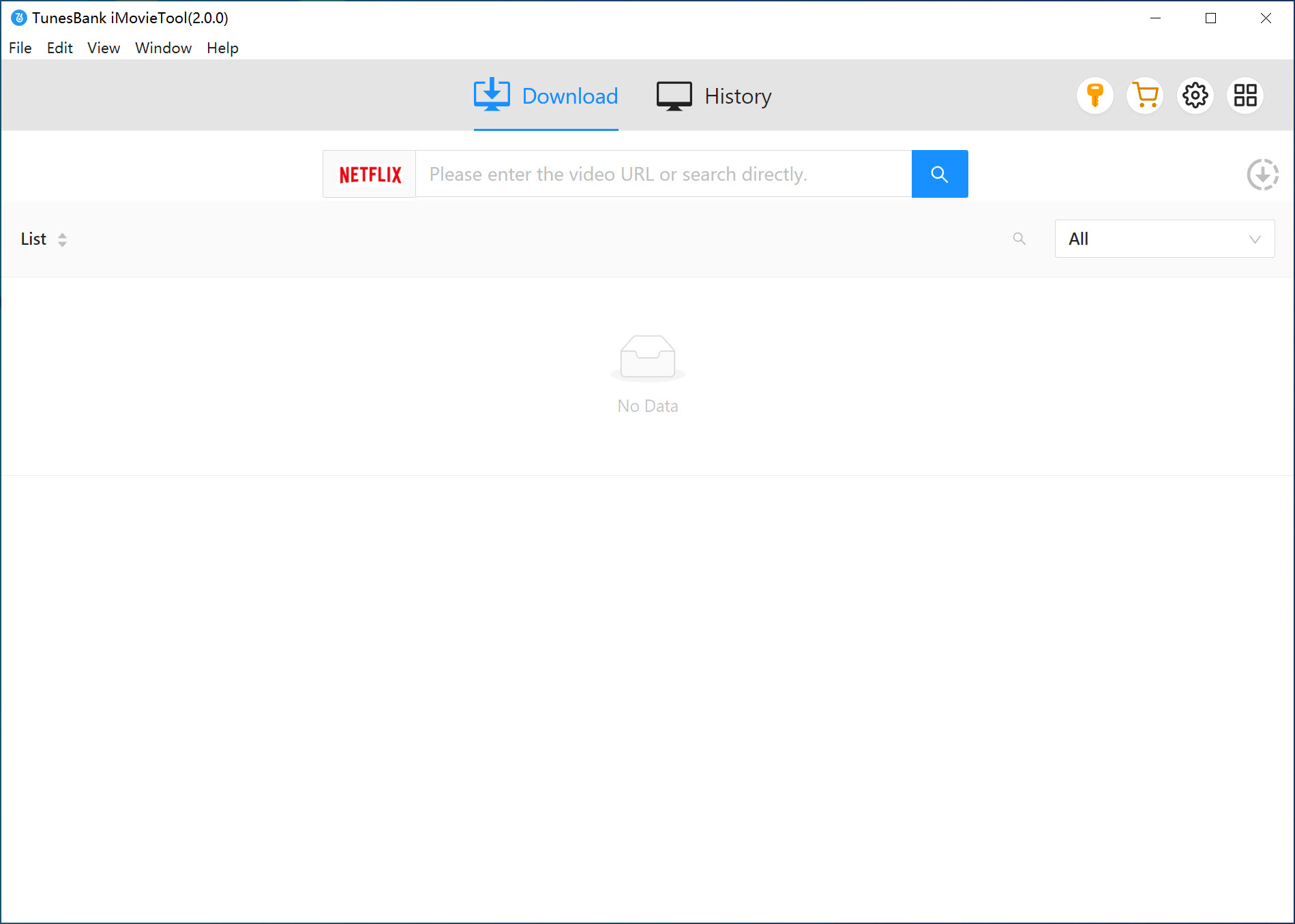
After logging into your Netflix account, you will see a clean and neat user interface.
Step 2. Browse and Add Netflix TV Shows Online
Switch to “Browse” tab, you can browse Netflix directly within iMovieTool’s built-in web player, exploring categories, recommendations, trending shows, and Netflix Originals.
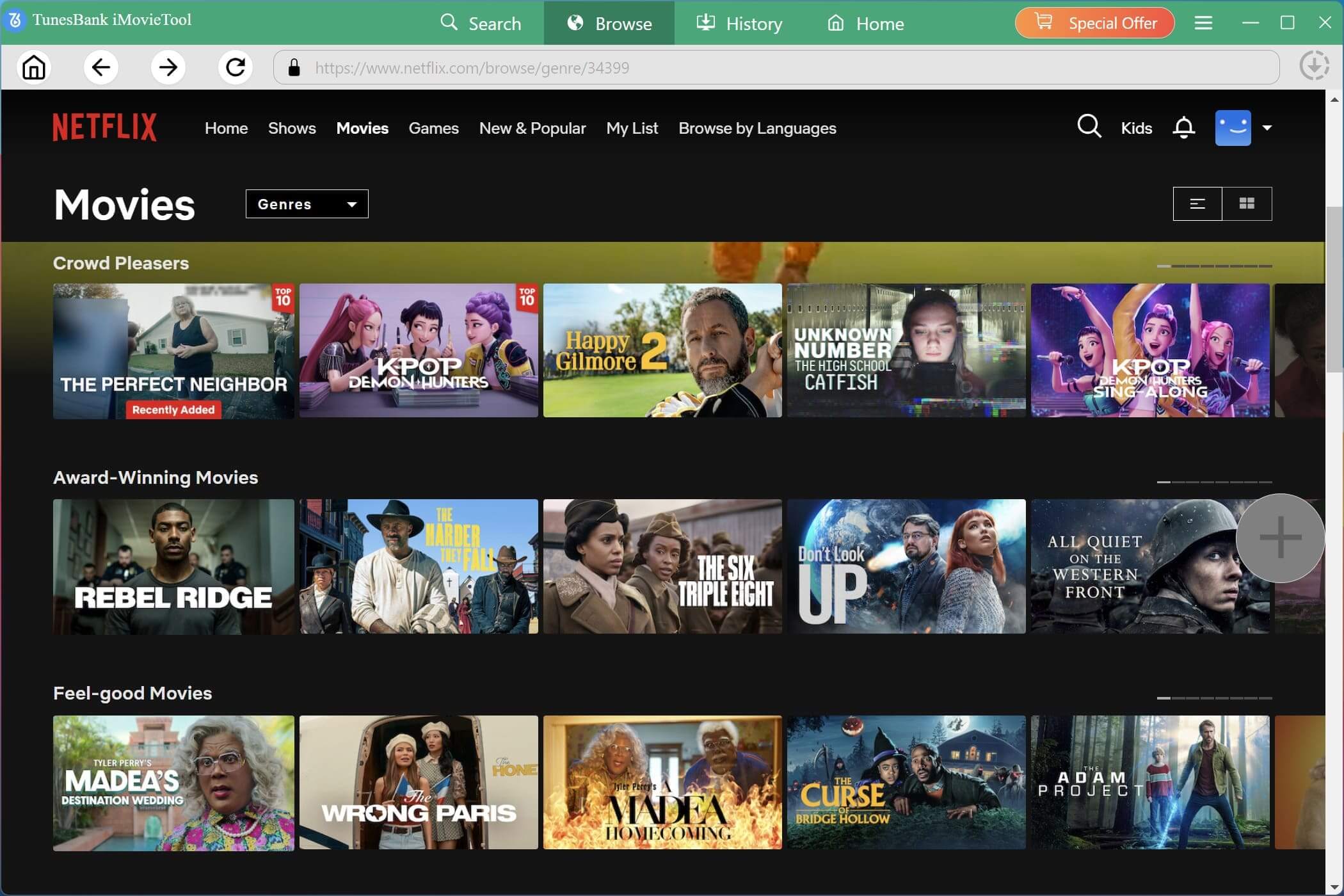
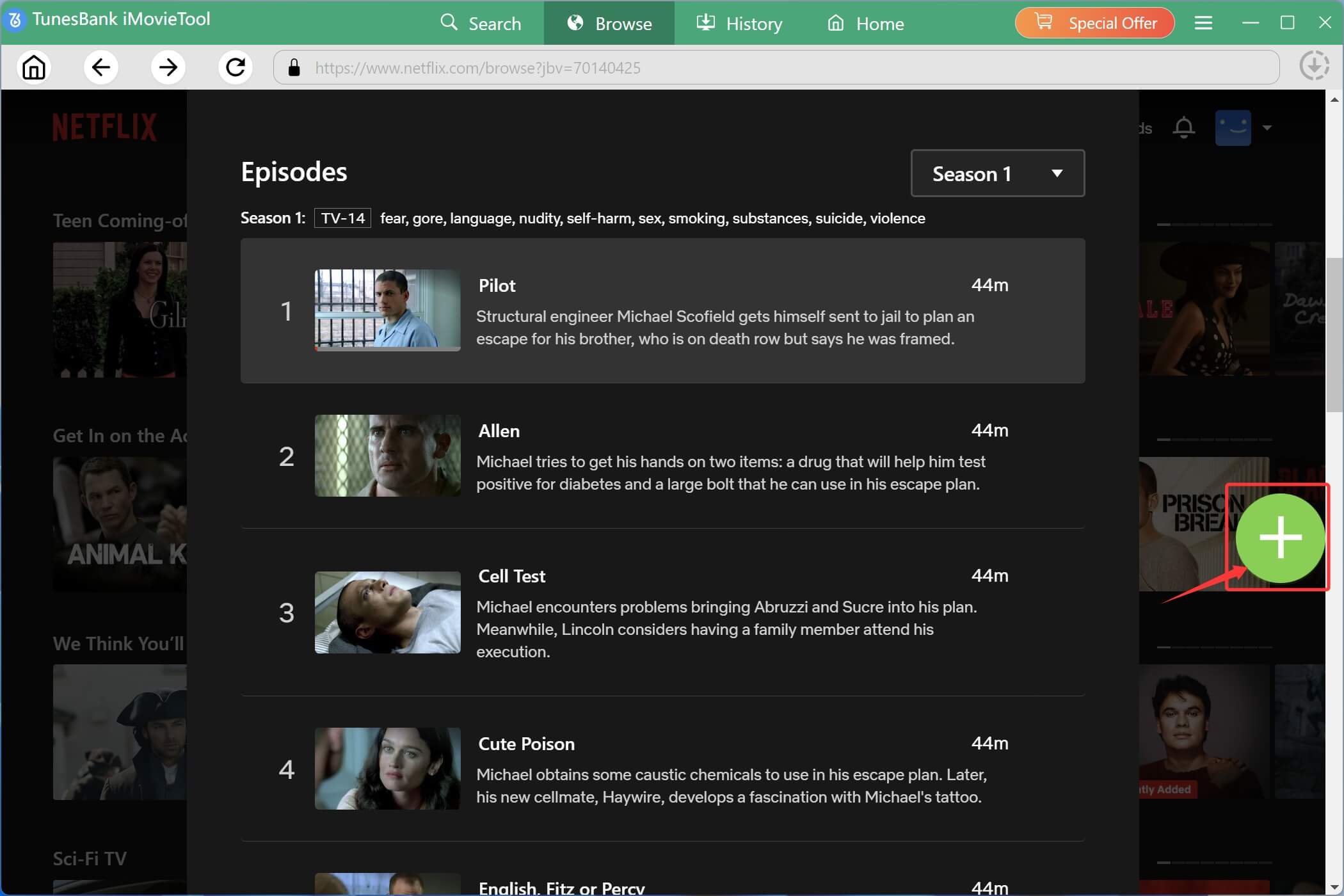
Click on categories like “TV Shows”, “Trending Now”, or “My List” to browse visually. For example, here we open the a popular drama television series – “Prison Break”. You’ll see a large green “+” icon in the right side, click it to add the TV series to the download queue.
Step 3. Choose Target TV Episodes
iMovieTool will scan the page and display a pop-up window with a “Download” icon. Click it.
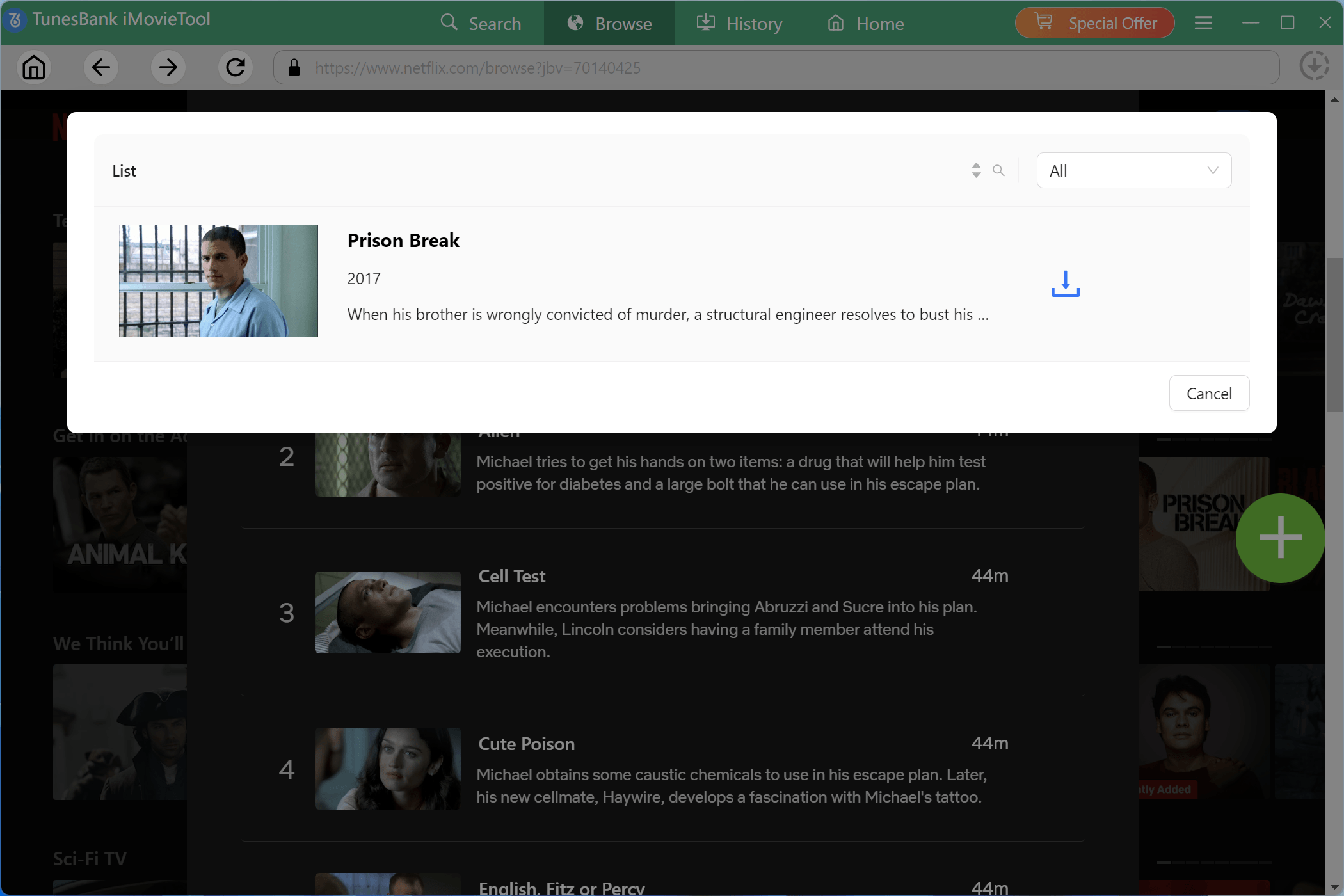
Choose the seasons and episodes of “Prison Break” you want to download. You can select individual episodes or an entire series at once.
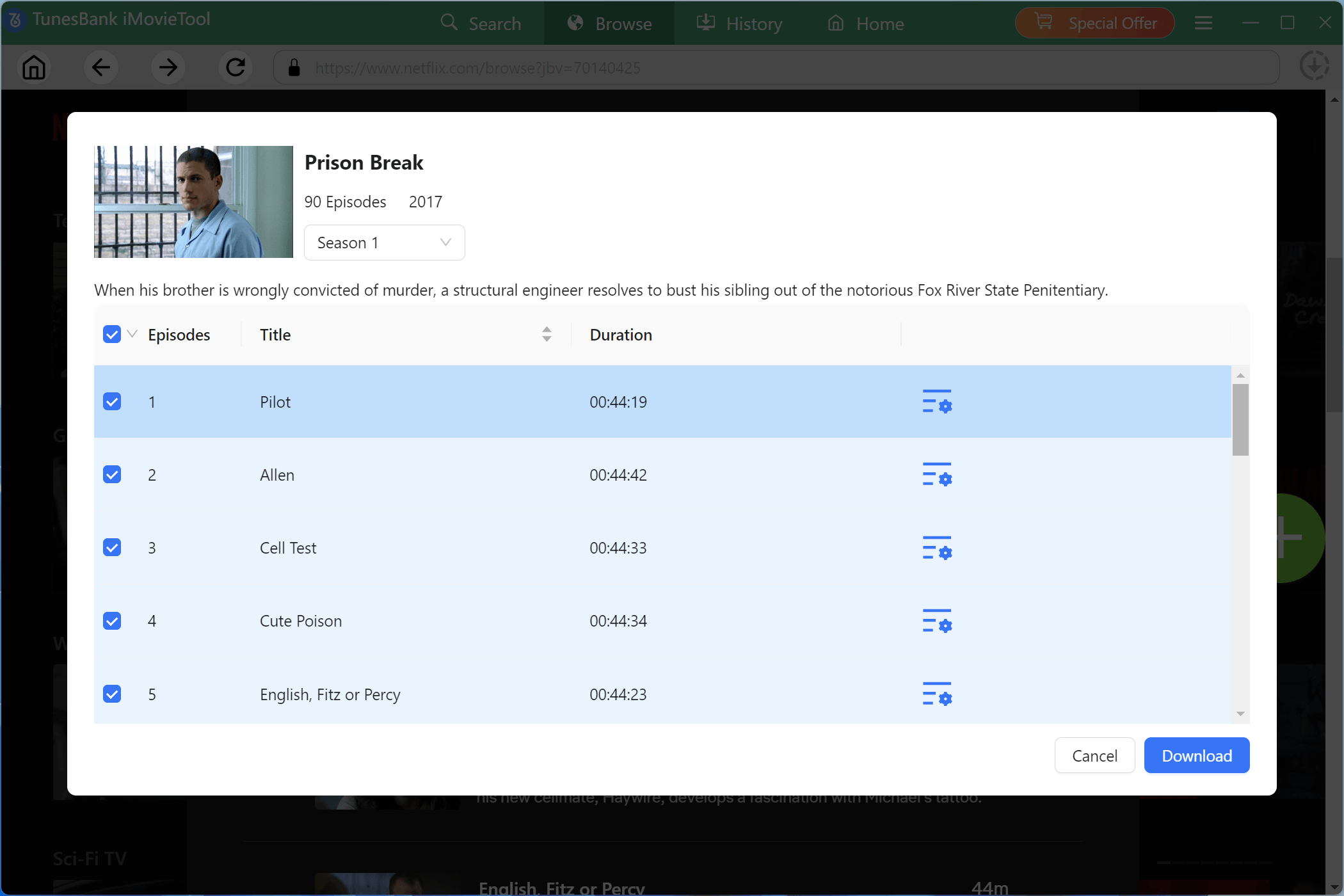
Tips: Click on the “Advanced Gear” icon next to any episode to change the format, quality, audio track, or subtitle language for that individual file.
Step 4. Begin to Download TV Episodes on Mac
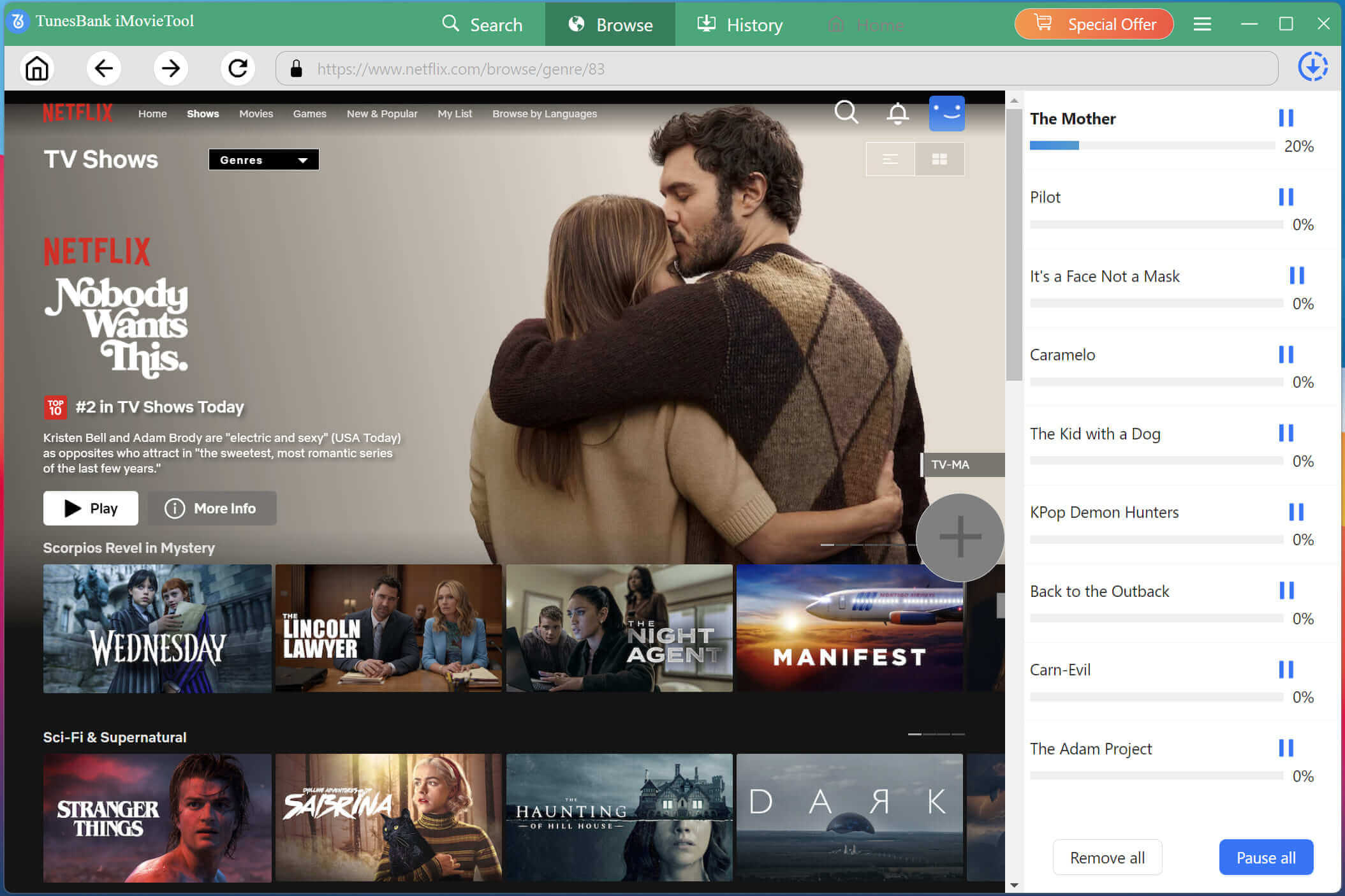
After confirming your selections, click the “Download” button to begin the download process. During the download, you can continue adding more TV shows to the download queue for batch downloads.
10 Best Netflix TV Shows of 2026
Nemesis
The Crash
I Will Find You
Big Mistakes
Beef
Avatar: The Last Airbender (Season 2)
Viral Hit
Love on the Spectrum
One Piece
Louis Theroux Inside the Manosphere
FAQs About Downloading Netflix Shows on Mac
Is There a Way to Get a Netflix App on a MacBook?
No. Netflix does not offer an official app for macOS. Mac users can only access Netflix through a web browser such as Safari, Chrome, or Firefox. If you want to download Netflix shows on Mac for offline viewing, you’ll need to use a third-party Netflix downloader or alternative methods, such as installing the iOS version of Netflix on certain Apple Silicon Macs.
How Long Can You Keep Downloaded Shows on Netflix?
Generally, Netflix downloads stored in the Netflix mobile app typically expire within 7 to 30 days if unwatched, and usually expire within 48 hours once you start watching them.
But when you download Netflix shows on Mac as MP4/MV files with iMovieTool Netflix Video Downloader, you can keep these downloaded shows permanently on your Mac and watch them offline anytime, anywhere. No expiration, no playback restrictions.
Conclusion
Although Netflix does not provide an official way to download Netflix shows on Mac, that doesn’t mean offline viewing is impossible. By resorting to professional Netflix downloader software, you can still bypass Netflix download limits and save your favorite TV shows on your MacBook or iMac for offline viewing. With the help of iMovieTool Netflix Video Downloader, you can easily download TV shows from Netflix to your Mac in batches with 1080p high quality.
Ready to get Netflix downloads on your Mac? Hit on the Download button below to try iMovieTool Netflix Video Downloader and build your offline library!
The Latest Articles
– Top 8 Solutions to Download Streaming Video
– Top 10 Free Movie Download Sites Recommended
– 3 Ways to Download Movies to Watch Offline
– 2 Verified Methods to Download X/Twitter Videos to MP4
– Download Twitter(X) Videos on PC, Mac and Mobile Phone
– Download Facebook Videos on PC, Mac and Mobile Phone
– 3 Ways to Download Facebook Video to MP4

Netflix Video Downloader
Download Netflix video to MP4 or MKV with multi-language audio track and subtitle kept. Up to 50X downloading speed. Easily to download your favorite movies/TV shows from Netflix to your computer for offline viewing.







