







 United States (English)
 Japan (日本語)
 Russia (русский)
 Germany (Deutsch)
 France (Français)
 Spain (Español)
 Italy (Italia)
 Portugal (Portugues)
 China (繁体中文)
 Turkish (Türk dili)
 Dutch (Nederlands)
 Korean(한국인)
 Saudi Arabia(عربي)
 Download from Netflix, Disney+, Prime Video, YouTube, and more.
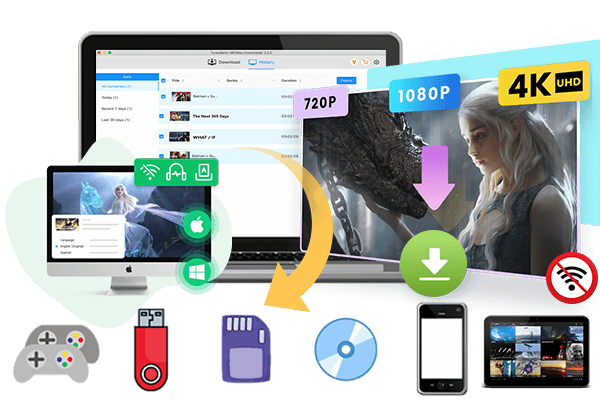
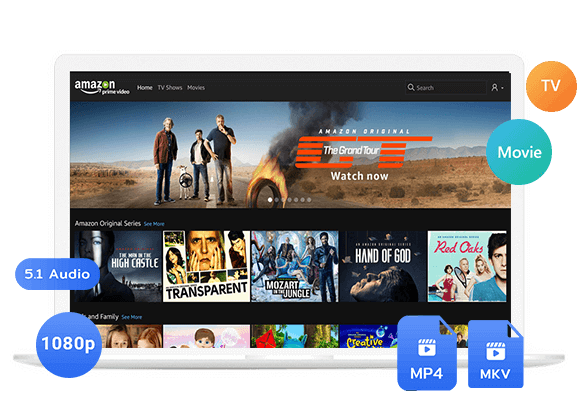
This guide will walk you through the best platforms for free streaming of movies with subtitles, and how to use iMovieTool All-In-One Video Downloader to download movies with English subtitles for offline viewing.
Q: “Are there any best sites for watching movies with subtitles for free?”
A: Yes! Whether you’re watching Japanese anime, Hindi films, or movies in other foreign languages, you may sometimes struggle to understand the dialogue. Watching movies with English subtitles can help you follow the story without missing important details. Luckily, you don’t have to pay for a subscription to enjoy movie subtitles. The good news is that there are several reliable ways to watch movies with subtitles for free. In this guide, we’ll introduce the best free movie streaming websites and show you how to download movies with English subtitles for offline viewing.
Part 1. Where to Watch Movies for Free With Subtitles?
To watch free movies with subtitles, you can turn to the ad-supported streaming services or third-party movie streaming sites. Below are 15 best websites to watch movies with subtitles for free. Keep in mind that subtitle availability depends on the individual movie, region, and streaming rights.
| Websites | Basic Introduction |
| Tubi | A massive ad-supported library with thousands of free movies and TV shows, with English subtitles available for many titles. |
| Plex | It provides free, ad-supported movies and TV shows, and many titles include English subtitle options. |
| The Roku Channel | The platform features free movies and TV shows, with subtitles or closed captions available for supported content. |
| Fandango at Home (or Vudu) | A legal streaming hub with a free, ad-supported section and guest viewing, offering movies with English subtitles on select titles. |
| Popcornflix | Allows to stream movies for free, and subtitle availability varies depending on the title. |
| Crackle | One of the oldest free streaming services, offering Hollywood back-catalog films with closed captions. |
| MoviehdKH | It features a collection of movies across different genres, though subtitle availability and streaming reliability may vary. |
| MoviesJoy | This site offers movies and TV shows in different categories, with subtitle options available for some videos. |
| Soap2day | The platform delivers all content in English and with English subtitles for free streaming. |
| 123Movies | This site lists movies and TV shows from different genres, with subtitle availability depending on the video source. |
| FMovies | It features a large selection of movies and TV shows, and some streams offer English subtitle options. |
| Fawesome TV | It offers free, ad-supported movies and TV shows, with closed captions or subtitles available for supported titles. |
| Yidio | It lets you find free movies across different streaming services and indicates where selected titles can be watched with subtitles. |
| AZMovies | A streaming site that focuses on HD quality and includes subtitle support for most titles. |
| YoMovies | A site popular for regional films that often provides English subtitle tracks for international viewers. |
Tip: Before playing a movie, look for the CC, Subtitles, or Settings icon in the video player. Select English or your preferred language if available. If a movie does not provide subtitles, you can try to look for a legitimate subtitle file.
Part 2. How to Download Movies with Subtitles?
Most free movie streaming websites rely on ads, so frequent interruptions, pop-ups, and buffering can affect your viewing experience. To get a smooth, uninterrupted, and safe viewing experience, especially if you want to watch English movies with subtitles on a plane or during a commute, you can consider downloading movies with subtitles for offline playback. This is where a dedicated desktop tool becomes necessary.
iMovieTool All-in-One Video Downloader is is a reliable desktop tool, which is designed to download movies with subtitles from major streaming platforms to local computer. Currently, the software works with Netflix, Amazon Prime Video, Disney+, Hulu, Max, Paramount+, Apple TV+, YouTube, etc. With it, you can easily download movies, TV shows, and videos as MP4 or MKV files to build an offline library of captioned content.
What’s more, it provides options for retaining available original audio tracks and subtitles in multiple languages. Another standout feature is its ability to download subtitles as external SRT files or hardcode them into the video, ensuring that you can put subtitles on a movie exactly the way you prefer. Afterwards, you can watch your favorite movies offline with English subtitles across your devices, without ads interruption, without network!
– Multiple Streaming Platforms: Supports several major streaming services through one desktop application.
– Popular Output Formats: Save movies, TV shows, videos in MP4 or MKV format for convenient playback.
– Multilingual Audio Tracks: Preserve available original audio tracks and choose your preferred language.
– HD Video Quality: Download streaming movies and TV shows to computer in HD 720p or FHD 1080p for the best viewing experience.
– Flexible Subtitle Options: Choose hard subtitles, soft subtitles, or external subtitle files when supported.
– Subtitle Language Selection: Retain available subtitles in English and other supported languages.
– High Efficiency: Supports batch downloads and runs at 50X high speed to build an offline library quickly.
– Offline Playback: Play the downloaded video files on your computer with other players, or move them to any device.
Steps to Download Netflix Movies with Subtitles Using iMovieTool
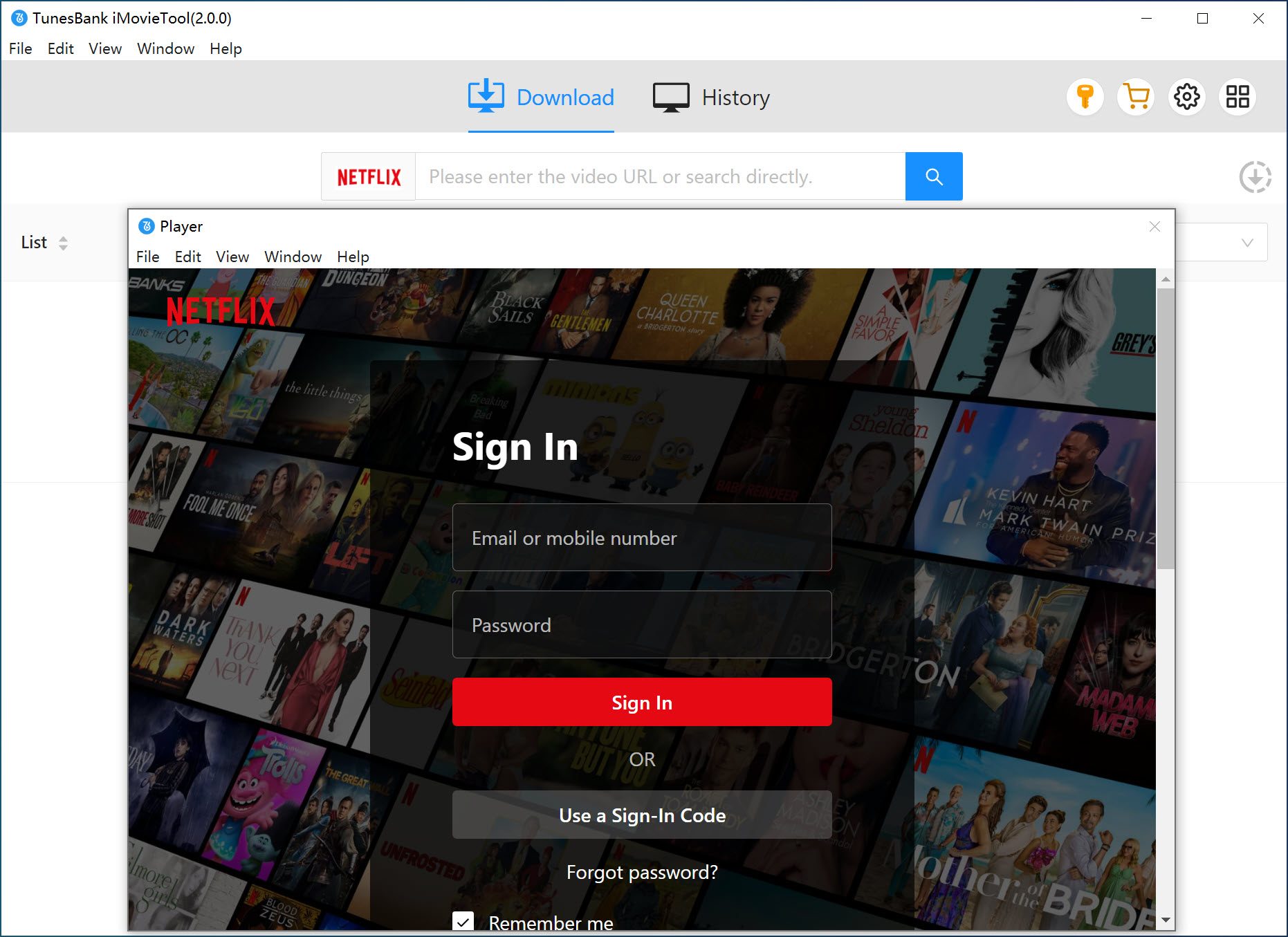
Step 1. Select a Platform and Log In Account
Download and install iMovieTool All-in-One Video Downloader on your Windows or Mac computer. Open the program and select your subscribed platform from the list of streaming platforms.
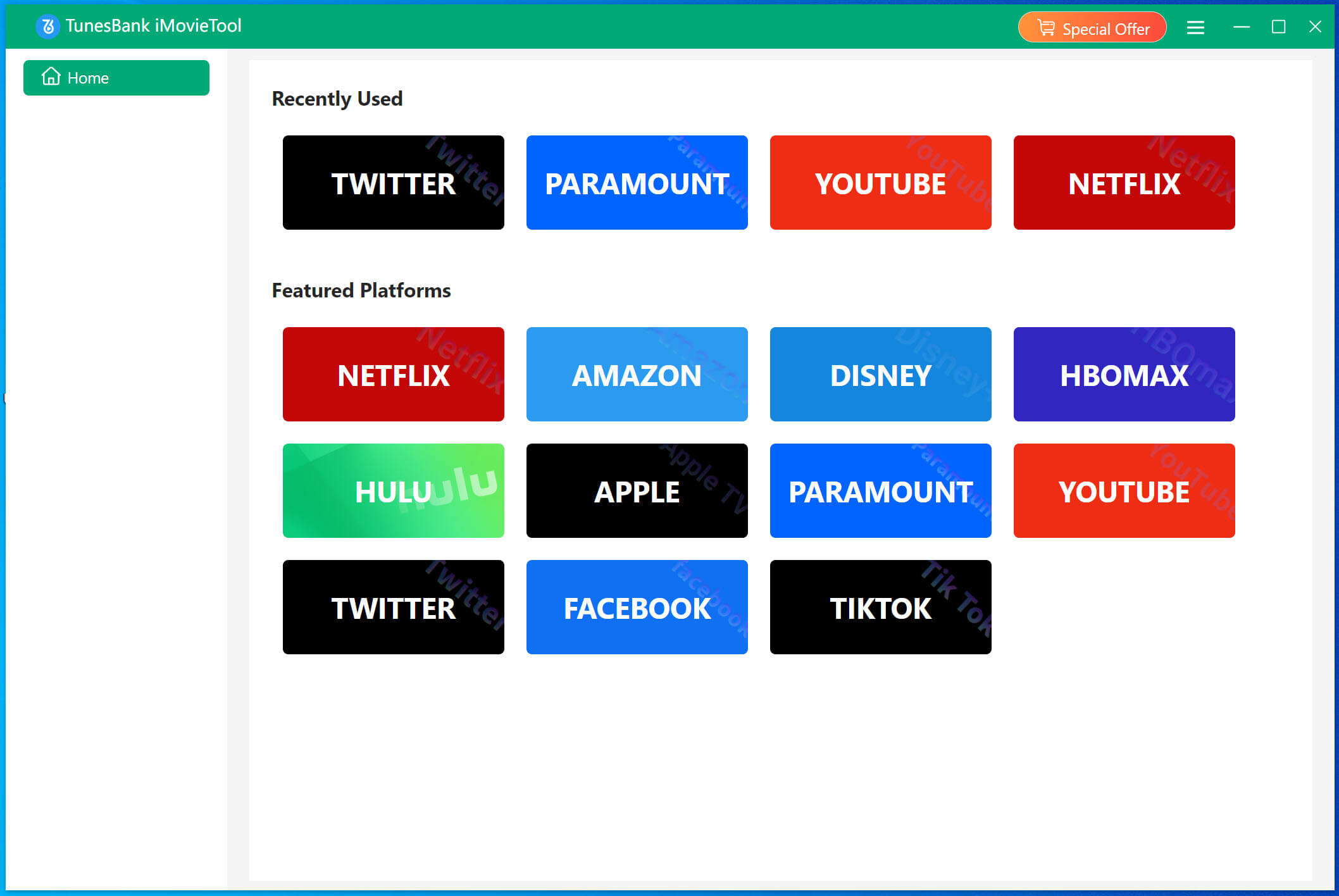
For example, here we choose Netflix service. Then, sign in to your Netflix account.
Step 2. Change the Output Settings
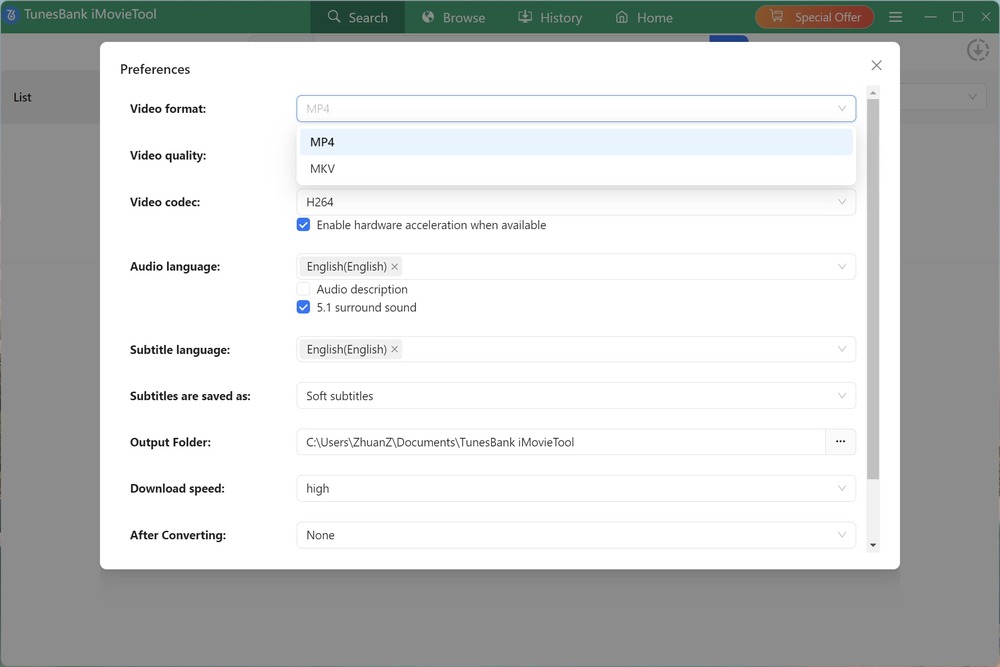
Click the “Menu” icon at the upper right corner of the interface. Choose “Preferences” option to open the output settings window. Select MP4 or MKV as the output format, then choose your preferred audio and subtitle languages.
Step 3. Search for the Movie
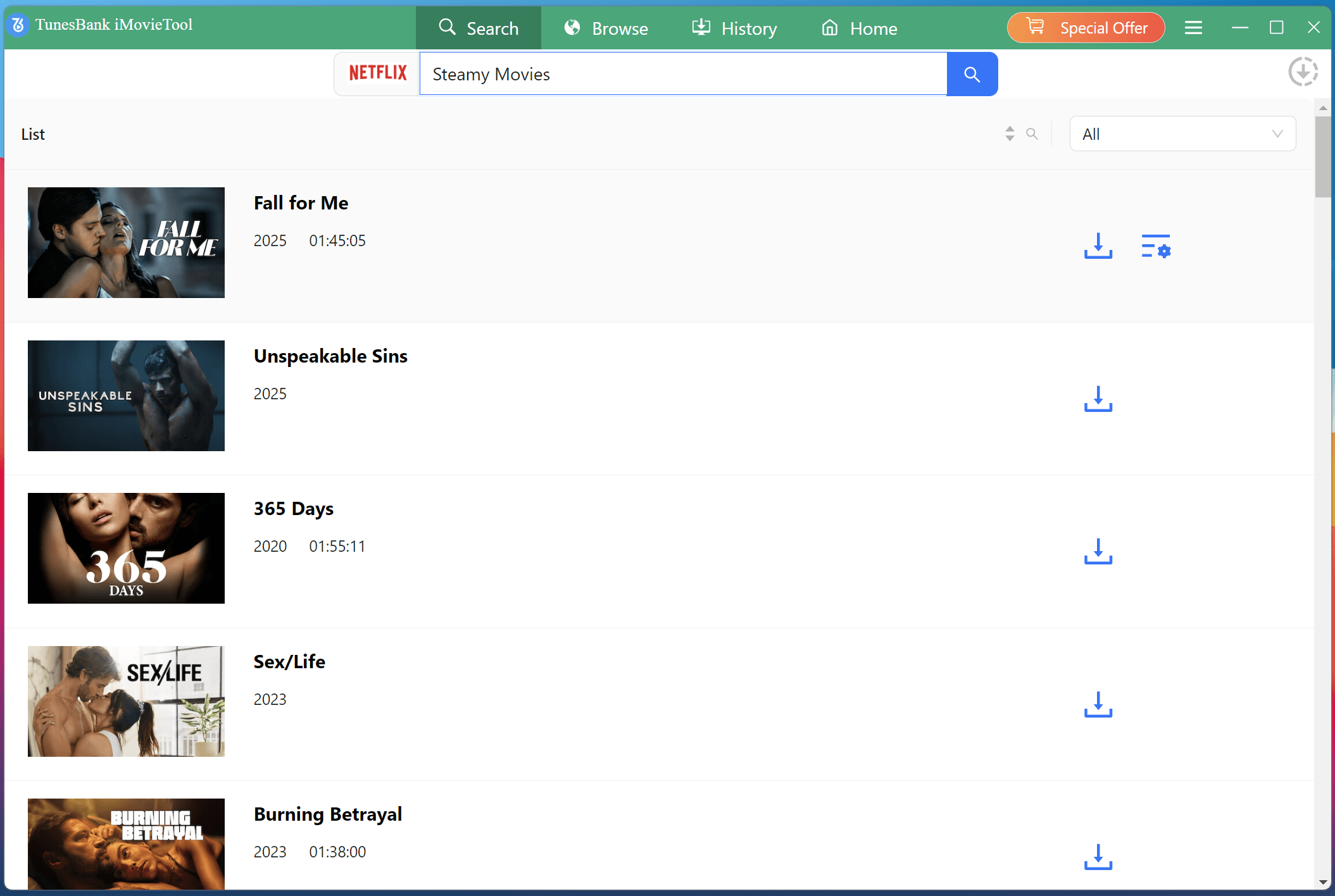
Tap “Search” tab. Enter the movie title in the search bar or paste its Netflix URL. For instance, here we type “Steamy Movies“, iMovieTool will find and display the matching results.
Step 4 (Optional). Set Video Output Settings for a Single Movie
To customize the settings for an individual movie, click the “Gear” icon next to its title.
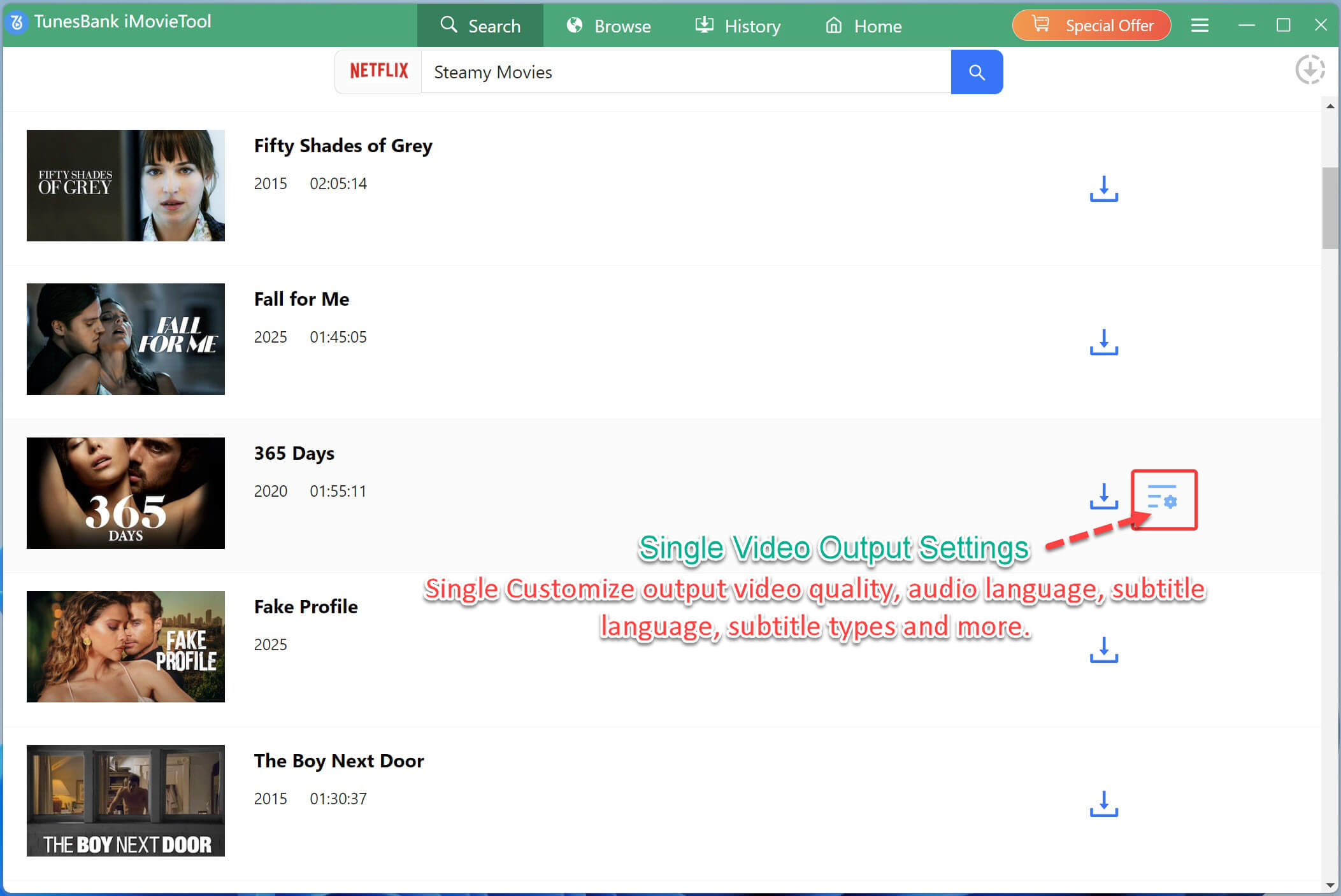
In the pop-up window, choose your preferred audio and subtitle languages, video resolution, subtitle format, and other available option.
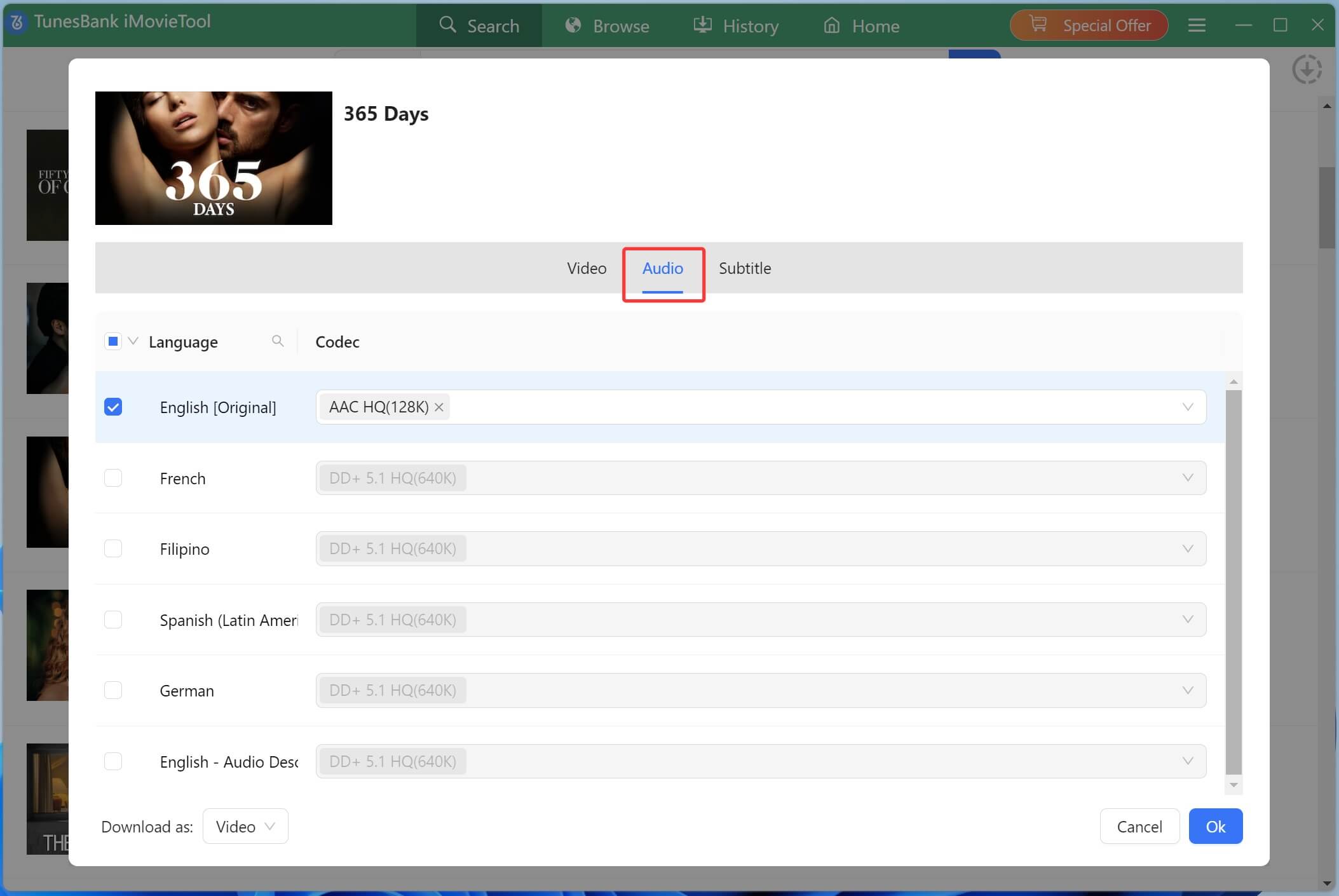
After selecting the target subtitle language, go to the “Subtitles are saved as” option. Depending on your needs, select how you want subtitles to be saved. You can choose among Soft subtitles, External subtitles, or Hard subtitles.
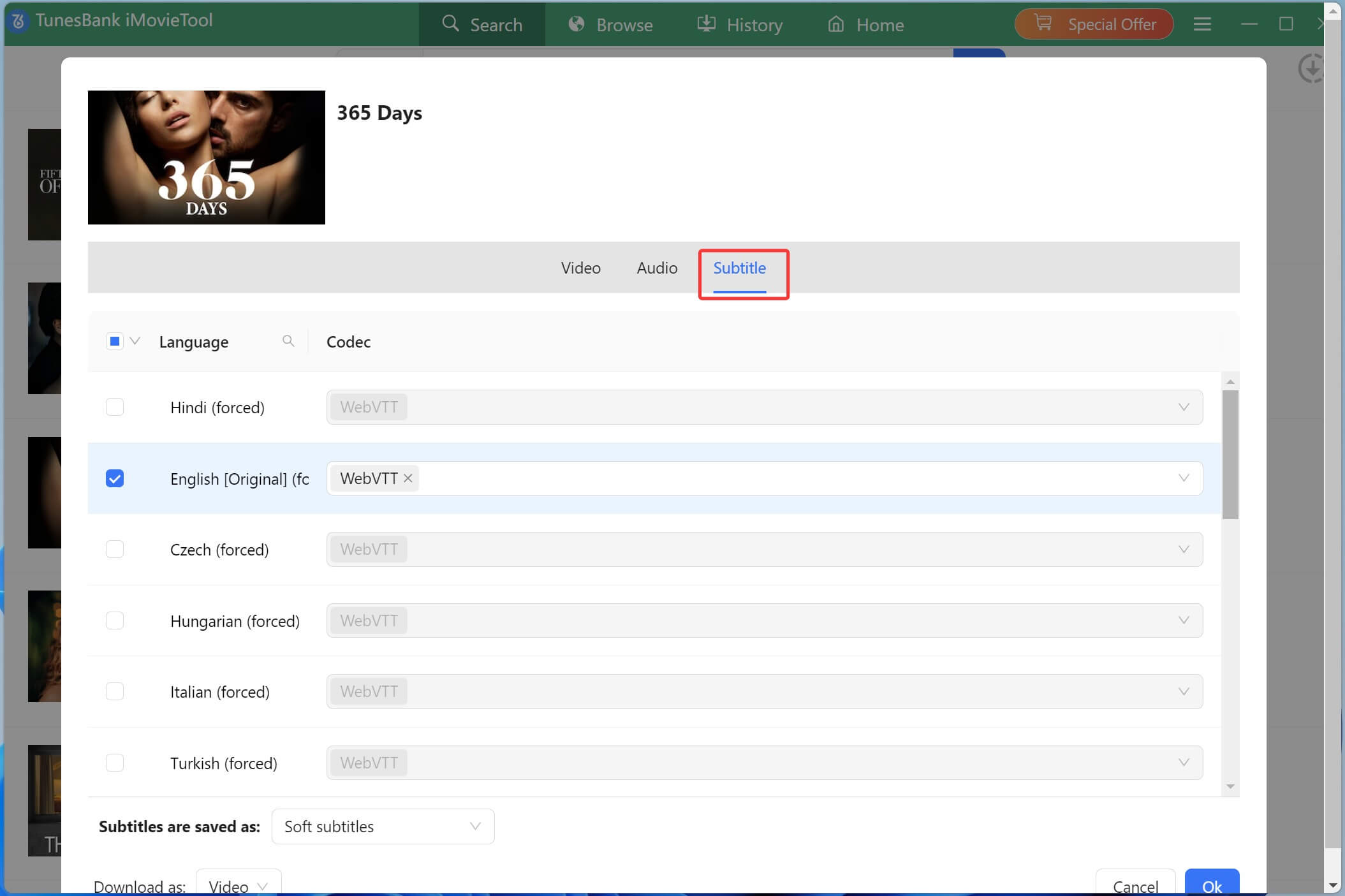
Step 5. Begin Downloading Netflix Videos to MP4
After adjusting the settings, click the “Download” button next to the movie. The software will begin to download movie from Netflix to your computer folder and save it with your preferred subtitle.

Step 6. Get Downloaded Netflix Movies
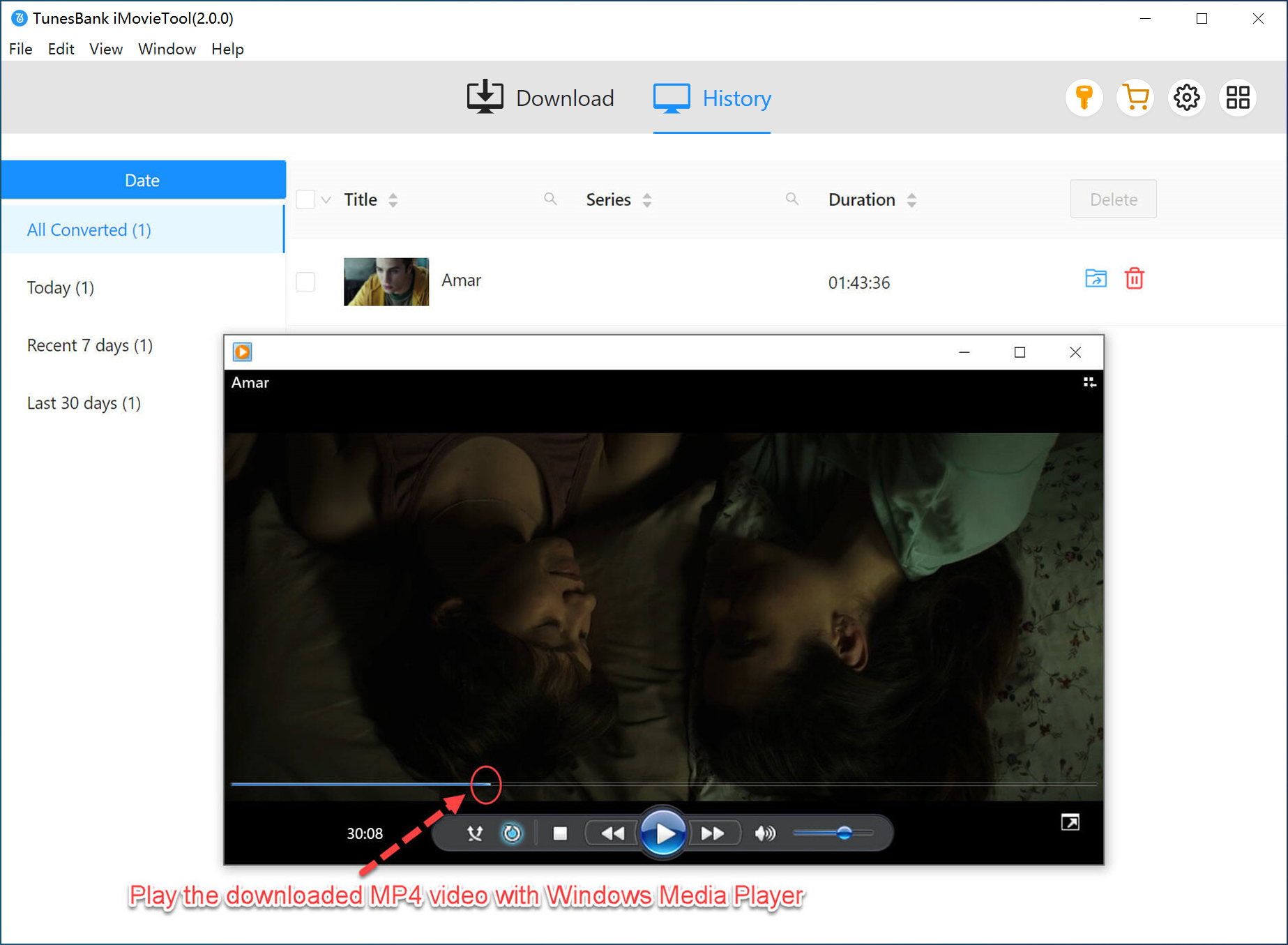
Once the download is complete, tap “History” tab and open the output folder to locate your movie and subtitle files. You can then watch the video offline with your selected subtitles using a compatible media player.
Part 3. How to Add Subtitles to Movies and Videos?
Sometimes you might have a movie saved on your computer without English subtitles. Or perhaps you have downloaded an external subtitle file but don’t know how to merge it with your video. In these cases, you can utilize a video editing tool to add subtitles to movies manually.
UkeySoft Video Converter is a one-stop video converter, audio converter, video editor, as well as video upscaler & enhancer. It allows you to import external subtitle files (like .srt or .ass), adjust their timing and appearance, and permanently merge them into your video file. With its user-friendly interface, you can put subtitles on a movie quickly without any complicated computer skills.
Follow these steps to add subtitles to your favorite movies and videos with UkeySoft Video Converter.
Step 1. Import Your Movie to UkeySoft
First,install and launch UkeySoft Video Converter on your Windows or Mac computer. On the main interface, click “Add Files” and browse your computer to locate the movie or video you want to edit. Select it and import it into the program.
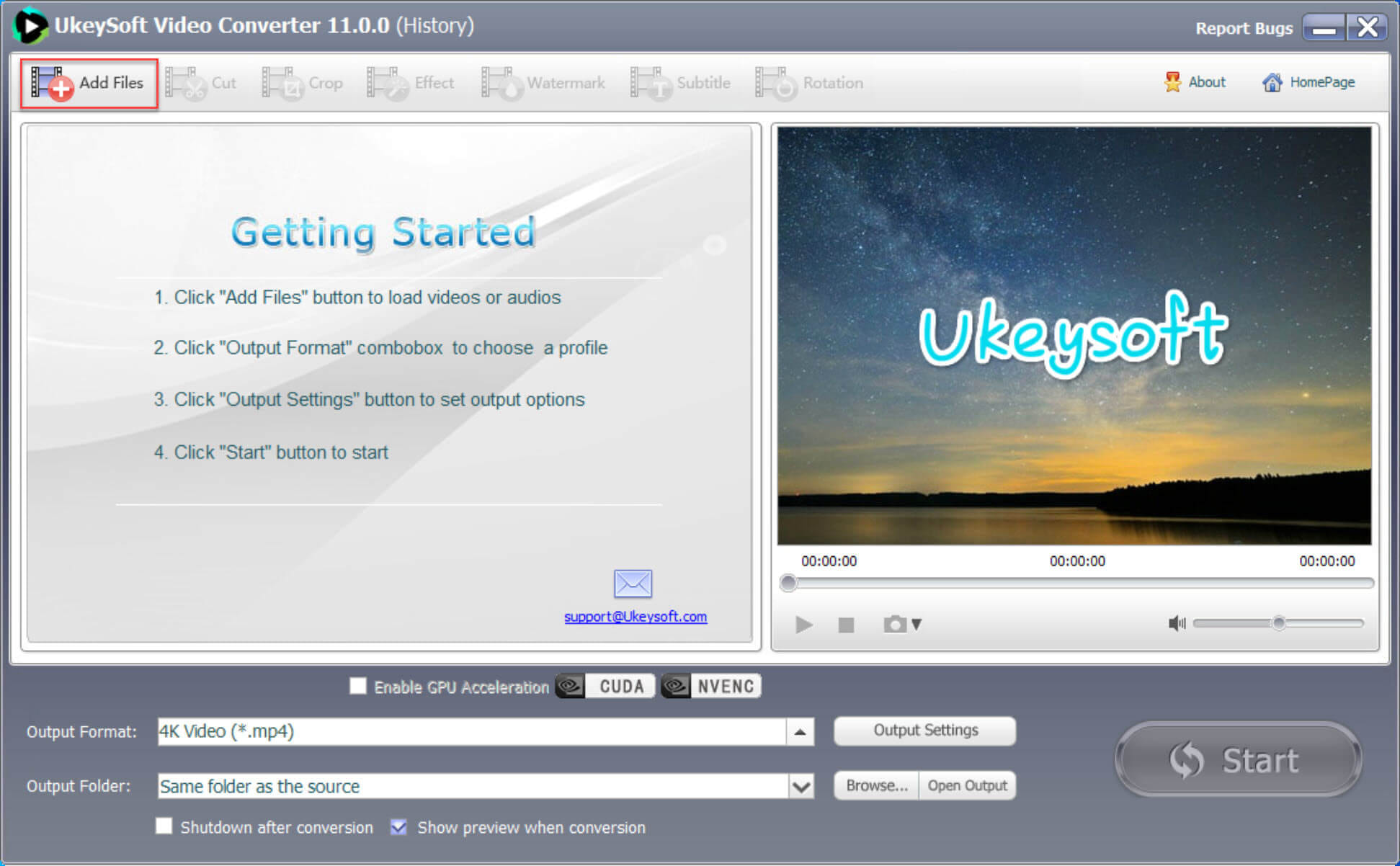
Step 2. Import and Customize the Subtitle File
Open the “Subtitle” tab on the top toolbar to access the editing window, then import your SRT or ASS file. Drag the subtitle in the preview to reposition it, and customize encoding, font style, and text size for easier reading.
Step 3. Customize Output Settings
Next, move to “Output Format” to select a suitable format, such as MP4, AVI, or MKV, etc. Meanwhile, you may click “Output Settings” to adjust the video and audio quality, resolution, bitrate, and other available settings.
Step 4. Start the Process
Once everything is ready, click the “Start” button to begin the conversion and subtitle embedding process.
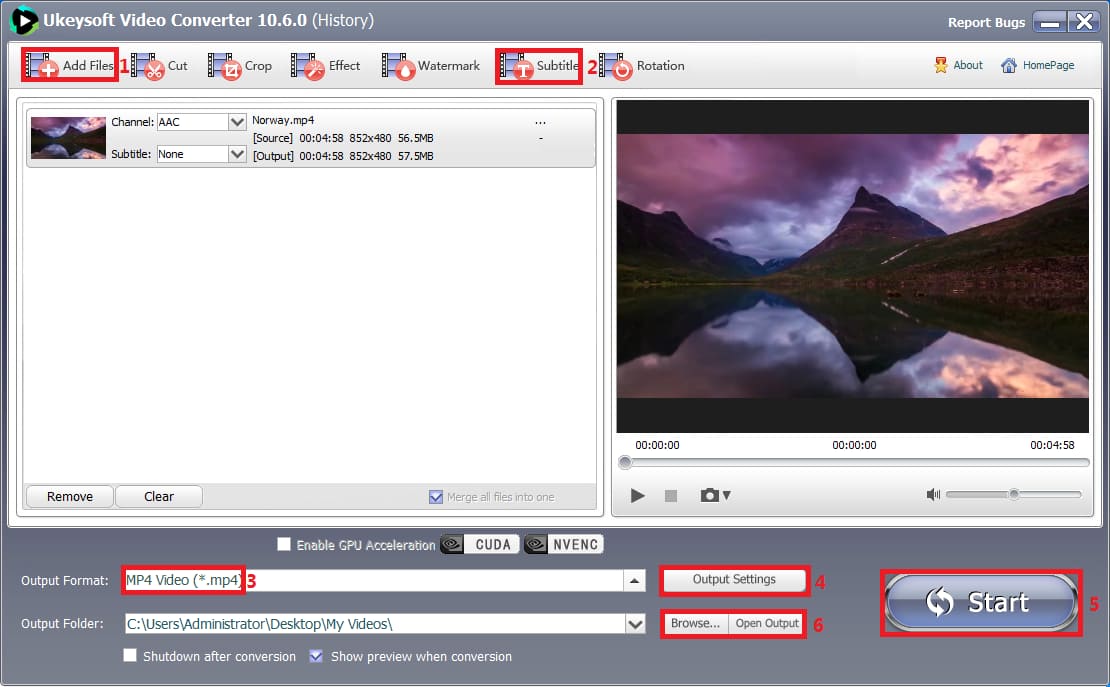
When finished, click “Open Output” to locate the final video file and verify that the subtitles are perfectly synced and displayed.
Part 4. Final Words
There are several ways to watch movies with subtitles for free. You can start with free streaming platforms like Tubi, Plex, and The Roku Channel to access free movies with subtitles online. Alternatively, you can use iMovieTool All-in-One Video Downloader to download movies with subtitles for offline viewing. If your movie doesn’t include subtitles, UkeySoft Video Converter provides a convenient way to add external SRT or ASS files and customize their appearance. Choose the method that suits your needs and enjoy your favorite movies with subtitles anytime, anywhere!
The Latest Articles
– Top 8 Solutions to Download Streaming Video
– Top 10 Free Movie Download Sites Recommended
– 3 Ways to Download Movies to Watch Offline
– 2 Verified Methods to Download X/Twitter Videos to MP4
– Download Twitter(X) Videos on PC, Mac and Mobile Phone
– Download Facebook Videos on PC, Mac and Mobile Phone
– 3 Ways to Download Facebook Video to MP4

iMovieTool Movie Downloader
Download movies to MP4/MKV in 1080P, download movies from Netflix, Amazon Prime Video, Disney+, HBO Max, Hulu, Apple TV+, YouTube, and Paramount+. Download videos from Twitter, Instagram, Facebook, and TikTok for free.