








 United States (English)
 Japan (日本語)
 Russia (русский)
 Germany (Deutsch)
 France (Français)
 Spain (Español)
 Italy (Italia)
 Portugal (Portugues)
 China (繁体中文)
 Turkish (Türk dili)
 Dutch (Nederlands)
 Korean(한국인)
 Saudi Arabia(عربي)
 Download HD movies & TV shows from Disney Plus.
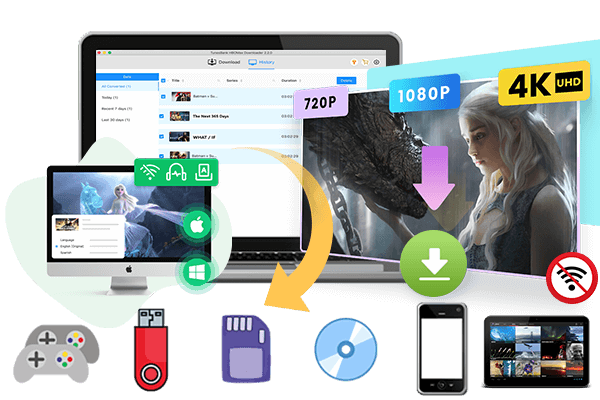
Can you download Disney Plus movies on an iPhone? Of course! Read on this post to get two methods to download Disney Plus movies on iPhone/iPad, with the official Disney Plus app or third-party Disney Plus downloader.
While Disney Plus hosts a huge library of exciting movies and shows, it requires a stable network to stream content online. Many users are eager to download their favorite Disney Plus movies and shows, to have a smooth viewing experience. Yes. Disney Plus does offer the download function to its Premium subscribers. This article is written for iPhone and iPad users. This article covers two main ways to download Disney Plus movies on your iPhone or iPad, by using the official app method and a more flexible third-party Disney Plus downloader. Let’s dive into both methods and how to watch Disney Plus offline on iPhone with ease!
Method 1. Download Disney Plus Movies on iPhone/iPad via Official App
If you’re subscribed to Disney Plus Premium, you’re in luck! The Disney+ Premium plan ($18.99 per month) allows you to download Disney Plus content to your phone and tablet for offline viewing. However, if you’re using an ad-supported plan (Disney+ Basic), you won’t be able to access the download function, otherwise, you can consider upgrading to your Disney+ subscription plan.
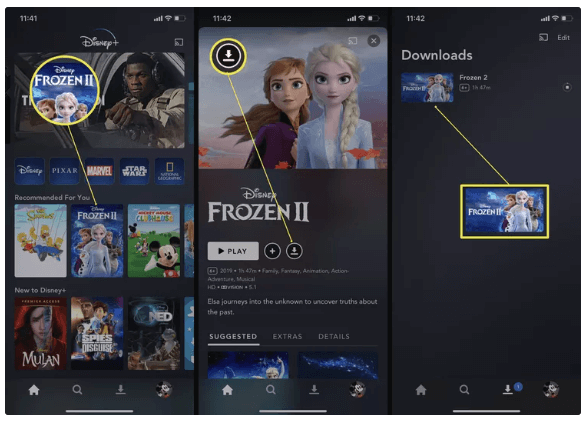
When you are eligible to get the download feature, you can follow the procedures below to download movies from Disney Plus to iPad/iPhone and enjoy offline watching without third-party help:
Step 1. Open the Disney Plus app on your iPhone or iPad.
Step 2. Sign in with your Disney Plus Premium account, or other bundle account (ad-free tier).
Step 3. Browse through the content available for download.
Step 4. Select a movie or show you’d like to download.
Step 5. Tap the “Download” icon.
Step 6. Once downloaded, you can watch the content offline from the “Downloads” tab.
However, there are download limits on the Disney Plus app itself. For example, it can be downloaded to no more than 10 devices at one time. And some content on Disney+ is unavailable to download due to a licensing agreement. Your Disney+ downloads remain available with an active subscription and a quick internet check-in every 30 days. Your downloads may become inaccessible if Disney removes the content. To get rid of these restrictions and watch Disney Plus offline on your iPhone/iPad all the time without Premium, please scroll down to check the next method instead.
Method 2. Download Disney Plus Movies on iPhone/iPad Permanently via Video Downloader
Generally, the official Disney Plus app only allows for temporary downloads. It is quite easy to download Disney Plus videos to iPhone or iPad. But these downloaded files are protected by DRM (Digital Rights Management). This means you can’t keep or transfer the Disney Plus downloads elsewhere. If you’re dissatisfied with the Disney Plus’s restrictions, or you’re using Disney+ Basic account, you can rely on a desktop tool named TunesBank Disney+ Video Downloader.
This powerful program is available with Windows and Mac computers, laptops. It directly embeds the official Disney Plus web browser inside the program, allowing you to access all Disney+ resources (including Disney, Pixar, Marvel, Star Wars, National Geographic). With it, both Disney+ Basic and Premium subscribers can remove ads on Disney Plus and download Disney Plus movies on local computer as HD MP4 or MKV files. Then, users can move DisneyPlus downloads to iPad/iPhone for ultimate and smooth offline playback.
With 50X speed and batch mode, you can download multiple movies or full TV series at once, which is faster and more effortless than the official Disney Plus app! This downloader helps users bypass Disney Plus download restrictions and save Disney Plus content directly to their devices without worrying about expiration, even if their have subscription ended.
More Features of TunesBank Disney+ Video Downloader:
- Download Disney Plus videos to computer without Premium.
- Download Disney Plus movies and shows in HD quality.
- Download and save Disney+ movies and series in MP4 or MKV format.
- 50X fast batch downloads to save entire Disney+ movies or TV series in one go.
- Batch download Disney+ movies and TV shows at up to 50X faster speed.
- Allows to choose different audio tracks and subtitles.
How to Download and Save Disney Plus Movies on iPhone/iPad in MP4
Let’s learn how to download Disney Plus movies on computer via TunesBank Disney+ Video Downloader, and then transfer them to any iPhone/iPad model with iTunes or Finder.
Step 1. Run TunesBank DisneyPlus Video Downloader
After installing the software, open it and select Disney platform from the main interface.
You will then enter the TunesBank DisneyPlus Video Downloader, please log in using your Disney Plus account credentials, either ad-free or ad-supported account.
Step 2. Add Disney+ Movies
There are three ways to search for your desired content for downloading.
Using Movie/Show Name: Tap “Search” tab, type the name of the movie or show you want to download directly into the search bar.
Using URL: Paste the URL of the Disney Plus movie you want to download, then click “Search” icon.
Browse Online: Tap “Browse” tab, use the built-in browser within the software to find and select the Disney Plus movie or show. Then, open it, and click “+” icon to add it to the download queue.
Step 3. Change Download Settings
Switch to the Menu bar > Preference. In the pop-up window, choose MP4 as the output format. Select high resolution for the best video quality. You can also adjust the audio tracks and subtitles if needed.
Tips: You may also set different download settings for single video once located the title.
Step 4. Start Downloading Disney+ Movie to MP4
Once you’ve selected your content, click the “Download” button to start the process. The Disney+ movie will be saved in MP4 format to your computer.
Step 5. Get Downloaded Disney+ Movies
After the download finishes, you can go to the “History” section, or access the saved files in the output folder you’ve chosen during the settings.
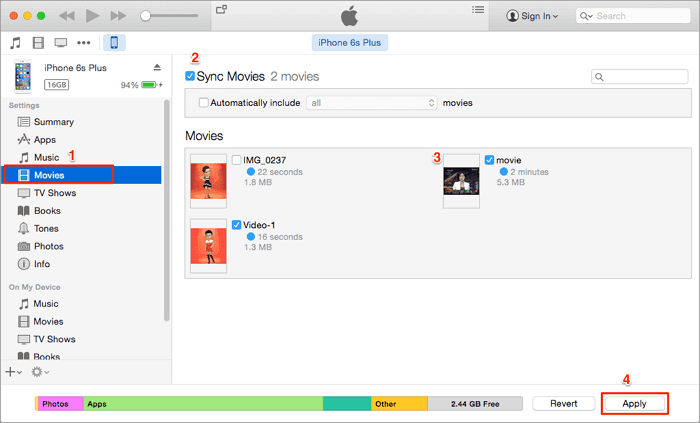
Step 6. Transfer DisneyPlus Downloads to iPhone/iPad
● Open iTunes or Finder on your computer.
● Next, import the downloaded Disney Plus movies to the library.
● Connect your iPhone or iPad to computer using a USB cable.
● Select “Movies” > “Sync Movies”, tick the checkbox of the DisneyPlus movies, and click “Apply” button.
Conclusion
After reading this article, you can get two simple methods to download Disney Plus movies on your iPhone or iPad for offline viewing. Compared with the official method with certain limitations, TunesBank Disney+ Video Downloader can deliver a more flexible playback experience, as it can directly save Disney Plus movies on your iPhone/iPad in regular MP4 files with original quality. Even if you cancel your Disney+ subscription, you can still enjoy your Disney+ downloads offline on your phone, as well as other devices! So, download the software and have a try right now!
The Latest Articles
– Top 8 Solutions to Download Streaming Video
– Top 10 Free Movie Download Sites Recommended
– 3 Ways to Download Movies to Watch Offline
– 2 Verified Methods to Download X/Twitter Videos to MP4
– Download Twitter(X) Videos on PC, Mac and Mobile Phone
– Download Facebook Videos on PC, Mac and Mobile Phone
– 3 Ways to Download Facebook Video to MP4

Disney+ Video Downloader
Download any Disney+ movies/series/originals to MP4/MKV in high quality on your computer.







