








 United States (English)
 Japan (日本語)
 Russia (русский)
 Germany (Deutsch)
 France (Français)
 Spain (Español)
 Italy (Italia)
 Portugal (Portugues)
 China (繁体中文)
 Turkish (Türk dili)
 Dutch (Nederlands)
 Korean(한국인)
 Saudi Arabia(عربي)
 Download HD movies & TV shows from Prime Video fastly and losslessly.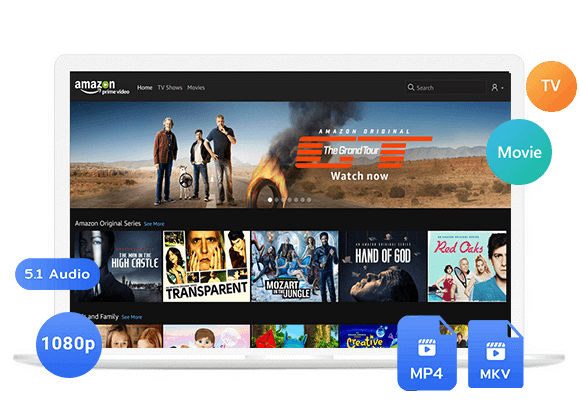
Amazon Prime Video not working on your TV? Learn the common reasons and easy ways to fix it quickly. In this guide, you will also see how to avoid streaming problems and enjoy smoother playback. You will also find a simple way to watch Amazon Prime videos on TV without interruptions using TunesBank Amazon Video Downloader for easy offline viewing.
Having trouble with Amazon Prime Video not working on your TV? It can ruin your movie night when the app keeps buffering, freezes, or shows error messages. The good news is that many users face the same issue, and there are simple ways to solve it. In this guide, you will learn how to fix Amazon Prime Video not working on TV with easy and effective solutions. We will also share a better way to watch Amazon Prime videos on your TV smoothly without playback interruptions. Keep reading to find out more!
You May Like:
How to Watch Amazon Prime Offline on All Devices
Fix Amazon Prime Video Downloads Disappeared (Ultimate Guide)
Part 1. Why Is Amazon Prime Video Not Working on My TV?
There are many reasons why Amazon Prime Video may not work properly on your TV. Below are some of the most common causes.
⚠️Poor Internet Connection
Prime Video needs a fast and stable internet connection for smooth streaming. Weak or unstable WiFi can cause buffering or loading problems.
⚠️Outdated Prime Video App or TV Software
If your Prime Video app or TV system is not updated, the app may crash, freeze, or stop working correctly.
⚠️Device Compatibility Problems
Amazon Prime Video works on many smart TVs and streaming devices, but some older models may no longer be fully supported. This can lead to playback errors or app issues.
⚠️Too Much Cache and App Data
Over time, cached data can build up in the app and affect performance. This may cause the app to run slowly or crash unexpectedly.
⚠️HDMI Connection Problems
If you are watching Prime Video through an HDMI connection, issues with the cable or unsupported HDCP settings may prevent videos from playing normally.
Now that you know the possible reasons behind Amazon Prime Video not working on TV, let’s look at the best ways to fix the problem in the next part.
Part 2. How to Fix Amazon Prime Video Not Working (Official Ways)
Here are some simple and effective ways to fix Amazon Prime Video not working on TV.
🛠#1. Check Your Internet Connection
A weak or unstable internet connection is a common reason Prime Video does not work on TV. Check your WiFi, make sure all cables are secure, and restart your router. You can also run a speed test to confirm your internet is fast enough for streaming.
🛠#2. Check Your Payment Method
Prime Video needs an active subscription. If your payment is expired or incorrect, it may not work. Log in to your Amazon account, go to Account & Settings, then check your Prime membership and update your payment details if needed.
🛠#3. Restart Your TV
Restarting your TV can fix small glitches. Close the Prime Video app, turn off your TV, unplug it for a few minutes, then turn it back on and try again.
🛠#4. Clear the App Cache
Too much stored data can cause the app to crash or freeze. Go to your TV settings, open the Prime Video app, and clear the cache.
🛠#5. Update the Prime Video App
An outdated app can cause streaming issues. Open your TV app store and update Prime Video to the latest version.
🛠#6. Update Your TV Software
Old TV software may cause compatibility problems. Go to Settings and check for a system update, then install it if available.
🛠#7. Try Another Device
Test Prime Video on another device like a phone or tablet. If it works there, the issue is likely with your TV.
🛠#8. Check Streaming Devices Limit
If too many devices are using the same account, Prime Video may stop working. Make sure you are not exceeding the allowed number of active streams.
🛠#9. Check if Prime Video Is Down
Sometimes the problem is on Amazon’s side. If the service is down, you may need to wait until it is fixed.
If Prime Video still does not work after trying these steps, move to the next section for another way to watch it smoothly on your TV.
Part 3. How to Watch Prime Video on TV Smoothly without Problems[Best]
Are you looking for a reliable way to watch Prime Video on TV without interruptions or errors? TunesBank Amazon Video Downloader is a powerful solution that makes offline viewing simple and smooth. It allows you to download Amazon Prime Video content in high quality with just a few clicks, so you can enjoy your favorite movies and shows without buffering or loading issues.
With this tool, you can save videos in popular formats like MP4 or MKV, making them easy to play on almost any TV or device. The downloaded videos have no expiration date, so you can keep them forever without worrying about losing access. In addition, TunesBank works on both Mac and Windows, giving you flexibility no matter what system you use. Once downloaded, you can transfer the files to your TV, USB drive, or other devices and watch them anytime you want, completely offline and without restrictions.
👍Main Features of TunesBank Amazon Video Downloader
- Download Amazon Prime movies, TV, sports, Originals, etc.
- Download Amazon Prime movies and TV shows to MP4/MKV in HD 1080P.
- Maintain original audio track and subtitles in multilingual.
- Download Amazon Prime videos at 50X faster speed in batch.
- Download Amazon Prime video content from all regional websites.
- Keep Amazon Prime video permanently offline on any device.
- Fully compatible with Windows and Mac.
Tutorial: How to Download Amazon Prime Videos via TunesBank
Step 1. Launch TunesBank and Sign in to Your Prime Video Account
Open TunesBank Amazon Video Downloader on your computer. To start downloading Amazon Prime videos, log in to your Amazon account so you can access the movies and shows you want to save.
Step 2. Select MP4 or MKV Output Format
Click the Menu icon in the upper right corner to open the settings window. Here, you can choose the output format as MP4 or MKV and customize other settings such as video codec, audio language, subtitle language, and output folder.
Step 3. Add Amazon Prime Movies or TV Shows
On the main interface, go to the “Browse” section to explore the Amazon Prime Video library directly inside the downloader. Search for the movie, TV show, sports event, or documentary you want to download.
Open the video page and click the green “+” icon to add it. You can even stream the video online before downloading.
A small pop up window will appear. Click the “Download” icon to save the video directly to your computer.
The selected video will then be added to the download list automatically.
For TV shows, choose the episodes you want and then click the “Download” button.
Step 4. Start Downloading Amazon Prime Video to MP4/MKV
Click the “Download” icon to begin downloading your selected movies and TV shows. The program will download Prime Video to your computer and save it in MP4 or MKV format.
Step 5. Check Your Downloaded Videos
After the download is complete, open the “History” tab to view all downloaded Prime Video movies and TV shows.
Conclusion
Amazon Prime Video may not work on TV because of internet problems, outdated apps, old software, or device issues. Luckily, most problems can be fixed easily by restarting your TV, updating the app, clearing cache, or checking your account settings. For a better watching experience, TunesBank Amazon Video Downloader is a good option. It lets you download Amazon Prime movies and shows in MP4 or MKV format so you can watch them offline on any TV or device without any restriction.
The Latest Articles
– Top 8 Solutions to Download Streaming Video
– Top 10 Free Movie Download Sites Recommended
– 3 Ways to Download Movies to Watch Offline
– 2 Verified Methods to Download X/Twitter Videos to MP4
– Download Twitter(X) Videos on PC, Mac and Mobile Phone
– Download Facebook Videos on PC, Mac and Mobile Phone
– 3 Ways to Download Facebook Video to MP4

Amazon Video Downloader
Download movies and TV shows from Amazon Prime Video in MP4 or MKV format with audio track and subtitles kept. Up to 50X downloading speed. Save your favorite Amazon Prime videos to your computer for viewing offline.







