








 United States (English)
 Japan (日本語)
 Russia (русский)
 Germany (Deutsch)
 France (Français)
 Spain (Español)
 Italy (Italia)
 Portugal (Portugues)
 China (繁体中文)
 Turkish (Türk dili)
 Dutch (Nederlands)
 Korean(한국인)
 Saudi Arabia(عربي)
 Download Netflix Movies and TV shows to watch offline.
Want to copy Netflix movies to watch anywhere? Learn how to download movies from Netflix to USB and save them permanently, even with Netflix ad-supported plan. Follow this guide to backup and store your favorite Netflix movies offline on USB drive!
“Can I download Netflix to a USB stick? I want to watch Netflix through USB on TV. Any suggestion?”
Many users are looking for reliable ways to download movies from Netflix to USB drive, especially for flexible playback on smart TVs, game consoles, Projectors or other devices. Netflix does offer a download function, but only limited to mobile users. Moreover, Netflix applies DRM protection to its video content, which prevents downloaded videos from being copied, transferred, or played outside the Netflix app. That means you cannot directly move Netflix downloads to a USB drive.
So, how to bypass these Netflix download restrictions? This article is here to help! We will introduce the best tool and step-by-step instructions to download and save Netflix movies to USB drive permanently. Keep reading!
Why Need to Download Netflix Movies to USB Drive?
There are many practical reasons you may want to download Netflix movies to USB drive instead of keeping them within the Netflix app. For instance:
1. Free Up Local Storage Space
Your Netflix downloads take up large amounts of storage on your mobile devices, and you need to move large-sized Netflix movies to external storage and free up space on your computer or laptop.
2. Watch Netflix on More Devices
Netflix’s official downloads are restricted to the official app and supported devices only. If you want to watch Netflix movies in a bigger TV screen, car systems, or unsupported devices, the best solution is to save Netflix movies to USB drive and enjoy flexible playback anywhere.
3. Avoid Download Expiration Limits
Netflix downloads typically expire after 7 days and must be watched within 48 hours once playback begins. To keep Netflix downloads permanently, a good option is to store Netflix movies on the USB stick.
- See Also: How Long Do Netflix Downloads Last?
4. Backup Your Favorite Content
Due to licensing agreements, some titles may be removed from Netflix over time. Downloading Netflix videos to USB ensures you won’t lose access to your favorite titles.
Tool Required: iMovieTool Netflix Video Downloader
As mentioned above, all downloaded content is encrypted and stored within the Netflix app. To download and save Netflix movies to USB drive, you’ll need a professional third-party tool that can download Netflix videos to common MP4 format.
iMovieTool Netflix Video Downloader is a full-fledged program, available on both Windows and macOS systems. Unlike the Netflix app, iMovieTool has no limit on the number of movies and TV shows you can download from Netflix. Its interface is very simple. It features a built-in Netflix web player, allowing you to browse and search for content directly within the program. With it, you can easily download movies and TV shows from Netflix and save them as MP4 or MKV files on your local computer with 1080p resolution. The software also outputs Dolby 5.1 surround sound, multilingual audio tracks, and subtitles.
Whether you want to transfer Netflix downloads to USB drive, SD card, external hard drive, smartphone, tablet or any other devices, this software has you covered!
Features of iMovieTool Netflix Video Downloader:
- Download all Netflix videos to Mac or PC without Netflix app
- Download Netflix movies, TV shows in MP4 or MKV format
- Download Netflix videos in up to 1080p resolution with original audio
- Batch download entire seasons of a TV show and multiple movies at once
- Up to 50X faster download speed with stable performance
- Retain multilingual subtitles and audio tracks for each video
- Compatible with Windows PC, Windows laptop, MacBook, iMac
How to Download Netflix Movies to USB Drive as MP4?
Step 1. Select Netflix & Log In Account
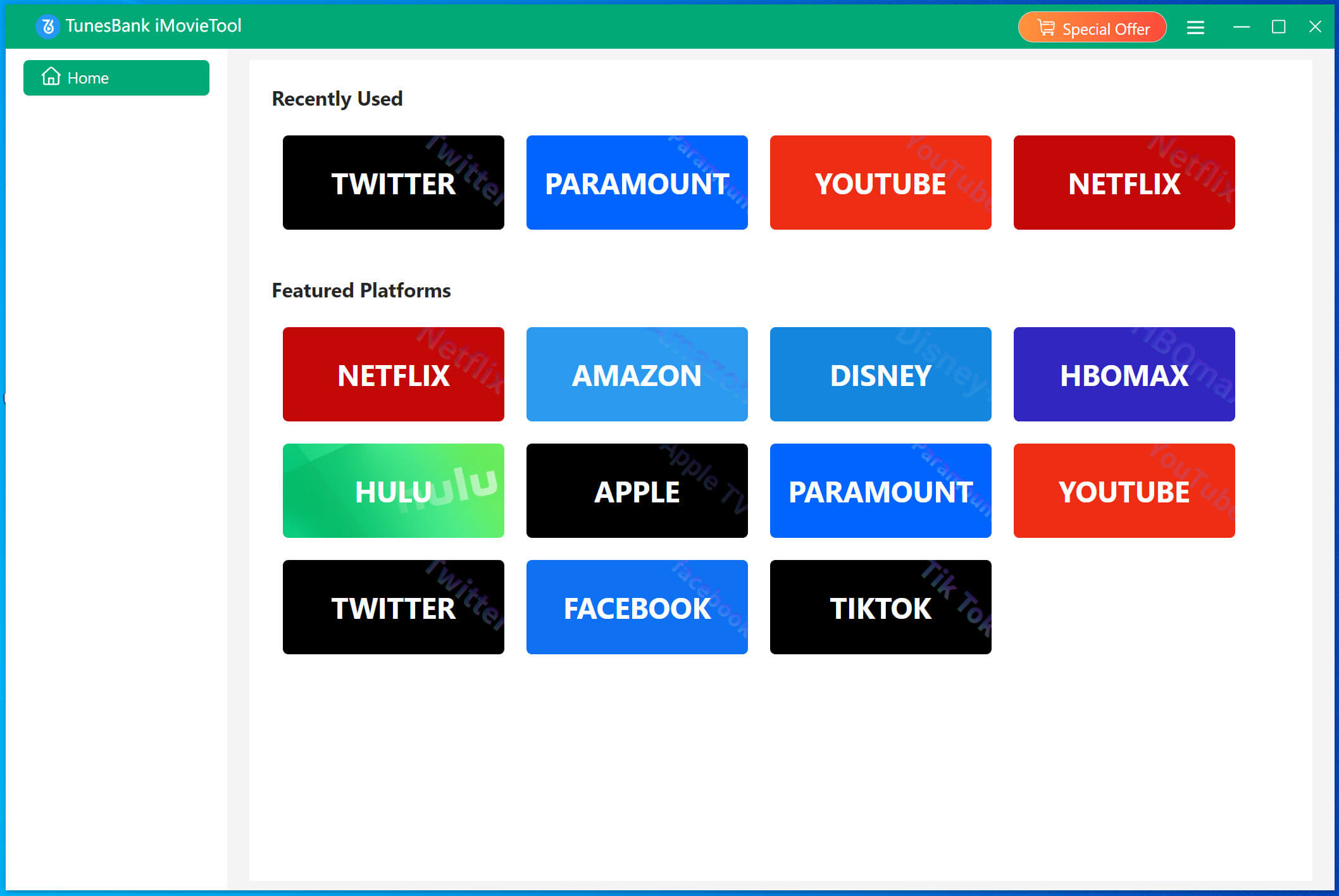
Download and launch TunesBank iMovieTool on a Mac or Windows PC. Select Netflix service to enter the iMovieTool Netflix Video Downloader.
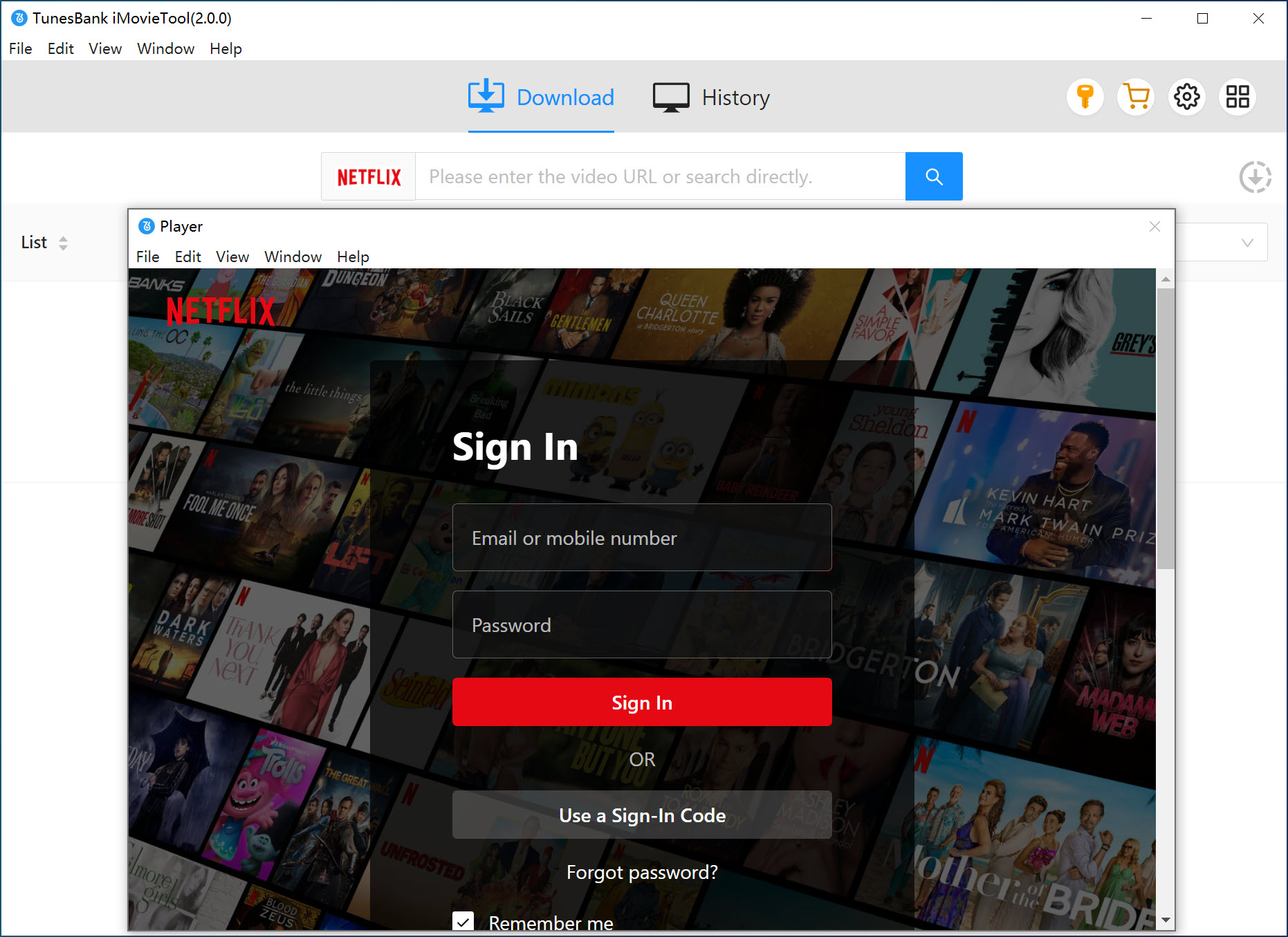
Next, sign in to your Netflix account within the built-in web browser. This allows the tool to access and download the Netflix video content you want to download.
Step 2. Choose MP4 Format for USB Drive
Click the Menu icon > Preference to choose your preferred video format, video codec, video quality, audio language, and subtitle type. To download and save movies from Netflix to USB, here we recommend MP4 format.
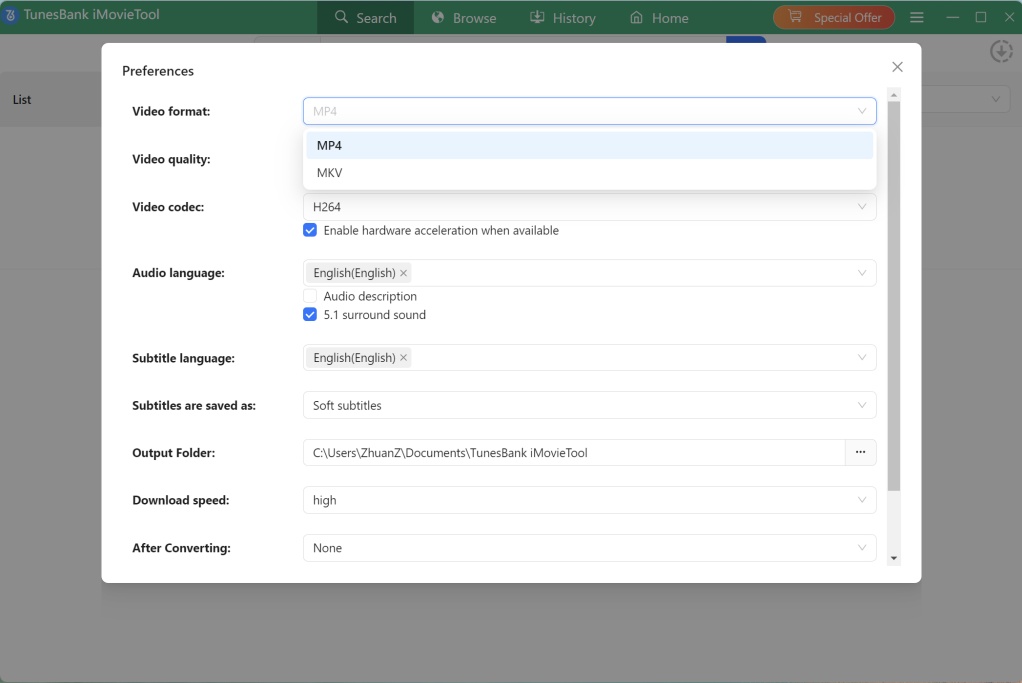
Optional Tips: Insert the USB drive into your computer and set it as the output folder in iMovieTool, this ensures you can directly download Netflix movies to the USB drive.
Step 3. Browse and Add Netflix Movies
The software offers three convenient ways to find content, making it easy to download movies from Netflix to USB drive quickly and efficiently.
Method 1: Search by Name
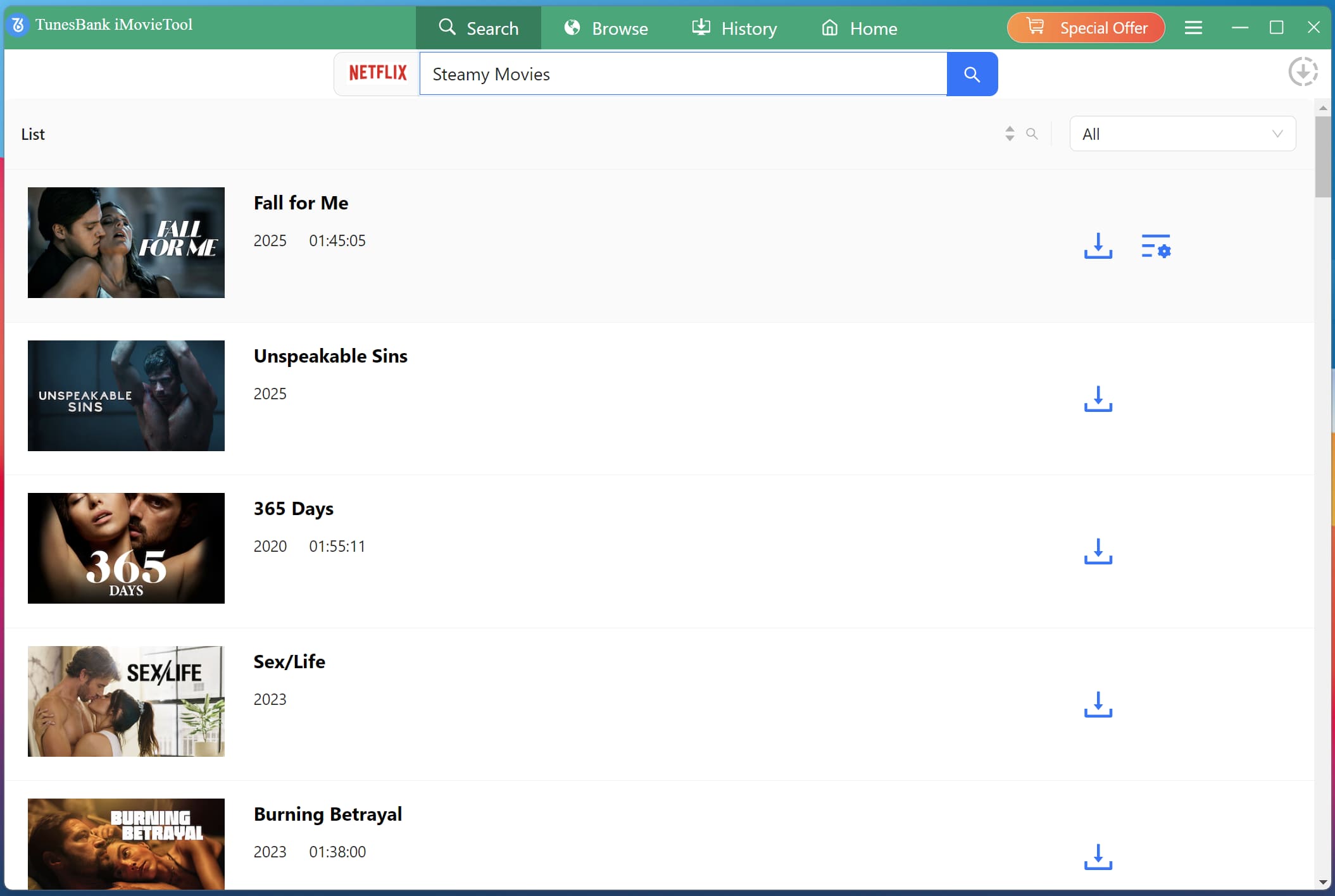
Tap on “Search” tab. Enter the movie or TV show title directly into the search bar. iMovieTool will display matching results, allowing you to select the desired video and prepare it for download.
Method 2: Search by URL
Copy the Netflix video URL from your browser and paste it into iMovieTool’ search bar. This method ensures accurate detection and is ideal for quickly locating specific titles.
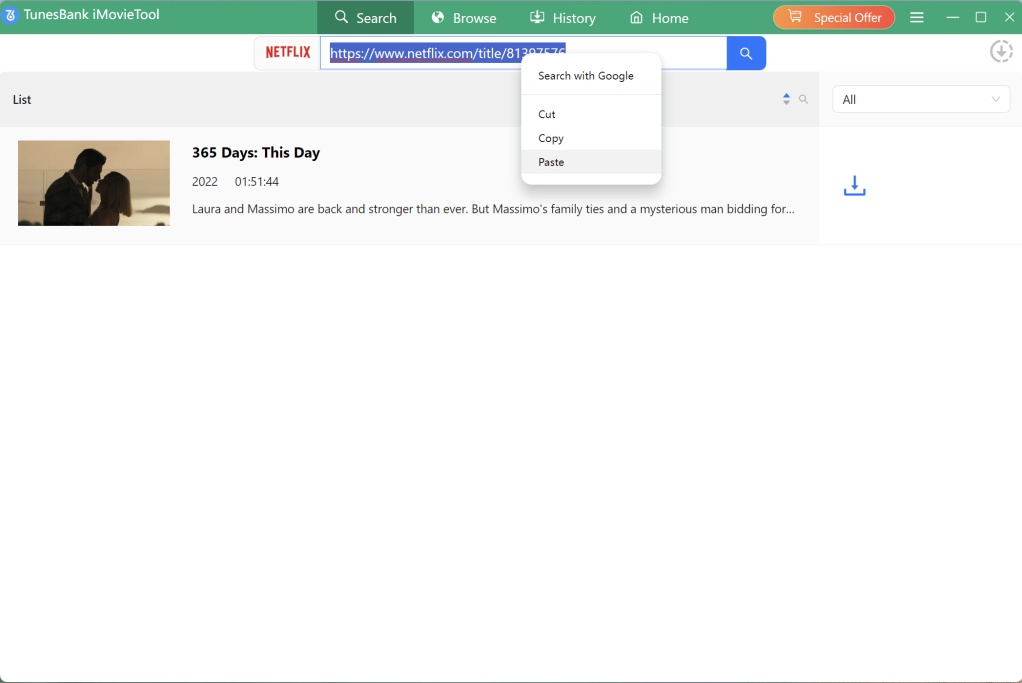
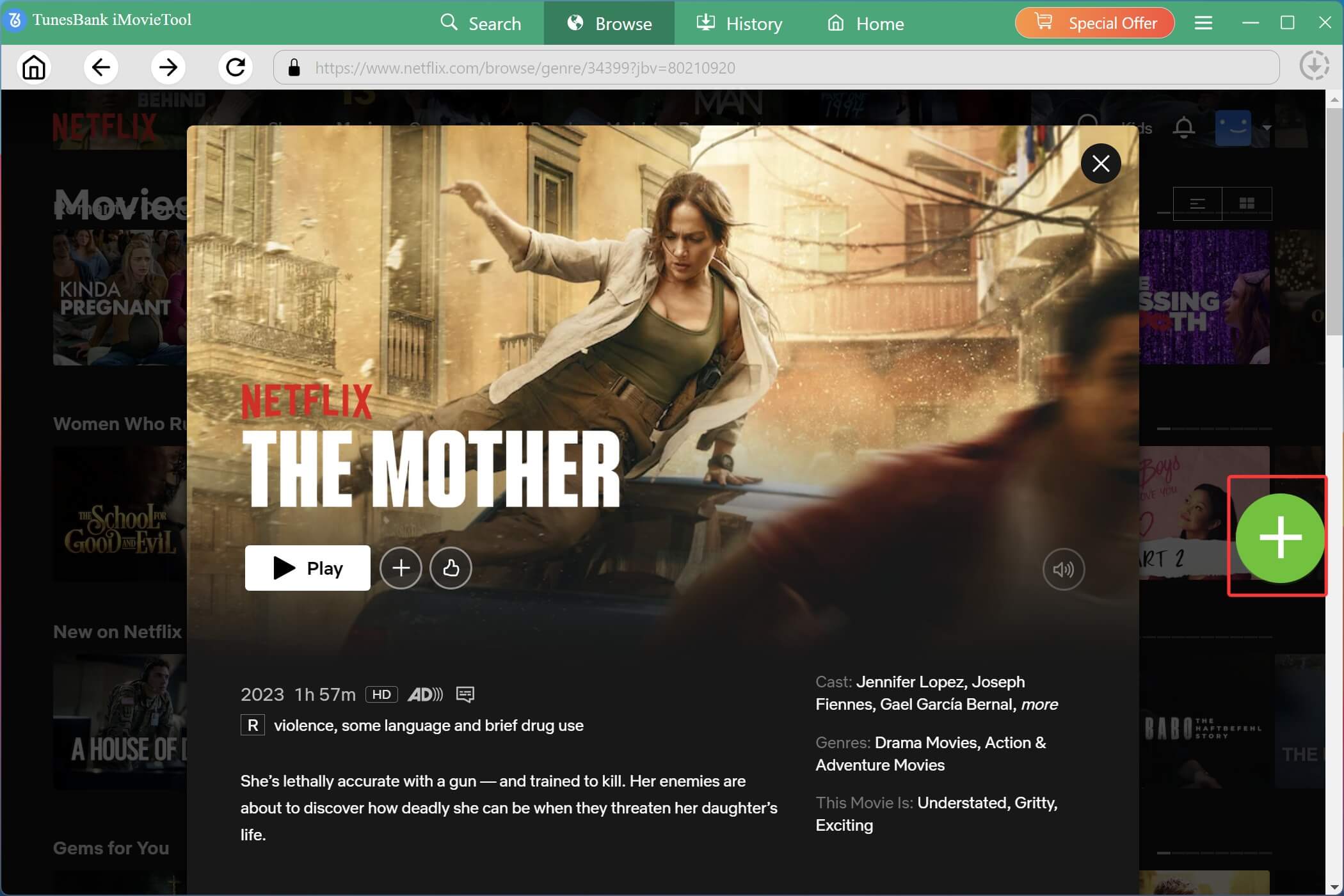
Method 3: Browse Within Netflix
Move to “Browse” section, browse through categories, genres, recommendations. Once you have opened the playback page for the movie or TV episode you want to download, look for the “+” button and click this icon.
A pop-up window will appear, allowing you to download the Netflix video directly.
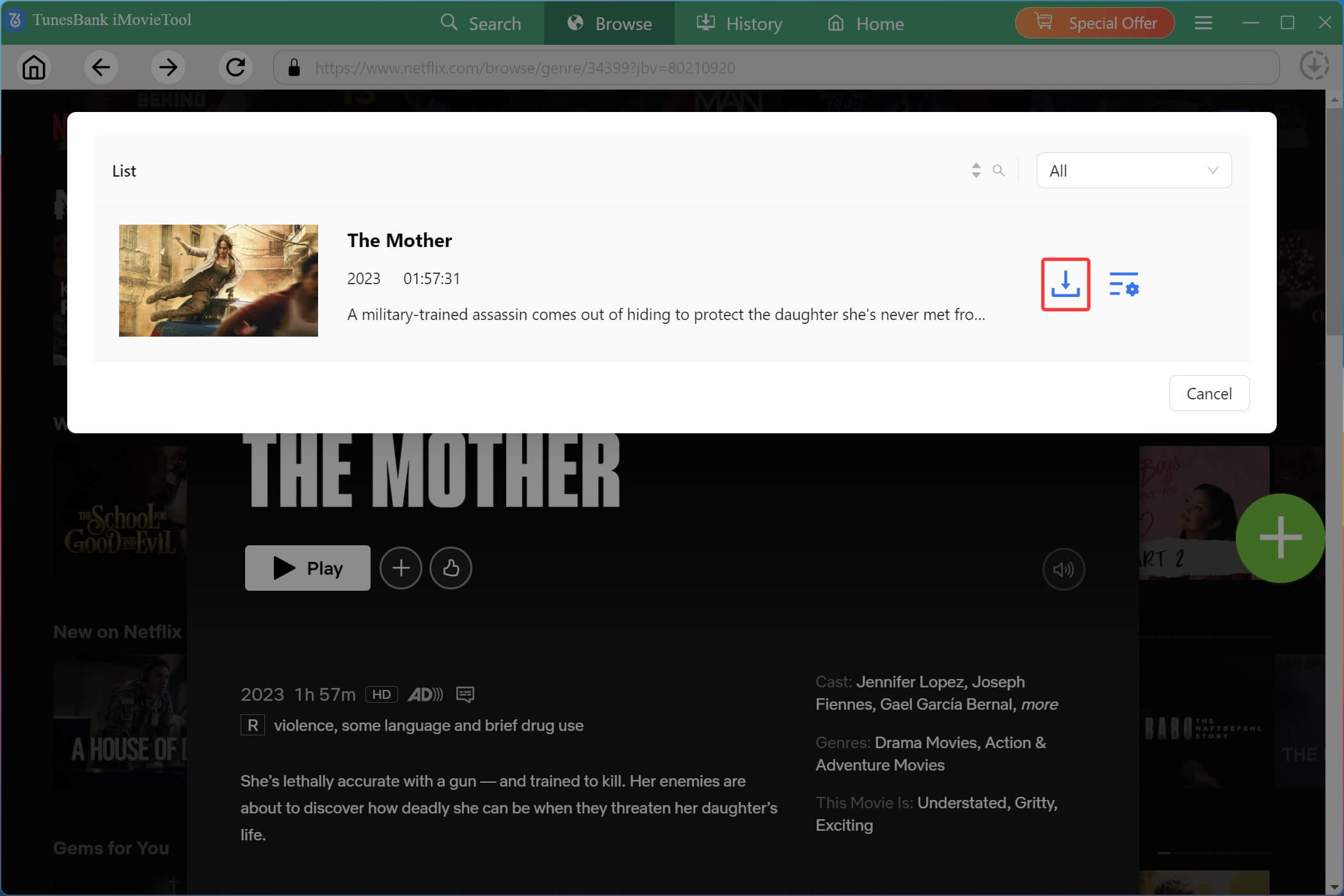
Step 4. Download Netflix Movie to USB
Click on the “Download” button to begin the process. iMovieTool will immediately download the movie from Netflix web browser to your USB or computer in high quality. During the process, you can add more Netflix titles for batch downloads.
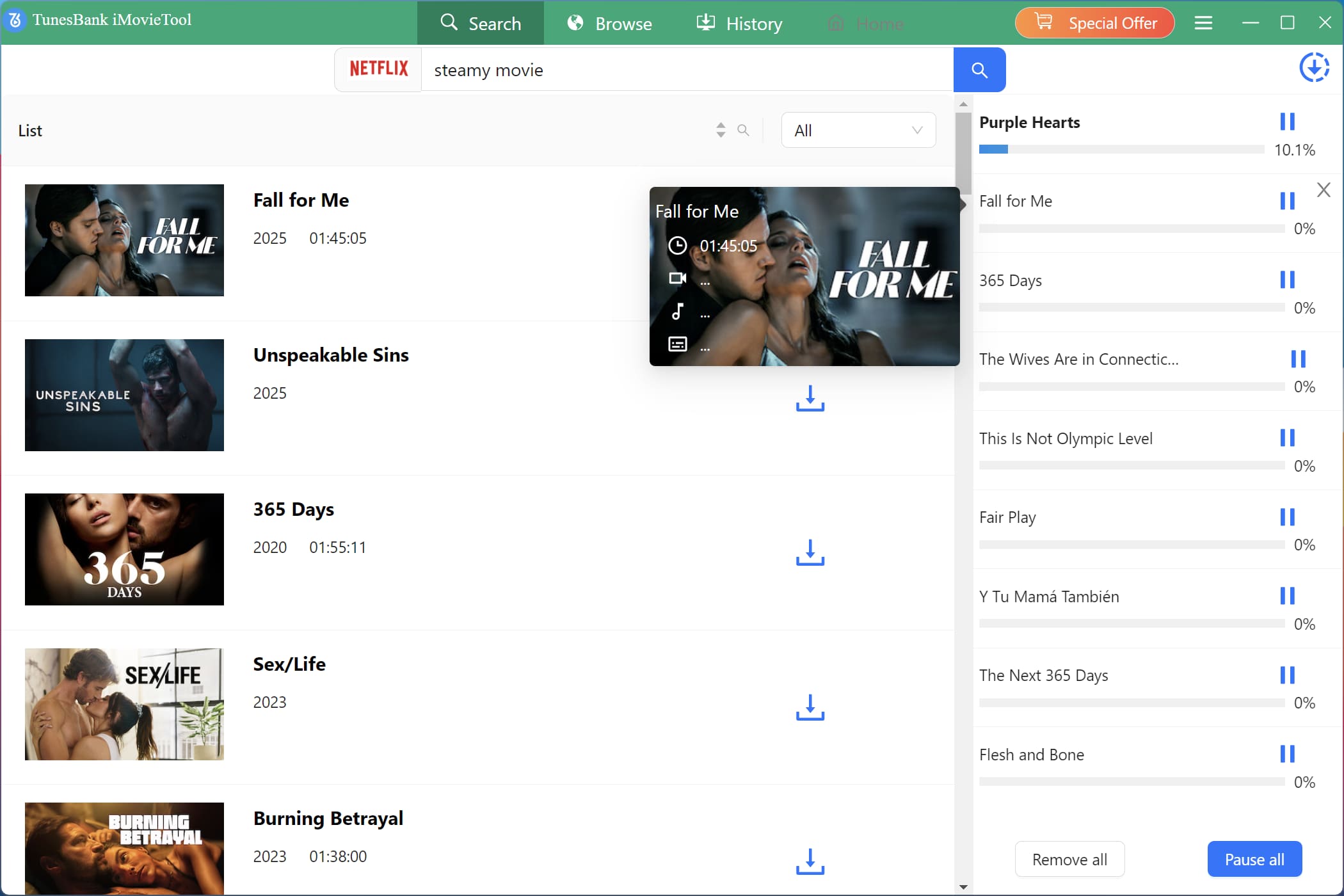
Step 5. Get Downloaded Netflix Movies
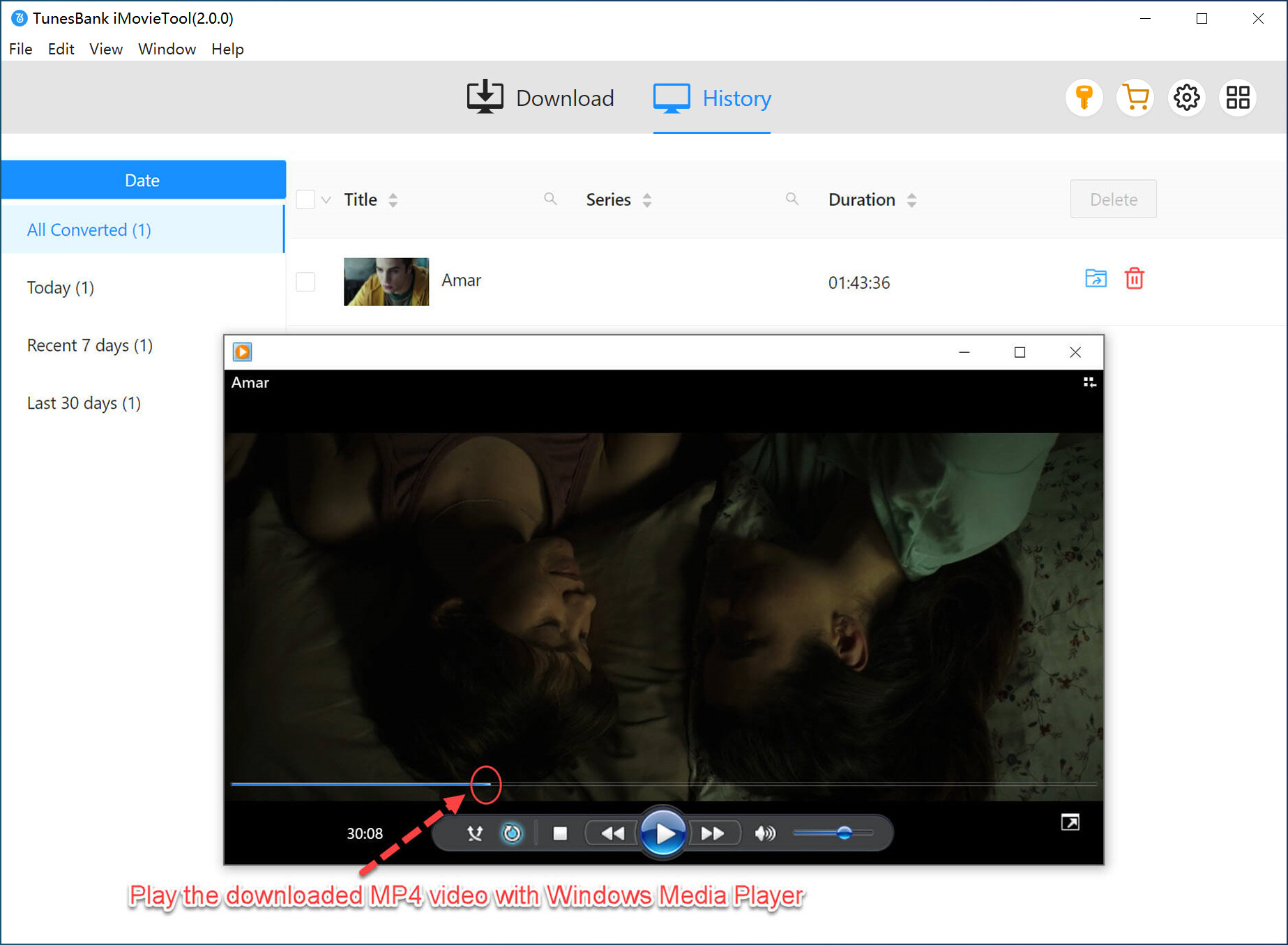
Once the download is complete, go to the “History” section to find your saved Netflix videos. All files are stored locally on your computer. If you set your USB disk as the output path in Step 2, you can directly access your USB drive to get the downloaded Netflix video files.
How to Move Netflix Downloads to USB Drive?
After downloading Netflix movies on your computer, you can easily transfer Netflix movies to USB drive using your computer.
On Windows:
Step 1. Insert your USB drive into an available USB port on your Windows computer. Wait a few seconds for Windows to recognize the drive and assign it a drive letter.
Step 2. Open File Explorer (Windows key + E) and locate the downloaded Netflix videos on your PC.
Step 3. You can select multiple files by holding Ctrl while clicking, or select entire folders.
Step 4. Then drag and drop or copy and paste them into the USB folder.
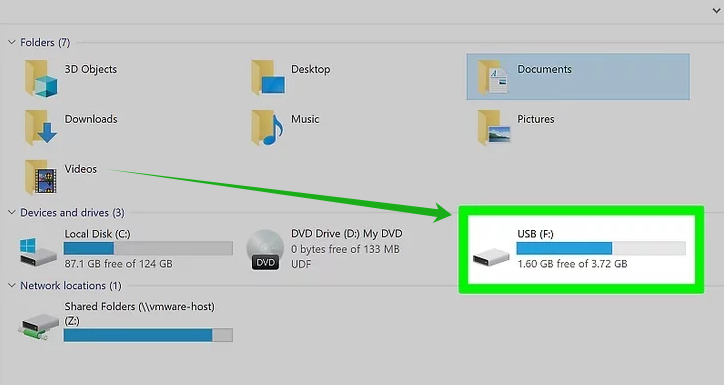
Step 5. When finished, safely eject your USB drive by right-clicking on the drive in File Explorer and selecting “Eject”.
On Mac:
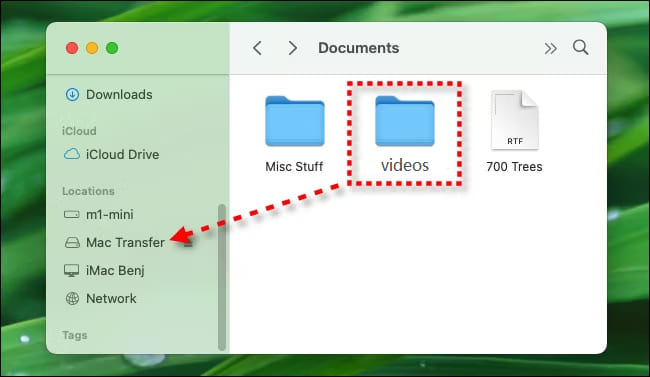
Step 1. Connect your USB drive to your Mac, and open Finder app.
Step 2. Navigate to the output folder where TunesBank iMovieTool saved your downloaded Netflix movies.
Step 3. Select the Netflix video files or folders you want to transfer.
Step 4. Drag the videos and drop to the USB drive in Finder app.
Step 5. Finally, eject your USB drive by clicking the eject icon next to the drive name in Finder.
Final Words
To download movies from Netflix to USB, iMovieTool Netflix Video Downloader can be the most reliable option. With this tool, you can easily download movies from Netflix to computer in HD MP4 format. This allows you to easily transfer your Netflix downloads to a USB drive or any external device, and enjoy unlimited offline viewing. Give it a try, happy downloading and happy viewing!
The Latest Articles
– Top 8 Solutions to Download Streaming Video
– Top 10 Free Movie Download Sites Recommended
– 3 Ways to Download Movies to Watch Offline
– 2 Verified Methods to Download X/Twitter Videos to MP4
– Download Twitter(X) Videos on PC, Mac and Mobile Phone
– Download Facebook Videos on PC, Mac and Mobile Phone
– 3 Ways to Download Facebook Video to MP4

Netflix Video Downloader
Download Netflix video to MP4 or MKV with multi-language audio track and subtitle kept. Up to 50X downloading speed. Easily to download your favorite movies/TV shows from Netflix to your computer for offline viewing.








2 Replies to “How to Download Movies from Netflix to USB Drive”
Comments are closed.