








 United States (English)
 Japan (日本語)
 Russia (русский)
 Germany (Deutsch)
 France (Français)
 Spain (Español)
 Italy (Italia)
 Portugal (Portugues)
 China (繁体中文)
 Turkish (Türk dili)
 Dutch (Nederlands)
 Korean(한국인)
 Saudi Arabia(عربي)
 Download Netflix Movies and TV shows to watch offline.
Wondering how to download Netflix shows as MP4? This guide shows 2 simple methods to save Netflix TV episodes to MP4 in 1080p quality. You can easily build a permanent collection of your favorite TV shows and movies and enjoy flexible offline viewing on any device!
Want to watch your favorite TV shows on Netflix offline? You can easily enjoy popular TV shows like Squid Game, The Crown, Stranger Things, Money Heist, and many other acclaimed series from Netflix’s extensive library. Moreover, you can also download Netflix shows on your phone or tablet as long as you have a valid subscription. But if you are looking to watch Netflix shows offline on a bigger screen such as laptop or smart TV, it’s a bit more difficult. Because Netflix’s strict download limits will prevent you from downloading Netflix videos outside the mobile app. That’s why the demand for downloading Netflix TV shows to MP4 has become increasingly popular.
With the right tools, you can effortlessly save Netflix TV episodes as MP4 in 1080p, keep your favorite episodes permanently, and enjoy playback across your own devices! In this guide, we’ll introduce two simple methods to download Netflix shows as MP4 files, by using a professional Netflix downloader and an online tool. Let’s explore!

Method 1. Download Netflix Shows as MP4 via Professional Netflix Downloader
If you’re looking for the most reliable way to download Netflix shows as MP4, a professional Netflix downloader is the best choice.
iMovieTool Netflix Video Downloader is a powerful desktop application designed to help users download Netflix TV series as MP4 or MKV format. It removes Netflix download limitations and allows users to save movies, TV shows, documentaries, and Netflix Originals directly to their computers without the Netflix app. With support for 1080p Full HD video quality and multiple audio tracks, this Netflix downloader ensures you enjoy the best offline viewing experience.
The software features an intuitive interface and built-in web browser that makes browsing and downloading Netflix content effortless. You can download entire TV show seasons or multiple episodes from Netflix simultaneously with the batch mode. Additionally, it accelerates 50X download speeds to process content efficiently, allowing you to quickly build your offline library without waiting hours. After that, you can easily transfer downloaded Netflix shows to a USB drive and watch them offline on your smart TV, Projector, game console, laptop, etc.
Features of iMovieTool Netflix Video Downloader:
- Download Netflix TV shows, movies, videos to PC, Mac.
- Download Netflix shows as MP4 or MKV format.
- Save Netflix shows to MP4 in 1080p quality.
- Download entire TV seasons from Netflix in batches.
- Download Netflix shows at up to 50X faster speed.
- Preserve multilingual audio tracks and subtitles.
- Keep subtitles in multiple formats, retain metadata info.
- Transfer Netflix shows to USB drive, phone, tablet, any device.
Tutorial 1: How to Download Netflix Shows on PC as MP4 Files
Step 1. Select Netflix and Login Account
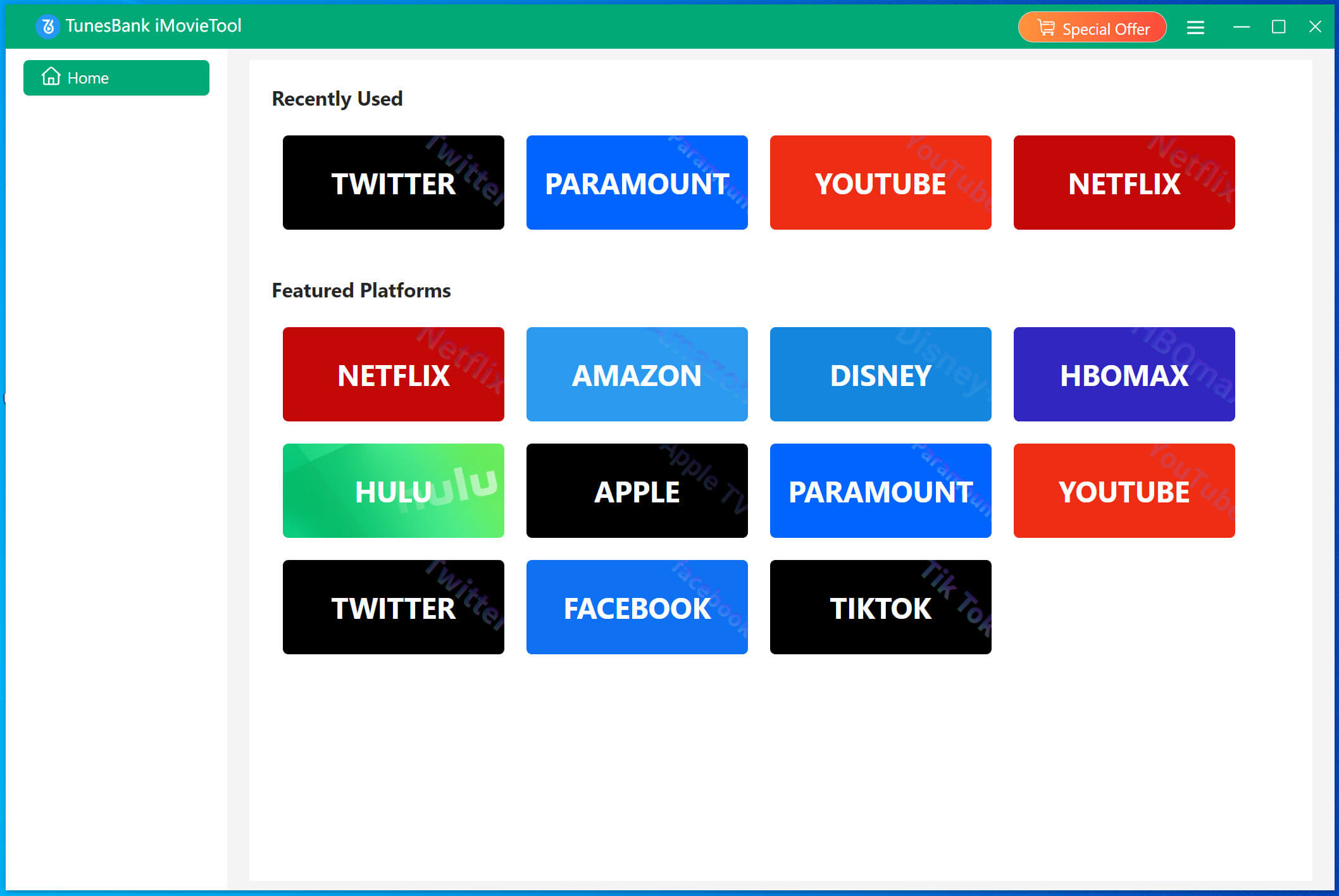
Download and launch TunesBank iMovieTool Video Downloader on your computer, and select Netflix from the list of supported streaming platforms.
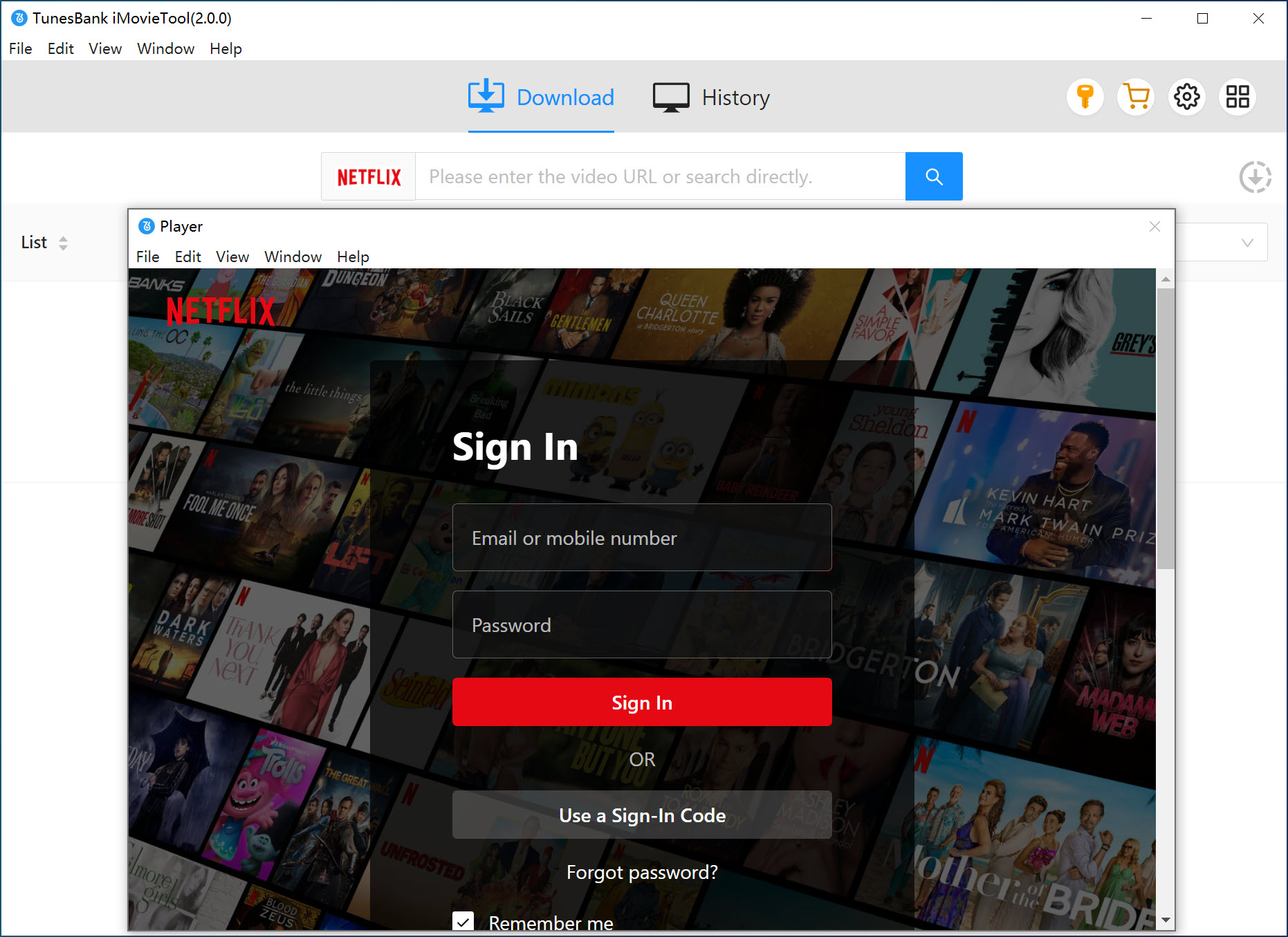
Next, sign in to your Netflix ad-free or ad-supported account through the built-in browser to access the complete Netflix content library.
Step 2. Configure Output Settings
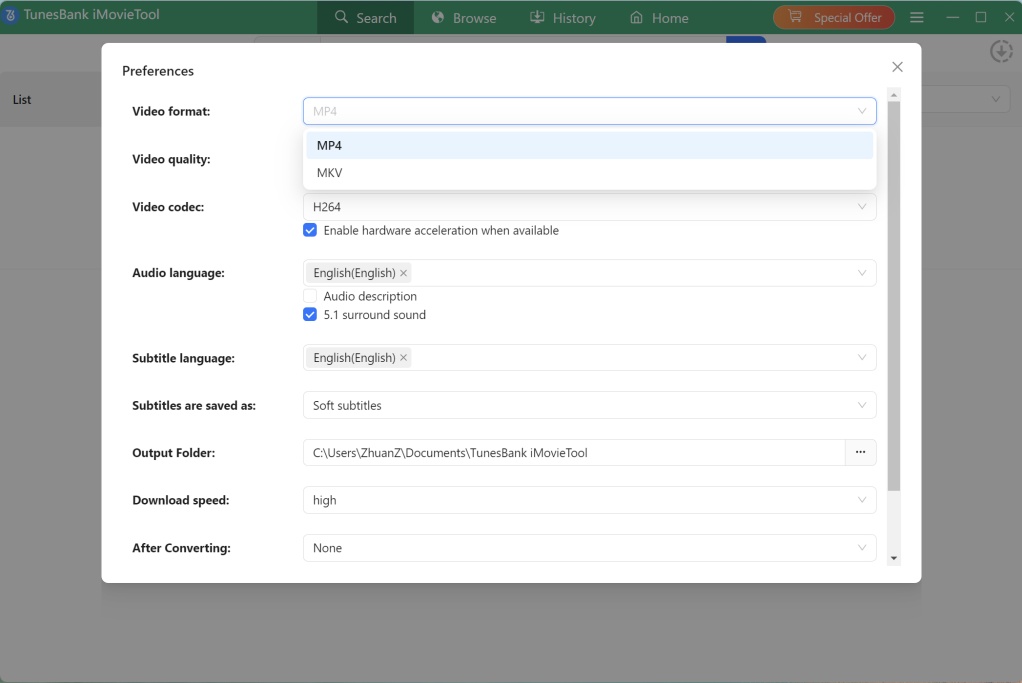
Click the Menu icon in the upper-right corner to access the output Preferences. Here you can choose your desired output format (MP4), video quality (1080p, 720p, or 480p), audio language, subtitle language, and output folder location. You can also select whether subtitles should be embedded or saved as separate files.
Step 3. Search for Netflix Shows
iMovieTool offers multiple ways to find the content you want to download. You can search by title, paste a direct video URL, or browse the Netflix catalog directly.
#1. Search Netflix TV Shows by Title
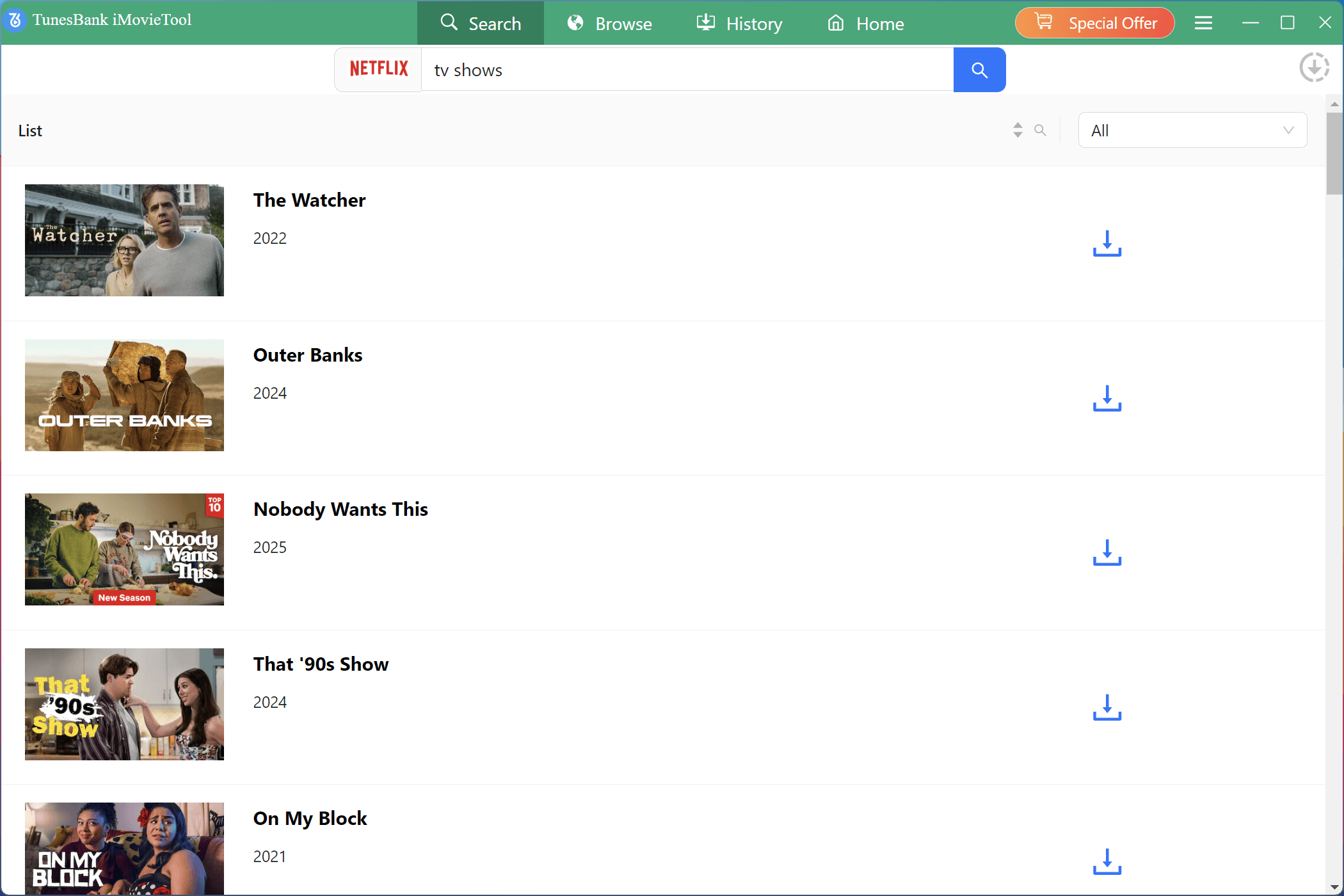
Under “Search” section, directly type the title of the TV show into the search bar. For example, if you have no idea, simply type “TV show” in. The software will display matching results for your options.
#2. Search Netflix TV Shows Using URL
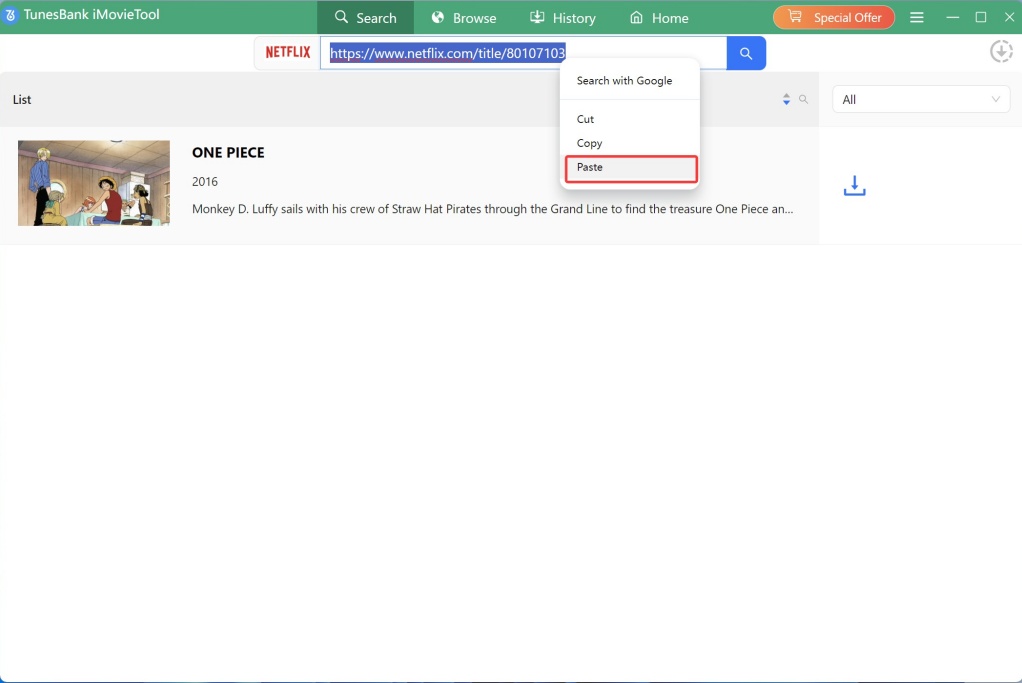
Go to Netflix in your browser, navigate to the specific video page, copy the URL from the address bar, and paste it into iMovieTool’s search field. For example, here we paste the URL of “One Piece”, the software will automatically detect the content. This method is perfect for accessing specific episodes quickly.
Step 4. Select Desired Netflix TV Episodes
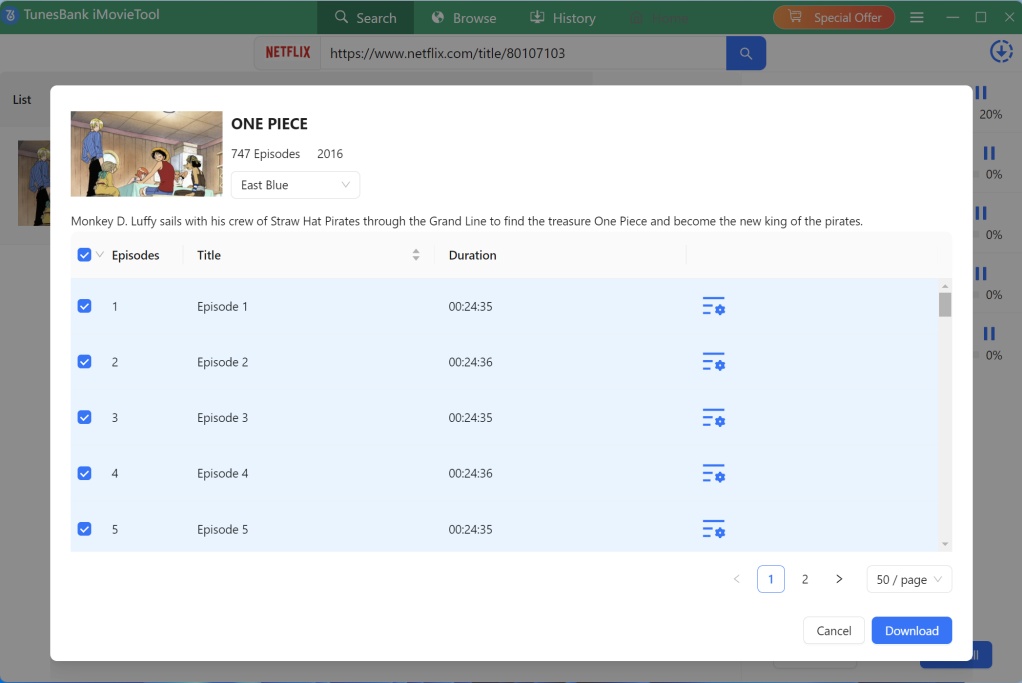
Then click “Download” button, in the pop-up window, select your desired TV episodes.
Step 5. Download Netflix TV Episodes to MP4
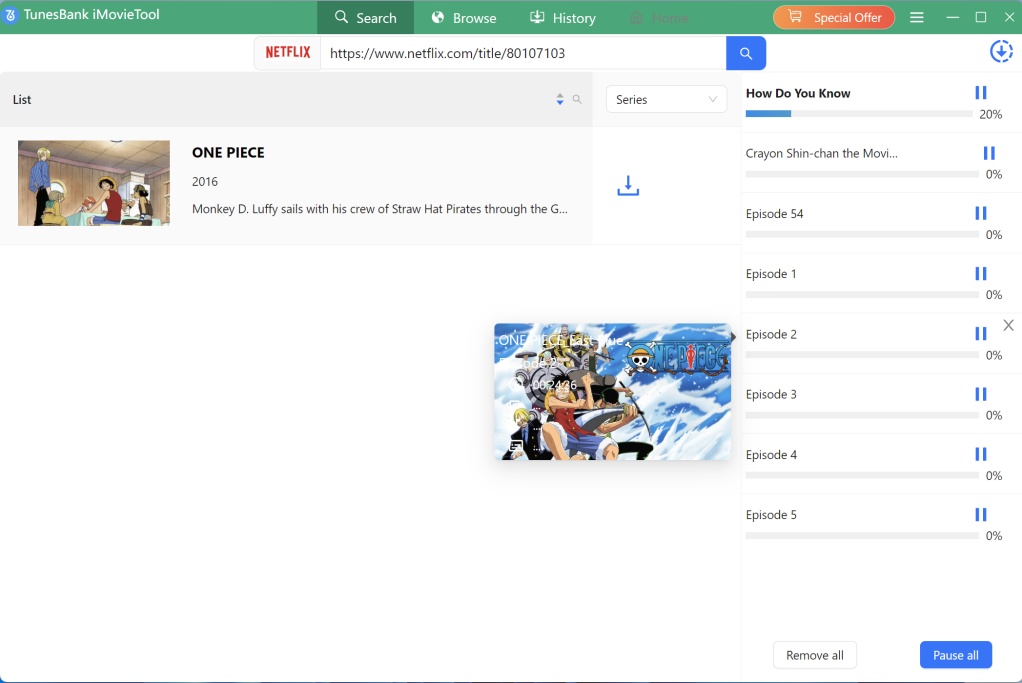
After selecting the episodes you want to save, click the “Download” button. iMovieTool will start downloading and converting the selected Netflix episodes into MP4 format while preserving high-quality resolution.
Tutorial 2: How to Download Entire Netflix Shows to MP4?
In this section, we will show you the detailed steps on how to browse Netflix content and download entire Netflix TV shows to MP4 at once.
Step 1. Enter Netflix Video Downloader
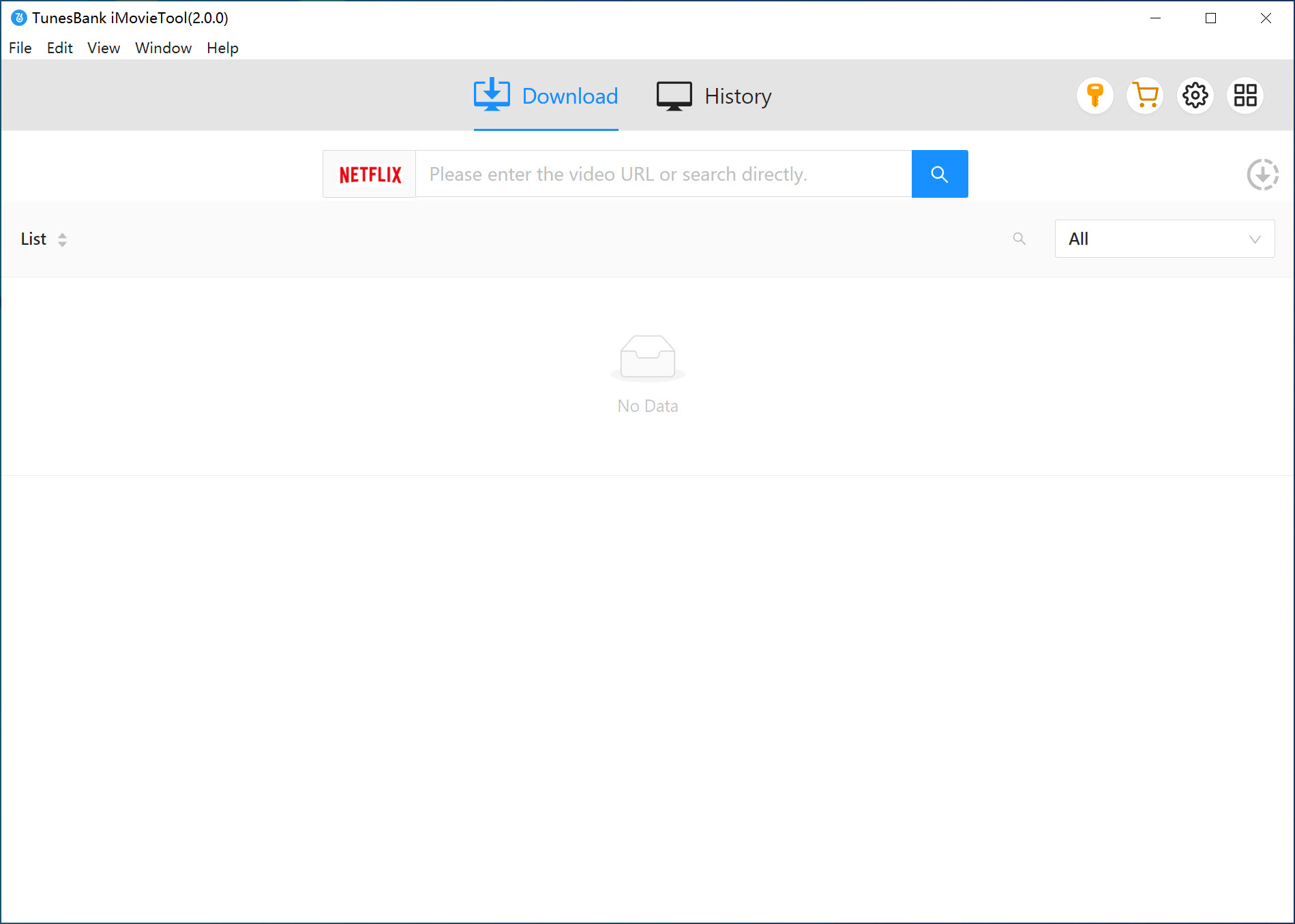
After logging into your Netflix account, you will see a simple interface.
Step 2. Browse Netflix Shows Online
Turn to “Browse” section, navigate the Netflix catalog just as you would on the website. You can explore categories, browse trending content, or access your saved list to find shows you’ve been meaning to watch.
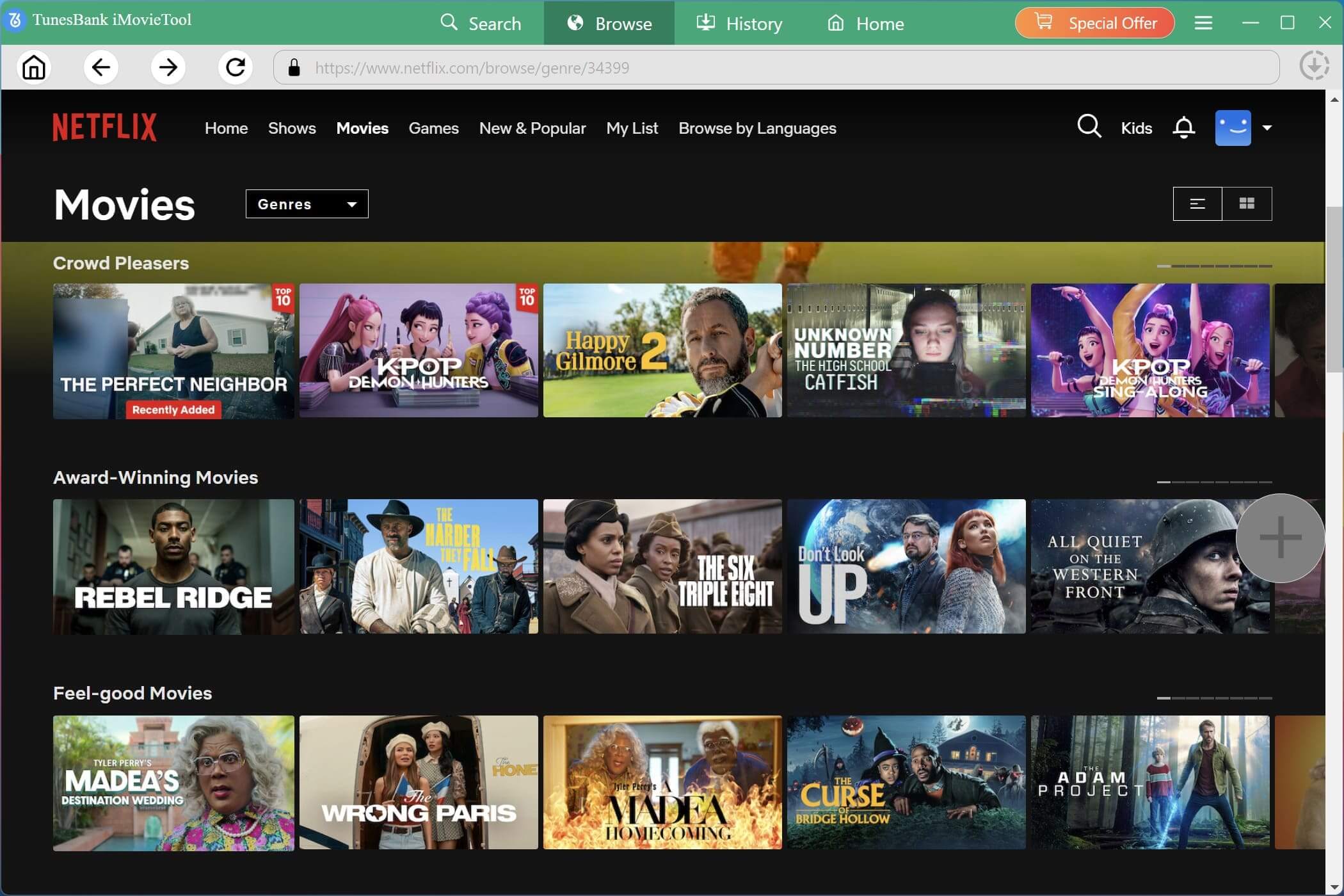
Step 3. Add and Select Netflix Shows
For example, here we search for “Prison Break”, open the show page, and click the “+” button to load all available episodes and seasons.
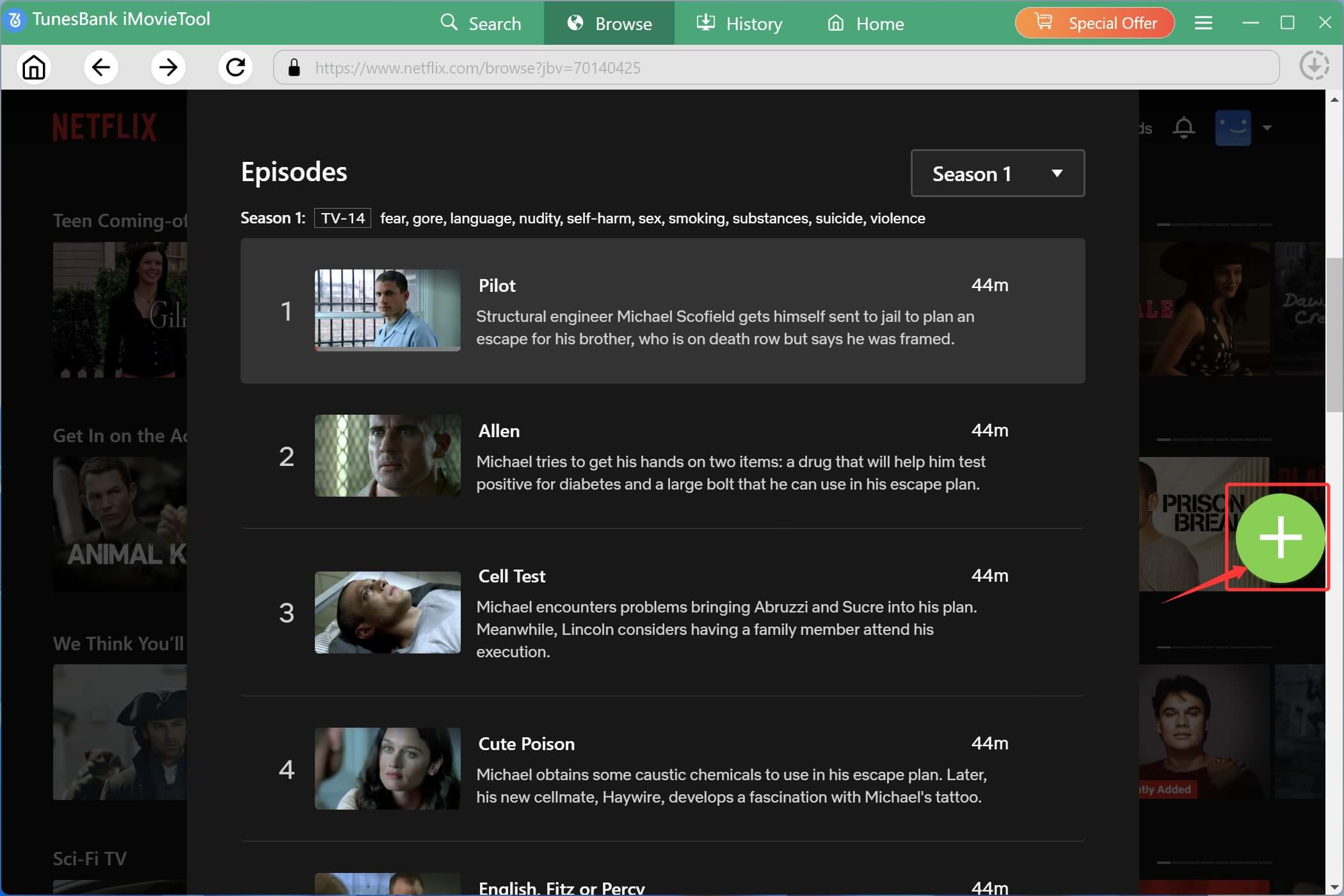
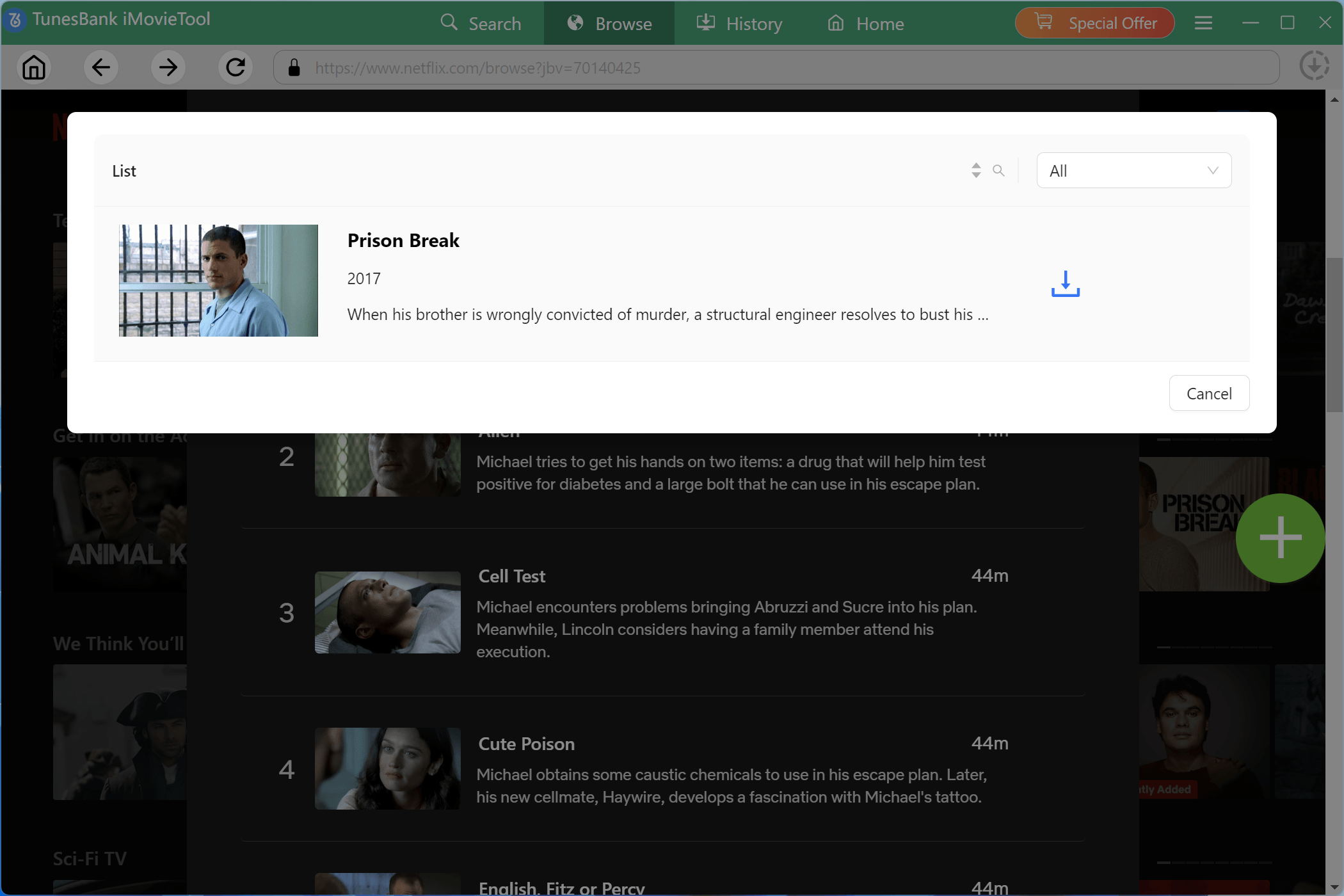
Then, it will pop up a small window, click the “Download” icon next to the title.
In the new window, select and add your desired episodes or entire season to the download queue.
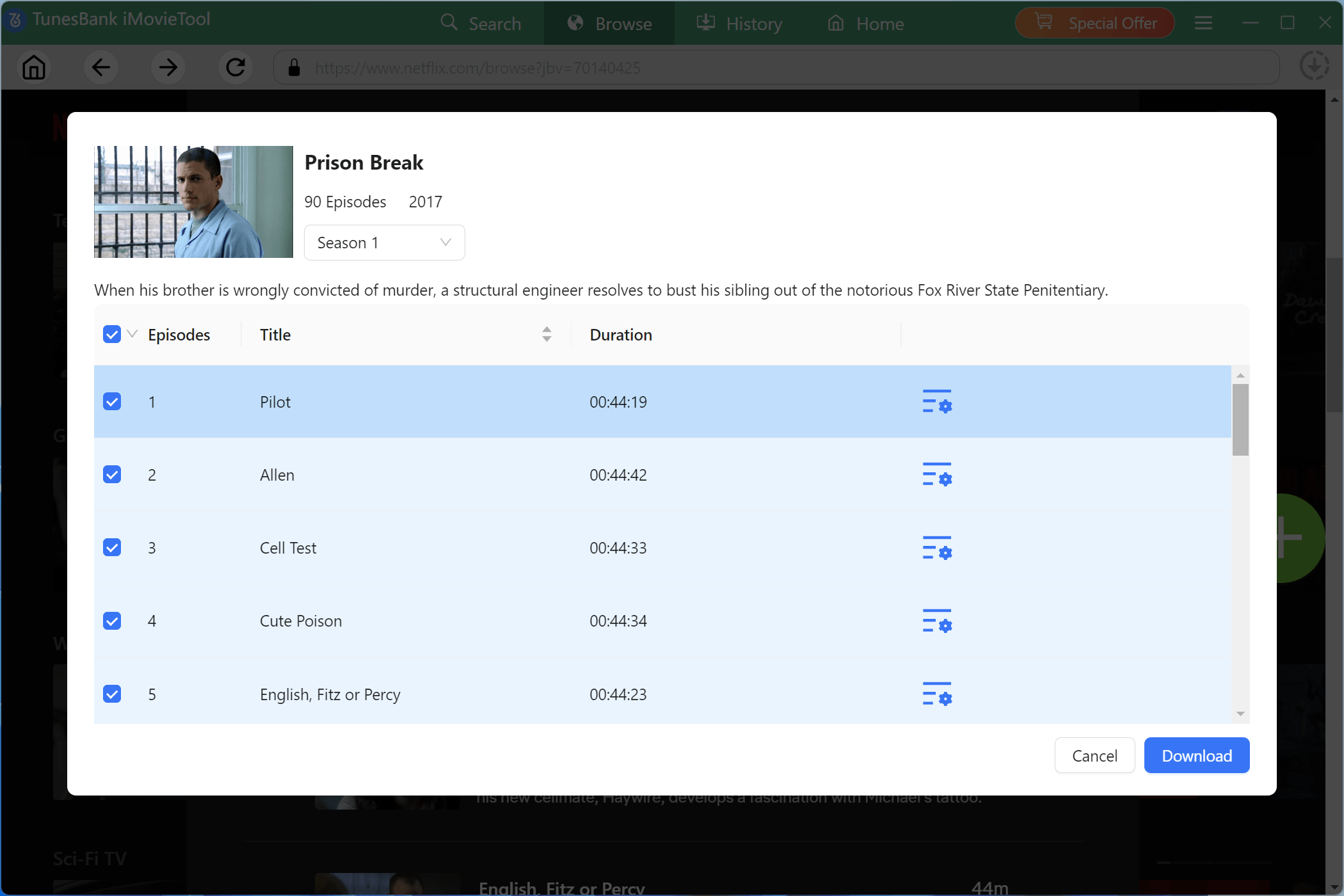
Tips: After adding content, you can configure individual video settings. Click the “Settings” icon next to each title to adjust audio language, subtitle options, and quality. This allows you to customize each download based on your preferences.
Step 4. Begin Download Netflix Shows as MP4
When everything is ready, press on the “Download” button to save Netflix shows as MP4 files on your computer. During the process, you can turn back to the main interface to add more shows for batch downloads.
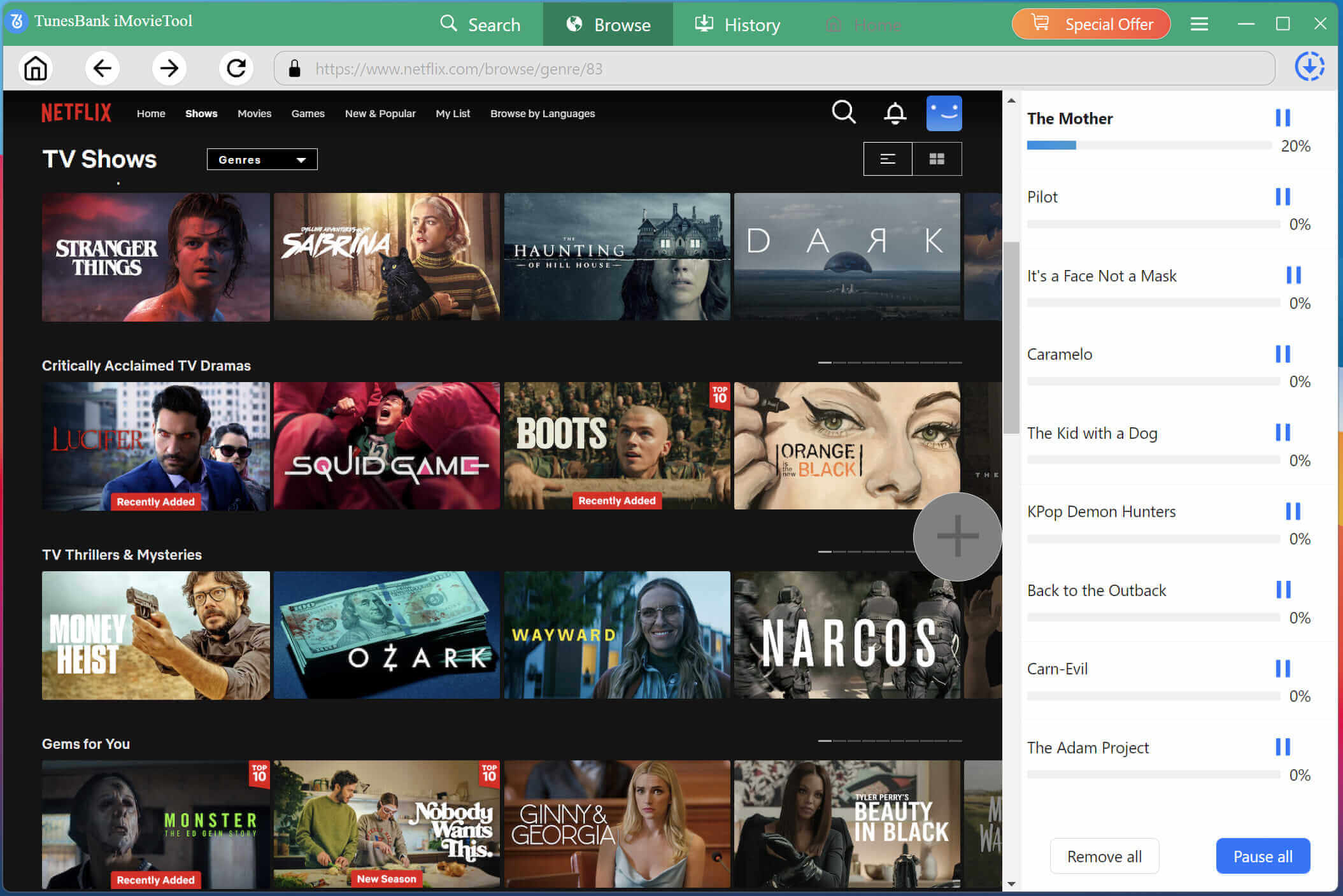
Step 5. Access Your Downloaded Netflix Episodes
Once the download process is completed, navigate to the “History” or output folder. You can instantly find all downloaded Netflix episodes and play them offline on any compatible device.
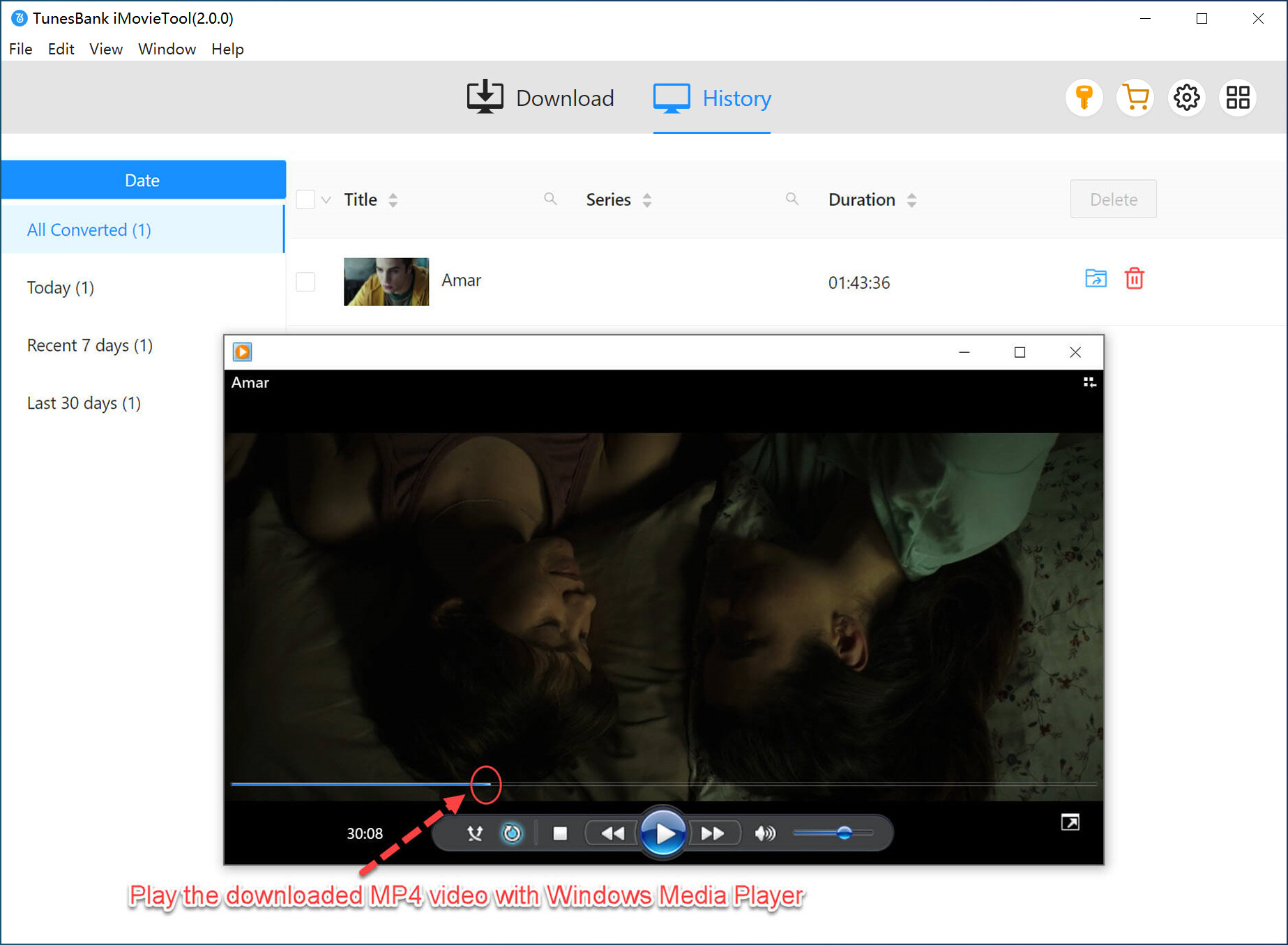
Method 2. Download Netflix Shows as MP4 via Online Tool
For users who prefer not to install dedicated software, online tools offer an alternative method to save Netflix TV episodes as MP4. NetflixDownload is a free online tool designed to download Netflix shows to computer, and mobile devices in MP4 format. This tool is easy to use, require no installation, and can be accessed directly from a browser.
It typically works by allowing users to paste a Netflix TV show URL into a web page, after which the service analyzes the link and generates downloadable MP4 files. However, it only supports download single episode at a time, and its speed can be a bit slow, which may not meet the expectations of users looking for efficient batch downloads. Therefore, you can turn to the more professional desktop software – iMovieTool Netflix Video Downloader.
Here’s how to download Netflix TV episode to MP4 using online tool:
Step 1. Go to the official website of NetflixDownload in your browser.
Step 2. Navigate to Netflix and copy the URL of the TV show or episode you wish to download.
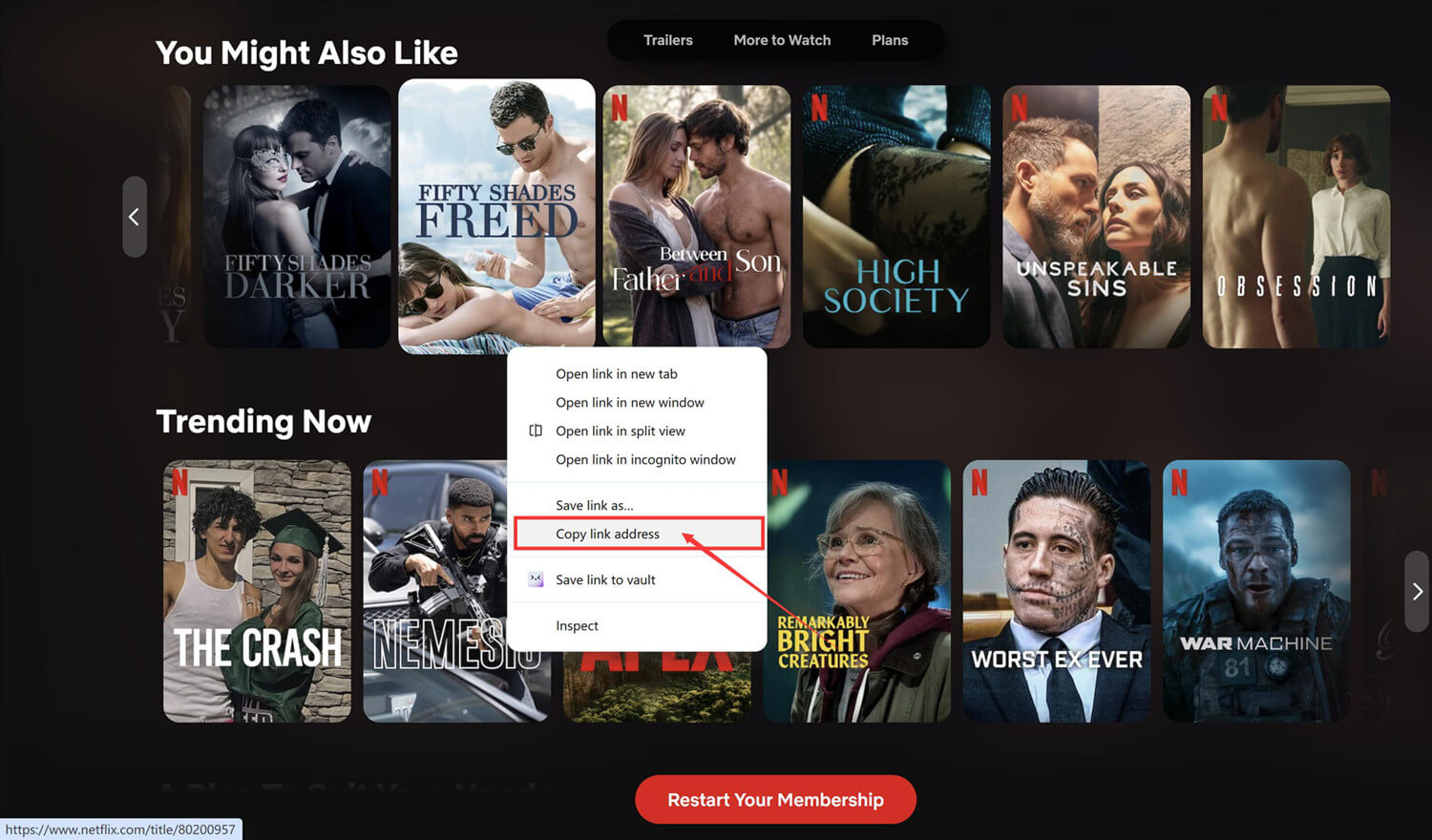
Step 3. Paste the copied Netflix link into NetflixDownload’s input box and click the “Download” button.
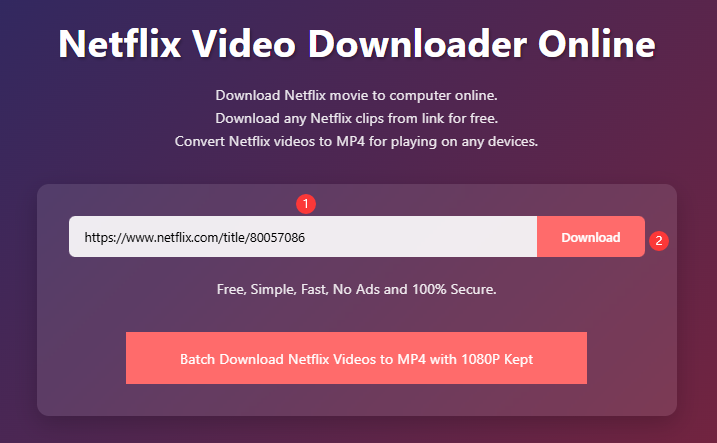
Step 4. If the website successfully detects the video, choose MP4 as the output format and select the available quality settings.
Step 5. Click “Download” button to save the Netflix episode as an MP4 file to your computer.
FAQs About Downloading Netflix Shows to MP4
Does Netflix Use MP4?
No. Netflix streams and downloads videos using encrypted formats protected by DRM technology. It doesn’t let you download and save any content in MP4 format. To get Netflix MP4 videos, you’ll need a dedicated tool to download Netflix shows as MP4 files. iMovieTool Netflix Video Downloader is a good option.
Can You Download Netflix Shows as MP4 on Android?
Netflix’s Android app does not provide an option to export downloads as MP4 files. Some online Netflix downloaders claim to help you download Netflix show on Android in MP4 by pasting a URL. But most online websites deliver parsing results with a success rate of around 50%. Therefore, you can use a desktop software such as iMovieTool Netflix Video Downloader to get Netflix shows onto your PC as MP4 files, then transfer them to your Android device.
Can You Download Netflix Shows to MP4 Free?
There are some free online services that claim to download Netflix TV series as MP4 files, but many have limitations such as lower quality, unstable performance, advertisements, or download restrictions. For reliable results, better quality, and high success rate, using a professional software such as iMovieTool Netflix Video Downloader is generally the more practical solution.
Final Words
The answer about how to download Netflix shows as MP4 is simple: both using a Netflix to MP4 downloader and an online tool are viable options. For the best experience, the professional software iMovieTool Netflix Video Downloader is highly recommended. It enables you to download Netflix TV shows in batches onto your computer, save Netflix shows to MP4 in 1080p with full audio and subtitle support. Now, download its free trial and use it to catch your favorite TV shows and movies!
The Latest Articles
– Top 8 Solutions to Download Streaming Video
– Top 10 Free Movie Download Sites Recommended
– 3 Ways to Download Movies to Watch Offline
– 2 Verified Methods to Download X/Twitter Videos to MP4
– Download Twitter(X) Videos on PC, Mac and Mobile Phone
– Download Facebook Videos on PC, Mac and Mobile Phone
– 3 Ways to Download Facebook Video to MP4

Netflix Video Downloader
Download Netflix video to MP4 or MKV with multi-language audio track and subtitle kept. Up to 50X downloading speed. Easily to download your favorite movies/TV shows from Netflix to your computer for offline viewing.








2 Replies to “Can You Download Netflix Shows as MP4?”
Comments are closed.