








 United States (English)
 Japan (日本語)
 Russia (русский)
 Germany (Deutsch)
 France (Français)
 Spain (Español)
 Italy (Italia)
 Portugal (Portugues)
 China (繁体中文)
 Turkish (Türk dili)
 Dutch (Nederlands)
 Korean(한국인)
 Saudi Arabia(عربي)
 Download Netflix Movies and TV shows to watch offline.
Netflix won’t play suddenly? Why did Netflix stop working? This article shows you the reasons and solutions to remove that problem on smart TVs, computers, or phones. Afterwards, you can access your favorite Netflix titles again and enjoy a smooth viewing experience.
Situation: Many users report problems such as Netflix not working, Netflix isn’t working on your TV, or Netflix not letting you play anything without warning.
Netflix has a huge video library that allows you to watch a wide variety of great movies, TV series, documentaries, and more. Have you ever encountered problems enjoying movies and dramas on Netflix, such as “Netflix not working or opening on smart TV” or “stuck on a loading screen”? These are actually common issues that many users face daily.
This article will clearly explain the causes of common problems with Netflix, and cover exactly how to fix Netflix won’t play suddenly and get your binge-watching back on track. We also introduce a powerful tool, named iMovieTool Netflix Video Downloader, which can help you download Netflix videos in MP4 format for convenient offline viewing, no expiration, no playback restrictions.
Part 1. Why Is My Netflix Not Working All of a Sudden?
There are several technical and account-based reasons why Netflix isn’t working on your TV or mobile device. The most common causes include unstable internet connections, outdated app versions, corrupted cache data, server outages, or regional content restrictions. Additionally, specific subscription plans (like the ad-supported tier) block access to certain titles, leading to the “Not available” error.
Part 2. How to Fix Netflix Won’t Play Suddenly
Below are the most effective methods to fix Netflix won’t play, whether you are using a Smart TV, Android phone, iPhone, tablet, Windows PC, or streaming device.
Solution 1. Check Your Internet Connection
Solution 2. Check Connection Speed
Solution 3. Check Netflix Server Status
Solution 4. Check Your Netflix Subscription
Solution 5. Clear Netflix App Data/Cache (Android/TVs)
Solution 6. Update the Netflix App
Solution 7. Restart Your Device
Solution 8. Reinstall the Netflix App
Solution 9. Turn Off Your VPN
Solution 10. Update Your Device
Solution 1. Check Your Internet Connection
A weak or unstable internet connection is one of the biggest reasons why Netflix not working issues happen. Netflix requires a stable network to stream content smoothly. If your Wi-Fi disconnects frequently or mobile data is unstable, Netflix may freeze, buffer endlessly, or stop loading entirely. So, check your network status can help you fix Netflix won’t play suddenly.
Solution 2. Check Connection Speed
Even if your internet works, slow speeds can still cause Netflix stop working issues. Netflix recommends minimum speeds for smooth streaming.
Netflix recommended speeds:
- 3 Mbps for SD quality
- 5 Mbps for HD streaming
- 15 Mbps for 4K Ultra HD
If your speed drops below these thresholds, Netflix won’t play properly. Run a speed test using Google or Ookla. If your speed is low, restart your router or contact your ISP.
Solution 3. Check Netflix Server Status
Next, determine if Netflix is down. Sometimes the problem is not on your end. Netflix servers may temporarily experience outages, causing users worldwide to report that Netflix not working. You can visit the official Netflix Help Center or Netflix’s Official Social Media, or even visit Downdetector or IsItDownRightNow and search for “Netflix” to check the server status.
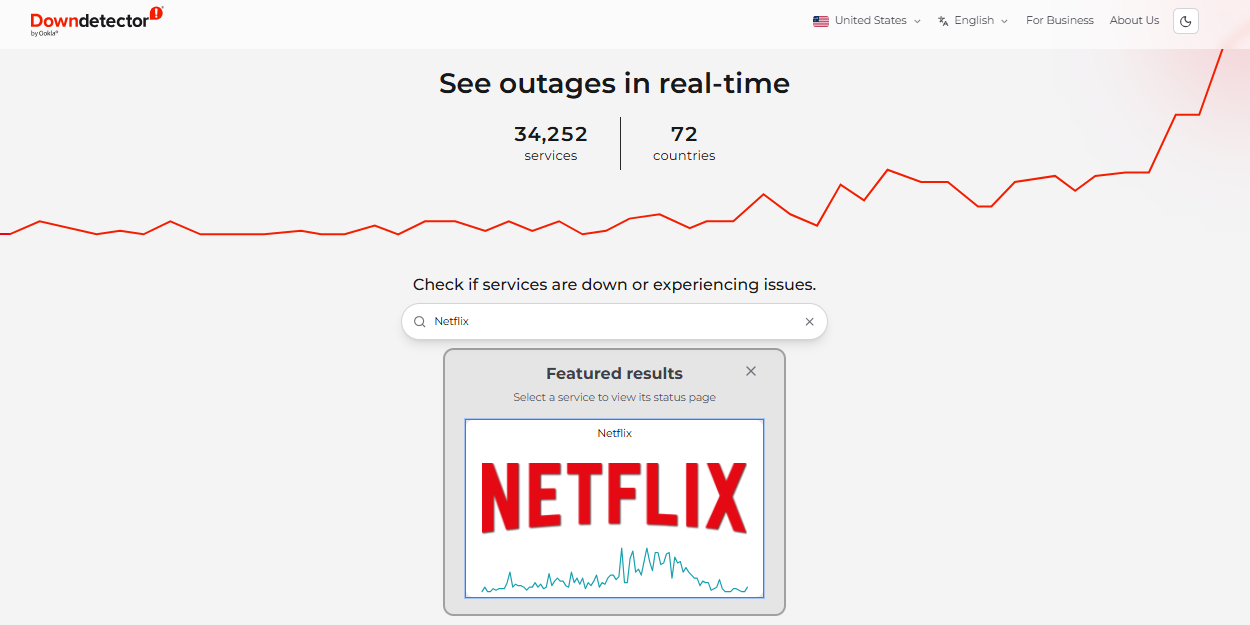
If Netflix server is down, you usually need to wait until Netflix resolves the issue.
Solution 4. Check Your Netflix Subscription
When Netflix won’t play suddenly, please confirm that your subscription is active and check your plan tier. Netflix offers three plans, including Standard With Ads, Standard, and Premium. Certain titles are unavailable on the ad-supported plan due to licensing restrictions. Moreover, if your subscription expired or payment failed, you won’t be able to access and play any title on Netflix.
What Can I Watch on Netflix?
Available content depends on:
- Your subscription plan
- Your region
- Device compatibility
- Licensing agreements
You seem to be using an unblocker or prox
Netflix Ad-Supported Plan: Titles You Can’t Watch
Users on the ad-supported plan can access all mobile games and most movies and TV shows. A lock icon will appear on unavailable titles.
Netflix Ad-Free Plan: Unlimited Titles
Users on the ad-free plan can access unlimited ad-free movies, TV shows, and mobile games.
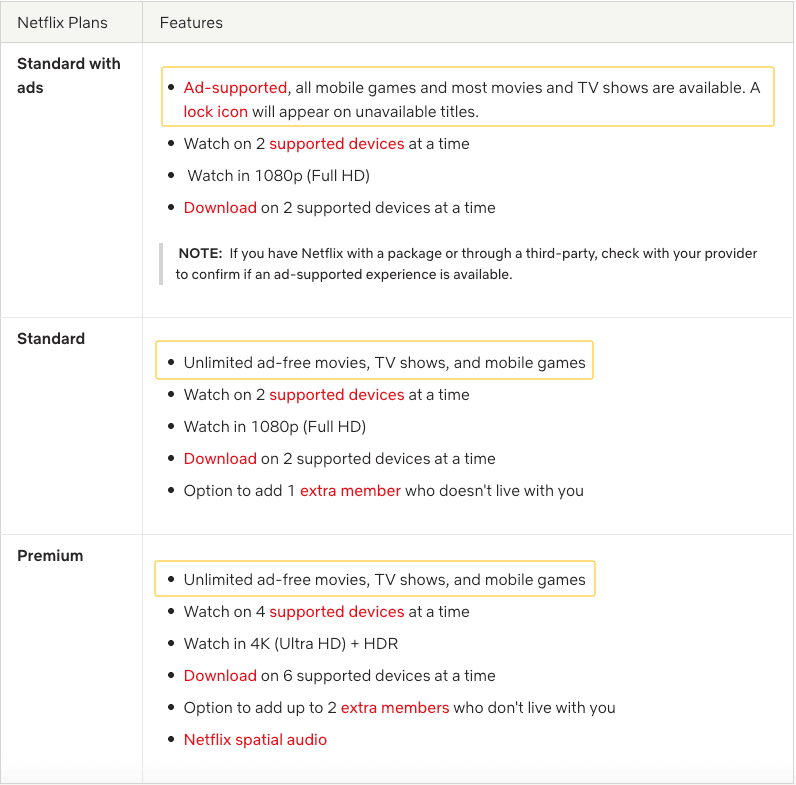
However, due to regional and copyright restrictions, some topics are only accessible in specific regions, whether you are using an ad-free or ad-supported plan.
Solution 5. Clear Netflix App Data/Cache (Android/TVs)
Corrupted cache files can easily cause Netflix freezes, stops responding, or gets stuck loading issues. Clearing the Netflix app cache removes damaged temporary files and refreshes the app.
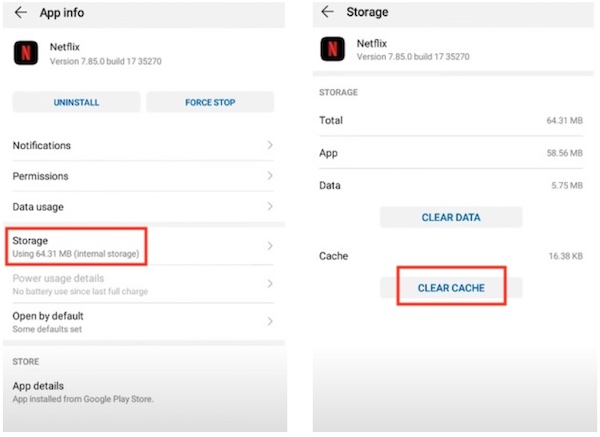
Clear Netflix Cache On Android (Phones/Tablets):
- Open “Settings”, tap “Apps”, select Netflix.
- Tap “Storage”, choose “Clear Cache”.
- Then restart Netflix and log in again.
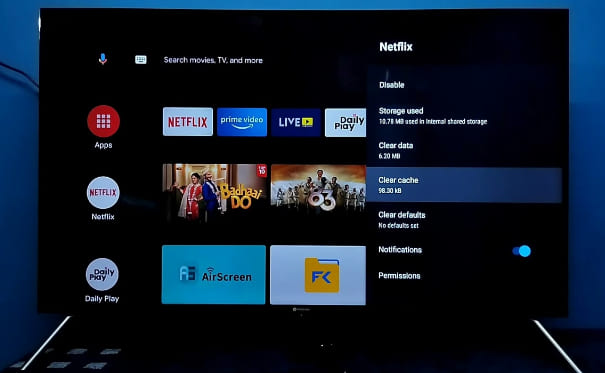
Clear Netflix Cache on Android TV / Google TV:
- Navigate to “Settings” (Gear icon).
- Go to “Apps”, select “See all apps”, and select Netflix.
- Select “Clear cache” and “Clear data”.
- Press “OK” and relaunch Netflix.
Solution 6. Update the Netflix App
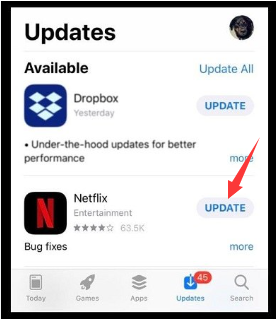
Has it been a while since you updated the Netflix app? Sometimes, an outdated Netflix app can create compatibility problems, especially after Netflix releases new features or security updates. If Netflix won’t play, try to update the Netflix app on your device.
On iOS (iPhone/iPad):
- Open the App Store. Tap your “Profile” icon (top right).
- Scroll down to Netflix. If an update is available, tap “Update”.
On Android (Phone/Tablet):
- Open the Google Play Store on your Android device.
- Search for “Netflix”. Tap “Update” if the button is visible.
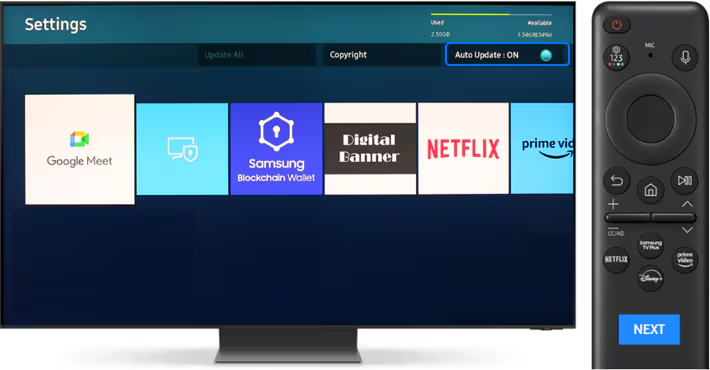
On Smart TV (Samsung/LG/Sony):
- Press the “Home” button on your remote. Navigate to Apps or Applications.
- Find Netflix. Press and hold the “Select” or “Enter” button.
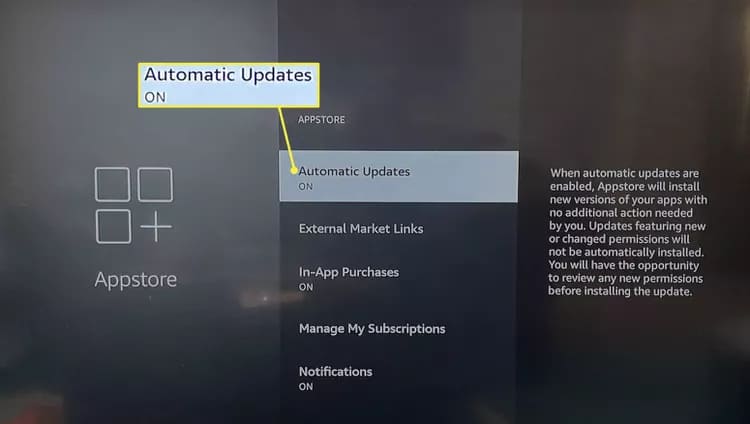
On Streaming Devices (Roku, Fire TV, Chromecast, or Apple TV):
- Open system settings, select “Applications”.
- Select “Appstore”, then select “Automatic Updates”.
Solution 7. Restart Your Device
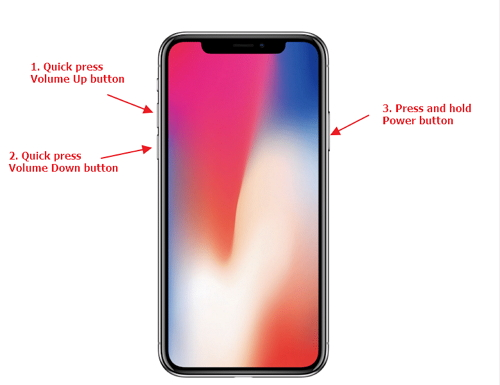
When the issues of Netflix not playing happens, you can try to force restart your device. This may help to clear temporary glitches and refresh system processes.
On iOS (iPhone/iPad):
- Press and hold the Side button + Volume Up (or Home button on older models).
- Drag the Power off slider.
- Wait 30 seconds, then hold the Side button until the Apple logo appears.
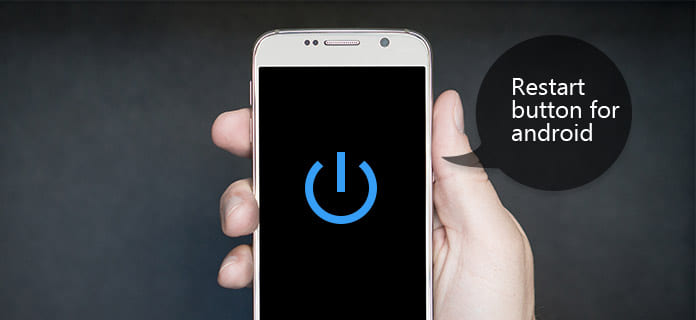
On Android:
- Press and hold the Power button.
- Tap Restart or Reboot.
- If frozen, hold Power + Volume Down for 10 seconds to force restart.
On TV (All brands):
- Unplug the TV power cord from the wall outlet.
- Wait 2 minutes.
- Plug the TV back in and turn it on.
After that, try restarting Netflix on your device to see if it plays normally.
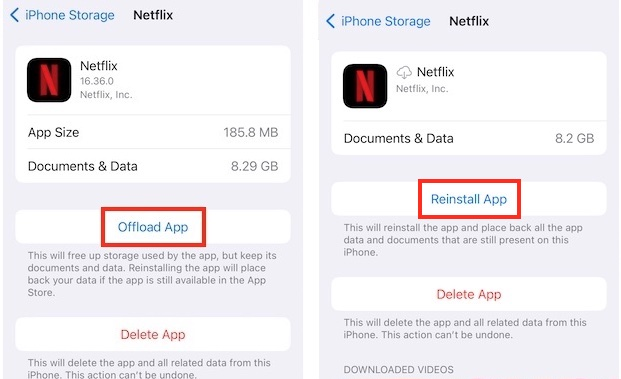
Solution 8. Reinstall the Netflix App
If clearing the cache and updating don’t work, the app installation itself might be corrupted. In this case, reinstalling Netflix can remove damaged installation data and install a fresh version, which may fully solve the problem of Netflix not working/playing.
On iOS:
- Press and hold the Netflix icon on the home screen.
- Tap “Remove App”, then “Delete App”, and confirm.
- Then, open the App Store, search Netflix, and tap “Get”.
On Android:
- Open “Settings”, go to “Apps”, select Netflix, tap “Uninstall”.
- Then, go to Google Play Store and reinstall Netflix.
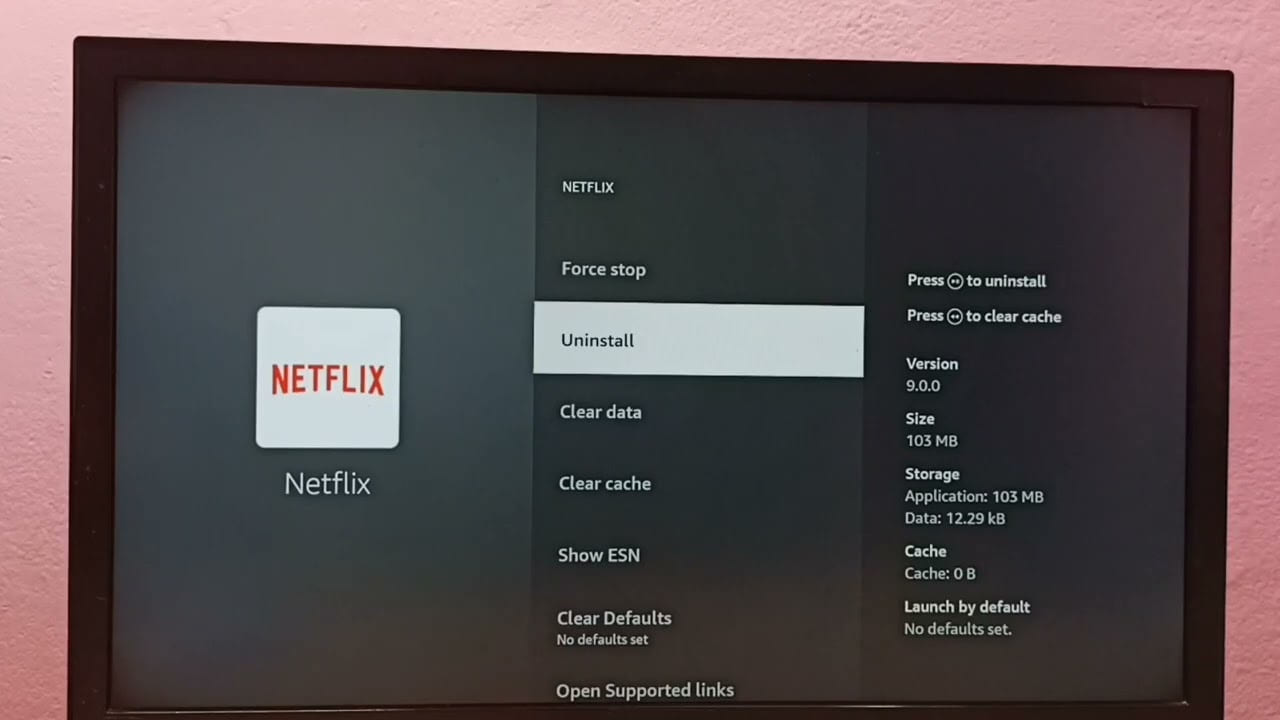
On Fire TV / Roku:
- Highlight the Netflix tile.
- Press the “Options” button (three lines) on the remote.
- Select “Remove” or “Uninstall”.
- Restart the device, then go to the app store to reinstall.
Solution 9. Turn Off Your VPN
Netflix actively blocks many VPN services because of regional licensing restrictions. When Netflix detect you’re using a VPN, it will freeze on the loading screen and display an error message such as “You seem to be using an unblocker or proxy”. To fix it, check this guide.
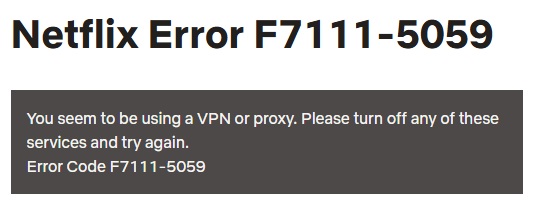
If Netflix won’t play title and you recently enabled a VPN, disconnect it. Afterwards, open the Netflix app or web player and access the content again.
Solution 10. Update Your Device
If Netflix not lets you play anything due to a device issue, please update your device’s operating system. Typically, an outdated operating system is a major reason why Netflix isn’t working on your TV specifically. Keeping your device updated improves streaming stability and security.
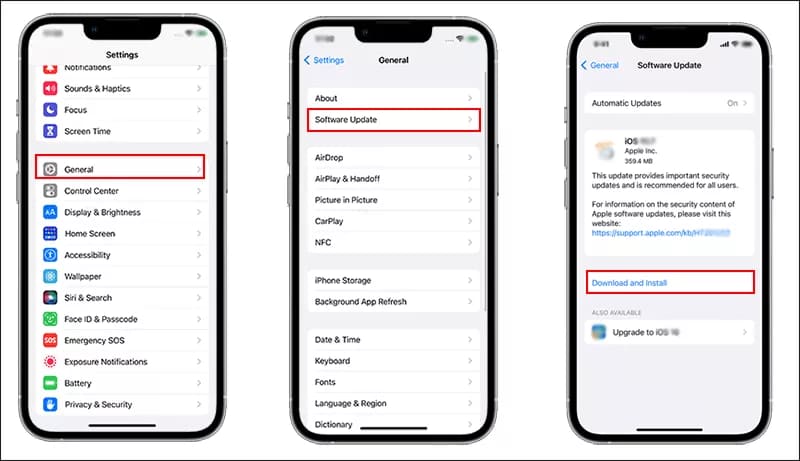
On iOS:
- Open “Settings”, tap “General”, select “Software Update”.
- If an update is available, tap Download and Install.
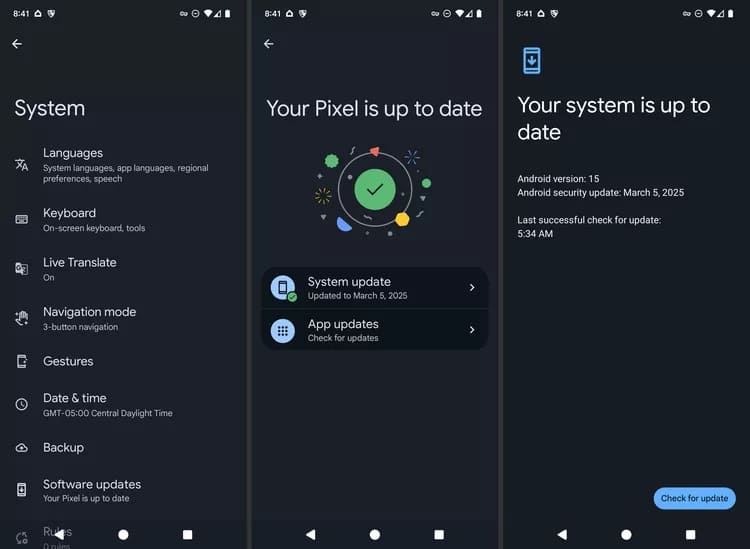
On Android:
- Go to “Settings”, tap “System”, choose “Software Update”.
- Follow the on-screen prompts to install any pending updates.
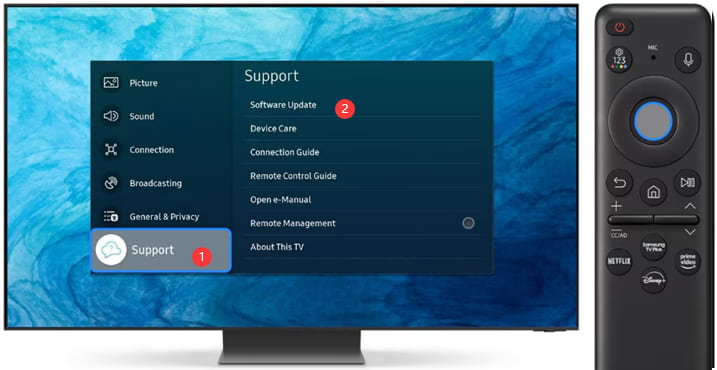
On Smart TV:
- Press “Settings” on your remote.
- Go to “Support” and select “Software Update”.
- Then select “Update Now” or “Auto Update”.
Part 3. Common Netflix Error Codes and How to Fix Them
Many users experience specific Netflix error codes when Netflix won’t play suddenly. Here are the most common errors and their solutions.
3.1 Netflix Says “This Title Is Not Available to Watch Instantly.”
This error usually appears when the title has been removed from Netflix’s library or your region. Or as mentioned earlier, some titles are only available to ad-free subscribers. Alternatively, the title might require you to change your parental control settings
How to Fix It?
– Refresh the Netflix app
– Disable VPN services
– Restart your device
– Try another profile
– Check regional availability
3.2 Netflix says ‘Cannot play title. Please try again later.’
This error usually appears when Netflix temporarily fails to load video data properly. It may be caused by unstable internet connections, corrupted cache files, outdated app versions, or temporary Netflix server issues. To fix this issue, refer to the solutions posted in Part 2.
3.3 Netflix says ‘We’re having trouble playing this title right now.’
This error generally indicates communication problems between your device and Netflix servers. It commonly appears on Smart TVs, streaming devices, gaming consoles, and mobile apps when Netflix cannot properly buffer or load content. In this situation, try to play another Netflix title, improve Internet stability, restart or update your streaming device, download the title to watch offline, etc.
3.4 Netflix Error TVQ-ST-103, TVQ-ST-113, TVQ-ST-115, and TVQ-ST-122
These errors usually indicate network connectivity problems between your device and Netflix servers.
When these Netflix errors happen, you can try below basic solutions:
– Restart your internet router
– Reboot the streaming device
– Sign out of Netflix, sign back in
– Check internet stability
– Clear Netflix cache
3.5 Netflix Error TVQ-PB-101
This playback error often appears because of corrupted app data or temporary software glitches. A simple restart or re-login often solves this error quickly. For advanced fixes, try to update the Netflix app and clear app cache.
Part 4. Ultimate Solution to Fix Netflix Won’t Play (Convert Netflix to MP4)
The solutions provided above can help you fix Netflix won’t play suddenly, Netflix not working, Netflix app crashing, Netflix freezes, stops responding, or gets stuck loading issues. If you constantly experience playback problems, it will greatly affect your experience. Don’t worry, we still have the final trump card – using a third-party tool to convert Netflix to MP4 format for flexible offline playback.
iMovieTool Netflix Video Downloader is a professional video downloader designed for all tiers of Netflix users, including ad-free and ad-supported users. The software enables you to download Netflix movies and TV shows on Windows and Mac computers without the Netflix app. It can also convert Netflix videos to MP4 or MKV format while preserving 1080p HD quality, multilingual subtitles, and audio tracks. This means you can save your favorite Netflix videos permanently on computer drive, even after your subscription ends. Plus, you can transfer your Netflix downloads to a USB drive, Plex server, SD card, external hard drive, smartphone or tablet, and watch Netflix videos offline without relying on the Netflix app, anytime, anywhere!
Features of iMovieTool Netflix Video Downloader:
- Download Netflix movies, TV shows, original videos to PC/Mac.
- Download Netflix videos in MP4 or MKV format.
- Preserves EAC3 5.1 surround sound audio and HD 1080p quality.
- Supports batch downloading entire seasons at once.
- Removes ads permanently for ad-plan subscribers.
- Preserve multilingual subtitles and audio tracks.
- 50X fast download speed support, quickly save any title.
- Save Netflix videos permanently and locally, no expiration.
How to Download and Convert Netflix Videos to HD MP4 Files?
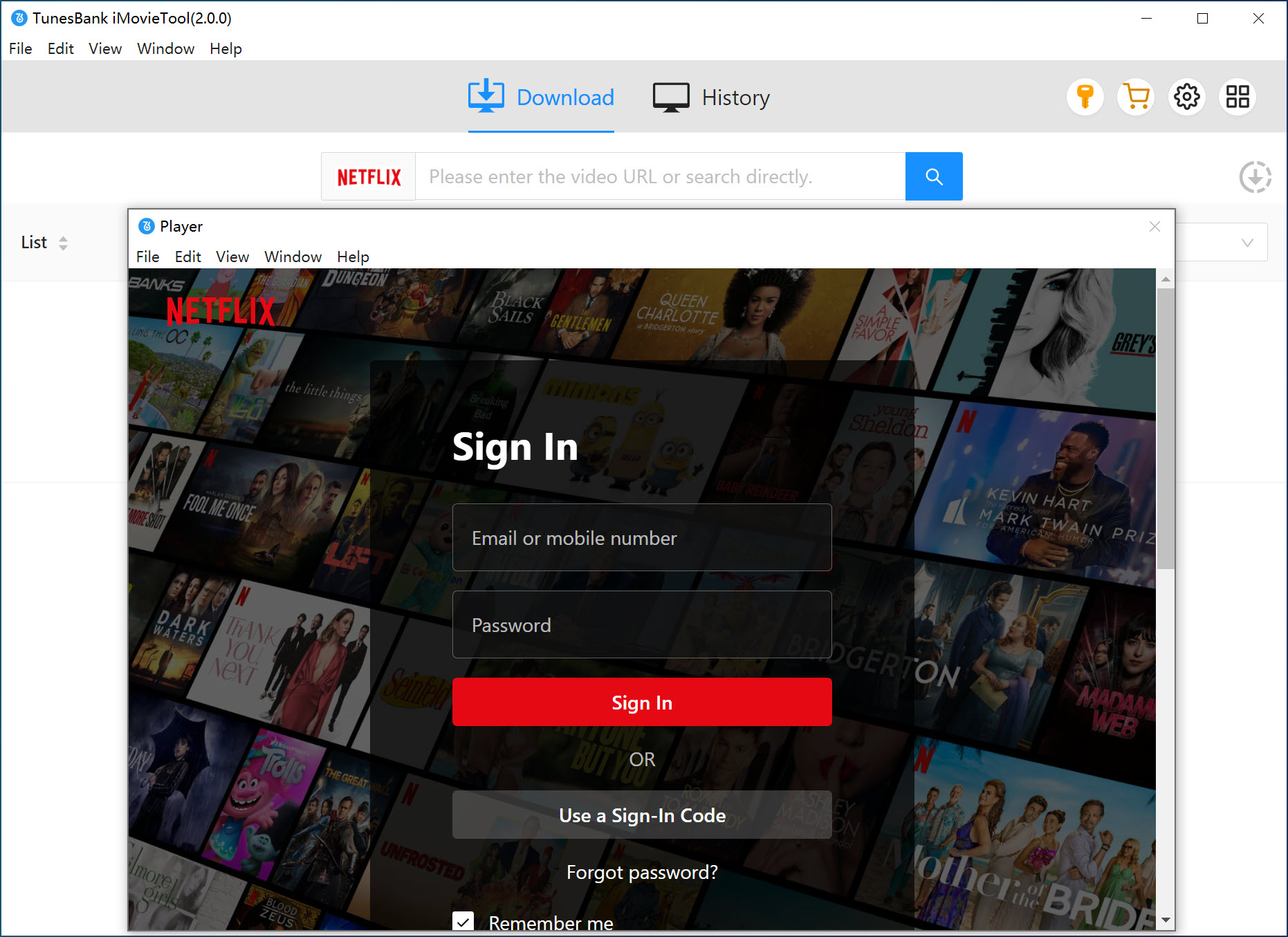
Step 1. Run Software and Sign In
After installation, launch TunesBank iMovieTool Video Downloader and choose Netflix as your streaming platform. Then you will enter the iMovieTool Netflix Video Downloader.
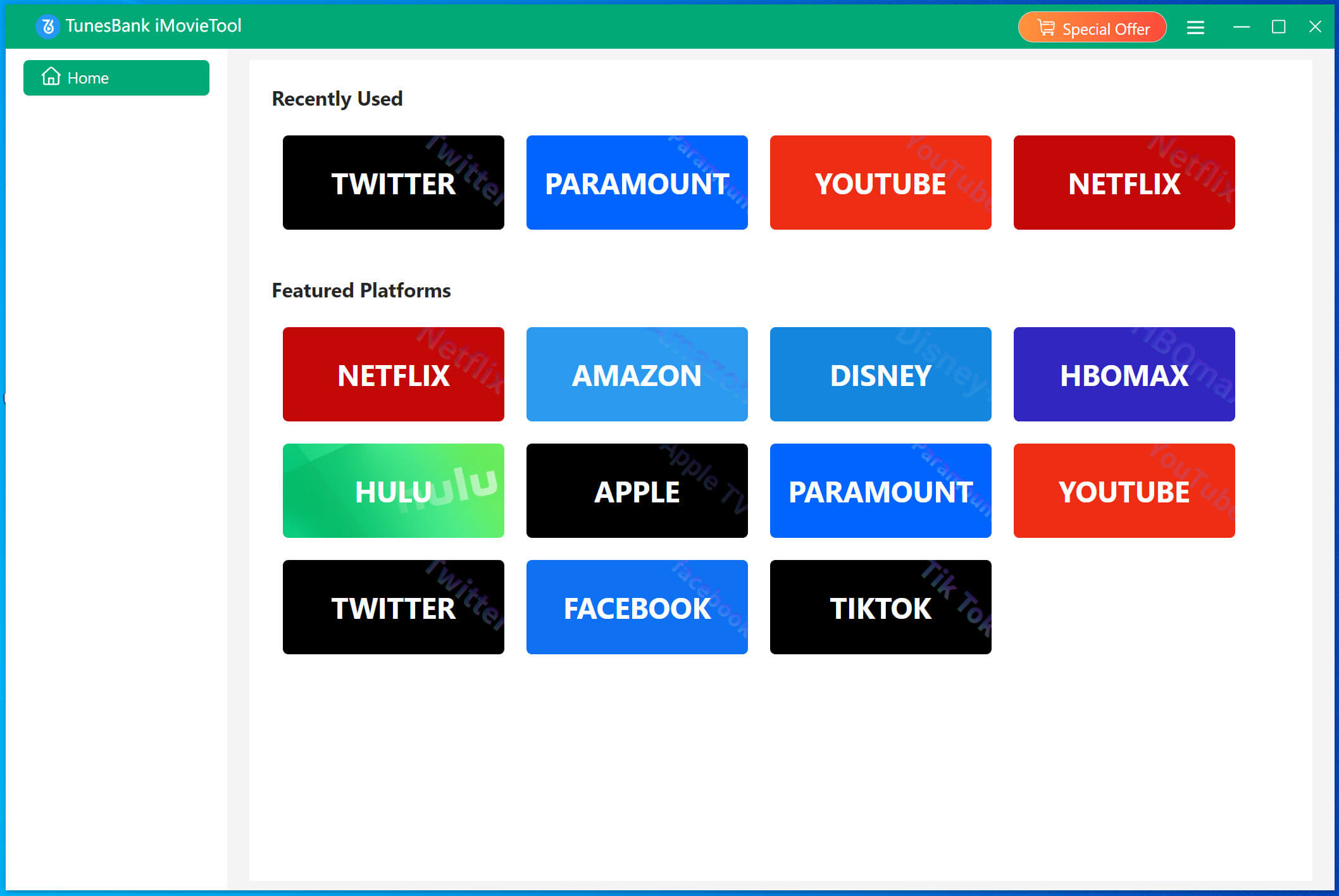
Then, log in with your Netflix account (ad-supported or ad-free plans both work). This allows you to access the full library in the downloader.
Step 2. Configure Output Settings
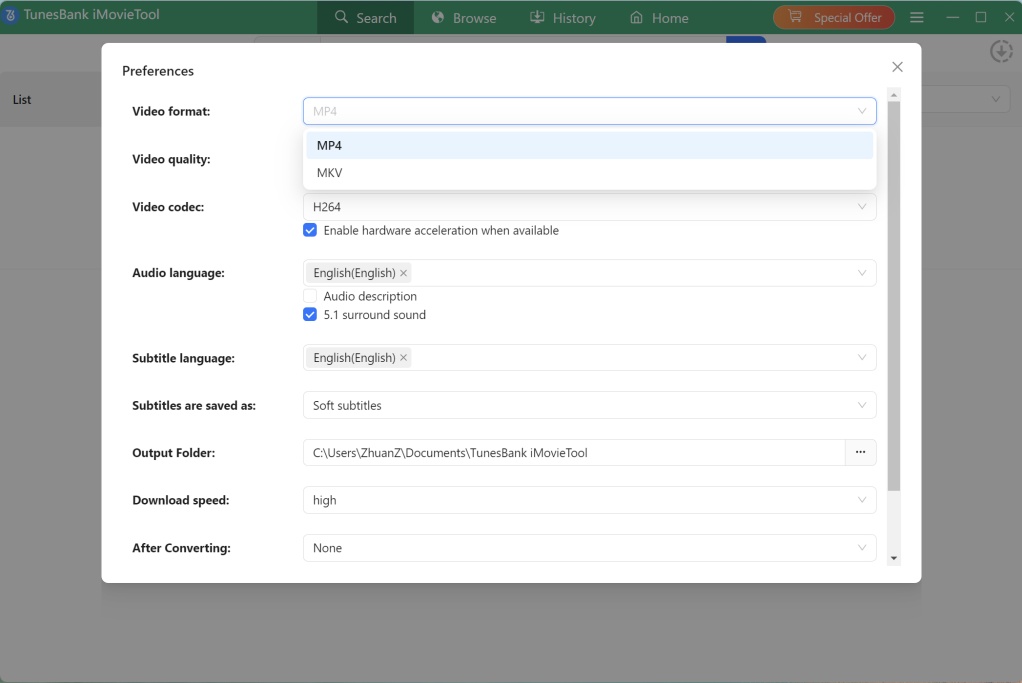
Click on the Menu and select Preference option. It will pop up the settings window, from where you can customize video format, video quality, subtitle language, audio language, and output folder. Selecting MP4 format ensures maximum compatibility across multiple devices and media players.
Step 3. Browse and Add Netflix Video
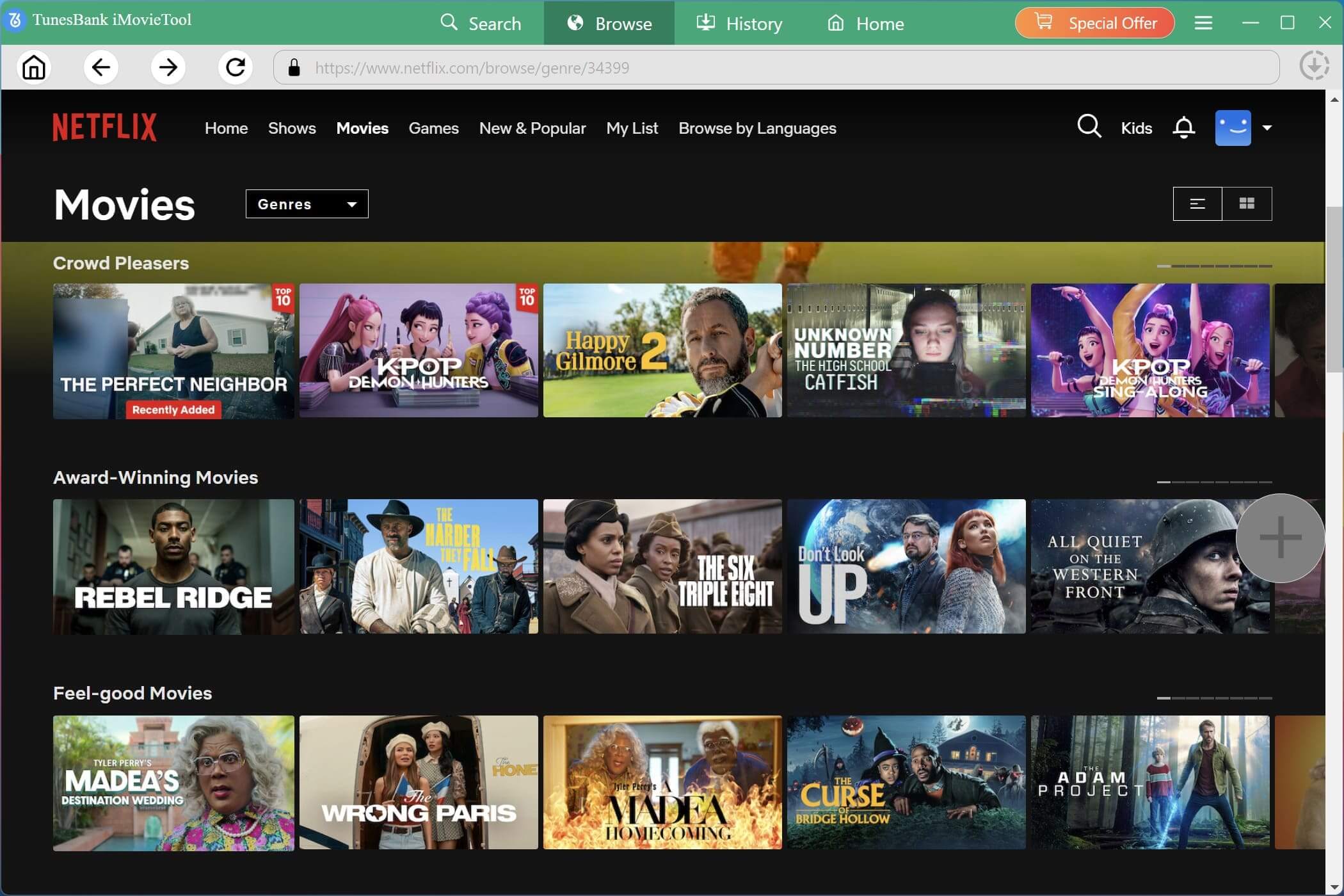
Tap “Browse” tab, you can browse and search for movies, TV shows, or documentaries you want to download for offline viewing.
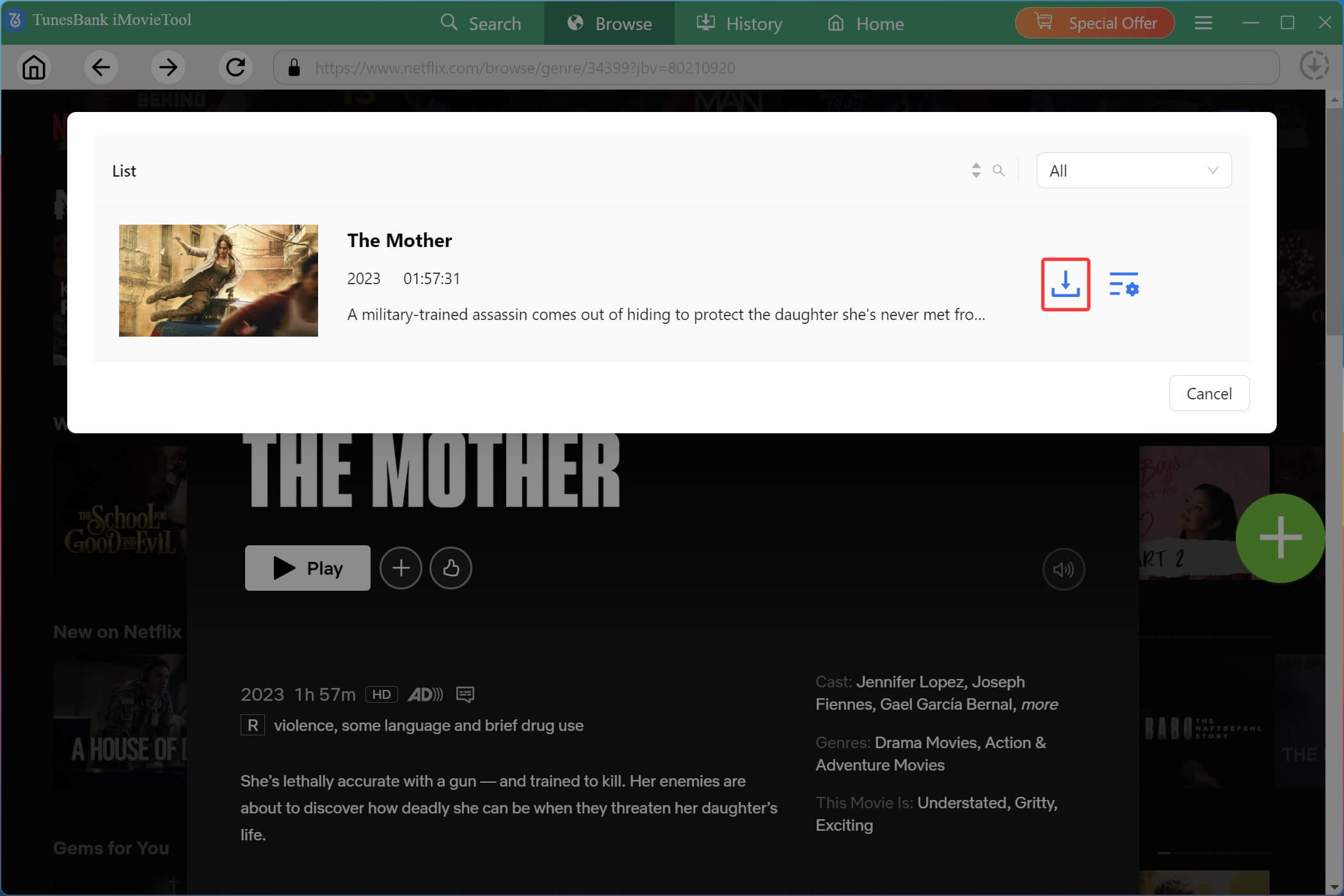
Open the video page and click the “+” icon to add the content to the download queue.
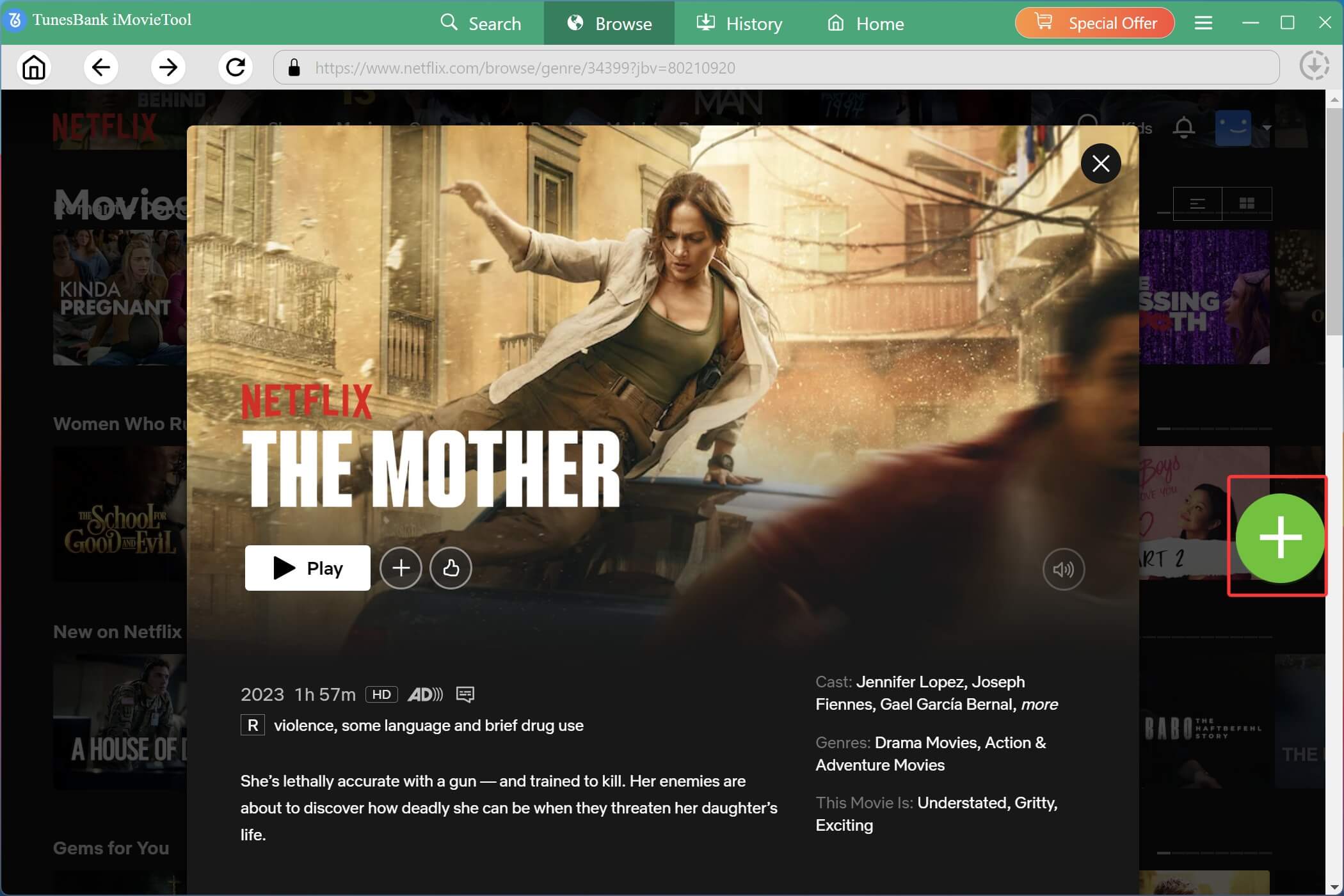
In the pop-up small window, you can click the “Gear” icon to customize subtitle options, audio tracks, and output preferences for individual episodes or movies before downloading.
Step 4. Download Netflix Videos to MP4
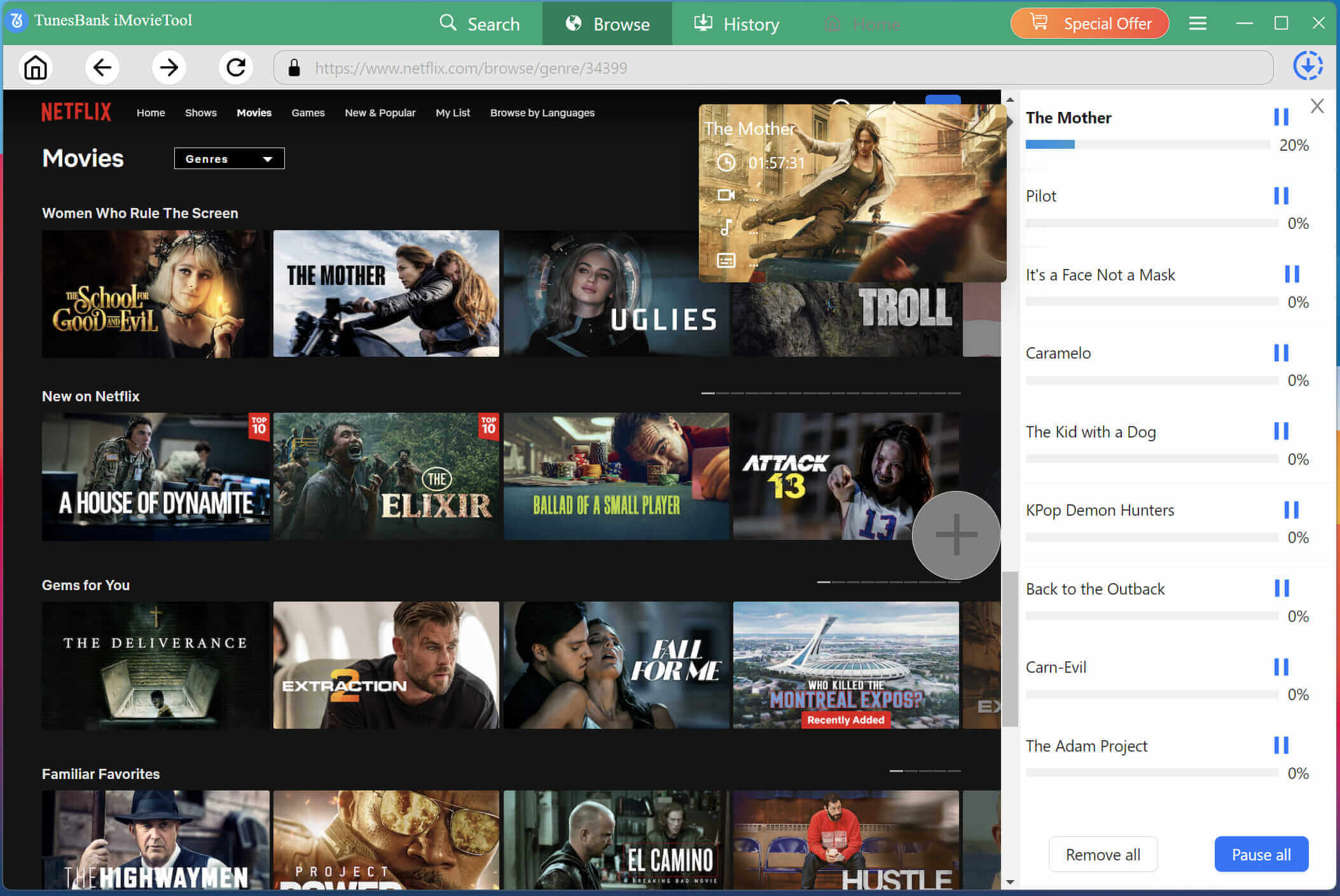
If you are satisfied the output settings, please press on the “Download” button. The software will download video from Netflix web browser quickly while preserving original quality, subtitles, and audio tracks for smooth offline playback.
Step 5. Find the Downloaded Netflix Videos
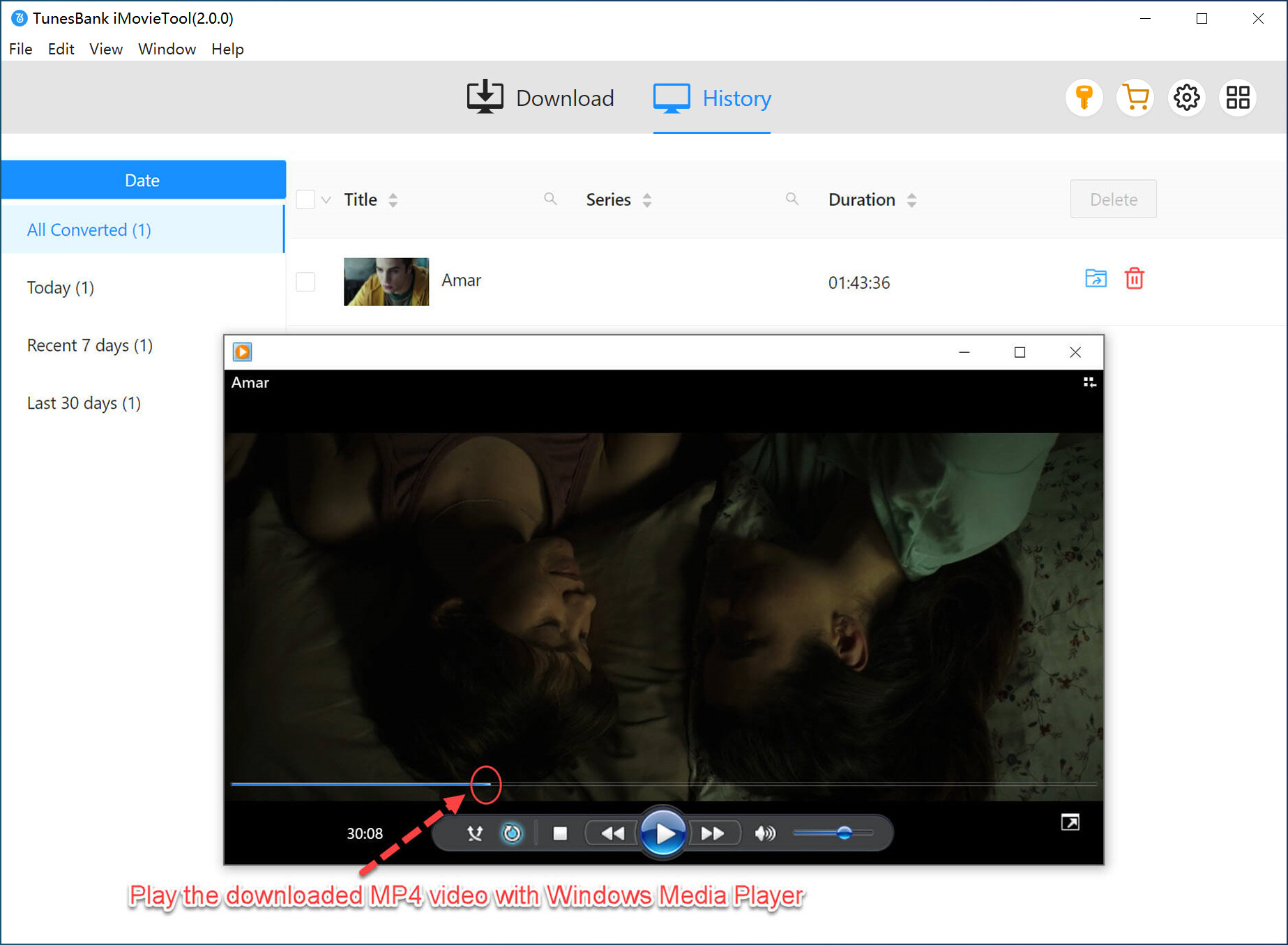
After downloading finishes, move to “History” section and open the output folder to access your Netflix videos. You can now play them using VLC, Windows Media Player, Smart TVs, tablets, or other devices without the Netflix app.
Part 5. FAQs About Netflix Won’t Play Issues
Why Can’t I Watch Netflix on My TV?
If Netflix isn’t working on your TV, the issue may involve internet problems, outdated TV firmware, corrupted cache, or app compatibility issues. Restarting the TV, updating the Netflix app, or reinstalling the app usually helps.
What Can I Watch on Netflix?
While Netflix offers thousands of titles including blockbuster Originals like Stranger Things, The Crown, and Squid Game, the content you actually see depends on your subscription plan, regional licensing, ad-supported tier restrictions, and your device’s playback support.
Why Can’t I Watch Netflix Anymore?
If Netflix suddenly stops working, it’s usually due to an expired subscription, internet problems, app glitches, device incompatibility, a VPN, or a Netflix outage. Following the troubleshooting methods above can help fix Netflix won’t play issues quickly.
How Many People Can Watch Netflix?
The number of simultaneous viewers depends on your subscription plan. The Standard Ad-supported and Standard plans allow 2 screens. The Premium plan allows 4 screens. If Netflix isn’t letting you play anything because “Too many people are watching,” you need to upgrade your plan or ask someone else to stop streaming.
How Long Can I Watch Netflix While Traveling?
Netflix allows offline downloads for limited periods depending on licensing agreements. Some titles expire within 30 days or 7 days after download. Once you start watching, you only have 7 days to finish it. To watch Netflix while traveling without limits, you can download Netflix videos to MP4 using iMovieTool Netflix Video Downloader. This allows you to keep Netflix videos permanently and watch them offline through other players like iTunes, VLC, no restrictions!
Part 6. Final Words
Experiencing Netflix won’t play suddenly issues can be frustrating, especially when you are ready to enjoy your favorite shows. After reading this comprehensive guide, this issue can be solved through simple troubleshooting methods like checking internet speed, clearing cache, updating the app, restarting devices, or disabling VPN services. For a permanent solution, iMovieTool Netflix Video Downloader can be the best option. It can help you download and convert Netflix videos to MP4 for offline playback, so you can avoid buffering, playback failures, and compatibility issues entirely. This great tool offer a free trial, download it right now!
The Latest Articles
– Top 8 Solutions to Download Streaming Video
– Top 10 Free Movie Download Sites Recommended
– 3 Ways to Download Movies to Watch Offline
– 2 Verified Methods to Download X/Twitter Videos to MP4
– Download Twitter(X) Videos on PC, Mac and Mobile Phone
– Download Facebook Videos on PC, Mac and Mobile Phone
– 3 Ways to Download Facebook Video to MP4

Netflix Video Downloader
Download Netflix video to MP4 or MKV with multi-language audio track and subtitle kept. Up to 50X downloading speed. Easily to download your favorite movies/TV shows from Netflix to your computer for offline viewing.







