








 United States (English)
 Japan (日本語)
 Russia (русский)
 Germany (Deutsch)
 France (Français)
 Spain (Español)
 Italy (Italia)
 Portugal (Portugues)
 China (繁体中文)
 Turkish (Türk dili)
 Dutch (Nederlands)
 Korean(한국인)
 Saudi Arabia(عربي)
 Download HD movies & TV shows from Disney Plus.
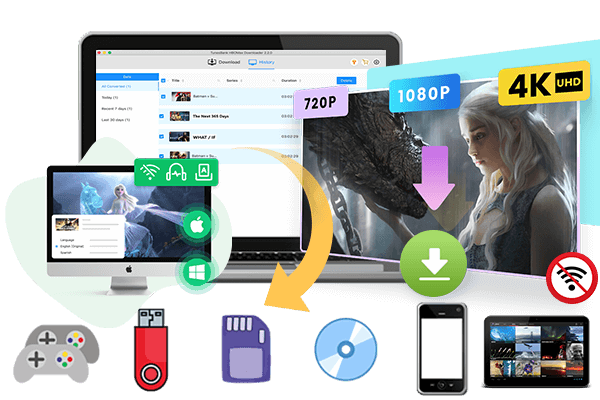
Looking for ways to fix protected content license error on Disney Plus? In this guide, we’ll walk you through several practical solutions to help you quickly resolve the issue and restore normal playback. You’ll also learn about TunesBank Disney Plus Video Downloader, a useful tool that allows you to download videos for smooth offline viewing without interruptions.
Are you facing a protected content license error on Disney Plus while streaming on Roku? This issue often appears when your device fails to confirm playback authorization due to incorrect settings or older system versions. This guide will help you understand the reasons behind the problem and provide 9 effective methods to fix protected content license errors on Disney Plus. Plus, we’ll show you how TunesBank Disney Plus Video Downloader can help you watch Disney Plus content without playback issues.
You May Like:
Part 1. Effective Methods to Fix Protected Content License Error on Disney Plus
🛠Method 1. Check Your Disney Plus Subscription Plan
The first thing you should do to fix the protected content license error on Disney Plus is check if your subscription is active. This error can sometimes happen when your plan has expired or a payment did not go through. Follow these steps to check your subscription:
Step 1. Log in to your Disney Plus account on your device.
Step 2. Go to the Account section to view your subscription status.
Step 3. Make sure your payment details are up to date and that your subscription has not been canceled or paused.
Once you confirm that your Disney Plus subscription is active, you can rule out account issues and move on to other fixes if the problem continues.
🛠Method 2. Disconnect VPN and Refresh Internet Connection
Many users use a VPN to watch Disney Plus content from other regions or while traveling. However, a VPN can sometimes cause the protected content license error because Disney Plus cannot verify your real location. Follow these steps to fix the problem by turning off the VPN and refreshing your network:
Step 1. Turn off the VPN on the device you use to watch Disney Plus. This allows the service to detect your real location.
Step 2. Disconnect your device from the internet, wait a few seconds, then reconnect to refresh the connection.
Step 3. If the error still appears, reset your network settings to remove any leftover VPN settings. Usually, you can find this under Settings > Network > Reset Network Settings.
After completing these steps, the license error caused by VPN use should be fixed, and you should be able to watch Disney Plus normally.
🛠Method 3. Clear Cache and Cookies in Browser
If you watch Disney Plus in a web browser, saved cache and cookies can sometimes cause playback problems and trigger the protected content license error. These files help websites load faster, but old or broken data may create issues. You can fix this by clearing your browser cache and cookies. Here’s how to do it in Google Chrome:
Step 1. Click the three dot menu in the top right corner of Chrome.
Step 2. Go to Settings > Privacy and Security > Clear browsing data.
Step 3. Select Cookies and other site data and Cached images and files.
Step 4. Click Clear data.
After that, restart your browser and log in to Disney Plus again. This often fixes the protected content license error and allows videos to play normally.
🛠Method 4. Make Sure HDMI Cable Works Properly
When watching Disney Plus on your TV, a broken or old HDMI cable can cause the protected content license error. If the cable or connection isn’t working right, the TV may block the video from playing.
Try these steps to fix it:
- If the cable is faulty, replace it with a working HDMI cable.
- Make sure the cable is firmly connected. Unplug both ends and plug them back in securely.
- Try a different HDMI port on your TV in case the port is the problem.
Checking that your HDMI cable works properly and is securely connected can help fix the protected content license error and let Disney Plus play normally.
🛠Method 5. Update TV Firmware to the Latest Version
Old firmware on your TV or streaming device can cause problems with the Disney Plus app and lead to the protected content license error. Updating your device helps it work correctly with Disney Plus. Here are the steps to update your TV firmware:
Step 1. Go to Settings and find System or Software Update.
Step 2. If an update is available, download and install it. Your TV may restart automatically.
Step 3. After updating, restart your TV to apply the changes and fix any issues.
For devices like Roku or Fire Stick, check their settings to make sure the firmware is up to date. Keeping your TV and streaming devices updated can prevent protected content license errors and keep Disney Plus running smoothly.
🛠Method 6. Disable Auto Display Refresh Setting on Roku
The protected content license error on Disney Plus, especially on Roku, can happen because of the Auto Display Refresh setting. This feature changes your screen’s refresh rate to match the video, but it can sometimes block playback. To turn off Auto Display Refresh on Roku:
Step 1. From the Roku home screen, go to Settings.
Step 2. Select Display Type and choose 1080P.
Step 3. Go to System > Advanced System Settings and turn off Auto-Adjust Display Refresh Rate.
Step 4. Restart your Roku to apply the changes.
Turning off this feature should fix the error, letting you watch Disney Plus without problems.
🛠Method 7. Restart Your Device
Restarting your device is an easy way to fix the protected content license error on Disney Plus. Whether you use a Roku, Smart TV, or another streaming device, rebooting can clear glitches, refresh connections, and reset app data. How to reboot your device:
Step 1. Turn off your Roku, TV, or streaming device using the power button or remote.
Step 2. Unplug it from the power outlet for at least 30 seconds.
Step 3. Plug it back in and turn it on. Open Disney Plus and check if the error is gone.
Restarting refreshes your system and often fixes temporary issues that cause the protected content license error.
🛠Method 8. Get Help from Disney Plus Support Team
If the protected content license error on Disney Plus still isn’t fixed, you should contact Disney Plus Support. They can help with account issues, device compatibility, and app problems. To get help, go to the Disney+ Help Center and click on Contact Us. You can also search for your error code to find specific troubleshooting tips.
Part 2. Ultimate Fix: Watch Disney Plus Without Playback Issues [Best]
If common troubleshooting methods do not work or feel too complicated, you can try a simpler and more reliable solution to fix protected content license errors on Disney Plus by saving streaming videos as local files. This helps you avoid many playback problems that often happen during online streaming.
TunesBank Disney Plus Video Downloader is a helpful tool for this purpose. It works on both Windows and macOS and allows you to download Disney Plus movies and TV shows directly to your computer with just a few clicks. The program keeps the original video quality and lets you choose subtitles and audio tracks based on your needs. With TunesBank, you can save Disney Plus videos in MP4 or MKV format, making them compatible with most devices and media players. Once downloaded, you can watch your Disney Plus content offline anytime without worrying about internet connection issues, playback limits, or streaming errors.
👍Main Features of TunesBank Disney Plus Video Downloader
- Download Disney Plus video to MP4/MKV in HD 720P.
- Bath download Disney Plus video at 50X faster speed.
- Keep audio tracks and subtitles in multiple languages.
- Keep Disney Plus videos permanently for offline playback on any device.
- Provides various formats in subtitles (soft, hard, and external)
- Built-in Disney Plus web player, no Disney+ app required.
- Fully compatible with Windows & Mac.
Tutorial: How to Download Disney Plus to MP4 for Unlimited Watching
Step 1. Launch TunesBank Disney+ Downloader
After installing TunesBank Disney+ Downloader on your computer, open the program and sign in to the built in web player using your Disney+ account.
Step 2. Add Disney Plus Videos
TunesBank provides three easy ways to add Disney+ movies and TV shows for download.
Way 1: Browse Online
Click the Browse tab at the top of the interface. You can explore videos by genre or scroll through movie and TV show categories.
Choose the movie or series you want to download and start playing it. Then click the + icon, and the download analysis window will appear automatically. You can click the Gear icon to adjust output settings or select Download to start immediately.
Way 2: Search by Name
Enter the name of a movie or TV show in the search box. TunesBank will quickly display all related results for you to choose from.
Way 3: Paste Video URL
Copy the video link from the Disney+ website, paste it into TunesBank’s search bar, and click the Search icon.
Step 3. Customize Output Settings
Click the Menu icon with three horizontal lines in the upper right corner to open the settings window. Here you can choose the video format such as MP4, adjust video quality, select codec, audio language, subtitle language, output folder, and other options.
Step 4. Start Downloading Disney Plus Videos to MP4
Click the Download button to begin. The program will download your selected Disney+ videos directly to MP4 format.
Step 5. Access Downloaded Disney+ Videos
Once the download is finished, open the History section to view your saved videos. You can now watch Disney+ content offline anytime and anywhere without worrying about playback errors or internet connection issues.
Wrap Up
In summary, this article introduces several practical methods to fix protected content license errors on Disney Plus, including solutions such as turning off VPNs, clearing cache files, and updating your device firmware. If these methods feel inconvenient or do not solve the problem, TunesBank Disney Plus Video Downloader can be a useful alternative. It allows you to download Disney Plus videos as local files for offline viewing on any device, giving you a smoother and error free watching experience.
The Latest Articles
– Top 8 Solutions to Download Streaming Video
– Top 10 Free Movie Download Sites Recommended
– 3 Ways to Download Movies to Watch Offline
– 2 Verified Methods to Download X/Twitter Videos to MP4
– Download Twitter(X) Videos on PC, Mac and Mobile Phone
– Download Facebook Videos on PC, Mac and Mobile Phone
– 3 Ways to Download Facebook Video to MP4

Disney+ Video Downloader
Download any Disney+ movies/series/originals to MP4/MKV in high quality on your computer.








5 Replies to “How to Fix Protected Content License Error on Disney Plus”
Comments are closed.