








 United States (English)
 Japan (日本語)
 Russia (русский)
 Germany (Deutsch)
 France (Français)
 Spain (Español)
 Italy (Italia)
 Portugal (Portugues)
 China (繁体中文)
 Turkish (Türk dili)
 Dutch (Nederlands)
 Korean(한국인)
 Saudi Arabia(عربي)
 Download HD movies & TV shows from Disney Plus.
Disney Plus offline downloads not working? Look at here! This article will explore why Disney Plus downloads won’t play offline and provide nine effective solutions to help you fix Disney Plus downloads not working issues.
Disney Plus offers a convenient download feature for ad-free subscribers, allowing users to enjoy a smooth and seamless offline viewing experience. However, Disney Plus download feature can go wrong sometimes. Many users encounter problems like Disney Plus downloads not working, downloads failing, or downloaded movie won’t play offline.
Therefore, this comprehensive guide will provides 9 proven solutions to help fix Disney Plus downloads not working issue. If you are also facing the frustrating issue of Disney Plus offline downloads not working, scroll down to find the reasons and troubleshoot tips.
Quick Overview:
To bypass all limitations and permanently avoid the Disney Plus downloads not working issue, you can use TunesBank Disney Plus Video Downloader to download and save Disney Plus videos as MP4 or MKV files. This way, you no longer need to rely on the Disney Plus platform, and watch Disney Plus offline on any device or player with ease.
Why Disney Plus Downloads Not Working
Before diving into solutions, it’s important to understand why Disney Plus downloads not working in the first place. The following are some possible reasons for download and playback issues:
- Slow or unstable internet connections
- Insufficient storage space on your device
- Your Premium subscription expired
- An outdated or malfunctioning app
- Errors or corruption in the application cache
- Your device compatibility problems
Now, grasp below troubleshooting tips to fix the issue with Disney Plus downloads not working.
Fix 1. Check Your Network Connection
First, you need a stable internet connection to download content from Disney Plus. If your connection drops during the download process, it may result in failed downloads or incomplete files, leading to Disney Plus downloads not working later.
To fix this, you only have to change a reliable Wi-Fi network with sufficient speed. Avoid using public Wi-Fi or switching between networks while downloading. You can also restart your router or move closer to the Wi-Fi source.
Fix 2. Check Device Storage Space
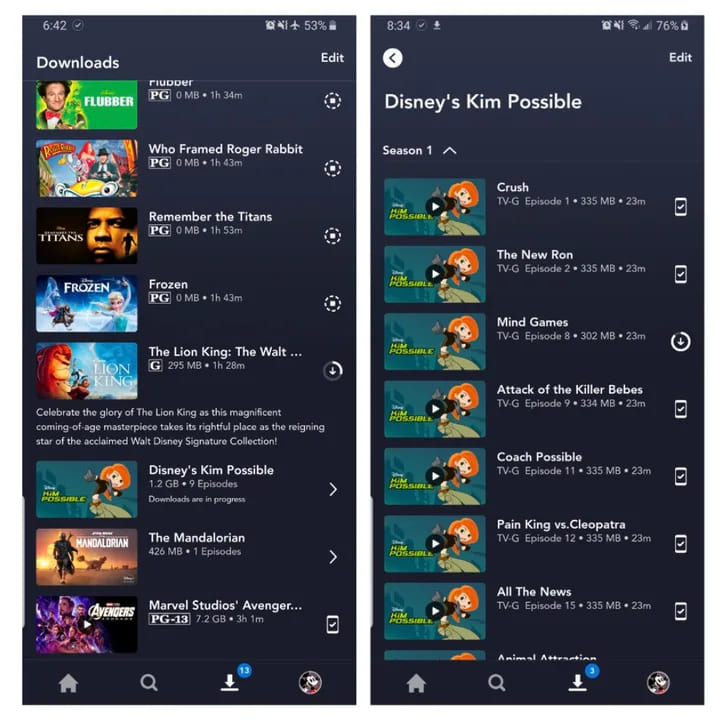
When your mobile device is out of storage space, many hidden problems will occur and lead to Disney Plus downloads not working situation. Normally, Disney+ downloads can take up significant space, especially for HD or 4K content.
For example:
- A single TV episode may range from 500 MB to 1.5 GB
- A full-length movie like Frozen can take 4–5 GB in high quality
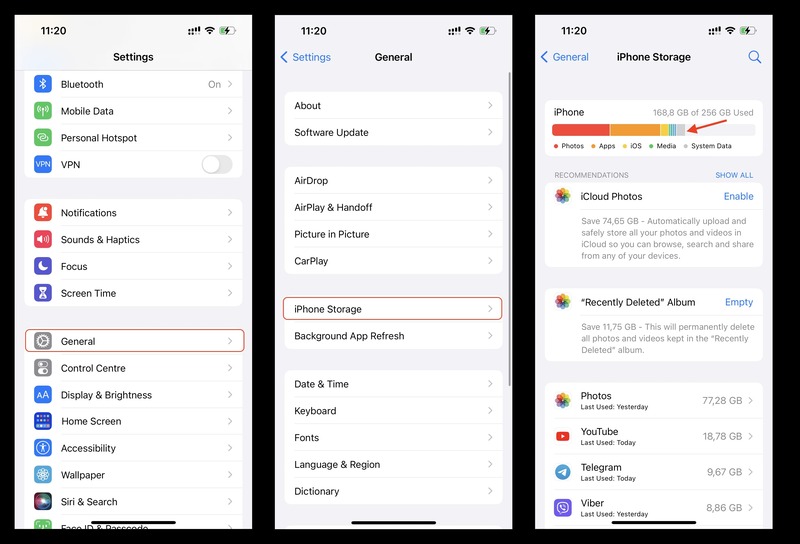
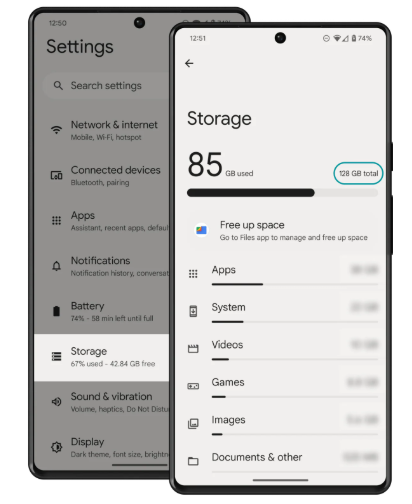
To check device storage space:
On iOS: Go to Settings > General > iPhone Storage.
On Android: Go to Settings > Storage.
So, it is necessary to keep sufficient device storage space. To free up storage on your phone, you can delete unused apps, files, or old downloads.
Fix 3. Check Your Disney Plus Subscription Account
Generally, the Disney+ download function is only available for those who have subscribed to Disney+ Premium (Ad-free) plan. If you are using the Disney+ Basic plan, you cannot use the download function. Instead, you can only stream videos on Disney+ with ads interruption.
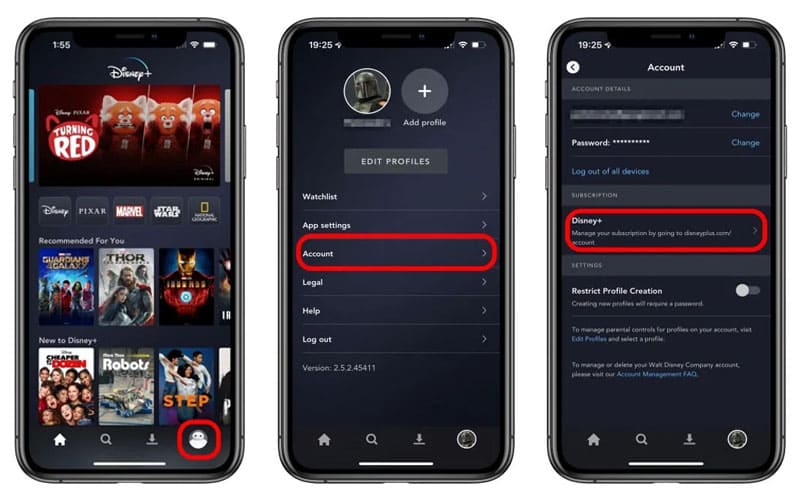
To fix Disney Plus downloads not working, verify your subscription status, ensure it is active, and confirm that your plan includes download functionality.
Fix 4. Restart Your Device
Sometimes, temporary system glitches can cause Disney Plus downloads not working. Restarting your device can refresh system processes and fix minor bugs.
To quickly solve the issue with Disney Plus downloads not working, simply power off your device, wait a few seconds, and turn it back on before retrying the download.
Fix 5. Update or Re-install the Disney Plus App
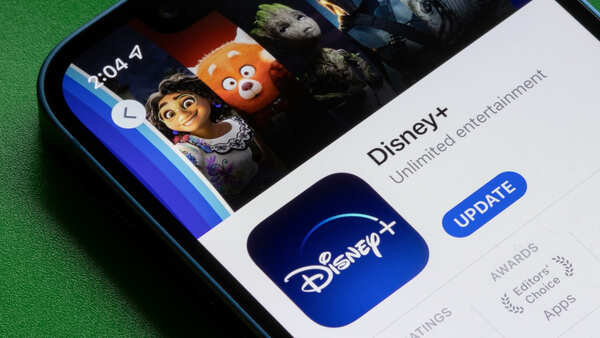
When the Disney Plus App fails to perform stably due to bugs or glitches, it can cause offline downloads to stop working properly. A new update can fix these errors and restore smooth performance.
Open your device’s app store, search for Disney+. Tap “Update” if available. Then restart the app after updating.
If you have installed the latest Disney Plus App, then try uninstalling and re-install again. Afterwards, restart the Disney Plus App and find a title you want to download.
Fix 6. Clear Disney Plus App Cache
Disney Plus will collect cached data to enhance performance, enabling faster loading speeds and smoother streaming navigation. But over time, they can become corrupted and lead to issues like Disney Plus downloads not working or playback failures. To resolve your issue with Disney Plus downloads not working, clearing the app cache is a highly effective solution. Here’s how to do it on your Android device:
Go to Settings > Apps > Disney+ > Storage & cache > Clear cache.
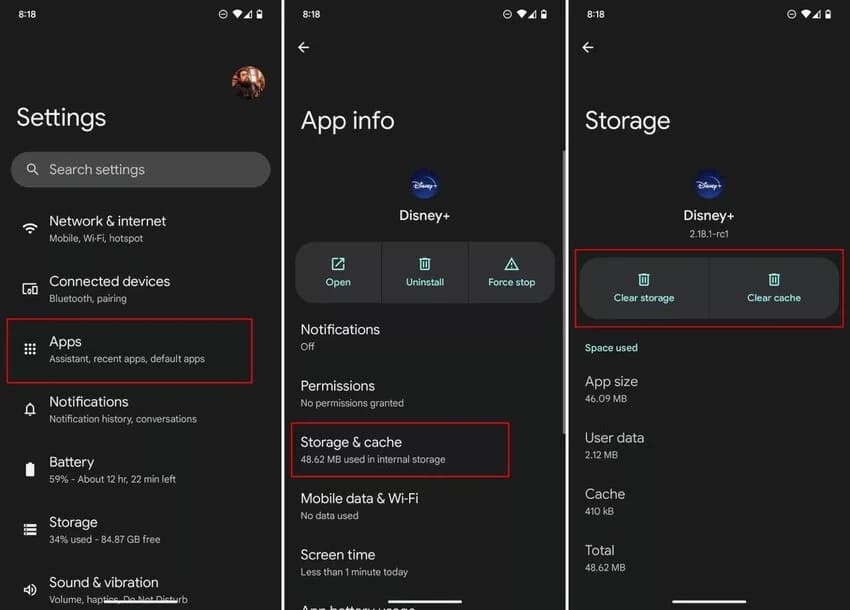
For iOS users, you can uninstall and reinstall the app to clear cache.
Fix 7. Delete and Redownload Disney Plus Downloads
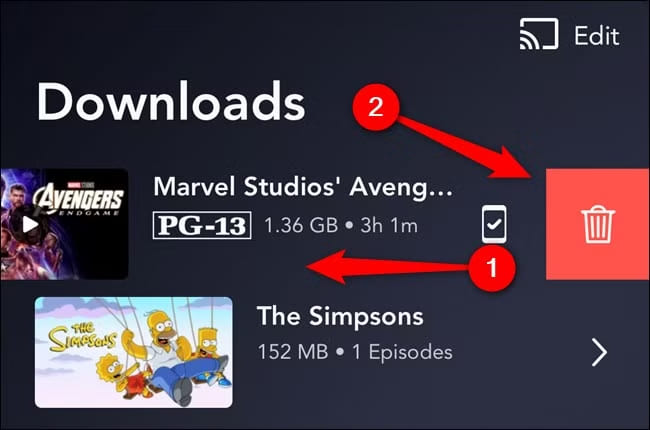
Sometimes you may encounter Disney Plus downloads won’t play offline. This is a common issue when downloads are interrupted due to network problems or app errors. Moreover, your expired Disney Plus downloads will no longer be accessible for offline playback.
To solve such problems, open Disney+ app, go to “Downloads”, delete the problematic video, and then re-download the content.
Fix 8. Check Disney Plus Error Codes
In many cases, Disney Plus downloads not working may be linked to specific error codes that indicate underlying issues such as connectivity problems, device incompatibility, or account-related restrictions.
Some common error codes include:
- Disney+ Error Code 39
- Disney+ Error Code 41
- Disney+ Error Code 42
- Disney+ Error Code 73
- Disney+ Error Code 75
- Disney+ Error Code 83
To check all Disney Plus error codes, you can view the full list here:
To solve the issue with Disney Plus downloads not working, identify the error code displayed and follow the recommended troubleshooting steps. These may include updating the app, checking your subscription, ensuring device compatibility, removing problematic downloads, or improving your network connection.
Final Resort to Fix Disney Plus Downloads Not Working 👍
To permanently avoid the Disney Plus downloads not working issue and bypass Disney+ download restrictions to enjoy smooth offline video playback without any error, here we would like to recommend you an ultimate solution. You can download Disney Plus videos to MP4 for flexible offline playback without the Disney+ app.
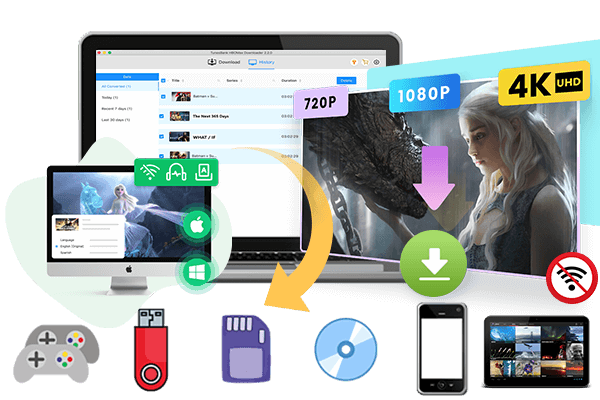
Here TunesBank Disney Plus Video Downloader comes into handy. It is a stable desktop program with powerful functions to download Disney Plus movies and shows to computer. With its built-in Disney+ web player, you can search for movies, TV shows, or original series and download the content directly within the software. Whether you are a Disney+ Basic user or Premium user, you can use it to grab your favorite content from Disney Plus without restrictions. It helps download Disney+ videos to regular MP4 or MKV format, with HD quality retained.
It also supports multiple Disney Plus video downloads from different regions at 50X faster speed. What’s more, the software allows you to choose your preferred audio tracks and subtitle languages for your downloads. After downloading, you can keep your Disney Plus downloads forever, and move them to any device or player for offline viewing!
To get Disney Plus videos downloaded on your laptop or computer, only 4 easy procedures to follow:
Step 1. Download and launch TunesBank Disney Plus Video Downloader, and log into your Disney+ account.
Step 2. Open the settings panel to choose output format, video quality, audio language, and subtitle preferences.
Step 3. Tap “Browse”, explore categories and select videos directly within the program.
Step 4. Click the “Download” button to start saving the Disney Plus video offline.
Conclusion
If you are experiencing Disney Plus downloads not working, don’t worry and try any of these 9 solutions to resolve the problem. In addition, you can permanently get rid of the trouble by downloading Disney Plus videos to MP4 with TunesBank Disney Plus Video Downloader. With this tool, you can easily bypass common issues like Disney Plus downloads not working, Disney Plus errors and compatibility, Disney Plus downloads won’t play offline, Disney plus keeps freezing and skipping, and more. Even if your Disney Plus subscription ends, you can still keep these Disney+ downloads playable using your own devices and players, no expiration, no playback restrictions.
The Latest Articles
– Top 8 Solutions to Download Streaming Video
– Top 10 Free Movie Download Sites Recommended
– 3 Ways to Download Movies to Watch Offline
– 2 Verified Methods to Download X/Twitter Videos to MP4
– Download Twitter(X) Videos on PC, Mac and Mobile Phone
– Download Facebook Videos on PC, Mac and Mobile Phone
– 3 Ways to Download Facebook Video to MP4

Disney+ Video Downloader
Download any Disney+ movies/series/originals to MP4/MKV in high quality on your computer.







