








 United States (English)
 Japan (日本語)
 Russia (русский)
 Germany (Deutsch)
 France (Français)
 Spain (Español)
 Italy (Italia)
 Portugal (Portugues)
 China (繁体中文)
 Turkish (Türk dili)
 Dutch (Nederlands)
 Korean(한국인)
 Saudi Arabia(عربي)
 Download high-quality movies & TV shows from Apple TV+.
Want to convert Apple TV to MP4? Come here and discover the two simple methods to download and convert Apple TV movie to MP4 format, ensuring you can enjoy your favorite movies offline on any device anytime.
With recent additions like “Eternity” and “The Family Plan 2” to Apple TV Plus, you might want to download Apple TV+ movies for a smooth offline viewing, especially with a poor network connection. However, even with a subscription, Apple TV+ download limits prevent you from transferring videos, as they are saved in a proprietary format that can only be played within the Apple TV app.
What if you want to watch your favorite Apple TV movies in a bigger screen? How do you play Apple TV+ videos without the app? To watch Apple TV+ videos anytime and anywhere, the best solution is to convert Apple TV to MP4, a popular video format compatible with most media players and devices. In this article, we will introduce two ways to help you download and convert Apple TV+ movie to MP4 for flexible offline playback. Keep reading!
Way 1. How to Convert Apple TV+ Movie to MP4 in High Quality (50X Fast)
To convert Apple TV+ movie to MP4 in high quality, you can turn to this professional tool – TunesBank Apple TV+ Video Downloader. It is ranked as the best one with its powerful ability to download Apple TV+ movies and shows on Windows and Mac without the Apple TV app. With its built-in browser, users can directly access and search Apple TV+ content and downloads it without quality loss.
It can convert Apple TV movies to MP4 or MKV format with original resolution, audio tracks, and subtitles intact. Another standout feature is batch downloading. Users can queue multiple episodes or movies and download them simultaneously, saving time and effort. This tool helps you watch your downloaded Apple TV+ videos on all devices that do not support the Apple TV app, such as certain smart TVs, tablets, or media players.
Main Features of TunesBank Apple TV+ Video Downloader:
- Browse, select & download content directly within Built-in web browser.
- Download Apple TV Plus movies, TV shows, and other content in MP4 or MKV.
- Download entire seasons or multiple movies from Apple TV+ with one click.
- Download and save Apple TV+ videos in 1080p without using the Apple TV app.
- Keeps multiple audio tracks (e.g., English, Spanish, French) and subtitle languages.
- Download videos from Apple TV+ to Windows or Mac at 50X accelerated speeds.
Tutorial: How to Download Apple TV+ Movie to MP4
Step 1. Select Apple TV+ and Log In
Download and launch TunesBank iMovieTool Video Downloader on your Windows PC or Mac. From the main interface, click the Apple icon to enter the TunesBank Apple TV+ Video Downloader.
Click “Sign In” and enter your Apple ID credentials to log in to your Apple TV+ account .
Step 2. Customize the Output Settings
Access the Menu bar to customize your preferences. Set video format to MP4. Choose your desired video quality (up to 1080p), audio language, and subtitle language. Select an output folder where your downloaded Apple TV video files will be saved.
Step 3. Search and Add Apple TV+ Movies
You have three easy ways to find the Apple TV+ movie you want to download:
1# Using Name: Turn to “Search” section. Type the movie name or keyword into the search bar. TunesBank will display search results from Apple TV+ .
2# Using URL: If you’re browsing Apple TV+ in an external browser, copy the URL of the movie page and paste it directly into TunesBank’s sarch bar.
3# Browse Online: Move to “Browse” section. Use the built-in browser to explore categories, trending titles, top movies, shows, or recommendations on Apple TV+. Once you’ve opened the playback page for the movie, click the green “+” icon and then click “Download” icon in the pop-up window.
Step 4. Download and Convert Apple TV+ Movies to MP4
Click the “Download” icon to start the process. TunesBank will quickly download and convert Apple TV+ movie to MP4 with 50X high speed and stability.
Step 5. Get Downloaded Apple TV+ Movies
After the download completes, go to the “History” tab . Click the folder icon next to any title to open the output folder on your computer. Your Apple TV+ movie is now saved as a permanent MP4 file! You can transfer these movies to any device, play in any media player, and enjoy offline anytime, anywhere!
Way 2. How to Convert Apple TV+ Movie to MP4 with Screen Recorder
In addition to above method, you may also use a screen recorder to record Apple TV+ movies and save them as MP4 files. One popular option is UkeySoft Screen Recorder.
UkeySoft Screen Recorder is a versatile tool that allows users to record on-screen activity and save it as MP4, MOV, AVI, FLV files. It supports high-resolution recording, system audio capture, and customizable recording areas. This tool is especially useful if you want to record a short segment of an Apple TV movie or show. During the recording process, you can also add annotations, voice-over narration, etc.
To successfully screen record Apple TV Plus without black screen, first you’ll need to disable the hardware acceleration in web browser. Go to “Settings” > “System”, turn off “Use hardware acceleration when available”.
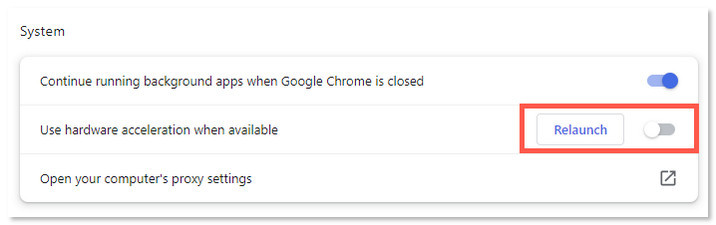
Now, you can check the details on how to save Apple TV+ movie in MP4 by recording them during playback.
Step 1. Install and Launch UkeySoft Screen Recorder
Download and open UkeySoft Screen Recorder on your PC or Mac. Select “Screen Recorder” function, and then choose “Record Screen” mode.
Step 2. Prepare Apple TV+ for Recording
Open Apple TV+ in your browser or app. Log in to your Apple TV+ account. In the recorder, set the recording area to “Full”, or “Select region” to custom size.
Step 3. Configure Recording Settings
Before recording, adjust the settings to ensure optimal quality. Select “Computer sounds” under the Sound icon.
Then click the “Settings”. Set Output Format to MP4, choose Video Quality as “Highest” to preserve detail, and select a destination folder for your recorded files .
Step 4. Play the Apple TV+ Movie and Record
Open the movie you want to save and start playing it. Click the “REC” button to begin recording the movie on Apple TV+. Make sure no interruptions occur during playback.
Step 5. Save the Apple TV+ Movie as MP4 File
Once the Apple TV+ movie ends, stop recording and save the file. You now have your Apple TV+ movie in MP4 format.
Conclusion
These are the two methods to convert Apple TV+ movies to MP4: using a professional downloader like TunesBank Apple TV+ Video Downloader, or screen recorder. Whether you want to convert Apple TV to MP4 for offline viewing or compatibility with different devices, both methods in this guide can help.
But if you want high-quality, fast, and stable downloads, TunesBank Apple TV+ Video Downloader is definitely the most reliable option. It combines professional-grade quality, speed, and convenience into a tool that gives you true ownership of your Apple TV+ content. No need to worry expiration dates, device restrictions, and Apple TV App lock-in! Enjoy Apple TV movies and shows in MP4 format anywhere!
The Latest Articles
– Download Apple TV+ Movies on Windows PC
– Download Apple TV+ Shows on Laptop
– Download Apple TV+ Shows on Mac
– How to Watch Free Movies on Apple TV+
– How to Watch Apple TV+ on Computer
– 7 Best Apple TV Plus Video Downloaders Review
– Watch Apple TV+ Videos Offline on Any Device
– What Is the Difference Between Apple TV, Apple TV+, and Apple TV App?
– Top 8 Solutions to Download Streaming Video
– Top 10 Free Movie Download Sites Recommended
– 3 Ways to Download Movies to Watch Offline
– 2 Verified Methods to Download X/Twitter Videos to MP4
– Download Twitter(X) Videos on PC, Mac and Mobile Phone
– Download Facebook Videos on PC, Mac and Mobile Phone
– 3 Ways to Download Facebook Video to MP4

Apple TV+ Downloader
TunesBank is a fast, full-featured, safely, professional Apple TV Plus video downloading tool for you to download Apple TV+ shows, movies, originals, documentaries to MP4/MKV in high quality with AAC 2.0 audio tracks. Let’s you watching them anywhere you want offline without Apple TV+ app or browser.







